How to Convert an HTML Form to PDF in Node.js
Generate a PDF from submitted form data in Node.js with Puppeteer, print CSS, and a reliable server-side workflow. Includes alternatives for existing PDF templates.

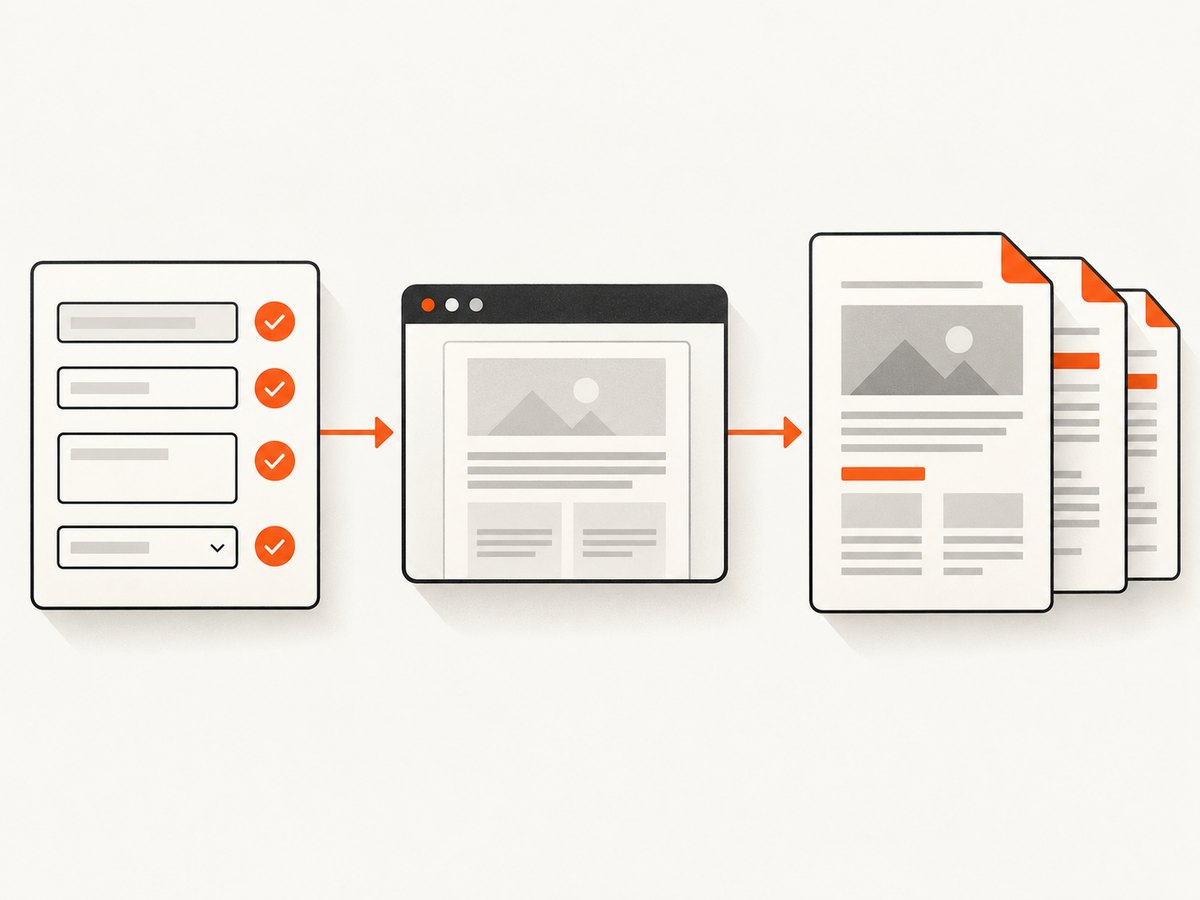
To convert an HTML form to PDF in Node.js, render a page containing the validated form values and use Puppeteer’s page.pdf(). This runs Chromium’s print renderer, so your HTML and CSS control the document’s layout. For predictable output, create a dedicated confirmation or print view, wait for its assets and calculations to finish, set print styles deliberately, and send the resulting PDF bytes from your server.
This guide covers the submitted-data workflow, a complete HTTP example, styling and PDF options, failure handling, and alternatives for existing PDF templates. Puppeteer’s documented PDF flow is to launch a browser, open or populate a page, and call page.pdf(). Puppeteer’s PDF guide
1. Choose the right PDF approach
First distinguish three different jobs that are often described as “converting a form to PDF”:
- Save submitted form data as a designed document: render HTML populated with validated server-side values and print it with Puppeteer. This is the best fit when HTML/CSS appearance matters.
- Fill a pre-existing PDF form: use
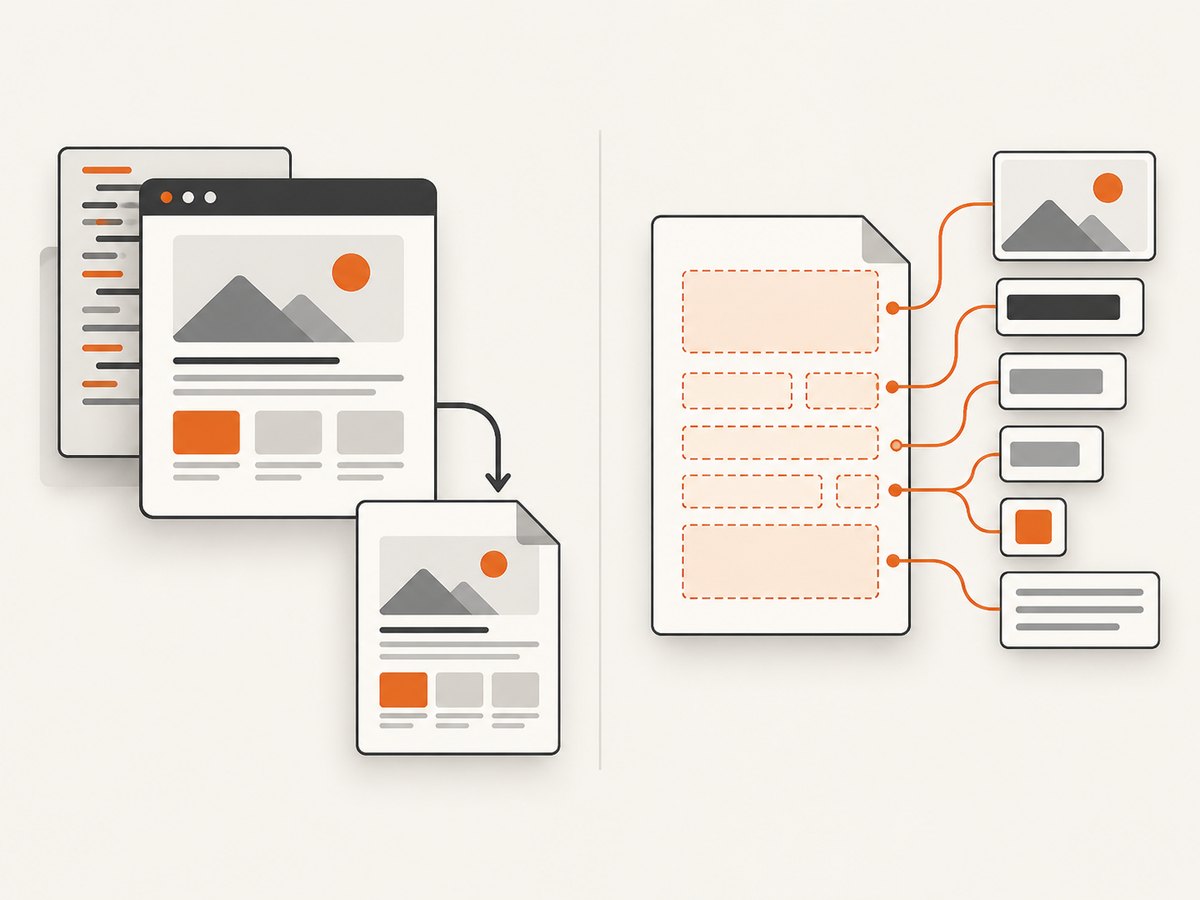
pdf-libto set named AcroForm fields in a template. Use this when the field positions and design already exist in a PDF. - Draw a PDF programmatically: use PDFKit when you want to place text, shapes, and fields through a PDF API rather than render an HTML page.
Puppeteer is the direct route for an HTML form because a browser evaluates page JavaScript and applies CSS. It prints using the print media type by default. That does not promise identical output across operating systems or environments: fonts, assets, browser versions, and print styles all affect layout. Puppeteer Page.pdf() API
2. Install Puppeteer
In a Node.js project, install Puppeteer:
npm install puppeteerThe package downloads a compatible browser by default. If your deployment environment supplies its own Chrome or Chromium, configure the executable path and confirm that its version is compatible with the Puppeteer version you use. Keep the browser installation in the build or runtime image; a package install that omits the browser can leave the application unable to launch.
3. Build a print view from submitted values
Do not take the raw request body and concatenate it into HTML. Validate values on the server and escape text before embedding it. A template engine with automatic HTML escaping is usually preferable for a larger application. The example below uses a small escape function to make the data flow visible. It handles a simple URL-encoded form, renders a print view, waits for the page to load, generates a PDF buffer, and returns it over HTTP.
import express from 'express';
import puppeteer from 'puppeteer';
const app = express();
app.use(express.urlencoded({ extended: false }));
function escapeHtml(value) {
return String(value ?? '').replace(/[<>&\"']/g, (char) => ({
'&': '&',
'<': '<',
'>': '>',
'\"': '"',
"'": '''
})[char]);
}
function renderSubmission({ name, email, message }) {
return `<!doctype html>
<html lang="en">
<head>
<meta charset="utf-8">
<meta name="viewport" content="width=device-width, initial-scale=1">
<title>Form submission</title>
<style>
@page { size: A4; margin: 20mm 15mm; }
body { font: 12pt/1.5 Arial, sans-serif; color: #222; }
h1 { font-size: 22pt; margin: 0 0 18pt; }
dt { font-weight: bold; margin-top: 12pt; }
dd { margin: 2pt 0 0; white-space: pre-wrap; overflow-wrap: anywhere; }
.muted { color: #555; }
@media print {
.screen-only { display: none !important; }
body { -webkit-print-color-adjust: exact; print-color-adjust: exact; }
}
</style>
</head>
<body>
<h1>Form submission</h1>
<dl>
<dt>Name</dt><dd>${escapeHtml(name)}</dd>
<dt>Email</dt><dd>${escapeHtml(email)}</dd>
<dt>Message</dt><dd>${escapeHtml(message)}</dd>
</dl>
<p class="muted">Generated from the submitted form.</p>
</body>
</html>`;
}
app.post('/submissions/pdf', async (req, res, next) => {
let browser;
try {
// Validate and constrain inputs before rendering in a real application.
const data = {
name: String(req.body.name ?? '').slice(0, 200),
email: String(req.body.email ?? '').slice(0, 320),
message: String(req.body.message ?? '').slice(0, 10000)
};
if (!data.name || !data.email) {
return res.status(400).send('Name and email are required.');
}
browser = await puppeteer.launch({ headless: true });
const page = await browser.newPage();
await page.setContent(renderSubmission(data), { waitUntil: 'networkidle0' });
await page.pdf({
format: 'A4',
printBackground: true,
margin: { top: '20mm', right: '15mm', bottom: '20mm', left: '15mm' }
});
const pdf = await page.pdf({
  format: 'A4',
  printBackground: true,
  margin: { top: '20mm', right: '15mm', bottom: '20mm', left: '15mm' }
});
res.setHeader('Content-Type', 'application/pdf');
res.setHeader('Content-Disposition', 'attachment; filename="form-submission.pdf"');
res.send(Buffer.from(pdf));
} catch (error) {
next(error);
} finally {
if (browser) await browser.close();
}
});
app.listen(3000, () => console.log('Listening on http://localhost:3000'));In this example, remove the first redundant page.pdf() call before using the code: it is shown only to emphasize that the returned value is the PDF data; the second call is the one to keep. The clean runnable route should call it once:
const pdf = await page.pdf({
format: 'A4',
printBackground: true,
margin: { top: '20mm', right: '15mm', bottom: '20mm', left: '15mm' }
});For a production template, consider placing the HTML in a separate template file and passing only validated fields. If the page includes a logo, custom font, or other resource, wait for it to be ready before printing. A print-specific view also makes it easier to remove buttons, navigation, and other controls that are useful in the browser but not on paper.
4. Set print CSS and PDF options
page.pdf() uses print CSS media. Define page dimensions and margins with @page or with Puppeteer’s PDF options, and check the generated file because browser print layout can paginate long content differently from screen layout. If you want the screen stylesheet instead, call await page.emulateMediaType('screen') before generating the PDF. The API reference documents this media behavior and PDF options.
| Need | Setting or technique |
|---|---|
| Paper dimensions | format: 'A4', or use width and height for a custom page size. |
| Margins | margin with top, right, bottom, and left CSS lengths, or matching @page CSS. |
| Background fills and colors | Set printBackground: true. For color fidelity, add -webkit-print-color-adjust: exact to print CSS. |
| Page numbers or running labels | Enable displayHeaderFooter and provide headerTemplate or footerTemplate. |
| Save to disk | Set path: 'submission.pdf'. Omit it when returning the bytes directly from an HTTP handler. |
| Page selection | Use the pageRanges option for selected pages when appropriate. |
These are among Puppeteer’s documented PDFOptions; consult the API for the complete option set and version-specific details. PDFOptions reference Headers and footers are HTML templates. Keep them self-contained and verify their spacing against margins so they do not collide with body content.
Long forms and page breaks
For long answers or repeated sections, use CSS to encourage sensible breaks. For example, break-inside: avoid can keep a short label-and-value group together, while break-before: page can start a new section on another page. These are layout hints, and oversized blocks still have to flow across pages. Test empty values, maximum-length values, and text containing line breaks; one unusually long field can change pagination across the rest of the document.
5. Load a real confirmation page instead of setting HTML
If your application already has a server-rendered confirmation route, navigate to that URL instead of calling page.setContent(). This can reuse your existing template and assets:
await page.goto('https://your-app.example/submissions/123/print', {
  waitUntil: 'networkidle2'
});
await page.pdf({
  path: 'form-submission.pdf',
  format: 'A4',
  printBackground: true,
  margin: { top: '20mm', right: '15mm', bottom: '20mm', left: '15mm' }
});
Protect the route with your application’s authentication or a short-lived access mechanism. Do not expose sensitive form submissions through guessable public URLs. If the print page performs client-side calculations, explicitly wait for the calculation to finish, such as by waiting for a stable DOM selector or an application-owned ready signal. A generic network-idle condition alone does not guarantee that every application-specific task has completed.
6. Send a PDF conversion request with cURL, Python, or Node.js
The following requests assume your application exposes the POST /submissions/pdf route above and accepts URL-encoded fields. Adapt the host and field names to your server.
cURL
curl -X POST http://localhost:3000/submissions/pdf \
  -H 'Content-Type: application/x-www-form-urlencoded' \
  --data-urlencode 'name=Ada Lovelace' \
  --data-urlencode 'email=ada@example.com' \
  --data-urlencode 'message=Please send the completed application.' \
  -o form-submission.pdf
Python
import requests

response = requests.post(
    'http://localhost:3000/submissions/pdf',
    data={
        'name': 'Ada Lovelace',
        'email': 'ada@example.com',
        'message': 'Please send the completed application.',
    },
    timeout=90,
)
response.raise_for_status()
with open('form-submission.pdf', 'wb') as pdf_file:
    pdf_file.write(response.content)
Node.js client
const form = new URLSearchParams({
  name: 'Ada Lovelace',
  email: 'ada@example.com',
  message: 'Please send the completed application.'
});
const response = await fetch('http://localhost:3000/submissions/pdf', {
  method: 'POST',
  headers: { 'Content-Type': 'application/x-www-form-urlencoded' },
  body: form
});
if (!response.ok) throw new Error(`PDF request failed: ${response.status}`);
const bytes = new Uint8Array(await response.arrayBuffer());
await import('node:fs/promises').then(({ writeFile }) =>
  writeFile('form-submission.pdf', bytes)
);
7. Or skip the browser setup
If you need a screenshot or PDF of a URL, ScreenshotNeo provides a website screenshot API and MCP server. For a PDF, use its documented capture options; the one-call screenshot example below requests a WebP shot. See the ScreenshotNeo API documentation for PDF parameters and the rest of its options.
curl -G "https://api.screenshotneo.com/v1/shot" -d access_key=YOUR_API_KEY --data-urlencode url=https://stripe.com -o shot.webpScreenshotNeo accepts cookie and consent banners like a visitor and removes more than 60 known consent platforms, newsletter popups, and chat widgets before capture; each step can be turned off. Bot checks, CAPTCHAs, blank pages, timeouts, failed loads, and cache hits cost nothing, and each response identifies the page verdict and billing status in headers. Its MCP server gives AI agents tools to take screenshots, get page info, and capture PDFs. The free plan includes 1,000 shots per month with no card; paid plans start at $5 for 3,000 shots.
Sign up for 1,000 free screenshots a month, with no card required.
8. Alternatives for PDF-specific workflows
Fill an existing PDF with pdf-lib
When a document already contains named AcroForm fields, pdf-lib can fill text fields, checkboxes, radio groups, dropdowns, and option lists, then flatten the form if users should not edit the fields. This does not execute HTML or reproduce arbitrary web CSS. pdf-lib documentation
import { PDFDocument } from 'pdf-lib';
import { readFile, writeFile } from 'node:fs/promises';

const templateBytes = await readFile('application-template.pdf');
const pdfDoc = await PDFDocument.load(templateBytes);
const form = pdfDoc.getForm();
form.getTextField('name').setText('Ada Lovelace');
form.getTextField('email').setText('ada@example.com');
form.getCheckBox('consent').check();
form.flatten();
await writeFile('completed-application.pdf', await pdfDoc.save());
Field names must match those in the template. A missing or mismatched field name will fail, so inspect the template’s form fields while integrating it. Flatten only after setting values if the final document should be static.
Compose the PDF with PDFKit
PDFKit is a JavaScript PDF-generation library for Node and the browser. It suits documents whose layout can be described through drawing and text operations. Its forms API requires initForm() before adding form annotations and supports text fields, buttons, combo boxes, lists, radio buttons, and checkboxes. PDFKit documentation · PDFKit forms
Use Puppeteer when the browser-rendered HTML is the document design, pdf-lib when filling an existing PDF template, and PDFKit when drawing a new PDF through code. These libraries solve different layout problems; changing libraries will not automatically preserve the same output.
9. Troubleshooting
| Symptom | Likely cause | Fix |
|---|---|---|
| Chromium fails to launch | The browser was not installed in the deployment image, or required runtime libraries are missing. | Install Puppeteer with its browser during the build, or point to the installed browser and provide its system dependencies. Log the launch error and verify the deployed runtime, not only a developer machine. |
| The PDF is blank or missing page content | Navigation or client rendering had not completed, or the wrong route rendered. | Check the actual URL and page response, wait for an application-specific ready selector, and inspect the print view before generating the PDF. |
| Background colors or images disappear | Background printing is disabled or print CSS suppresses the style. | Set printBackground: true and use -webkit-print-color-adjust: exact where exact print colors matter. |
| Fonts or images are missing | Resources failed to load, are inaccessible from the server, or were not ready before printing. | Check resource URLs and server access; wait for the required fonts and images before calling page.pdf(). |
| Colors or layout differ from the browser | PDF uses print media and print rules can change styles. | Review @media print and @page; use emulateMediaType('screen') only if screen styling is intended. |
| Fields are cut off or split awkwardly | Content exceeds the available page area or has unhandled long strings. | Set margins and wrapping rules, add appropriate break hints, and check both shortest and longest valid submissions. |
| HTTP request hangs or times out | The page waits indefinitely on network activity or the browser is slow under load. | Use bounded waits and an application-ready condition, enforce a server-side request deadline, and close the browser in a finally block. |
| PDF contains untrusted markup | User input was inserted without proper escaping or sanitization. | Escape text values, validate allowed content, and avoid accepting arbitrary HTML from a form submission. |
| Template field lookup throws | The requested pdf-lib field name does not exist or has a different field type. | Inspect the template’s field names and use the corresponding field accessor. |
10. Performance, reliability, and cost
Launching a browser for every individual request adds work and uses memory. For a service with steady traffic, a bounded worker pool can reuse browser processes while creating a fresh page for each job; isolate pages and close them after capture. Set concurrency limits based on available memory and the size of rendered documents. A very large image, long page, or complex web app can use substantially more resources than a small print view.
Always close pages and browsers on both success and failure. Put time limits around navigation and PDF generation so one unresponsive page does not occupy a worker indefinitely. If jobs may be retried, make the surrounding workflow safe to retry—for example, associate output with a submission ID and avoid creating duplicate side effects. Keep rendered HTML and PDFs private when the underlying form includes personal information.
There is no universal per-document cost implied by Puppeteer itself: operational cost depends on the machine, browser workload, concurrency, and hosting model. Measure resource use with representative documents in the deployment environment. For small, controlled forms, server-rendered HTML and a browser worker are often straightforward; for high volume, queue work and enforce backpressure rather than accepting more concurrent browser jobs than the service can handle.
FAQ
Does Puppeteer preserve the values entered in browser inputs?
Only if the page being printed contains those values in its rendered state. For a server-side workflow, validate the submission and render the values into a confirmation or print view; do not assume a separate browser session will retain the original user’s form state.
Can I return the PDF without writing a file?
Yes. page.pdf() returns a promise for PDF bytes. Send those bytes with Content-Type: application/pdf, or convert them to a Node.js Buffer as in the route example.
Should I choose A4 or Letter?
Choose the format your users or downstream process expects, then set margins and test representative content. A paper size alone does not guarantee that a long form fits on one page.
Can I use Puppeteer to fill an existing PDF form?
Puppeteer prints web pages. For named fields in an existing PDF, use a PDF form library such as pdf-lib; use browser rendering when the source of truth is HTML and CSS.
Implementation checklist
- Validate and bound every submitted value on the server.
- Escape text or use a template engine with automatic escaping.
- Render a dedicated print view with deliberate print styles.
- Wait for the page, fonts, images, and client-side calculations that affect layout.
- Choose print or screen media, paper size, margins, backgrounds, and optional headers deliberately.
- Return PDF bytes with the correct content type, close browser resources, and test edge-length submissions.


