Convert an HTML Form to PDF Using JavaScript
Convert a form’s displayed contents into a downloadable PDF with JavaScript. Learn the browser workflow, configure pages, handle rendering limits, and troubleshoot common failures.

To convert an HTML form to PDF in the browser, render a dedicated DOM element with html2pdf.js, then save the generated file. The library combines html2canvas and jsPDF and provides options for filenames, margins, page breaks, image rendering, paper size, and orientation. It runs in the browser; its README says it does not run in Node.js. See the project documentation.
This is a visual conversion workflow. The output should be checked for layout and content, and the documentation does not promise selectable text, accessibility structure, or interactive PDF fields. For forms that need those properties, treat PDF generation as a separate document-authoring requirement.
1. Build a printable form region
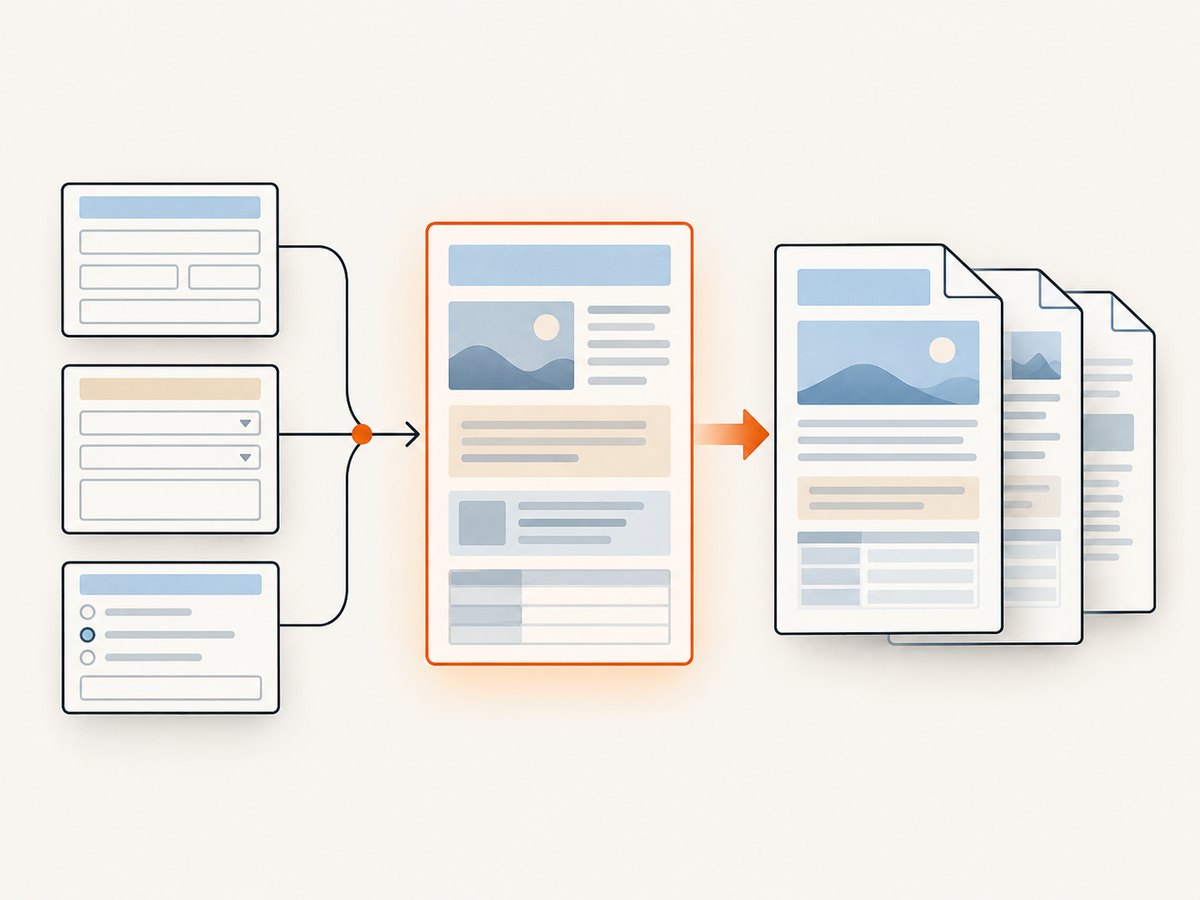
Put the form information intended for the PDF inside a dedicated container. Keep buttons, navigation, validation messages, and other screen-only controls outside it, or hide them in print/export styling. A form has both control state and displayed content: a renderer receives the DOM element, so prepare the values and visible labels you intend to appear before conversion.
<form id="application-form">
  <label for="full-name">Full name</label>
  <input id="full-name" name="fullName" value="Ada Lovelace">
  <label for="notes">Notes</label>
  <textarea id="notes" name="notes">Requested callback next week.</textarea>
  <button type="button" id="download-pdf">Download PDF</button>
</form>
In a production form, avoid relying on placeholder text as the only representation of a value. Use labels and visible content, and confirm that the library captures the specific controls and styling used in your application. For a more predictable document, you can construct a separate summary element from validated form data, with ordinary text nodes and headings, and export that element instead of the live interactive form.
2. Add html2pdf.js and save the PDF
The following is the documented worker-chain pattern with a dedicated export region. The example assumes html2pdf.js has been loaded on the page. Use your package manager and bundler if that is how your application manages browser dependencies; do not try to invoke this browser library from a Node.js server.
<section id="form-content">
  <h1>Application form</h1>
  <p><strong>Full name:</strong> Ada Lovelace</p>
  <p><strong>Notes:</strong> Requested callback next week.</p>
</section>
<button id="download" type="button">Download PDF</button>
<script src="https://cdnjs.cloudflare.com/ajax/libs/html2pdf.js/0.10.1/html2pdf.bundle.min.js"></script>
<script>
  const button = document.getElementById('download');
  button.addEventListener('click', async () => {
    const formContent = document.getElementById('form-content');
    const options = {
      filename: 'completed-form.pdf',
      margin: 0.5,
      pagebreak: { mode: ['css', 'legacy'] },
      jsPDF: { unit: 'in', format: 'letter', orientation: 'portrait' }
    };
    button.disabled = true;
    try {
      await html2pdf().set(options).from(formContent).save();
    } finally {
      button.disabled = false;
    }
  });
</script>
The CDN snippet makes the page self-contained for a quick prototype. For a deployed app, pin and manage the library version through your normal dependency process, and follow the project’s current installation guidance. The await makes the click handler wait for the worker chain to finish, while finally re-enables the control if generation throws.
3. Choose page size, margins, and page breaks
HTML is laid out as a continuous page, while PDF output has fixed sheets. Decide whether the form is best read on letter or A4 paper, portrait or landscape, and how much space to reserve at each edge. The html2pdf.js options include filename, margin, image settings, pagebreak, html2canvas options, and jsPDF settings such as unit, format, and orientation. The precise visual result depends on the content and browser rendering.
| Setting | What it controls | Practical choice |
|---|---|---|
filename |
Downloaded PDF name | Use a short descriptive name; avoid including sensitive form values. |
margin |
Space around page content | Leave enough room for printing and avoid content touching edges. |
jsPDF.unit |
Coordinate units | Keep units consistent with margins; the example uses inches. |
jsPDF.format |
Paper dimensions | Use letter, a4, or another supported format suitable for recipients. |
jsPDF.orientation |
Page direction | Choose portrait for typical forms; use landscape for wide tables. |
pagebreak.mode |
Page-break handling | The example enables CSS and legacy behavior; add explicit CSS breaks where needed. |
image |
Canvas image format and quality | Consider output size and visual detail for image-heavy forms. |
html2canvas |
Options passed to the renderer | Use for rendering configuration; cross-origin restrictions still apply. |
html2pdf.js documents CSS page-break handling for common break-before, break-after, and break-inside rules, plus a legacy page-break class. For example:
<style>
  .pdf-section { break-inside: avoid; page-break-inside: avoid; }
  .new-page { break-before: page; page-break-before: always; }
  .screen-only { display: none; }
</style>
Avoid forcing every field group to stay together if it is taller than a page; an oversized unbreakable block can still produce awkward output. Test long answers, repeated rows, and the last page as well as a short sample.
4. Prepare form state before capture
Export after validation and after asynchronous data has arrived. If the application stores values in a framework state object, first render the intended export summary from that state, then start conversion after the DOM update has completed. For a normal browser event handler, a small delay can allow a synchronous UI update to paint, but framework-specific render completion hooks are more reliable than an arbitrary timer.
- Show the final values, including selected options and checked choices, in the export region.
- Wait for loading indicators to disappear and images or fonts to finish loading when they affect layout.
- Use readable labels alongside values; do not depend on color alone to convey a choice.
- Remove password fields, tokens, internal notes, and other data that should not be downloaded.
- Keep the export action outside the capture target so it does not appear in the document.
Do not assume that a visual rendering becomes a semantic PDF form. The cited project documentation describes converting an HTML element into PDF; it does not establish that generated text is selectable, that accessibility tags are present, or that fields remain editable in a PDF reader. Open and inspect the actual file for the properties your workflow requires.
5. Handle images, iframes, and browser security
html2pdf.js uses html2canvas. Browser security rules constrain what a page can draw into and read back from a canvas. html2canvas documents that cross-origin iframe contents cannot be accessed through the page’s DOM, and canvas content loaded from another origin can taint the canvas. If the exported region contains a third-party image, embedded widget, or iframe, it may be omitted or cause rendering trouble. html2canvas documentation and its FAQ describe these limitations.

For images you control, serve them from the same origin or configure the image host to permit cross-origin use and use the renderer’s CORS options appropriately. Setting an option on your side cannot grant permission the remote server does not provide. Cross-origin iframe DOM contents cannot be made readable simply by changing html2canvas settings. Replace a third-party embed in the export version with a permitted static representation, or omit it.
6. Alternative entry point: jsPDF HTML method
jsPDF also exposes an html() method for an HTML element or string. Its documentation identifies html2canvas as part of the HTML rendering path, so it does not avoid canvas-origin constraints. Use it when you already work directly with jsPDF or need its document-building interface; use html2pdf.js when its element-to-file worker chain and combined options suit your flow. Neither route establishes, by itself, that the result has selectable text or interactive fields. jsPDF HTML method documentation.
// Browser-side sketch using jsPDF's HTML plugin.
// Ensure the jsPDF build you load includes the HTML module and its dependencies.
const element = document.getElementById('form-content');
const doc = new window.jspdf.jsPDF({ unit: 'in', format: 'letter', orientation: 'portrait' });
doc.html(element, {
  margin: 0.5,
  autoPaging: 'text',
  callback: (pdf) => pdf.save('completed-form.pdf')
});
Consult the installed version’s documentation for supported options and callback behavior. This is a browser example, not a Node.js server recipe.
7. Or skip the browser setup
If your goal is to capture a webpage as a visual PDF or screenshot rather than turn submitted field values into a semantic form document, ScreenshotNeo offers a single-request website capture API. It is a screenshot API and MCP server from Yorker Media; a URL can return PNG, JPEG, WebP, or PDF. For a webpage PDF, make a request like this (see the ScreenshotNeo API documentation):
curl -G "https://api.screenshotneo.com/v1/shot" -d access_key=YOUR_API_KEY --data-urlencode url=https://stripe.com -d format=pdf -o page.pdfSet the target URL to a page you are authorized to capture and use the documented PDF parameters for the desired output. ScreenshotNeo captures a rendered page by URL; it does not replace a form’s own data-to-document logic when you need a specific record or interactive PDF fields. Cookie banners, popups, and chat widgets are removed before the shot; bot checks, blank pages, and failed loads are never billed. Its MCP server lets AI agents take screenshots. The Free plan includes 1,000 screenshots a month with no card; paid plans start at $5 for 3,000. Sign up for 1,000 free screenshots a month, with no card required.
Performance, reliability, and cost
Client-side conversion keeps rendering in the visitor’s browser, but it also uses that device’s memory and processing time. Large, long, image-heavy pages create more rendering work and larger files. Keep the capture region focused, avoid needlessly large source images, and disable the download button while a conversion runs so repeated clicks do not start overlapping jobs. Offer clear progress feedback for long forms.
Rendering can fail because a resource is unavailable, a browser blocks access, the page changes while capture runs, or the resulting canvas is too large for the available device resources. The cited library documentation does not provide a universal performance guarantee or browser support matrix, so validate representative devices and form lengths in your own product. If a PDF is important for a transaction, do not treat the client download as the sole durable record: save submitted form data through your application’s normal server workflow and let the user retry export.
The JavaScript library route has no per-document API call in the described client workflow, but it transfers library code and consumes local device resources. Account for dependency delivery, maintenance, and support time. A capture API such as ScreenshotNeo is a separate hosted service with plan-based usage; the listed plans are Free (1,000 per month), Starter ($5/3,000), Growth ($15/15,000), Pro ($39/60,000), Scale ($99/250,000), and Business ($249/1,000,000), with two months free on yearly billing. Every feature is on every plan. Choose it for webpage capture when an API or agent workflow is useful, not as a substitute for the form-specific export flow above.
Troubleshooting
| Symptom | Likely cause | Fix |
|---|---|---|
| PDF is blank | The selected element is missing, hidden, empty, or not rendered when capture begins. | Check the element lookup, wait for the completed form state, and export a visible dedicated region. |
| Inputs appear empty | The live control state is not represented as expected by the visual renderer. | Render labels and values into a printable summary element, then capture that element. |
| Content is clipped | Content exceeds page dimensions or a fixed-height/overflow style hides it. | Remove restrictive height and overflow styles from the export layout; check margins, format, and page-break rules. |
| A section splits awkwardly | Continuous HTML content meets a fixed PDF page boundary. | Add CSS break rules to suitable groups, but let groups taller than a page split naturally. |
| An image is missing | The source is unavailable or cross-origin rules prevent canvas rendering. | Use same-origin assets or configure CORS at the image host; remove inaccessible embeds. |
| Third-party iframe is absent | The browser does not expose cross-origin iframe DOM content to the renderer. | Replace it in the export view with a permitted static summary or omit it. |
| Browser reports a tainted canvas/security error | Cross-origin content was drawn without permission and canvas data cannot be read. | Ensure the resource allows CORS or use a same-origin resource. A local option cannot override remote access policy. |
| Download happens twice | Multiple click handlers or repeated user clicks started concurrent exports. | Register the handler once and disable the button while the promise is pending. |
| It works locally but not after deployment | Production assets, fonts, CSP, or cross-origin response headers differ. | Inspect browser network and console errors in the deployed environment and permit only the required resources. |
| Import fails in Node.js | html2pdf.js documents browser execution, not Node.js use. | Run the workflow in a browser, or choose a server-side document-generation approach designed for Node.js. |
Implementation checklist
- Choose whether the requirement is a visual snapshot or a semantic, accessible, editable PDF.
- Create a dedicated export element and populate it with the final validated values.
- Set filename, margins, paper format, orientation, image choices, and page-break behavior.
- Resolve third-party image and iframe constraints before relying on them.
- Test short and long forms, multi-page sections, long text, checked options, and production assets.
- Inspect the downloaded PDF itself, including page edges, typography, content order, and privacy-sensitive fields.
- Keep the submitted form data in the application’s normal persistence flow so export can be retried.
FAQ
Can I convert the form without uploading its values?
The html2pdf.js workflow runs in the browser and renders the selected element client-side. That is distinct from your application’s submission or storage behavior; handle data transmission separately.
Can users edit the fields in a PDF reader?
The cited HTML-rendering documentation does not promise interactive PDF fields. If users must fill or edit fields in a PDF, use a PDF form-authoring workflow and verify the produced file.
Does jsPDF avoid html2canvas limitations?
No for its HTML method: jsPDF documentation says the HTML route depends on html2canvas. Switching entry points does not remove browser canvas security constraints.
Can ScreenshotNeo export a submitted form record?
ScreenshotNeo captures a webpage by URL. To export a particular record, your app would need to present the authorized record in a page suitable for capture; for a form-specific document, build the export from that record’s data.


