How to Convert HTML to High-Quality JPG
Render HTML in a browser and save it as a sharp, well-sized JPG. Control viewport, capture area, pixel scale and JPEG quality with Playwright.
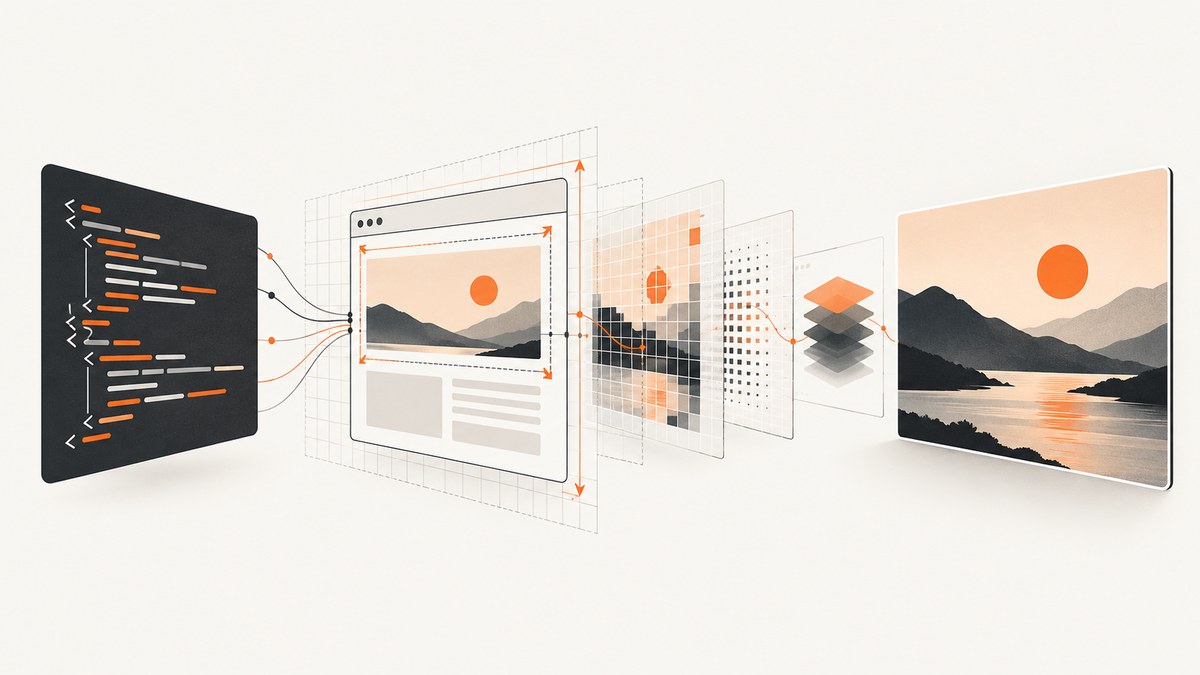
To convert HTML to a high-quality JPG, render it in a browser first, then capture the rendered page as JPEG. With Playwright, set the viewport to the intended CSS dimensions, choose whether the output should use CSS or device pixels, and select a JPEG quality from 0 to 100. Quality and resolution are separate controls: increasing either can increase file size, and neither can fix a page that has not finished rendering or has missing assets.
This guide shows a complete Playwright workflow, explains how to capture a viewport, a full page, or an element, and covers Chrome Headless and Puppeteer alternatives. For an API-based route with no browser setup, see ScreenshotNeo.
1. What “high-quality JPG” means
HTML describes a document; it is not itself a bitmap image. A browser resolves the markup, CSS, fonts, scripts, and images into a visual page. The screenshot step captures that rendered result and encodes it as JPEG.
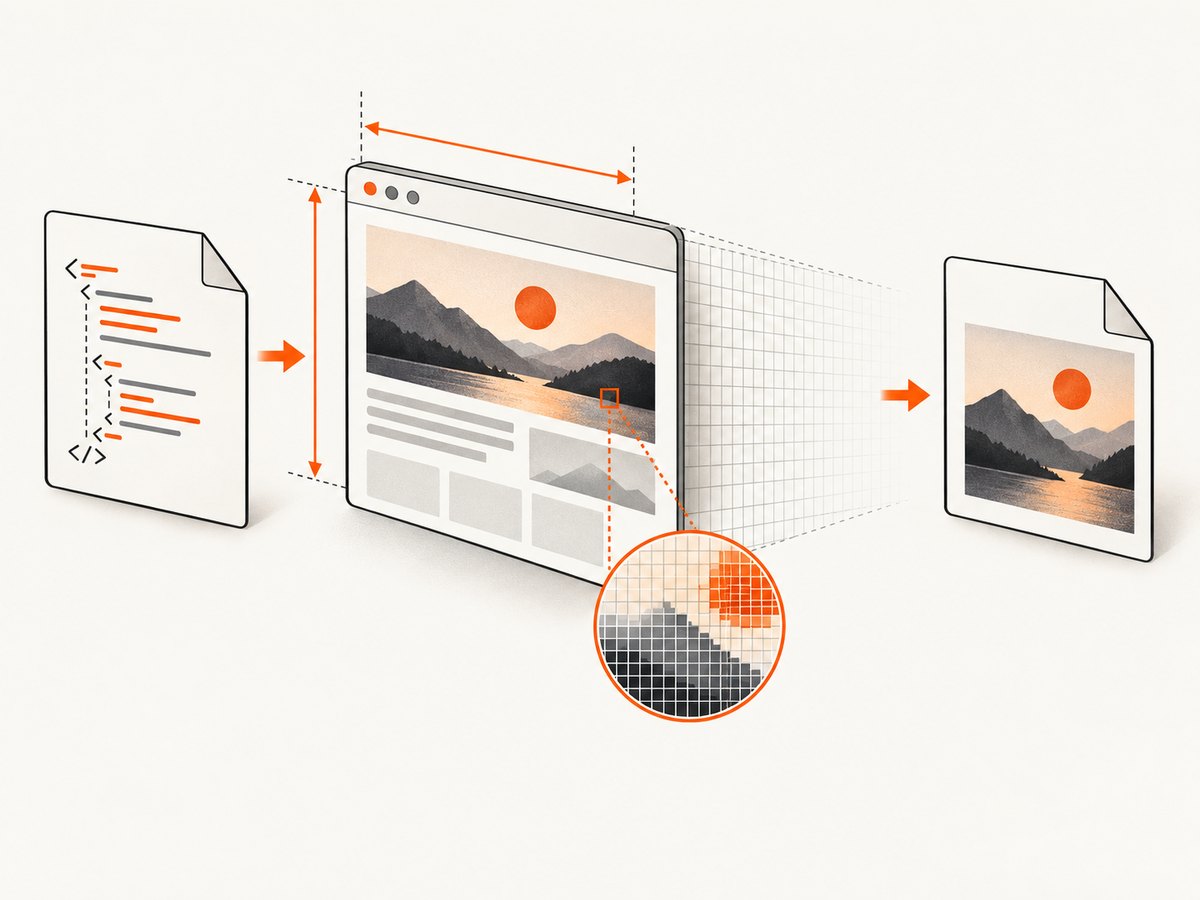
There are four decisions to make before capture:
- Capture area: the visible viewport, the full scrollable page, or one element.
- CSS dimensions: the viewport width and height determine responsive layout and how much content appears.
- Pixel scale: CSS pixels produce a compact image; device pixels produce more pixels for a high-density display or print workflow.
- JPEG quality: a higher quality setting generally preserves more detail and creates a larger file. The best setting depends on the content and file-size limit.
These choices interact. A narrow viewport may trigger a mobile layout; raising JPEG quality will preserve that mobile layout more faithfully, but will not make it look like a desktop page. A larger device scale adds pixels without changing the CSS layout.
2. Capture HTML as JPG with Playwright
Playwright’s screenshot API can write JPEG directly and accepts a quality setting from 0 to 100. Its scale option can capture CSS pixels or device pixels. Quality only applies to JPEG, not PNG. The following Node.js example reads a local HTML file, renders it, and saves a full-page JPG. See the Playwright page screenshot API for the current option reference.
Install and create the script
npm init -y
npm install playwright
npx playwright install chromium
Save this as html-to-jpg.mjs. The script accepts either a local HTML file path or an HTTP(S) URL. For local files it converts the path to a file: URL, so relative assets can resolve relative to that file if they are accessible to the browser.
import { chromium } from 'playwright';
import { pathToFileURL } from 'node:url';
import { resolve } from 'node:path';

const input = process.argv[2];
const output = process.argv[3] ?? 'output.jpg';
if (!input) {
  console.error('Usage: node html-to-jpg.mjs <url-or-html-file> [output.jpg]');
  process.exit(2);
}

const url = /^https?:\/\//i.test(input)
  ? input
  : pathToFileURL(resolve(input)).href;
const browser = await chromium.launch({ headless: true });
try {
  const page = await browser.newPage({
    viewport: { width: 1440, height: 1000 },
    deviceScaleFactor: 1,
    colorScheme: 'light',
  });
  await page.goto(url, { waitUntil: 'load', timeout: 30000 });
  await page.screenshot({
    path: output,
    type: 'jpeg',
    quality: 90,
    fullPage: true,
    scale: 'css',
  });
  console.log(`Saved ${output}`);
} finally {
  await browser.close();
}
Run it against a file or a URL:
node html-to-jpg.mjs ./page.html page.jpg
node html-to-jpg.mjs https://example.com page.jpg
The example uses waitUntil: 'load' as a practical starting point, not a guarantee that every visual asset or late-running script is ready. For your own HTML, prefer a known readiness signal from the page. For example, if your app adds a class when its chart is ready, wait for that class before capturing:
await page.goto(url, { waitUntil: 'load', timeout: 30000 });
await page.locator('.chart-ready').waitFor({ state: 'visible', timeout: 10000 });
await page.screenshot({ path: output, type: 'jpeg', quality: 90, fullPage: true });
Use a selector that actually represents completion for your page. A fixed delay can help diagnose a timing problem, but it is a brittle production readiness check: network speed and script behavior vary.
Capture one element instead of the page
For a chart, card, or invoice, capture the target element. This avoids including unrelated page content and lets the element’s rendered bounds define the image dimensions.
const card = page.locator('#invoice');
await card.waitFor({ state: 'visible' });
await card.screenshot({ path: 'invoice.jpg', type: 'jpeg', quality: 92 });
Make sure the element is not clipped by an ancestor with fixed dimensions and overflow: hidden. If the element is below the fold, Playwright’s locator screenshot scrolls it into view. Confirm the resulting crop in your application before relying on it for a batch job.
3. Set dimensions, scale, and quality deliberately
| Need | Setting | Tradeoff |
|---|---|---|
| Match a design preview | Set the viewport to the design’s CSS width and height; use scale: 'css'. |
Output pixels track CSS pixels; usually smaller. |
| More pixels for dense screens | Set deviceScaleFactor: 2 and scale: 'device'. |
Approximately twice as many pixels per CSS dimension, and four times the pixel area; file size can rise substantially. |
| Only the current screen | Omit fullPage or set it to false. |
Anything below the viewport is not included. |
| Entire document | Set fullPage: true. |
Very long pages can use more memory and produce large files. |
| Smaller file | Reduce quality gradually. |
Fine text, thin lines, and gradients can show compression artifacts sooner than photos. |
Playwright documents JPEG quality as an integer from 0 to 100. Start with a reasonably high value, such as 85 or 90, then inspect the actual output at its intended display size. Those are example starting points, not universal optimal values. If small text must stay crisp, consider increasing pixel dimensions or using PNG when a JPG is not mandatory; JPEG is lossy and can soften sharp edges.
Scale is not a substitute for choosing the correct viewport. A 1440 CSS-pixel layout at device scale 2 becomes a wider pixel image while retaining the same responsive layout. If you need a mobile composition, set a mobile-sized viewport as well.
4. Make captures repeatable
Screenshot output can vary across operating systems, browser versions, browser settings, hardware, and headless mode. If you compare screenshots or generate assets repeatedly, keep the capture environment stable: pin the Playwright version, use the same browser installation, use the same viewport and scale, and run on a consistent host image. The Playwright visual comparisons documentation describes sources of rendering variation.
Also stabilize the page itself where you control it. Use fixed test data, deterministic time-dependent content, and a readiness selector for asynchronously rendered sections. Disable animation in a test-specific stylesheet if motion causes inconsistent frames. Do not assume that a successful navigation means lazy images, web fonts, or client-side content have all settled; verify that your own page’s required visual elements are present before capture.
5. Other ways to render HTML to JPG
Chrome Headless command line
Chrome Headless can capture a page using its --screenshot option and a window size. Its documented example writes a PNG file. If the required deliverable is JPG, encode that image as JPEG with an image encoder after capture, or use an API such as Playwright that writes JPEG directly. Check the current Chrome Headless documentation for CLI behavior and flags.
google-chrome --headless --no-sandbox \
  --window-size=1440,1000 \
  --screenshot=page.png \
  file:///absolute/path/to/page.html
The command above is a minimal capture shape; the source documentation’s screenshot example uses PNG, so it does not by itself produce a JPG. Convert page.png with an installed encoder, for example ImageMagick:
magick page.png -quality 90 page.jpgEncoder options and executable names vary by installation. Keep the PNG as an intermediate if you need to inspect whether capture or JPEG encoding caused a visual issue. For remote URLs, use an explicit window size and verify that the page loaded the expected assets.
Puppeteer
Puppeteer is another JavaScript browser automation tool, and its official overview lists screenshots among its uses. It can suit an existing Puppeteer workflow. Check the screenshot options for the exact version you use before depending on particular JPEG quality or capture settings; do not assume option parity with Playwright. See the Puppeteer documentation.
6. Or skip the browser setup
ScreenshotNeo is a website screenshot API: send one GET request with a URL and receive an image such as WebP, PNG, or JPEG, or a PDF. The API and its options are documented at ScreenshotNeo docs. This example requests a JPG capture of a page; use the documented output format parameter for the current API request schema.
curl -G "https://api.screenshotneo.com/v1/shot" \
  -d access_key=YOUR_API_KEY \
  --data-urlencode url=https://example.com \
  -d format=jpg \
  -o page.jpg
import requests
r = requests.get(
"https://api.screenshotneo.com/v1/shot",
params={"access_key": "YOUR_API_KEY", "url": "https://example.com", "format": "jpg"},
timeout=90,
)
r.raise_for_status()
open("page.jpg", "wb").write(r.content)const q = new URLSearchParams({
access_key: 'YOUR_API_KEY',
url: 'https://example.com',
format: 'jpg',
});
const res = await fetch(`https://api.screenshotneo.com/v1/shot?${q}`);
if (!res.ok) throw new Error(`Screenshot request failed: ${res.status}`);
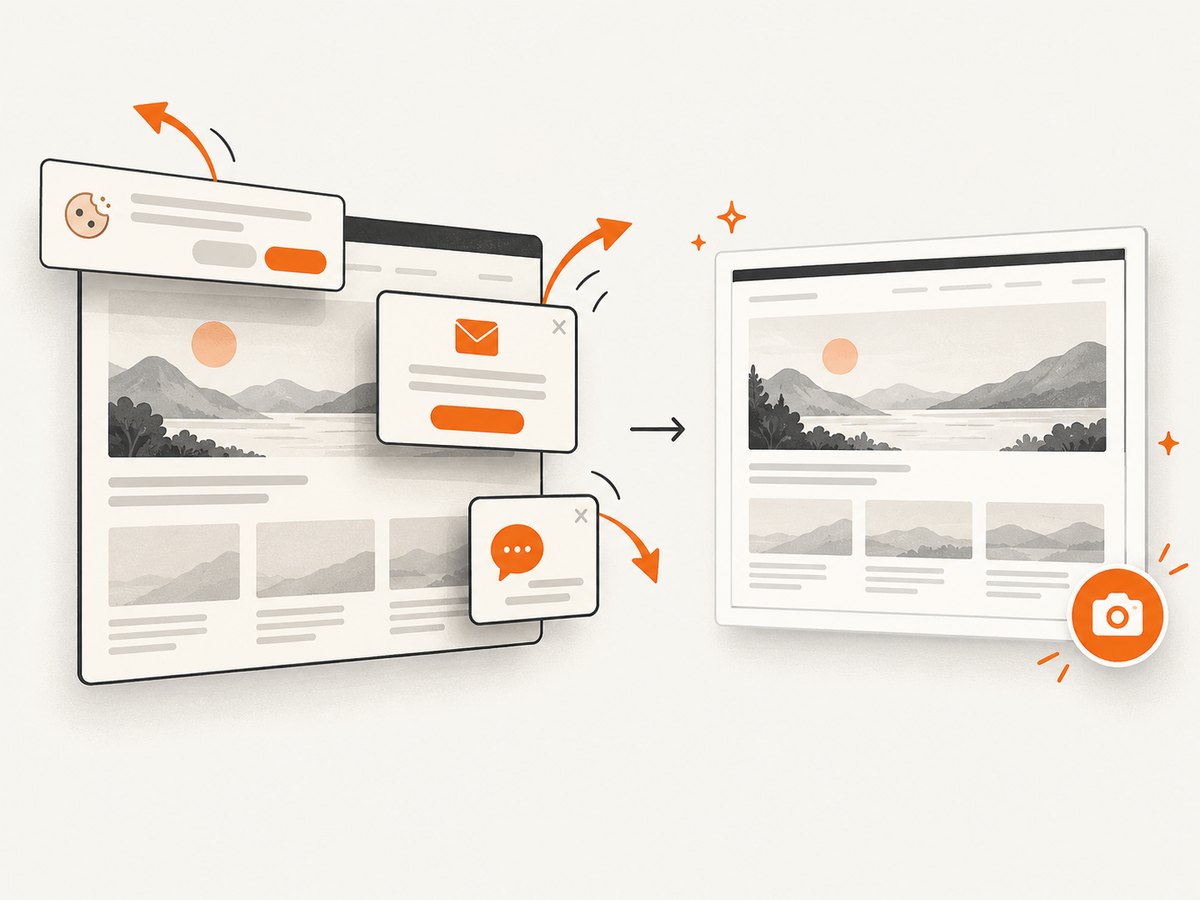
await Bun.write('page.jpg', res);ScreenshotNeo removes cookie and consent banners, newsletter popups, and chat widgets before capture; each cleanup step can be turned off. Bot checks, blank pages, failed loads, timeouts, and cache hits are not billed, and response headers report the page verdict and billing status. Its MCP server provides screenshot tools for AI agents. The free plan includes 1,000 screenshots a month with no card; paid plans start at $5 for 3,000 screenshots. Create a free ScreenshotNeo account.
7. Troubleshooting
| Symptom | Likely cause | Fix |
|---|---|---|
| Output is PNG or cannot be opened as JPG | The screenshot call omitted type: 'jpeg', or a CLI capture saved PNG. |
Set JPEG explicitly in Playwright; for Chrome output, encode the PNG to JPEG and use a .jpg filename only after conversion. |
| Text looks blurry or blocky | JPEG compression is too strong, the image is being enlarged, or scale is low for the target display. | Raise quality, use device scale when additional pixels are needed, and inspect the image at final display size. |
| Page content is missing | Capture began before the relevant script or asset rendered, or the content is lazy-loaded. | Wait for an application-specific readiness selector and confirm the content is visible before capture. Avoid treating one fixed delay as universal. |
| Wrong responsive layout | Viewport dimensions differ from the intended page design. | Set the CSS viewport explicitly; changing device pixel scale alone does not select a different responsive breakpoint. |
| Local images or CSS are absent | Relative paths resolve differently, files are inaccessible, or URLs are invalid. | Use correct file locations and inspect the page in the browser before capture. For local inputs, provide a resolved file path and check asset references. |
| Full-page image is huge or capture is slow | The document is very long or device scale produces many pixels. | Capture only the required element or viewport, reduce dimensions/scale, and avoid unnecessary full-page captures. |
| Small visual differences between runs | Browser, OS, host, settings, or page content changed. | Pin the browser and dependencies, use a consistent environment, and stabilize dynamic data and readiness. |
8. Performance, reliability, and cost
Local Playwright avoids a per-request screenshot API fee, but each job needs browser installation and compute. Reusing a browser process for a batch avoids repeated startup overhead; create an isolated page or context for each independent capture and close resources when finished. Very large full-page or high-scale images increase memory use and output size. If you process untrusted URLs, account for the browser’s network access and keep the capture service isolated according to your deployment’s security requirements.
Reliability depends on both navigation and visual readiness. Set a finite navigation timeout, handle errors, and save logs that identify the input URL and capture configuration. Retry transient failures selectively rather than looping indefinitely. For repeatable visual artifacts, use a fixed environment and verify the output format, dimensions, and expected page content.
JPEG quality is a practical size-versus-detail control, not a promise of a particular byte size. Benchmark representative pages from your own workload, especially text-heavy reports and image-heavy pages. For a hosted API, consider request volume and plan limits: ScreenshotNeo’s free tier is 1,000 monthly shots, with paid tiers from $5 for 3,000; its clean-result billing and response verdict headers help distinguish a useful capture from a failed or blank result.
9. Quick checklist
- Choose the intended responsive viewport and capture area.
- Wait for the page content that matters, using a real readiness signal where possible.
- Set
type: 'jpeg'and choose quality based on visual inspection and file constraints. - Use CSS or device scale intentionally; verify final pixel dimensions.
- Keep browser and host versions stable when captures must match.
- Confirm the output is actually JPEG and review it at the size where it will be used.
10. Frequently asked questions
Can I convert an HTML file directly without opening a browser?
Not if you need the browser-rendered appearance. CSS layout, fonts, and scripts must be interpreted by a rendering engine before the result can be captured as pixels.
Is JPG the same as JPEG?
They refer to the same image format in common file naming. The three-letter extension is often used for compatibility; the screenshot format is selected as JPEG.
Should I use JPG or PNG for text and diagrams?
JPG is useful when a JPEG deliverable or smaller lossy image is required. Sharp text, diagrams, and UI edges can show compression artifacts; if the format is flexible, compare a lossless format such as PNG.
Does a higher device scale change the page layout?
No. It changes output pixel density. Set the viewport dimensions separately to select the page’s responsive layout.


