Convert HTML to Image in Elixir
Render HTML as a PNG in Elixir with ChromicPDF, decode its Base64 output, and handle browser setup, options, deployment, and common errors.

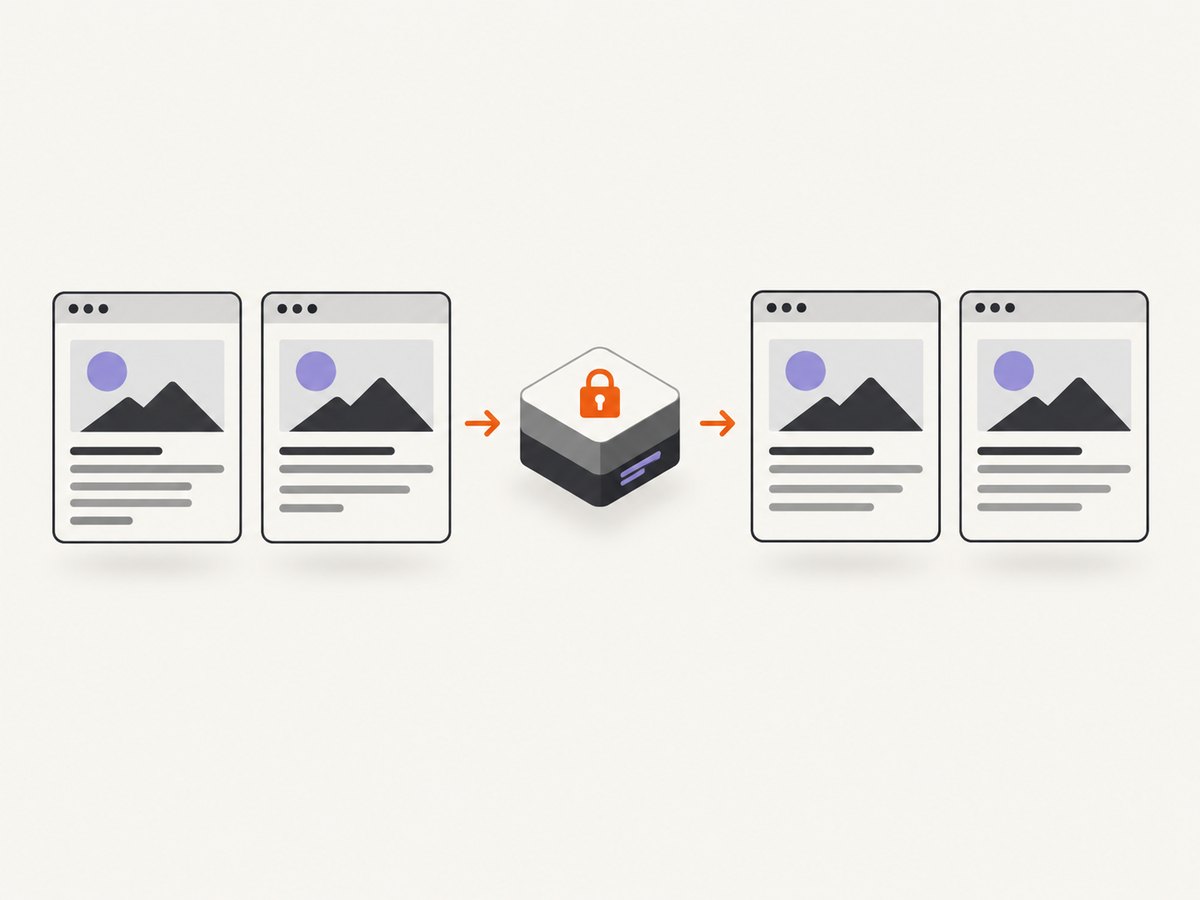
To convert HTML to an image in Elixir, use ChromicPDF’s capture_screenshot/2 function. It launches Chrome or Chromium to render a page and returns a Base64-encoded PNG blob. Decode that blob before writing the image file. ChromicPDF is primarily an HTML-to-PDF renderer, but its versioned API documents this screenshot entry point. ChromicPDF API documentation
The example below captures a local HTML file. It assumes ChromicPDF is configured in the application and Chrome or Chromium is installed where the renderer runs. The code follows the documented capture call; check the return shape and configuration for your installed ChromicPDF version before integrating it.
1. Install and configure the browser renderer
Add ChromicPDF to the project dependencies using the version appropriate for your application, then fetch dependencies:
{:chromic_pdf, "~> 1.17"}mix deps.getChromicPDF requires Chrome or Chromium. Ghostscript is optional, and is used for PDF/A support and concatenating sources. Installation commands vary by operating system and container image, so install the browser package using your platform’s package manager and ensure its executable is available to the runtime. The project README reports tested environment combinations, but those historical combinations are not a current compatibility guarantee. Verify your Elixir, OTP, OS, and browser versions for a new deployment. ChromicPDF README and requirements
2. Capture a local HTML file
Save the page as page.html, then capture and write the PNG:

html_path = Path.expand("page.html")
url = "file://" <> html_path

case ChromicPDF.capture_screenshot({:url, url}) do
  {:ok, png_base64} ->
    png_bytes = Base.decode64!(png_base64)
    File.write!("page.png", png_bytes)

  {:error, reason} ->
    raise "Screenshot capture failed: #{inspect(reason)}"
end
The documented local-file example uses a file:// URL, and the API describes the successful result as a Base64-encoded PNG blob. The decoding and file-writing steps turn that encoded result into a conventional image file. If you receive a tuple or error representation that differs in your installed release, follow that release’s API documentation.
For generated markup, write the HTML to a temporary file first and capture its file URL. Use a unique path per job, and remove the temporary file after capture succeeds or fails. This avoids collisions when multiple jobs render at once. A page that references relative assets should resolve them from a stable base path; otherwise, images, stylesheets, and fonts may not load.
3. Prepare HTML and assets for reliable rendering
Browser capture is useful when the image should reflect CSS layout, fonts, and browser-rendered content. It also means the result depends on the browser and the resources available to it. For predictable output:
- Use absolute URLs for remote assets, or place local assets where the captured document can resolve them.
- Wait for external stylesheets, images, fonts, and scripts to finish loading before capture when your rendering flow requires it.
- Set explicit dimensions in CSS for cards, reports, and other fixed-size artifacts.
- Use a consistent browser build, operating system image, fonts, and rendering settings when comparing screenshots.
- Keep scripts and styles deterministic if the image is used as a visual test artifact.
ChromicPDF’s screenshot API accepts custom options for the underlying screenshot call, and its documentation demonstrates JPEG format. Consult the API for the option names supported by the version you use. Do not assume every option in Playwright’s screenshot API is exposed through ChromicPDF in the same way. Playwright documents controls including viewport and full-page capture, image format, scale, and transparency, but Playwright is a separate browser automation tool, not an Elixir library. Playwright Page screenshot options
4. Choose the capture route and output deliberately
| Decision | What to consider |
|---|---|
| Elixir integration | ChromicPDF offers a documented Elixir screenshot API and PDF features, but your application environment must operate Chrome or Chromium. |
| Separate browser process | A separate browser automation service can make sense if the team already runs one, but it adds a service or process boundary to operate. |
| Image format | The documented screenshot return is Base64 PNG. The API demonstrates custom screenshot options including JPEG; verify exact options and output behavior in your installed version. |
| PDF instead of image | ChromicPDF is focused on HTML-to-PDF and has PDF/A capabilities; Ghostscript is optional for PDF/A support and joining sources. |
| Reproducibility | Pin and align browser and host environments for visual comparisons. Browser rendering can vary with OS, browser version, settings, hardware, power source, and headless mode. |
| Untrusted HTML | Consider isolating the renderer and limiting its resources and access, especially for variable or user-supplied documents. |
For a separate browser approach, Playwright’s documentation is a useful reference for the browser-level screenshot controls it provides. It is not an Elixir package, and the sources reviewed here do not establish a particular Elixir integration. Choose based on where the browser should run, which capture controls are required, and who owns browser updates.
5. Or skip the browser setup
ScreenshotNeo provides a website screenshot API: one GET request takes a URL and returns PNG, JPEG, WebP, or PDF. The call below follows its documented Python example. See the ScreenshotNeo docs for request parameters and options.
import requests

r = requests.get(
    "https://api.screenshotneo.com/v1/shot",
    params={"access_key": "YOUR_API_KEY", "url": "https://stripe.com"},
    timeout=90,
)
open("shot.webp", "wb").write(r.content)
ScreenshotNeo accepts cookie and consent banners like a visitor and removes more than 60 known consent platforms, newsletter popups, and chat widgets before capture; each step can be turned off. Bot checks, CAPTCHAs, blank pages, timeouts, failed loads, and cache hits cost nothing, with response headers indicating the page verdict and billing. Its MCP server gives AI agents tools for screenshots, page information, and PDF capture. The free plan includes 1,000 screenshots a month with no card; paid plans start at $5 for 3,000. Learn about ScreenshotNeo or sign up for 1,000 free screenshots a month, with no card.
6. Troubleshooting
| Symptom | Likely cause | What to do |
|---|---|---|
| Browser executable not found | Chrome or Chromium is missing, or the runtime cannot locate it. | Install a supported browser in the same environment that runs the renderer. Check the executable path and container image. |
| Capture returns an error | The browser could not open the target, the page failed, or rendering setup is incomplete. | Log the returned error, confirm the URL is valid and reachable from the renderer, and check browser startup logs. |
| PNG file is unreadable | The Base64 string was written directly or decoded incorrectly. | Decode the documented Base64 PNG result before writing binary bytes. Confirm the output starts with the PNG signature if diagnosing file handling. |
| Missing images or styles | Relative paths have no usable base URL, or assets are inaccessible from the browser. | Use resolvable asset URLs, verify network access and certificates, and ensure local assets are accessible to the browser process. |
| Fonts differ or text wraps differently | Host fonts or browser/runtime versions differ. | Install the same fonts and keep browser and host environments consistent across capture environments. |
| Intermittent or slow output | Remote resources, scripts, or concurrent browser work may be slow or variable. | Reduce unnecessary page dependencies, bound concurrent jobs, and record capture failures separately from successful output. |
| Generated pages expose the renderer | Untrusted HTML can access resources or consume resources available to the browser. | Follow ChromicPDF’s guidance to consider a containerized renderer service with a small RPC boundary for security and resource control. Isolation reduces exposure but is not a security guarantee. |
7. Performance, reliability, and cost
ChromicPDF’s browser-based rendering has operational costs even when the package itself is already part of an application: Chrome or Chromium must be installed, started, updated, and given memory and CPU. The available research provides no throughput benchmark, so size capacity with representative pages and concurrency from your own workload rather than assuming a rate.
For reliability, treat a screenshot job as a fallible rendering operation. Capture errors, failed resources, and browser startup problems should be observable in application logs. Place limits on queued and concurrent work so a burst of large pages does not exhaust the host. If pages are remote, their availability and load behavior become part of the rendering path. If pages contain dynamic content, define the point at which the page is ready for capture.
For visual testing, keep the browser and host stable. Playwright warns that rendering can vary with host OS, browser version, settings, hardware, power source, and headless mode, so pixel comparisons across unlike environments can produce differences unrelated to a code change. Playwright visual comparison guidance
ChromicPDF documentation recommends considering a containerized renderer with a small RPC interface to create a boundary around browser work and help control resources. This is project guidance, not a guarantee that containerization removes all risk. ChromicPDF security guidance
Frequently asked questions
Does ChromicPDF only create PDFs?
No. The project is presented primarily as an HTML-to-PDF renderer, and its versioned API also documents capture_screenshot/2, which returns a Base64-encoded PNG blob.
Do I need Ghostscript to save a screenshot?
The project lists Ghostscript as optional for PDF/A support and source concatenation. Chrome or Chromium is the browser requirement for rendering.
Can this render HTML strings directly?
The documented example used here captures a URL, including a local file URL. For generated markup, write it to a file and capture that file URL, or consult the installed release’s API for other supported input forms.
Will the same HTML always produce identical pixels?
Not across arbitrary environments. Browser, operating system, fonts, settings, hardware, and headless mode can change rendering. Keep those conditions consistent when the exact image matters.


