Convert HTML to Image in Kotlin
Learn three reliable ways to convert HTML to PNG, JPEG, or WebP in Kotlin with WebView, Playwright, and wkhtmltoimage.
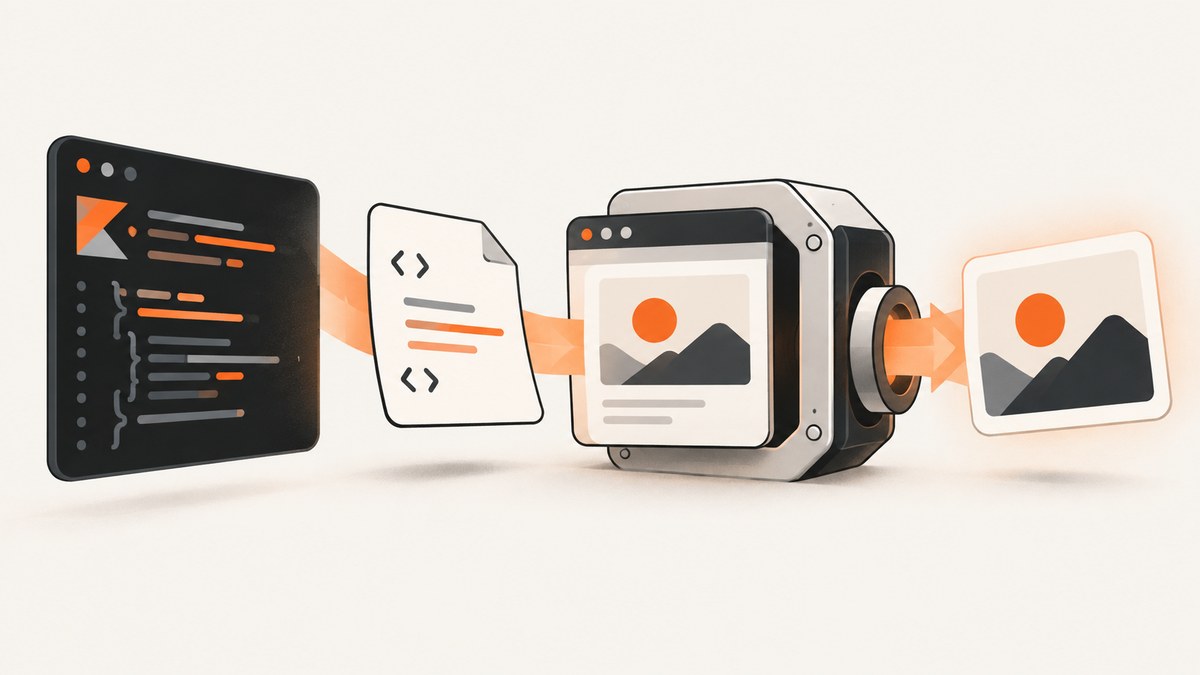
To convert HTML to an image in Kotlin, render the HTML in an engine that understands its CSS, JavaScript, fonts, and images, then capture the rendered output. Use Android WebView when the conversion must run inside an Android app, Playwright when you need browser-faithful Chromium screenshots and detailed capture controls, or wkhtmltoimage when a simple external command-line process is sufficient.
The rendering engine matters more than the Kotlin syntax. A page that depends on modern JavaScript or CSS can look correct in Chromium and incorrect in the older Qt WebKit engine used by wkhtmltoimage. The examples below show complete implementations for each path, followed by options, failure fixes, and operational guidance.
Choose the right Kotlin implementation
| Approach | Best fit | Engine | Main trade-off |
|---|---|---|---|
| Android WebView | Capture inside an Android application | Android WebView/Chromium | Lifecycle, viewport, and device memory constrain capture |
| Playwright | Server-side or desktop automation needing browser fidelity | Managed Chromium | Browser binaries add setup and resource cost |
| wkhtmltoimage | Small standalone jobs and legacy-compatible pages | Qt WebKit | Modern CSS and JavaScript may differ from current browsers |
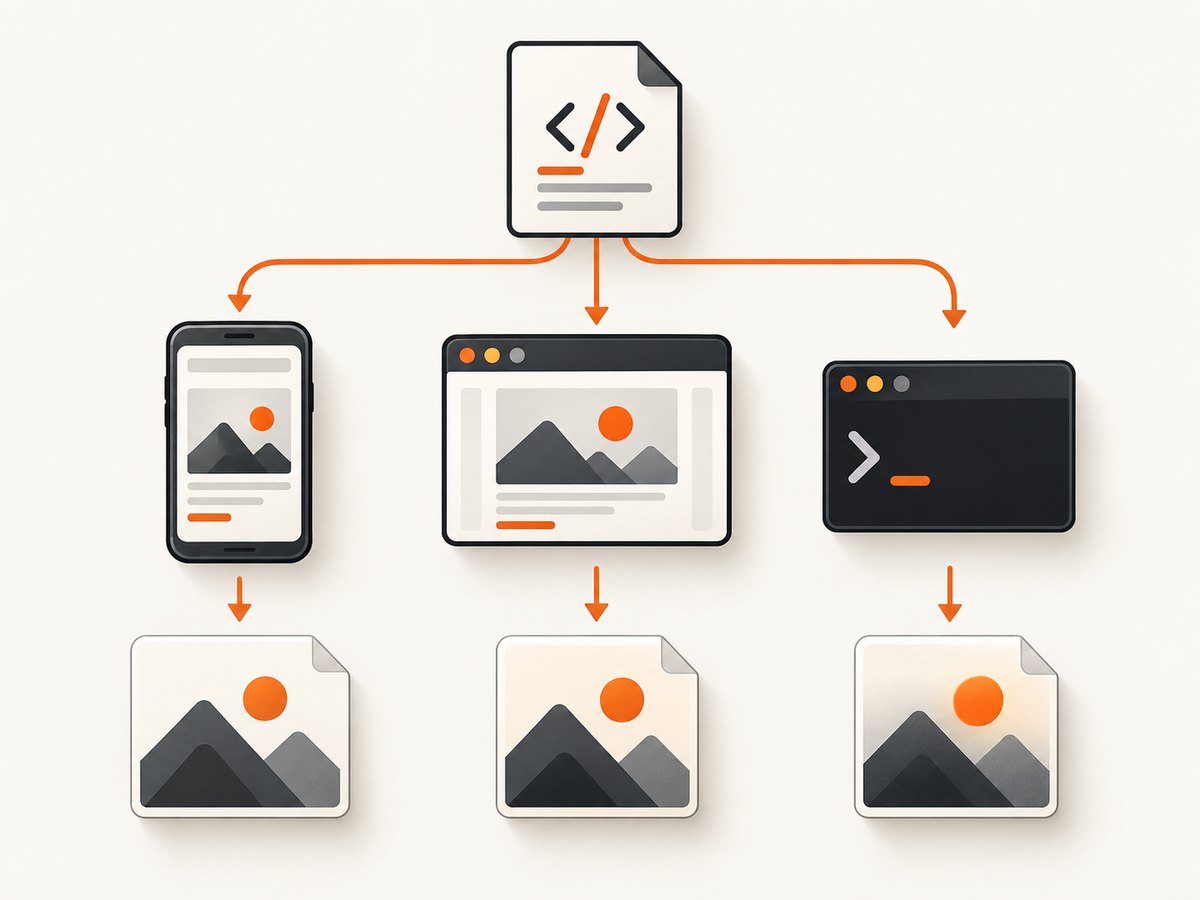
Decide first whether the output must match Android WebView, current Chromium, or a legacy WebKit renderer. Then define a fixed viewport and output dimensions. Deterministic dimensions prevent screenshots from changing with the host device or window.
Convert HTML with Android WebView
WebView is the native choice when HTML-to-image conversion happens in an Android app. Android disables JavaScript by default, so enable it only for documents that need scripts. Remote pages require the INTERNET permission. For local HTML with relative assets, use loadDataWithBaseURL so relative image, font, and stylesheet URLs resolve correctly. See the Android WebView documentation and WebView security guidance.
Manifest and layout
<uses-permission android:name="android.permission.INTERNET" /><WebView
android:id="@+id/captureWebView"
android:layout_width="1dp"
android:layout_height="1dp"
android:visibility="invisible" />Capture a rendered page in Kotlin
class HtmlCaptureActivity : AppCompatActivity() {
    private lateinit var webView: WebView

    override fun onCreate(savedInstanceState: Bundle?) {
        super.onCreate(savedInstanceState)
        setContentView(R.layout.activity_html_capture)

        webView = findViewById(R.id.captureWebView)
        webView.settings.javaScriptEnabled = true // Enable only when required
        webView.settings.domStorageEnabled = true
        webView.settings.loadsImagesAutomatically = true
        webView.webViewClient = object : WebViewClient() {
            override fun onPageFinished(view: WebView, url: String) {
                // A short delay gives web fonts and late image handlers time to settle.
                view.postDelayed({ captureVisibleViewport() }, 300)
            }
        }

        val html = """
            <!doctype html>
            <html><head>
              <meta name="viewport" content="width=device-width,initial-scale=1">
              <style>body{font-family:sans-serif;padding:24px} h1{color:#17324d}</style>
            </head><body>
              <h1>Rendered by WebView</h1>
              <p>This document becomes a PNG.</p>
            </body></html>
        """.trimIndent()

        webView.settings.setSupportZoom(false)
        webView.loadDataWithBaseURL(
            "https://example.invalid/",
            html,
            "text/html",
            "UTF-8",
            null
        )
    }

    private fun captureVisibleViewport() {
        val bitmap = Bitmap.createBitmap(webView.width, webView.height, Bitmap.Config.ARGB_8888)
        val canvas = Canvas(bitmap)
        webView.draw(canvas)
        File(filesDir, "shot.png").outputStream().use { output ->
            bitmap.compress(Bitmap.CompressFormat.PNG, 100, output)
        }
        bitmap.recycle()
    }
}
This captures the current viewport. The WebView must have a measured size before draw can produce useful pixels; a 1dp hidden view is therefore unsuitable for a production full-size capture. Give it explicit pixel dimensions, wait for layout, and capture on the UI thread.
Full-page WebView capture
For a long document, read its measured content height with JavaScript, resize the WebView, wait for layout, and draw again. This increases memory usage because the entire bitmap is held in RAM.
webView.evaluateJavascript("document.documentElement.scrollHeight.toString()") { result ->
    val contentHeightCssPx = result.trim('"').toIntOrNull() ?: return@evaluateJavascript
    val density = resources.displayMetrics.density
    val heightPx = (contentHeightCssPx * density).toInt()
    webView.layoutParams = webView.layoutParams.apply { height = heightPx }
    webView.requestLayout()
    webView.postDelayed({ captureVisibleViewport() }, 100)
}
Very tall pages can exceed bitmap or GPU limits. Split them into sections, reduce the scale, or use a browser screenshot API that supports controlled full-page capture. Android documents whole-document drawing as expensive; avoid enabling slow whole-document drawing unless the use case requires it.
Convert HTML with Playwright and Kotlin
Playwright exposes Chromium screenshot controls such as full-page capture, PNG/JPEG/WebP output, masking, clipping, and CSS-versus-device-pixel scaling. The API is Java-based and callable directly from Kotlin. Follow the Playwright Java screenshot documentation.
Gradle dependency
dependencies {
    implementation("com.microsoft.playwright:playwright:1.48.0")
}
Runnable Playwright example
import com.microsoft.playwright.Playwright
import com.microsoft.playwright.options.ScreenshotType

fun main() {
    Playwright.create().use { playwright ->
        playwright.chromium().launch().use { browser ->
            val page = browser.newPage(
                Browser.NewPageOptions()
                    .setViewportSize(1440, 900)
                    .setDeviceScaleFactor(2.0)
            )
            page.setContent("""
                <html><body style="font-family:Arial;padding:32px">
                <h1>Kotlin and Playwright</h1><p>Browser-rendered output.</p>
                </body></html>
            """.trimIndent())
            page.waitForLoadState()
            page.screenshot(
                Page.ScreenshotOptions()
                    .setPath(java.nio.file.Paths.get("shot.png"))
                    .setFullPage(true)
                    .setType(ScreenshotType.PNG)
            )
        }
    }
}
For remote HTML, call page.navigate(url) and wait for the state your page needs. networkidle can be useful for dashboards, but pages with analytics polling may never become idle; in that case wait for a specific selector or use a bounded delay. Mask dynamic elements before capture when they contain timestamps or personal data.
page.locator(".timestamp").screenshot(
    Locator.ScreenshotOptions().setPath(Paths.get("element.png"))
)
page.screenshot(
    Page.ScreenshotOptions()
        .setPath(Paths.get("masked.png"))
        .setMask(listOf(page.locator(".email")))
)
Playwright also documents experimental Android support for Chrome and Android WebView through ADB-connected devices or emulators. It has additional device and setup limitations, so use it only when testing on-device rendering is a requirement.
Convert HTML with wkhtmltoimage
wkhtmltoimage is an open-source LGPLv3 command-line tool that renders HTML using Qt WebKit. Install the binary for your operating system, then invoke it from Kotlin with ProcessBuilder. The project describes both wkhtmltoimage and wkhtmltopdf as tools for rendering HTML into image or PDF formats: wkhtmltopdf project.
import java.nio.file.Files
import java.nio.file.Path

fun main() {
    val html = """
      <html><body style="width:800px;font-family:sans-serif">
      <h1>Qt WebKit capture</h1><p>Generated by wkhtmltoimage.</p>
      </body></html>
    """.trimIndent()
    val input = Files.createTempFile("capture-", ".html")
    val output = Path.of("shot.png")
    Files.writeString(input, html)

    val process = ProcessBuilder(
        "wkhtmltoimage", "--format", "png", "--width", "1200",
        input.toUri().toString(), output.toString()
    ).redirectErrorStream(true).start()
    val log = process.inputStream.bufferedReader().readText()
    check(process.waitFor() == 0) { "wkhtmltoimage failed: $log" }
    Files.deleteIfExists(input)
}
Use this route for controlled HTML where Qt WebKit compatibility is acceptable. Validate flexbox, grid, web fonts, ES modules, and client-side rendering before adopting it for arbitrary modern websites.
Rendering and capture options that affect the result
- Viewport: Set width and height explicitly. Responsive breakpoints can otherwise change the layout.
- Full page: Use Playwright’s
setFullPage(true), or measure and resize WebView content. Long pages may require segmentation. - Format: PNG preserves text and UI edges. JPEG is smaller but introduces artifacts. WebP can reduce size when your consumer supports it.
- Scale: A device scale factor or retina scale increases detail and output dimensions. It also increases memory and encoding time.
- Fonts and images: Wait for
document.fonts.readyand image completion when late-loading assets matter. - JavaScript: Enable only when required. Scripts can alter layout, make network calls, or introduce untrusted execution.
- Local assets: Supply a base URL or use absolute, accessible paths. Check file permissions and CORS behavior.
- Privacy: Remove or mask account numbers, emails, and tokens before writing files or logs.
Or skip the browser setup
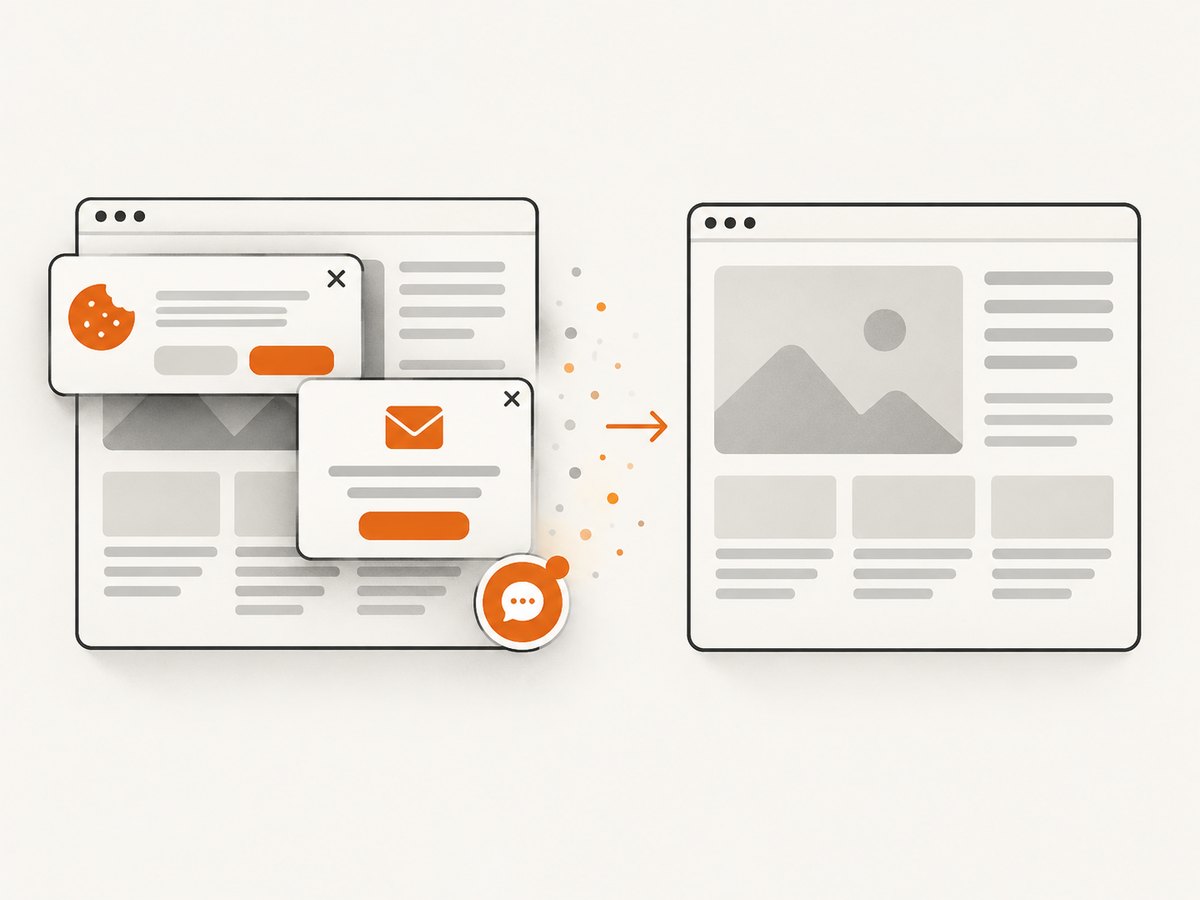
ScreenshotNeo provides a single GET request that returns PNG, JPEG, WebP, or PDF. It accepts cookie banners and removes more than 60 known consent platforms, newsletter popups, and chat widgets before capture; each cleanup step can be disabled. Bot checks, blank pages, timeouts, failed loads, and cache hits cost nothing, and response headers identify the page verdict and billing result. Its MCP server provides take_screenshot, get_page_info, and capture_pdf tools for Claude, Cursor, and other MCP clients. Every plan includes all features, with 1,000 shots per month free without a card and paid plans starting at $5 for 3,000 shots.
See the ScreenshotNeo API documentation for the complete option list.
curl -G "https://api.screenshotneo.com/v1/shot" \
  -d access_key=YOUR_API_KEY \
  --data-urlencode url=https://stripe.com \
  -o shot.webp
import requests
r = requests.get(
"https://api.screenshotneo.com/v1/shot",
params={"access_key": "YOUR_API_KEY", "url": "https://stripe.com"},
timeout=90,
)
r.raise_for_status()
open("shot.webp", "wb").write(r.content)const q = new URLSearchParams({ access_key: 'YOUR_API_KEY', url: 'https://stripe.com' });
const res = await fetch(`https://api.screenshotneo.com/v1/shot?${q}`);
if (!res.ok) throw new Error(`HTTP ${res.status}`);
require('fs').writeFileSync('shot.webp', Buffer.from(await res.arrayBuffer()));Use custom CSS or JavaScript, a selector for one element, dark mode, device presets, lazy-image loading, headers, cookies, user agents, authorization, timezone, geolocation, request blocking, waits, caching TTLs, signed links, asynchronous jobs, webhooks, bulk capture, and PDF settings when your workflow needs them. Create a free ScreenshotNeo account with 1,000 screenshots per month and no card.
Troubleshooting
The image is blank
Usually the capture ran before layout or navigation completed. In WebView, capture from onPageFinished and wait for measured dimensions. In Playwright, wait for a selector or fonts. For remote pages, verify that the URL is reachable from the process and that redirects do not require authentication.
JavaScript content is missing
WebView has JavaScript disabled by default. Enable it only for trusted or isolated content. In Playwright, make sure scripts are not blocked and wait for the element populated by JavaScript.
Images or fonts do not appear
Relative URLs need a base URL. Confirm network permission, file paths, CORS rules, and font loading. Call document.fonts.ready before capture when typography is significant.
The page is cut off
A viewport screenshot captures only visible pixels. Use Playwright full-page mode or calculate document height and resize WebView. If the resulting bitmap is too large, capture sections and stitch them.
Output differs from Chrome
wkhtmltoimage uses Qt WebKit, while WebView and Playwright use Chromium-derived engines. Switch to Playwright for current browser fidelity, or adjust CSS to the engine you selected.
ProcessBuilder cannot find wkhtmltoimage
Install the binary and provide its absolute path, or add its directory to the service user’s PATH. Log the resolved command and stderr, but never log secrets embedded in URLs.
Android crashes on tall pages
The bitmap may exceed available heap or graphics limits. Lower the scale, reduce width, split the document, or move rendering to a browser service.
Performance, reliability, and cost
Reuse a Playwright browser process and create short-lived pages rather than launching a browser for every image. Limit concurrency to the memory available on the host. Cache identical HTML and configuration when freshness is not required. For WebView, reuse a controlled instance, destroy it after capture, and avoid retaining bitmaps longer than necessary.
Reliability improves when dimensions, fonts, waits, and network behavior are explicit. Use a timeout and capture logs that identify the URL, engine, viewport, and failure stage. Treat remote pages as untrusted input: isolate browser processes, avoid unnecessary JavaScript bridges, and keep production debugging disabled. For billing-sensitive workloads, ScreenshotNeo reports whether a response was billed through X-Page-Verdict and X-Billed headers; cache hits and failed captures are not billed.
FAQ
Can Kotlin convert an HTML string without a server?
Yes. Android WebView and wkhtmltoimage can render local HTML. Playwright can use page.setContent in a desktop or server process.
Which format should I choose?
Choose PNG for text and interfaces, JPEG for photographic content where smaller files matter, and WebP when your delivery stack supports it.
Is WebView suitable for untrusted HTML?
Only with careful isolation. Avoid unnecessary JavaScript interfaces, enable scripts only when required, and do not expose sensitive app capabilities to page content.
How do I capture one element?
Playwright can screenshot a locator, while ScreenshotNeo accepts a CSS selector for element capture. WebView requires measuring or clipping the element yourself.
When should I use an API instead of running Chromium?
Use an API when you want a managed browser, cleanup of consent and popup elements, usage reporting, or screenshots from AI-agent workflows without maintaining browser binaries.


