How to Convert HTML to an Image in Nuxt
Turn a rendered Nuxt component into a PNG with html2canvas, or choose a real browser for server-side screenshots. Includes runnable code, setup guidance, and fixes for common capture problems.
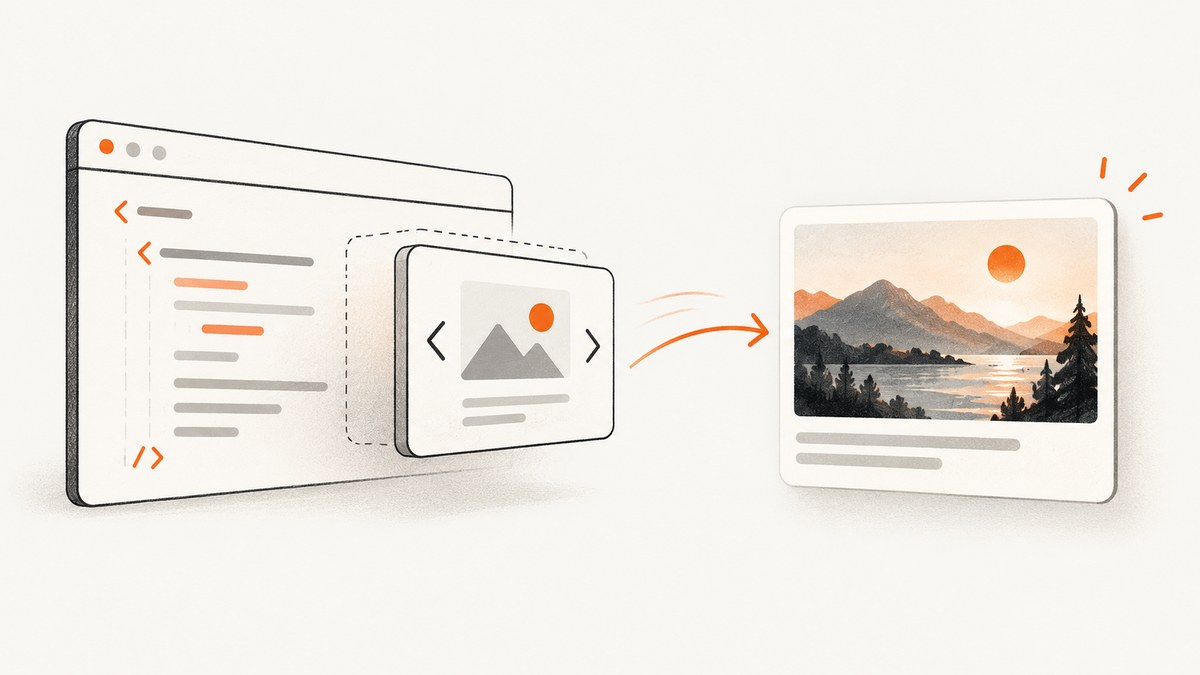
To turn a rendered Nuxt component into a downloadable PNG, use html2canvas in the browser after the component has mounted. It reconstructs an image from DOM and CSS data; it does not take a true browser screenshot, so some CSS or embedded content may differ or be missing. For server-side or CI captures that must follow normal browser layout, use a real browser screenshot workflow such as the Nuxt OG Image module’s browser provider. For a fixed Open Graph card template, Satori is another option, with a deliberately limited CSS subset.
This guide focuses on converting a component already displayed by Nuxt. It covers client-side PNG export, Nuxt’s server/client boundary, image and font readiness, cross-origin assets, and when to pick a server renderer instead.
1. Choose the rendering method
| Need | Choose | Trade-off |
|---|---|---|
| A visitor clicks Download on a rendered component | html2canvas | Simple browser-side PNG export; DOM reconstruction has CSS and cross-origin limits. |
| Server, CI, or scheduled capture of a page | Nuxt OG Image browser provider with Chromium | Real browser rendering, but the runtime must provide Chromium. |
| A controlled Open Graph or social card template | Satori | Deterministic SVG output for supported JSX/CSS, not a full browser. |
| Resize or optimize images already in markup | Nuxt Image / NuxtImg | Optimizes image resources; it does not rasterize arbitrary HTML. |
Also decide whether the result needs to be PNG, JPEG, WebP, or SVG, whether it includes the whole page or one element, and whether user interaction is part of the flow. The example below captures one component to PNG. html2canvas’s documented output is a Promise that resolves to a canvas; you can export a data URL or Blob. Its own documentation cautions that the result is reconstructed from DOM information, not an actual screenshot. html2canvas documentation
2. Install html2canvas and capture a Nuxt component
Install the package in the Nuxt project:
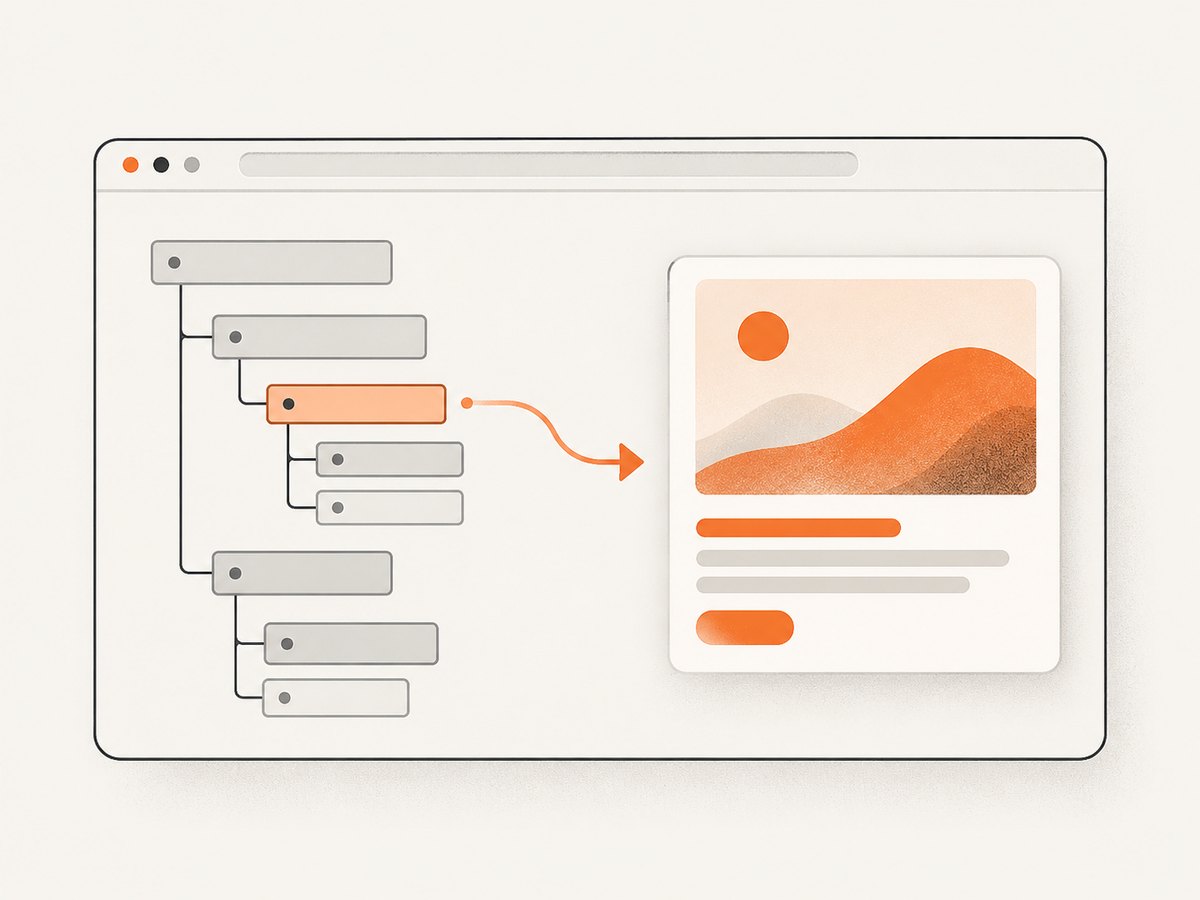
npm install @html2canvas/html2canvasPut the capture logic in a Vue component that runs in the browser. The mounted flag below avoids invoking browser APIs during Nuxt’s server render. Capturing from a click handler also gives the user a clear moment to initiate a potentially expensive operation.
<script setup lang="ts">
import html2canvas from '@html2canvas/html2canvas'
import { ref, onMounted, nextTick } from 'vue'

const card = ref<HTMLElement | null>(null)
const ready = ref(false)
const capturing = ref(false)
const errorMessage = ref('')

onMounted(() => {
  ready.value = true
})

async function downloadPng() {
  if (!card.value || capturing.value) return

  capturing.value = true
  errorMessage.value = ''

  try {
    await nextTick()
    await document.fonts.ready

    const canvas = await html2canvas(card.value, {
      scale: window.devicePixelRatio || 1,
      useCORS: true,
      backgroundColor: '#ffffff',
    })

    const blob = await new Promise<Blob>((resolve, reject) => {
      canvas.toBlob((result) => {
        if (result) resolve(result)
        else reject(new Error('PNG export returned an empty Blob'))
      }, 'image/png')
    })

    const objectUrl = URL.createObjectURL(blob)
    const link = document.createElement('a')
    link.href = objectUrl
    link.download = 'shareable-card.png'
    link.click()
    URL.revokeObjectURL(objectUrl)
  } catch (error) {
    console.error('Could not capture card', error)
    errorMessage.value = 'The image could not be created. Check the page assets and try again.'
  } finally {
    capturing.value = false
  }
}
</script>

<template>
  <section ref="card" class="card">
    <h1>Shareable card</h1>
    <p>Rendered by Nuxt in the browser.</p>
  </section>

  <button :disabled="!ready || capturing" @click="downloadPng">
    {{ capturing ? 'Creating image…' : 'Download PNG' }}
  </button>
  <p v-if="errorMessage" role="alert">{{ errorMessage }}</p>
</template>

<style scoped>
.card {
  width: 640px;
  padding: 32px;
  border-radius: 16px;
  color: #172033;
  background: #f2f5fa;
}
</style>
The documented import in the supplied html2canvas example is @html2canvas/html2canvas. Keep the package and import consistent with the dependency installed in your project. If your package manager or version exposes a different documented import path, use the path for that installed package.
Exporting data URLs instead
For small images, you can set an anchor’s URL to a PNG data URL:
const canvas = await html2canvas(card.value, { useCORS: true })
const link = document.createElement('a')
link.download = 'card.png'
link.href = canvas.toDataURL('image/png')
link.click()
A Blob download avoids holding a base64-encoded copy as a string, which is useful for larger captures. If you create an object URL for the Blob, revoke it after the browser has had a chance to start the download; for stricter download handling, revoke it on a short-lived cleanup timer rather than immediately after the click.
3. Make the result complete and readable
A correct call can still produce an incomplete card if capture starts before Vue has updated, a web font has loaded, or an image has decoded. Wait for the state your design depends on before invoking html2canvas. nextTick() waits for Vue’s pending DOM update, while document.fonts.ready waits for the document’s font loading set to settle. If remote or lazy images are important, wait for those specific resources too.
async function waitForImages(root: HTMLElement) {
  const images = Array.from(root.querySelectorAll('img'))
  await Promise.all(images.map(async (img) => {
    if (!img.complete) {
      await new Promise<void>((resolve) => {
        img.addEventListener('load', () => resolve(), { once: true })
        img.addEventListener('error', () => resolve(), { once: true })
      })
    }
    if (img.decode) {
      await img.decode().catch(() => undefined)
    }
  }))
}

await nextTick()
await document.fonts.ready
await waitForImages(card.value)
const canvas = await html2canvas(card.value, { useCORS: true })
The helper treats an image error as a completed wait so a broken image does not hang the export indefinitely. You may prefer to reject and show a specific error if every image is required. For lazy-loaded images, scrolling them into view can trigger loading; alternatively, make the capture card’s required assets eager and wait until they finish.
Scale, background, and excluded elements
scale: Usewindow.devicePixelRatiofor a sharper result on high-density screens, or set a deliberate fixed value for consistent output. Higher scale increases canvas dimensions and memory use.useCORS: Requests CORS-enabled handling for remote images. It does not override the browser’s same-origin policy; the remote server must allow the request.- Background: Set a background color when the exported format or design should not be transparent. PNG can preserve transparency; JPEG does not.
- Ignored content: Add
data-html2canvas-ignoreto controls or decorations that should not appear in the capture.
<button data-html2canvas-ignore>Download</button>
<div class="card-artifact">This section is included.</div>
Keep the capture target focused. Capturing one card instead of a long page generally uses less memory and avoids pulling unrelated page content into the output.
4. Keep browser-only work out of Nuxt SSR
Nuxt can render Vue components on the server and then hydrate them in the browser. During server rendering, window, document, and a real DOM element are unavailable. Import or execute browser-dependent capture code only in client-side execution, such as a click handler after mount. Nuxt’s rendering lifecycle describes server rendering as producing the HTML document before the browser hydrates it. Nuxt rendering concepts · Vue onMounted
For a capture-only component that has browser dependencies throughout its setup, Nuxt’s <ClientOnly> can keep it out of the server-rendered tree. Keep in mind that client-only content appears after hydration, so tests and screenshot flows must wait for it to render.
<ClientOnly>
  <CaptureCard />
  <template #fallback>
    <p>Preparing card…</p>
  </template>
</ClientOnly>
For a static deployment, nuxt generate writes static HTML for hosting; it does not turn each page into a PNG. The capture operation remains a separate browser or server rendering step.
5. Handle cross-origin assets and CSS limitations
Browsers restrict reading pixels from a canvas when it contains assets loaded from another origin without appropriate CORS permission. useCORS: true can help only when the asset host sends permissive CORS headers. It is not a bypass. If a logo or image is missing, use a same-origin asset, configure the asset host’s CORS response, or route it through a controlled proxy that you operate and secure.
Do not create an open proxy that fetches arbitrary user-provided URLs: that can expose internal network resources or be abused for large downloads. If using a proxy, allowlist hosts, cap response size and time, and restrict content types.
html2canvas interprets DOM and CSS rather than asking the browser to save its rendered pixels. Unsupported CSS, plugin content, some embedded content, and cross-origin assets can be absent or look different. Reproduce the actual capture styling in a test route and inspect the generated file across the browsers your users rely on. If exact browser layout matters, move to a real browser screenshot route.
6. Server-side rendering and social-card alternatives
Use a real browser for rendered pages
The Nuxt OG Image module documents OgImageScreenshot and defineOgImageScreenshot, including a provider: 'browser' option. Its browser path uses Chromium, which may need provisioning with Playwright in the build or runtime environment. That makes it suitable when server, CI, or social-card generation needs normal browser layout, web fonts, and CSS behavior. Nuxt OG Image screenshot guide
Plan for Chromium’s install size and startup/runtime requirements in your deployment. Confirm the browser binary is available in the environment that executes the capture; local development having Chromium installed does not guarantee a production container does. Separate capture work from latency-sensitive server requests if browser startup or page rendering would make the request too slow.
Use Satori for constrained templates
Satori converts a supported JSX/HTML/CSS subset to SVG. It can suit a deterministic social card whose layout is designed specifically for that renderer. It is not a full browser, and its project does not guarantee a 100% browser match. Expect to adapt layout styles and provide fonts and images in the form its renderer supports. Satori project
Keep Nuxt Image for image optimization
NuxtImg produces an image element using provider optimization and responsive sizing. It optimizes an image resource; it does not rasterize a Vue component or arbitrary HTML. Use it for assets placed inside the card, not as the capture mechanism. Nuxt Image documentation
7. Troubleshoot common capture failures
| Symptom | Likely cause | Fix |
|---|---|---|
window is not defined or document is not defined |
Capture code ran during SSR. | Call it from a mounted client interaction, or isolate the capture component with <ClientOnly>. |
| Blank or partially rendered output | Capture began before reactive updates, fonts, or images finished loading. | Wait for nextTick(), document.fonts.ready, and required image loads before capture. |
| Remote image missing or canvas export fails | Asset host did not permit CORS, or canvas became tainted. | Serve same-origin assets, configure CORS on the source, or use a controlled proxy. useCORS alone cannot bypass policy. |
| Some shadows, layouts, or embedded content differ | DOM-to-canvas reconstruction does not support every browser feature. | Simplify the capture styles or use a real browser screenshot if fidelity is essential. |
| Image is blurry | Canvas output is near CSS pixel dimensions or was later scaled up. | Set scale to device pixel ratio or a tested fixed density; keep dimensions within memory limits. |
| Browser tab slows or crashes on a very large page | Large canvas dimensions and high scale consume substantial memory. | Capture a smaller element, lower scale, or split content into sections. |
| Download button appears in the PNG | Controls are inside the capture target. | Move controls outside the target or mark them with data-html2canvas-ignore. |
| Server capture works locally but fails in deployment | Chromium is not installed or cannot launch in the runtime/container. | Provision Chromium as documented for the selected provider and validate the production image. |
8. Performance, reliability, and cost
Client-side capture shifts CPU and memory work to the visitor’s browser. The main practical cost drivers are the target’s pixel area, the scale factor, image decoding, and concurrent capture attempts. Disable the button while capture runs, avoid capturing the full page when a component is enough, and choose a scale that meets output needs without unnecessarily multiplying canvas dimensions.
Capture reliability depends on stable component state and asset availability. Wait for the resources the design actually needs, show a recoverable error, and let users retry. Consider exporting a Blob for larger results and avoid storing base64 strings longer than necessary.
Server-side browser capture moves work to your infrastructure and adds Chromium provisioning and runtime management. Satori has a smaller rendering scope that may suit fixed templates, but it requires designing within its supported subset. There are no benchmark figures here: measure representative cards on your target devices and deployment environment before setting timeouts or capacity expectations.
9. Or skip the browser setup
If you need a screenshot of a public URL instead of exporting a component already rendered in the current tab, ScreenshotNeo is a website screenshot API and MCP server. One GET request returns an image or PDF. Its cleanup accepts cookie and consent banners, removes more than 60 known consent platforms plus newsletter popups and chat widgets before capture, and each step can be turned off. Bot checks, CAPTCHAs, blank pages, timeouts, failed loads, and cache hits cost nothing; response headers identify the page verdict and billing state. An MCP server exposes screenshot tools to Claude, Cursor, and other MCP clients.

Read the ScreenshotNeo API documentation for request options and response details. This is a URL screenshot, so it does not capture unsaved in-memory state from a Nuxt component. For that case, use the browser-side code above.
curl -G "https://api.screenshotneo.com/v1/shot" \
  -d access_key=YOUR_API_KEY \
  --data-urlencode url=https://stripe.com \
  -o shot.webp
import requests
r = requests.get(
"https://api.screenshotneo.com/v1/shot",
params={"access_key": "YOUR_API_KEY", "url": "https://stripe.com"},
timeout=90,
)
r.raise_for_status()
open("shot.webp", "wb").write(r.content)const q = new URLSearchParams({
access_key: 'YOUR_API_KEY',
url: 'https://stripe.com',
})
const res = await fetch(`https://api.screenshotneo.com/v1/shot?${q}`)
if (!res.ok) throw new Error(`Screenshot request failed: ${res.status}`)
await Bun.write('shot.webp', res)The API supports PNG, JPEG, WebP, and PDF; full-page and element capture; device presets and custom viewports; retina scale; dark mode; custom CSS and JavaScript; waits; headers, cookies, user agent, authorization, timezone and geolocation; request blocking; caching; signed image links; async jobs and signed webhooks; bulk capture; a usage API; and an OpenAPI spec. Plans include Free with 1,000 shots each month and no card, Starter at $5 for 3,000, Growth at $15 for 15,000, Pro at $39 for 60,000, Scale at $99 for 250,000, and Business at $249 for 1,000,000. Yearly billing gives two months free; every feature is on every plan.
Cookie banners, popups, and chat widgets are removed before the shot; bot checks, blank pages, and failed loads are never billed; an MCP server lets AI agents take screenshots; 1,000 screenshots a month are free with no card and paid plans start at $5 for 3,000. Create a free ScreenshotNeo account.
10. Short FAQ
Can I convert HTML to JPEG or WebP with html2canvas?
The canvas export API accepts an image MIME type such as image/jpeg or image/webp where the browser supports it. Choose a background for formats that do not preserve transparency, and check the returned Blob or data URL in target browsers.
Does Nuxt Image convert a component to an image?
No. Nuxt Image optimizes image assets used in the page. Use html2canvas, a browser screenshot provider, or a template renderer depending on whether the target is an existing component, full browser rendering, or a constrained graphic.
Can I make an image during static generation?
Static generation outputs HTML files. Image creation needs its own browser-side interaction or an explicit server/build step that runs a rendering tool.
Which option should I use for exact browser appearance?
Use a real browser screenshot workflow. html2canvas reconstructs from DOM and CSS, while Satori implements a supported subset rather than the full browser layout model.
Implementation checklist
- Choose client capture, real-browser server capture, or constrained template rendering.
- For a download button, run html2canvas only after mount and after the target’s state is ready.
- Wait for fonts and required images; resolve CORS at the asset source.
- Set an intentional scale and background, and ignore controls that should not be captured.
- Test the exact component CSS in the browsers and deployment environments that matter.
- Use Nuxt Image for input assets, not for rasterizing HTML.
For a user-triggered Nuxt component export, html2canvas is the shortest route. For server-rendered screenshots, provision a real browser; for fixed social templates, consider a renderer whose CSS subset you can target.


