How to Convert HTML to an Image at Its Original Dimensions
Capture HTML at its true CSS dimensions with Playwright or html2canvas, avoid Retina scaling surprises, and handle full pages, elements, fonts, and CORS.
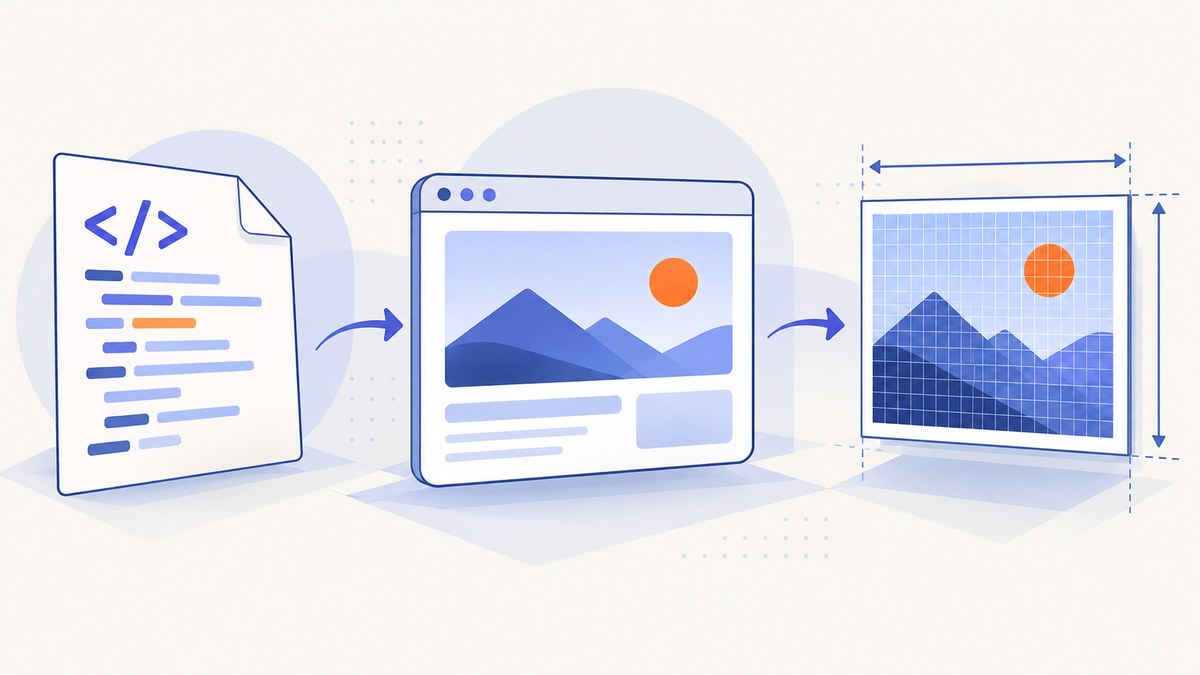
Use a real browser renderer and set the CSS viewport before loading the page. With Playwright, choose scale: 'css' to produce one image pixel per CSS pixel, then use fullPage, a locator, or clip depending on what you need to capture. The viewport defines responsive breakpoints, line wrapping, and the layout coordinate system; the device pixel ratio can change the output raster size without changing the CSS layout.
“Original dimensions” can mean three different targets:
- Viewport: the visible rectangle, such as 1200 × 800 CSS pixels.
- Element: one component’s rendered bounding box.
- Full document: the complete scrollable page, including content below the fold.
1. Capture HTML at CSS-pixel dimensions with Playwright
Install Playwright and its browser once:

npm install playwright
npx playwright install chromium
Create capture.mjs:
import { chromium } from 'playwright';

const browser = await chromium.launch();
const page = await browser.newPage({
  viewport: { width: 1200, height: 800 },
  deviceScaleFactor: 1
});

await page.goto('file:///absolute/path/to/page.html', {
  waitUntil: 'networkidle'
});

// Wait for web fonts and images that can affect layout.
await page.evaluate(async () => {
  await document.fonts.ready;
  await Promise.all(Array.from(document.images).map(image =>
    image.complete ? Promise.resolve() : new Promise(resolve => {
      image.addEventListener('load', resolve, { once: true });
      image.addEventListener('error', resolve, { once: true });
    })
  ));
});

await page.screenshot({
  path: 'page.png',
  fullPage: true,
  scale: 'css'
});

await browser.close();
fullPage: true captures the complete scrollable document instead of only the visible viewport, as described in the Playwright screenshot documentation. The explicit viewport must be set before goto; changing it afterward can alter responsive layout and line wrapping.
Element and fixed-rectangle captures
// One element, measured in CSS pixels.
await page.locator('.card').screenshot({
  path: 'card.png',
  scale: 'css'
});

// A fixed rectangle in the page viewport.
await page.screenshot({
  path: 'region.png',
  clip: { x: 40, y: 120, width: 640, height: 360 },
  scale: 'css'
});
Use a locator when the target is a semantic component. Use clip when you need an exact coordinate rectangle. Locator screenshots can still be affected by animations, lazy loading, or content that changes while the capture runs.
Choosing the output scale
| Setting | Result | Use it when |
|---|---|---|
scale: 'css' |
One raster pixel per CSS pixel | You need dimensions that match CSS measurements |
scale: 'device' |
Pixels follow the device scale factor and can be larger | You need high-DPI artwork or print-like sharpness |
For predictable dimensions, keep deviceScaleFactor: 1 and scale: 'css'. A Retina display does not change the CSS width of an element, but a device-scale capture can multiply its raster width and height. See Playwright’s page screenshot API for the complete option set, including PNG, JPEG, and WebP output.
2. Make asynchronous content stable before capture
Network idle is useful, but it is not a guarantee that every visual dependency has settled. Fonts, image decoding, client-side rendering, carousels, ads, and lazy-loaded sections can finish later.
await page.goto(url, { waitUntil: 'domcontentloaded' });
await page.waitForLoadState('networkidle');
await page.evaluate(async () => {
  await document.fonts.ready;
  const images = [...document.images];
  await Promise.all(images.map(img => img.decode?.().catch(() => {}) || Promise.resolve()));
});
await page.waitForTimeout(250); // only when the page has a known visual delay
await page.screenshot({ path: 'stable.png', fullPage: true, scale: 'css' });
Prefer a selector-based wait when your application exposes a reliable “rendered” marker:
await page.goto(url, { waitUntil: 'networkidle' });
await page.locator('[data-render-complete="true"]').waitFor();
await page.screenshot({ path: 'ready.png', fullPage: true, scale: 'css' });
3. Capture in the browser with html2canvas
html2canvas is convenient for a same-origin element or page fragment, but it reconstructs an image from the DOM and supported styles; it does not take a browser screenshot. Unsupported CSS, cross-origin images, and cross-origin iframes can therefore differ from what the user sees.
<script src="https://cdn.jsdelivr.net/npm/html2canvas@1.4.1/dist/html2canvas.min.js"></script>
useCORS: true only works when the image server sends the required CORS header. Otherwise, use same-origin assets or a server-side proxy. Very tall canvases can hit browser maximum dimensions; matching windowWidth and windowHeight to the element’s scroll dimensions prevents avoidable cropping but cannot remove those browser limits.
4. Format, background, and sizing choices
| Need | Recommendation |
|---|---|
| Sharp text, diagrams, or UI | PNG |
| Small photographic output | JPEG with an explicit quality value |
| Modern compressed output | WebP when your consumer supports it |
| Transparent result | PNG and a transparent page background |
Do not resize the output after capture if preserving original CSS dimensions is the goal. If you must resize, record the scale factor and expect text and layout pixels to change.
5. Troubleshooting
| Symptom | Likely cause | Fix |
|---|---|---|
| Image is twice as wide or tall | Device scale factor or scale: 'device' |
Use deviceScaleFactor: 1 and scale: 'css'. |
| Mobile layout appears unexpectedly | Viewport was not set before navigation | Pass viewport to newPage before goto. |
| Only the visible area is captured | Viewport screenshot was requested | Set fullPage: true or capture a locator. |
| Fonts change line breaks | Capture happened before web fonts loaded | Await document.fonts.ready and verify the font requests succeed. |
| Images are blank | Lazy loading, failed requests, or image decoding is incomplete | Scroll or trigger lazy loading, wait for image completion, and inspect network errors. |
| html2canvas throws a tainted-canvas error | Cross-origin image without CORS permission | Enable server CORS, use same-origin assets, or proxy the image. |
| Iframe content is missing | Cross-origin iframe cannot be read by html2canvas | Capture the iframe separately with a browser renderer or make it same-origin. |
| Very tall output is cropped | Browser canvas or image dimension limit | Capture page sections separately and stitch them, or use Playwright full-page capture. |
| Dynamic content differs between runs | Animations, timers, ads, or live data | Freeze animations with CSS, wait for a render marker, and use deterministic test data. |
file:// assets fail |
Relative paths or browser security behavior | Serve the directory over a local HTTP server and capture the HTTP URL. |
6. Reliability and performance checklist
- Reuse one browser process and create pages per job instead of launching Chromium for every image.
- Set navigation and operation timeouts appropriate to the page; fail clearly when a required selector never appears.
- Disable or hide animations during capture to reduce pixel variance.
- Capture only the needed region when a full document is unnecessary; full-page images consume more memory.
- Use PNG for fidelity and WebP or JPEG when transfer size matters.
- For repeatable output, pin viewport, browser version, fonts, timezone, locale, and input data.
- For large documents, monitor memory and split captures before browser limits are reached.
7. Or skip the browser setup
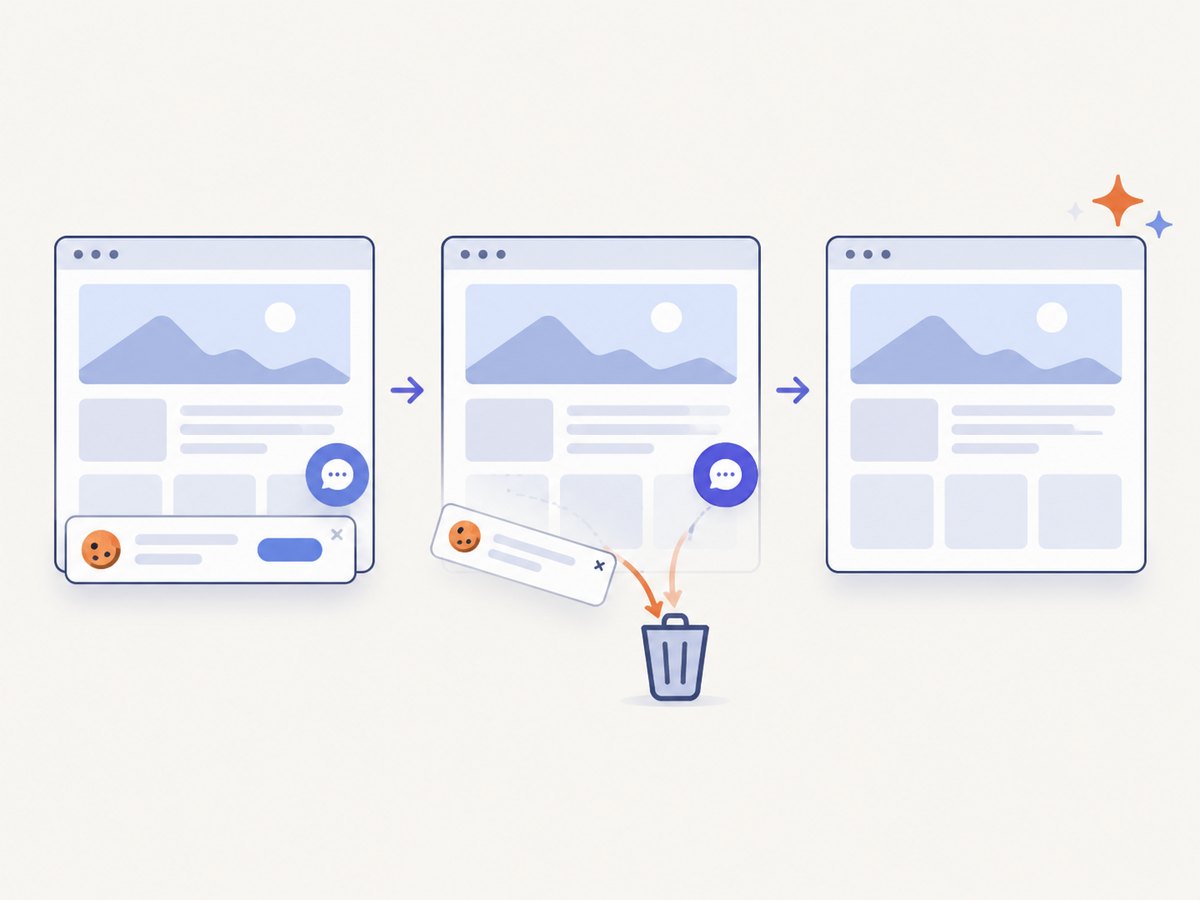
ScreenshotNeo provides a hosted screenshot API and MCP server. It accepts a URL and returns PNG, JPEG, WebP, or PDF. Before capture it accepts cookie or consent banners and removes more than 60 known consent platforms, newsletter popups, and chat widgets; each step can be disabled. Bot checks, blank pages, timeouts, failed loads, and cache hits are not billed, and the response identifies the result with X-Page-Verdict and X-Billed headers.
See the ScreenshotNeo API documentation for all options, including viewport and device presets, full-page and CSS-selector capture, retina scale, custom CSS and JavaScript, waits, request blocking, headers, cookies, user agents, timezone, geolocation, resizing, caching, signed links, asynchronous jobs, bulk capture, usage, and PDF settings.
curl -G "https://api.screenshotneo.com/v1/shot" -d access_key=YOUR_API_KEY --data-urlencode url=https://example.com/page.html -o shot.webpimport requests
r = requests.get("https://api.screenshotneo.com/v1/shot", params={"access_key": "YOUR_API_KEY", "url": "https://example.com/page.html"}, timeout=90)
open("shot.webp", "wb").write(r.content)const q = new URLSearchParams({ access_key: 'YOUR_API_KEY', url: 'https://example.com/page.html' });
const res = await fetch(`https://api.screenshotneo.com/v1/shot?${q}`);The MCP server includes take_screenshot, get_page_info, and capture_pdf for Claude, Cursor, and other MCP clients. The Free plan includes 1,000 shots per month with no card; paid plans start at $5 for 3,000 shots. Create a free ScreenshotNeo account.
8. FAQ
Does original size mean the HTML file’s width and height?
No. The browser’s computed CSS layout determines rendered dimensions. Set the viewport and capture the element or document after layout settles.
Should I use full-page capture for a long page?
Use Playwright full-page capture when you need one image of the scrollable document. For extremely tall pages, sectioned captures avoid browser dimension limits.
Why does html2canvas look different from the browser?
It rebuilds the image from DOM information and supported CSS rather than recording the browser’s final pixels. Cross-origin resources and unsupported properties are common differences.
When should I choose device-scale output?
Choose it when a high-DPI raster is required. Choose CSS scale when output dimensions must equal CSS dimensions.


