How to Convert HTML to an Image in PowerShell
Convert a local HTML file or URL to PNG, JPEG, or WebP from PowerShell using Playwright, with viewport, full-page, and element capture options.
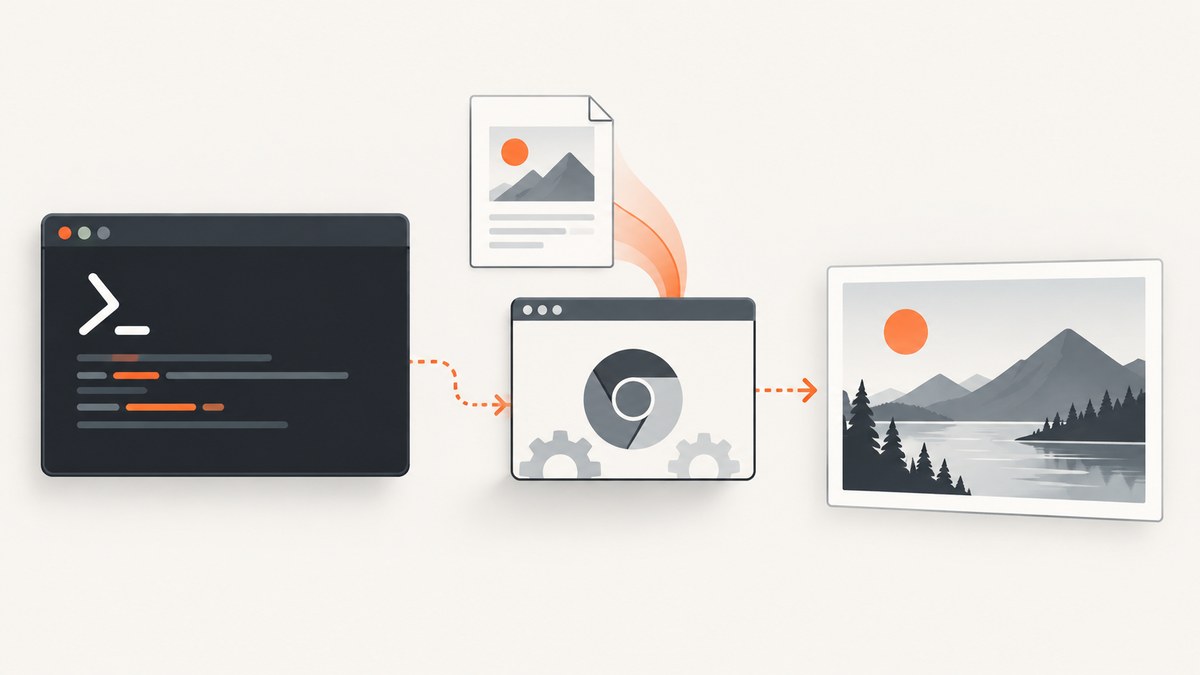
To convert HTML to an image from PowerShell, use PowerShell to pass a page or file path to a browser automation tool such as Playwright. The browser renders the HTML, then saves a screenshot as PNG, JPEG, or WebP. Playwright launches headless by default, so the process can run in a scheduled job or CI without opening a visible browser window. The examples below use a small Node.js script as the renderer and PowerShell as the orchestrator.
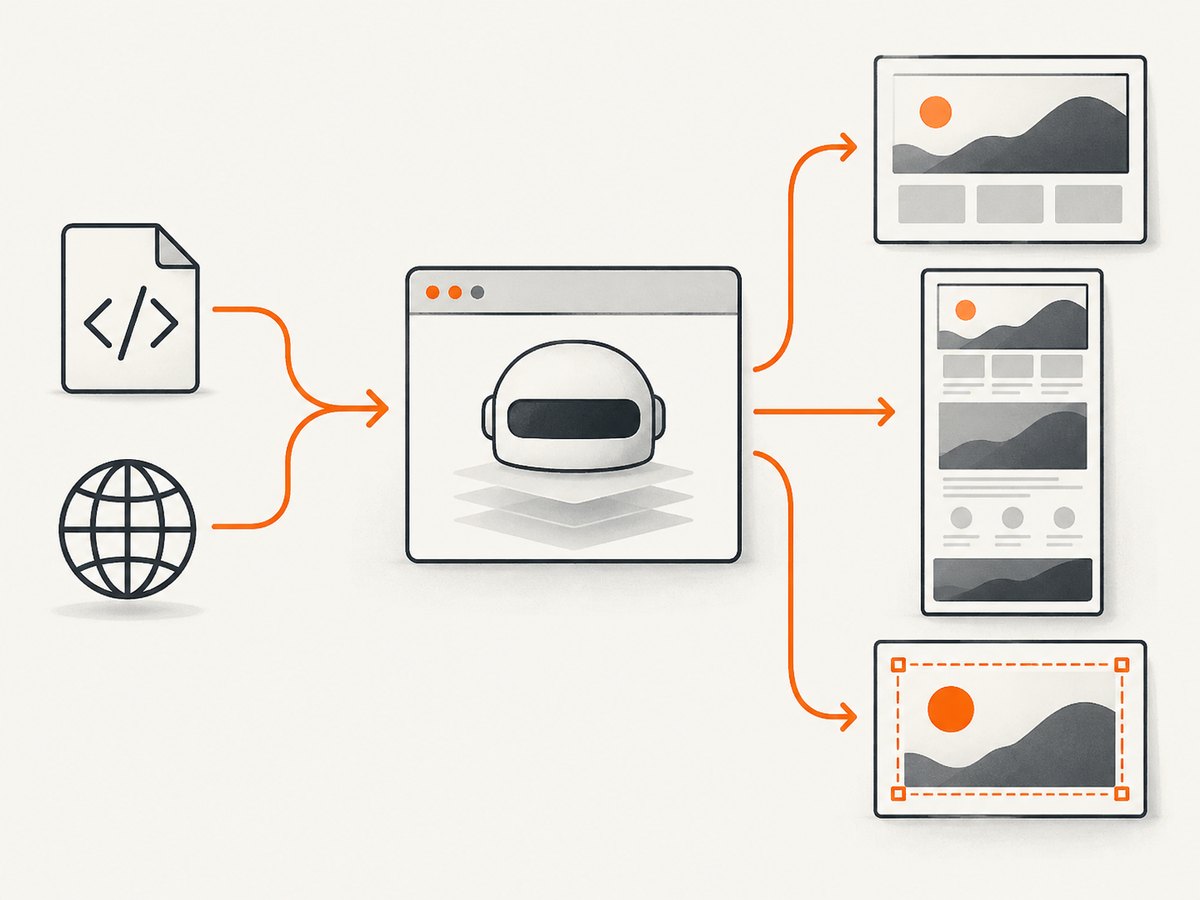
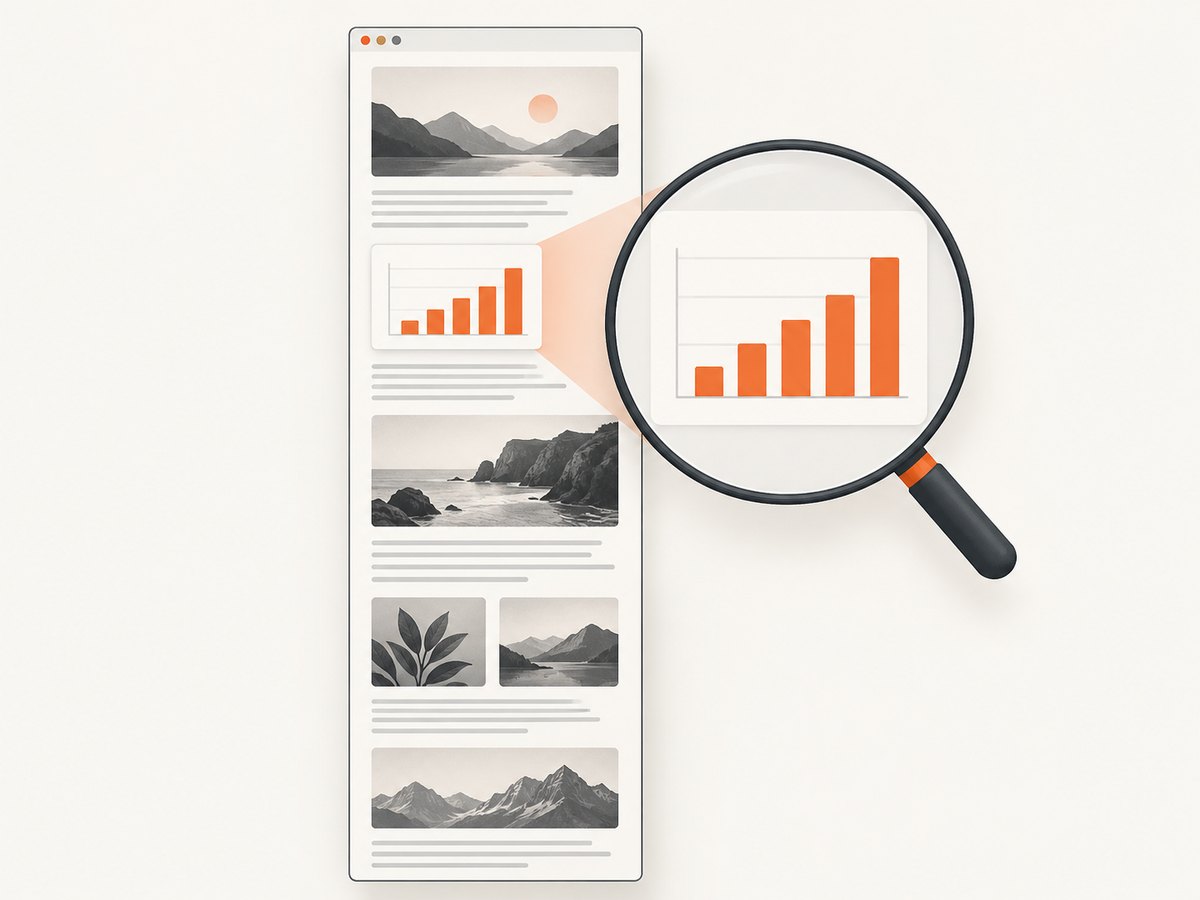
This approach works for local HTML files and web pages. You can capture the visible viewport, the whole scrollable page, or one element such as a chart. Install Node.js, Playwright, and its browser binaries on the machine that runs the script. For exact Edge rendering, use the Edge channel; for a reproducible default, use Playwright’s bundled Chromium. Browser policies can affect installed branded browsers. See the [Playwright guidance for Microsoft Edge](https://learn.microsoft.com/en-us/microsoft-edge/playwright/) and [Playwright browser documentation](https://playwright.dev/docs/browsers).
1. Install Playwright and a browser
Playwright is a Node.js library, so the simplest reliable setup is to keep the browser work in a JavaScript file and invoke that file from PowerShell. In a new project directory, run:
npm init -y
npm install playwright
npx playwright install chromium
The browser installation downloads the browser binary Playwright expects. Run these commands as the same account that will run the later PowerShell job, especially on a build server or scheduled task. If the machine must match Microsoft Edge, install Edge separately and use the msedge channel in the script below; Playwright documents branded browser channels and notes that enterprise policies can affect them.
There is also an official Playwright CLI with screenshot support. It can be useful for a quick capture, but a script is easier to parameterize from PowerShell when you need to choose full-page capture, wait conditions, selectors, or output paths. The CLI supports PNG, JPEG, and WebP and a custom filename. See the [CLI screenshot documentation](https://playwright.dev/docs/test-cli).
2. Create a reusable capture script
Save the following as capture.mjs beside the installed project. It takes a URL or file path, output filename, capture mode, and optional CSS selector. It closes the browser even if navigation or capture fails.
import { chromium } from 'playwright';
import { pathToFileURL } from 'node:url';
import path from 'node:path';

const [input, output = 'capture.png', mode = 'viewport', selector] = process.argv.slice(2);
if (!input) {
  console.error('Usage: node capture.mjs <url-or-file> [output] [viewport|full|element] [selector]');
  process.exit(2);
}

const target = /^https?:\/\//i.test(input)
  ? input
  : pathToFileURL(path.resolve(input)).href;
const browser = await chromium.launch({ headless: true });
try {
  const page = await browser.newPage({ viewport: { width: 1440, height: 900 }, deviceScaleFactor: 1 });
  const response = await page.goto(target, { waitUntil: 'load', timeout: 60000 });
  if (response && !response.ok()) {
    throw new Error(`Navigation returned HTTP ${response.status()}`);
  }
  await page.evaluate(() => document.fonts.ready);
  if (mode === 'element') {
    if (!selector) throw new Error('Element mode requires a CSS selector');
    const element = page.locator(selector);
    await element.waitFor({ state: 'visible', timeout: 15000 });
    await element.screenshot({ path: output });
  } else {
    await page.screenshot({ path: output, fullPage: mode === 'full' });
  }
  console.log(`Saved ${output}`);
} finally {
  await browser.close();
}
The pathToFileURL conversion matters for local files: it correctly handles spaces and platform-specific paths instead of constructing a fragile file:// string by hand. For URLs, the script uses the input unchanged. The page waits for the browser’s load event and for available document fonts; if the page fills in data after load, add a page-specific wait as described below.
3. Run it from PowerShell
From the project directory, pass arguments to Node.js. PowerShell’s call operator (&) makes it clear that the executable path is being invoked. Quote paths that contain spaces.
$script = Join-Path $PWD 'capture.mjs'
$html = Join-Path $PWD 'report.html'
$output = Join-Path $PWD 'report.png'

& node $script $html $output viewport
if ($LASTEXITCODE -ne 0) {
    throw "Screenshot capture failed with exit code $LASTEXITCODE"
}
if (-not (Test-Path $output)) {
    throw "Expected screenshot was not created: $output"
}
For a remote page:
& node .\capture.mjs 'https://example.com/report' '.\report.webp' viewportThe file extension determines the image format in Playwright. Supported screenshot formats are PNG, JPEG, and WebP. Use .jpg or .jpeg for JPEG output and .webp for WebP. For compatibility with downstream tools, PNG is a safe default. JPEG is lossy and does not preserve transparency; WebP can reduce file size but confirm that the system consuming the image supports it.
4. Choose viewport, full-page, or element capture
| Mode | Invocation | Use it for |
|---|---|---|
| Viewport | viewport |
The currently visible browser area at the configured width and height. |
| Full page | full |
Long reports or pages where content below the fold matters. |
| Element | element '.chart' |
A particular chart, card, table, or other CSS-selected region. |
Examples:
# Entire scrollable page
& node .\capture.mjs .\report.html .\report.png full

# One element selected by CSS
& node .\capture.mjs .\dashboard.html .\chart.png element '#sales-chart'
Full-page capture is convenient, but very long documents can produce very tall images and consume substantial memory. If a report is thousands of pixels tall, consider capturing named sections separately or using PDF output when the intended artifact is a document. Element capture requires the selector to match a visible element; if a page has repeated matches, refine the selector so the target is unambiguous.
5. Configure rendering and wait conditions
Reliable screenshots depend on capturing the page after the content you care about is ready. waitUntil: 'load' waits for the page load event, but it cannot know when a client-side chart or application request has completed. Add one of these waits after goto when needed:
// Wait for a particular component to appear
await page.locator('[data-report-ready="true"]').waitFor({ state: 'visible', timeout: 20000 });

// Or wait a fixed interval for a known delayed animation
await page.waitForTimeout(1000);

// Before capture, ensure web fonts are ready
await page.evaluate(() => document.fonts.ready);
Prefer waiting for a meaningful selector over a guessed delay: it makes the script respond to actual page state. A fixed delay is appropriate when an animation or external widget has a known settling period, but it adds the same wait even when the page is already ready. Avoid waiting for every network connection to become idle on pages with analytics, streaming updates, or persistent connections; such pages may never become idle.
Viewport size affects responsive layout. Adjust viewport in browser.newPage to the dimensions you need. Set deviceScaleFactor above 1 for denser pixels, remembering that larger images take more memory and disk space. If the page uses lazy-loaded images, full-page screenshot behavior may not trigger every site’s loading logic. When an important image is missing, scroll through the page before capturing or use the site’s own readiness signal.
To capture with branded Microsoft Edge instead of bundled Chromium, import Playwright’s Chromium launcher and set channel: 'msedge' in launch, with Edge installed and available to the account running the job:
const browser = await chromium.launch({ headless: true, channel: 'msedge' });Use this when you need the result to reflect Edge-specific rendering. The bundled Chromium is generally a more reproducible choice across machines because Playwright installs the expected browser build. Headless browser implementation can differ from headed rendering, so for a visual discrepancy, compare the target browser and launch mode documented by Playwright.
6. Add practical PowerShell error handling
For a scheduled job, check both the process exit code and the output file, and log standard output and errors. This catches cases where PowerShell successfully launched Node.js but the capture script failed.
$log = Join-Path $PWD 'capture.log'
& node .\capture.mjs .\report.html .\report.png full *>&1 | Tee-Object -FilePath $log
$code = $LASTEXITCODE
if ($code -ne 0) {
    throw "Capture failed (exit $code). See $log"
}
$item = Get-Item .\report.png -ErrorAction SilentlyContinue
if (-not $item -or $item.Length -eq 0) {
    throw 'Capture command completed without a non-empty output image.'
}
Run the job under the same user identity for which Node.js and the browser binaries were installed. If using a service account, install dependencies for that account or configure a shared, accessible browser installation. Keep the output directory writable and use an absolute path when the scheduled task may start in a different working directory.
Or skip the browser setup
If you need an image from a URL and do not want to install or maintain a local browser, ScreenshotNeo is a website screenshot API and MCP server. One GET request returns an image or PDF; its [API documentation](https://screenshotneo.com/docs/) covers request options.
curl -G "https://api.screenshotneo.com/v1/shot" -d access_key=YOUR_API_KEY --data-urlencode url=https://stripe.com -o shot.webpCookie banners are accepted like a visitor and more than 60 known consent platforms, newsletter popups, and chat widgets are removed before the shot; each of those steps can be turned off. Bot checks and CAPTCHAs, blank pages, timeouts, failed loads, and cache hits are not billed, and the response identifies the page verdict and billing status in headers. An MCP server gives AI agents tools to take screenshots, get page information, and capture PDFs. The free plan includes 1,000 screenshots a month with no card; paid plans start at $5 for 3,000. Create a free account and get 1,000 screenshots a month with no card.
Other client examples
The same API endpoint can be called from Python or Node.js. These examples use the supplied ScreenshotNeo request shape; see the [docs](https://screenshotneo.com/docs/) for options and account setup.
Python
import requests

r = requests.get(
    "https://api.screenshotneo.com/v1/shot",
    params={"access_key": "YOUR_API_KEY", "url": "https://stripe.com"},
    timeout=90,
)
r.raise_for_status()
with open("shot.webp", "wb") as image:
    image.write(r.content)
Node.js
const q = new URLSearchParams({ access_key: 'YOUR_API_KEY', url: 'https://stripe.com' });
const res = await fetch(`https://api.screenshotneo.com/v1/shot?${q}`);
if (!res.ok) throw new Error(`Screenshot request failed: ${res.status}`);
await import('node:fs/promises').then(fs => fs.writeFile('shot.webp', Buffer.from(await res.arrayBuffer())));
Troubleshooting
| Symptom | Likely cause | Fix |
|---|---|---|
node is not recognized |
Node.js is missing or not on the scheduled task’s PATH. | Install Node.js for the job account or invoke its full executable path; restart the shell after changing PATH. |
| Browser executable missing | Playwright package installed but browser binaries were not installed for this account. | Run npx playwright install chromium in the project environment as the execution account. |
| Local file fails to open | Malformed file URL or a relative path resolved from a different working directory. | Use the provided pathToFileURL(path.resolve(input)) conversion and pass an absolute path from PowerShell. |
| Output is blank or incomplete | Capture happened before client-side content or fonts were ready, or the page requires authentication. | Wait for a page-specific selector, confirm credentials/session requirements, then capture after fonts and content are ready. |
| Image or chart missing | Lazy loading, remote resource failure, or a selector that does not match. | Scroll to trigger lazy loading, inspect the selector, and check that the source resource is reachable from the job machine. |
| Edge launch fails | Edge is absent, inaccessible to the service account, or controlled by enterprise policy. | Install/configure Edge for that account or use Playwright’s bundled Chromium. |
| Capture times out | Slow navigation, blocked resources, or an overly strict readiness condition. | Increase the navigation timeout for known slow pages, use a specific selector wait, and check network access and proxy settings. |
| Output file exists but is invalid | The capture process failed before writing completed, or output format and extension disagree. | Check the process exit code and logs; use a supported extension matching PNG, JPEG, or WebP. |
Performance, reliability, and cost
A local browser avoids a screenshot-service request charge, but the machine still uses CPU, memory, disk, and network bandwidth. Browser startup and page loading usually dominate a single capture; for batches, reusing a browser process can reduce repeated startup work, while creating a fresh page or context per job helps isolate cookies and page state. Close pages and browsers in a finally block so failed captures do not leave processes behind.
For stable output, pin the Playwright package version in your project lockfile and install its matching browser binaries during machine setup. Keep the browser updated deliberately rather than allowing production jobs to depend on whichever browser happens to be installed. Use explicit viewport dimensions, stable wait conditions, and a consistent account environment. These choices improve repeatability but do not guarantee identical rendering across operating systems, fonts, GPU settings, or dynamic web content.
For occasional captures, a local script is often enough. At larger volumes, account for browser maintenance, concurrency, retries, storage, and the cost of the compute host. Avoid unbounded parallel browser launches: they can exhaust memory and make timeouts more likely. For remote URLs, ensure that the machine’s network policy allows access and that private pages are authenticated securely. Do not place reusable credentials directly in a script committed to source control.
Frequently asked questions
Can PowerShell render HTML by itself?
PowerShell can orchestrate the task, but an HTML rendering engine is needed for modern CSS and JavaScript. Playwright supplies browser rendering while PowerShell handles paths, arguments, and job checks.
Can I capture without showing a browser window?
Yes. Playwright launches headless by default. Set headless: false temporarily when you need to watch the browser while debugging.
Can I capture only a chart or table?
Yes. Use element mode and pass a CSS selector that identifies the visible element. This produces a focused image without the surrounding page.
Can I use this for a one-off screenshot?
For an occasional interactive capture, Microsoft Edge’s built-in Screenshot feature can capture a full webpage or selected area and save or copy it. It is useful manually, while Playwright is the repeatable PowerShell automation path. See [Microsoft’s Edge screenshot guide](https://support.microsoft.com/en-us/microsoft-edge/take-a-screenshot-in-microsoft-edge-7a0e1e7a-6e4a-4e46-9f1e-252a9b04a88f).


