How to Convert HTML to an Image With PuppeteerSharp in C#
Render an HTML string or URL in PuppeteerSharp, wait for assets, and save a reliable PNG, JPEG, WebP, or in-memory image from C#.

Direct answer: install PuppeteerSharp, provision a compatible Chromium browser, launch it headlessly, create a page, set a deterministic viewport, load your HTML with SetContentAsync (or a URL with GoToAsync), wait for fonts and other visual assets, then call ScreenshotAsync. Use FullPage = true for a document-length image; leave it false for a fixed viewport capture.
1. Install PuppeteerSharp
Create a console project and add the package:
dotnet new console -n HtmlToImage
cd HtmlToImage
dotnet add package PuppeteerSharp
PuppeteerSharp is the .NET port of Puppeteer. It controls a real Chromium browser, so browser layout, CSS support, fonts, image decoding, and JavaScript determine the final pixels.
2. Complete HTML-to-PNG example
This program downloads the browser revision, renders an HTML string, waits for fonts, and writes a full-page PNG.
using PuppeteerSharp;
await new BrowserFetcher().DownloadAsync();
await using var browser = await Puppeteer.LaunchAsync(new LaunchOptions
{
Headless = true
});
await using var page = await browser.NewPageAsync();
await page.SetViewportAsync(new ViewPortOptions
{
Width = 1200,
Height = 800,
DeviceScaleFactor = 1
});
var html = """
Rendered HTML
This image was generated by PuppeteerSharp.
""";
await page.SetContentAsync(html);
await page.EvaluateExpressionAsync("document.fonts.ready");
await page.ScreenshotAsync("output.png", new ScreenshotOptions
{
FullPage = true
});Run it with dotnet run. The output file is output.png. The screenshot file extension selects the image format, so use output.jpeg or output.webp when those formats are supported by your installed browser.
3. Render an existing URL
Use GoToAsync instead of SetContentAsync when the source is already hosted:
using PuppeteerSharp;

await new BrowserFetcher().DownloadAsync();
await using var browser = await Puppeteer.LaunchAsync(new LaunchOptions { Headless = true });
await using var page = await browser.NewPageAsync();

await page.SetViewportAsync(new ViewPortOptions
{
    Width = 1440,
    Height = 900,
    DeviceScaleFactor = 1
});

await page.GoToAsync("https://example.com");
await page.EvaluateExpressionAsync("document.fonts.ready");
await page.ScreenshotAsync("page.png", new ScreenshotOptions { FullPage = true });
A URL can load external stylesheets, images, scripts, and fonts normally. For an HTML string, referenced assets must be reachable from the rendering environment. Prefer absolute asset URLs or provide a usable base URL when your markup depends on relative paths.
4. Choose the capture size and framing
| Goal | Settings |
|---|---|
| Fixed card, thumbnail, or social image | Set width and height; keep FullPage false. |
| Long article or invoice | Set a stable viewport and use FullPage = true. |
| Retina output | Increase DeviceScaleFactor, commonly to 2. |
| Repeatable output | Fix viewport dimensions, device scale factor, fonts, and input data. |
await page.SetViewportAsync(new ViewPortOptions
{
    Width = 800,
    Height = 600,
    DeviceScaleFactor = 2
});

await page.ScreenshotAsync("retina-card.png", new ScreenshotOptions
{
    FullPage = false
});
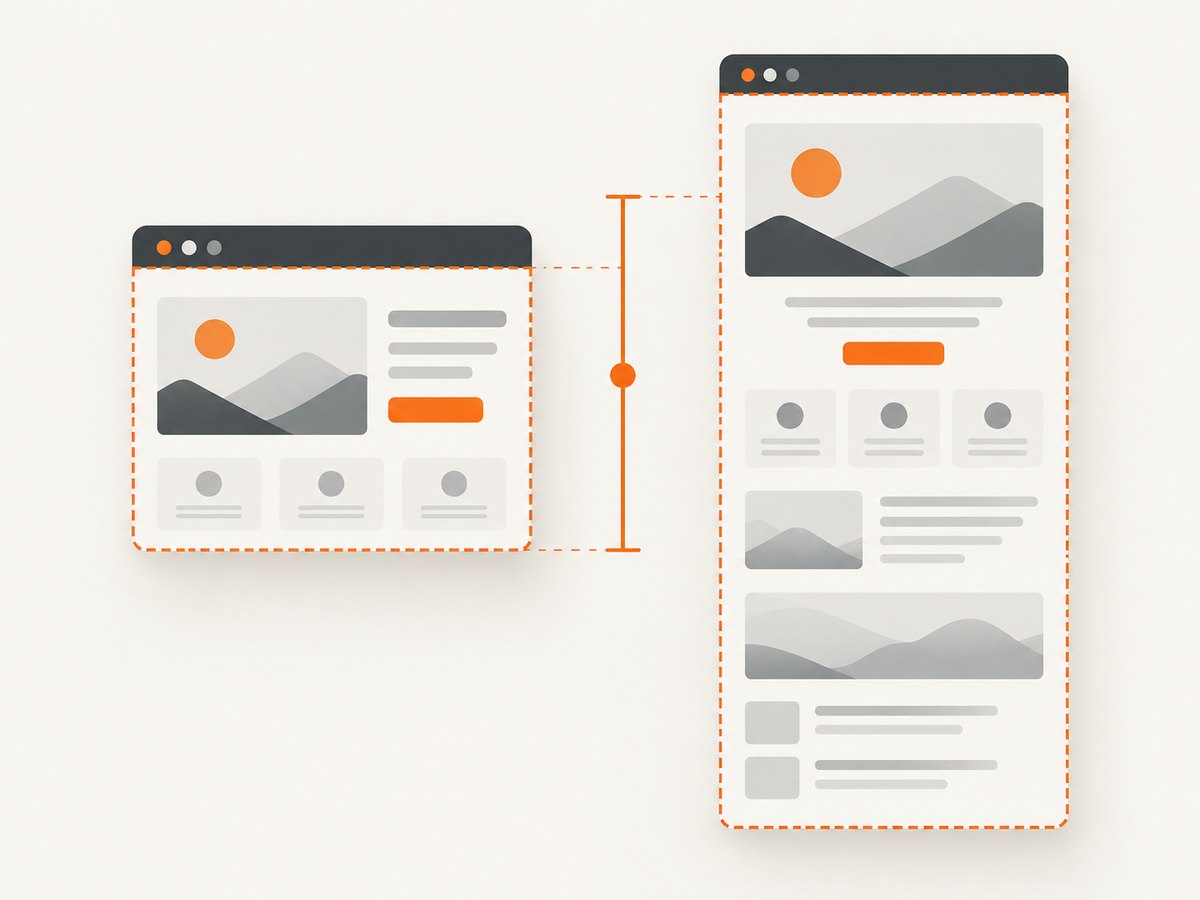
FullPage captures the full scrollable page rather than only the visible viewport. A normal viewport screenshot is usually the better choice for UI components whose dimensions must stay fixed.
5. Wait for rendering readiness
Taking a screenshot immediately after setting content can capture fallback fonts, unloaded images, or a partially rendered application. Wait for the conditions that matter to your page.

Wait for web fonts
await page.EvaluateExpressionAsync("document.fonts.ready");Wait for a known element
await page.WaitForSelectorAsync(".chart-ready");Wait for an explicit application signal
await page.WaitForFunctionAsync("window.renderComplete === true");Wait for images
await page.EvaluateFunctionAsync("""
() => Promise.all(
  Array.from(document.images)
    .filter(img => !img.complete)
    .map(img => new Promise(resolve => {
      img.addEventListener('load', resolve, { once: true });
      img.addEventListener('error', resolve, { once: true });
    }))
)
""");
With SetContentAsync, the API reference does not support Networkidle0 or Networkidle2 as wait conditions. Use an explicit selector, a readiness flag, a short delay, or asset checks instead.
6. Return bytes instead of writing a file
PuppeteerSharp provides file, byte-array, Base64, and stream screenshot APIs. In-memory output is useful when an ASP.NET endpoint, object store, database, or queue receives the image directly.
var bytes = await page.ScreenshotDataAsync(new ScreenshotOptions
{
    FullPage = true,
    Type = ScreenshotType.Png
});

await File.WriteAllBytesAsync("output.png", bytes);
Use the stream or Base64 variants when your surrounding API already uses those transports. Avoid Base64 for large images unless the receiving system requires it; binary bytes use less space and memory.
7. Useful screenshot options
- FullPage: capture the complete scrollable document.
- Type: select PNG, JPEG, or WebP when using an options object.
- Quality: adjust lossy JPEG or WebP output when supported; it has no useful effect for PNG.
- Clip: capture a rectangular region when you need a fixed crop.
- OmitBackground: create transparency when the page and browser support it.
Set viewport options before loading the page so responsive CSS selects the intended breakpoint. If the page has animations, disable them with custom CSS or wait for a stable state before capture.
8. Resource lifetime and deployment
Use await using (or an equivalent disposal pattern) for IBrowser and IPage. This closes Chromium processes and prevents leaked workers in a server that handles many requests.
Provision the browser revision during deployment or startup, and ensure the runtime can launch Chromium in its container or host environment. A minimal container may need the libraries and sandbox configuration required by Chromium. Keep one browser process alive for a worker and create pages per job when throughput matters; always close each page after its job.
9. Reliability, performance, and cost considerations
- Reliability: use a fixed viewport, deterministic data, explicit readiness checks, and reachable assets. Record the source URL or HTML version with each generated image.
- Performance: browser startup is expensive. Reuse a browser process, limit concurrent pages to what the host can handle, and avoid loading unnecessary third-party resources.
- Large pages: full-page captures consume more memory and can produce very tall images. Split very long documents when your downstream format has a maximum dimension.
- Fonts: self-host or preload fonts when exact typography matters. Waiting for
document.fonts.readyonly helps if the font can actually be fetched. - Cost: PuppeteerSharp itself is a library; your costs come from compute, browser memory, storage, and bandwidth. Measure peak concurrent Chromium processes rather than only average request time.
10. Troubleshooting
| Symptom | Likely cause | Fix |
|---|---|---|
| Browser executable not found | The compatible revision was not downloaded or is unavailable in the deployment image. | Run new BrowserFetcher().DownloadAsync() during setup and verify the process can read the cache. |
| Blank or incomplete image | Capture happened before scripts, fonts, or images finished. | Wait for document.fonts.ready, a selector, an application readiness flag, or image completion. |
| Relative images or CSS are missing | The HTML string has no usable base path, or assets are not reachable. | Use absolute URLs or provide a base URL and check network access from the host. |
| Wrong responsive layout | Viewport was left at a default size or set after loading. | Set width, height, and device scale factor before SetContentAsync or GoToAsync. |
| Fonts differ between machines | The requested font is unavailable or still loading. | Install or serve the font consistently and wait for document.fonts.ready. |
| SetContentAsync wait error | Networkidle0 or Networkidle2 was used with content loading. |
Use an explicit readiness signal or asset wait instead. |
| Chromium exits in a container | Missing system libraries, permissions, or sandbox settings. | Use a browser-ready base image, install required dependencies, and configure the container according to its security policy. |
| Process count grows over time | Browser or page objects are not disposed. | Wrap them in await using and close failed jobs in a finally path. |
11. Or skip the browser setup
If you need an API instead of managing Chromium, ScreenshotNeo accepts one GET request and returns a PNG, JPEG, WebP, or PDF. Cookie and consent banners, newsletter popups, and chat widgets are removed before the shot; bot checks, blank pages, timeouts, failed loads, and cache hits are not billed. An MCP server lets AI agents take screenshots, and 1,000 screenshots per month are free with no card; paid plans start at $5 for 3,000.
See the ScreenshotNeo API documentation for all options.
curl -G "https://api.screenshotneo.com/v1/shot" -d access_key=YOUR_API_KEY --data-urlencode url=https://stripe.com -o shot.webpimport requests
r = requests.get("https://api.screenshotneo.com/v1/shot", params={"access_key": "YOUR_API_KEY", "url": "https://stripe.com"}, timeout=90)
open("shot.webp", "wb").write(r.content)const q = new URLSearchParams({ access_key: 'YOUR_API_KEY', url: 'https://stripe.com' });
const res = await fetch(`https://api.screenshotneo.com/v1/shot?${q}`);Start with 1,000 free screenshots a month—no card required.
12. FAQ
Can PuppeteerSharp convert HTML without hosting it?
Yes. Pass the markup directly to SetContentAsync. External assets still need URLs reachable from the rendering environment.
Which method should I use for a webpage URL?
Use GoToAsync, then wait for the page’s visual readiness and call ScreenshotAsync.
How do I make the output transparent?
Use a transparent page background and the screenshot option that omits the browser background when your selected image format supports transparency.
Why is my full-page image unusually tall?
FullPage includes the entire scrollable document. Check unexpected margins, infinite-scroll components, and elements whose height grows while rendering.
Should I use a new browser for every screenshot?
For batch or server workloads, reuse a browser process and create a fresh page per job. Dispose pages promptly and cap concurrency based on available memory.


