Convert HTML Including JavaScript to PDF in PHP
Generate PDFs from JavaScript-rendered pages in PHP with headless Chrome. Compare Browsershot, chrome-php, Chrome CLI, and PHP-only converters.
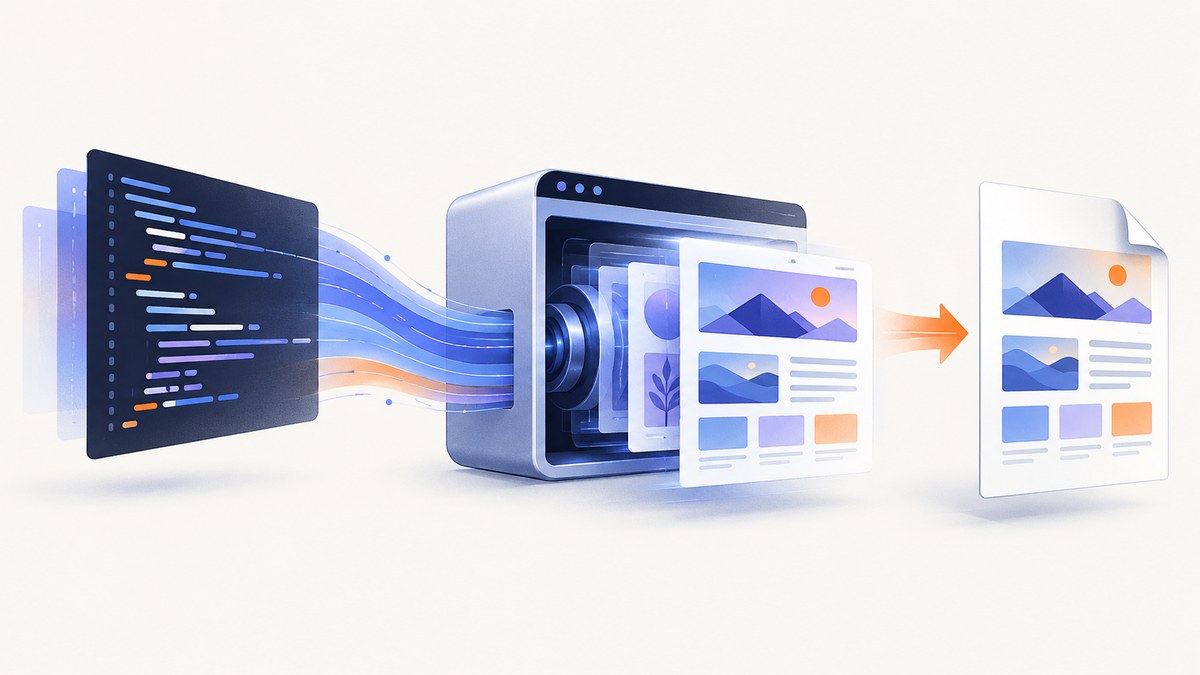
To convert HTML that depends on JavaScript into a PDF in PHP, render it in a real browser engine such as headless Chrome. A PHP-only converter such as Dompdf does not execute JavaScript, so it cannot reproduce a page whose content or layout appears only after scripts run. The most approachable Laravel/PHP integration is Spatie Browsershot, which uses Puppeteer to control Chrome. For more direct control, use chrome-php/chrome or invoke Chrome’s headless CLI.
This guide shows all three approaches, explains when to use each, and covers page readiness, print settings, deployment, failures, and costs.
1. Choose a renderer that runs JavaScript
| Approach | Best fit | Trade-off |
|---|---|---|
| Browsershot | Laravel or PHP apps that need a convenient browser automation API | Requires Node.js, Puppeteer, and Chrome/Chromium in the runtime environment |
| chrome-php/chrome | PHP applications that want to manage Chrome through a PHP API | Requires a compatible Chrome/Chromium executable and process resources |
| Chrome CLI | Shell-oriented workers and simple one-off conversions | Less convenient for page interaction and application-specific readiness checks |
| Dompdf | Static, server-rendered HTML that fits its supported layout model | Does not execute JavaScript |
| wkhtmltopdf | Existing systems and simpler pages validated against its renderer | Uses Qt WebKit, not a current Chrome engine; validate modern CSS and script-dependent output |
Browsershot’s documentation describes the rendering as Puppeteer controlling headless Chrome and documents both URL and raw HTML input. Chrome’s own headless documentation explains that it parses HTML and executes scripts that alter the DOM. Dompdf’s project tutorial explicitly says it does not run JavaScript. Browsershot, Chrome headless, Dompdf, wkhtmltopdf.

2. Convert a URL with Browsershot
Install Browsershot using the package instructions for your framework and environment. Browsershot relies on Puppeteer and a Chrome/Chromium browser; ensure the worker that generates PDFs can access those executables. The simplest URL conversion is:
<?php

use Spatie\Browsershot\Browsershot;

Browsershot::url('https://example.com')
    ->save('example.pdf');
When the target is your own application, prefer a stable, authenticated route that emits the intended print markup. If it requires a logged-in session, configure the required cookies or headers using the options supported by your installed Browsershot version. Avoid putting secrets in a URL that could appear in logs.
3. Render HTML supplied by PHP
For HTML generated by a PHP template, pass the markup directly. This is useful for invoices, reports, and documents that do not need to navigate to a public URL:
<?php

use Spatie\Browsershot\Browsershot;

$html = '<!doctype html>
<html>
<head>
  <meta charset="utf-8">
  <style>
    body { font-family: Arial, sans-serif; margin: 24px; }
    h1 { color: #243b53; }
    @media print { .screen-only { display: none; } }
  </style>
</head>
<body>
  <h1>Quarterly report</h1>
  <div id="report">Loading report…</div>
  <script>
    document.querySelector("#report").textContent = "Report ready";
  </script>
</body>
</html>';

Browsershot::html($html)
    ->save('report.pdf');
The script in this example updates the DOM before the browser prints the document. For more complex applications, do not assume that the first DOM update means all data, images, or charts are finished; see the readiness section below. Keep HTML data safely escaped when inserting user-provided values.
4. Set PDF layout and output
PDF rendering depends on print CSS and browser print options. Define page-specific layout in CSS, then apply browser settings through the API offered by your Browsershot release. A representative configuration is:
Browsershot::url('https://example.com/report')
    ->format('A4')
    ->landscape()
    ->margins(12, 12, 12, 12)
    ->showBackground()
    ->save('report.pdf');
Confirm method names and accepted units against the documentation for the version pinned by your application. The same page may look different on screen and on paper, so include print rules:
@page {
  size: A4 landscape;
  margin: 12mm;
}

@media print {
  .no-print { display: none !important; }
  .report-section { break-inside: avoid; }
  a { color: inherit; text-decoration: none; }
}
Decide explicitly whether backgrounds and browser-generated headers and footers should appear. Chrome CLI supports --no-pdf-header-footer to suppress its date, URL, and page-number decorations. If output depends on web fonts or images, make sure the browser can fetch them and that print styles do not hide them.
5. Wait for JavaScript content before printing
A page can finish navigation before its application has finished fetching data or drawing charts. A fixed delay is simple, but may waste time on fast pages and still be too short on slow ones. Prefer an application-specific ready signal or a selector that only appears when the printable content is complete. Browsershot exposes page-control options; consult its PDF and page interaction documentation for the API available in your pinned version.
For example, your page can set a clear readiness flag after the data and visual assets needed for the document are ready:
// In the page's application code, after the report is ready:
window.reportReady = true;
Then configure your browser automation to wait for window.reportReady === true, or wait for a specific element such as #report[data-state="ready"] before calling the PDF method. If a chart library performs asynchronous drawing, set the signal after its render-complete callback. Network-idle conditions can help, but periodic polling, analytics, or long-lived requests may prevent the network from becoming idle.
Chrome CLI offers --timeout=5000 as a maximum wait before capture. This is a ceiling for that command, not proof that an application-specific operation completed. Chrome headless command-line documentation.
6. Use chrome-php/chrome directly
The chrome-php/chrome library starts and controls Chrome/Chromium from PHP. Its README lists PHP 7.4–8.5 and Chrome/Chromium 65 or newer as requirements; verify the current README and your chosen release before deployment. The basic flow is to launch a browser, navigate, wait for the page load, and ask the page to save a PDF. API details can vary by release, so pin a version and use its README example:
<?php

require __DIR__ . '/vendor/autoload.php';

use HeadlessChromium\BrowserFactory;

$browserFactory = new BrowserFactory('/usr/bin/chromium');
$browser = $browserFactory->createBrowser();

try {
    $page = $browser->createPage();
    $page->navigate('https://example.com')->waitForNavigation();

    // For asynchronous applications, wait for an app-specific ready condition
    // using the evaluation/wait APIs in the library version you have pinned.
    $page->pdf([
        'printBackground' => true,
        'preferCSSPageSize' => true,
    ])->saveToFile(__DIR__ . '/example.pdf');
} finally {
    $browser->close();
}
Use the package’s documented wait and PDF option names for your installed version. Always close the browser in a finally block so failed conversions do not leave browser processes behind. This approach gives PHP a direct browser-control API without the Browsershot facade, but the operational requirement remains: a browser process must be available and managed.
7. Run Chrome from a PHP worker
When a process-based fallback is sufficient, Chrome’s official headless command can print a URL directly:
chrome --headless --print-to-pdf=output.pdf https://example.comA PHP worker can invoke a process library such as Symfony Process rather than concatenating untrusted strings into a shell command:
<?php

use Symfony\Component\Process\Process;

$process = new Process([
    '/usr/bin/chrome',
    '--headless',
    '--no-pdf-header-footer',
    '--timeout=5000',
    '--print-to-pdf=/tmp/output.pdf',
    'https://example.com',
]);
$process->setTimeout(30);
$process->mustRun();

$pdf = file_get_contents('/tmp/output.pdf');
Use argument arrays and validate the input URL. In a multi-user service, do not allow arbitrary URLs without controls: browser navigation can reach internal network services if the host is permitted to do so. Choose temporary output paths safely and remove temporary files after serving them. CLI is less suited to waiting for application-specific selectors or performing interactions before printing.
8. Or skip the browser setup
ScreenshotNeo is a website screenshot API and MCP server. Its PDF endpoint lets you request a capture without installing Chrome in your PHP runtime. See the API documentation for PDF options and response behavior.

curl -G "https://api.screenshotneo.com/v1/shot" \
  -d access_key=YOUR_API_KEY \
  --data-urlencode url=https://stripe.com \
  -d format=pdf \
  -o page.pdf
Use the same endpoint from PHP with cURL:
<?php

$query = http_build_query([
    'access_key' => getenv('SCREENSHOTNEO_API_KEY'),
    'url' => 'https://stripe.com',
    'format' => 'pdf',
]);

$ch = curl_init('https://api.screenshotneo.com/v1/shot?' . $query);
curl_setopt_array($ch, [
    CURLOPT_RETURNTRANSFER => true,
    CURLOPT_TIMEOUT => 90,
]);
$pdf = curl_exec($ch);
$status = curl_getinfo($ch, CURLINFO_RESPONSE_CODE);
if ($pdf === false || $status < 200 || $status >= 300) {
    throw new RuntimeException('ScreenshotNeo request failed: ' . curl_error($ch));
}
file_put_contents('page.pdf', $pdf);
curl_close($ch);
Cookie banners, newsletter popups, and chat widgets are removed before the shot. Bot checks, blank pages, failed loads, and cache hits cost nothing, and response headers identify page verdict and billing status. The MCP server gives AI agents tools for taking screenshots, getting page information, and capturing PDFs. The free plan includes 1,000 shots per month with no card; paid plans start at $5 for 3,000 shots. Get 1,000 free screenshots a month with no card.
9. Deployment, reliability, and cost
Make the environment reproducible
- Pin the PHP package, Puppeteer/browser, and operating-system image versions used in production.
- Install the browser and required system libraries in the same container or VM that runs the worker.
- Check the browser executable path, sandbox policy, fonts, TLS certificates, and outbound network access.
- Test with the real target page and representative data; a local machine may have fonts, certificates, and network access absent from production.
- Set per-job and overall timeouts, and ensure every failure path closes Chrome.
Control resource use
Browser rendering consumes more memory and CPU than a PHP-only layout conversion because it runs a browser process and loads page resources. Limit parallel jobs to what the worker can sustain, reuse browser processes only if your automation library supports safe reuse, and impose reasonable page and process timeouts. The source documentation provides no universal speed, memory, or success-rate benchmark; measure representative jobs in the deployment environment.
Choose the cost model
Self-hosting avoids a per-capture API plan but carries the cost of browser-capable worker capacity, maintenance, and operational troubleshooting. A hosted API replaces much of that setup with per-plan usage. ScreenshotNeo plans are Free: 1,000 shots/month; Starter: $5 for 3,000; Growth: $15 for 15,000; Pro: $39 for 60,000; Scale: $99 for 250,000; and Business: $249 for 1,000,000. Yearly billing gives two months free, and every feature is available on every plan. See current plan and usage details on ScreenshotNeo.
10. Common problems and fixes
| Symptom | Likely cause | Fix |
|---|---|---|
| PDF shows a loading message or missing data | Printing started before asynchronous scripts finished | Wait for an app-specific ready flag or selector; test slow data responses as well as the happy path. |
| JavaScript content is absent | A non-browser converter was used, or scripts failed to load | Use Chrome-backed rendering; inspect browser output and confirm required scripts and API calls are reachable. |
| Browser executable not found | Chrome is missing or installed at a different path in the worker image | Install Chrome/Chromium in that image and configure the correct executable path. |
| Chrome exits immediately in a container | Missing system dependencies or incompatible sandbox/container settings | Use the library’s deployment guidance, install its runtime dependencies, and configure the browser process for the container’s security model. |
| Fonts or images are missing | Assets are inaccessible, fonts are not installed, or the page prints before they load | Check outbound access, certificates, asset URLs, font installation, and readiness conditions. |
| Page breaks split a chart or table | Screen layout has no print-specific pagination rules | Add @media print and page-break controls; inspect the resulting PDF across representative content lengths. |
| Chrome CLI output has unexpected footer text | Browser-generated PDF decorations are enabled | Pass --no-pdf-header-footer when those decorations are not wanted. |
| Worker times out on some pages | Slow requests, long-running polling, or an unrealistic fixed timeout | Use a bounded timeout plus a page-specific readiness condition; investigate failed requests instead of increasing timeouts blindly. |
| PDF is blank | Wrong URL, navigation error, authentication failure, or a page that renders only after interaction | Check the final URL and page response, supply required credentials safely, and reproduce required interactions before printing. |
11. FAQ
Can Dompdf convert JavaScript-rendered pages?
No. Dompdf does not run JavaScript. Use it when PHP has already produced static HTML and its layout support is sufficient.
Can I generate a PDF from HTML without hosting a public URL?
Yes. Browsershot accepts raw HTML through Browsershot::html(...). Ensure any linked assets are reachable by the browser or use appropriate embedded/local assets.
Is a fixed sleep enough?
It can work for a controlled page with stable timing, but it does not establish that the page is ready. An application-specific signal is more reliable.
Should I use Chrome or wkhtmltopdf?
Use Chrome when current browser behavior and JavaScript execution matter. Keep wkhtmltopdf for validated existing workloads that match its Qt WebKit rendering.
How do I return the PDF in an HTTP response?
Save to a temporary file or retrieve the generated bytes, then send them with a PDF content type and a download disposition. Remove temporary files when the response completes.
12. Practical decision checklist
- Does the page need JavaScript to produce its content? If yes, choose Chrome-backed rendering.
- Does the app already use Laravel/PHP and need a convenient facade? Start with Browsershot.
- Does the team want browser control through PHP? Evaluate chrome-php/chrome and pin compatible versions.
- Is the workload a simple command-line job? Chrome headless CLI may be enough.
- Can the production worker install and operate Chrome reliably? If not, consider a hosted capture API.
- Define readiness, print CSS, timeouts, and error handling before treating the output as production-ready.
For most PHP applications that must render a JavaScript-heavy page faithfully, a real browser engine is the key decision. Browsershot is a practical starting point; direct Chrome control or a hosted capture API can fit different deployment constraints.


