How to Convert HTML to a JPG Sized for A4
Render HTML at an explicit A4 size, wait for fonts and images, then export a sharp JPEG with predictable dimensions.
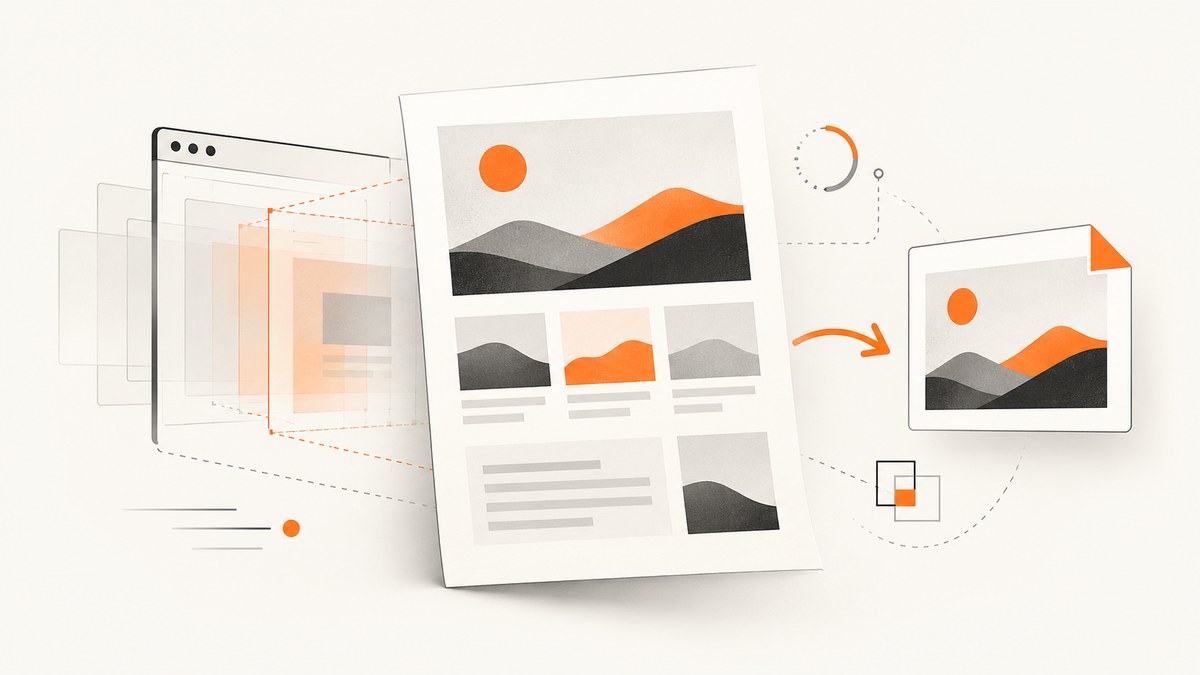
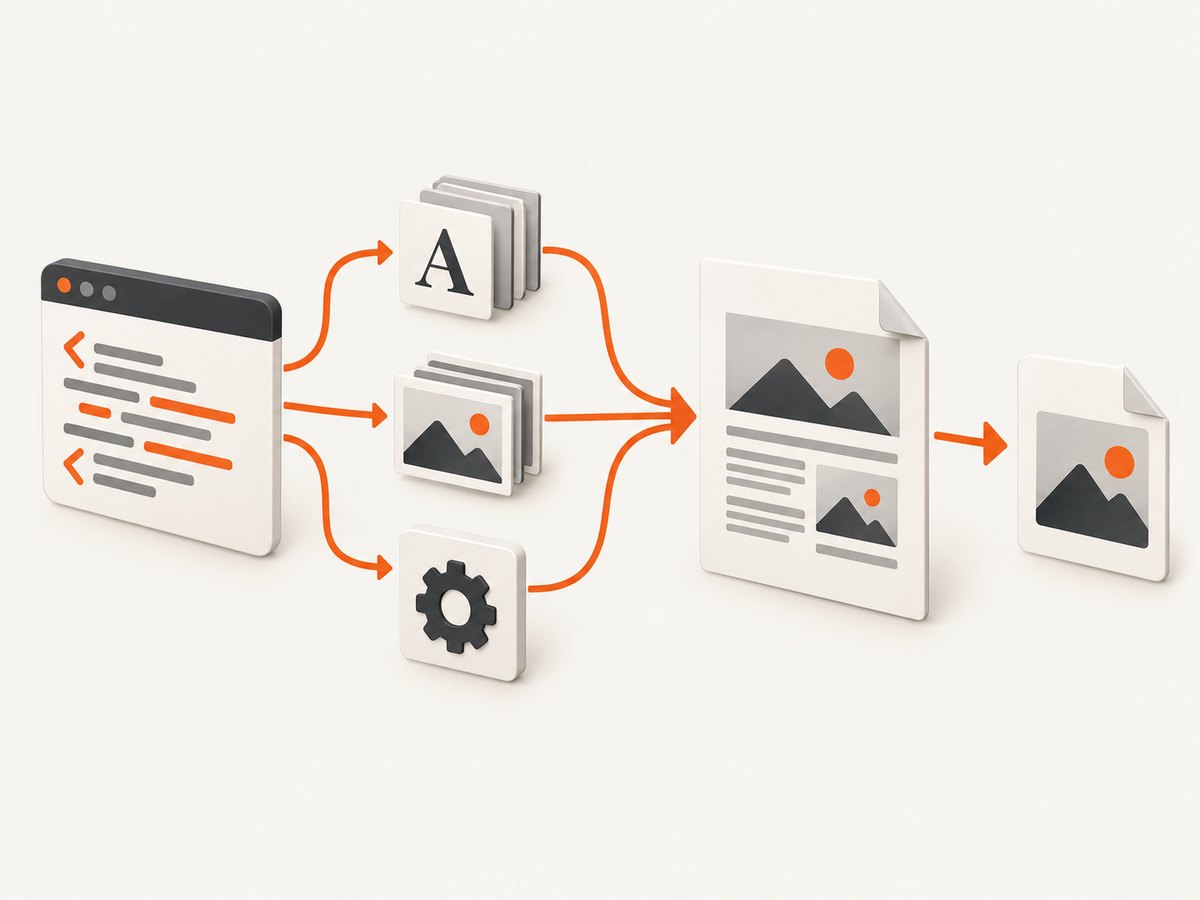
To convert HTML to an A4-sized JPG, render the document in a real browser at an explicit A4 canvas, wait until fonts, images, and JavaScript content are ready, then export the rendered page as a JPEG. A4 portrait is 210mm × 297mm (8.27in × 11.7in). At 96 pixels per inch that is approximately 794 × 1123 pixels; at 150 ppi it is about 1240 × 1754 pixels; at 300 ppi it is about 2480 × 3508 pixels.
A JPG has pixels rather than physical millimetres. Therefore “A4 size” requires two decisions: the paper ratio and the pixel density you want. The browser should perform layout because CSS, web fonts, images, and client-side JavaScript all affect the final appearance.
Choose the A4 pixel dimensions first
The physical A4 dimensions are 8.27in × 11.7in. Multiplying each dimension by your chosen pixels-per-inch assumption gives a practical raster target:
| Use case | Assumed density | Portrait JPG | Landscape JPG |
|---|---|---|---|
| Screen preview | 96 ppi | 794 × 1123 | 1123 × 794 |
| General document sharing | 150 ppi | 1240 × 1754 | 1754 × 1240 |
| High-resolution print workflow | 300 ppi | 2480 × 3508 | 3508 × 2480 |
These are calculated values, not metadata supplied by the browser. A file that is 2480 × 3508 pixels can be printed at A4 at 300 ppi, while the same file can be printed at another physical size if the printer uses a different scale. If your printer or design system specifies a different density, calculate the dimensions as inches × ppi.
Prepare HTML with an explicit A4 page
Put the content inside a page element whose dimensions are expressed in millimetres. Reset the body margin so the browser does not add an unexpected border around the page. box-sizing: border-box keeps padding and borders inside the declared A4 rectangle.
<!doctype html>
<html lang="en">
<head>
  <meta charset="utf-8">
  <meta name="viewport" content="width=device-width, initial-scale=1">
  <style>
    @page { size: A4 portrait; margin: 0; }
    * { box-sizing: border-box; }
    html, body { margin: 0; padding: 0; background: #d9d9d9; }
    body { font-family: Arial, sans-serif; }
    .page {
      width: 210mm;
      height: 297mm;
      padding: 16mm;
      background: white;
      overflow: hidden;
    }
    h1 { margin: 0 0 8mm; font-size: 24pt; }
    p { font-size: 11pt; line-height: 1.45; }
    img { max-width: 100%; height: auto; display: block; }
  </style>
</head>
<body>
  <main class="page">
    <h1>A4 report</h1>
    <p>This content is laid out inside a fixed A4 rectangle.</p>
  </main>
</body>
</html>
Decide whether the outer grey background belongs in the capture. If you capture only .page, it will not. Keep important content inside a safe margin; a printer may clip content close to the edge. For landscape output, use @page { size: A4 landscape; } and swap the page dimensions to 297mm × 210mm.
Render and export with Playwright
Playwright supports JPEG screenshots and page sizes in px, in, cm, and mm. Its scale option controls whether output follows CSS pixels or device pixels; with scale: 'css', each CSS pixel becomes one output pixel. See the Playwright screenshot documentation.
import { chromium } from 'playwright';

const browser = await chromium.launch();
const page = await browser.newPage({
  viewport: { width: 794, height: 1123 },
  deviceScaleFactor: 1
});

await page.goto('file:///absolute/path/report.html', {
  waitUntil: 'networkidle'
});
await page.evaluate(() => document.fonts.ready);
await page.waitForFunction(() =>
  [...document.images].every(img => img.complete && img.naturalWidth > 0)
);
await page.addStyleTag({ content: `
  *, *::before, *::after {
    animation: none !important;
    transition: none !important;
    caret-color: transparent !important;
  }
` });

const pageBox = await page.locator('.page').boundingBox();
if (!pageBox) throw new Error('Missing .page element');

await page.locator('.page').screenshot({
  path: 'report-a4.jpg',
  type: 'jpeg',
  quality: 92,
  scale: 'css'
});
await browser.close();
The viewport above is close to 96-ppi portrait A4. The element’s CSS dimensions remain the authoritative page size; the viewport only determines how the browser lays out responsive content. For a 300-ppi raster, use a larger device scale or render at a larger CSS target, then verify the resulting dimensions. Do not assume that setting JPEG quality changes width or height: quality changes compression, not geometry.
Capture a fixed pixel canvas when exact dimensions matter
If downstream software demands exactly 2480 × 3508 pixels, make the page canvas explicit in pixels and keep the same A4 ratio:
.page {
  width: 2480px;
  height: 3508px;
  padding: 189px; /* approximately 16mm at 300 ppi */
}
Alternatively, keep the physical millimetre layout and use a device scale factor that produces the required raster. Always inspect the actual file dimensions after capture because browser scale, fractional CSS pixels, and element bounds can produce rounding differences.
Wait for fonts, images, and application data
networkidle alone is not a guarantee that the page is visually ready. A site may fetch data after the network becomes quiet, load a font from a cache, or contain an image whose request succeeded but whose decoding has not finished. Use explicit readiness checks:
await page.waitForFunction(() => window.reportReady === true);
await page.evaluate(async () => {
  await document.fonts.ready;
  await Promise.all([...document.images].map(img => {
    if (img.complete) return img.decode?.().catch(() => {});
    return new Promise(resolve => {
      img.addEventListener('load', resolve, { once: true });
      img.addEventListener('error', resolve, { once: true });
    });
  }));
});
Set window.reportReady = true in your application after client-side data and charts have rendered. For animations, disable transitions or wait for a known state. If an image is optional, treat a failed image as a deliberate placeholder rather than waiting forever.
Use Puppeteer when it is already in your stack
Puppeteer provides the same browser-rendering approach. Its documentation covers page.setContent(), viewport configuration, and page.screenshot() in the Puppeteer API reference.
import puppeteer from 'puppeteer';

const html = `<!doctype html>
<style>
  * { box-sizing: border-box; }
  html, body { margin: 0; }
  .page { width: 210mm; height: 297mm; padding: 16mm; background: white; }
</style>
<main class="page"><h1>A4 report</h1></main>`;

const browser = await puppeteer.launch();
const page = await browser.newPage();
await page.setViewport({ width: 794, height: 1123, deviceScaleFactor: 1 });
await page.setContent(html, { waitUntil: 'networkidle0' });
await page.evaluate(() => document.fonts.ready);
await page.locator('.page').screenshot({
  path: 'report-a4.jpg',
  type: 'jpeg',
  quality: 92
});
await browser.close();
Capture multiple A4 pages correctly
A single tall HTML document is not automatically a stack of A4 sheets. Do not squeeze a long report into one page: text becomes unreadable and the physical size is no longer meaningful. Use one of these approaches:
- Create one
.pageelement per sheet and capture each element as its own JPG. - Generate an A4 PDF with print CSS, then rasterize each PDF page to a JPEG at the required density.
- Paginate content in CSS and capture each page rectangle with a deterministic selector.
const pages = await page.locator('.page').all();
for (let i = 0; i < pages.length; i++) {
  await pages[i].screenshot({
    path: `report-${String(i + 1).padStart(3, '0')}.jpg`,
    type: 'jpeg', quality: 92, scale: 'css'
  });
}
Keep headers, footers, and page breaks inside each rectangle. Test the longest heading, table, and image because overflow can be clipped by overflow: hidden.
Or skip the browser setup
ScreenshotNeo provides a website screenshot API that can return PNG, JPEG, WebP, or PDF. For a hosted page, one GET request is enough; see the ScreenshotNeo API documentation.

curl -G "https://api.screenshotneo.com/v1/shot" -d access_key=YOUR_API_KEY --data-urlencode url=https://stripe.com -o shot.webpimport requests
r = requests.get("https://api.screenshotneo.com/v1/shot", params={"access_key": "YOUR_API_KEY", "url": "https://stripe.com"}, timeout=90)
open("shot.webp", "wb").write(r.content)const q = new URLSearchParams({ access_key: 'YOUR_API_KEY', url: 'https://stripe.com' });
const res = await fetch(`https://api.screenshotneo.com/v1/shot?${q}`);Set the output format, A4 viewport or device preset, full-page behavior, waiting rules, custom CSS, and other capture options in the request. ScreenshotNeo can load lazy images, wait for a selector, delay, or network idle, and capture an element by CSS selector. It also supports PDF paper size, margins, landscape mode, and page ranges when PDF is a better intermediate format.
- Cookie and consent banners, newsletter popups, and chat widgets are removed before the shot; each cleanup step can be turned off.
- Bot checks, blank pages, failed loads, timeouts, and cache hits are not billed. Response headers identify the page verdict and whether it was billed.
- An MCP server lets Claude, Cursor, and other MCP clients take screenshots with
take_screenshot, inspect pages withget_page_info, and create PDFs withcapture_pdf. - The Free plan includes 1,000 screenshots each month with no card. Paid plans start at $5 for 3,000 shots; every feature is on every plan.
Create a free ScreenshotNeo account and start with the 1,000 free monthly screenshots.
Common errors and fixes
| Symptom | Likely cause | Fix |
|---|---|---|
| Output is not A4-shaped | Viewport or element has an arbitrary ratio. | Use 210mm × 297mm (or 297mm × 210mm) and capture the page element. |
| Content is cut off | Content exceeds the fixed page height. | Paginate into multiple pages, reduce content, or capture a PDF first. |
| Fonts look different | Capture occurred before web fonts loaded or the font request failed. | Await document.fonts.ready; use a reliable local or hosted font and check the browser console. |
| Images are blank | Lazy loading, decoding, CORS, or an image error. | Scroll lazy images into view, await completion and decoding, and handle failed images explicitly. |
| JPG has a grey border | Body background or default margin was captured. | Reset body margin and capture .page, not the outer document. |
| Text is blurry | Raster is too small or JPEG compression is excessive. | Use 150 or 300 ppi dimensions, increase quality, and inspect at 100% zoom. |
| Capture hangs | Permanent connections or a readiness promise never resolves. | Use a timeout, avoid waiting for every request, and wait for a specific selector or application flag. |
| Colours change in print | Browser print and image colour handling differ. | Use explicit CSS colours, test the target printer, and treat the JPG as screen pixels unless a print workflow defines otherwise. |
Performance, reliability, and cost
Browser startup is often the largest local cost. Reuse a browser process, create isolated pages per job, and avoid loading analytics, ads, and video when they are not part of the document. Set a bounded navigation and capture timeout. For repeatable output, pin browser versions, freeze animations, use deterministic data, and keep fonts available from a stable origin.
JPEG compression is lossy. Quality around 90–95 is a reasonable starting point for text-heavy pages, but compare file size and legibility with your actual content. PNG is often better for diagrams, screenshots with flat colours, or tiny text; convert to JPG only when the receiving system requires it.
For hosted capture, cache identical pages when appropriate and choose a cache TTL that matches how often the source changes. ScreenshotNeo reports whether a response was billed, and failed loads, blank pages, bot checks, timeouts, and cache hits cost nothing. For bulk work, its API supports up to 100 URLs per call, asynchronous jobs with signed webhooks, signed links for public image tags, and a usage API.
Verification checklist
- Confirm portrait or landscape orientation.
- Measure the output pixel dimensions with an image tool or library.
- Open the JPG at 100% and inspect small text, borders, and thin lines.
- Check the first and last content near every page boundary.
- Verify fonts, images, charts, and client-rendered data are present.
- Run the same input twice and compare hashes or pixels if repeatability matters.
- Check that no consent dialog, popup, or chat widget obscures the document.
FAQ
Is A4 a pixel size?
No. A4 is a physical paper size. Choose a pixel density, then calculate the raster dimensions.
Should I use a screenshot or a PDF?
Use a JPG for a single raster image or a system that accepts images. Use a PDF when the document spans pages, needs selectable text, or must preserve print layout before rasterization.
Why does my 210mm element not equal 210 pixels?
Millimetres are converted through the browser’s CSS inch definition. The resulting CSS pixel dimensions depend on the browser scale; the final image scale option can add device pixels.
Can I make an A4 JPG from a remote URL?
Yes. Use Playwright or Puppeteer to load the URL and capture a prepared page element, or use ScreenshotNeo when you want a hosted capture endpoint and built-in page cleanup.


