How to Convert HTML to JPG on Mac
Convert an HTML file or webpage to JPG on a Mac with Safari or Chrome, Preview, or headless Chrome for repeatable captures.
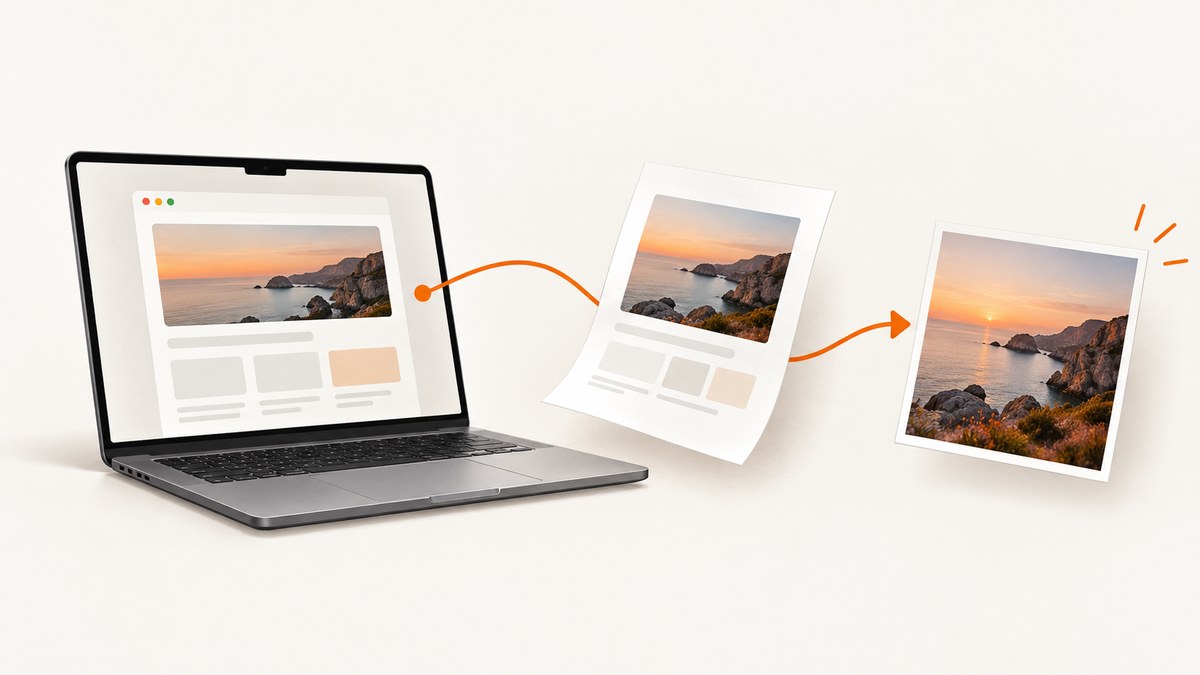
Direct answer: For a one-off conversion, render the HTML in Safari or Chrome, print it to PDF, then open that PDF in Preview and export the desired page as JPEG. For repeatable captures or batches, use headless Chrome to control the viewport and wait time; its screenshot is generally PNG, which you can convert to JPEG in Preview.
This process converts the rendered appearance of HTML into a raster image. It does not turn the source markup itself into a JPG: the browser first applies CSS, loads images and fonts, and runs page scripts. The final JPG therefore reflects what was rendered at capture time.
1. Convert HTML to JPG with a browser and Preview
This is the simplest method for a local HTML file or a public webpage. It uses Chrome or Safari to render the page, macOS’s PDF workflow to preserve the layout, and Preview to export a JPEG.
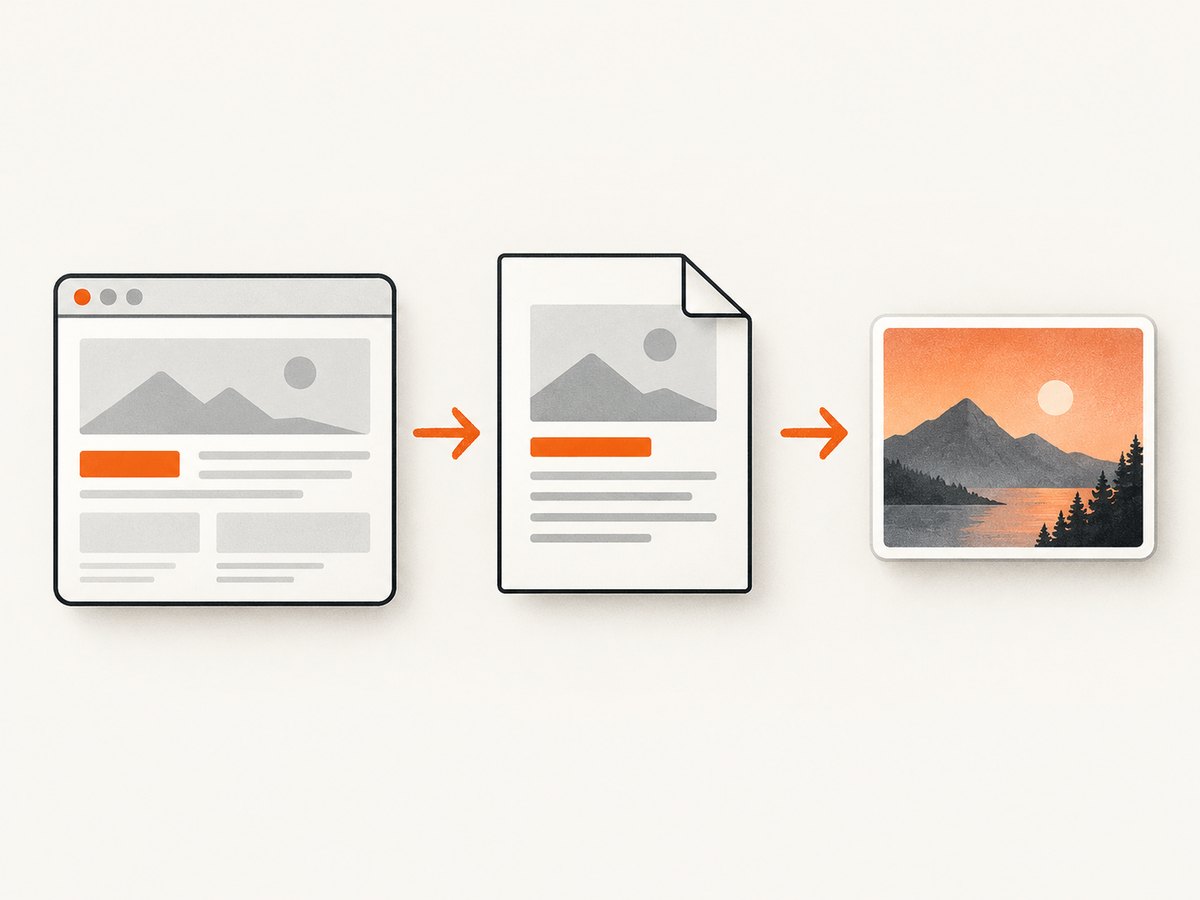
Step 1: Open and inspect the page
- Open the HTML file in Chrome or Safari. For a local file, use File > Open File in the browser, or drag the file into a browser window.
- Wait for visible images, fonts, and page content to finish loading. If the page has animation or changing content, pause it or wait for a stable frame.
- Check the page at the size you want represented in the output. Browser zoom and print settings can affect the layout.
If the HTML references local images, stylesheets, or fonts with relative paths, keep the file in its project directory and open it from there. A standalone HTML file moved away from its supporting assets may render with missing styling or images.
Step 2: Save the rendered page as a PDF
In Chrome on Mac, choose File > Print or press Command-P. In the print destination menu, choose Save as PDF, then save the file. Google’s instructions document the Command-P shortcut and Save as PDF destination on Mac: Print from Chrome.
Safari can save a webpage as a Web Archive or Page Source, but those are not JPG exports. For this workflow, use the browser’s print-to-PDF action, then export the rendered PDF page from Preview. Safari’s supported page-saving formats are described in Apple’s Safari guide.
Review the print preview before saving. If the page is wider than the paper, the browser may scale it down or split it. Paper size, orientation, margins, headers, and backgrounds can all affect the result. Enable background graphics if the page depends on background colors or images and the print dialog offers that option.
Step 3: Export a PDF page as JPEG in Preview
- Open the saved PDF in Preview.
- If it contains multiple pages, show the sidebar and click the thumbnail for the page you want to convert.
- Choose File > Export.
- In the Format menu, choose JPEG. If you do not see Format, hold the Option key while opening the menu.
- Choose a filename and destination. Adjust the quality slider if shown, then save.
Preview exports the selected PDF page as a raster image. Apple’s documentation covers exporting PDFs and images and extracting a PDF page. JPEG is a lossy format: lowering quality makes a smaller file but can introduce visible artifacts around text and sharp edges. For a crisp page with small text, use a high quality setting and inspect the saved result at 100% zoom.
2. Choose the right page size and capture scope
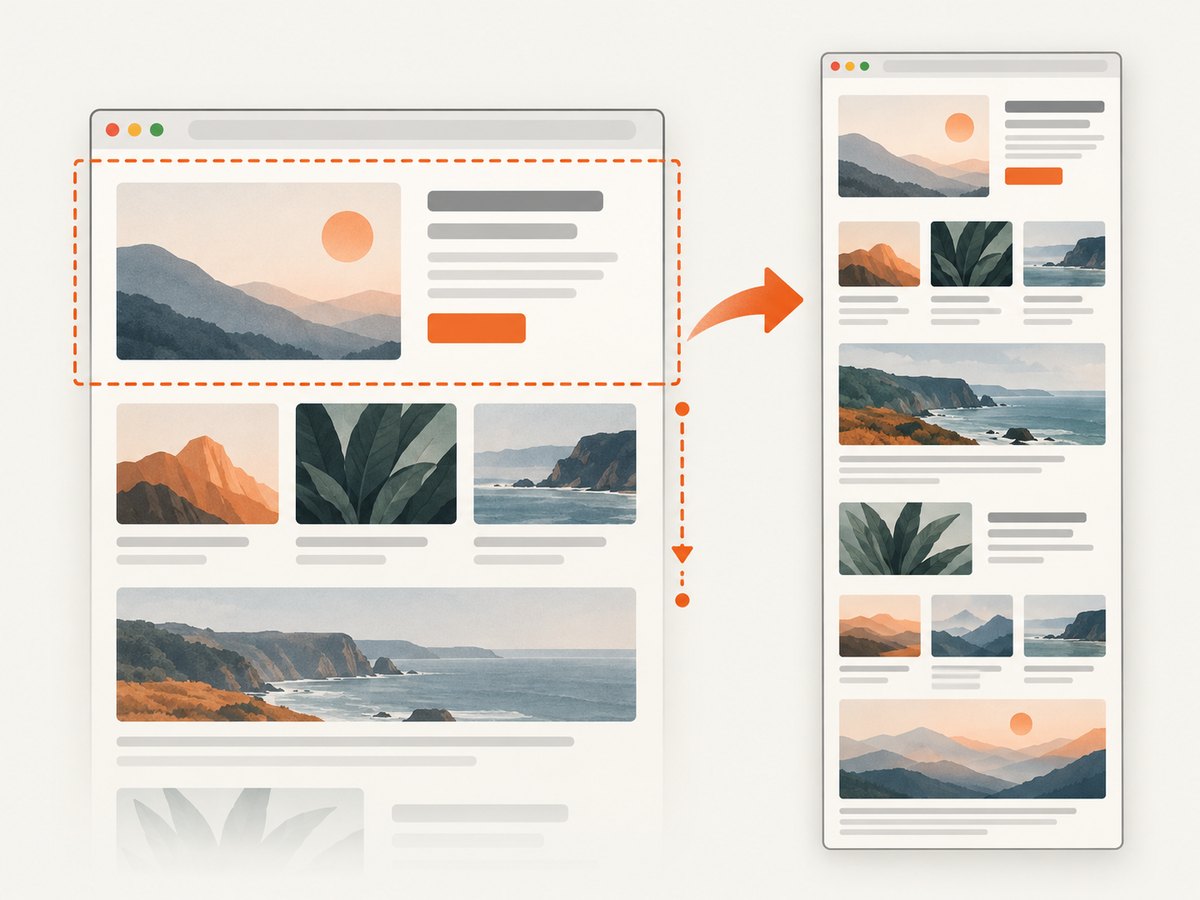
The PDF route is convenient, but its paper-based layout can change how a web page appears. Decide whether you need a printable page, a screen-sized viewport, or a long full-page image before converting.
| Need | Suggested approach | Watch for |
|---|---|---|
| One normal page | Browser print to PDF, then Preview export | Print scaling and margins |
| One specific screen view | Set browser window dimensions before capture, or use headless Chrome | Viewport width changes responsive layout |
| Long page | Use a full-page capture workflow; PDF may split across pages | Lazy-loaded content may not appear until scrolled |
| Several pages or repeated runs | Headless Chrome with fixed dimensions and wait settings | Ensure each page has finished rendering |
For a PDF that spans several sheets, Preview exports one selected page at a time. If you need a single tall image of the whole website, a paginated PDF is usually the wrong intermediate format: use a full-page screenshot workflow and convert the resulting PNG to JPEG if necessary.
3. Automate captures with headless Chrome
Chrome’s headless command-line mode is useful when you need a repeatable viewport, a deliberate delay for dynamic content, or a scriptable starting point for a batch. The Chrome reference documents --screenshot, --window-size, and --timeout: Chrome Headless mode.
After installing Chrome, run a command in Terminal. The executable path depends on the installation. On a typical Mac installation, the command may be available as google-chrome; if it is not, call the Chrome binary inside the application bundle.
google-chrome --headless --screenshot --window-size=1200,1600 --timeout=5000 https://example.com/The example asks Chrome to capture after a five-second timeout at a 1200-by-1600 window size. Replace the URL with your target. Chrome’s documented screenshot output is an image capture; if the file is PNG, open it in Preview, choose File > Export, select JPEG, and save.
Make the command repeatable
- Set a fixed size: Keep
--window-size=WIDTH,HEIGHTconsistent so responsive breakpoints do not change between runs. - Set a wait: Use
--timeoutto give scripts and network resources time to settle. A fixed delay is simple, but it can be too short on slow pages and unnecessarily long on fast ones. - Choose an output location: Run the command from the directory where you want the screenshot saved, or use the output path option supported by your Chrome version.
- Verify the format: Check the output extension and file type. If it is PNG, convert it to JPEG in Preview when the destination requires JPG.
Headless capture is not automatically identical to printing or to a visitor’s browser session. Fonts, browser version, viewport size, animation timing, authentication state, and page content can affect pixels. Keep those inputs stable when comparing captures. The documented command also does not by itself promise that every lazy image or dynamic widget will be ready; inspect output and tune the wait for the page.
4. Common problems and fixes
| Problem | Likely cause | Fix |
|---|---|---|
| The JPG is blank or missing content | The page had not loaded, a script failed, or the local file could not find its assets | Open the source in a normal browser first, check that content appears, preserve relative asset paths, and increase the headless timeout if needed. |
| Only part of a long page appears | The PDF printed to multiple pages, or capture covered only the initial viewport | Export the needed PDF page thumbnails individually, or use a full-page screenshot method for one tall image. |
| Images are missing below the fold | Lazy loading waits until the image is near the viewport | Scroll through the page before printing, wait for images to load, or use a capture workflow that loads lazy images. |
| Text is tiny or clipped | Print scaling, paper size, orientation, or viewport width differs from the intended layout | Adjust print scale and paper settings, remove margins where appropriate, or capture at the target viewport dimensions. |
| Colors or backgrounds differ | Print settings omit background graphics, or print CSS changes the page | Enable background graphics when available. If the screen appearance matters, use a screenshot workflow instead of print rendering. |
| Preview does not show JPEG in Format | The export dialog may hide additional formats | Hold Option while opening the Format menu, or confirm that you are using File > Export with a PDF page selected. |
| Chrome command is not found | The Chrome binary is not on the shell PATH | Use the executable inside the Chrome application bundle or configure the path for your installation. |
| The capture changes from run to run | Live content, animation, time-dependent data, or network timing varies | Use the same browser version and viewport, wait for a stable state, and capture at a consistent point in the page lifecycle. |
Safari also notes that some webpages may prevent saving items shown on the page; see Apple’s webpage saving guidance. When a page behaves differently in print, its print stylesheet may intentionally hide or rearrange content. Use a screen capture route if you need the visible browser layout.
5. Reliability, performance, and file size
For a single page, browser-to-PDF-to-Preview minimizes setup and produces a result you can inspect before sharing. For frequent captures, automation removes repetitive clicks, but reliability depends on controlling the inputs: browser build, viewport, wait behavior, page state, and availability of external assets.
A larger viewport or full-page capture can create a larger raster image and take more time to render. JPEG reduces file size through lossy compression, so quality settings matter. Keep the original PNG or PDF if you may need a lossless copy or another export later. For screenshots dominated by text, diagrams, and flat colors, compare the result at normal viewing size before choosing a smaller JPEG.
There is no universal timeout that suits every page. A fixed timeout is easy to understand and reproduce, but it can waste time on quick pages and still fail on slow pages. For important captures, check the output for blank areas, missing media, or partial rendering rather than treating a successful command exit as proof of a correct image.
6. Or skip the browser setup
ScreenshotNeo is a website screenshot API and MCP server for developers. One GET request takes a URL and returns an image such as WebP, PNG, or JPEG, or a PDF. See the ScreenshotNeo API documentation for setup and options.
curl -G "https://api.screenshotneo.com/v1/shot" -d access_key=YOUR_API_KEY --data-urlencode url=https://stripe.com -o shot.webpReplace YOUR_API_KEY with your API key and change the target URL. The response can be requested in different output formats using the API’s documented parameters. ScreenshotNeo’s stated product behavior is to accept cookie or consent banners before capture and remove more than 60 known consent platforms, newsletter popups, and chat widgets; each cleanup step can be turned off. Bot checks or CAPTCHAs, blank pages, timeouts, failed loads, and cache hits cost nothing, and response headers report the page verdict and billing status.
There is also an MCP server with take_screenshot, get_page_info, and capture_pdf tools for Claude, Cursor, and other MCP clients. The free plan includes 1,000 screenshots per month with no card; paid plans start at $5 for 3,000. All features are available on every plan.
Create a free ScreenshotNeo account for 1,000 screenshots a month with no card.
7. Frequently asked questions
Can I convert an HTML file directly to JPG without a browser?
A JPG represents pixels, so HTML must be rendered by a browser or another rendering engine before it can become an image. The built-in Mac workflow uses a browser and Preview.
Is JPG the same as JPEG?
Yes. JPG is a common three-letter file extension for the JPEG image format.
Can Preview convert a webpage to JPG by itself?
Preview converts PDF pages and supported image files. First render or print the webpage to PDF, then export the chosen page as JPEG.
How do I get one image of an entire long webpage?
Use a full-page screenshot capture rather than relying on a multi-page printout. Check that content loaded below the fold before saving the image.
Why does the JPG look different from what I see in the browser?
Print styles, scaling, fonts, missing assets, viewport width, and dynamic page state can alter rendering. Compare the PDF preview and the exported image, or use a screen-oriented capture method when print layout is not desired.


