How to Convert an HTML Page to an Image with .NET
Render HTML as a PNG, JPEG, or WebP in .NET with Playwright, including full-page, element, byte-array, deployment, and troubleshooting guidance.
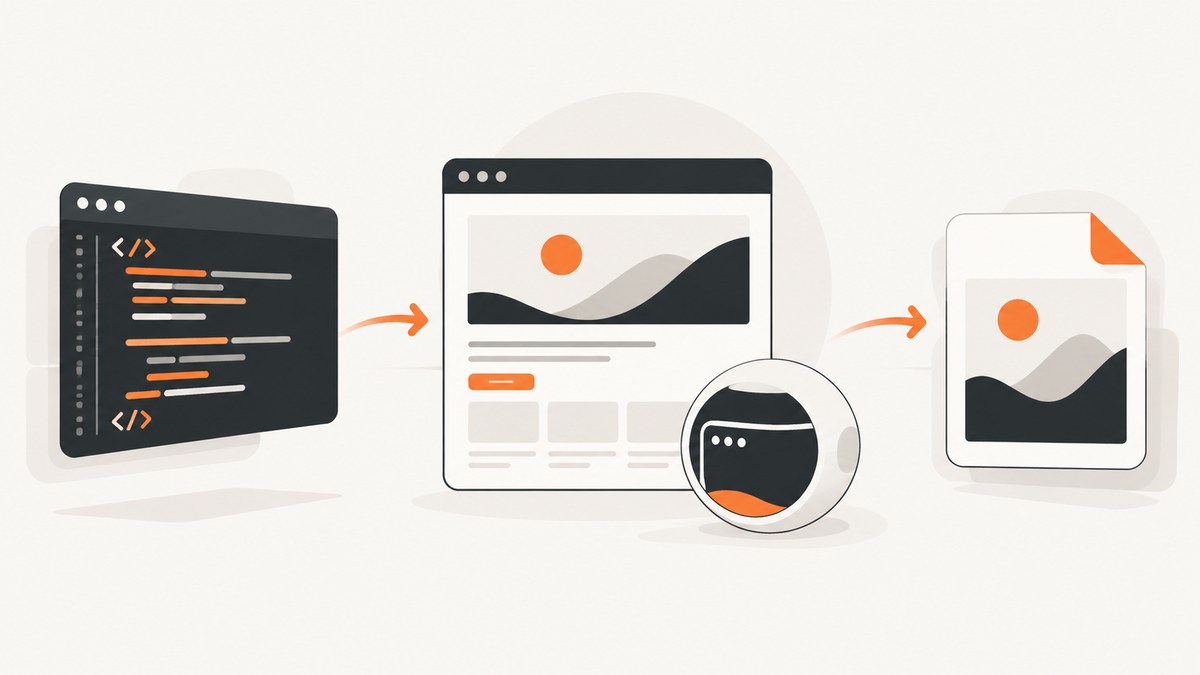
Use a real browser renderer when the HTML depends on CSS, JavaScript, web fonts, responsive layout, or lazy-loaded content. For modern .NET applications, Playwright’s .NET API is the shortest path: navigate to the page, wait for the state your page needs, then call Page.ScreenshotAsync. Set FullPage = true for the complete document, omit Path to receive image bytes, or call a locator’s screenshot method for one element.
This guide covers a complete Playwright implementation, output formats and controls, deterministic waits, CI and container deployment, a Selenium alternative, troubleshooting, performance, and a hosted option when you do not want to package a browser.
1. Install Playwright for .NET
Create a console project and add the Playwright package:
dotnet new console -n HtmlToImage
cd HtmlToImage
dotnet add package Microsoft.Playwright
Build once, then install the browser binaries required by your Playwright version:
dotnet build
pwsh bin/Debug/net8.0/playwright.ps1 install chromium
The exact generated path can differ with your target framework and build configuration. Playwright can also use installed Chrome or Microsoft Edge channels, but branded Chrome is not installed by default. Pin the NuGet package and browser revision in CI, install Linux dependencies when required, and verify that the same fonts are available in development and production. Font substitution changes pixels.
See the Playwright .NET screenshot guide and browser installation documentation for version-specific commands.
2. Convert an HTML page to a PNG
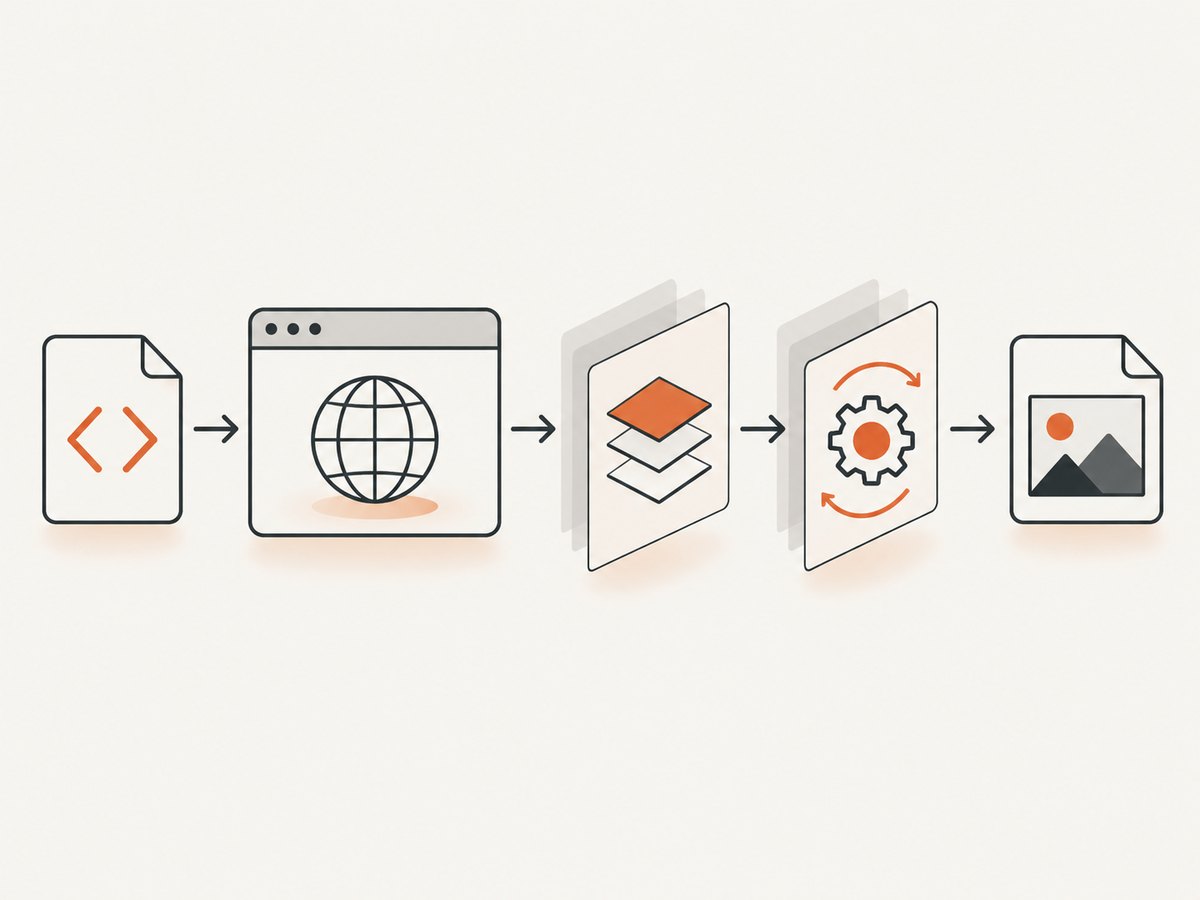
This runnable program opens a URL in headless Chromium and writes a full-page PNG:
using Microsoft.Playwright;

using var playwright = await Playwright.CreateAsync();
await using var browser = await playwright.Chromium.LaunchAsync(new()
{
    Headless = true
});

var page = await browser.NewPageAsync(new()
{
    ViewportSize = new() { Width = 1440, Height = 900 }
});

await page.GotoAsync(
    "https://example.com",
    new() { WaitUntil = WaitUntilState.NetworkIdle, Timeout = 30_000 });

await page.ScreenshotAsync(new()
{
    Path = "page.png",
    FullPage = true
});

await browser.CloseAsync();
NetworkIdle is a workflow choice, not proof that every page is visually settled. Polling applications, animations, lazy images, and web fonts can continue changing after network activity becomes quiet. Prefer a readiness selector and a short bounded delay when the page has a known final state.
3. Save bytes instead of writing a file
Omit Path and Playwright returns a byte[]. This is useful for an HTTP response, object storage, image processing, or a database-backed job:
using Microsoft.Playwright;

using var playwright = await Playwright.CreateAsync();
await using var browser = await playwright.Chromium.LaunchAsync();
var page = await browser.NewPageAsync();

await page.GotoAsync("https://example.com", new()
{
    WaitUntil = WaitUntilState.DOMContentLoaded,
    Timeout = 30_000
});

byte[] pngBytes = await page.ScreenshotAsync(new()
{
    FullPage = true
});

await File.WriteAllBytesAsync("page.png", pngBytes);
await browser.CloseAsync();
In ASP.NET Core, return the bytes directly:
app.MapGet("/render", async () =>
{
    using var playwright = await Playwright.CreateAsync();
    await using var browser = await playwright.Chromium.LaunchAsync();
    var page = await browser.NewPageAsync();
    await page.GotoAsync("https://example.com", new()
    {
        WaitUntil = WaitUntilState.DOMContentLoaded,
        Timeout = 30_000
    });

    var bytes = await page.ScreenshotAsync(new() { FullPage = true });
    return Results.File(bytes, "image/png");
});
4. Capture only one HTML element
Use a locator when you need a card, chart, invoice, header, or other component instead of the entire page:
var card = page.Locator(".pricing-card");
await card.WaitForAsync(new() { State = WaitForSelectorState.Visible });
await card.ScreenshotAsync(new()
{
    Path = "pricing-card.png"
});
Locators use the rendered element box. If the element is outside the viewport, Playwright scrolls it into view. For a precise rectangle, use Clip:
await page.ScreenshotAsync(new()
{
    Path = "region.png",
    Clip = new Clip
    {
        X = 100,
        Y = 200,
        Width = 800,
        Height = 500
    }
});
5. Screenshot options that matter
| Option | Use | Notes |
|---|---|---|
FullPage |
Capture the whole scrollable page | Useful for documents; lazy content may need scrolling or an explicit readiness step. |
Path |
Write a file | Omit it to receive byte[]. |
Type |
Choose PNG, JPEG, or WebP | WebP support depends on the installed Playwright version. |
Quality |
Control JPEG/WebP compression | Not used for PNG. |
Scale |
Choose CSS pixels or device pixels | Use device pixels for high-density output when file size permits. |
OmitBackground |
Transparent background | Supported where the selected format and browser allow it. |
Clip |
Capture a rectangle | Coordinates are relative to the page. |
Mask |
Cover selected locators | Useful for hiding dynamic values in visual tests. |
Animations |
Control animation handling | Disable or finish animations for repeatable captures. |
Timeout |
Bound screenshot work | The documented default is 30,000 ms; set a value appropriate for your page. |
Example JPEG and WebP captures:
await page.ScreenshotAsync(new()
{
    Path = "page.jpg",
    FullPage = true,
    Type = ScreenshotType.Jpeg,
    Quality = 82
});

await page.ScreenshotAsync(new()
{
    Path = "page.webp",
    FullPage = true,
    Type = ScreenshotType.Webp,
    Quality = 80
});
PNG is lossless and is the safest choice for text, diagrams, and pixel comparison. JPEG and WebP usually reduce transfer and storage size by trading away some image information.
6. Make the capture deterministic
Wait for a readiness selector
await page.GotoAsync("https://example.com/report", new()
{
    WaitUntil = WaitUntilState.DOMContentLoaded,
    Timeout = 30_000
});
await page.Locator("[data-render-complete='true']").WaitForAsync(new()
{
    State = WaitForSelectorState.Visible,
    Timeout = 15_000
});
await page.ScreenshotAsync(new() { Path = "report.png", FullPage = true });
Wait for fonts and lazy content
await page.EvaluateAsync("""async () => {
    if (document.fonts) await document.fonts.ready;
    for (let y = 0; y < document.body.scrollHeight; y += 800) {
        window.scrollTo(0, y);
        await new Promise(r => setTimeout(r, 50));
    }
    window.scrollTo(0, 0);
}""");
await page.WaitForTimeoutAsync(250);
Keep delays bounded. A page with continuous polling may never reach a useful generic idle state, so a known selector is more reliable.
Set viewport, locale, and device scale
var context = await browser.NewContextAsync(new()
{
    ViewportSize = new() { Width = 1280, Height = 800 },
    DeviceScaleFactor = 2,
    Locale = "en-US",
    TimezoneId = "UTC"
});
var page = await context.NewPageAsync();
Use the same viewport, scale factor, timezone, locale, browser revision, and fonts when comparing images across runs.
Hide unstable elements
await page.AddStyleTagAsync(new()
{
    Content = """
      *, *::before, *::after { animation: none !important; transition: none !important; }
      .timestamp, .live-counter { visibility: hidden !important; }
    """
});
7. HTML strings instead of URLs
For a generated HTML document, use SetContentAsync:
var html = """
<!doctype html>
<html><head>
  <style>body { font-family: sans-serif; padding: 40px; }</style>
</head><body>
  <h1>Invoice 1042</h1>
  <p>Rendered from an HTML string.</p>
</body></html>
""";

await page.SetContentAsync(html, new()
{
    WaitUntil = WaitUntilState.Load,
    Timeout = 30_000
});
await page.ScreenshotAsync(new() { Path = "invoice.png", FullPage = true });
External CSS, fonts, images, and scripts still need to be reachable from the browser process. For self-contained output, inline the assets or serve them from a stable URL.
8. Selenium alternative
Selenium is practical when your .NET project already has WebDriver infrastructure and tests. Navigate, perform your waits, then call ITakesScreenshot.GetScreenshot():
using OpenQA.Selenium;
using OpenQA.Selenium.Chrome;

var options = new ChromeOptions();
options.AddArgument("--headless=new");
options.AddArgument("--disable-gpu");

using IWebDriver driver = new ChromeDriver(options);
driver.Navigate().GoToUrl("https://example.com");

var wait = new OpenQA.Selenium.Support.UI.WebDriverWait(
    driver, TimeSpan.FromSeconds(30));
wait.Until(d => ((IJavaScriptExecutor)d).ExecuteScript(
    "return document.readyState").ToString() == "complete");

var screenshot = ((ITakesScreenshot)driver).GetScreenshot();
screenshot.SaveAsFile("page.png");
Selenium’s basic screenshot is viewport-oriented. Full-document capture generally requires measuring the rendered document and resizing the window, or using a browser-specific DevTools command. Behavior differs by browser and driver, so validate the exact combination used in CI. Playwright provides first-class full-page, element, byte-array, and format controls in one .NET API; Selenium remains a sensible fit when an existing WebDriver stack is the operational priority.
See the Selenium WebDriver documentation for driver and screenshot APIs.
9. Or skip the browser setup
ScreenshotNeo provides a hosted website screenshot API. One GET request returns PNG, JPEG, WebP, or PDF. It accepts consent banners like a visitor and removes more than 60 known consent platforms, newsletter popups, and chat widgets before capture; each step can be turned off. Bot checks, CAPTCHAs, blank pages, timeouts, failed loads, and cache hits cost nothing, and the response identifies the result with X-Page-Verdict and X-Billed headers. An MCP server provides take_screenshot, get_page_info, and capture_pdf tools for Claude, Cursor, and other MCP clients.

See the ScreenshotNeo API documentation for all options.
cURL
curl -G "https://api.screenshotneo.com/v1/shot" -d access_key=YOUR_API_KEY --data-urlencode url=https://stripe.com -o shot.webpPython
import requests

r = requests.get(
    "https://api.screenshotneo.com/v1/shot",
    params={"access_key": "YOUR_API_KEY", "url": "https://stripe.com"},
    timeout=90,
)
r.raise_for_status()
open("shot.webp", "wb").write(r.content)
Node.js
const q = new URLSearchParams({
  access_key: 'YOUR_API_KEY',
  url: 'https://stripe.com'
});
const res = await fetch(`https://api.screenshotneo.com/v1/shot?${q}`);
if (!res.ok) throw new Error(`HTTP ${res.status}`);
const image = Buffer.from(await res.arrayBuffer());
await import('node:fs/promises').then(fs => fs.writeFile('shot.webp', image));
ScreenshotNeo also supports full-page capture with lazy images loaded, element selectors, dark mode, device presets or custom viewports, retina scale, custom CSS and JavaScript, clicks, selector or network-idle waits, request blocking, headers, cookies, user agents, authorization, timezone, geolocation, transparency, resizing, selectable cache TTLs, signed image links, asynchronous jobs with signed webhooks, bulk capture of up to 100 URLs per call, a usage API, and an OpenAPI specification. Parameter names used by other screenshot APIs also work, which can simplify migration.
There is a free tier of 1,000 screenshots per month with no card. Paid plans start at $5 for 3,000 shots; yearly billing gives two months free, and every feature is available on every plan. Create a free ScreenshotNeo account.
10. Deployment, reliability, and cost considerations
- Browser packaging: install the matching Chromium build and Linux dependencies in containers and CI images.
- Fonts: package the fonts your design requires; fallback fonts alter line wrapping and image dimensions.
- Concurrency: reuse a browser process where appropriate, but isolate contexts and cap concurrent pages to avoid memory pressure.
- Timeouts: use navigation, selector, and screenshot timeouts that match the page, then record which stage failed.
- Retries: retry transient navigation failures with a limit and backoff; do not retry deterministic selector or authentication errors indefinitely.
- Output size: use PNG for lossless output and JPEG/WebP quality settings when bandwidth or storage dominates.
- Reproducibility: pin package and browser versions, viewport, timezone, locale, scale, and fonts.
- Hosted economics: with ScreenshotNeo, only clean shots are billed; cache hits and failed or blocked captures are not billed according to the response verdict headers.
11. Troubleshooting
| Symptom | Likely cause | Fix |
|---|---|---|
Executable doesn't exist |
Playwright browser binaries are missing. | Run the generated Playwright install command during image build or CI setup. |
| Blank or partially rendered image | Capture ran before data, fonts, or lazy images finished. | Wait for a page-specific selector, document.fonts.ready, and any required bounded delay. |
| Full-page image is clipped | Viewport capture was used or the page uses driver-specific behavior. | Use Playwright FullPage = true; with Selenium, validate the browser-specific full-page method. |
| Text wraps differently in CI | Different fonts, browser revision, viewport, locale, or scale. | Pin and install the same assets and settings in every environment. |
| Animations differ between runs | CSS or JavaScript animation is still active. | Disable animations with CSS or configure the screenshot animation option. |
| Navigation timeout | Slow server, never-ending requests, or an unsuitable wait condition. | Use a bounded timeout, wait for a meaningful selector, and inspect failed requests. |
| Element screenshot fails | Selector matches nothing or the element is hidden. | Use a stable locator, wait for visibility, and confirm the rendered DOM. |
| WebP option is unavailable | Installed Playwright release does not support that output. | Check the release line and use PNG or JPEG until the runtime is upgraded. |
| Selenium saves only the viewport | GetScreenshot() captures the current viewport. |
Use Playwright full-page capture or implement and test the target driver’s full-page technique. |
| ScreenshotNeo response is not an image | The target failed, was blocked, or returned a verdict you need to inspect. | Read the HTTP status and X-Page-Verdict/X-Billed headers, then adjust waits, access, or URL settings. |
12. FAQ
Can Playwright .NET return a screenshot without creating a file?
Yes. Omit Path from ScreenshotAsync; the method returns image bytes.
Which format should I choose?
Choose PNG for lossless text and visual comparisons. Choose JPEG or WebP when smaller files matter and lossy compression is acceptable.
Is NetworkIdle enough for every page?
No. Polling, animations, lazy loading, and web fonts can make a page change after network activity settles. A page-specific readiness selector is more dependable.
Can I capture a single component?
Yes. Call page.Locator("selector").ScreenshotAsync(...) after waiting for that locator to be visible.
Should a new project choose Selenium or Playwright?
Choose Playwright when you need integrated full-page, element, byte-array, and format controls. Choose Selenium when your existing WebDriver infrastructure is the stronger constraint.
When is a hosted API preferable?
Use a hosted API when installing browser binaries, fonts, OS dependencies, concurrency controls, and capture cleanup would add more operational work than the feature is worth.


