How to Convert an HTML Page to a JPEG or PNG Screenshot
Render HTML in a browser, then save a reliable JPEG or PNG screenshot with Chrome, Playwright, Puppeteer, or ScreenshotNeo.
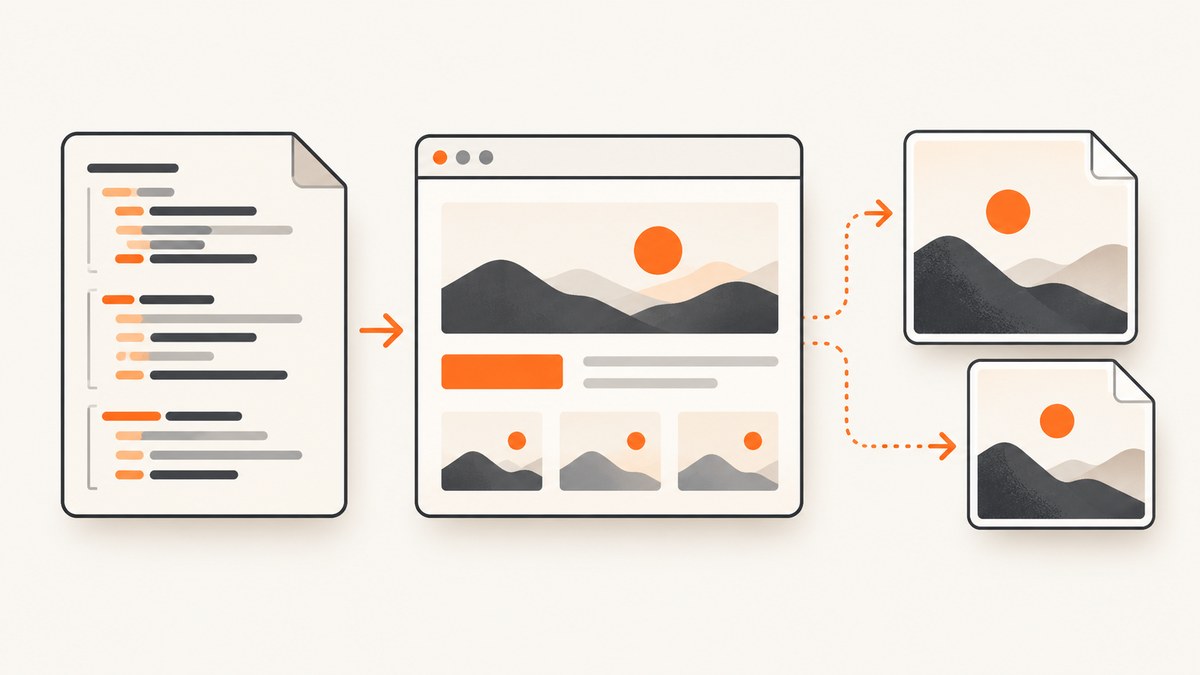
Direct answer: render the HTML in a browser, wait until the content you need is ready, then capture the page. Use Chrome Headless for a quick PNG, or Playwright when you need deliberate JPEG or PNG selection, full-page capture, quality, scale, timing, or element-level control.
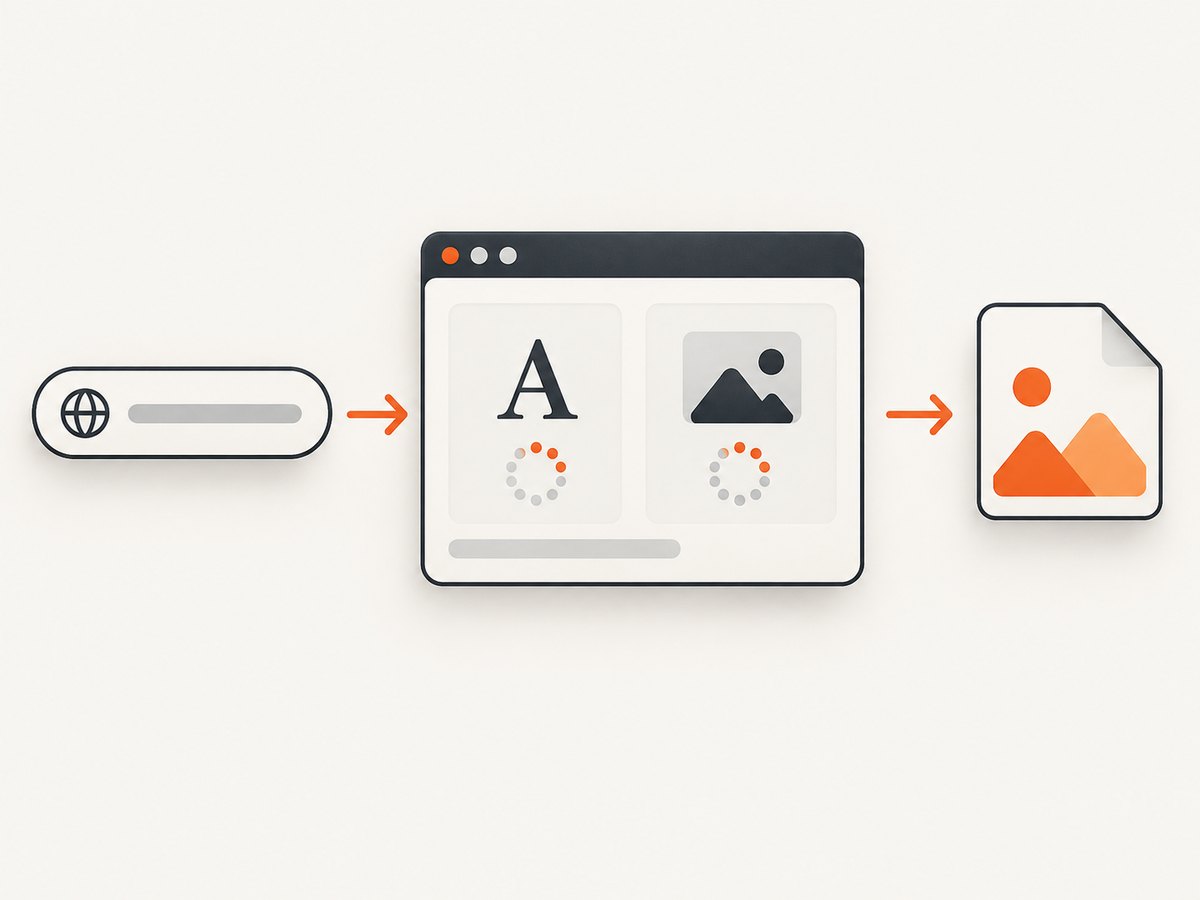
A screenshot is an image of the browser’s rendered result, not the source HTML. The browser must load stylesheets, fonts, images, scripts, and layout before capture. Chrome documents --screenshot for a quick PNG capture, while Playwright and Puppeteer provide reusable APIs for automation.
1. Choose the capture method
| Method | Best for | Format and control |
|---|---|---|
| Chrome Headless | One-off URL capture from a shell | Documented PNG output, window size, timeout |
| Playwright | Applications, CI jobs, and repeatable captures | PNG or JPEG, full page, elements, quality, scale, transparency, waits |
| Puppeteer | Node.js projects already using Puppeteer | Viewport, full page, element capture, navigation waits |
| ScreenshotNeo | An API call without managing a browser | PNG, JPEG, WebP, PDF, waiting, devices, full page, cleanup and delivery options |
2. Fastest route: Chrome Headless PNG
Chrome’s documented command-line route saves a PNG named screenshot.png in the current directory. Add a window size when the default viewport is not suitable, and use a timeout when a page can take longer to load.
google-chrome --headless --disable-gpu \
  --screenshot=screenshot.png \
  --window-size=1440,900 \
  --timeout=30000 \
  https://example.com
The result is a viewport screenshot. It does not automatically include content below the fold. For full-page output or JPEG, use an automation API.
Reference: Chrome Headless command-line reference.
3. Playwright: complete JPEG and PNG workflow
Playwright’s page.screenshot() infers the image type from the output extension when you do not specify type. PNG is the default; JPEG is supported. JPEG quality ranges from 0 to 100 and defaults to 80. The quality setting has no effect on PNG.
Install
npm init -y
npm install -D playwright
npx playwright install chromium
Runnable Node.js script
const { chromium } = require('playwright');

(async () => {
  const browser = await chromium.launch();
  const page = await browser.newPage({
    viewport: { width: 1440, height: 900 },
    deviceScaleFactor: 1
  });

  await page.goto('https://example.com', {
    waitUntil: 'domcontentloaded',
    timeout: 30000
  });

  // Replace this with a selector that proves the page is ready.
  await page.locator('body').waitFor({ state: 'visible', timeout: 10000 });

  await page.screenshot({
    path: 'page.png',
    type: 'png',
    fullPage: true,
    animations: 'disabled'
  });

  await page.screenshot({
    path: 'page.jpg',
    type: 'jpeg',
    quality: 85,
    fullPage: false,
    animations: 'disabled'
  });

  await browser.close();
})();
Playwright API reference: Page.screenshot and Page API.
Important screenshot options
| Option | What it controls | Practical use |
|---|---|---|
path |
Output filename | Use .png or .jpg to make the intended type obvious. |
type |
png or jpeg |
Set it explicitly when the filename is generated dynamically. |
quality |
JPEG compression from 0–100 | Raise it for detail; lower it for smaller files. It does not apply to PNG. |
fullPage |
Entire scrollable page versus current viewport | Use true for documents and landing pages that continue below the fold. |
clip |
Rectangle to capture | Capture a defined region in CSS pixels. |
scale |
Output pixel density: css or device |
Use css for one output pixel per CSS pixel; use device for higher-density output. |
omitBackground |
Transparent page background | Useful for PNG compositing. It does not apply to JPEG. |
animations |
Whether CSS/Web animations run | Disable them for repeatable captures. |
caret |
Whether a text caret is visible | Hide it for clean editor or form captures. |
Set the viewport, device scale, and color scheme
const context = await browser.newContext({
  viewport: { width: 1280, height: 800 },
  deviceScaleFactor: 2,
  colorScheme: 'dark',
  locale: 'en-US',
  timezoneId: 'America/New_York'
});
const page = await context.newPage();
Viewport dimensions are CSS pixels. A device scale factor changes the number of physical output pixels and therefore affects file size and sharpness. Keep these values fixed when you compare captures over time.
Wait for the right readiness signal
domcontentloaded only means the initial document has been parsed. A dynamic site may still be loading images or rendering data. Prefer a page-specific readiness condition:
await page.goto('https://example.com/dashboard', {
  waitUntil: 'domcontentloaded',
  timeout: 30000
});
await page.locator('[data-rendered="true"]').waitFor({ timeout: 20000 });
await page.waitForTimeout(300); // small settling delay when needed
await page.screenshot({ path: 'dashboard.png', fullPage: true });
Network-idle waits can help on pages with finite requests, but no single wait condition is correct for every site. Puppeteer’s guide demonstrates navigation with networkidle2; use an application-specific selector when possible.
Capture one element
await page.locator('.invoice').screenshot({
  path: 'invoice.jpg',
  type: 'jpeg',
  quality: 90
});
Element capture is useful for cards, charts, invoices, and components. Ensure the element is visible and has finished laying out before capture.
4. Puppeteer alternative
npm install puppeteerconst puppeteer = require('puppeteer');
(async () => {
const browser = await puppeteer.launch({ headless: 'new' });
const page = await browser.newPage();
await page.setViewport({ width: 1440, height: 900, deviceScaleFactor: 1 });
await page.goto('https://example.com', {
waitUntil: 'networkidle2',
timeout: 30000
});
await page.screenshot({ path: 'page.png', fullPage: true });
await browser.close();
})();Puppeteer’s screenshot options include viewport, full-page, and element capture. Its official references are the Screenshots guide and ScreenshotOptions reference.
5. HTML strings, local files, and custom CSS
For an HTML string, load it with page.setContent(). Wait for fonts and images if they affect the result.
const html = `<!doctype html>
<html><body><h1>Invoice</h1></body></html>`;
await page.setContent(html, { waitUntil: 'load' });
await page.addStyleTag({ content: 'body { background: white; }' });
await page.screenshot({ path: 'invoice.png', fullPage: true });
Local assets must be reachable by the browser process. Relative paths, blocked file URLs, cross-origin fonts, and missing permissions are common reasons a local screenshot differs from a hosted page.
6. Full-page versus viewport screenshots
A viewport screenshot records what fits inside the current browser window. A full-page screenshot captures the page’s scrollable height. Full-page mode is the right choice for articles and long documents, but very tall pages can produce large images and may expose lazy-loading behavior.
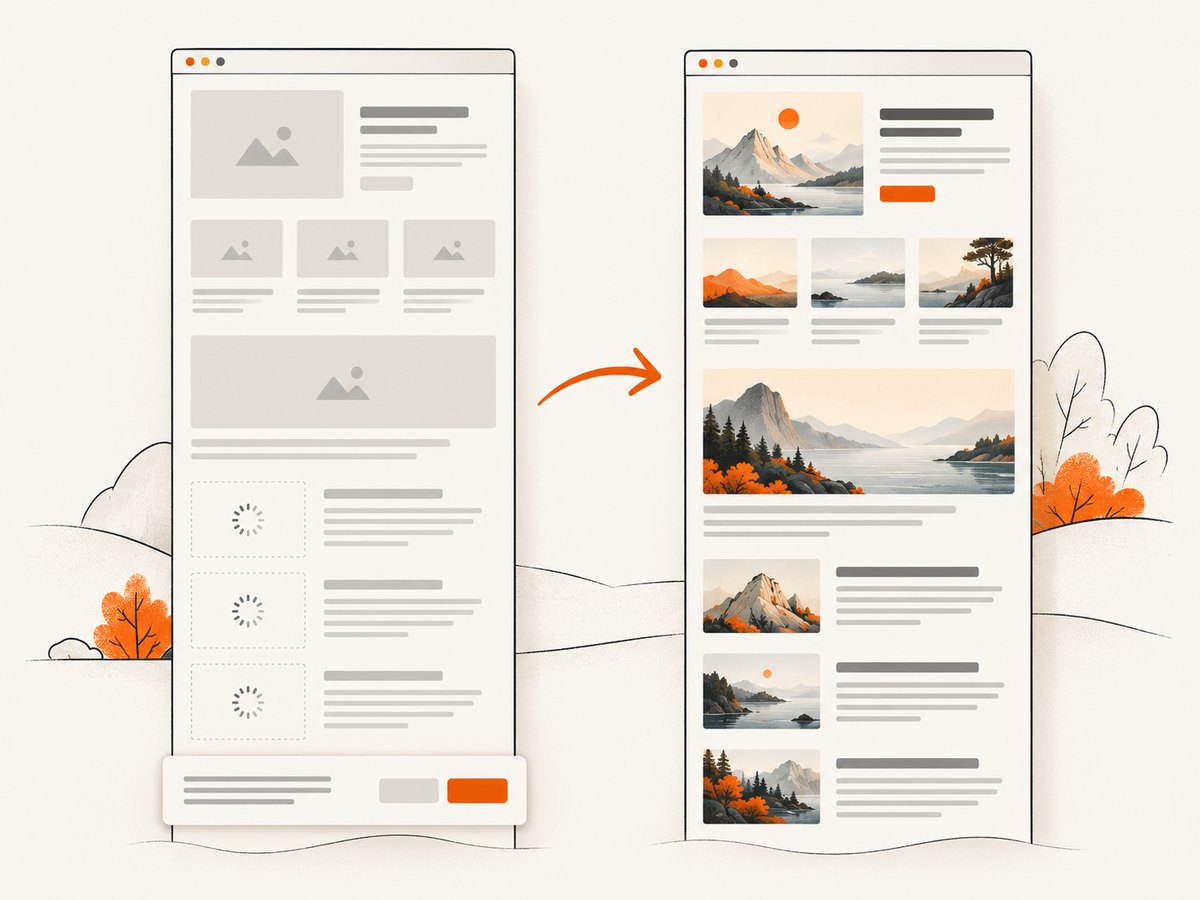
- Use viewport mode for a hero section, responsive breakpoint, or visual regression at a fixed size.
- Use full-page mode for documentation, invoices, and complete landing pages.
- For lazy-loaded images, scroll or trigger the page’s loading behavior before capture.
- For a single component, use locator or element capture instead of a full-page image.
7. JPEG or PNG: which should you choose?
| Requirement | Choose | Reason |
|---|---|---|
| Sharp text, diagrams, UI, or transparency | PNG | Lossless output and transparency support. |
| Photographic content or smaller files | JPEG | Lossy compression with a tunable quality value. |
| Need transparent background | PNG | Playwright’s omitBackground does not apply to JPEG. |
| Need predictable output dimensions | Either | Set viewport and scale explicitly. |
Do not use JPEG quality settings to control PNG size. For PNG, reduce dimensions or device scale, simplify the page, or post-process the file.
8. Reliability checklist
- Fix the viewport, device scale factor, locale, timezone, and color scheme.
- Wait for a selector that proves the important content exists.
- Wait for fonts and critical images when they change layout.
- Disable animations and blinking carets for repeatable output.
- Choose viewport or full-page mode deliberately.
- Set navigation and selector timeouts and handle failures.
- Close the browser in a
finallyblock in production jobs. - Record the URL, options, browser version, and timestamp with each artifact.
9. Troubleshooting
| Symptom | Likely cause | Fix |
|---|---|---|
| Blank or nearly blank image | Capture happened before rendering completed | Wait for a meaningful selector, data request, or image; increase the navigation timeout. |
| Below-the-fold content is missing | Viewport capture was used | Set fullPage: true, or capture sections separately. |
| Images are placeholders | Lazy loading has not been triggered | Scroll through the page, wait for image completion, then capture. |
| Fonts change the layout | Web fonts were still loading or blocked | Wait for document.fonts.ready and verify font network access. |
| JPEG has no transparency | JPEG does not support the requested transparent background | Use PNG with omitBackground. |
| Output is too large | Full-page dimensions or device scale are high | Use viewport capture, lower scale, resize, or choose JPEG with an appropriate quality. |
| Timeout during navigation | Slow page, blocked request, or a page that never becomes idle | Use a longer timeout and a selector-based readiness check instead of waiting for every request. |
| Element is not found | Selector changed or content is inside a frame | Confirm the selector, wait for it, and query the correct frame. |
| Different result in CI | Different browser, fonts, viewport, locale, or timezone | Pin the browser/runtime and set the environment values explicitly. |
| Chrome command fails | Binary name or sandbox settings differ by OS | Use the installed Chrome executable path and consult the platform’s headless launch requirements. |
10. Performance, reliability, and cost
Browser startup is often the expensive part of a batch. Reuse a browser process, create isolated contexts per job, and close pages promptly. Capture only the dimensions you need; full-page, high device scale, and PNG output increase memory and transfer size. Keep concurrency below the point where CPU, memory, or the target site becomes saturated.
For repeatable visual tests, pin browser versions and fonts, use deterministic data, disable animations, and store capture settings with the image. Retries should be limited and should distinguish navigation errors from application errors.
Self-hosted browser capture has infrastructure costs for browser binaries, CPU, memory, CI minutes, and maintenance. A hosted API changes that to per-request pricing and removes browser setup, but you should still set timeouts, inspect response status, and retain enough metadata to diagnose failures.
11. Or skip the browser setup
ScreenshotNeo is a website screenshot API and MCP server. One GET request returns PNG, JPEG, WebP, or PDF, so your application does not need to install or operate a browser.
See the ScreenshotNeo API documentation for the complete option list, including full-page capture, CSS-selector element capture, device presets, viewport and retina scale, dark mode, custom CSS and JavaScript, click and wait actions, blocked requests and resource types, headers, cookies, user agents, authorization, timezone, geolocation, transparent backgrounds, resizing, caching, signed links, asynchronous jobs, webhooks, bulk capture, usage, and OpenAPI details.
cURL
curl -G "https://api.screenshotneo.com/v1/shot" \
  -d access_key=YOUR_API_KEY \
  --data-urlencode url=https://stripe.com \
  -o shot.webp
Python
import requests

r = requests.get(
    "https://api.screenshotneo.com/v1/shot",
    params={"access_key": "YOUR_API_KEY", "url": "https://stripe.com"},
    timeout=90,
)
r.raise_for_status()
open("shot.webp", "wb").write(r.content)
Node.js
const q = new URLSearchParams({ access_key: 'YOUR_API_KEY', url: 'https://stripe.com' });
const res = await fetch(`https://api.screenshotneo.com/v1/shot?${q}`);
if (!res.ok) throw new Error(`Screenshot failed: ${res.status}`);
require('fs').writeFileSync('shot.webp', Buffer.from(await res.arrayBuffer()));
ScreenshotNeo accepts the parameter names used by other screenshot APIs, which can simplify migration. It removes cookie and consent banners, newsletter popups, and chat widgets before capture. Bot checks, blank pages, timeouts, failed loads, and cache hits are not billed; response headers identify the page verdict and whether the request was billed. Its MCP server provides take_screenshot, get_page_info, and capture_pdf tools for Claude, Cursor, and other MCP clients.
The Free plan includes 1,000 screenshots each month with no card. Paid plans start at $5 for 3,000 screenshots; every feature is available on every plan.
Create a free ScreenshotNeo account and start with 1,000 screenshots per month without a card.
12. FAQ
Can I convert HTML to an image without opening a browser?
Not for a faithful rendering of modern HTML and CSS. A browser engine is what evaluates layout, fonts, scripts, and images. A hosted screenshot API can run that browser for you.
Does changing .html to .jpg convert the page?
No. The HTML must be rendered and rasterized first; renaming a file only changes its name.
How do I capture a page at mobile width?
Set a mobile viewport and, when needed, use a device context or preset. Keep the viewport and device scale fixed so results are comparable.
Why is my screenshot taller than expected?
Full-page mode uses the document’s scrollable height. Check for long-running content, expanding sections, and elements that add height during loading.
Should I use PNG for every screenshot?
Use PNG for sharp interfaces and transparency. Use JPEG when photographic content and smaller files matter, and choose a quality value that preserves the detail you need.


