How to Convert HTML to PDF with Arabic Text Using iText
Convert Arabic HTML to a correctly shaped, right-to-left PDF with iText pdfHTML, registered fonts, pdfCalligraph, and practical troubleshooting.
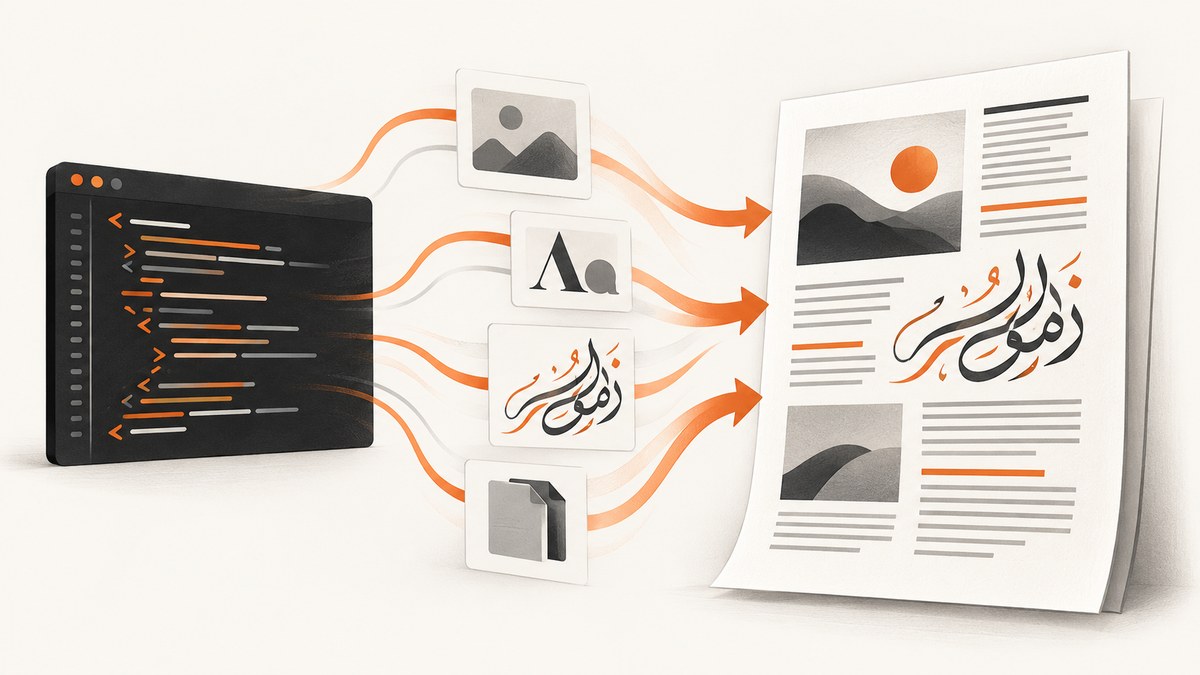
To convert HTML containing Arabic text to PDF with current iText, use HtmlConverter.convertToPdf, configure ConverterProperties with a FontProvider that contains an Arabic-capable font such as Noto Naskh Arabic, and include pdfCalligraph when Arabic characters are not shaped or ordered correctly. The font solves glyph coverage; pdfCalligraph handles complex-script shaping, ligatures, and right-to-left layout.
For an older iText 5/XML Worker project, use its legacy font-registration and UTF-8 parsing APIs instead. Do not mix XML Worker classes with the current pdfHTML API.
What you need for correct Arabic output
- UTF-8 input: Decode the HTML and any source strings as UTF-8.
- Arabic glyph coverage: Register a font file that contains the Arabic characters used by the document, for example
NotoNaskhArabic-Regular.ttf. - Font-family mapping: The CSS family name must resolve to the registered font.
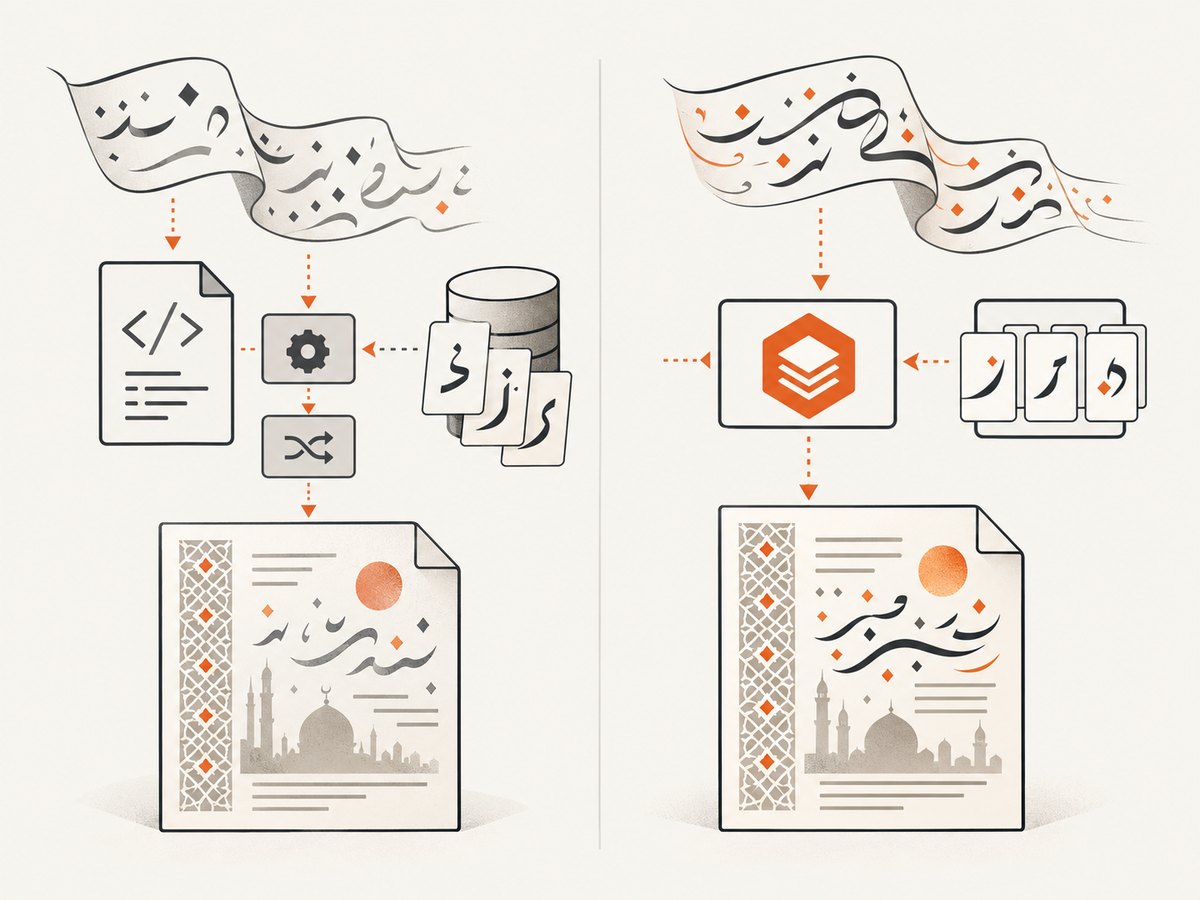
- RTL and shaping support: Arabic joining, ligatures, and right-to-left ordering require the appropriate script processing. iText associates this advanced processing with pdfCalligraph.
- Correct API generation: Current projects use pdfHTML and
ConverterProperties; iText 5 projects use XML Worker classes and different setup.
A font containing Arabic glyphs does not, by itself, guarantee connected letters or correct ordering. Treat font coverage and script layout as separate requirements.
Current iText 7/pdfHTML method
1. Add the required iText components
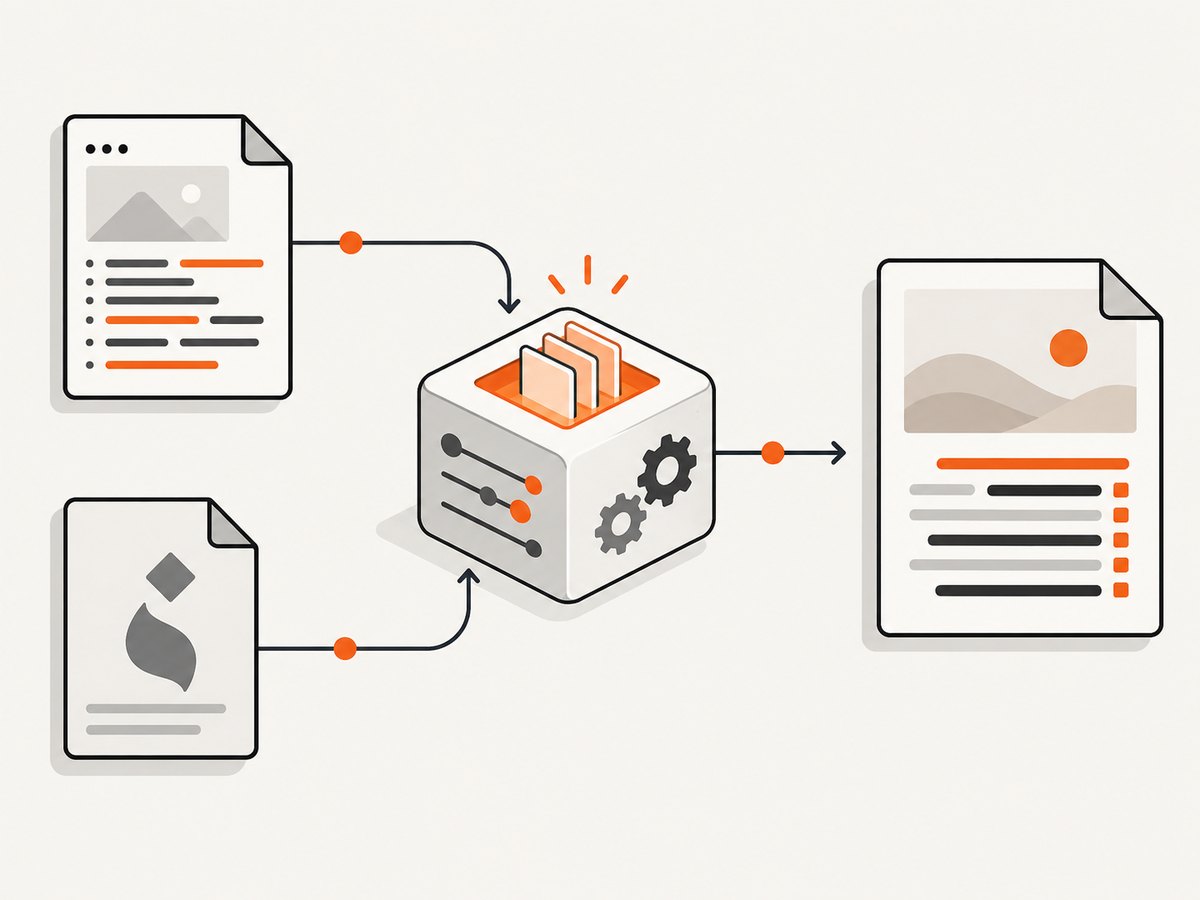
Add the pdfHTML add-on to the iText 7 application and add pdfCalligraph when the document requires Arabic shaping and RTL processing. Select versions compatible with the rest of your iText dependencies and consult the current iText licensing terms. iText’s language guidance states that pdfCalligraph is not available under an open-source license; the cited documentation does not establish a current price or your project’s licensing obligation.
2. Put the fonts in a predictable directory
Keep every font needed by the document in an application-controlled directory. A mixed Arabic and Latin document commonly needs an Arabic font plus a Latin font. The official example uses files such as NotoSans-Regular.ttf and NotoNaskhArabic-Regular.ttf; add other script fonts when your content requires them.
3. Use UTF-8 HTML with an Arabic font family
<!doctype html>
<html lang="ar" dir="rtl">
<head>
  <meta charset="UTF-8">
  <style>
    body {
      font-family: "Noto Naskh Arabic", "Noto Sans", sans-serif;
      direction: rtl;
      text-align: right;
      font-size: 16pt;
    }
    .latin {
      direction: ltr;
      text-align: left;
      font-family: "Noto Sans", sans-serif;
    }
  </style>
</head>
<body>
  <h1>مرحبا بالعالم</h1>
  <p>هذا نص عربي داخل مستند PDF.</p>
  <p class="latin">Invoice ID: INV-12345</p>
</body>
</html>
4. Convert the HTML with a registered FontProvider
import com.itextpdf.html2pdf.ConverterProperties;
import com.itextpdf.html2pdf.HtmlConverter;
import com.itextpdf.layout.font.FontProvider;

import java.io.FileInputStream;
import java.io.FileOutputStream;
import java.io.InputStream;

public class ArabicHtmlToPdf {
    public static void main(String[] args) throws Exception {
        String htmlPath = "src/main/resources/invoice-ar.html";
        String outputPath = "target/invoice-ar.pdf";
        String arabicFontPath = "src/main/resources/fonts/NotoNaskhArabic-Regular.ttf";
        String latinFontPath = "src/main/resources/fonts/NotoSans-Regular.ttf";

        FontProvider fontProvider = new FontProvider();
        fontProvider.addFont(arabicFontPath);
        fontProvider.addFont(latinFontPath);

        ConverterProperties properties = new ConverterProperties();
        properties.setFontProvider(fontProvider);

        try (InputStream html = new FileInputStream(htmlPath);
             FileOutputStream pdf = new FileOutputStream(outputPath)) {
            HtmlConverter.convertToPdf(html, pdf, properties);
        }
    }
}
The important sequence is: create a FontProvider, add every required font program, assign it to ConverterProperties, and pass those properties to HtmlConverter.convertToPdf. If the HTML references assets with relative URLs, use an appropriate base URI in your project and make sure the converter can read those files.
Arabic, Latin, and mixed-direction content
Set dir="rtl" on the document or on an Arabic container when the surrounding content is Arabic. For embedded Latin identifiers, numbers, URLs, or code, use a separate LTR element where necessary. Mixed content may require both Arabic and Latin fonts because no single font is guaranteed to cover every script and symbol.
<div dir="rtl">
  رقم الطلب: <span dir="ltr">ORD-2026-001</span>
</div>
<table dir="rtl">
  <tr>
    <td>الوصف</td>
    <td dir="ltr">SKU-42</td>
  </tr>
</table>
Arabic text can appear as question marks when the input is decoded incorrectly or when the selected font lacks the needed glyphs. It can also display as disconnected letters or in the wrong order when shaping and RTL processing are unavailable.
Legacy iText 5 and XML Worker
If the application uses iText 5 and XML Worker, follow the legacy API rather than copying a pdfHTML example. The official legacy pattern registers NotoNaskhArabic-Regular.ttf with XMLWorkerFontProvider, parses the HTML as UTF-8, declares the matching font family in CSS, and applies RTL direction where needed.
XMLWorkerFontProvider fontProvider =
    new XMLWorkerFontProvider(XMLWorkerFontProvider.DONTLOOKFORFONTS);
fontProvider.register("src/main/resources/fonts/NotoNaskhArabic-Regular.ttf",
                      "Noto Naskh Arabic");

CssAppliers cssAppliers = new CssAppliersImpl(fontProvider);
HtmlPipelineContext htmlContext = new HtmlPipelineContext(cssAppliers);
htmlContext.setTagFactory(Tags.getHtmlTagProcessorFactory());

CSSResolver cssResolver = XMLWorkerHelper.getInstance().getDefaultCssResolver(true);
Pipeline pipeline = new CssResolverPipeline(
    cssResolver,
    new HtmlPipeline(htmlContext, new PdfWriterPipeline(document, pdfWriter))
);

XMLWorker worker = new XMLWorker(pipeline, true);
XMLParser parser = new XMLParser(worker, Charset.forName("UTF-8"));
parser.parse(new FileInputStream("src/main/resources/invoice-ar.html"));
For table cells or blocks that need explicit direction, use RTL HTML attributes or the corresponding legacy direction API. This example is version-specific: current pdfHTML classes and XML Worker classes are not interchangeable.
Choosing and registering fonts
| Problem | What to verify |
|---|---|
| Question marks or empty boxes | The HTML is UTF-8 and the registered font contains every Arabic character, punctuation mark, and symbol used. |
| Arabic letters are disconnected | Complex-script shaping is available; configure pdfCalligraph for modern pdfHTML when required. |
| Text runs left to right | Set RTL direction in HTML/CSS and ensure the shaping and bidi processing required by the project is present. |
| Latin text changes appearance | Register a Latin font and list it after the Arabic family as a fallback or use a dedicated LTR class. |
| Font works locally but not in production | Use an absolute or deployment-safe font path, package the TTF files, and verify file permissions. |
Common errors and fixes
- Arabic becomes
?: Check UTF-8 decoding first, then inspect the font’s glyph coverage and CSS family mapping. - Arabic is present but letters are not joined: A glyph-capable font is present, but complex-script shaping is missing. Add and configure pdfCalligraph for the modern pdfHTML path.
- Words appear in the wrong order: Apply
dir="rtl"or CSSdirection: rtlto the relevant container and verify the bidi processing setup. FontProvidercannot find the font: Confirm the file path, packaging, permissions, and the exact CSS family name.- Only some characters fail: Register a font with broader Arabic coverage or add fallback fonts for punctuation, currency symbols, Latin text, or other scripts.
- Images or CSS disappear: Check asset paths and the converter’s base URI or resource resolver. A font fix does not make inaccessible external assets available.
- Legacy code throws missing-class errors: Check the iText major version and use documentation for either pdfHTML or XML Worker, without mixing dependencies.
- Text looks correct in a string but fails from HTML: Compare the HTML file’s encoding and HTTP/file decoding path with the encoding used for the string.
Validation checklist
- Open the generated PDF in more than one PDF viewer.
- Test beginning, middle, and end-of-line Arabic characters because joining behavior changes by position.
- Test Arabic numerals, Latin identifiers, punctuation, parentheses, currency symbols, and URLs.
- Test a long paragraph and a table, including cells with mixed RTL and LTR content.
- Confirm fonts are packaged in the deployment artifact rather than available only on a developer workstation.
- Extract text from the PDF or inspect it with an accessibility tool if searchability and copy/paste matter.
Performance, reliability, and licensing considerations
Font registration and HTML resource loading happen during conversion, so reuse a configured conversion strategy where your application architecture allows it, while avoiding unsafe shared mutable state across concurrent requests. Keep HTML and font files local or reliably accessible, and set application-level timeouts around remote assets. Large documents, many images, and complex CSS increase memory and conversion time; reduce unnecessary assets and split oversized jobs when the document workflow permits.
Pin compatible iText modules, package the exact font files used by the document, and retain a small set of Arabic regression documents. pdfCalligraph licensing is a separate concern from technical configuration: consult current iText terms before shipping.
Or skip the browser setup
If your actual requirement is a rendered PDF or screenshot of a URL rather than Java-side HTML conversion, ScreenshotNeo provides a single HTTP endpoint. It accepts consent banners like a visitor and removes more than 60 known consent platforms, newsletter popups, and chat widgets before capture. Bot checks, blank pages, failed loads, timeouts, and cache hits are not billed, and response headers identify the page verdict and billing status. Its MCP server provides take_screenshot, get_page_info, and capture_pdf tools for Claude, Cursor, and other MCP clients.
See the ScreenshotNeo API documentation for the available PDF options, including paper size, margins, landscape mode, and page ranges.
cURL
curl -G "https://api.screenshotneo.com/v1/shot" \
  -d access_key=YOUR_API_KEY \
  --data-urlencode url=https://example.com \
  -o page.pdf
Python
import requests

r = requests.get(
    "https://api.screenshotneo.com/v1/shot",
    params={"access_key": "YOUR_API_KEY", "url": "https://example.com"},
    timeout=90,
)
r.raise_for_status()
open("page.pdf", "wb").write(r.content)
Node.js
const q = new URLSearchParams({
  access_key: 'YOUR_API_KEY',
  url: 'https://example.com'
});
const res = await fetch(`https://api.screenshotneo.com/v1/shot?${q}`);
if (!res.ok) throw new Error(`ScreenshotNeo returned ${res.status}`);
const body = Buffer.from(await res.arrayBuffer());
await import('node:fs/promises').then(fs => fs.writeFile('page.pdf', body));
ScreenshotNeo has a free tier of 1,000 shots per month with no card. Paid plans start at $5 for 3,000 shots; yearly billing gives two months free, and every feature is available on every plan. Sign up free for ScreenshotNeo.
FAQ
Do I need pdfCalligraph for every Arabic document?
Use it when Arabic remains incorrectly shaped, joined, or ordered after you have registered an Arabic-capable font and set RTL direction. A font alone is not the full script-layout solution.
Can I use any Arabic font?
Use a font that covers the actual characters in your document and register its file with the converter. Noto Naskh Arabic is the font named in the official examples; it is not a claim that it is the only suitable choice.
Why does the iText 5 example look unrelated to pdfHTML?
They are different API generations. XML Worker uses legacy classes such as XMLWorkerFontProvider; current pdfHTML uses ConverterProperties and FontProvider.
Will CSS direction fix missing Arabic glyphs?
No. Direction controls layout order. Missing glyphs require a font with the required coverage, while connected shaping may require pdfCalligraph.
Can ScreenshotNeo convert arbitrary Java HTML strings?
ScreenshotNeo captures a URL through its API. For server-side Java HTML conversion from an in-memory string, use the iText workflow above; use ScreenshotNeo when the content is available at a URL and you want a managed capture service.


