Convert HTML to PDF in ASP.NET with C#
Render existing HTML as PDF in ASP.NET with C#: Playwright setup, print controls, alternatives, troubleshooting, and a ScreenshotNeo API shortcut.

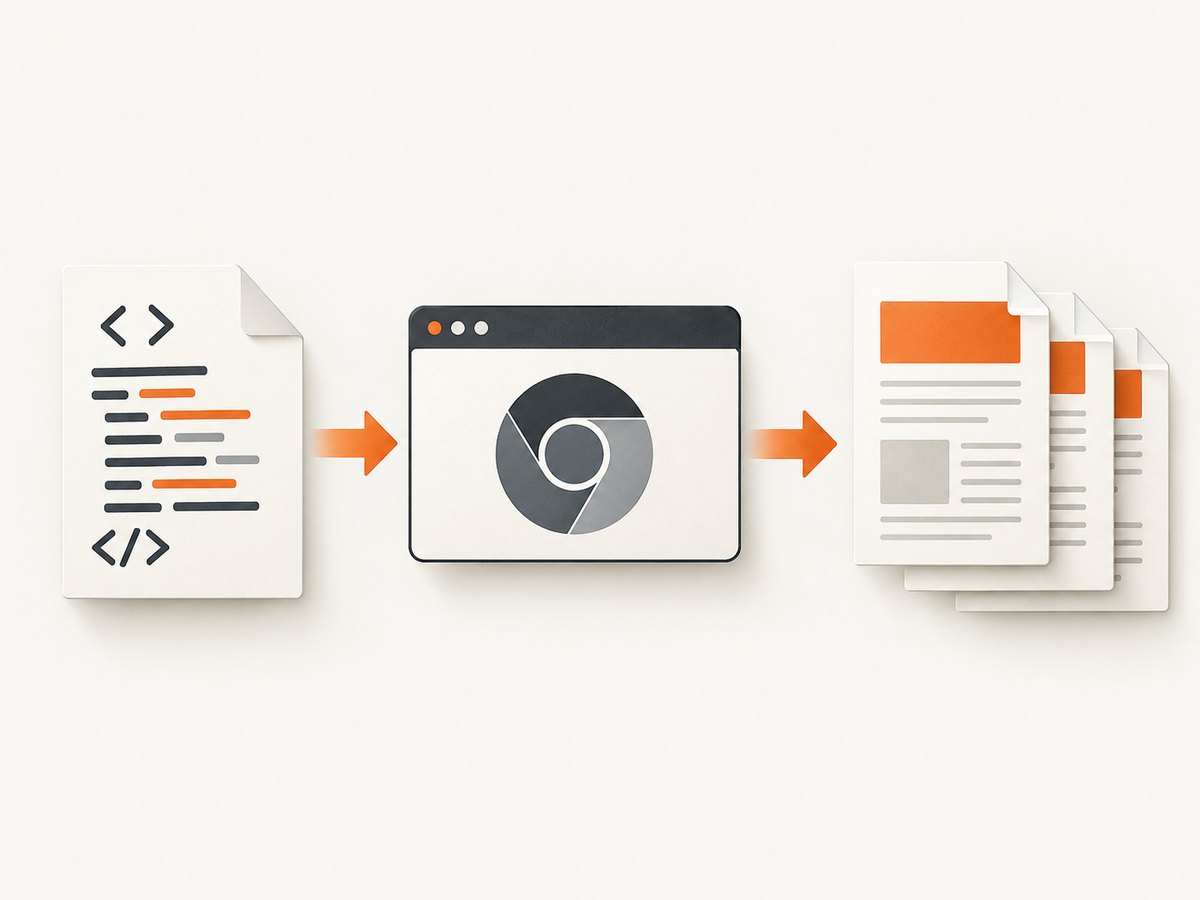
Direct answer: In ASP.NET with C#, keep your existing HTML and CSS in a browser-backed renderer when visual fidelity matters. Playwright for .NET with Chromium preserves normal CSS and JavaScript; a direct HTML converter such as SelectPdf can be simpler when its feature set and license fit. If the PDF is a new, stable layout, QuestPDF is a code-first alternative, but it does not render arbitrary existing HTML.
This guide shows a complete Playwright implementation, the settings that affect output, alternatives, diagnostics, and production concerns.
1. Choose the rendering route
| Requirement | Best starting point | Trade-offs to verify |
|---|---|---|
| Existing HTML, CSS and JavaScript must look like a browser | Playwright .NET + Chromium | Browser binaries, memory, concurrency and OS dependencies |
| Convert an HTML string or URL with a focused API | SelectPdf or another direct converter | CSS/JS coverage, page limits, target framework and license |
| Layout can be authored as C# components | QuestPDF | Rewrite templates; select a license that matches your organization |
Measure the actual templates you will serve. Fonts, external images, relative URLs, JavaScript-generated content, long tables and page breaks can differ by browser version, operating system and hosting policy.
2. Playwright for .NET: render HTML with Chromium
Install the package and browser
Add the Microsoft.Playwright NuGet package. Playwright requires a separate browser installation; follow the official .NET setup guide for the command that matches your target framework, then install Chromium (for example, the generated playwright.ps1 install chromium script in a build or deployment step).
dotnet add package Microsoft.Playwright
# after build, run the Playwright install script generated for your project
pwsh bin/Debug/net8.0/playwright.ps1 install chromium
Keep browser installation in your image or deployment pipeline. Do not download binaries on every request.
Minimal API endpoint that converts an HTML string
using Microsoft.AspNetCore.Mvc;
using Microsoft.Playwright;

var builder = WebApplication.CreateBuilder(args);
builder.Services.AddSingleton<PdfRenderer>();
var app = builder.Build();

app.MapPost("/pdf", async ([FromBody] HtmlRequest request, PdfRenderer renderer, CancellationToken ct) =>
{
    if (string.IsNullOrWhiteSpace(request.Html))
        return Results.BadRequest("html is required");

    var bytes = await renderer.RenderHtmlAsync(request.Html, ct);
    return Results.File(bytes, "application/pdf", "document.pdf");
});

app.Run();

public sealed record HtmlRequest(string Html);

public sealed class PdfRenderer : IAsyncDisposable
{
    private readonly IPlaywright _playwright;
    private readonly IBrowser _browser;

    public PdfRenderer()
    {
        _playwright = Microsoft.Playwright.Playwright.CreateAsync().GetAwaiter().GetResult();
        _browser = _playwright.Chromium.LaunchAsync(new BrowserTypeLaunchOptions
        {
            Headless = true
        }).GetAwaiter().GetResult();
    }

    public async Task<byte[]> RenderHtmlAsync(string html, CancellationToken ct)
    {
        await using var context = await _browser.NewContextAsync(new BrowserNewContextOptions
        {
            ViewportSize = new ViewportSize { Width = 1280, Height = 900 }
        });
        var page = await context.NewPageAsync();
        await page.SetContentAsync(html, new PageSetContentOptions
        {
            WaitUntil = WaitUntilState.NetworkIdle,
            Timeout = 60_000
        });

        await page.WaitForLoadStateAsync(LoadState.NetworkIdle);
        await page.EmulateMediaAsync(new PageEmulateMediaOptions { Media = Media.Screen });

        return await page.PdfAsync(new PagePdfOptions
        {
            Format = "A4",
            PrintBackground = true,
            PreferCSSPageSize = true,
            Margin = new Margin { Top = "18mm", Right = "14mm", Bottom = "18mm", Left = "14mm" }
        });
    }

    public async ValueTask DisposeAsync()
    {
        await _browser.CloseAsync();
        _playwright.Dispose();
    }
}
The sample keeps one Chromium process and creates an isolated context per request. In a high-volume service, add a bounded queue, cancellation handling and a tested page/context pool; measure memory and throughput in your own hosting environment instead of assuming this sample’s concurrency is safe.
Render a URL instead of an HTML string
await using var context = await browser.NewContextAsync();
var page = await context.NewPageAsync();
await page.GotoAsync("https://example.com/invoice/42", new PageGotoOptions
{
    WaitUntil = WaitUntilState.NetworkIdle,
    Timeout = 60_000
});
await page.PdfAsync(new PagePdfOptions
{
    Path = "invoice.pdf",
    Format = "A4",
    PrintBackground = true
});
For authenticated pages, create a context with the required cookies or headers, or render a server-generated HTML string so secrets never appear in a public URL.
Make print output explicit
page.Pdf() uses print CSS media by default. Call EmulateMediaAsync with Media.Screen when the screen stylesheet is the intended design. The API supports paper formats, custom width/height, margins, headers, footers and page ranges; see the Page PDF API.
await page.EmulateMediaAsync(new PageEmulateMediaOptions { Media = Media.Print });
await page.PdfAsync(new PagePdfOptions
{
    Width = "210mm",
    Height = "297mm",
    Landscape = false,
    PrintBackground = true,
    DisplayHeaderFooter = true,
    HeaderTemplate = "<div style='font-size:8px;width:100%;text-align:right'>Invoice</div>",
    FooterTemplate = "<div style='font-size:8px;width:100%;text-align:center'>Page <span class='pageNumber'></span> of <span class='totalPages'></span></div>",
    PageRanges = "1-3",
    PreferCSSPageSize = true
});
Print output can adjust colors. For exact brand colors, add * { -webkit-print-color-adjust: exact; } in print CSS and verify the resulting PDF.
Wait for lazy content and control page breaks
await page.Locator(".invoice-total").WaitForAsync(new LocatorWaitForOptions
{
    State = WaitForSelectorState.Visible,
    Timeout = 30_000
});
await page.EvaluateAsync("window.scrollTo(0, document.body.scrollHeight)");
await page.WaitForTimeoutAsync(500);

// CSS in the source HTML:
// .avoid-break { break-inside: avoid; }
// .new-page { break-before: page; }
// @page { size: A4; margin: 18mm 14mm; }
Prefer deterministic application signals (a selector or a readiness flag) over a fixed delay. For images, ensure the URL is reachable from the server and wait for the image decode if your page loads them dynamically.
3. SelectPdf for direct HTML conversion
SelectPdf’s documentation shows conversion from an HTML string and from a URL. Its documentation also shows page size, orientation, margins, web page width and a Chromium rendering option. The vendor states that its Community Edition is limited to five pages per document, while the commercial edition removes that page limit; confirm the current package, target framework and terms before choosing it.
using SelectPdf;

var converter = new HtmlToPdf
{
    Options =
    {
        PdfPageSize = PdfPageSize.A4,
        PdfPageOrientation = PdfPageOrientation.Portrait,
        MarginTop = 18,
        MarginRight = 14,
        MarginBottom = 18,
        MarginLeft = 14,
        WebPageWidth = 1280,
        UseChromium = true
    }
};

PdfDocument document = converter.ConvertHtmlString(html);
byte[] bytes = document.Save();
document.Close();
return Results.File(bytes, "application/pdf", "document.pdf");

// URL conversion:
// var document = converter.ConvertUrl("https://example.com/report");
4. QuestPDF when the layout is code-first
QuestPDF’s ASP.NET integration example suits documents whose structure can be expressed in C# components. It is not a drop-in renderer for arbitrary existing HTML. Its ASP.NET pattern generates PDF bytes and returns them with the application/pdf content type.
using QuestPDF.Fluent;
using QuestPDF.Helpers;
using QuestPDF.Infrastructure;

QuestPDF.Settings.License = LicenseType.Community; // choose only when your eligibility allows it

app.MapGet("/statement", () =>
{
    byte[] pdf = Document.Create(container =>
    {
        container.Page(page =>
        {
            page.Size(PageSizes.A4);
            page.Margin(30);
            page.Content().Column(column =>
            {
                column.Item().Text("Statement").FontSize(22);
                column.Item().Text("Generated from C# components.");
            });
        });
    }).GeneratePdf();

    return Results.File(pdf, "application/pdf", "statement.pdf");
});
Set the license once during application startup or initialization, and review the current license terms for your organization and deployment.
5. HTML and CSS details that decide fidelity
- Fonts: install required fonts in the runtime image or serve them from an accessible origin; wait until font loading completes.
- Relative URLs: provide a valid base URL when using inline HTML, or convert asset links to absolute URLs.
- JavaScript: wait for a selector or application-ready flag after scripts finish; network idle alone may not mean charts are drawn.
- Images: check HTTP status, CORS and intrinsic dimensions. Broken or cross-origin assets produce blank regions.
- Tables: use explicit column widths and repeatable table headers; test rows that split across pages.
- Accessibility: inspect tags, reading order and fonts if the PDF is used for assistive technology or archival workflows.
6. Troubleshooting
| Symptom | Likely cause | Fix |
|---|---|---|
| Chromium executable not found | Browser binaries were not installed in the deployment image | Run the generated Playwright install script during build and set the executable/cache path consistently. |
| PDF is blank or missing app data | Capture occurred before JavaScript finished | Wait for a specific selector/readiness signal and inspect console/network errors. |
| Screen design is different | PDF uses print media by default | Use Media.Screen, or add a deliberate @media print stylesheet. |
| Background colors disappear | Print background disabled or colors adjusted for print | Set PrintBackground = true and use -webkit-print-color-adjust: exact. |
| Images or fonts are missing | Server cannot reach assets, URLs are relative, or resources are still loading | Use absolute/valid base URLs, allow required egress, and wait for resource readiness. |
| Request times out | Slow origin, third-party script, or an infinite page wait | Set bounded navigation and selector timeouts; remove unnecessary third-party resources and log the failing URL. |
| Memory rises under load | Launching a browser per request or unbounded parallel pages | Reuse a browser, isolate contexts, cap concurrency and recycle unhealthy workers. |
| SelectPdf output stops at five pages | Community Edition limit | Confirm edition eligibility or choose a different renderer. |
7. Performance, reliability and cost
- Launch Chromium once per worker, reuse it, and create a fresh context/page per job. Bound parallel jobs based on measured memory.
- Cache stable assets and templates, but avoid caching personalized PDFs. Add cancellation and an overall deadline around navigation and PDF generation.
- Record renderer version, URL/template identifier, duration, page count and failure reason. Capture logs without storing secrets or full sensitive HTML.
- Run the same test corpus on the exact OS/container image used in production. There are no independent benchmarks in the cited material.
- Browser rendering has infrastructure cost (CPU, RAM and image maintenance); direct converters may reduce setup but differ in CSS/JS fidelity. Commercial license cost and page limits must be included in total cost.
8. Or skip the browser setup
ScreenshotNeo is a website screenshot API that can return PNG, JPEG, WebP or PDF from one GET request. It removes cookie/consent banners, newsletter popups and chat widgets before capture; bot checks, blank pages, failed loads, timeouts and cache hits are not billed, and response headers identify the verdict and billing. It also provides an MCP server for AI agents.

For a PDF or image of an existing page, call the API (see the ScreenshotNeo API docs):
curl -G "https://api.screenshotneo.com/v1/shot" \
  -d access_key=YOUR_API_KEY \
  --data-urlencode url=https://example.com \
  -o shot.webp
import requests
r = requests.get(
"https://api.screenshotneo.com/v1/shot",
params={"access_key": "YOUR_API_KEY", "url": "https://example.com"},
timeout=90,
)
r.raise_for_status()
open("shot.webp", "wb").write(r.content)const fs = require('node:fs/promises');
const q = new URLSearchParams({ access_key: 'YOUR_API_KEY', url: 'https://example.com' });
const res = await fetch(`https://api.screenshotneo.com/v1/shot?${q}`);
if (!res.ok) throw new Error(`HTTP ${res.status}`);
await fs.writeFile('shot.webp', Buffer.from(await res.arrayBuffer()));ScreenshotNeo includes full-page capture, element selectors, custom CSS/JavaScript, waits, headers/cookies, blocking rules, PDF paper and margin controls, caching, signed links, async jobs, bulk capture and a usage API. Every feature is on every plan. The Free plan includes 1,000 shots per month with no card; paid plans start at $5 for 3,000 shots. Create a free ScreenshotNeo account.
9. FAQ
Does Playwright convert an HTML string?
Yes. Create a page, call SetContentAsync, wait for the required content, then call PdfAsync.
Can I force a specific page range?
Yes. Set PageRanges such as 1-3 in PagePdfOptions.
Should I use QuestPDF for an existing HTML template?
No. Use a browser renderer or direct HTML converter when preserving HTML matters; use QuestPDF when you can author the layout as C#.
What should I benchmark?
Measure end-to-end latency, peak memory, concurrent jobs, failure rate, PDF fidelity and license/infrastructure cost on your production image and representative documents.


