Convert Raw HTML to PDF in PHP with Guzzle
Use Guzzle to fetch HTML and Dompdf to render it as a PDF. Learn the complete workflow, renderer choices, security controls, and common fixes.

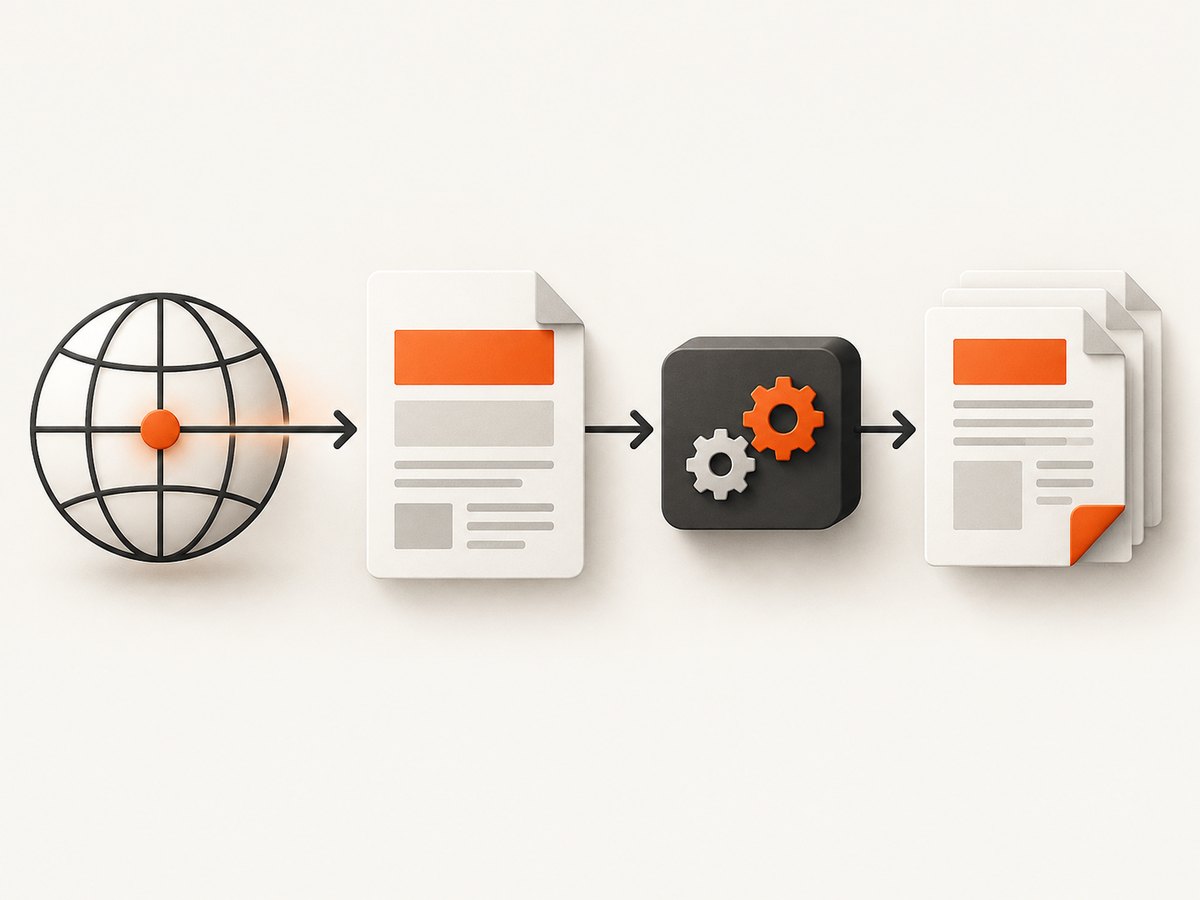
Guzzle fetches a page; it does not turn HTML into a PDF. For a straightforward PHP workflow, use Guzzle to retrieve the HTML and Dompdf to lay it out and render the PDF. The core sequence is: request the page, check the response, pass its HTML to loadHtml(), choose the paper settings, call render(), then save or stream the output. See the Guzzle documentation and Dompdf project documentation for their respective APIs.
1. Install the packages
Install Guzzle and Dompdf with Composer in your project:
composer require guzzlehttp/guzzle dompdf/dompdfRequire Composer’s autoloader in the PHP entry point for your application. Check the PHP version constraints of the package versions Composer selects before deploying; package requirements can change. Guzzle can use cURL or PHP’s stream wrapper as its transport, depending on the environment and installed extensions.
2. Fetch HTML and save a PDF
This runnable example accepts a fixed URL, checks that the server returned a successful HTML response, and writes the PDF to a file. Keeping the URL fixed is deliberate: accepting arbitrary URLs from users creates a server-side request forgery risk.
<?php

require __DIR__ . '/vendor/autoload.php';

use GuzzleHttp\Client;
use Dompdf\Dompdf;
use Dompdf\Options;

$url = 'https://example.com/page';
$outputPath = __DIR__ . '/page.pdf';

$client = new Client([
    'timeout' => 20,
    'connect_timeout' => 5,
    'allow_redirects' => true,
    'http_errors' => false,
    'headers' => [
        'Accept' => 'text/html,application/xhtml+xml',
    ],
]);

$response = $client->get($url);
$status = $response->getStatusCode();
$contentType = $response->getHeaderLine('Content-Type');

if ($status < 200 || $status >= 300) {
    throw new RuntimeException("Page request failed with HTTP status $status");
}
if (stripos($contentType, 'text/html') === false) {
    throw new RuntimeException("Expected HTML, received: $contentType");
}

$html = (string) $response->getBody();
if ($html === '') {
    throw new RuntimeException('The response body was empty.');
}

$options = new Options();
// Keep remote resource loading off unless this document needs trusted remote assets.
$options->set('isRemoteEnabled', false);

$dompdf = new Dompdf($options);
$dompdf->loadHtml($html, 'UTF-8');
$dompdf->setPaper('A4', 'portrait');
$dompdf->render();

$pdf = $dompdf->output();
if (file_put_contents($outputPath, $pdf, LOCK_EX) === false) {
    throw new RuntimeException('Could not write the PDF file.');
}

echo "Saved PDF to $outputPath\n";
The response body can also be read with $response->getBody()->getContents(). Casting the stream to a string, as above, is concise when the full HTML document is needed in memory. Dompdf’s documented flow is to load HTML, set paper options, render, and then stream or obtain the output. See its usage documentation.
Return the PDF directly to a browser
For a web endpoint, stream the rendered document instead of writing it to disk. Send no HTML, debug output, or whitespace before the PDF response, or the file may be corrupted.
$dompdf->stream('page.pdf', ['Attachment' => true]);Set Attachment to false when the browser should try to display the PDF inline. If you need to control response headers yourself, get the bytes with output() and return them using your framework’s response object with a PDF content type and a safe content-disposition filename.
3. Choose a renderer that matches the page
The renderer determines how HTML, CSS, fonts, images, and page breaks become PDF pages. Guzzle only retrieves the source document. No renderer is universally best; choose based on how closely the result must match the browser and what your deployment can support.
| Renderer | Good fit | Trade-offs |
|---|---|---|
| Dompdf | PHP applications, reports, invoices, and simpler pages that fit its layout support. | Mostly CSS 2.1 with selected CSS3 support. Do not assume browser-level fidelity for complex layouts or JavaScript-driven content. |
| mPDF | UTF-8 HTML workflows that benefit from its PDF-oriented features and custom HTML tags. | Its manual describes the project as dated and warns that externally supplied HTML and CSS must be vetted and sanitized. |
| wkhtmltox | Deployments that can accommodate a separate QtWebKit-based rendering component. | It brings native/runtime deployment considerations beyond a Composer PHP library. |
| Headless Chrome | Pages that depend on modern browser CSS, JavaScript execution, or close browser rendering. | Requires running and managing a browser process or browser service. |
Dompdf describes itself as a mostly CSS 2.1 HTML layout and rendering engine. For modern CSS or a page whose content appears only after scripts run, a browser engine may be a better fit. The mPDF manual specifically points to headless Chrome when modern CSS support or faithful mirroring of a web page is the priority. Compare engines using representative pages from your own workload: CSS fidelity, JavaScript needs, deployment dependencies, font and image behavior, page-break control, and security boundaries for remote resources.
4. Configure the document and its resources
Paper size and orientation
Choose a supported paper size and orientation to suit the output. For example, use A4 with portrait for a conventional document or landscape for a wide table. Content that exceeds the page width may wrap or clip depending on its styles and the renderer.
$dompdf->setPaper('A4', 'landscape');Character encoding
Pass the encoding to loadHtml(), and make sure the source document declares a compatible charset. UTF-8 is the practical default for web content, but correct encoding alone does not guarantee every glyph will render: the selected font must contain the character.
Stylesheets, images, and remote access
Dompdf disables remote access by default. If the document needs externally hosted images or stylesheets, enable remote access only after deciding which origins the renderer may contact. Prefer downloading known assets yourself, validating their origins and types, and providing controlled local resources. Never enable unrestricted remote loading for arbitrary user-supplied HTML. Remote-resource loading can expose internal network services or local data, depending on the renderer configuration and environment.
Base URLs and relative paths
HTML with relative references such as images/logo.png needs a base location for the renderer to resolve them. A fetched page’s original URL may not automatically behave as the base in every setup. For predictable results, rewrite trusted asset references to controlled absolute URLs or prepare the HTML with a known base path. Test fonts, CSS imports, and nested image paths as well as the top-level stylesheet.
JavaScript and dynamic pages
Guzzle gets the server’s HTTP response; it does not run page JavaScript. If a page fills in its content client-side, the downloaded HTML may contain only a shell. Dompdf also is not a browser JavaScript runtime. Use a browser-based renderer when scripts must execute, or generate a static HTML document with the required data before passing it to Dompdf.
5. Security and reliability checklist
- Constrain the requested URL. If callers provide a URL, allow only approved schemes and hosts, reject private or loopback IP ranges, and re-check redirect destinations. Redirects can otherwise bypass a hostname check.
- Set time limits. Use connection and total request timeouts. Decide whether redirects are needed and impose a redirect limit in the Guzzle configuration.
- Check the response. Validate status, content type, and non-empty body before rendering. An HTTP error page can still contain HTML and should not silently become a customer PDF.
- Limit resource use. Enforce maximum response size and maximum rendered document size. Rendering large or deeply nested documents consumes memory and CPU; perform expensive jobs in a queue if they should not block a web request.
- Control renderer access. Keep Dompdf remote access disabled unless necessary. If enabled, allow only trusted resources. Avoid passing arbitrary local paths or network locations through HTML.
- Sanitize untrusted markup. Treat HTML and CSS supplied by users as untrusted input. The mPDF manual warns that its renderer is not intended to receive outside HTML/CSS without vetting and sanitization. Apply the same careful trust-boundary review to any renderer.
- Handle failures explicitly. Catch network, HTTP, and rendering exceptions at the application boundary, log a request identifier and safe diagnostic context, and return a useful error without exposing secrets or filesystem paths.
- Write atomically when needed. For durable file output, write to a temporary file and rename it after a successful write so readers do not observe a partial PDF.
6. Troubleshooting
| Symptom | Likely cause | Fix |
|---|---|---|
| The PDF is blank or nearly empty. | The page populates content with JavaScript, the response body is empty, or the requested URL returned a shell/error page. | Inspect the fetched HTML and status before rendering. Use a browser renderer for JavaScript-dependent pages, or create static HTML with the final content. |
| Images or styles are missing. | Remote access is disabled, relative paths lack a usable base, or a resource is inaccessible. | Check asset URLs and response access. Enable remote resources only for trusted origins, or fetch and supply approved assets locally. |
| Modern layout differs from the browser. | Dompdf supports a subset of CSS and is not a full browser engine. | Reduce the layout to supported CSS, adjust the HTML for print, or choose a browser-based renderer when fidelity matters. |
| Unicode characters appear as boxes. | The chosen font lacks the required glyphs or the document encoding is inconsistent. | Confirm UTF-8 handling and use a font that includes the needed characters; verify the font is available to the renderer. |
| The request times out. | The origin is slow, a redirect chain is long, or the page depends on slow resources. | Set sensible timeouts and redirect limits, inspect the upstream request separately, and avoid rendering unnecessary resources. |
| Memory usage spikes or the process is killed. | A very large HTML response, oversized images, complex tables, or long documents. | Apply size limits, resize assets before rendering, simplify the document, and move large renders to a worker with suitable resource limits. |
| The downloaded PDF is corrupt. | Output was sent after prior bytes, a warning was printed into the response, or a partial file was written. | Keep the response free of debug output, log errors instead of printing them, and only serve a file after rendering and writing complete. |
| The renderer can access an unexpected URL. | Untrusted markup contains remote references, or caller-controlled URLs/redirects bypass validation. | Disable remote access by default, allowlist exact origins, validate redirects, and sanitize user-controlled markup. |
7. Performance, reliability, and cost
For a small static page, a direct request-and-render flow is simple. For repeated or large jobs, measure the full pipeline in your own environment: fetch time, HTML size, asset retrieval, render time, PDF size, and peak memory. These vary with the origin, page complexity, image dimensions, fonts, renderer, and runtime; the cited project documentation does not establish a universal throughput benchmark.
Reduce work before rendering: avoid fetching irrelevant pages, block or omit unnecessary third-party assets, resize large images, and reuse prepared static content where appropriate. Cache rendered output when the source and output options have not changed, while respecting freshness and access rules. Retry transient retrieval failures with bounded backoff, but do not retry deterministic 4xx errors or a rendering failure without changing its cause. A worker queue helps isolate slow jobs and lets the application report job status without holding an HTTP request open.
The PHP libraries described here do not have a per-screenshot pricing model in the supplied research; operational cost comes from your compute, memory, storage, and any browser or hosted service you deploy. Track failed jobs and resource use so you can set limits that fit your hosting budget.
8. Or skip the browser setup
If your actual goal is a visual capture of a live page, a screenshot API can return an image or PDF without requiring you to install and operate a browser renderer. ScreenshotNeo is a website screenshot API and MCP server by Yorker Media. It accepts one GET request and can return a PNG, JPEG, WebP, or PDF. See the ScreenshotNeo API documentation.

curl -G "https://api.screenshotneo.com/v1/shot" -d access_key=YOUR_API_KEY --data-urlencode url=https://example.com/page -o shot.webpOr make the same request with Python:
import requests

r = requests.get(
    "https://api.screenshotneo.com/v1/shot",
    params={"access_key": "YOUR_API_KEY", "url": "https://example.com/page"},
    timeout=90,
)
r.raise_for_status()
open("shot.webp", "wb").write(r.content)
And with Node.js:
const q = new URLSearchParams({
  access_key: 'YOUR_API_KEY',
  url: 'https://example.com/page',
});
const res = await fetch(`https://api.screenshotneo.com/v1/shot?${q}`);
if (!res.ok) throw new Error(`Screenshot request failed: ${res.status}`);
const bytes = Buffer.from(await res.arrayBuffer());
await import('node:fs/promises').then(fs => fs.writeFile('shot.webp', bytes));- Cookie banners are accepted and removed before capture, along with known newsletter popups and chat widgets; each step can be turned off.
- Bot checks, blank pages, failed loads, timeouts, and cache hits are not billed. Response headers report the page verdict and billing status.
- An MCP server provides
take_screenshot,get_page_info, andcapture_pdftools for Claude, Cursor, and other MCP clients. - The Free plan includes 1,000 screenshots a month with no card; paid plans start at $5 for 3,000 screenshots.
Sign up for ScreenshotNeo’s free plan to get 1,000 screenshots a month with no card.
9. Frequently asked questions
Can Guzzle convert HTML to PDF by itself?
No. Guzzle performs HTTP requests and returns response data. A renderer such as Dompdf, mPDF, wkhtmltox, or a browser engine must create the PDF.
Can Dompdf render a page exactly like Chrome?
Not in general. Its layout engine focuses mainly on CSS 2.1 with selected CSS3 support. Pages that rely on modern CSS or client-side JavaScript may need a browser renderer.
Should I enable remote resources in Dompdf?
Only when the document needs them and the allowed origins are controlled. Remote access is disabled by default; enabling it for arbitrary HTML can expose resources you did not intend the renderer to reach.
Can I use this for HTML submitted by users?
Only with a deliberate security design. Validate and sanitize the markup, restrict network and filesystem access, enforce resource limits, and isolate rendering. Untrusted HTML and CSS should not be passed to a renderer without those controls.
What should I choose if the page needs JavaScript?
Guzzle does not execute scripts. Use a headless browser workflow or construct the final static HTML before rendering it with a PHP PDF library.


