How to Convert HTML to PDF in Python
Convert static HTML to PDF with WeasyPrint, or use Playwright when JavaScript and browser-accurate rendering matter. Includes runnable code, print styling, security, and troubleshooting.
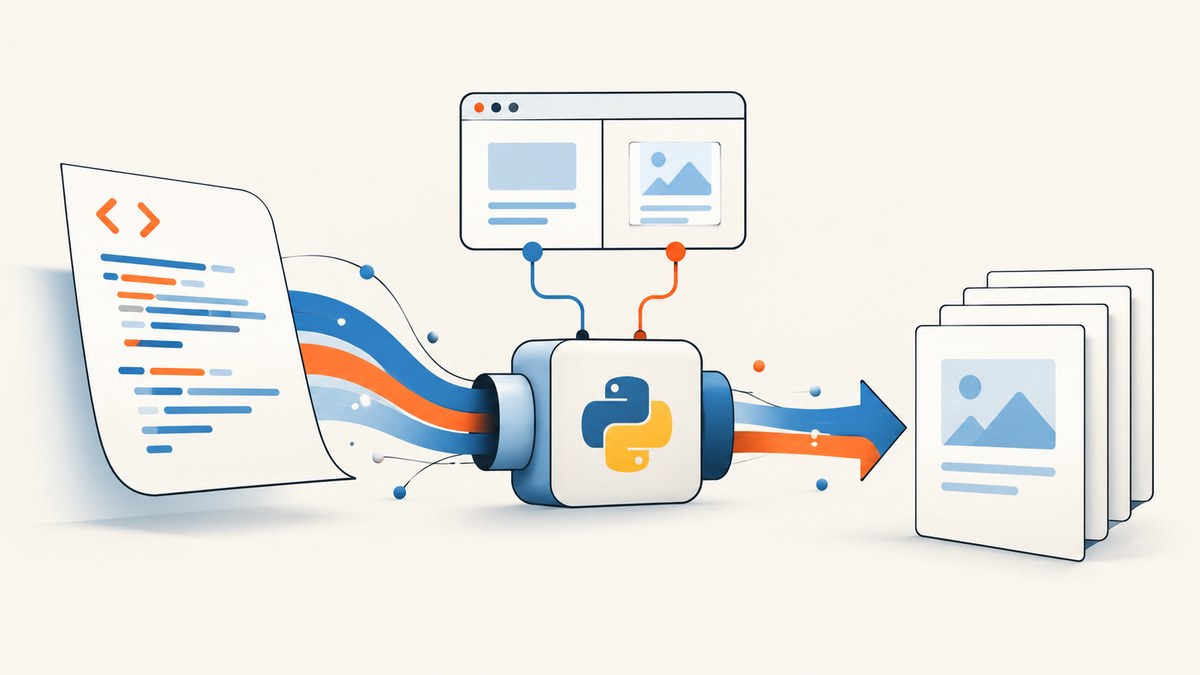
For static or server-rendered HTML, use WeasyPrint: its HTML(...).write_pdf(...) call turns a URL, file, or HTML string into a PDF. If the page depends on JavaScript or needs Chromium’s browser rendering, use Playwright’s page.pdf(). For a document assembled from data and drawing primitives rather than an existing HTML design, consider ReportLab.
This guide shows complete Python examples for each route, print styling and page layout, the choice points, production concerns, troubleshooting, and an API option for capturing a web page as a PDF.
1. Choose the right conversion method
| Source and requirement | Good starting choice | Why |
|---|---|---|
| Static HTML, invoices, reports, or server-rendered pages | WeasyPrint | It renders HTML and print-oriented CSS and can load from a URL, filename, file object, or string. |
| JavaScript application, browser-dependent layout, or dynamic content | Playwright | It runs a real browser and uses Chromium’s print behavior. |
| PDF authored from structured data, tables, charts, and drawing operations | ReportLab | It is a PDF layout toolkit, not a drop-in HTML/CSS renderer. |
Do not choose a browser just because the source is a web page. If the HTML is already complete and its layout works with print CSS, WeasyPrint keeps the rendering path focused. Choose Playwright when the document only exists after scripts run, or when browser-specific behavior is part of the expected output.
2. Convert a string or file with WeasyPrint
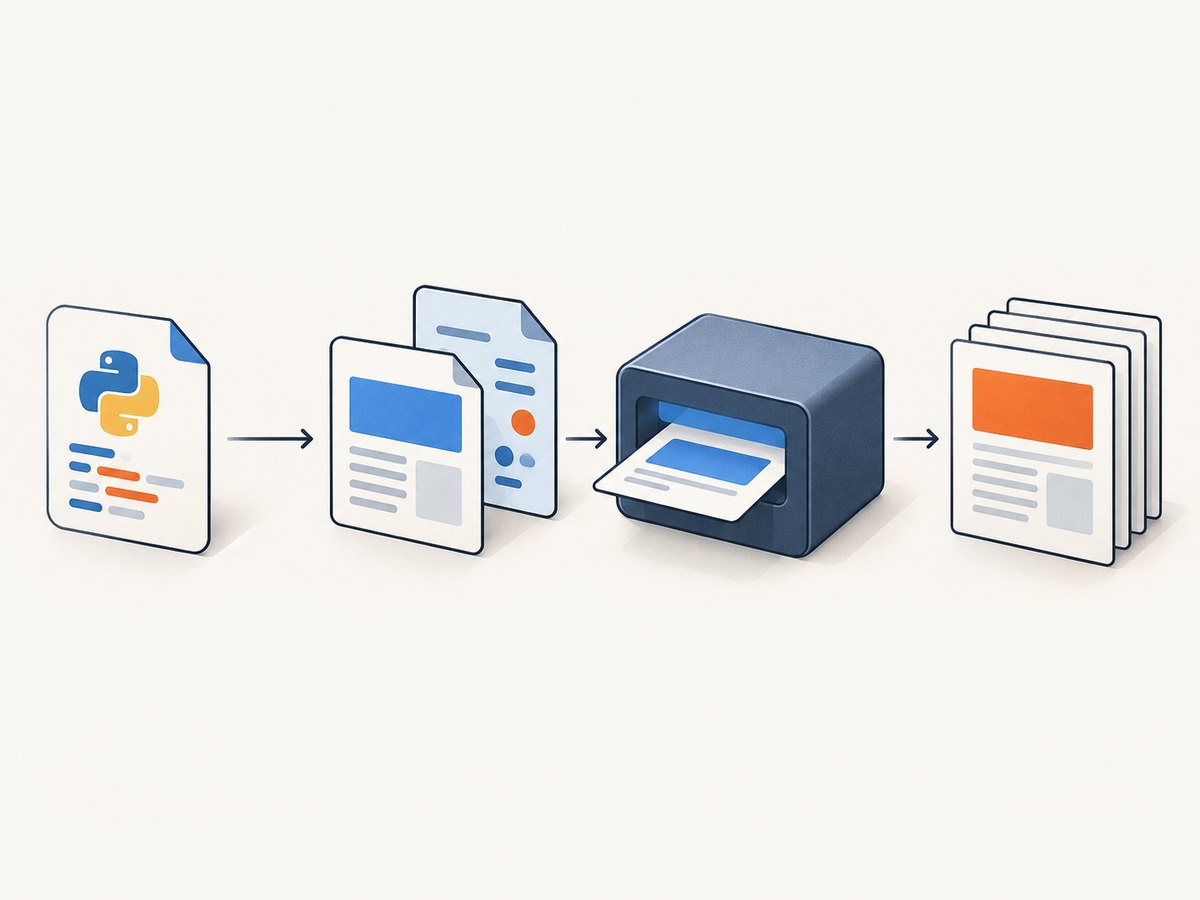
Install WeasyPrint using the official installation instructions for your operating system. Depending on the platform, installation also requires native libraries. Then create a virtual environment and install the Python package:
python -m venv .venv
# Linux or macOS
. .venv/bin/activate
python -m pip install weasyprint
Here is a complete script that turns an in-memory HTML document into a PDF file:
from weasyprint import HTML

html = """\
<!doctype html>
<html lang="en">
  <head>
    <meta charset="utf-8">
    <title>Invoice</title>
  </head>
  <body>
    <h1>Invoice</h1>
    <p>Invoice number: INV-1042</p>
    <p>Total: $42.00</p>
  </body>
</html>
"""

HTML(string=html).write_pdf("invoice.pdf")
print("Wrote invoice.pdf")
The key call is HTML(string=html).write_pdf("invoice.pdf"). To load a local file instead, use HTML(filename="invoice.html").write_pdf("invoice.pdf"). To convert a public URL, use HTML(url="https://example.com").write_pdf("page.pdf"). The official documentation describes write_pdf() as producing the rendered document in one PDF file.
For a string that refers to relative images, stylesheets, or fonts, give the renderer a base URL so it can resolve those paths. For example:
from pathlib import Path
from weasyprint import HTML

source = Path("templates/report.html")
HTML(
    filename=str(source),
    base_url=str(source.parent.resolve()),
).write_pdf("report.pdf")
Using filename establishes a useful resource base for a local document. When building HTML in memory, set base_url to a controlled local directory or trusted origin if the markup references relative resources.
3. Control page size, margins, and print styling
PDF layout is not the same as screen layout. Use the CSS @page rule to set paper size and margins, and a print media rule to remove controls or navigation that do not belong on paper.
<style>
  @page {
    size: A4 portrait;
    margin: 2cm;
  }

  @media print {
    .no-print {
      display: none !important;
    }

    h1, h2 {
      break-after: avoid;
    }

    table, figure {
      break-inside: avoid;
    }
  }
</style>
WeasyPrint’s documented example uses a page size and margin in @page; you can use sizes such as A3 landscape as well as A4 portrait. CSS fragmentation controls such as break-before, break-after, and break-inside help prevent awkward page breaks. Check long tables and large images with realistic content, since a rule that keeps a block together can cause a large blank area if the block is taller than a page.
For consistent typography, make fonts available to the rendering environment and reference them in CSS. If you are loading custom fonts through WeasyPrint’s lower-level CSS APIs, its documentation provides FontConfiguration to share font configuration between CSS and PDF writing. Test font embedding and glyph coverage for the actual scripts and symbols in your output.
WeasyPrint also documents PDF/A and PDF/UA variants and a pdf_forms option for creating actual PDF form fields. These are relevant when archival or accessibility output is a requirement. Select the appropriate documented options for your installed version and validate the resulting files with the tools used by your downstream workflow.
4. Render JavaScript pages with Playwright
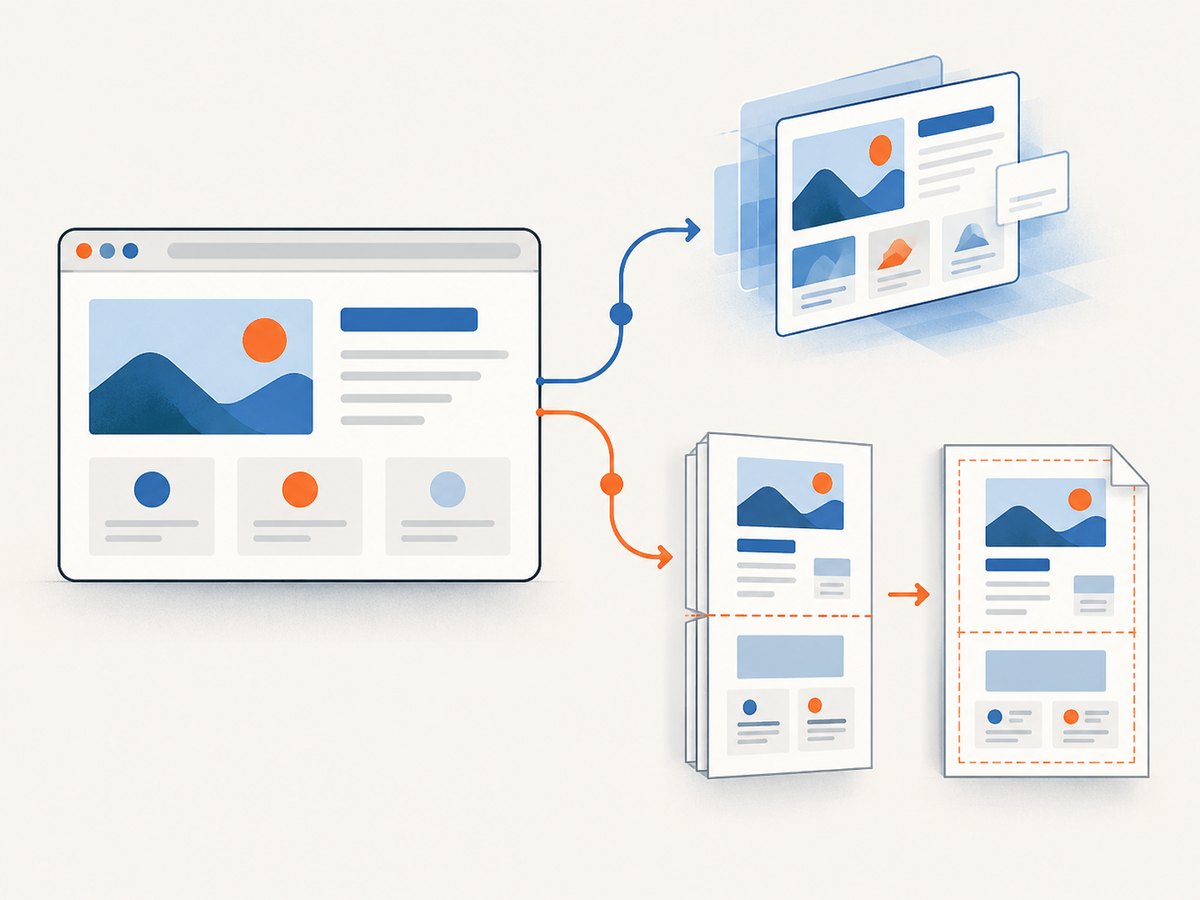
WeasyPrint renders HTML and CSS; it is not a JavaScript browser. When page content or layout depends on client-side scripts, use Playwright’s Python API. Install the package and its browser runtime with the documented commands:
python -m pip install playwright
python -m playwright install chromium
This synchronous example opens a page, waits for network activity to settle, and writes an A4 PDF:
from playwright.sync_api import sync_playwright

with sync_playwright() as p:
    browser = p.chromium.launch()
    page = browser.new_page()
    page.goto("https://example.com", wait_until="networkidle")
    page.pdf(
        path="page.pdf",
        format="A4",
        print_background=True,
        margin={
            "top": "1cm",
            "right": "1cm",
            "bottom": "1cm",
            "left": "1cm",
        },
    )
    browser.close()
Playwright’s page.pdf() API generates the PDF using print CSS media by default. If you need screen CSS instead, call page.emulate_media(media="screen") before page.pdf(). This changes the media mode used for rendering; it does not make a screen layout automatically paginate well.
Playwright accepts named formats including Letter, Legal, Tabloid, Ledger, and A0 through A6. You can instead specify width and height in supported units such as px, in, cm, or mm. The print options also include margins, landscape orientation, background printing, page ranges, and header/footer templates. Header/footer templates require display_header_footer=True; scripts in those templates are not evaluated, so build their content from supported template markup rather than expecting JavaScript to run there.
For a local page or authenticated application, navigate using the appropriate URL and session setup, then wait for a specific application-ready condition when possible. networkidle can be a poor readiness signal for pages with polling, analytics, or persistent connections. A selector wait or application-specific readiness check can make output more predictable.
5. Make repeatable PDFs in a service
A one-off script is simple, but a service that converts many documents needs clear boundaries around input, rendering, resources, and browser lifetime.
- Validate inputs. Decide whether callers may provide HTML, a local template identifier, or a URL. Do not accept arbitrary filesystem paths or unrestricted URLs by default.
- Choose a renderer per workload. Route static templates to WeasyPrint and pages that require JavaScript to a browser worker.
- Set readiness explicitly. For browser rendering, wait for a stable selector or application event where possible. Avoid fixed sleeps as the only synchronization mechanism.
- Apply output limits. Set limits appropriate to your service for input size, navigation duration, output bytes, concurrent jobs, and page count.
- Close resources reliably. Use context managers or
try/finallyso browser pages and processes are closed after both success and failure. - Inspect the artifact. Verify page count, fonts, links, images, and pagination using representative documents before relying on the conversion in a workflow.
When using custom headers, cookies, or an authenticated browser context, keep credentials scoped to the intended destination and avoid logging them. Reusing browser processes can reduce repeated startup work in a worker, but it also means you must isolate per-job cookies, storage, and page state. A fresh context per job is easier to reason about; measure the tradeoff for your workload.
6. Security, reliability, performance, and cost
Security
HTML conversion can trigger reads of remote images, stylesheets, fonts, and other resources. WeasyPrint explicitly warns that untrusted HTML or CSS may cause security problems. Do not pass arbitrary user markup directly into a privileged process. Sanitize input where appropriate, restrict filesystem and network access, and use a controlled resource fetcher when external assets are needed. Apply the same principle to browser automation: isolate the browser process and restrict navigation and resource access according to your threat model.
In particular, do not let a user-supplied URL reach internal services or local files through a renderer running with broad access. Use allowlists or a controlled fetch layer, and avoid forwarding privileged cookies or headers to destinations supplied by a caller.
Reliability
Remote conversion can fail because a site is unavailable, blocks automation, returns incomplete content, or references missing assets. Make failures visible in logs without leaking document contents or secrets. Retry only transient failures and put a bound on retries; retrying a deterministic layout or invalid-input error just adds load. For browser jobs, ensure cleanup runs after navigation and PDF errors so a failed job does not accumulate processes.
Performance and cost
WeasyPrint avoids the lifecycle of launching a browser, so it is a sensible first choice for static documents. Playwright pays for browser startup and page rendering, but supplies JavaScript execution and Chromium print behavior. Actual runtime and infrastructure cost depend on document complexity, remote assets, concurrency, machine size, and whether a browser can be reused safely. Profile representative input instead of relying on a universal speed claim.
For both approaches, reduce unnecessary assets, avoid loading unbounded remote content, set timeouts and concurrency limits, and consider caching only when inputs and referenced resources are stable. If documents contain sensitive or time-varying content, include the relevant identity and input version in any cache key.
7. Or skip the browser setup
If your goal is to get a PDF of a web page without maintaining a Python browser runtime, ScreenshotNeo offers a one-call API. It is a website screenshot API and MCP server from ScreenshotNeo; its API can return a PDF as well as PNG, JPEG, or WebP. See the ScreenshotNeo API documentation for the current request options.
cURL:
curl -G "https://api.screenshotneo.com/v1/shot" \
  -d access_key=YOUR_API_KEY \
  --data-urlencode url=https://example.com \
  -d format=pdf \
  -o page.pdf
Python:
import requests

r = requests.get(
    "https://api.screenshotneo.com/v1/shot",
    params={
        "access_key": "YOUR_API_KEY",
        "url": "https://example.com",
        "format": "pdf",
    },
    timeout=90,
)
r.raise_for_status()
with open("page.pdf", "wb") as f:
    f.write(r.content)
Node.js:
const q = new URLSearchParams({
  access_key: 'YOUR_API_KEY',
  url: 'https://example.com',
  format: 'pdf',
});
const res = await fetch(`https://api.screenshotneo.com/v1/shot?${q}`);
if (!res.ok) throw new Error(`ScreenshotNeo returned ${res.status}`);
const bytes = new Uint8Array(await res.arrayBuffer());
await Bun.write('page.pdf', bytes);
Or make the same PDF request with cURL’s query form or your HTTP client. Use the provider’s documented PDF parameters for paper size, margins, orientation, and page ranges. ScreenshotNeo accepts cookie and consent banners like a visitor, then removes more than 60 known consent platforms, newsletter popups, and chat widgets before capture; each cleanup step can be turned off. Bot checks, CAPTCHAs, blank pages, timeouts, failed loads, and cache hits are not billed, and response headers identify the page verdict and billing status. Its MCP server gives AI agents tools for screenshots, page information, and PDF capture. The free plan includes 1,000 shots per month without a card; paid plans start at $5 for 3,000 shots. These are web capture features: use a local renderer when the PDF must be generated from private in-memory HTML that is not available at a URL.
Create a free ScreenshotNeo account for 1,000 screenshots a month with no card.
8. Troubleshooting
| Symptom | Likely cause | What to try |
|---|---|---|
| WeasyPrint import or installation error | A required native dependency is missing or incompatible. | Follow the official installation steps for the operating system and Python environment; install system libraries before retrying the package install. |
| Images or CSS disappear from a string document | Relative URLs have no usable base path. | Use filename= for a file or provide an explicit base_url; confirm the referenced resources are reachable from that base. |
| JavaScript content is missing in the PDF | The document was rendered with WeasyPrint, which does not run page JavaScript. | Use Playwright and wait for the application’s content-ready condition before printing. |
| PDF looks different from the browser window | Playwright uses print media by default, or print CSS changes visibility and layout. | Review @media print; use page.emulate_media(media="screen") if screen styling is intended. |
| Page is blank or content is incomplete | Navigation or scripts had not completed, or resources failed. | Check navigation errors and missing requests; wait for a meaningful selector or app-ready signal, and confirm the target is accessible from the worker. |
| Background colors are absent | Browser print backgrounds are disabled. | Set print_background=True in page.pdf(). |
| Text wraps differently or symbols are missing | Font substitution, unavailable fonts, or missing glyphs. | Install or load the required fonts in the rendering environment and confirm font coverage. |
| Pages split tables or sections badly | Content exceeds available page space or lacks print break rules. | Adjust margins and page size; apply print fragmentation rules and inspect especially large rows or blocks. |
| Conversion hangs on remote content | A slow resource, persistent network activity, or unbounded navigation. | Set time limits, control allowed destinations, and use an explicit readiness condition rather than waiting indefinitely. |
9. Frequently asked questions
Can I convert HTML without writing it to a file?
Yes. Pass the markup to HTML(string=...) and call write_pdf(). Provide a base URL if the HTML uses relative resources.
Which option should I use for a React or Vue page?
If the required content appears only after JavaScript runs, use Playwright. Wait for a stable application condition before generating the PDF.
Can Playwright generate a PDF that looks like the screen?
Yes. Call page.emulate_media(media="screen") before page.pdf(); the default is print media.
Should I use ReportLab instead?
Use it when your source is structured data and you want to define the PDF layout through drawing and layout primitives. For an existing HTML design, begin with WeasyPrint or Playwright.
Can I safely convert arbitrary user HTML?
Not in a broadly privileged process. Treat HTML, CSS, and referenced resources as untrusted input; isolate the renderer and restrict its network and filesystem access.


