How to Convert HTML to PDF with wkhtmltopdf in Node.js
Install wkhtmltopdf and its Node.js wrapper, then convert URLs, HTML strings, or streams to PDF with practical options, error handling, and security guidance.
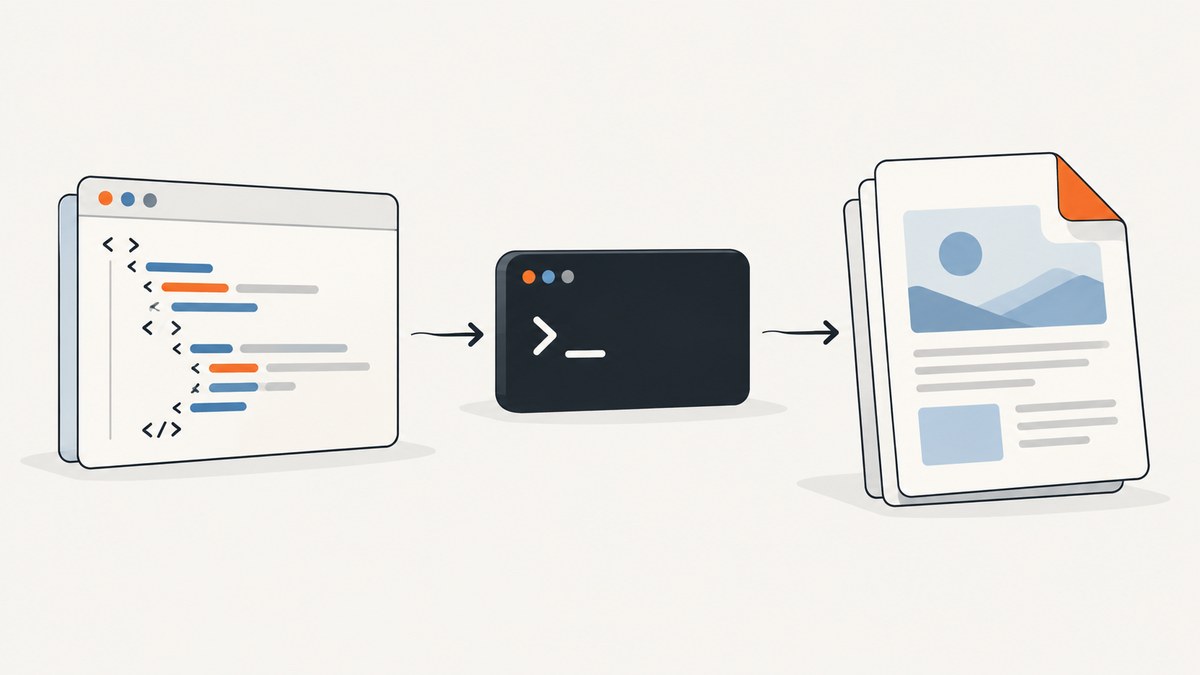
To convert HTML to PDF with wkhtmltopdf in Node.js, install the wkhtmltopdf executable for your operating system first, then install the Node.js package that wraps it. The npm package does not include the executable. Make sure the binary is on PATH, or configure the wrapper with its location. Then pass a URL, HTML string, or readable stream to the wrapper and pipe its output to a file or HTTP response.
This guide covers installation, runnable examples, page options, process errors, deployment, and the security limits the project documents. The official downloads page lists 0.12.6, released June 11, 2020; check that page for a build suited to your operating system and architecture. Official downloads.
1. Install the binary and Node.js wrapper
The wrapper invokes the command-line program. Installing only the npm dependency is not enough. First install a wkhtmltopdf build appropriate for the machine that will run the Node.js service, then verify that the executable can be found.
which wkhtmltopdf
wkhtmltopdf --version
On Windows, check the installation directory and run wkhtmltopdf.exe --version from a terminal. If the command is not found, add its directory to the service account’s PATH or configure an absolute command path in the wrapper. Verify this in the same environment that runs the application: a binary visible in your interactive shell may not be visible to a process manager or container.
In your Node.js project, install the wrapper:
npm install wkhtmltopdfConfirm the installed binary and wrapper versions in deployment documentation. The wrapper passes options to the binary, and the binary version determines which options and behavior are available. The project’s official downloads page identifies 0.12.6 as its stable series, but platform builds vary. See the Node wrapper README and downloads page.
2. Convert a URL to a PDF file
This example captures a public URL and writes the resulting stream to a file. It handles both stream errors and file errors, and waits for the destination stream to finish before reporting success.
const fs = require('node:fs');
const wkhtmltopdf = require('wkhtmltopdf');

const pdf = wkhtmltopdf('https://example.com', {
  pageSize: 'A4',
  marginTop: '12mm',
  marginRight: '12mm',
  marginBottom: '12mm',
  marginLeft: '12mm',
  output: 'example.pdf'
});

pdf.on('error', (error) => {
  console.error('wkhtmltopdf failed:', error);
});

pdf.on('end', () => {
  console.log('PDF stream ended');
});
The wrapper also documents piping its returned stream to a file. If you use output, check the wrapper documentation for the installed version’s exact output behavior and error events. A pipe-based version makes file stream errors explicit:
const fs = require('node:fs');
const wkhtmltopdf = require('wkhtmltopdf');

const pdf = wkhtmltopdf('https://example.com', { pageSize: 'A4' });
const file = fs.createWriteStream('example.pdf');

pdf.on('error', (error) => {
  console.error('PDF generation failed:', error);
  file.destroy(error);
});
file.on('error', (error) => {
  console.error('Could not write PDF:', error);
});
file.on('finish', () => {
  console.log('Wrote example.pdf');
});
pdf.pipe(file);
For an HTTP endpoint, set response headers before piping and handle failures before the response is committed. Once bytes have been sent, an application cannot replace a partial PDF with a clean JSON error response. For reliable APIs, generate to a temporary file first when you need to know that rendering completed before sending the result.
3. Convert an HTML string or readable stream
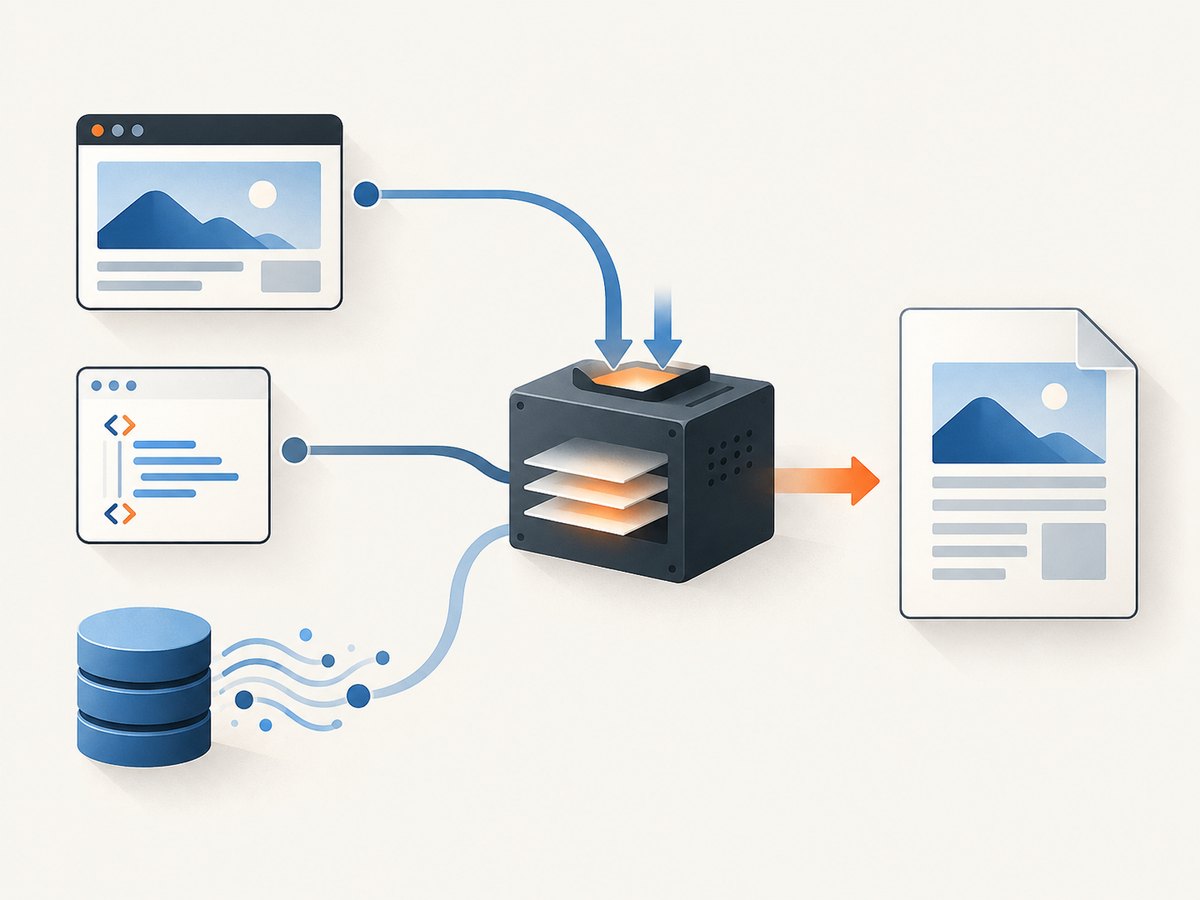
The wrapper accepts an HTML string as well as a URL. Use an HTML document string when your application has already rendered a controlled template. Include a character set declaration so non-ASCII text is interpreted consistently.
const fs = require('node:fs');
const wkhtmltopdf = require('wkhtmltopdf');

const html = `<!doctype html>
<html>
<head>
  <meta charset="utf-8">
  <title>Invoice</title>
</head>
<body>
  <h1>Invoice 1042</h1>
  <p>Amount due: $125.00</p>
</body>
</html>`;

const pdf = wkhtmltopdf(html, { pageSize: 'A4' });
pdf.on('error', (error) => console.error(error));
pdf.pipe(fs.createWriteStream('invoice.pdf'));
A readable stream can be passed when HTML is produced incrementally or comes from another stream source:
const fs = require('node:fs');
const { Readable } = require('node:stream');
const wkhtmltopdf = require('wkhtmltopdf');

const htmlStream = Readable.from([
  '<!doctype html><html><head><meta charset="utf-8"></head>',
  '<body><h1>Streamed report</h1></body></html>'
]);

const pdf = wkhtmltopdf(htmlStream, { pageSize: 'A4' });
pdf.on('error', (error) => console.error(error));
pdf.pipe(fs.createWriteStream('report.pdf'));
For a long-lived server endpoint, avoid buffering arbitrarily large user input in memory. Enforce request size limits and time limits at the application or job-runner layer. Stream input where useful, and use bounded concurrency because each conversion launches an external process and consumes CPU and memory.
4. Set page layout and rendering options
The wrapper translates option names to wkhtmltopdf command-line flags, generally using camel case. Options that do not require a value are booleans. Consult the wrapper README and the manual for the exact option name and supported behavior in your installed binary.
| Need | Typical setting | Notes |
|---|---|---|
| Paper | pageSize: 'A4' |
Use the intended paper size; confirm accepted values for the binary version. |
| Whitespace | marginTop: '10mm' and related margins |
Specify all sides when consistent print layout matters. |
| Landscape | orientation: 'Landscape' |
Confirm spelling and accepted values against the manual. |
| Local assets | allow: '/path/to/assets' |
The manual says local-file access is disabled by default unless allowed. |
| Headers | customHeader |
The wrapper README documents repeatable custom-header options. |
| JavaScript timing | JavaScript and delay options | JavaScript is enabled by default in the manual; default delay is 200 ms. |
Example with page sizing, margins, and an allowed local asset directory:
const wkhtmltopdf = require('wkhtmltopdf');
const fs = require('node:fs');

const pdf = wkhtmltopdf('file:///srv/reports/report.html', {
  pageSize: 'A4',
  orientation: 'Portrait',
  marginTop: '15mm',
  marginBottom: '15mm',
  marginLeft: '12mm',
  marginRight: '12mm',
  allow: '/srv/reports/assets'
});
pdf.on('error', (error) => console.error(error));
pdf.pipe(fs.createWriteStream('/srv/reports/report.pdf'));
Do not interpret the documented 200 ms JavaScript delay as proof that a modern site has finished rendering. A page may fetch data, animate, or update after that wait. The manual describes JavaScript behavior and load-error handling, but a fixed delay is not a general readiness signal. For pages whose content depends on dynamic JavaScript, the project status page recommends evaluating Puppeteer or wrappers for that use case.
For pages with local CSS, fonts, and images, explicitly allow only the directories the document needs. The manual also describes an enable-local-file-access option. Avoid enabling broad access simply to make missing assets appear; a rendered document should not gain access to unrelated files on the server.
5. Handle process errors and timeouts
Conversion failures can arise before the process starts, while the page loads, while the renderer evaluates the document, or while writing the output. Log enough context to diagnose the failure, but do not log secrets included in URLs, cookies, or HTML. Put an application-level deadline around conversions and terminate or recycle stuck jobs according to your process manager’s policy.
For lower-level control, Node’s child_process.execFile() launches a program with an argument array and does not use a shell by default. That avoids shell parsing of user-controlled strings. This example illustrates process-level handling; adapt arguments to the exact binary version and output strategy you deploy:
const { execFile } = require('node:child_process');

execFile(
  'wkhtmltopdf',
  ['--page-size', 'A4', 'https://example.com', '/tmp/example.pdf'],
  { timeout: 60_000, maxBuffer: 1024 * 1024 },
  (error, stdout, stderr) => {
    if (error) {
      console.error('wkhtmltopdf process failed:', error.message);
      console.error('stderr:', stderr);
      return;
    }
    console.log('PDF created');
  }
);
Node documents that execFile() reports process errors and output through its callback. Its timeout and buffer settings are operational controls, not guarantees that the page itself will render correctly. Prefer an argument array over shell command construction, especially when values can come from a request.
6. Security: do not process untrusted HTML and JavaScript
The wkhtmltopdf project warns against using wkhtmltopdf with untrusted HTML and JavaScript because it can lead to complete server takeover. This warning matters for upload features, report APIs, templates that accept user markup, and any service that renders arbitrary URLs. The project recommends sanitizing user-submitted HTML/JavaScript and considering Mandatory Access Control tools such as AppArmor or SELinux. Read the project status and security guidance.
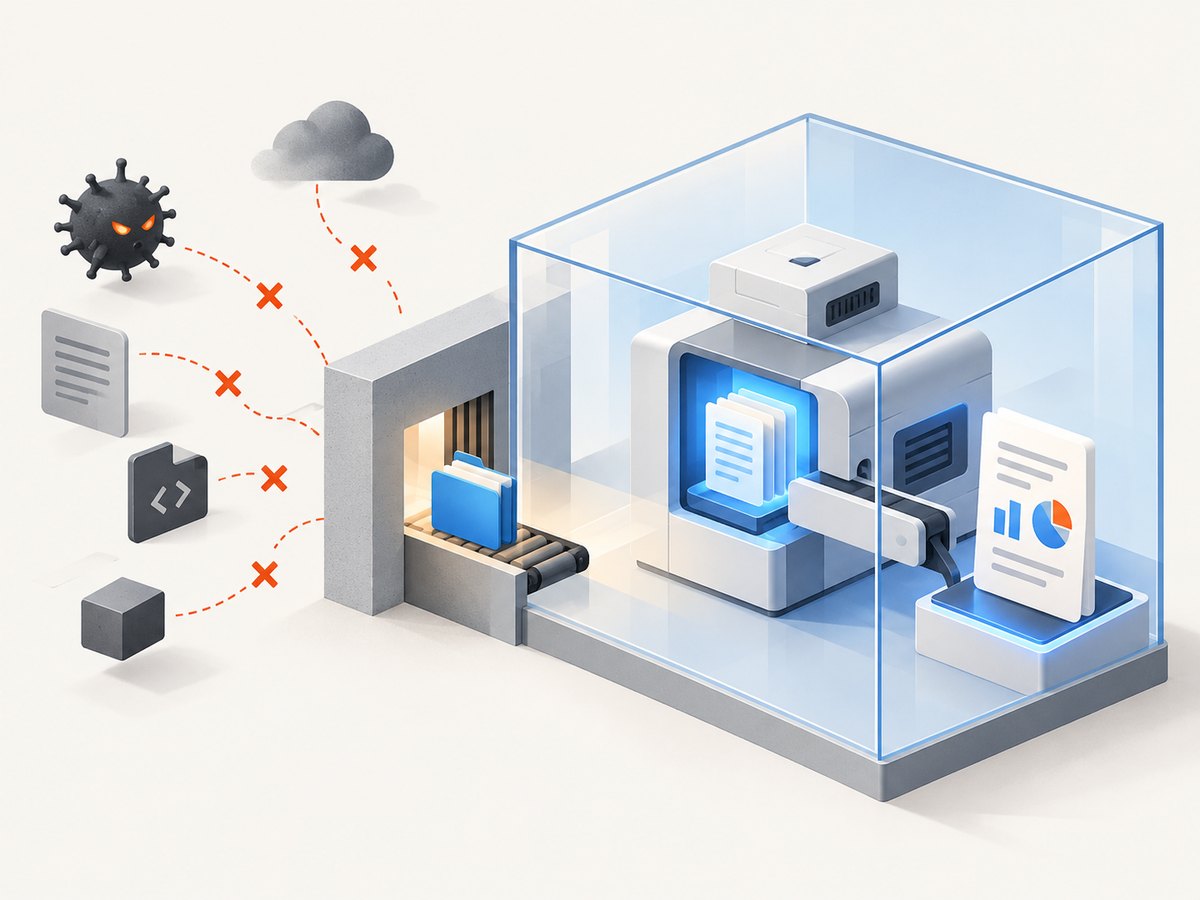
- Do not accept arbitrary URLs for a renderer running inside a trusted network; remote content can have access implications.
- Sanitize submitted HTML and JavaScript as the project advises, and constrain what templates can include.
- Run the renderer with a least-privilege account and isolate it from secrets and sensitive filesystem paths.
- Restrict local-file access to required asset directories; the manual documents that it is disabled by default unless explicitly allowed.
- Set request size limits, job deadlines, and concurrency limits around conversion.
For controlled report HTML, the project status page suggests considering WeasyPrint or the commercial tool Prince. For sites that rely on dynamic JavaScript, it suggests Puppeteer or wrappers. These are project recommendations for those use cases, not a universal ranking. Choose based on input trust, JavaScript requirements, browser fidelity, target operating system and architecture, and how you can isolate the renderer.
7. Performance, reliability, and cost
wkhtmltopdf runs as an external process, so each conversion adds process startup and rendering work to your application. The dossier contains no measured performance figures, and performance depends on the document, external assets, machine, and deployment. Benchmark your own representative documents before setting service limits; do not assume that a simple report and a script-heavy website have the same runtime.
For reliability, use a bounded job queue instead of launching unlimited conversions from incoming requests. Track conversion duration, exit status, output size, and failure category. Set a deadline, keep temporary files in a controlled directory, clean them up after success or failure, and validate that the output exists and is nonempty before publishing it. Remote URL rendering also depends on network and source-page availability; self-contained HTML reduces external dependencies, though local asset permissions still need configuration.
The package and binary are software; the research does not identify a paid per-conversion price. Your operational costs are the compute, memory, storage, and maintenance required to run the Node service and executable. The project lists 0.12.6 as its stable series, released in 2020, and says future work depends on maintainer time and volunteer contributions, without a promised deadline. Confirm supported builds for your deployment platform and plan for maintenance accordingly.
8. Troubleshooting
| Symptom | Likely cause | Fix |
|---|---|---|
wkhtmltopdf: command not found |
Binary is missing or absent from the service’s PATH. |
Install the platform-appropriate executable; configure its full path or the service environment’s PATH. |
| Wrapper says executable cannot be found | Only the npm wrapper was installed. | Install the separate binary, then verify it as the same user that runs Node. |
| PDF has blank or missing images | Assets are unreachable, local access is not allowed, or the page has not loaded them. | Check asset URLs and permissions; use narrowly scoped allow paths for local resources; verify load timing. |
| Dynamic content is absent | The fixed JavaScript delay expired before the page finished rendering, or the renderer is unsuitable for the page. | Use controlled HTML or evaluate the project’s suggested Puppeteer route for dynamic JavaScript pages. |
| Conversion exits with an error | Invalid option, inaccessible input, network/load failure, or unsupported behavior in the installed version. | Capture stderr, verify the URL and binary version, and compare each option with the manual for that binary. |
| Process hangs or service slows | Slow/unavailable remote resources or too many concurrent processes. | Apply job deadlines, bound concurrency, and avoid waiting indefinitely on external content. |
| Fonts or special characters are wrong | Missing font assets or character encoding declaration. | Include <meta charset="utf-8">, install required fonts, and verify asset access. |
| Output file is empty or partial | Stream or process failed before completion, or the response was sent too early. | Handle stream and destination errors; wait for completion and validate output before exposing it. |
9. Or skip the browser setup
If your goal is a screenshot or PDF from a web page rather than maintaining a renderer binary, ScreenshotNeo provides a website screenshot API and MCP server. A single request can return an image or PDF. See the ScreenshotNeo site and API documentation.
curl -G "https://api.screenshotneo.com/v1/shot" \
  -d access_key=YOUR_API_KEY \
  --data-urlencode url=https://stripe.com \
  -o shot.webp
ScreenshotNeo removes cookie banners, newsletter popups, and chat widgets before capture. Bot checks, blank pages, and failed loads are never billed. Its MCP server lets AI agents use screenshot tools, and the free plan includes 1,000 screenshots each month with no card; paid plans start at $5 for 3,000. Create a free account and get 1,000 screenshots a month with no card.
FAQ
Does npm install wkhtmltopdf install the executable?
No. The npm package is a Node.js wrapper. Install the separate binary for your deployment platform and make it available on PATH or configure its command path.
Can I convert HTML without saving it first?
Yes. The wrapper accepts an HTML string or readable stream, and returns a stream that you can pipe to a file or response.
Will it render every modern website accurately?
No such guarantee is documented. The project recommends evaluating Puppeteer or wrappers for pages that depend on dynamic JavaScript. Choose a renderer that fits the page and your security model.
Is wkhtmltopdf safe for arbitrary user HTML?
The project explicitly warns against untrusted HTML and JavaScript because it can lead to complete server takeover. Sanitize input and isolate the process as the project recommends.


