How to Convert HTML to PNG with a Python Library
Render an HTML string or web page to PNG with Playwright in Python. Learn full-page and element capture, byte output, troubleshooting, and a no-browser API option.
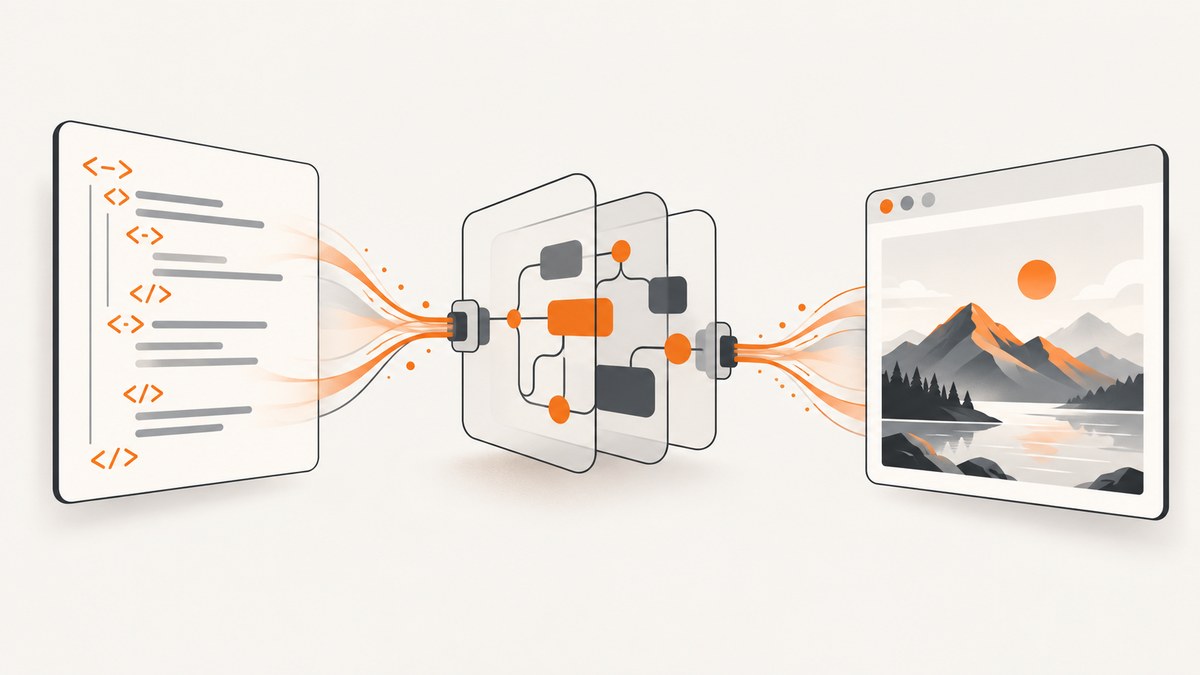
To convert HTML to PNG in Python, render it in a browser engine with Playwright, then call page.screenshot(). For an HTML string, use page.set_content(); for a web page, use page.goto(). Save directly to a file with path="output.png", or omit path to receive PNG bytes for an HTTP response or image-processing step. The examples below use Chromium, run headlessly by default, and close the browser after capture.
Playwright is a practical choice when your HTML uses JavaScript, modern CSS, web fonts, or browser layout behavior. Its Python package can launch Chromium, Firefox, or WebKit. See the Playwright Python library guide, screenshot guide, and Page API reference for the documented controls.
1. Install Playwright and its browser
Install the Python package and then install the browser binary. Installing the package alone does not necessarily install the browser required to render pages.
python -m pip install playwright
python -m playwright install chromium
Save the following as html_to_png.py to verify your setup with a URL:
from playwright.sync_api import sync_playwright

with sync_playwright() as p:
    browser = p.chromium.launch()
    page = browser.new_page(viewport={"width": 1280, "height": 800})
    page.goto("https://example.com", wait_until="networkidle")
    page.screenshot(path="output.png", full_page=True)
    browser.close()
Run it with python html_to_png.py. Playwright launches headless by default, so no desktop display is required. During local debugging, pass headless=False to p.chromium.launch() to see the browser.
2. Render an HTML string to PNG
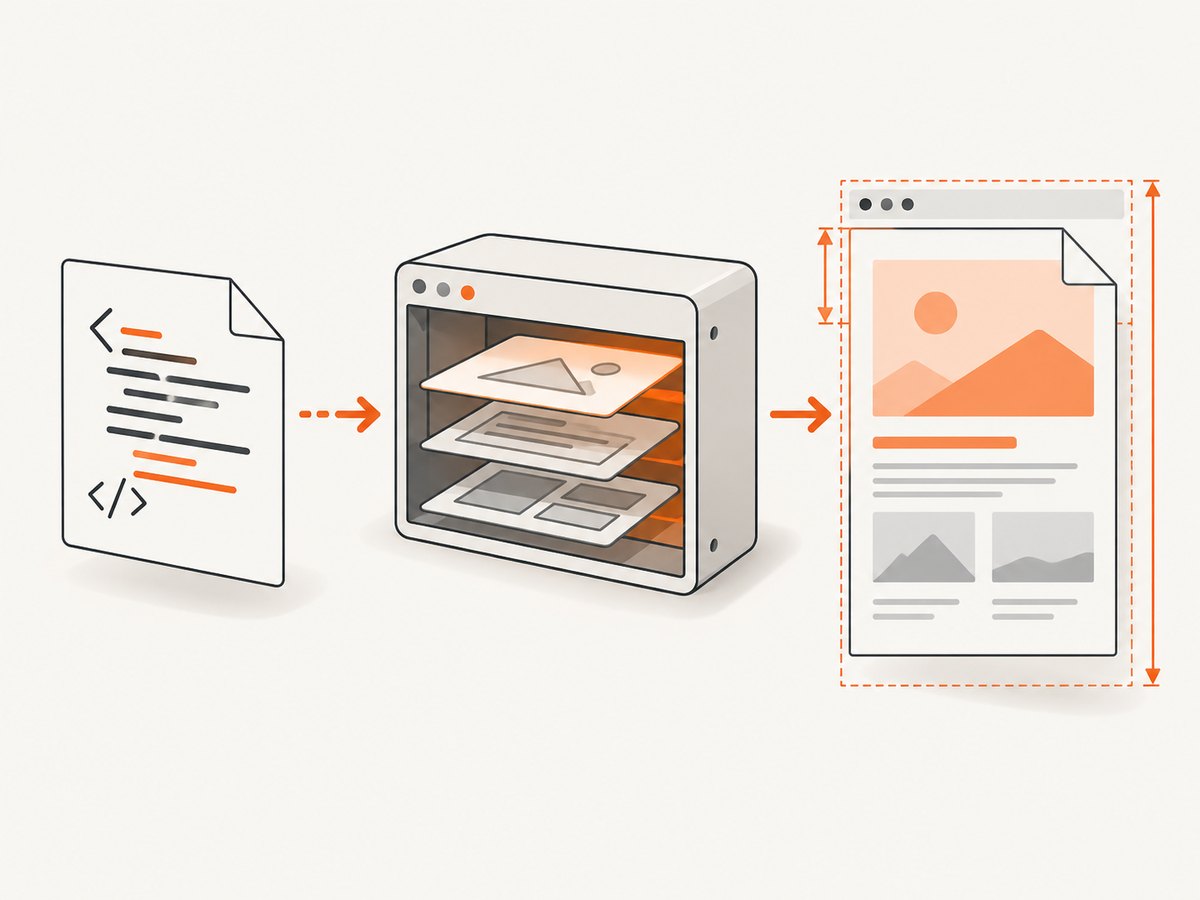
When the markup already exists in Python, set it as the page content instead of navigating to a URL. This example writes the screenshot bytes to a file:
from playwright.sync_api import sync_playwright

html = """<!doctype html>
<html>
  <head>
    <meta charset="utf-8">
    <style>
      body { font: 16px sans-serif; margin: 32px; color: #172033; }
      h1 { color: #3157c8; }
      .card { padding: 20px; border: 1px solid #ccd3e0; border-radius: 12px; }
    </style>
  </head>
  <body>
    <div class="card"><h1>Hello, PNG</h1><p>Rendered from an HTML string.</p></div>
  </body>
</html>"""

with sync_playwright() as p:
    browser = p.chromium.launch()
    page = browser.new_page(viewport={"width": 900, "height": 600})
    page.set_content(html, wait_until="networkidle")
    page.screenshot(path="output.png", type="png", full_page=True)
    browser.close()
set_content() assigns markup to the page. wait_until="networkidle" waits for network activity to settle, which can help when the page loads external resources. If your HTML has no remote assets or background requests, a lighter wait condition such as domcontentloaded may be enough.
3. Capture a URL, an element, or the full document
Choose the capture shape that matches your output. A normal screenshot covers the viewport. Use full_page=True for the whole scrollable page, or take a locator screenshot to isolate one element.
| Goal | Playwright approach | Notes |
|---|---|---|
| Visible viewport | page.screenshot(path="view.png") |
Uses the current viewport dimensions. |
| Entire scrollable page | page.screenshot(path="full.png", full_page=True) |
Captures beyond the initial viewport. |
| One element | page.locator(".header").screenshot(path="header.png") |
Waits for and captures the located element. |
| Specific region | page.screenshot(clip={"x": 0, "y": 0, "width": 600, "height": 400}) |
Use a clip rectangle in page coordinates. |
A URL capture with a predictable viewport and full-page output looks like this:
from playwright.sync_api import sync_playwright

with sync_playwright() as p:
    browser = p.chromium.launch()
    page = browser.new_page(viewport={"width": 1440, "height": 900}, device_scale_factor=1)
    page.goto("https://example.com", wait_until="networkidle", timeout=60000)
    page.screenshot(path="page.png", type="png", full_page=True, timeout=30000)
    browser.close()
For a component image, navigate and capture the element instead:
page.goto("https://example.com", wait_until="domcontentloaded")
page.locator("main .product-card").screenshot(path="product-card.png")
Use a stable selector that identifies one element. If the selector matches multiple elements, choose a more specific selector or use a locator filter. An element outside the viewport can still be targeted; Playwright scrolls it into view before taking its screenshot.
4. Return PNG bytes instead of writing a file
When path is omitted, page.screenshot() returns the image as bytes. This avoids an intermediate file when storing an object, returning an HTTP response, or processing the result in memory.
from playwright.sync_api import sync_playwright

html = "<html><body><h1>Bytes, not a file</h1></body></html>"

with sync_playwright() as p:
    browser = p.chromium.launch()
    page = browser.new_page()
    page.set_content(html)
    png_bytes = page.screenshot(type="png", full_page=True)
    print(type(png_bytes), len(png_bytes))
    browser.close()

# Example: write the same bytes later
with open("output.png", "wb") as image_file:
    image_file.write(png_bytes)
For an async web service, use Playwright’s async API and await page operations. Keep a browser process available across requests where your service architecture permits, create a page or browser context for each isolated job, and close pages and the browser during shutdown. The short-lived sync examples above launch and close a browser for clarity.
5. Choose output, scale, and page settings
The Page screenshot API supports PNG, JPEG, and WebP. PNG is lossless and ignores the JPEG-only quality parameter. The API also documents clipping, CSS or device scaling, timeouts, and byte output. Common controls include:
type="png": explicitly request PNG. PNG is the default format.full_page=True: expand capture to the full scrollable document.clip={...}: capture a rectangle.scale="css"orscale="device": control how CSS pixels map to output pixels.timeout=...: set the screenshot operation’s timeout in milliseconds.omit_background=True: omit the default page background where supported by the screenshot API.
Set viewport dimensions when creating the page, for example browser.new_page(viewport={"width": 1280, "height": 800}). This controls responsive layout. Device scale affects output pixel density; a larger rendered image can require more memory and storage. For very tall pages, confirm that full-page output is acceptable for your downstream image viewer and processing tools.
6. Wait for content that appears after navigation
A screenshot can be technically successful yet capture an unfinished page. JavaScript may render after the initial HTML, images may load lazily, and font or API requests may still be in flight. Choose a wait condition for what the page needs:
- Use
wait_until="domcontentloaded"when the DOM is sufficient and speed matters more than waiting for every resource. - Use
wait_until="load"when the page’s load event is the relevant milestone. - Use
wait_until="networkidle"when network requests should settle before capture. Pages with polling, analytics, or persistent connections may never reach an idle state. - For a known client-rendered component, wait for a selector explicitly before taking the screenshot.
page.goto("https://example.com/dashboard", wait_until="domcontentloaded", timeout=60000)
page.locator("[data-rendered='true']").wait_for(state="visible", timeout=15000)
page.screenshot(path="dashboard.png", full_page=True)
For HTML strings, ensure external images, stylesheets, and fonts have usable URLs and time to load. Inline CSS and data URLs make a self-contained document more deterministic. Do not assume a fixed sleep guarantees completion; wait on the page event or element that represents readiness.
7. Alternative: Pyppeteer
Pyppeteer is an unofficial Python port of Puppeteer. It can set HTML content and write a PNG, but its documentation describes it as unofficial. Playwright is the recommended starting point here when you want the documented Python API and browser-engine choices.
import asyncio
from pyppeteer import launch

async def render():
    browser = await launch()
    try:
        page = await browser.newPage()
        await page.setContent("<html><body><h1>Hello</h1></body></html>")
        await page.screenshot({"path": "output.png", "type": "png", "fullPage": True})
    finally:
        await browser.close()

asyncio.run(render())
Pyppeteer’s documented screenshot controls include format, full-page capture, clipping, transparent background, and binary or base64 output. Use its reference for exact parameter forms. As with Playwright, the browser binary and the runtime environment are part of the operational setup.
8. Troubleshooting common problems
| Symptom | Likely cause | Fix |
|---|---|---|
| Browser executable missing | The Playwright package is installed, but Chromium was not installed for it. | Run python -m playwright install chromium in the same environment. |
| Navigation times out | The site is slow, has long-running requests, or the chosen wait condition is too strict. | Raise the navigation timeout; try domcontentloaded, then wait for the specific content needed. |
| Screenshot misses dynamic content | Capture happened before client rendering or a required element appeared. | Wait for a selector or a reliable readiness condition before capture. |
| Blank or broken images | Remote assets are blocked, invalid, not yet loaded, or inaccessible from the render environment. | Check asset URLs and network access; inline critical assets or wait for them to finish loading. |
| Output is cropped | The default screenshot covers only the viewport. | Use full_page=True, an element screenshot, or an appropriate clip. |
| Element selector not found | The selector is incorrect or the element has not rendered yet. | Inspect the markup, use a stable selector, and wait for that locator. |
| Text or layout differs from desktop | Viewport, device scale, fonts, or browser engine differs from the target. | Set the intended viewport and scale explicitly; ensure fonts load and use the intended engine. |
| Memory grows under load | Pages, contexts, or browser processes are not being closed or concurrency is too high. | Close each page/context in a finally path, cap parallel jobs, and monitor worker memory. |
9. Performance, reliability, and cost
Rendering with a browser includes the cost of launching or reusing a browser process, loading the document and its assets, waiting for readiness, and encoding the image. The documentation cited here does not publish a speed or fidelity benchmark comparing these tools, so choose based on measured behavior for your page and environment.
- Reduce work: capture only the viewport or target element when a full-page image is unnecessary. Avoid waiting for network idle on pages that keep making requests.
- Manage browser lifetime: avoid repeatedly installing binaries in production. Keep browser binaries in the deployment image and close resources deterministically.
- Control concurrency: each active page consumes resources. Bound parallel captures and retry only transient failures with a limit and backoff.
- Make output repeatable: pin the Playwright package and its browser installation together, define viewport and scale, and use stable fonts and asset URLs.
- Estimate cost: a self-hosted library has no per-screenshot API fee in this workflow, but you pay in compute, storage, engineering time, browser upgrades, and operational support.
For another browser engine or version, launch the appropriate Playwright browser and compare representative pages. The available primary documentation explains the APIs but does not establish that one engine is universally faster or more accurate.
10. Or skip the browser setup
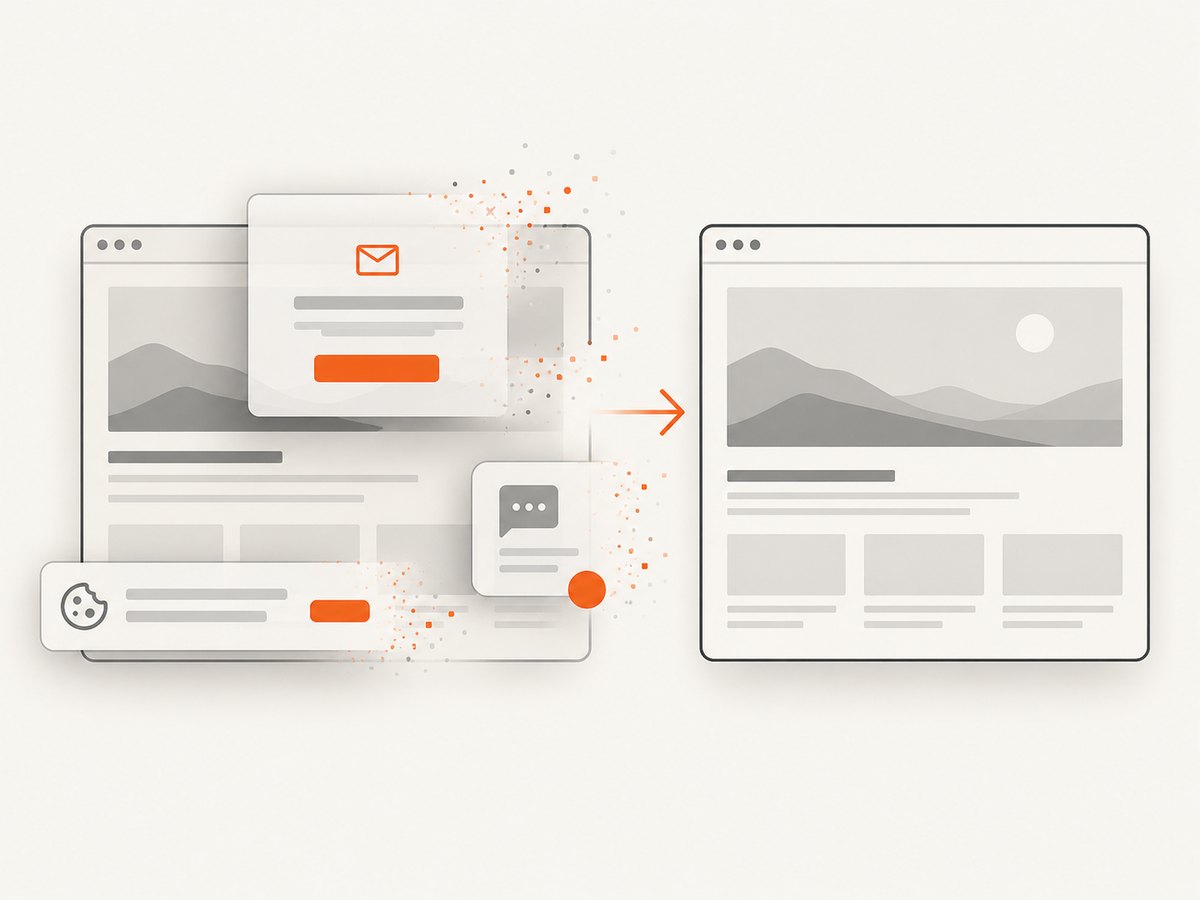
If you need screenshots from URLs without installing and managing browser binaries, ScreenshotNeo is a website screenshot API and MCP server for developers. One GET request returns an image or PDF. Its clean-shot flow accepts cookie or consent banners like a visitor and removes 60+ known consent platforms, newsletter popups, and chat widgets before capture; each step can be turned off. Bot checks and CAPTCHAs, blank pages, timeouts, failed loads, and cache hits cost nothing, and the response reports the page verdict and billing status in headers. AI agents can use its MCP server tools: take_screenshot, get_page_info, and capture_pdf.
curl -G "https://api.screenshotneo.com/v1/shot" -d access_key=YOUR_API_KEY --data-urlencode url=https://stripe.com -o shot.webpSee the ScreenshotNeo API documentation for parameters and setup. The service offers 1,000 screenshots a month free with no card; paid plans start at $5 for 3,000 screenshots, and every feature is on every plan. Create a free account and get 1,000 screenshots a month with no card.
Frequently asked questions
Can I convert HTML to PNG without saving an HTML file?
Yes. Pass the HTML string to page.set_content() and then write or return the screenshot result.
Does Playwright return PNG bytes?
Yes. Call page.screenshot(type="png") without a path; the result is bytes.
Can I use this in an asyncio application?
Yes. Playwright provides an async Python API. Await its browser, page, navigation, and screenshot operations, and close resources when finished.
Will the same code work for every HTML document?
The capture code is reusable, but documents that depend on external resources, authentication, JavaScript timing, or browser-specific behavior need suitable network access, setup, and waits.


