How to Convert HTML to PDF, Images, and Word with Python
Use WeasyPrint for HTML to PDF, PDF rasterization for images, and python-docx for editable Word files—with code, options, and troubleshooting.
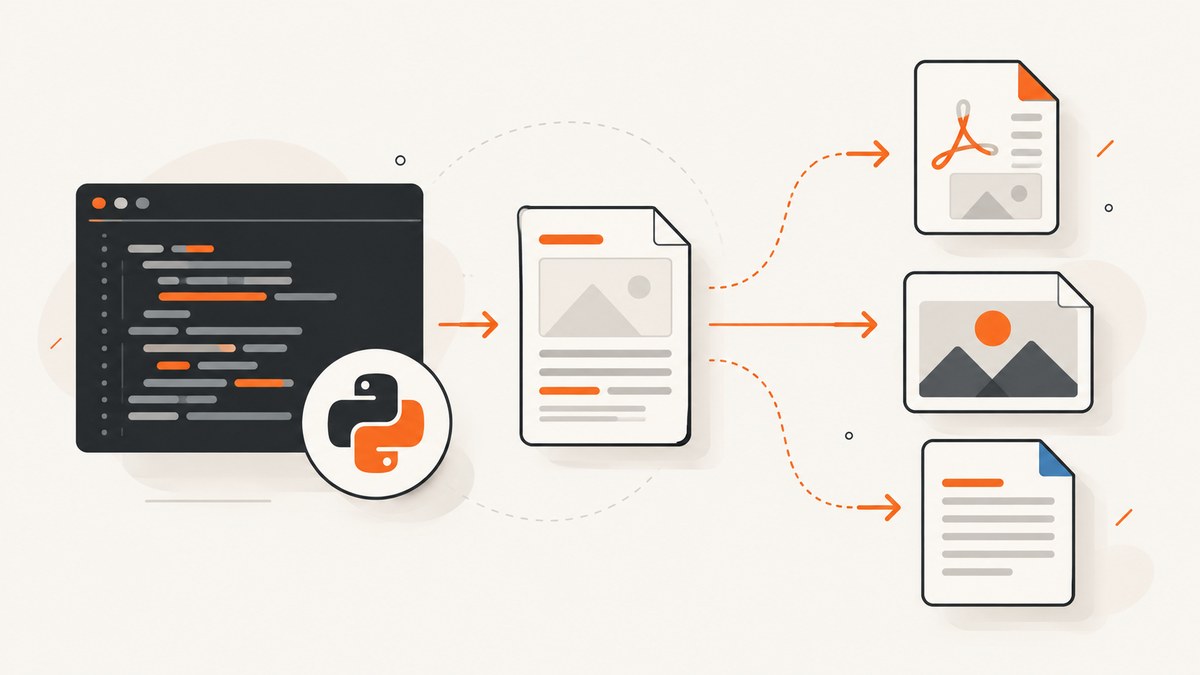
Direct answer: For HTML and CSS to PDF in Python, use WeasyPrint. For images, render the HTML to PDF first, then convert each PDF page with a PDF rasterizer such as pdf2image. For Word output, use python-docx when you need to create or populate a structured .docx; it is not documented as a general, faithful HTML-to-DOCX renderer.
This split is deliberate. PDF preserves page layout, raster images preserve a visual snapshot, and DOCX stores editable document structures. The right path depends on whether you need print fidelity, pixels, or editable Word content.
Choose the conversion path
| Output | Recommended Python path | Best for | Key limitation |
|---|---|---|---|
WeasyPrint HTML(...).write_pdf() |
Reports, invoices, print layouts | Installation may require platform libraries; test real assets | |
| PNG/JPEG/WebP | HTML → PDF → pdf2image | Thumbnails, previews, visual archives | Images inherit PDF page boundaries and raster settings |
| DOCX | python-docx document construction | Editable paragraphs, tables, headings | Not a general HTML/CSS layout converter |
| Hosted image/PDF | HTML2Image Python client or another hosted API | Reducing local browser/system setup | Verify current pricing, limits, privacy and fidelity |
1. Install the Python libraries
Create an isolated environment and install the Python packages:
python -m venv .venv
source .venv/bin/activate       # Windows: .venv\\Scripts\\activate
python -m pip install weasyprint pdf2image python-docx pillow
WeasyPrint can need additional system dependencies depending on your operating system. Follow its installation guide for the target deployment image before you build a production job. pdf2image also relies on PDF conversion utilities; consult its current instructions and install the required tools for your platform.
2. Convert HTML and CSS to PDF
WeasyPrint accepts a filename, URL, readable file object, or an in-memory HTML string. CSS can be supplied separately. This example writes a PDF from a local HTML file and stylesheet:
from pathlib import Path
from weasyprint import HTML, CSS

html_path = Path("report.html")
css_path = Path("print.css")

HTML(filename=str(html_path), base_url=str(html_path.parent)).write_pdf(
    "report.pdf",
    stylesheets=[CSS(filename=str(css_path))],
)
base_url matters when your HTML refers to relative images, fonts, or stylesheets. Without a useful base URL, relative paths may not resolve.
Render an in-memory HTML string
from weasyprint import HTML
html = """
Quarterly report
Revenue: $42,000
"""
pdf_bytes = HTML(string=html, base_url="/absolute/project/path").write_pdf()
with open("report.pdf", "wb") as output:
output.write(pdf_bytes)Calling write_pdf() without a destination returns PDF bytes. That is useful for object storage, HTTP responses, queues, or tests that do not need a temporary file.
Fonts and external resources
For custom fonts, define @font-face in CSS and pass a FontConfiguration as documented by WeasyPrint:
from weasyprint import HTML, CSS
from weasyprint.text.fonts import FontConfiguration

font_config = FontConfiguration()
HTML(filename="report.html", base_url=".").write_pdf(
    "report.pdf",
    stylesheets=[CSS(filename="print.css", font_config=font_config)],
    font_config=font_config,
)
WeasyPrint’s ordinary URL fetcher can retrieve linked stylesheets and images, but its documentation says cookies and authentication are not supported by default. If the page needs authenticated assets, use a custom URL fetcher or download the assets into a controlled local directory before rendering.
Print CSS controls that affect output
@pagesets paper size, margins, and page counters.break-before,break-after, andbreak-insidehelp control page breaks.- Use absolute or stable dimensions for charts and invoice columns.
- Use print-specific rules inside
@media print. - Embed or locally stage fonts and images when repeatability matters.
3. Convert HTML to images through PDF
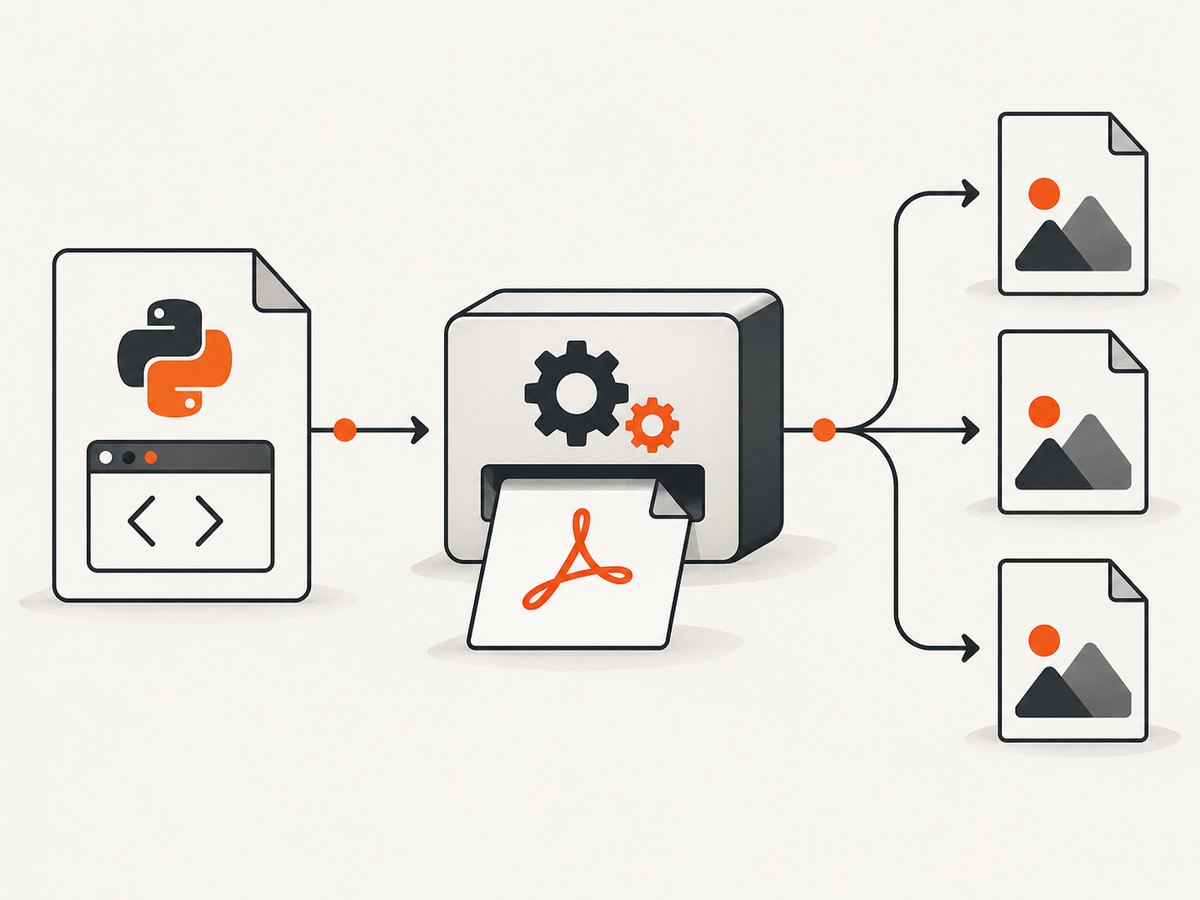
pdf2image converts PDF input into image files or Pillow images. It is not an HTML renderer, so the reliable pipeline is HTML → PDF with WeasyPrint, then PDF → image.
from pdf2image import convert_from_path

pages = convert_from_path(
    "report.pdf",
    dpi=150,
    first_page=1,
    last_page=3,
    fmt="png",
)

for number, page in enumerate(pages, start=1):
    page.save(f"report-page-{number}.png", "PNG")
Increase dpi for sharper text at the cost of memory and larger files. Use a page range for previews instead of rasterizing a long document. Pillow objects can also be written as JPEG or WebP:
pages = convert_from_path("report.pdf", dpi=120, fmt="jpeg", jpegopt={"quality": 88})
for number, page in enumerate(pages, start=1):
    page.save(f"page-{number}.jpg", quality=88, optimize=True)
For a single-page preview, set both first_page and last_page. For transparent output, check the color mode and target format; PDF pages commonly rasterize onto an opaque background.
4. Create an editable Word document
python-docx creates and updates DOCX files. Build the document structure explicitly:
from docx import Document
from docx.shared import Inches

source_title = "Quarterly report"
doc = Document()
doc.add_heading(source_title, level=1)
doc.add_paragraph("This document contains editable report content.")

table = doc.add_table(rows=1, cols=2)
table.style = "Table Grid"
table.rows[0].cells[0].text = "Metric"
table.rows[0].cells[1].text = "Value"
for metric, value in [("Revenue", "$42,000"), ("Users", "8,400")]:
    cells = table.add_row().cells
    cells[0].text = metric
    cells[1].text = value

doc.save("report.docx")
You can add headings, paragraphs, tables, pictures, headers, and footers. If you need content from HTML, parse the specific elements you support and map them to DOCX constructs. Do not assume arbitrary CSS layout, floats, scripts, or responsive behavior will survive that mapping. The python-docx documentation describes document authoring, not a browser-equivalent HTML conversion engine.
Adding an image to DOCX
from docx import Document
from docx.shared import Inches

doc = Document()
doc.add_heading("Visual summary", level=1)
doc.add_picture("report-page-1.png", width=Inches(6.2))
doc.save("report-with-image.docx")
5. A complete script for all three outputs
The following script renders one HTML file to PDF, rasterizes its pages, and creates a structured DOCX:

from pathlib import Path
from weasyprint import HTML
from pdf2image import convert_from_path
from docx import Document

root = Path(__file__).parent
html_file = root / "report.html"
pdf_file = root / "report.pdf"

HTML(filename=str(html_file), base_url=str(root)).write_pdf(str(pdf_file))

pages = convert_from_path(str(pdf_file), dpi=144, fmt="png")
for index, page in enumerate(pages, 1):
    page.save(root / f"report-page-{index}.png", "PNG")

doc = Document()
doc.add_heading("Quarterly report", level=1)
doc.add_paragraph("Editable content extracted from the source workflow.")
doc.add_paragraph("The PDF remains the layout-preserving artifact; this DOCX is a structured document.")
doc.save(root / "report.docx")
6. When a hosted renderer is a better fit
A hosted service can remove local system-library and rendering-environment work. HTML2Image documents a Python client for rendering HTML to images and also describes an HTML-to-PDF API. Its vendor page listed Python 3.9 or newer and 50 starting free credits when the research was collected; verify current requirements, pricing, limits, privacy terms, and output behavior before adopting it. The available research does not establish a neutral winner for speed, fidelity, or cost.
Or skip the browser setup
For website screenshots, ScreenshotNeo provides a GET endpoint that returns PNG, JPEG, WebP, or PDF. It accepts cookie and consent banners like a visitor, then removes more than 60 known consent platforms plus newsletter popups and chat widgets before capture. Bot checks, blank pages, timeouts, failed loads, and cache hits are not billed; response headers identify the page verdict and billing status.
See the ScreenshotNeo API documentation for the full option set. A minimal request is:
curl -G "https://api.screenshotneo.com/v1/shot" -d access_key=YOUR_API_KEY --data-urlencode url=https://stripe.com -o shot.webpimport requests
r = requests.get(
"https://api.screenshotneo.com/v1/shot",
params={"access_key": "YOUR_API_KEY", "url": "https://stripe.com"},
timeout=90,
)
r.raise_for_status()
open("shot.webp", "wb").write(r.content)const q = new URLSearchParams({ access_key: 'YOUR_API_KEY', url: 'https://stripe.com' });
const res = await fetch(`https://api.screenshotneo.com/v1/shot?${q}`);
if (!res.ok) throw new Error(`HTTP ${res.status}`);
const buffer = Buffer.from(await res.arrayBuffer());
require('fs').writeFileSync('shot.webp', buffer);You can request full-page captures with lazy images loaded, a CSS-selected element, dark mode, device presets or custom viewports, retina scale, custom CSS and JavaScript, clicks, selector or network-idle waits, blocked ads and trackers, custom headers, cookies, user agents, authorization, timezone, geolocation, transparent backgrounds, resizing, caching with a chosen TTL, signed image links, asynchronous jobs with signed webhooks, bulk capture of up to 100 URLs per call, PDFs with paper and page options, HTML/CSS to image, and usage data. An MCP server exposes take_screenshot, get_page_info, and capture_pdf to Claude, Cursor, and other MCP clients.
There is a free plan with 1,000 shots per month and no card. Paid plans start at $5 for 3,000 shots; yearly billing gives two months free, and every feature is available on every plan. Create a free ScreenshotNeo account.
Options and design decisions
Choose the source form
- Local file: pass
filenameand a correctbase_url. - URL: convenient for public pages, but validate network access and remote asset behavior.
- String: best for generated reports; provide a base directory for relative resources.
Choose layout control
Use CSS for page geometry, explicit page-break rules, embedded fonts, and predictable image dimensions. Keep external dependencies small for repeatable builds. For authenticated resources, supply a custom fetch strategy or stage files locally.
Choose image quality
Set DPI based on the consumer: 96–120 DPI is often adequate for web previews, while print workflows need a higher value. Measure memory for long PDFs because rasterizing many large pages at once can exhaust a worker. Process pages in bounded batches when necessary.
Troubleshooting
| Symptom | Likely cause | Fix |
|---|---|---|
ImportError or missing shared library |
WeasyPrint system dependency is absent | Follow the platform installation guide and rebuild the deployment image. |
| Images or CSS are missing | Relative URLs have no base directory, or remote fetch failed | Set base_url; use absolute paths or stage assets locally. |
| Fonts fall back | Font file cannot be fetched or configured | Embed a reachable font with @font-face and pass FontConfiguration. |
| 401/403 assets | Default URL fetching has no cookies or auth | Use a custom URL fetcher or download authenticated assets before rendering. |
| PDF-to-image command error | Required PDF utilities are not installed or not on PATH |
Install the utilities required by your pdf2image platform setup. |
| Huge image files or worker OOM | DPI is too high or many pages are held in memory | Lower DPI, limit page ranges, and process pages in batches. |
| DOCX layout differs from HTML | python-docx models Word structures, not arbitrary CSS | Map supported HTML elements explicitly or evaluate a dedicated HTML-to-DOCX renderer. |
| Blank ScreenshotNeo result | Target page failed, timed out, or triggered a bot check | Inspect X-Page-Verdict and X-Billed, then adjust waits, headers, or access settings. |
Performance, reliability, and cost notes
- Cache rendered PDFs or images when the source and options are unchanged.
- Reuse a worker process for batches, but cap concurrency according to memory and external resource limits.
- Record source HTML version, CSS, font files, renderer versions, DPI, and page settings for reproducibility.
- Separate transient network failures from deterministic rendering errors and retry only the former.
- For local rendering, budget for system packages and operational maintenance. For hosted APIs, verify current quotas, retention, privacy, and pricing.
- The research provides no neutral benchmark for speed or fidelity, so compare representative pages from your own workload.
Checklist before shipping
- Render a page with real fonts, images, tables, and page breaks.
- Test relative and authenticated assets.
- Check PDF metadata, page count, dimensions, and text selection.
- Rasterize at the DPI and format your consumers require.
- Open generated DOCX files in the target Word-compatible applications.
- Set timeouts, bounded concurrency, retries, and output-size limits.
- Log renderer errors without storing sensitive source content unnecessarily.
FAQ
Can WeasyPrint run JavaScript?
The documented workflow is HTML/CSS rendering. If your page depends on client-side JavaScript to create its final content, generate that content first or use a renderer designed for a browser execution step.
Can pdf2image convert HTML directly?
No. It consumes PDF input, which is why the common workflow renders HTML to PDF first.
Is python-docx suitable for converting any webpage to Word?
No. It is suited to constructing and editing DOCX structures. Arbitrary webpage CSS and responsive layout require a dedicated conversion approach and evaluation.
How do I preserve private images in a PDF?
Use a custom resource-fetching strategy with credentials handled securely, or download the assets into a controlled local workspace before rendering.
When should I use ScreenshotNeo?
Use it when you need website screenshots or PDFs without maintaining browser and capture infrastructure, especially when cookie banners, popups, chat widgets, bot checks, and failed loads affect the result.


