How to Convert an HTML String to PDF in Java with wkhtmltopdf or wkhtmltoimage
Convert an HTML string to PDF from Java with wkhtmltopdf, configure the wrapper and renderer, handle common failures, and choose an alternative for screenshots.
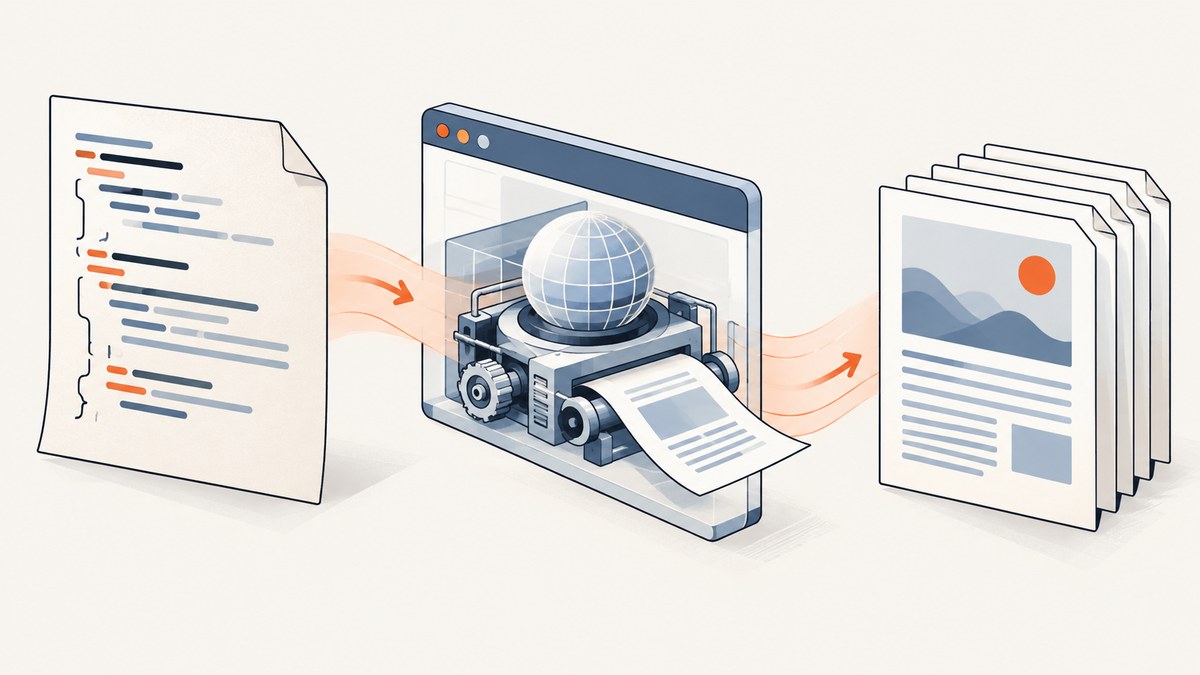
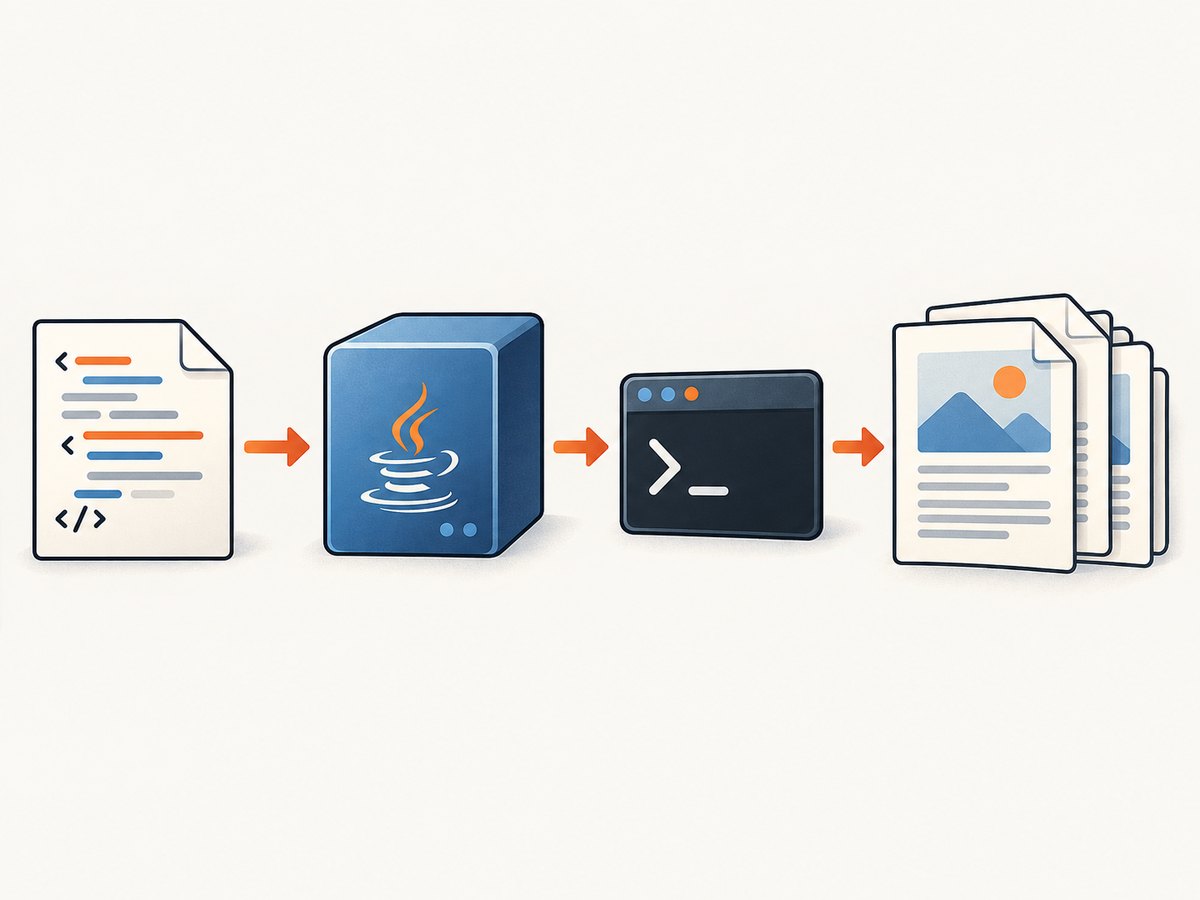
Direct answer: use wkhtmltopdf to convert an HTML string to PDF from Java. It is a separate headless command-line renderer based on Qt WebKit, not a Java library. A Java wrapper can pass your string to the executable, but you must install a compatible executable in the runtime environment yourself. wkhtmltoimage is the related tool for image formats; it does not create PDFs. The Java wrapper example below uses the third-party java-wkhtmltopdf-wrapper. Its README documents string input, executable configuration, conversion options, and important operational caveats. [wkhtmltopdf downloads; wrapper README]
This setup is most suitable when you need to keep using wkhtmltopdf for relatively controlled HTML and can manage its native executable. The upstream project is archived, and its stable 0.12.6 series dates to June 2020. Treat it as legacy software: check platform availability, compatibility, security, and licensing for the exact artifacts you deploy. [upstream repository; downloads and release information]
1. Add the Java wrapper and install the renderer
Add the wrapper as a dependency, then install wkhtmltopdf separately in the operating system image or host where the Java process runs. The wrapper README currently shows version 1.3.1-RELEASE; confirm the artifact and its status in your own build environment before adopting it. A Java dependency does not package the native renderer.
Maven
<dependency>
  <groupId>com.github.jhonnymertz</groupId>
  <artifactId>java-wkhtmltopdf-wrapper</artifactId>
  <version>1.3.1-RELEASE</version>
</dependency>
Gradle
dependencies {
    implementation 'com.github.jhonnymertz:java-wkhtmltopdf-wrapper:1.3.1-RELEASE'
}
Install a binary compatible with your operating system, architecture, and runtime dependencies, then check it as the same operating-system user that launches Java:
wkhtmltopdf --version
which wkhtmltopdf
On Windows, use where wkhtmltopdf to locate the executable. For a custom location, configure the wrapper with the full path. The upstream download page lists platform-specific packages, but you should verify the package actually supports your deployment image and architecture. Avoid copying a binary from a developer laptop into a production image without checking its system libraries and fonts. [official downloads; wrapper executable configuration]
2. Convert a complete HTML string to PDF
Here is a minimal Java program using the wrapper API shown in its README. Save it as HtmlStringToPdf.java; compile it with the dependency on your classpath or put it in the project that includes the Maven or Gradle dependency. It assumes wkhtmltopdf is available on the process path and writes report.pdf in the working directory.
import com.github.jhonnymertz.wkhtmltopdf.wrapper.Pdf;
import com.github.jhonnymertz.wkhtmltopdf.wrapper.config.WrapperConfig;

public class HtmlStringToPdf {
    public static void main(String[] args) throws Exception {
        String html = """
            <!doctype html>
            <html>
            <head>
              <meta charset=\"UTF-8\">
              <title>Report</title>
              <style>
                body { font-family: sans-serif; margin: 24px; color: #222; }
                h1 { color: #1455a3; }
                @media print { .screen-only { display: none; } }
              </style>
            </head>
            <body>
              <h1>Monthly report</h1>
              <p>Generated from a Java HTML string.</p>
            </body>
            </html>
            """;

        String executable = WrapperConfig.findExecutable();
        Pdf pdf = new Pdf(new WrapperConfig(executable));
        pdf.addPageFromString(html);
        pdf.saveAs("report.pdf");
    }
}
The wrapper’s documented method is addPageFromString. Include a complete document rather than a fragment: specify UTF-8, keep CSS predictable, and make asset URLs resolvable from the renderer. The wrapper sample is documentation, not a claim that this article’s code was executed; check the exact dependency version and imports if you use a different release. [wrapper README]
Set the executable path explicitly
If automatic lookup does not find the executable, pass its path to the wrapper. This helps when the binary is installed outside the default path or the service runs under a restricted account.
String executable = "/usr/local/bin/wkhtmltopdf";
Pdf pdf = new Pdf(new WrapperConfig(executable));
pdf.addPageFromString(html);
pdf.saveAs("report.pdf");
Use the actual path for your image or host. Do not accept an executable path from an HTTP request or other untrusted input.
3. Configure PDF output and rendering
wkhtmltopdf has global options and page-specific options. The wrapper exposes them through Param objects on the PDF or individual page. The upstream command-line help (wkhtmltopdf -H) is the reference for available switches and their placement. Options that affect page layout commonly include paper size, orientation, margins, print backgrounds, headers and footers, JavaScript execution, and JavaScript delay. Select only options you need, then inspect the resulting PDF in the target environment. [wkhtmltopdf usage reference; wrapper options example]
import com.github.jhonnymertz.wkhtmltopdf.wrapper.Pdf;
import com.github.jhonnymertz.wkhtmltopdf.wrapper.page.Page;
import com.github.jhonnymertz.wkhtmltopdf.wrapper.params.Param;

Pdf pdf = new Pdf();
pdf.addParam(new Param("--page-size", "A4"));
pdf.addParam(new Param("--orientation", "Portrait"));
pdf.addParam(new Param("--margin-top", "18mm"));
pdf.addParam(new Param("--margin-bottom", "18mm"));
pdf.addParam(new Param("--print-media-type"));
pdf.addParam(new Param("--enable-javascript"));
pdf.addParam(new Param("--javascript-delay", "500"));

Page page = pdf.addPageFromString(html);
page.addParam(new Param("--footer-center", "Page [page] of [topage]"));
pdf.saveAs("report.pdf");
Imports and option constructors can vary by wrapper version; use the README and source for the precise version resolved by your build. The command-line tool documents global and per-object options, including page objects and headers or footers. Keep page-specific switches on the page when the wrapper supports it. Avoid assuming that a delay guarantees a dynamic page is ready: JavaScript timing and support depend on the renderer and page behavior.
| Need | Where to configure | Things to verify |
|---|---|---|
| Paper and orientation | Global PDF options | Page count, clipping, print CSS |
| Margins, headers, footers | Global or page options | Header overlap and page numbering |
| JavaScript-dependent content | JavaScript and delay options | Whether the required content renders in legacy Qt WebKit |
| Images, fonts, stylesheets | HTML asset references and renderer permissions | Paths, network access, fonts installed in the runtime |
| Multiple documents or a contents page | Multiple page objects and optional TOC | Object order and page-specific settings |
The wrapper documentation shows adding a table of contents, covers, and multiple pages. It notes that a TOC is placed first by default, with a configuration option to follow insertion order. If you need those features, consult the wrapper’s current README rather than assuming a single-page example covers the behavior. [wrapper examples]
4. Make HTML and assets render predictably
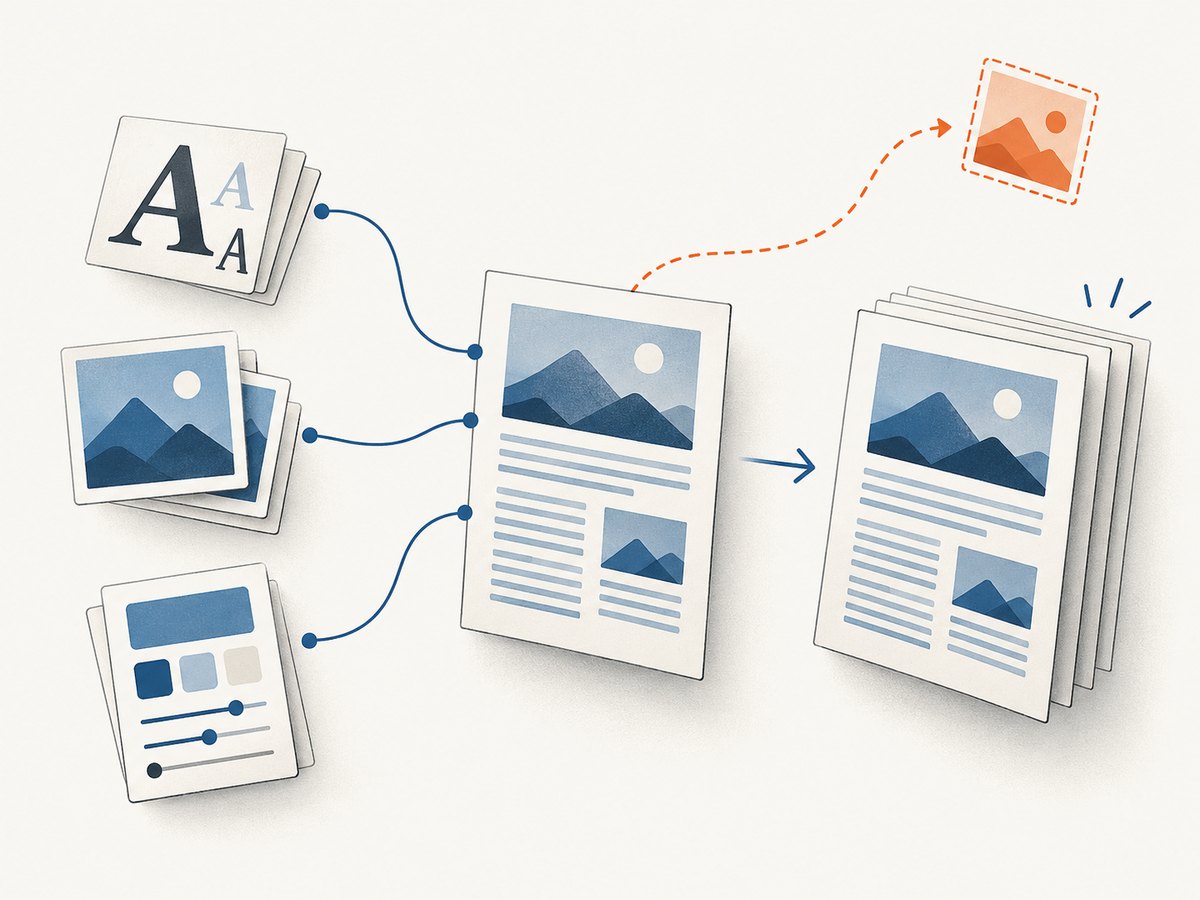
A string input does not automatically bundle its images, fonts, or stylesheets. A browser-like renderer must still locate each resource. For repeatable output:
- Put
<meta charset="UTF-8">near the start of the document and ensure the Java string contains the intended characters. - Prefer absolute HTTPS asset URLs or controlled local asset files. Confirm network access, DNS, certificates, and authentication from the renderer’s environment.
- Install the fonts used by the document in the runtime image. A missing font can change line wrapping and push content onto additional pages.
- Use print styles and fixed page dimensions intentionally. Test long tables, wide content, page breaks, and large images.
- Check whether local file access is required. Do not enable broad filesystem access just to make one image load; restrict access to the specific directory and only if necessary.
- If JavaScript fills the document, allow it to run only when needed and determine a suitable readiness strategy for your own page.
Rendering a site built for a modern browser is not the same as rendering a static report. The wkhtmltopdf project’s status page suggests considering Puppeteer for pages that depend on dynamic JavaScript and WeasyPrint or commercial Prince for controlled reporting scenarios. Those are scenario suggestions, not comparative benchmarks; validate CSS, pagination, runtime, and license fit for your use case. [wkhtmltopdf project status]
5. Handle output, timeouts, and process failures
For file output, saveAs is the wrapper’s documented path. Check the exit result, confirm the file exists and is non-empty, and capture process diagnostics in production. Avoid returning a success response merely because Java did not throw an exception: verify the output can be opened and matches your expected page count or content where correctness matters.
The wrapper README says its internal process timeout defaults to 10 seconds and documents setTimeout to increase it. It also documents setAllowMissingAssets and configurable success values for non-zero exit codes. Treat those as explicit policy choices: allowing missing assets may yield a PDF that is technically generated but visually incomplete. Inspect stderr and the generated command when rendering fails. [wrapper timeouts and exit codes]
Pdf pdf = new Pdf(new WrapperConfig(WrapperConfig.findExecutable()));
pdf.setTimeout(30); // seconds, adjust to the workload
pdf.addPageFromString(html);
pdf.saveAs("report.pdf");
Increase a timeout only after identifying what is slow: asset retrieval, JavaScript, large content, process startup, or a renderer that is stuck waiting for a page condition. A longer timeout can also keep worker capacity occupied longer.
6. Troubleshooting common errors
| Symptom | Likely cause | What to do |
|---|---|---|
| Executable not found or process cannot start | Binary missing, wrong path, permissions, or incompatible runtime libraries | Run wkhtmltopdf --version as the service user; set the explicit executable path; verify executable permission and system dependencies. |
| PDF has missing images or styles | Asset URLs are inaccessible, local files are restricted, or assets require authentication | Check URLs from the runtime environment, install needed fonts, and configure narrowly scoped file access only when required. |
| Accented text is garbled | Encoding mismatch or unavailable font | Use UTF-8 in the Java input and HTML metadata; install the selected font and retest representative characters. |
| Output is blank or content is incomplete | Malformed or partial HTML, scripts that have not populated the page, failed resources | Pass a complete HTML document; inspect renderer logs and use a measured JavaScript delay if relevant; verify resource access. |
| Conversion times out | Slow assets or a setting that waits for page readiness, combined with the wrapper’s timeout | Identify slow dependencies, simplify or bound rendering, inspect the generated command, then set an appropriate wrapper timeout. |
| Wrapper reports failure although a PDF appeared | The renderer may return a non-zero code for a warning, such as a missing asset | Read stderr and validate the artifact. Configure accepted exit codes only if your application explicitly accepts that warning. |
| PDF contains unexpected command output | The wrapper’s output handling may interact with the renderer output mode | Check the wrapper’s documented saveAsDirect behavior for your version and follow its guidance. |
| Concurrent requests hang or interfere | The wrapper README states that it does not support concurrent PDF generations | Serialize use of that wrapper instance or use a rendering architecture and library with concurrency behavior suitable for the workload. |
7. Security, reliability, and cost considerations
Security: the wkhtmltopdf downloads page warns against processing untrusted HTML or JavaScript because it can compromise the server running the renderer. Sanitization alone may not address every risk. Do not expose a renderer with unrestricted network and filesystem access to attacker-controlled documents. Run conversion in an isolated environment with least-privilege credentials, controlled outbound access, resource limits, temporary storage cleanup, and input size limits. Avoid passing untrusted values into command-line parameters. [official security warning]
Reliability: the archived upstream project and old stable release mean you must own compatibility checks for your operating system, binary package, Java wrapper, fonts, and native dependencies. Pin and record the exact artifacts used. Add representative render fixtures to your own release process, covering page breaks, fonts, local assets, timeouts, and malformed input. The wrapper README documents temporary-file cleanup and a manual cleanup method for cases where generation did not complete. [archived upstream repository; wrapper README]
Performance and scale: the conversion requires launching or coordinating a native rendering process and loading the document’s resources. The dossier establishes no benchmark, so measure your own document sizes, asset patterns, and concurrency. Bound queue length and execution time, use a worker pool sized for the memory available, and avoid repeatedly downloading identical assets. The specific Java wrapper says it does not support concurrent PDF generations; do not assume it is safe to call simultaneously from request threads. [wrapper known issues]
Cost and licensing: wkhtmltopdf is identified by the project as LGPLv3, and the cited Java wrapper says it is MIT licensed. Check the actual license files for the binary, wrapper, native libraries, and any alternative you choose before distributing an application. Infrastructure cost depends on your hosting, worker capacity, and workload; no universal cost estimate follows from the available sources. [wkhtmltopdf project; wrapper license]
Or skip the browser setup
If your goal is a screenshot of a web page rather than a PDF generated from your own HTML string, ScreenshotNeo is a website screenshot API and MCP server. One GET request returns a PNG, JPEG, WebP, or PDF. For a PDF capture:
curl -G "https://api.screenshotneo.com/v1/shot" \
  -d access_key=YOUR_API_KEY \
  --data-urlencode url=https://stripe.com \
  -d format=pdf \
  -o page.pdf
See the ScreenshotNeo API documentation for request options and the supported PDF parameters. Cookie banners, popups, and chat widgets are removed before the shot; bot checks, blank pages, and failed loads are never billed. Its MCP server lets AI agents use take_screenshot, get_page_info, and capture_pdf. The free plan includes 1,000 screenshots a month with no card, and paid plans start at $5 for 3,000. It captures a URL; it is not a replacement for rendering an arbitrary HTML string you have not hosted as a page. Sign up for 1,000 free screenshots a month, with no card.
Alternatives when wkhtmltopdf does not fit
Choose based on the document and rendering behavior, not only the Java calling syntax:
- Puppeteer: consider it when the page depends on dynamic JavaScript, as the wkhtmltopdf status page itself suggests. Verify how you will operate the browser runtime from your Java application and test the output you require.
- WeasyPrint or Prince: the status page suggests these for controlled report generation. Compare supported HTML and CSS, pagination, deployment model, and license terms for your report.
- iText pdfHTML: its material demonstrates a Java API for converting HTML input to PDF. Research current license terms and confirm support for your HTML/CSS needs before choosing it.
- ScreenshotNeo: try it first when the input is a live page URL and the desired result is a screenshot or PDF capture. See the service details above; it does not take the place of converting an arbitrary local HTML string.
These are decision axes, not claims of a current benchmark. Test a representative document set with the exact fonts, page sizes, JavaScript, assets, concurrency, runtime, and licensing constraints of your application. [wkhtmltopdf status; iText pdfHTML]
FAQ
Can I use wkhtmltoimage to create a PDF?
No. Use wkhtmltopdf for PDF output. wkhtmltoimage is for image output. If your end goal is a screenshot file, the image tool is relevant; for a paginated document, call the PDF tool.
Does the Java wrapper install wkhtmltopdf?
No. It invokes the separate executable and requires it to be installed and working in the application’s runtime environment.
Will modern JavaScript and CSS render correctly?
Do not assume so. wkhtmltopdf uses the older Qt WebKit engine, and the project status page suggests Puppeteer for dynamic JavaScript pages. Test the precise features and layout you depend on.
Can I safely convert user-submitted HTML?
The project warns against untrusted HTML and JavaScript. Treat submitted content as hostile and isolate the renderer with restricted privileges and access.
Does this wrapper support parallel PDF generation?
Its README says it does not support concurrent PDF generations. Confirm behavior in the version you adopt and design worker execution accordingly.


