How to Convert HTML Containing SVG Elements into an Image
Convert HTML with inline or embedded SVG to PNG, JPEG, or WebP. Compare html2canvas with Playwright, with runnable code and fixes for CORS, fonts, and missing SVG content.
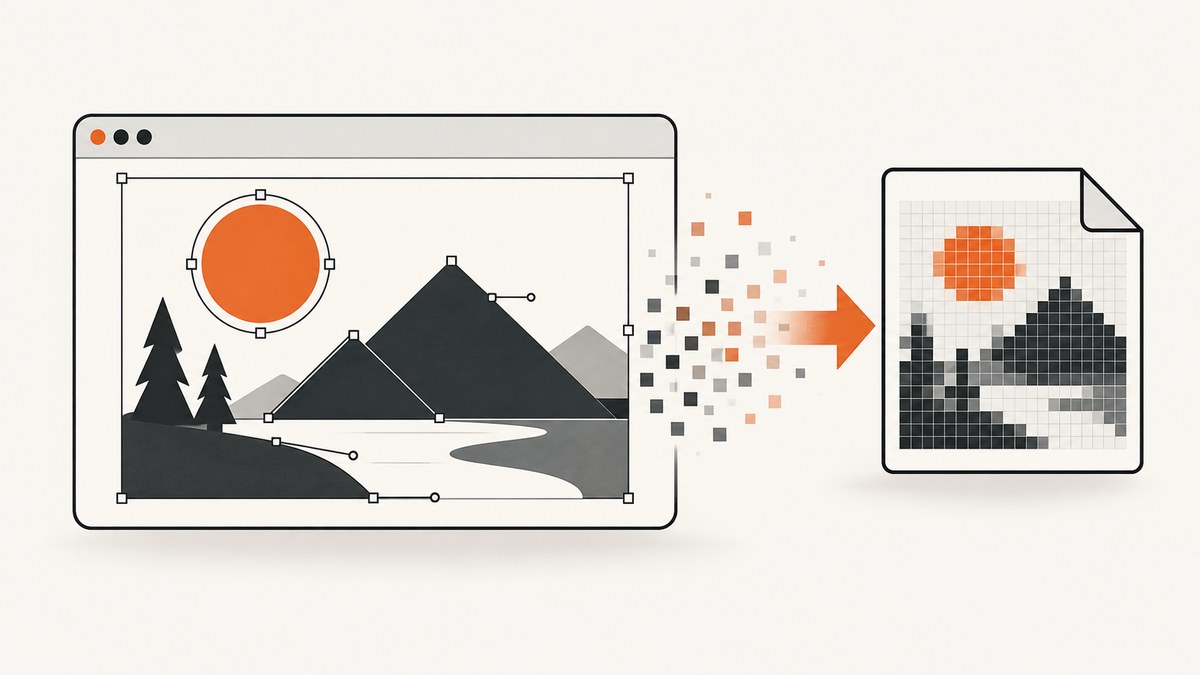
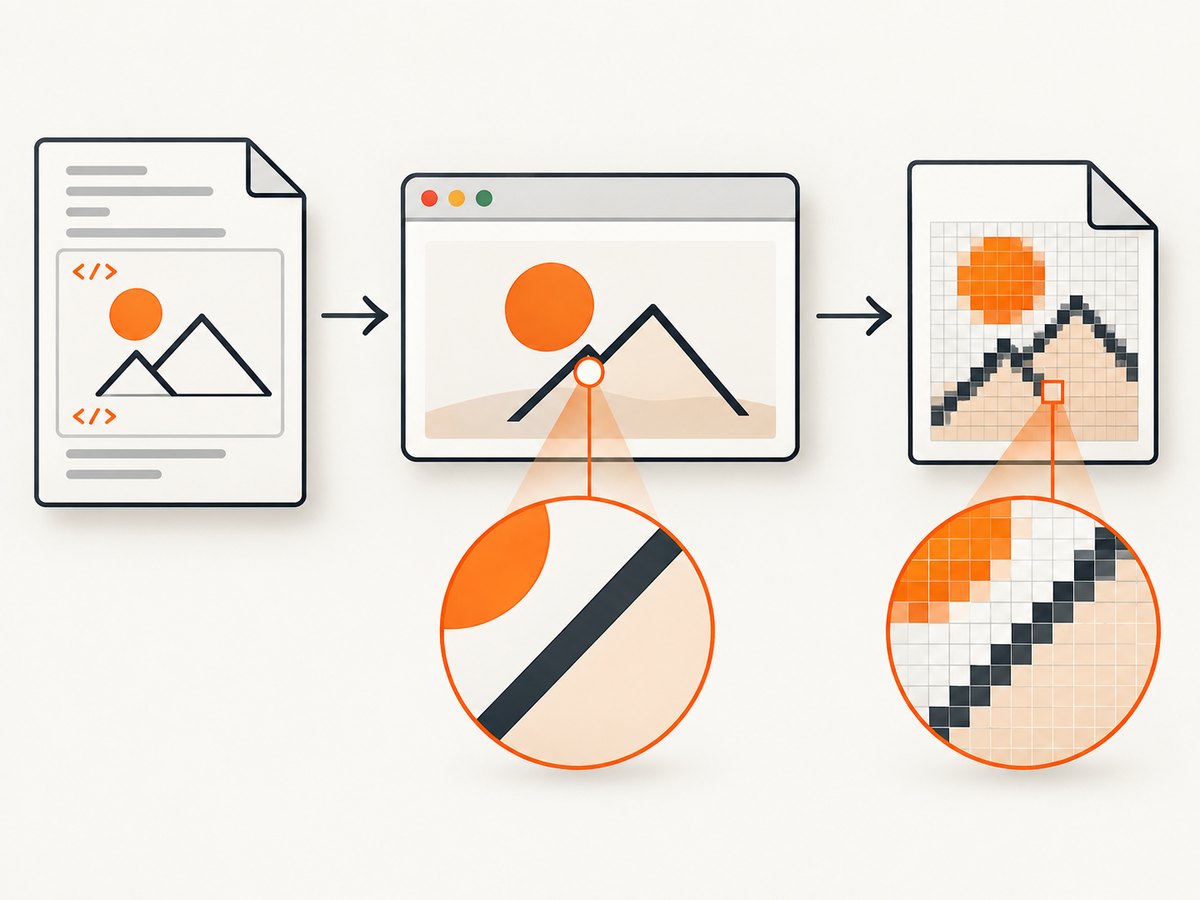
To convert HTML containing SVG into an image, render the HTML in a browser and export the result. For client-side conversion, html2canvas can reconstruct a canvas from the DOM when its CSS and image-origin constraints fit your page. For server-side output or a capture of the browser’s rendered pixels, use browser automation such as Playwright. In either case, test the actual SVG embedding mode, wait for fonts and images, and inspect the resulting dimensions.
The distinction matters: html2canvas does not take a screenshot of the browser. It reads DOM information and reconstructs a representation, so unsupported CSS or resource restrictions can change the result. A browser screenshot follows the browser rendering path. The html2canvas documentation describes that reconstruction model; the Playwright Page API documents screenshot output and options.
1. Choose the conversion method
| Need | Good starting point | Tradeoff |
|---|---|---|
| Export from a page in the visitor’s browser | html2canvas | Client-side; CSS support is implemented property by property, and output can differ from the browser’s actual rendering. |
| Capture a page on a server or in a repeatable browser workflow | Playwright screenshot | Requires running and maintaining browser automation. |
| Recurring capture without managing browser setup | A screenshot API such as ScreenshotNeo | Moves capture execution to a service; review what page data is sent and the service’s terms for your use case. |
Before choosing, identify whether the SVG is inline markup, an external SVG loaded with <img>, an SVG used as a CSS background, or an SVG document embedded with <object>, <iframe>, or <embed>. These are not interchangeable rendering contexts. SVG used as an image can have JavaScript disabled and external resources unavailable, while a directly viewed SVG document has different behavior. See MDN’s SVG-as-an-image guide.
2. Client-side conversion with html2canvas
Install the library in an existing frontend project:
npm install html2canvasGive the content a stable root element, then capture that element. The example below waits for document fonts and ordinary image elements, requests CORS-enabled image loading, and downloads a PNG. Use an image URL whose server permits the browser origin; the option cannot override a server that declines CORS.
import html2canvas from 'html2canvas';

async function downloadSectionAsPng() {
  const target = document.querySelector('#report');
  if (!target) throw new Error('Could not find #report');

  if (document.fonts?.ready) await document.fonts.ready;
  await Promise.all(
    [...target.querySelectorAll('img')].map((img) => {
      if (img.complete) return Promise.resolve();
      return new Promise((resolve) => {
        img.addEventListener('load', resolve, { once: true });
        img.addEventListener('error', resolve, { once: true });
      });
    })
  );

  const canvas = await html2canvas(target, {
    backgroundColor: '#ffffff',
    scale: window.devicePixelRatio || 1,
    useCORS: true,
    logging: false
  });

  const blob = await new Promise((resolve, reject) => {
    canvas.toBlob((value) => value ? resolve(value) : reject(new Error('PNG encoding failed')), 'image/png');
  });
  const link = document.createElement('a');
  link.href = URL.createObjectURL(blob);
  link.download = 'report.png';
  link.click();
  URL.revokeObjectURL(link.href);
}

document.querySelector('#download')?.addEventListener('click', downloadSectionAsPng);
Example markup can contain inline SVG directly:
<section id="report">
  <h1>Monthly summary</h1>
  <svg viewBox="0 0 240 120" role="img" aria-label="A rising chart">
    <rect x="10" y="65" width="35" height="45" fill="#5470c6" />
    <rect x="65" y="42" width="35" height="68" fill="#5470c6" />
    <rect x="120" y="18" width="35" height="92" fill="#5470c6" />
    <path d="M15 50 L80 30 L135 8" fill="none" stroke="#d14a61" stroke-width="4" />
  </svg>
</section>
In html2canvas’s options, scale controls output density; higher values increase pixel dimensions and memory use. backgroundColor sets the canvas background, and null requests transparency. useCORS attempts CORS image loading. allowTaint does not make a tainted canvas readable: browser security still blocks export methods such as toBlob() when cross-origin content taints it. A same-origin proxy is an alternative when you control the application and can safely serve the resource. See the html2canvas FAQ and MDN’s canvas CORS guide.
For JPEG, use canvas.toBlob(callback, 'image/jpeg', quality); the quality argument is typically a value from 0 to 1. JPEG has no transparency, so choose a solid background. For WebP where supported, pass image/webp. Check that the browser returns a blob of the requested type if format support matters to your application. PNG is usually the straightforward choice for diagrams, sharp edges, and transparency.
3. Server-side capture with Playwright
Use Playwright when a browser render is the desired output or the work runs on a server. Install Playwright and its Chromium browser using the commands for your environment in the Playwright installation guide. Save the following as an ES module, for example capture.mjs. It loads a local HTML file, waits for fonts, captures the full page, and saves a PNG.
import { chromium } from 'playwright';
import { pathToFileURL } from 'node:url';

const browser = await chromium.launch({ headless: true });
try {
  const page = await browser.newPage({
    viewport: { width: 1440, height: 1000 },
    deviceScaleFactor: 1
  });
  await page.goto(pathToFileURL(`${process.cwd()}/page.html`).href, {
    waitUntil: 'load',
    timeout: 30000
  });
  await page.evaluate(() => document.fonts.ready);
  await page.screenshot({
    path: 'page.png',
    type: 'png',
    fullPage: true,
    animations: 'disabled',
    scale: 'css'
  });
} finally {
  await browser.close();
}
For a live site, replace the file URL with an HTTPS URL. For one element, locate it and call locator.screenshot({ path: 'card.png' }). Playwright screenshot options include fullPage, type, quality for JPEG/WebP, and scale: 'css' produces one output pixel per CSS pixel, while 'device' uses device pixels. The API infers the format from the path when you omit type. Confirm option support against the installed Playwright version.
Do not equate waitUntil: 'load' with “every dynamic component is ready.” Single-page applications, charts, delayed images, and animations may need an application-specific readiness selector or an explicit wait. For example, after navigation, wait for page.locator('#chart-ready').waitFor() if your app exposes a reliable ready marker. Avoid fixed long sleeps as the only readiness check: they slow every run and still may be too short on a slow response.
4. SVG and HTML details that affect the output
Inline SVG and external SVG are different cases
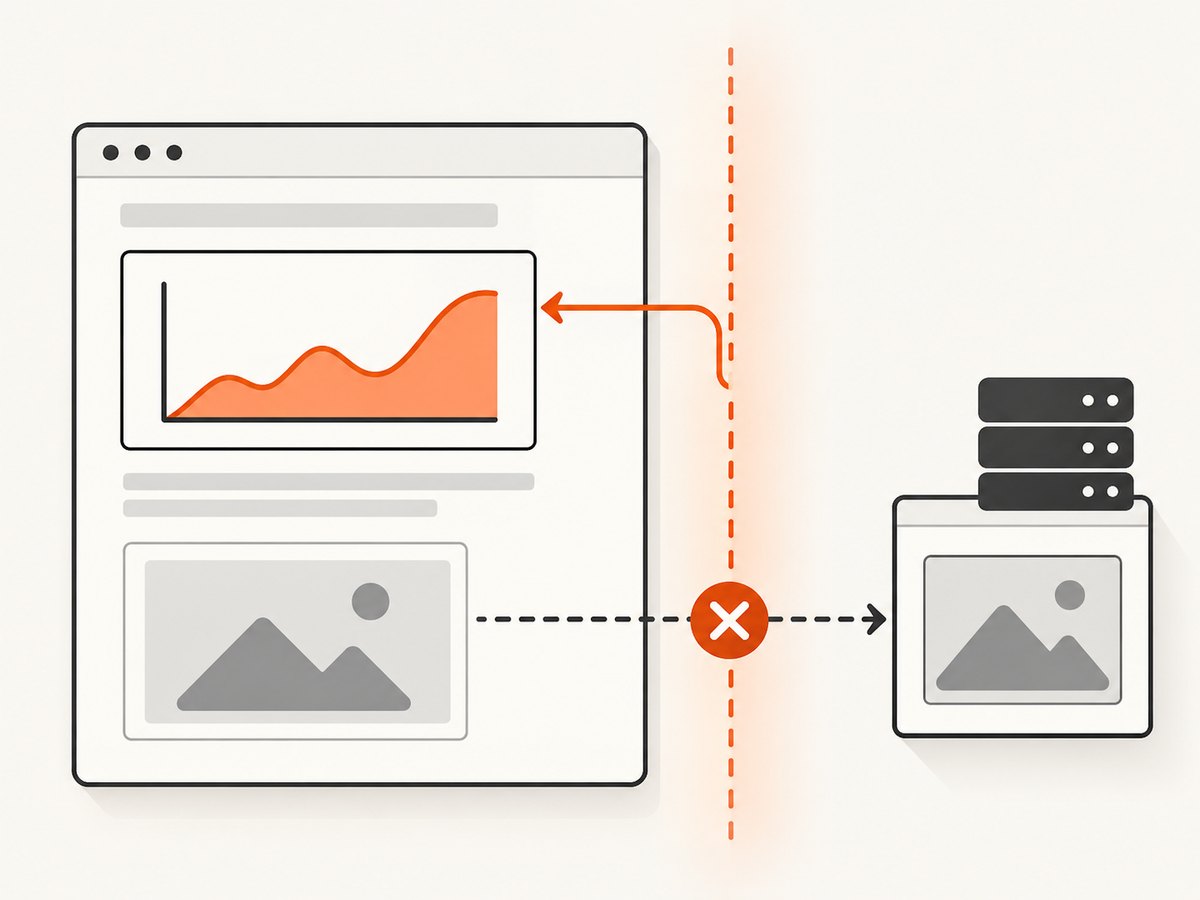
Inline <svg> is part of the HTML DOM. External SVG loaded using <img src="chart.svg"> is an image resource. SVG referenced as an image may not load external stylesheets, images, or scripts; if the graphic depends on those, make the needed resources self-contained or use a document embedding mode appropriate to your page. SVG references such as <use href="icons.svg#symbol"> also have origin and compatibility constraints. MDN documents that external SVG references must be same-origin in relevant cases in its SVG linking guide.
Dimensions and viewBox
Give SVG a meaningful viewBox and ensure its displayed width and height are determined. A viewBox defines the coordinate system, while CSS or SVG width and height determine rendered size. A zero-sized container, overflow clipping, or a responsive layout measured before it settles can create empty or cropped output. For Playwright, set the viewport intentionally; for html2canvas, inspect the selected element’s dimensions before conversion.
Fonts and CSS
Wait for web fonts before capture and make sure the target browser can fetch them. SVG text may inherit CSS from its surrounding HTML when inline; external SVG image content has different styling boundaries. html2canvas only implements selected CSS properties, so filters, blend effects, newer layout behavior, and other unsupported styles can be absent or approximated. Consult its supported features list. When visual fidelity is important, compare an actual Playwright capture in the intended browser.
Canvas size and scale
A capture at scale 2 has twice the width and height and roughly four times the pixel area of scale 1. Large full-page canvases can consume substantial memory, and browser canvas limits vary by platform. Capture only the needed element, reduce scale, split very long content into sections, or use browser screenshots when a single huge canvas fails. Inspect actual output dimensions rather than assuming the CSS dimensions equal the exported pixel dimensions.
5. Troubleshooting
| Symptom | Likely cause | Fix |
|---|---|---|
| External image or SVG is missing | Cross-origin request blocked, failed URL, or SVG-as-image restriction on external resources. | Check the browser network panel and response headers. Use a CORS-enabled resource or a same-origin proxy; inline dependencies where appropriate. |
SecurityError from toBlob or toDataURL |
A cross-origin image tainted the canvas. | Ensure the server sends the appropriate CORS response and load with CORS enabled; otherwise proxy the resource. allowTaint does not grant read access. |
| SVG visible on page but missing in html2canvas output | Unsupported DOM/CSS behavior, external resource restrictions, or SVG embedding mode. | Reduce the case to inline SVG, then test external image and document embedding separately. Check supported CSS; use Playwright if the browser-rendered result is required. |
| Text looks wrong or falls back to another font | Font has not loaded or is inaccessible to the capture context. | Wait for document.fonts.ready, check network errors, and ensure font origin access is configured. |
| Blank or clipped capture | Target dimensions are zero, viewport does not match, clipping/overflow applies, or canvas limits were reached. | Measure the target, set a deliberate viewport, check overflow, reduce scale, or capture a smaller region. |
Node reports window or document is undefined |
html2canvas expects browser APIs and is being run in a server-only context. | Run it in the visitor’s browser or use Playwright with a browser runtime. |
| Capture is missing dynamic content | Screenshot occurred before app data, charts, or lazy images were ready. | Wait for a specific ready selector or app signal. Scroll lazy content into view if needed, then capture after it loads. |
6. Reliability, performance, and cost considerations
For repeatable output, pin your browser automation and library versions, use a fixed viewport and device scale, wait on explicit readiness conditions, and keep a representative output image for visual review when your page changes. Browser rendering can vary with browser version, installed fonts, operating system, and timing. The research sources do not provide a comparative speed benchmark, so choose by execution model and fidelity requirements rather than assumed performance rankings.
Client-side html2canvas avoids running a browser service on your backend, but it consumes the visitor’s browser resources and has DOM/CSS reconstruction constraints. Playwright offers browser rendering control but adds browser installation, lifecycle, concurrency, and resource management to a server deployment. Large captures and high scale raise memory and output size in either workflow. Keep input URLs under your control when building a capture service, limit resource usage, and consider whether the page contains private or authenticated data before sending it to any remote service.
For managed capture, compare execution environment, supported formats, full-page and element behavior, access to authenticated content, privacy terms, and request volume. Do not assume an API has the same rendering or billing behavior as a self-managed browser; check its current documentation and plan terms.
7. Or skip the browser setup
ScreenshotNeo is a website screenshot API and MCP server from Yorker Media. One GET request can return PNG, JPEG, WebP, or PDF. It can capture rendered pages, so it is useful when you need a repeatable capture without provisioning browser automation in your application. For HTML you control, host it at a URL the API can reach, then capture that URL.
See the ScreenshotNeo API documentation for request options and configuration.
curl -G "https://api.screenshotneo.com/v1/shot" \
  -d access_key=YOUR_API_KEY \
  --data-urlencode url=https://stripe.com \
  -o shot.webp
import requests
r = requests.get(
"https://api.screenshotneo.com/v1/shot",
params={"access_key": "YOUR_API_KEY", "url": "https://stripe.com"},
timeout=90,
)
r.raise_for_status()
open("shot.webp", "wb").write(r.content)const q = new URLSearchParams({
access_key: 'YOUR_API_KEY',
url: 'https://stripe.com'
});
const res = await fetch(`https://api.screenshotneo.com/v1/shot?${q}`);
if (!res.ok) throw new Error(`Screenshot request failed: ${res.status}`);
await Bun.write('shot.webp', res);ScreenshotNeo removes cookie/consent banners, newsletter popups, and chat widgets before capture; each step can be turned off. Bot checks/CAPTCHAs, blank pages, timeouts, failed loads, and cache hits are not billed, and response headers identify the page verdict and billing status. Its MCP server provides take_screenshot, get_page_info, and capture_pdf tools for AI agents. The free plan includes 1,000 shots per month with no card; paid plans start at $5 for 3,000 shots. Every feature is available on every plan.
Sign up for ScreenshotNeo’s free 1,000 screenshots a month, with no card.
8. Short FAQ
Can I preserve SVG as SVG rather than rasterize it?
Yes, if you need scalable vector output, keep or export the SVG source. A PNG, JPEG, or WebP conversion rasterizes the rendered appearance into pixels.
Can I convert a local HTML file?
Yes. Playwright can open a local file URL as in the example. If that file loads sibling images, fonts, or SVGs, browser origin rules may affect them; serving the files over a local HTTP server can avoid some file:// restrictions.
Which output format should I pick?
Use PNG for diagrams, text, and transparency. Use JPEG for photographic content with a solid background and smaller lossy output. WebP is another raster option when the consumers of the image support it.
Does useCORS: true bypass CORS?
No. It asks the browser/library to use CORS when loading an image. The resource server still has to permit the requesting origin for the canvas to remain exportable.


