How to Convert HTML and SVG to JPG
Render HTML in a browser before saving it as JPG, or rasterize SVG at the dimensions you need. Choose the right method, settings, and fixes for your workflow.

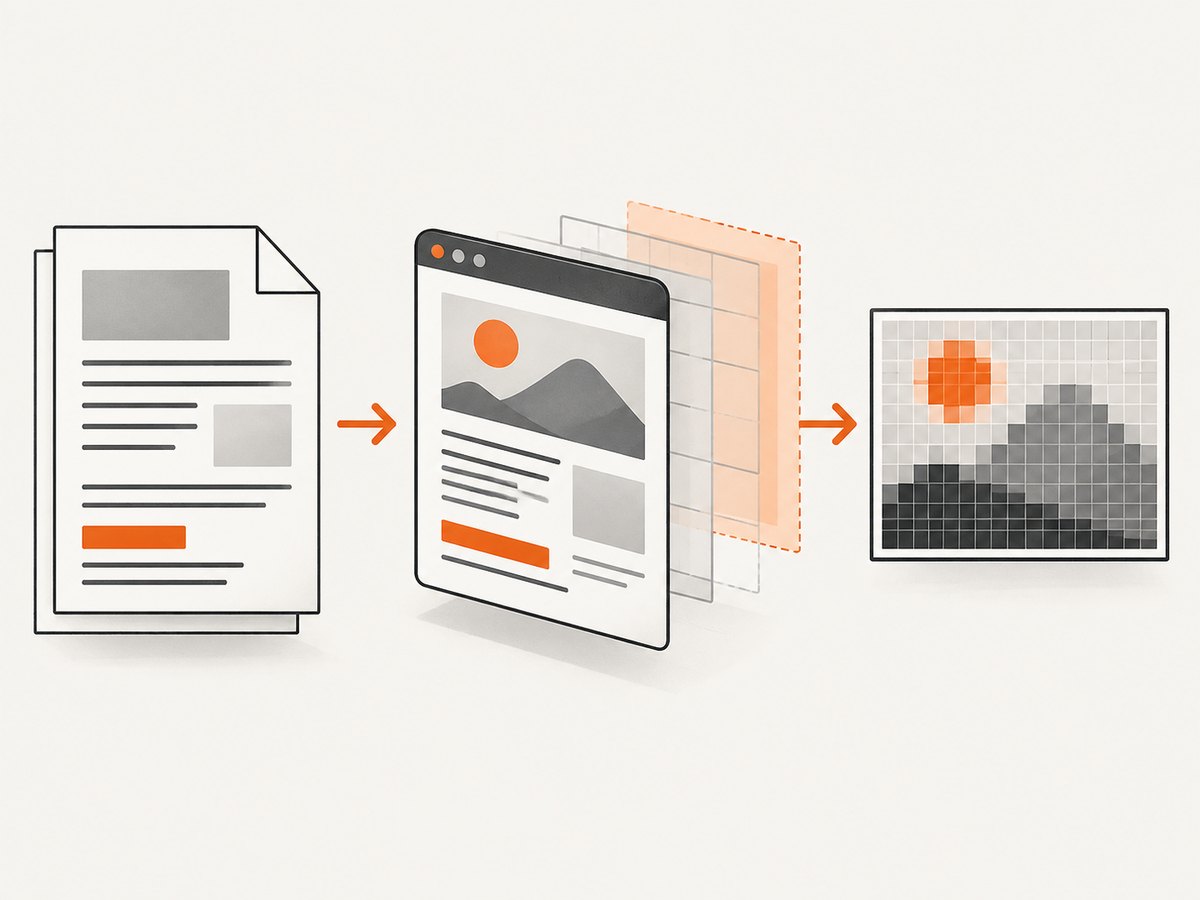
To convert HTML to JPG, render the HTML in a browser and save a JPEG screenshot. That preserves the page’s layout, CSS, fonts, images, and JavaScript-rendered content. To convert an SVG to JPG, rasterize the vector graphic at the pixel dimensions you need, then encode the raster as JPEG. SVG can scale without pixelation; JPG cannot, so decide the output size before conversion.
Use a browser screenshot for a live webpage, local HTML file, or HTML string. Use a vector renderer such as Inkscape for a standalone SVG. The examples below use Playwright for HTML and Inkscape plus ImageMagick for SVG. If transparency matters, choose PNG instead: JPG does not retain transparent pixels.
1. Choose the right conversion route
| Input | Recommended route | Choose this when |
|---|---|---|
| Public webpage URL | Playwright browser screenshot | You need the page as it renders, including its CSS and JavaScript. |
| Local HTML file | Playwright opens the file in a browser | You need browser layout fidelity for a document on disk. |
| HTML string | Playwright loads the string with set_content |
Your app generates markup and needs an image output. |
| Standalone SVG | Inkscape raster export, then JPEG encoding | The input is a vector illustration rather than a webpage. |
For HTML, first decide what the image should contain: the visible viewport, the full scrollable page, or one selected element. Then select the viewport dimensions, device scale, and JPEG quality. Playwright documents these screenshot modes and settings in its Page API.
2. Convert a webpage or HTML to JPG with Playwright
Playwright launches a real browser engine, navigates to or loads your HTML, and writes a JPEG screenshot. Install Playwright and its browser once in your project. The following Python example is runnable after installation and accepts either a URL or a local HTML file.
python -m pip install playwright
python -m playwright install chromium
# save as html_to_jpg.py
import asyncio
from pathlib import Path
from playwright.async_api import async_playwright
async def main():
async with async_playwright() as p:
browser = await p.chromium.launch()
page = await browser.new_page(
viewport={"width": 1440, "height": 1000},
device_scale_factor=1,
)
# Use a URL, or replace this with a file URL such as
# Path("report.html").resolve().as_uri()
await page.goto("https://example.com", wait_until="networkidle")
await page.screenshot(
path="page.jpg",
type="jpeg",
quality=85,
full_page=True,
)
await browser.close()
asyncio.run(main())Run it with python html_to_jpg.py. For a local file, replace the URL with Path("report.html").resolve().as_uri(). This gives the browser a file URL and lets relative CSS and image paths resolve from the file’s directory.
Load an HTML string
When the HTML is generated in memory, use page.set_content rather than writing a temporary file. Include inline CSS or ensure referenced assets are reachable from the page’s base URL.
html = """
<!doctype html>
<html>
<head>
  <style>
    body { font: 24px sans-serif; padding: 32px; color: #222; }
  </style>
</head>
<body><h1>Quarterly report</h1><p>Rendered from HTML.</p></body>
</html>
"""
await page.set_content(html, wait_until="networkidle")
await page.screenshot(path="report.jpg", type="jpeg", quality=90)
For pages that load assets from relative paths, provide a valid base URL or use absolute asset URLs. If fonts or images load asynchronously, wait for the relevant selector or asset readiness before capturing. A navigation reaching “network idle” does not guarantee that every application-specific animation, delayed request, or lazy-loaded image has completed.
Capture a viewport, full page, or element
- Viewport: omit
full_page=True. The output contains the visible browser area at the configured viewport size. - Full page: set
full_page=Trueto capture the scrollable document in one tall image. Very long pages can create large images and memory use. - Element: locate a component and screenshot its bounding box.
card = page.locator(".report-card")
await card.screenshot(path="card.jpg", type="jpeg", quality=90)
If the selector matches multiple elements, choose the intended one explicitly, for example with .first or a more specific selector. If the element is hidden or outside the rendered layout, make it visible or fix the page state before capture. Playwright describes full-page screenshots as capturing “the full scrollable page”; see its screenshot guide.
Control dimensions, scale, and quality
Set the viewport before navigation or capture. Responsive breakpoints can change the layout, so a 1440-pixel viewport and a 390-pixel viewport may produce different content arrangements, not merely differently sized files. Use device_scale_factor=1 for one output pixel per CSS pixel; a larger device scale produces more output pixels and a larger image.
Playwright’s JPEG quality value is on a 0–100 scale and defaults to 80. Use a higher value for small text, charts, or fine details, and a lower value when file size matters more. Quality controls compression, not rendered dimensions. Inspect the actual output, since busy gradients and text can show compression artifacts.
JPG does not support transparency. Playwright’s omit-background behavior does not make a JPEG transparent; choose PNG if transparent pixels are part of the intended output. The Playwright Python API documents the JPEG quality range and default.
3. Convert an SVG to JPG
An SVG describes shapes and paths rather than a fixed grid of pixels. Render it at the desired width and height, then encode the rendered image as JPEG. Inkscape documents command-line SVG export; its example pipeline exports PNG and pipes it to ImageMagick for JPG conversion. See the Inkscape command-line documentation and ImageMagick conversion documentation.

One straightforward workflow is to export a raster PNG from Inkscape, then convert that intermediate file with ImageMagick:
inkscape artwork.svg --export-filename=artwork.png --export-width=1600
magick artwork.png -background white -alpha remove -alpha off -quality 90 artwork.jpg
This example sets the export width to 1600 pixels; Inkscape derives the other dimension from the SVG’s aspect ratio. Choose a different width to fit your use. The white background is intentional: JPEG has no alpha channel. If you want a different background, replace white with a color supported by ImageMagick. Check the installed ImageMagick version and command syntax for your environment.
For a one-step pipeline, Inkscape’s documented approach can pipe its PNG output to ImageMagick. The intermediate-file form above is easier to inspect and troubleshoot: confirm the PNG’s dimensions and appearance before encoding it as JPG.
SVG dimensions and rendering details
If the SVG declares a viewBox but no explicit pixel dimensions, decide the raster width or height yourself. Preserve the aspect ratio unless you intentionally want to stretch the artwork. Exporting too small and enlarging the JPG afterward makes edges soft; rasterize at the final display size, or larger if the image will be displayed at a high device scale.
SVGs can reference fonts, images, and stylesheets. Missing local resources can change the output. Keep required assets accessible to the renderer, and check that the font is installed. If the SVG uses transparency, decide on a solid background before JPEG encoding or retain PNG instead.
4. Or skip the browser setup
If your HTML is already available at a public URL, ScreenshotNeo returns a screenshot from one API request. This is for webpages; use a local renderer such as Inkscape for a standalone SVG. See the ScreenshotNeo API documentation for options and response details.
curl -G "https://api.screenshotneo.com/v1/shot" -d access_key=YOUR_API_KEY --data-urlencode url=https://stripe.com -o shot.webpPython:
import requests
r = requests.get("https://api.screenshotneo.com/v1/shot", params={"access_key": "YOUR_API_KEY", "url": "https://stripe.com"}, timeout=90)
open("shot.webp", "wb").write(r.content)
Node.js:
const q = new URLSearchParams({ access_key: 'YOUR_API_KEY', url: 'https://stripe.com' });
const res = await fetch(`https://api.screenshotneo.com/v1/shot?${q}`);
ScreenshotNeo accepts cookie and consent banners before capture and removes more than 60 known consent platforms, newsletter popups, and chat widgets; each step can be turned off. Bot checks, blank pages, failed loads, timeouts, and cache hits are not billed, and response headers report the page verdict and billing status. An MCP server provides take_screenshot, get_page_info, and capture_pdf for Claude, Cursor, and other MCP clients. The free plan includes 1,000 screenshots per month with no card; paid plans start at $5 for 3,000 shots. Sign up for 1,000 free screenshots a month, with no card required.
5. Troubleshooting common conversion problems
| Symptom | Likely cause | Fix |
|---|---|---|
| Fonts or images are missing | Assets are not reachable, relative paths resolve from the wrong location, or a font has not loaded. | Use a file URL for local HTML, supply a base URL for HTML strings, check network access, and wait for specific assets or selectors. |
| The screenshot is blank or incomplete | Capture ran before rendering finished, the page navigated to an error state, or content requires interaction. | Wait for a meaningful selector, handle the page’s required state, and inspect the page before capture. |
| Full-page image is unexpectedly huge | The document is very tall or has a layout element extending the scroll height. | Capture a viewport or element, inspect the page height, or split the document into sections. |
| Text looks blurry | The raster dimensions are too small, device scale is low for the target, or JPEG compression is too strong. | Increase export dimensions or device scale and raise JPEG quality. Keep the original SVG or HTML if later resizing is likely. |
| JPG background is black or a color appears unexpectedly | Transparent pixels were flattened against a renderer’s default background. | Set the desired solid background before encoding. Choose PNG if transparency must remain. |
| Inkscape or ImageMagick command fails | Executable is missing, command differs in the installed release, or output path is not writable. | Install the tools, confirm their command-line help and versions, and write to a directory your process can access. |
| Page output differs between runs | Dynamic content, rotating banners, animation, personalized data, or timing changes. | Use a stable test page state, wait for a deterministic selector, and disable or control animation when appropriate. |
6. Performance, reliability, and cost
Browser rendering is the most faithful route for HTML, but starting a browser has more setup and resource cost than encoding an existing raster image. In a service that captures many pages, reuse browser processes where appropriate, limit concurrency to the available memory, and close pages and browsers after use. Full-page captures need more memory and produce larger files than viewport or element captures.
Choose waits deliberately. Waiting for every network request to stop can be slow on pages with analytics, streaming, or polling. Waiting only for the initial navigation can be too early for client-rendered content. Prefer a selector that indicates the content you need is ready, and use a timeout so a permanently missing selector does not hang the job.
For repeatable output, fix the viewport, device scale, browser version, fonts, and page state. Remote pages can change without notice; local copies and stable fixtures are better for reproducible builds. For SVG conversion, retain the SVG as the source of truth and generate JPG variants from it at explicit dimensions.
Cost depends on where rendering runs: local tools consume your compute and maintenance time, while a hosted capture service has plan limits and request costs. With ScreenshotNeo, only clean shots are billed; its response headers identify verdict and billing status. The stated plans range from 1,000 free monthly shots without a card to paid plans at $5 for 3,000, and yearly billing gives two months free. Check current plan and option details in the product documentation before building a production estimate.
7. Practical checklist
- Identify whether the input is a live page, local HTML, an HTML string, or standalone SVG.
- For HTML, pick viewport, full-page, or element capture.
- Set viewport and output dimensions before capture; confirm responsive layout at those dimensions.
- Wait for the content and assets you actually need.
- Set JPEG quality based on detail and file-size needs.
- Choose a solid background, because JPG cannot preserve transparency.
- For SVG, rasterize at the target size and preserve the aspect ratio.
- Keep the HTML or SVG source so you can regenerate a higher-resolution image later.
FAQ
Can I convert HTML directly to JPG without a browser?
Not while preserving how HTML lays out and renders. HTML needs a renderer to turn its structure, styles, and scripts into pixels; a browser screenshot is a direct way to do that.
Can I convert SVG to JPG without losing quality?
Once it is JPG, the result is raster and has a fixed pixel size. Render the SVG at a sufficiently large target size, but retain the SVG for resolution-independent resizing.
Should I use JPG or PNG for a screenshot?
Use JPG when a solid background and smaller compressed output suit the image. Use PNG when you need transparency or want to avoid JPEG compression artifacts around text and sharp edges.
Can I make a JPG with a transparent background?
No. JPG does not support transparency. Flatten it against a chosen background or save as PNG.


