How to Convert an HTML Table to an Image in Python
Render an HTML table in Chromium with Playwright, capture one element or a full page, and control format, scale, styling, and reliability.
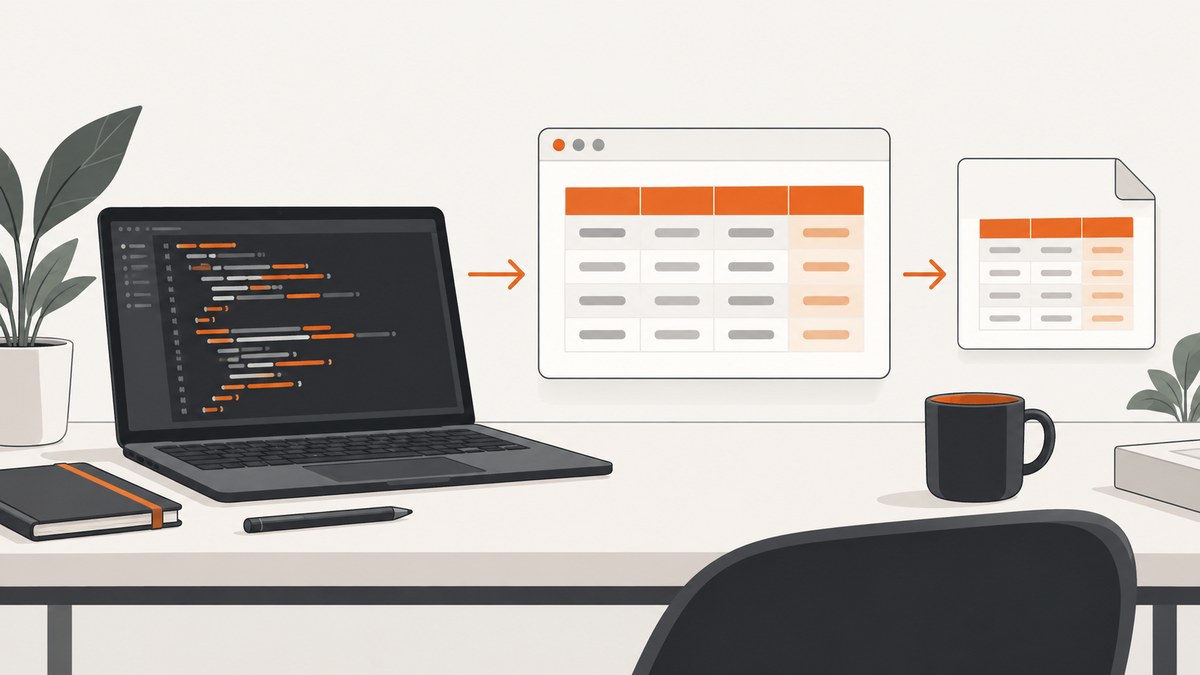
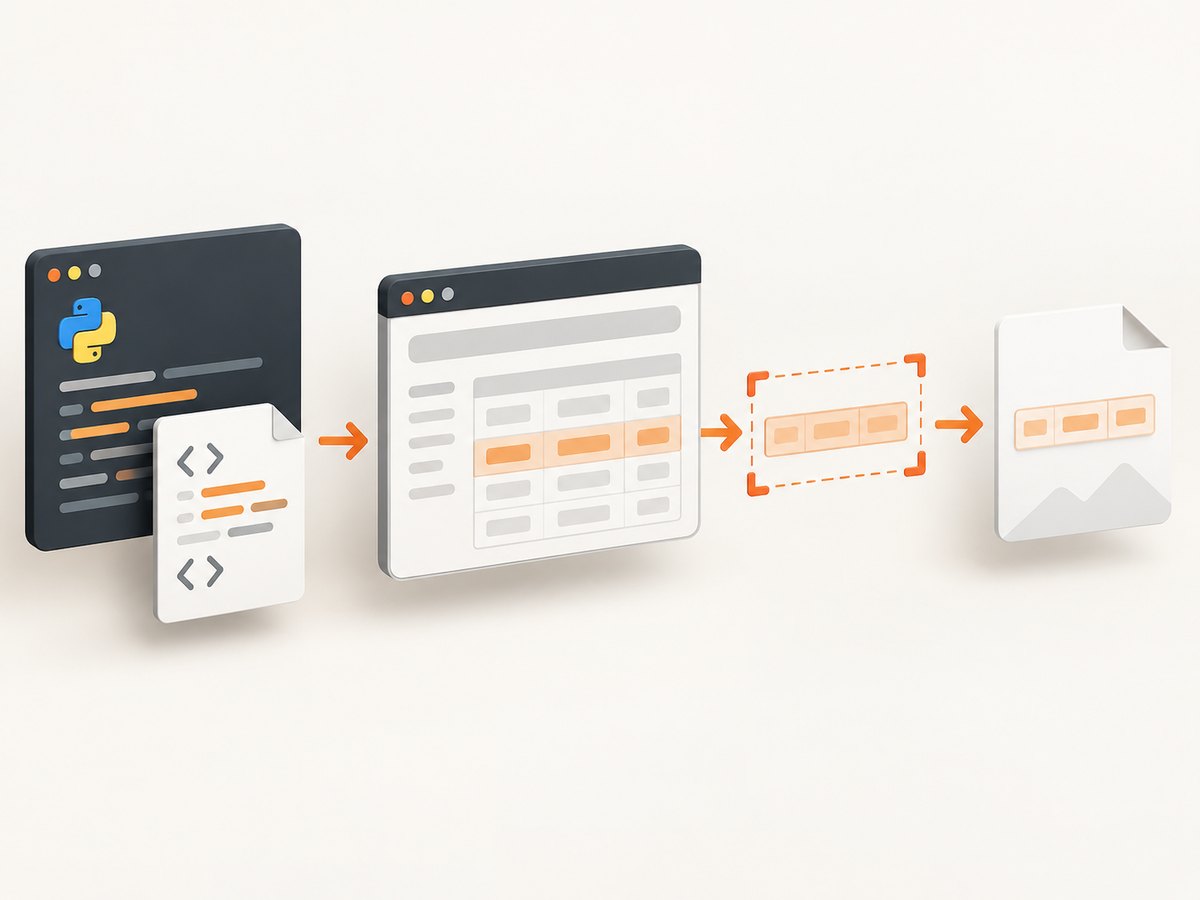
Use a real browser to render the table, then capture the rendered element. In Python, Playwright preserves HTML layout, CSS, fonts, borders, and responsive behavior better than trying to draw the markup yourself.
For a single table, call page.locator("table").screenshot(). For the complete scrollable document, call page.screenshot(full_page=True). Playwright supports PNG, JPEG, and WebP output, clipping, quality, scaling, and background options. See the Playwright Python screenshots documentation.
1. Install Playwright
python -m pip install playwright
python -m playwright install chromium
The browser installation is required on each machine or container that runs the capture. In CI, install Chromium during the image build so each job does not download it again.
2. Convert an HTML table to a PNG
from playwright.sync_api import sync_playwright

html = """
<!doctype html>
<html>
<head>
  <meta charset="utf-8">
  <style>
    body { margin: 24px; font-family: Arial, sans-serif; }
    table { border-collapse: collapse; min-width: 360px; }
    th, td { border: 1px solid #cbd5e1; padding: 8px 12px; text-align: left; }
    th { background: #e2e8f0; }
    tr:nth-child(even) { background: #f8fafc; }
  </style>
</head>
<body>
  <table id="sales">
    <thead>
      <tr><th>Fruit</th><th>Count</th></tr>
    </thead>
    <tbody>
      <tr><td>Apples</td><td>12</td></tr>
      <tr><td>Oranges</td><td>8</td></tr>
    </tbody>
  </table>
</body>
</html>
"""

with sync_playwright() as p:
    browser = p.chromium.launch()
    page = browser.new_page(viewport={"width": 800, "height": 600}, device_scale_factor=1)
    page.set_content(html, wait_until="load")
    page.locator("#sales").screenshot(path="table.png", type="png")
    browser.close()
set_content() loads the supplied document, and the locator screenshot crops the output to the matching table. The result is written to table.png.
3. Capture an existing HTML page
from playwright.sync_api import sync_playwright

with sync_playwright() as p:
    browser = p.chromium.launch()
    page = browser.new_page()
    page.goto("https://example.com/report", wait_until="domcontentloaded")
    page.locator("table#sales").screenshot(path="sales.webp", type="webp", quality=90)
    browser.close()
Use a stable selector such as an ID or data attribute. A broad selector like table can match the wrong table when a page contains navigation, hidden templates, or multiple reports.
4. Generate the table from pandas
pandas documents DataFrame.to_html() for producing table markup. Use Styler.to_html() when you need CSS formatting; its API is documented in the Styler reference.
import pandas as pd
from playwright.sync_api import sync_playwright

df = pd.DataFrame({
    "Fruit": ["Apples", "Oranges"],
    "Count": [12, 8],
})

table_html = df.style \
    .set_caption("Inventory") \
    .set_properties(**{"padding": "8px 12px", "border": "1px solid #cbd5e1"}) \
    .to_html()

html = f"""
<!doctype html>
<html>
<head>
  <meta charset="utf-8">
  <style>
    body {{ margin: 24px; font-family: Arial, sans-serif; }}
    table {{ border-collapse: collapse; }}
    caption {{ margin-bottom: 8px; font-size: 20px; font-weight: 700; text-align: left; }}
    th {{ background: #e2e8f0; }}
  </style>
</head>
<body>{table_html}</body>
</html>
"""

with sync_playwright() as p:
    browser = p.chromium.launch()
    page = browser.new_page(viewport={"width": 1000, "height": 800})
    page.set_content(html, wait_until="load")
    page.locator("table").screenshot(path="inventory.png")
    browser.close()
For untrusted cell values, let pandas escape HTML (the default) instead of concatenating raw values into markup. If your table uses external fonts or images, wait for those resources before capturing.
5. Choose table or full-page capture
Capture only the table
page.locator("table").screenshot(path="table.png")This is the usual choice for reports, email attachments, and documents that need a focused table.
Capture the complete page
page.screenshot(path="page.png", full_page=True)full_page=True captures the page’s full scrollable area, including content below the viewport. It also includes headings, notes, and surrounding layout.
Capture a known rectangle
page.screenshot(path="clip.png", clip={"x": 40, "y": 120, "width": 720, "height": 420})Clipping uses CSS-pixel coordinates relative to the page. Prefer a locator when possible because selectors continue to work after layout changes.
6. Output format, scale, and transparency
| Need | Setting |
|---|---|
| Lossless output and sharp text | PNG, the default |
| Smaller photographic output | JPEG with quality=1..100 |
| Compact modern format | WebP with quality=1..100; quality 100 is lossless according to the API documentation |
| Retina-sized pixels | Create the page with a larger device_scale_factor, such as 2 |
| Transparent page background | Use omit_background=True with PNG or WebP; JPEG cannot represent transparency |
page = browser.new_page(viewport={"width": 1000, "height": 800}, device_scale_factor=2)
page.locator("table").screenshot(
    path="retina.webp",
    type="webp",
    quality=90,
    omit_background=True,
)
Higher device scale factors increase pixel dimensions and memory use. Use them when the destination displays the image on a high-density screen; otherwise the default scale is usually sufficient.
7. Wait for dynamic tables and assets
A screenshot captures what the browser has rendered at that moment. If JavaScript fills the rows after navigation, wait for a specific condition rather than adding an arbitrary long sleep.
page.goto("https://example.com/report", wait_until="domcontentloaded")
page.locator("table#sales tbody tr").first.wait_for(state="visible")
page.locator("table#sales").screenshot(path="ready.png")
For a known loading marker, wait for it to disappear:
page.locator(".loading").wait_for(state="hidden")
page.locator("table#sales").screenshot(path="ready.png")
For remote images, wait until they report completion:
page.wait_for_function("""() => Array.from(document.images).every(img => img.complete)""")The correct condition depends on the page. Waiting for networkidle can be unreliable on pages with analytics or long-lived connections, so a table-specific selector is usually more deterministic.
8. Scrollable containers and very large tables
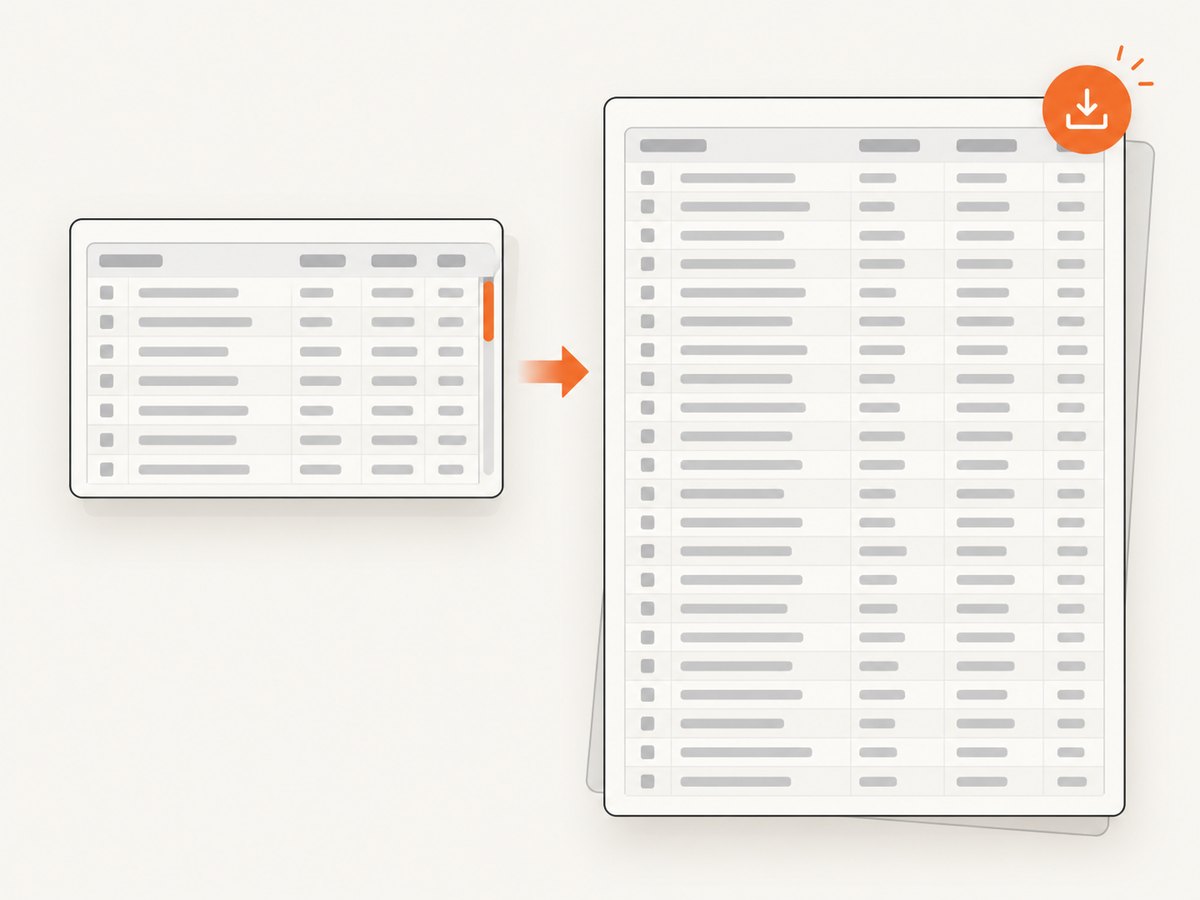
A locator screenshot reflects the element’s rendered box. If a table sits inside a container with overflow: auto, rows outside that container’s visible area may not appear. Remove the internal scroll constraint for export, temporarily set the container’s height to its scroll height, or render a print/export view containing all rows.
page.locator(".table-container").evaluate("el => el.style.maxHeight = 'none'")
page.locator("table#sales").screenshot(path="all-rows.png")
For thousands of rows, a single extremely tall bitmap can consume substantial memory. Paginate the report, capture separate pages, or export a PDF when a raster image is not required.
9. Return image bytes instead of writing a file
image_bytes = page.locator("table").screenshot(type="png")
with open("table.png", "wb") as output:
    output.write(image_bytes)
This is useful when uploading directly to object storage, returning an HTTP response, or passing the image to another processing step.
10. cURL, Python, and Node.js alternatives
If you need a browser-rendered table image from a publicly reachable page without managing Chromium, ScreenshotNeo provides a screenshot API. Its options include CSS-selector element capture, custom CSS and JavaScript, waits, viewport and device presets, image format, and caching. The API documentation is at screenshotneo.com/docs.
cURL
curl -G "https://api.screenshotneo.com/v1/shot" -d access_key=YOUR_API_KEY --data-urlencode url=https://example.com/report -o shot.webpPython
import requests
r = requests.get("https://api.screenshotneo.com/v1/shot", params={"access_key": "YOUR_API_KEY", "url": "https://example.com/report"}, timeout=90)
r.raise_for_status()
open("shot.webp", "wb").write(r.content)
Node.js
const q = new URLSearchParams({ access_key: 'YOUR_API_KEY', url: 'https://example.com/report' });
const res = await fetch(`https://api.screenshotneo.com/v1/shot?${q}`);
if (!res.ok) throw new Error(`${res.status} ${res.statusText}`);
const fs = await import('node:fs/promises');
await fs.writeFile('shot.webp', Buffer.from(await res.arrayBuffer()));
Or skip the browser setup
ScreenshotNeo accepts a URL and returns a PNG, JPEG, WebP, or PDF. Cookie banners, newsletter popups, and chat widgets are removed before the shot. Bot checks, blank pages, timeouts, failed loads, and cache hits are never billed, and response headers identify the page verdict and whether the request was billed. Its MCP server lets AI agents such as Claude and Cursor call take_screenshot, get_page_info, and capture_pdf. The free plan includes 1,000 screenshots per month with no card; paid plans start at $5 for 3,000 shots.
Create a free ScreenshotNeo account to get started.
11. Troubleshooting
| Symptom | Likely cause | Fix |
|---|---|---|
Executable doesn't exist |
Chromium was not installed. | Run python -m playwright install chromium during setup. |
| Blank or incomplete table | Rows are populated asynchronously. | Wait for a row, loading marker, or page-specific ready condition. |
| Wrong table captured | The selector matches multiple elements. | Use an ID, data attribute, or locator("table").nth(index). |
| Missing rows in a scroll area | An ancestor has internal overflow. | Remove the height constraint or render an export view with all rows visible. |
| Fonts or images differ | Remote assets have not loaded or are blocked. | Wait for assets, provide a local fallback font, and verify network access. |
| Text is too small | Viewport or device scale is too low. | Increase the viewport width or use device_scale_factor=2. |
| Transparent output fails | JPEG does not support alpha. | Use PNG or WebP with omit_background=True. |
| Capture times out | The page never reaches the chosen wait condition. | Use a specific selector wait, inspect console/network errors, and set an appropriate timeout. |
12. Performance, reliability, and cost
- Reuse a browser process when capturing many tables, and create isolated pages for separate jobs.
- Set a viewport close to the final output size; very wide or high-scale pages increase rendering and encoding work.
- Prefer locator captures over full-page screenshots when surrounding content is unnecessary.
- Wait on deterministic application state instead of fixed sleeps to reduce both missed rows and wasted time.
- Close pages and browsers in
finallyblocks in long-running workers so failed jobs do not leak resources. - Cache stable source pages or generated images when the underlying table has not changed.
- PNG is lossless but larger; JPEG and WebP can reduce transfer size when transparency is not needed.
Playwright itself has no per-image service charge, but you pay for the compute, browser images, storage, and operations needed to run it. A hosted API shifts browser maintenance to the service and may charge per successful capture; ScreenshotNeo bills only clean shots and provides billing status in response headers.
FAQ
Can I convert HTML to an image without a browser?
You can draw a table with an imaging library, but that requires reimplementing CSS layout. Browser capture is the practical choice when the source is already HTML and CSS.
Should I capture the table element or the page?
Capture the element for a focused asset. Use full_page=True when headings, notes, or other page context belong in the image.
Which format should I choose?
Choose PNG for sharp, lossless tables; WebP for a smaller modern asset; JPEG only when a lossy image and no transparency are acceptable.
Does pandas create the image?
No. pandas creates the HTML (and optional CSS); Playwright renders that HTML in Chromium and captures the pixels.
Can I capture a private page?
With Playwright, authenticate the browser context and navigate to the page before capture. A hosted API generally needs a publicly reachable URL or supported request credentials; consult its documentation for the available authentication options.


