How to Convert an HTML Table to JPG
Convert an HTML table to a sharp JPG with html2canvas, handle long tables and cross-origin images, and choose a repeatable server-side workflow.
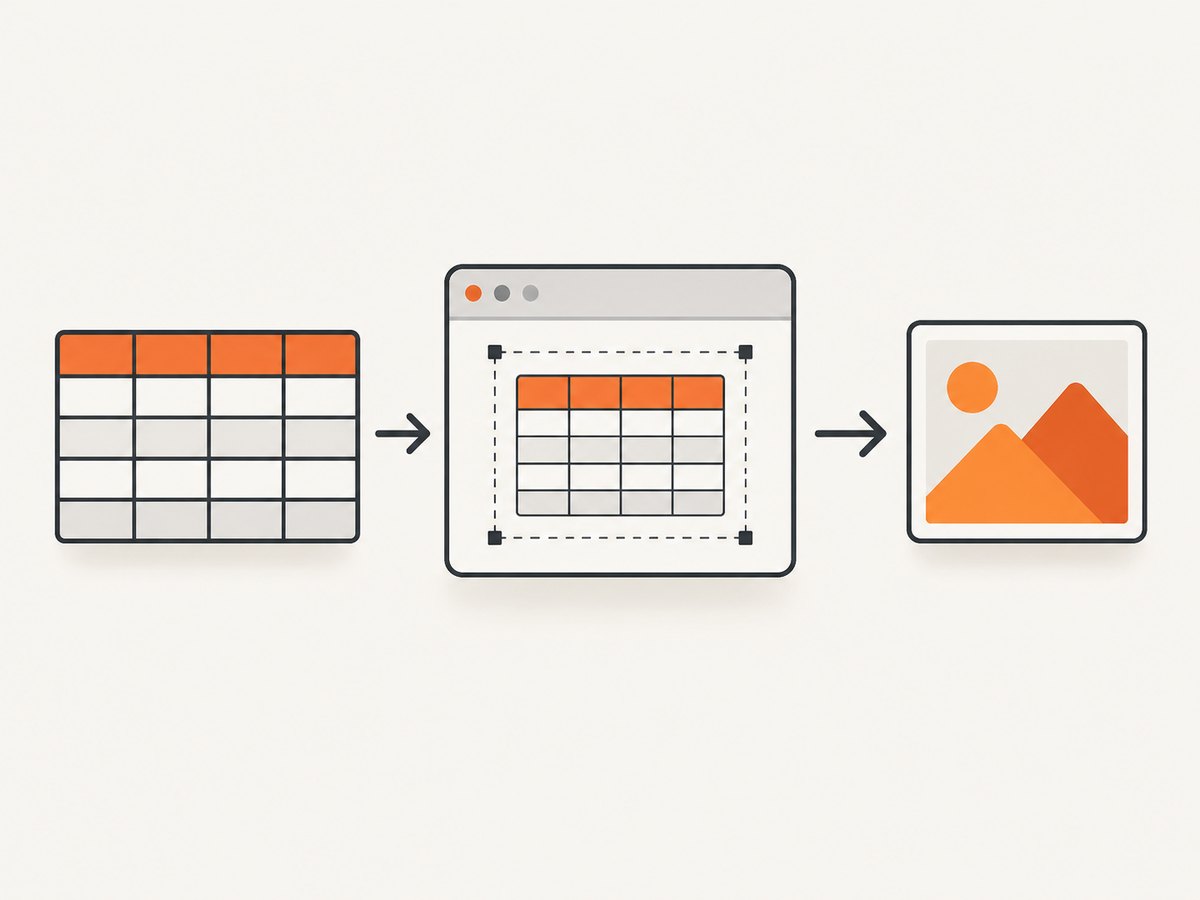
To convert an HTML table to JPG in the browser, render the table with html2canvas, then export its canvas with toDataURL('image/jpeg', quality). Give the table a stable selector, set an opaque background, and use its full scroll dimensions so long tables are not clipped. For a one-off export this keeps the table in the browser; for repeatable server-side captures, use a real browser or a screenshot API.
1. Convert a table to JPG in the browser
This complete example downloads a table as table.jpg. Save it as an HTML file and open it in a modern browser. The example loads html2canvas from a CDN; in an application, you can also install it using npm, yarn, or pnpm as described by the html2canvas project.
<!doctype html>
<html lang="en">
<meta charset="utf-8">
<meta name="viewport" content="width=device-width, initial-scale=1">
<title>Export table to JPG</title>
<style>
  body { font: 16px system-ui, sans-serif; padding: 24px; }
  table { border-collapse: collapse; width: 100%; max-width: 720px; }
  th, td { border: 1px solid #cbd5e1; padding: 10px 12px; text-align: left; }
  th { background: #eaf1f8; }
  tbody tr:nth-child(even) { background: #f8fafc; }
  button { margin-top: 16px; padding: 8px 12px; }
</style>
<table id="table-to-capture">
  <thead><tr><th>Plan</th><th>Price</th><th>Seats</th></tr></thead>
  <tbody>
    <tr><td>Basic</td><td>$10</td><td>1</td></tr>
    <tr><td>Team</td><td>$24</td><td>5</td></tr>
  </tbody>
</table>
<button id="save-jpg" type="button">Save JPG</button>
<script src="https://cdnjs.cloudflare.com/ajax/libs/html2canvas-next/1.8.0/html2canvas.min.js"></script>
<script>
  document.getElementById('save-jpg').addEventListener('click', async () => {
    const table = document.getElementById('table-to-capture');
    try {
      const canvas = await html2canvas(table, {
        backgroundColor: '#ffffff',
        scale: window.devicePixelRatio || 1,
        windowWidth: table.scrollWidth,
        windowHeight: table.scrollHeight,
        useCORS: true
      });
      const link = document.createElement('a');
      link.download = 'table.jpg';
      link.href = canvas.toDataURL('image/jpeg', 0.92);
      link.click();
    } catch (error) {
      console.error('Could not export table:', error);
      alert('The table could not be exported. See the console for details.');
    }
  });
</script>
</html>
The library returns a Promise that resolves to a canvas. The export line asks the browser to encode that canvas as JPEG at quality 0.92. The HTML standard treats JPEG support for toDataURL() as optional, though current browsers commonly support it; if a browser does not support the requested type, it may return PNG instead. See the HTML canvas specification and WebKit’s canvas documentation.
Install the library with a package manager
For a bundled app, install the package and import it from your code. The exact bundler setup depends on your project.
npm install html2canvasimport html2canvas from 'html2canvas';
const table = document.querySelector('#table-to-capture');
if (!table) throw new Error('Table not found');
const canvas = await html2canvas(table, {
backgroundColor: '#fff',
windowWidth: table.scrollWidth,
windowHeight: table.scrollHeight,
useCORS: true
});
const jpg = canvas.toDataURL('image/jpeg', 0.92);Run the capture after the table has been rendered and its data has arrived. If you call it before an asynchronous component finishes populating rows, the output will faithfully reflect the incomplete DOM.
2. Choose the right capture dimensions and quality
The most frequent export issues come from a mismatch between the visible viewport, the element’s full size, and the desired output density. html2canvas reconstructs the image from DOM content and styles rather than taking a native screenshot; some CSS may therefore appear differently from the browser’s own rendering. The project explains this limitation in its documentation.
| Option | What it controls | Practical choice |
|---|---|---|
backgroundColor |
Canvas background; JPEG has no alpha channel. | Choose white or the table’s intended page color. |
scale |
Output pixel density relative to CSS pixels. | Use devicePixelRatio for screen-like sharpness; lower it for large tables. |
windowWidth, windowHeight |
Virtual browser dimensions used during rendering. | Set from the element’s scrollWidth and scrollHeight to include overflow. |
useCORS |
Attempts to load images using cross-origin CORS. | Enable for remote images only when their server permits cross-origin access. |
x, y, width, height |
Capture crop region. | Use when you need a subsection of a larger target. |
toDataURL quality |
JPEG compression quality, from 0 to 1. | Start around 0.9; compare file size and text edges on actual output. |
For sharper output, scale multiplies both dimensions. A 1,200 by 800 CSS-pixel canvas at scale 2 becomes 2,400 by 1,600 pixels. That can make small text clearer, but it also increases memory use substantially. Start with the device pixel ratio; increase it only if the resulting image needs more detail and the table is small enough to render reliably.
For a table clipped by a scroll container, pass its scroll dimensions as shown above. If the element is inside a narrow container and you want a wider layout, the virtual width can affect line wrapping. Set a deliberate width and make sure the table’s own styles allow the columns to use it. For a very long table, a single enormous canvas may fail; export sections or pages instead.
JPEG is a lossy format. Thin grid lines and small text can show compression artifacts, especially at lower quality. If fidelity matters more than file size, consider PNG by changing the MIME type to image/png and omit the quality argument. If JPG is required, inspect the result at its intended display size.
3. Handle assets, styles, and browser security
Remote images and tainted canvases
If the table contains images hosted on another origin, the browser may refuse to export the canvas unless that image server grants CORS access. useCORS: true requests a cross-origin load; it cannot override the remote server’s policy. The html2canvas FAQ describes this restriction and suggests a same-origin proxy where appropriate. If the canvas is tainted, reading it through toDataURL() can throw a security error. Configure the asset host’s CORS headers, use same-origin assets, or omit the remote images from the export.
CSS and fonts
Because the library rebuilds the view from DOM information and supported styles, browser-specific effects or CSS properties it does not implement can differ or be absent. Test your actual table styles, especially complex filters, shadows, pseudo-elements, transforms, and sticky positioning. Wait for web fonts to load before capturing:
await document.fonts.ready;
const canvas = await html2canvas(table, { backgroundColor: '#fff' });
Images may also load after the DOM appears ready. If your application controls rendering, wait for its data and image loading state before calling the capture function.
Iframes
Same-origin iframe content is accessible to the page, but cross-origin iframe documents cannot be read through contentDocument because of browser security boundaries. If the table lives in an embedded third-party frame, run the capture from that frame’s own page or use a browser automation flow with access to the rendered page. See the html2canvas FAQ.
4. Export long tables without clipping
- Give the table a stable ID or CSS selector and wait until all rows are present.
- Read
scrollWidthandscrollHeightfrom the table or its intended wrapper. - Capture that element with the dimensions supplied as
windowWidthandwindowHeight. - If the canvas is too large, divide rows into manageable groups and export each group separately.
- Use a lower scale for the long version, or use a browser-driven PDF if a paginated document is more useful than one tall image.
The html2canvas FAQ gives rough guidance of around 32,767 pixels per dimension for desktop Chrome, Firefox, and Safari, with lower practical limits on iOS. These are approximate implementation limits, not a guarantee for every device or browser version. Canvas area and available memory can become a problem well before the largest dimension is reached. Keep each capture comfortably below the limit and test the actual target devices.
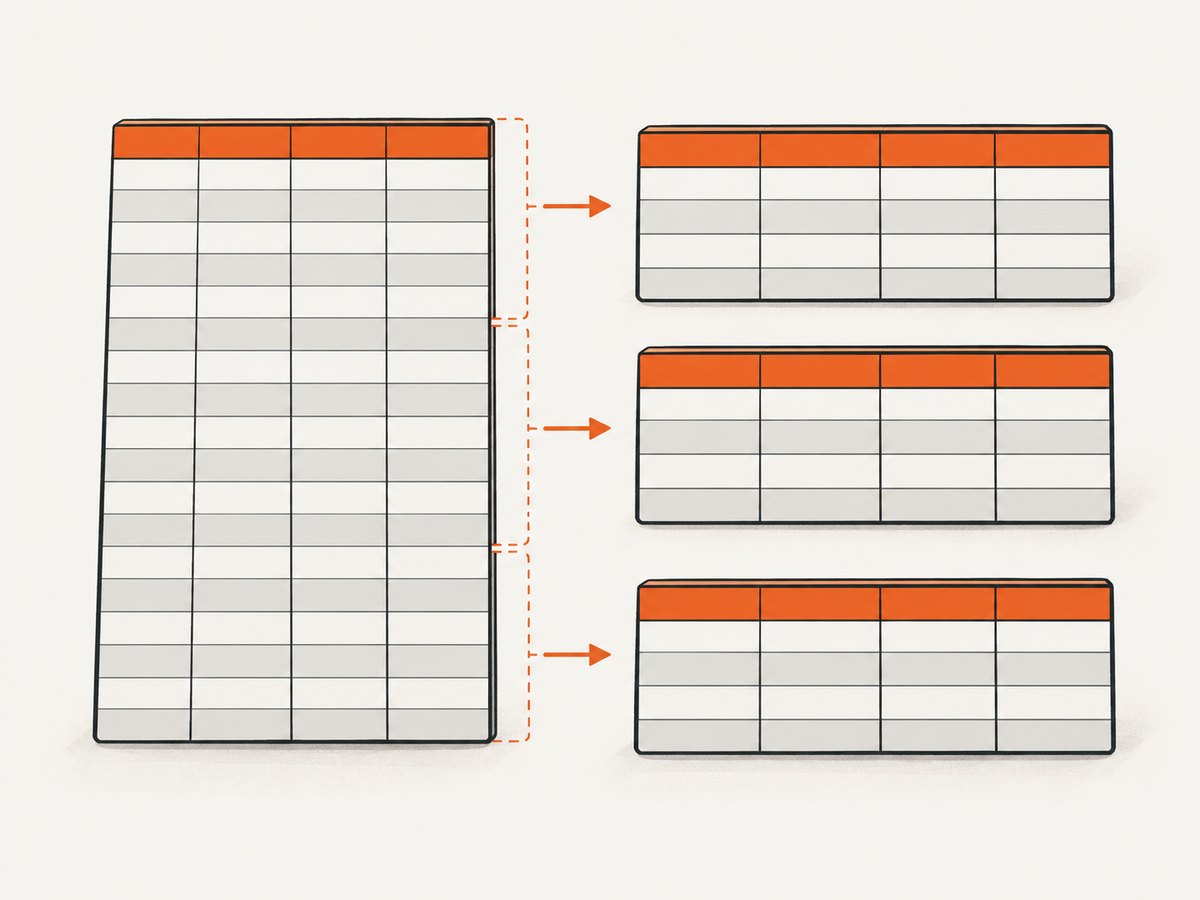
When dividing a table, choose row boundaries so headers can be repeated in each image. If the image is intended for sharing, include column headings in every segment and use filenames or ordering metadata that make the sequence clear. For a report, PDF pagination is usually easier to read than one very tall JPG.
5. Run repeatable exports with cURL, Python, or Node.js
html2canvas depends on browser globals such as window and document, so it is client-side code rather than a Node.js server renderer. For server-side jobs, the FAQ recommends driving a browser with a tool such as Puppeteer or Playwright. The browser must load the page, wait for the table, and capture it at the right size. A hosted screenshot API is another option when the page is reachable by URL.
ScreenshotNeo accepts a URL and returns a screenshot or PDF from one GET request. Its API can capture full pages or a CSS-selected element, and supports custom CSS, JavaScript, viewport and device options. See the ScreenshotNeo API documentation for parameters. This example captures a publicly accessible page as WebP; change the target URL to the page that renders your table.
cURL
curl -G "https://api.screenshotneo.com/v1/shot" \
  -d access_key=YOUR_API_KEY \
  --data-urlencode url=https://stripe.com \
  -o shot.webp
Python
import requests

r = requests.get(
    "https://api.screenshotneo.com/v1/shot",
    params={"access_key": "YOUR_API_KEY", "url": "https://stripe.com"},
    timeout=90,
)
r.raise_for_status()
open("shot.webp", "wb").write(r.content)
Node.js
const q = new URLSearchParams({
  access_key: 'YOUR_API_KEY',
  url: 'https://stripe.com'
});
const res = await fetch(`https://api.screenshotneo.com/v1/shot?${q}`);
if (!res.ok) throw new Error(`Screenshot request failed: ${res.status}`);
const bytes = Buffer.from(await res.arrayBuffer());
await import('node:fs/promises').then(fs => fs.writeFile('shot.webp', bytes));
To return JPG instead of WebP, request the documented JPEG output format. For a dynamic page, configure an appropriate wait condition, such as waiting for the table selector or a delay, and pass the selector when you want only the table. Keep API keys on the server; do not place a secret access key in browser JavaScript or a public page.
6. Or skip the browser setup
With ScreenshotNeo, one GET request captures a URL and returns an image. The API also supports JPG output and capturing a CSS-selected element. Check the API docs for the exact format and selector parameters.
curl -G "https://api.screenshotneo.com/v1/shot" \
  -d access_key=YOUR_API_KEY \
  --data-urlencode url=https://stripe.com \
  -o shot.webp
ScreenshotNeo accepts cookie and consent banners like a visitor, then removes more than 60 known consent platforms along with newsletter popups and chat widgets; each of those steps can be turned off. Bot checks and CAPTCHAs, blank pages, timeouts, failed loads, and cache hits are not billed, and response headers identify the page verdict and billing status. Its MCP server gives AI agents tools to take screenshots, get page information, and capture PDFs. The free plan includes 1,000 shots a month with no card; paid plans start at $5 for 3,000 shots.
Sign up for 1,000 free screenshots a month, with no card required.
7. Troubleshooting
| Symptom | Likely cause | Fix |
|---|---|---|
| Output is blank | Capture ran before the table rendered, selector matched the wrong element, or the element was hidden. | Check the selector, wait for data and visibility, then capture again. |
| Rows or columns are cut off | Capture dimensions matched the viewport or a clipping wrapper. | Use the table’s full scroll dimensions; capture the intended wrapper if that owns the overflow. |
toDataURL throws a security error |
A cross-origin image tainted the canvas. | Enable CORS and configure the asset server’s allow-origin header, use same-origin assets, or remove the image. |
| Image looks different from the page | Some CSS is not reproduced by DOM-based rendering, or fonts/assets were not ready. | Wait for fonts and images, simplify unsupported styling, or use a real browser screenshot for closer rendering fidelity. |
| Text is blurry | Output scale is too low or JPEG compression is too strong. | Increase scale modestly or quality, then check memory use and resulting bytes; PNG is an option when JPG is not mandatory. |
| Capture fails on a very long table | Canvas dimension, area, or memory limit was exceeded. | Reduce scale and split the table into sections. Device limits vary, particularly on mobile. |
| Remote frame is missing | It is inside a cross-origin iframe that the page cannot inspect. | Capture from the frame’s own origin or use browser automation against the rendered page. |
8. Performance, reliability, and cost
Client-side export has no per-shot service charge and can keep table content in the user’s browser, which is useful for private data and occasional downloads. Its cost is browser CPU and memory, plus the implementation work to handle fonts, assets, very large tables, and browser differences. A scale increase grows pixel count quadratically: doubling scale means four times as many output pixels.
For reliable batch or scheduled capture, use a controlled browser environment or an HTTP screenshot API. A headless browser requires browser binaries, page readiness logic, concurrency controls, and storage for results. A hosted API reduces browser setup; compare its cost, data handling, output options, and limits against the volume and sensitivity of your pages. ScreenshotNeo plans include 1,000 free shots a month without a card, then $5 for 3,000, $15 for 15,000, $39 for 60,000, $99 for 250,000, and $249 for 1,000,000. Yearly billing gives two months free; every feature is on every plan. Use those published plan quantities to estimate recurring volume, and account for retries and non-clean page outcomes according to the API’s billing headers.
For any automated path, make the export idempotent where possible: use deterministic output names, record the source URL and capture time, and retry transient navigation failures with a bounded policy. Avoid unlimited retries on pages that consistently fail or require interactive login. If table contents contain personal or confidential data, evaluate whether sending the page to a remote service fits your data handling requirements.
9. FAQ
Can I convert a table directly from an HTML string?
Render the string into a DOM element in a browser, then pass that element to html2canvas. The library needs browser DOM APIs; it does not render HTML strings in a plain Node.js process.
Can I make a JPG with a transparent background?
No. JPEG does not store transparency. Choose a solid background before encoding, or use PNG when transparency is needed.
Can I use the result in an email or social post?
Yes, once downloaded, but check the destination’s image dimensions and file-size rules. A very tall table may be easier to split into multiple images or export as PDF.
Should I use html2canvas or browser automation?
Use html2canvas for a small, client-side export tied to an already-rendered page. Use browser automation when the job runs on a server, needs native browser rendering, or must be repeated at scale.


