How to Convert HTML Text to JPG
Convert HTML text to JPG in the browser, with Puppeteer on a server, or from the command line. Compare fidelity, setup, and common fixes.
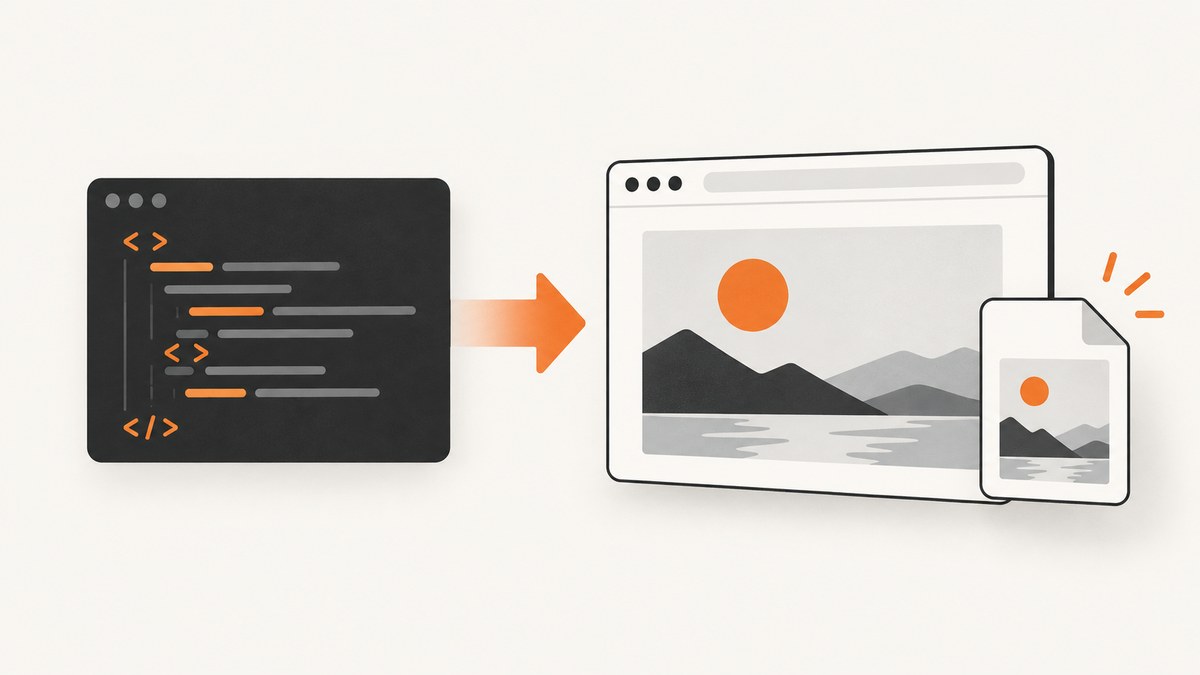
To convert HTML text to JPG, render the HTML first, then export the rendered result as a JPEG. For a user-triggered capture inside an existing page, use html2canvas. For a server-side image that should reflect real browser rendering, use Puppeteer or Playwright. For a compact command-line workflow, use wkhtmltoimage after checking that it handles your page’s CSS and JavaScript correctly.
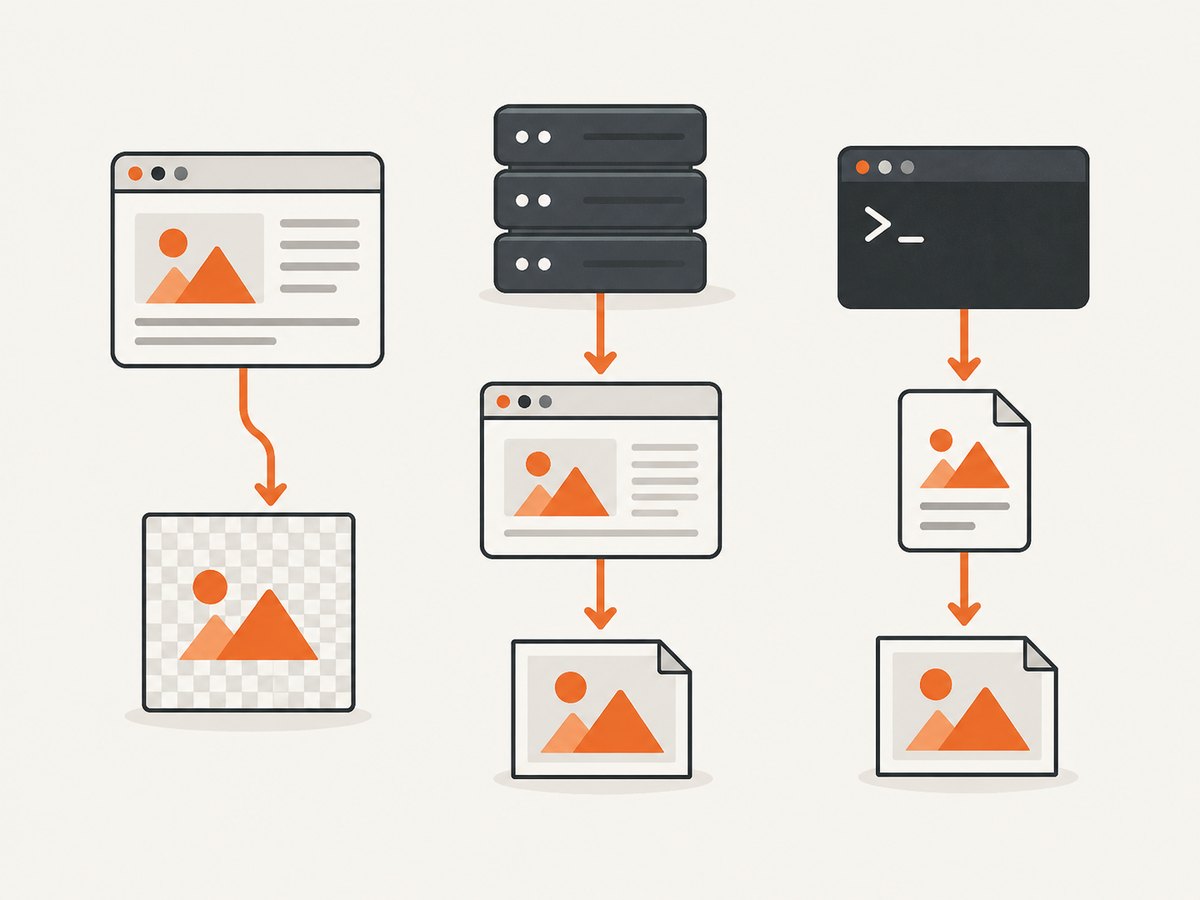
If you mean a local HTML file, the command-line example below can read it directly. If you mean an HTML string generated by an application, pass it to a browser renderer such as Puppeteer. Each method has different limits around cross-origin content, CSS fidelity, and large pages.
1. Choose a conversion method
| Method | Best for | Key trade-off |
|---|---|---|
| html2canvas | Capturing an element after a user action in the browser | Reconstructs the image from DOM information; it is not a pixel-perfect screenshot |
| Puppeteer or Playwright | Automated server-side rendering and browser-faithful captures | Requires a browser runtime and careful readiness and resource management |
| wkhtmltoimage | Simple local-file or URL conversion from a shell | Test modern CSS, fonts, and JavaScript behavior before relying on it |
Choose based on where conversion runs, how closely output must match a browser, and whether the HTML depends on remote images, fonts, scripts, or a large page layout. ImageMagick can inspect or transform an already-rendered image, but it does not render HTML or replace a layout engine.
2. Convert HTML text in the browser with html2canvas
html2canvas traverses the DOM and creates a canvas representation. It is useful when a visitor clicks “Download image” on the page they are already viewing. The project documents Promise-based use, evergreen-browser support, npm installation, and useCORS. Its documentation warns that the result is based on DOM information and may differ from the page’s actual browser rendering.
Include the library and capture a specific element. This complete example downloads a JPG:
<!doctype html>
<html lang="en">
<meta charset="utf-8">
<title>HTML to JPG</title>
<body>
  <main id="capture" style="background:#fff;color:#222;padding:24px;width:600px;font:20px sans-serif">
    <h1>HTML text to render</h1>
    <p>This content will be downloaded as a JPG image.</p>
  </main>
  <button id="download">Download JPG</button>
  <script src="https://cdnjs.cloudflare.com/ajax/libs/html2canvas-next/1.8.0/html2canvas.min.js"></script>
  <script>
    document.querySelector('#download').addEventListener('click', async () => {
      await document.fonts.ready;
      const element = document.querySelector('#capture');
      const canvas = await html2canvas(element, {
        scale: window.devicePixelRatio,
        useCORS: true,
        backgroundColor: '#ffffff'
      });
      const link = document.createElement('a');
      link.download = 'html-text.jpg';
      link.href = canvas.toDataURL('image/jpeg', 0.92);
      link.click();
    });
  </script>
</body>
</html>
The scale option controls output density; device pixel ratio gives a sharper image on high-density displays, while increasing memory use and dimensions. useCORS asks the library to load eligible cross-origin images with CORS, but it cannot override server policy. The white backgroundColor is deliberate: JPG does not support transparency. Adjust the selector, width, and styles for the content you need.
Capture a whole page or export a canvas another way
For a tall element, pass its scroll dimensions as windowWidth and windowHeight where appropriate, then test on the browsers you support. Very wide or tall canvases can exceed browser limits and produce blank or partial output. If the image will be uploaded instead of downloaded, use canvas.toBlob() and send the resulting Blob; this avoids building a large base64 data URL string in memory.
3. Convert HTML text to JPG on a server with Puppeteer
Puppeteer drives a real browser. It can load a literal HTML string using page.setContent(), wait for page activity, and save a JPEG. Install Puppeteer in a Node.js project with npm install puppeteer, then save this as render.mjs:
import puppeteer from 'puppeteer';

const html = `<!doctype html>
<html><head><meta charset="utf-8">
<style>body{font:20px sans-serif;background:#fff;color:#222;padding:24px} main{width:720px}</style>
</head><body><main><h1>HTML text to JPG</h1>
<p>Rendered with a headless browser.</p></main></body></html>`;

const browser = await puppeteer.launch({ headless: true });
try {
  const page = await browser.newPage({ viewport: { width: 800, height: 600 }, deviceScaleFactor: 1 });
  await page.setContent(html, { waitUntil: 'networkidle0' });
  await page.evaluate(() => document.fonts.ready);
  await page.screenshot({
    path: 'html-text.jpg',
    type: 'jpeg',
    quality: 92,
    fullPage: true,
    omitBackground: false
  });
} finally {
  await browser.close();
}
Run it with node render.mjs. Explicit viewport dimensions make layout predictable. Set deviceScaleFactor to increase pixel density; larger values also increase output size and resource use. fullPage captures the full document rather than only the viewport. JPEG quality is a lossy compression setting; tune it against the actual text and file-size requirements.
Wait for the content you actually need
networkidle0 is a useful starting point for pages whose resources finish loading, but it is not a guarantee that every application has finished rendering. Some pages keep network connections open; others render content after a timer or application event. For a known page, wait for a stable selector with page.waitForSelector(), or wait for an explicit application-ready condition. Wait for document.fonts.ready when web fonts matter. If remote images are important, verify they have loaded before taking the screenshot.
For a live URL rather than an HTML string, navigate with page.goto(url, {waitUntil: 'networkidle0'}) and then apply the same readiness checks. Treat untrusted HTML as untrusted input: isolate the rendering process and avoid granting it access to credentials or sensitive local resources.
Playwright alternative
Playwright provides the same general approach: launch Chromium, set content, wait for readiness, and call page.screenshot(). Use it when it already fits your automation stack. The important production choices remain explicit viewport, readiness condition, output type and quality, full-page behavior, and cleanup of browser processes.
4. Convert a local HTML file with wkhtmltoimage
For a short shell workflow, install wkhtmltoimage using the package or distribution appropriate to your system, then run:
wkhtmltoimage --quality 90 input.html output.jpgThe command accepts a local file or URL as input. For a URL, for example:
wkhtmltoimage --quality 90 https://example.com output.jpgThe README documents JPG/PNG output and the --quality option. Check the installed version’s help for available flags. Before using it in a batch pipeline, compare its rendering against your target pages, especially where modern CSS, web fonts, or client-side JavaScript affect the result. A command that exits successfully does not prove that a page’s asynchronous content appeared in the captured file.
5. Important options and output decisions
| Decision | What to set or check |
|---|---|
| Capture area | Choose a DOM element, viewport, or full document; oversized full-page output can exhaust canvas or process memory. |
| Viewport | Set width and height explicitly when layout consistency matters; responsive breakpoints depend on them. |
| Pixel density | Use a scale or device scale factor appropriate to the destination; higher density produces larger images. |
| JPEG quality | Use a quality value that balances legibility and file size. Text edges can show compression artifacts at aggressive settings. |
| Background | Set an opaque background before JPG export because JPEG has no alpha channel. |
| Readiness | Wait for fonts, images, selectors, and application rendering that affect the captured content. |
| Cross-origin assets | Ensure image hosts send suitable CORS headers for html2canvas; a browser capture cannot bypass origin restrictions. |
For text-heavy graphics, inspect the actual output at its displayed size. A higher JPEG quality can help preserve glyph edges but increases the file. If exact text clarity or transparency matters more than JPG compatibility, consider whether PNG is a better output format for your use case.
6. Troubleshooting common conversion failures
| Symptom | Likely cause | Fix |
|---|---|---|
| “Tainted canvas” or export security error | A cross-origin image was drawn without suitable CORS permission. | Serve the image with CORS headers and enable useCORS, or fetch it through a same-origin server you control. The browser policy cannot be bypassed by html2canvas. |
| An iframe is missing | Cross-origin iframe contents are isolated by browser policy. | Capture content you control in the same origin, or render the page in a browser screenshot workflow that has access to the complete page. |
| CSS looks different from the browser | html2canvas supports CSS selectively and reconstructs the image from DOM information. | Use a real browser screenshot with Puppeteer or Playwright when fidelity is important; simplify unsupported styles if staying with html2canvas. |
| Text uses a fallback font | The web font had not loaded when capture started. | Wait for document.fonts.ready and verify the font request succeeds before capturing. |
| Images or dynamic text are absent | Capture ran before network assets or client rendering completed. | Wait for the relevant selector or app-ready condition and confirm the resource request succeeded. |
| Output is blank, clipped, or partial | The capture dimensions are wrong or the canvas/browser reached a size limit. | Set dimensions from the actual content, reduce scale, capture sections separately, and test the largest expected page. |
| JPG has a black or unexpected background | Transparent canvas pixels were flattened during JPEG encoding. | Set an explicit light or dark background before exporting. |
| CLI output omits modern page content | The page depends on CSS or JavaScript behavior that differs in the CLI renderer, or content was not ready. | Validate the target page with the installed renderer; use Puppeteer or Playwright if its browser rendering is required. |
| Node process hangs or accumulates resources | Browser cleanup was skipped after an exception, or jobs exceed available resources. | Close the browser in a finally block, limit concurrent pages, and record failures per job. |
7. Performance, reliability, and cost
Browser-side capture avoids a server browser fleet, but large DOM trees, high device scale, and large canvases consume client memory and can make a page unresponsive. Capture only the required element when possible. Server-side browser rendering gives you control over the runtime and output, but each browser process and page consumes resources. Reuse browser processes carefully, cap concurrency, close pages, and keep a timeout around navigation and capture so one problematic page does not stall a batch.

For repeatable output, pin the rendering environment and fonts, set a viewport and scale, wait on explicit readiness conditions, and retain enough logs to distinguish navigation errors from capture errors. Remote pages can change, fail, or serve bot checks; a successful screenshot call is not proof that the page contains the intended content. Inspect or validate the rendered result when correctness matters.
The DIY approaches have no per-image API charge, but account for engineering time, compute, storage, browser maintenance, and retries. wkhtmltoimage has a short command line but requires compatibility checks. A browser-driven service can reduce runtime setup for captures from public URLs; compare its billing rules, output controls, and handling of failed or blocked pages before adopting it.
Or skip the browser setup
If your input is a public website URL and you need a screenshot file, ScreenshotNeo provides a website screenshot API and MCP server. A GET request returns a screenshot as PNG, JPEG, or WebP, or a PDF. See the API documentation for request options.
curl -G "https://api.screenshotneo.com/v1/shot" -d access_key=YOUR_API_KEY --data-urlencode url=https://stripe.com -o shot.webpimport requests
r = requests.get(
"https://api.screenshotneo.com/v1/shot",
params={"access_key": "YOUR_API_KEY", "url": "https://stripe.com"},
timeout=90,
)
open("shot.webp", "wb").write(r.content)const q = new URLSearchParams({ access_key: 'YOUR_API_KEY', url: 'https://stripe.com' });
const res = await fetch(`https://api.screenshotneo.com/v1/shot?${q}`);
if (!res.ok) throw new Error(`Screenshot request failed: ${res.status}`);
await Bun.write('shot.webp', res);ScreenshotNeo removes cookie banners, newsletter popups, and chat widgets before capture; each cleanup step can be turned off. Bot checks, blank pages, timeouts, and failed loads are not billed, and cache hits cost nothing; response headers identify the page verdict and billing status. Its MCP server exposes take_screenshot, get_page_info, and capture_pdf for AI agents and MCP clients. The free plan includes 1,000 screenshots per month with no card; paid plans start at $5 for 3,000. Sign up for 1,000 free screenshots a month, with no card required.
8. Frequently asked questions
Can I convert an HTML string without saving a file?
Yes. Pass the string to page.setContent() in Puppeteer, or place it in the current browser DOM and capture an element with html2canvas.
Can I save HTML as JPG directly from the browser?
Browsers do not natively export arbitrary HTML as JPG. A page script can render an element to canvas with html2canvas, or automation can capture a browser page.
Why does my JPG look less sharp than the page?
JPEG compression and output scale both affect text edges. Increase capture density or quality, and compare PNG if the image is primarily text.
Which method should I use for a website screenshot on a server?
Use Puppeteer or Playwright when you need a real browser rendering environment and control over page readiness. Use a hosted screenshot API when you prefer to request a public URL without operating the browser runtime.


