How to Convert HTML Text to PDF
Convert HTML text to a reliable PDF with Puppeteer, control print CSS and page layout, troubleshoot rendering issues, or use ScreenshotNeo.
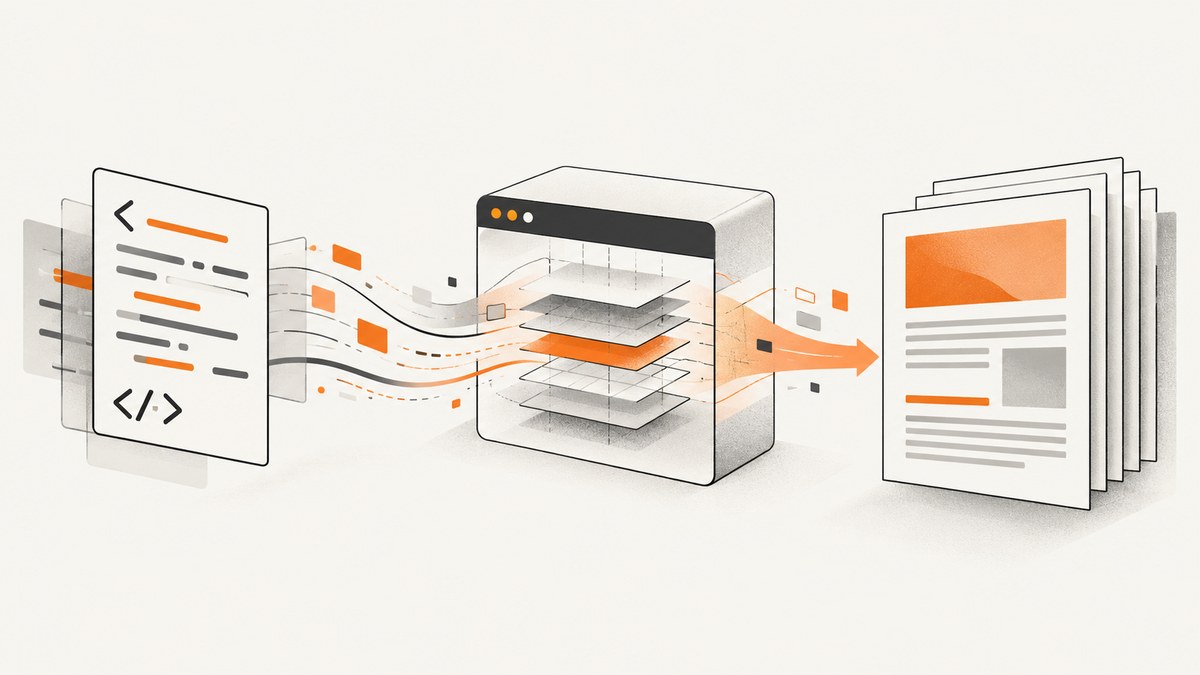
Direct answer: To convert HTML text or a rendered HTML page to PDF programmatically, load the HTML in a Chromium page and call Puppeteer’s page.pdf() method. Puppeteer uses the print CSS media type by default, waits for fonts in the documented workflow, and returns PDF bytes that you can save to a file or process in memory. The smallest complete workflow is: launch a browser, create a page, navigate to your HTML, generate the PDF, then close the browser.
import puppeteer from 'puppeteer';

const browser = await puppeteer.launch();
const page = await browser.newPage();
await page.goto('https://example.com', { waitUntil: 'networkidle0' });
await page.pdf({ path: 'output.pdf' });
await browser.close();
Puppeteer’s API describes Page.pdf() as generating a PDF with the print CSS media type by default. If your design is written for screens, call page.emulateMediaType('screen') before generating the file. The official references are the Page.pdf() API, the PDF generation guide, and the PDFOptions reference.
1. Set up Puppeteer
Create a Node.js project and install Puppeteer:
mkdir html-to-pdf
cd html-to-pdf
npm init -y
npm install puppeteer
Puppeteer installs a compatible browser for its normal workflow. If your deployment supplies Chromium separately, use the launch configuration appropriate for that environment and verify that the executable is available to the process.
2. Convert a local HTML string
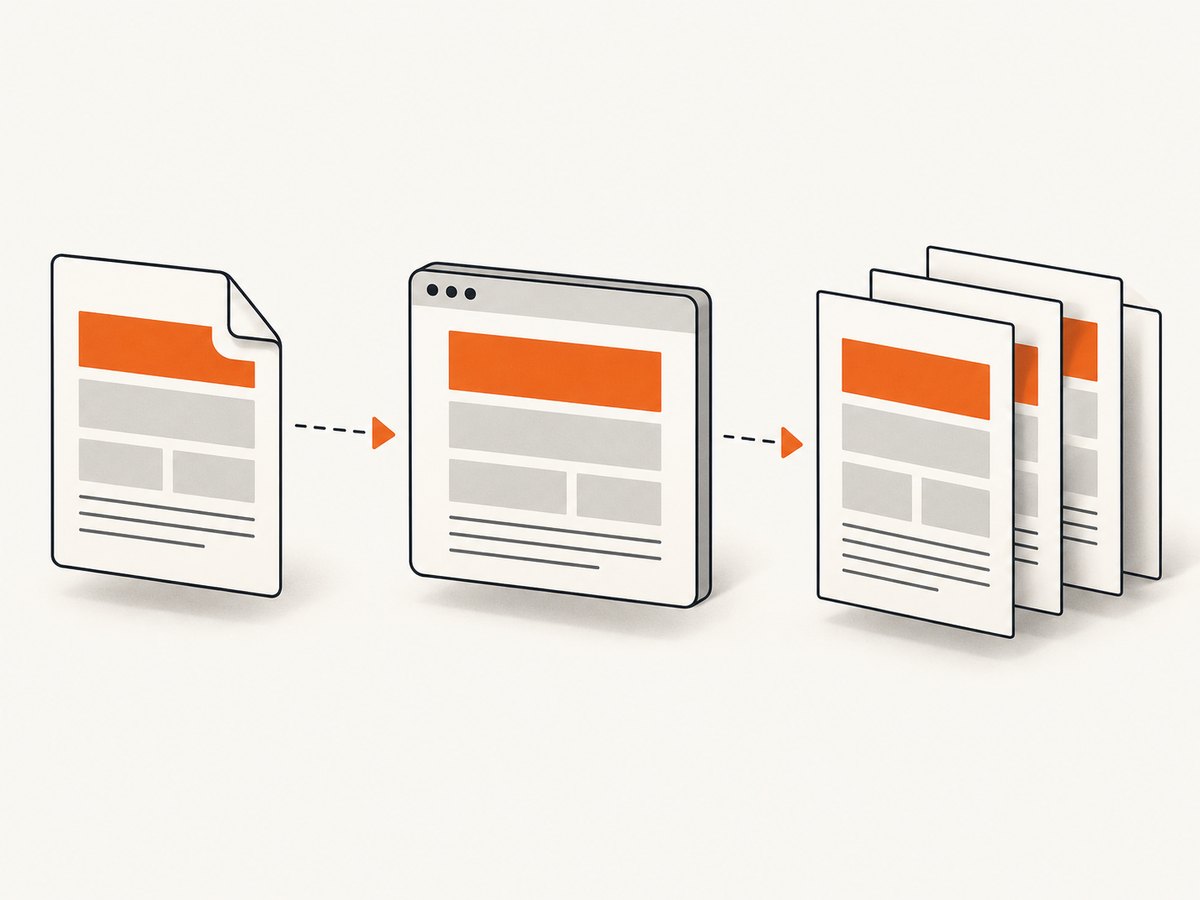
When the input is HTML text rather than a public URL, put that text into the page with page.setContent(). The example below writes a complete document, applies print rules, waits for fonts, and saves the PDF.
import puppeteer from 'puppeteer';

const html = `
<!doctype html>
<html>
<head>
  <meta charset="utf-8">
  <title>Invoice</title>
  <style>
    @page { size: A4; margin: 18mm; }
    body { font-family: Arial, sans-serif; color: #222; }
    h1 { margin: 0 0 12px; }
    .total { margin-top: 32px; font-size: 20px; font-weight: bold; }
    @media print {
      .screen-only { display: none; }
    }
  </style>
</head>
<body>
  <h1>Invoice 1042</h1>
  <p>Generated from an HTML string.</p>
  <p class="total">Total: $240.00</p>
</body>
</html>`;

const browser = await puppeteer.launch();
try {
  const page = await browser.newPage();
  await page.setContent(html, { waitUntil: 'networkidle0' });
  await page.pdf({
    path: 'invoice.pdf',
    format: 'A4',
    printBackground: true,
    preferCSSPageSize: true
  });
} finally {
  await browser.close();
}
setContent() is useful for templates assembled by your application. If the HTML references external stylesheets, images, or fonts, those resources must be reachable by Chromium. For data supplied by users, sanitize it before inserting it into a template and avoid exposing sensitive server capabilities through injected scripts.
3. Convert an existing page
For a URL, use page.goto(). Choose a navigation condition that matches the page. domcontentloaded is fast but can run before images or client-rendered content arrive; networkidle0 waits for the network to become quiet, but applications with polling or analytics may never become idle.
import puppeteer from 'puppeteer';

const browser = await puppeteer.launch();
try {
  const page = await browser.newPage();
  await page.goto('https://example.com/report', {
    waitUntil: 'networkidle0',
    timeout: 60_000
  });
  await page.pdf({
    path: 'report.pdf',
    format: 'Letter',
    printBackground: true,
    margin: { top: '16mm', right: '14mm', bottom: '16mm', left: '14mm' }
  });
} finally {
  await browser.close();
}
4. Choose print or screen styling
PDF generation uses print media by default. This activates @media print rules and can change which elements are visible. To render the screen design instead:
await page.emulateMediaType('screen');
await page.pdf({ path: 'screen-styled.pdf', printBackground: true });
Printing can also modify colors. When exact color reproduction matters, the Puppeteer documentation points to -webkit-print-color-adjust:
* {
  -webkit-print-color-adjust: exact;
  print-color-adjust: exact;
}
Use this selectively. A PDF that preserves every background can be much larger and less readable when printed on paper.
5. Configure paper, layout, and pagination
The PDF options determine how the browser lays out the document. The option names and defaults are version-sensitive, so check the reference for the Puppeteer version installed in your project.
| Option | Use it for | Important behavior |
|---|---|---|
format |
Named sizes such as A4 or Letter | When set, it takes priority over width and height. |
width, height |
Custom page dimensions | Use units supported by Puppeteer when a named format is unsuitable. |
landscape |
Wide tables, charts, and dashboards | Rotates the page orientation. |
margin |
Printable whitespace | Set top, right, bottom, and left values explicitly for predictable output. |
printBackground |
Colored panels, gradients, and background images | Defaults to false; enable it when those graphics are required. |
preferCSSPageSize |
CSS-controlled page sizes | Lets an @page rule take precedence over API dimensions. |
pageRanges |
Selected pages | Useful for extracting a subset of a long document. |
displayHeaderFooter, templates |
Page numbers, dates, and running labels | Header and footer templates use the fields documented by Puppeteer. |
For a CSS-first layout, define the page size and margins in @page, then set preferCSSPageSize: true. For an application that offers a format selector, pass format and keep the template’s CSS focused on content.
Prevent awkward page breaks
.invoice-line,
.card,
figure {
  break-inside: avoid;
}

h2 {
  break-after: avoid;
}

.page-break {
  break-before: page;
}
These are CSS hints, not absolute guarantees. A block taller than a page must be split, and complex tables can still paginate differently across browser versions.
6. Wait for content that JavaScript adds
Many pages render an empty shell first and add content after an API request. Wait for a stable selector before creating the PDF:
await page.goto('https://example.com/dashboard', {
  waitUntil: 'domcontentloaded'
});
await page.waitForSelector('#report-ready', { timeout: 30_000 });
await page.pdf({ path: 'dashboard.pdf', printBackground: true });
For charts or images, wait for the specific elements and, when needed, verify that images have completed loading:
await page.waitForFunction(() =>
  [...document.images].every(image => image.complete)
);
await page.pdf({ path: 'complete.pdf', printBackground: true });
The PDF guide states that fonts are awaited by default. If a custom font still appears late, confirm that its URL is reachable from the browser, that the server returns the correct CORS headers, and that the font format is supported.
7. Return PDF bytes from an application
page.pdf() can be handled as bytes instead of writing directly to disk. This is useful for an HTTP endpoint or object storage upload.
const pdf = await page.pdf({
  format: 'A4',
  printBackground: true
});

// Express example:
res.type('application/pdf');
res.set('Content-Disposition', 'attachment; filename="document.pdf"');
res.send(pdf);
Always close the page and browser in a finally block. In a long-running service, reuse a browser process carefully and create a fresh page per job so cookies, local storage, and in-page state do not leak between documents.
8. cURL, Python, and Node.js integration choices
Puppeteer is a Node.js library, so the conversion code runs in Node. Other applications commonly call a small Node service that accepts HTML and returns PDF bytes. A cURL client for such a service might look like this:
curl -X POST http://localhost:3000/pdf \
  -H 'Content-Type: application/json' \
  --data-binary @document.json \
  -o document.pdf
Python can call the same service with requests:
import requests

html = '<html><body><h1>Hello</h1></body></html>'
r = requests.post(
    'http://localhost:3000/pdf',
    json={'html': html},
    timeout=90,
)
r.raise_for_status()
with open('document.pdf', 'wb') as output:
    output.write(r.content)
The service boundary keeps browser dependencies in one place while letting Python, Ruby, Go, or another application submit jobs. Set a request size limit, an execution timeout, and a maximum page count in the service.
9. Troubleshooting common failures
| Symptom | Likely cause | Fix |
|---|---|---|
| PDF is blank | Content is added after navigation or a script failed. | Check browser console errors, wait for a ready selector, and capture a screenshot during debugging. |
| Images are missing | Relative URLs, blocked requests, or images not finished loading. | Use absolute or correctly based URLs, verify network access, and wait for document.images. |
| Wrong colors | Print media changes colors and backgrounds are disabled. | Set printBackground: true, choose screen media if appropriate, and use print color adjustment CSS. |
| Fonts fall back | Font request failed or the PDF was created before the font became available. | Check font URLs and response headers; wait for document.fonts.ready when diagnosing. |
| Navigation timeout | Polling, slow resources, or a page that never reaches network idle. | Use domcontentloaded, wait for a specific selector, and set a deliberate timeout. |
| Content is cut off | Fixed heights, overflow rules, or an unsuitable page size. | Remove fixed heights in print CSS, set margins, and test preferCSSPageSize. |
| Browser cannot launch | Missing executable or restricted sandbox environment. | Install the required browser, inspect launch logs, and follow the deployment environment’s Chromium requirements. |
| Header or footer is absent | Templates require header/footer display to be enabled. | Set displayHeaderFooter: true and provide the documented templates. |
10. Performance, reliability, and cost considerations
- Reuse browser processes: Launching Chromium for every document adds startup work. A worker can keep one browser alive and create isolated pages, with recycling after repeated failures or memory growth.
- Control concurrency: Each page consumes CPU and memory. Use a queue and a fixed worker limit instead of accepting unlimited parallel conversions.
- Make readiness explicit: Selector-based waits are usually more predictable than an unlimited network-idle wait on pages with analytics, WebSockets, or polling.
- Keep output deterministic: Pin your Puppeteer version, use stable fonts, set paper dimensions and margins, and avoid time-dependent content unless the document requires it.
- Cache carefully: Cache only when the HTML, data, and assets are unchanged. Do not cache documents containing private user data in shared storage.
- Measure the whole job: Record navigation time, waiting time, PDF generation time, output size, and failure reason. The Puppeteer sources do not provide a universal benchmark, so capacity must be measured in your own deployment.

Or skip the browser setup
ScreenshotNeo provides a website capture API and MCP server for developers. It can return a screenshot or PDF from one GET request, with options for PDF paper size, margins, landscape mode, and page ranges. Before capture, it accepts cookie and consent banners and removes more than 60 known consent platforms, newsletter popups, and chat widgets; each cleanup step can be turned off. Bot checks, CAPTCHAs, blank pages, timeouts, failed loads, and cache hits are not billed, and the response identifies the result with X-Page-Verdict and X-Billed headers.
See the ScreenshotNeo documentation for the current request options. The basic request shape is:
curl -G "https://api.screenshotneo.com/v1/shot" -d access_key=YOUR_API_KEY --data-urlencode url=https://stripe.com -o shot.webpimport requests
r = requests.get("https://api.screenshotneo.com/v1/shot", params={"access_key": "YOUR_API_KEY", "url": "https://stripe.com"}, timeout=90)
open("shot.webp", "wb").write(r.content)const q = new URLSearchParams({ access_key: 'YOUR_API_KEY', url: 'https://stripe.com' });
const res = await fetch(`https://api.screenshotneo.com/v1/shot?${q}`);ScreenshotNeo also supports custom CSS and JavaScript, selectors, hidden elements, waits, blocked resources, headers, cookies, authorization, timezone, geolocation, caching, signed links, asynchronous jobs, signed webhooks, bulk capture, usage reporting, and an OpenAPI specification. Its MCP server exposes take_screenshot, get_page_info, and capture_pdf tools for Claude, Cursor, and other MCP clients. The Free plan includes 1,000 shots per month without a card; paid plans start at $5 for 3,000 shots, and every feature is available on every plan. Create a free ScreenshotNeo account.
FAQ
Does Puppeteer convert plain text without HTML?
Wrap the text in a minimal HTML document and pass it to page.setContent(). Add CSS for fonts, spacing, page size, and print behavior.
Why does my screen layout differ in the PDF?
PDF generation uses print media by default. Add print rules or call page.emulateMediaType('screen') before page.pdf().
Can I create only selected pages?
Yes. The PDF options reference documents page-range support through pageRanges.
How do I preserve background graphics?
Set printBackground: true and check whether your print CSS hides the element.
Should I use Puppeteer or an API?
Use Puppeteer when you need browser-level control inside your own service. Use an API when you want managed capture, cleanup of consent UI, usage accounting, and an MCP path for AI agents. Review the current documentation and your data-handling requirements before choosing.


