How to Convert HTML to a Color PNG Image
Convert HTML to a color PNG with html2canvas or Playwright, including full-page capture, element screenshots, cross-origin fixes, and automation options.

To convert HTML to a color PNG, render the HTML in a browser and export the rendered pixels. For a client-side download button, use html2canvas. For browser-accurate server-side, CI, or API capture, use Playwright. html2canvas reconstructs an image from DOM information, while Playwright captures the page in a real browser.
If you need a production screenshot service without maintaining Chromium, use ScreenshotNeo. It accepts one GET request and returns PNG, JPEG, WebP, or PDF.
Choose the right conversion method
| Requirement | Best fit | Reason |
|---|---|---|
| A button inside a web app downloads one component | html2canvas | Runs in the visitor’s browser with no server. |
| Pixel fidelity for complex CSS and web fonts | Playwright | Uses a real Chromium, Firefox, or WebKit page. |
| Full-page captures in Node.js or CI | Playwright | Supports full-page and element screenshots and returns buffers. |
| Many URLs, retries, caching, consent cleanup, or an API | ScreenshotNeo | Managed capture with clean shots, billing verdict headers, and automation features. |
Method 1: Convert an HTML element with html2canvas
html2canvas runs in the browser, walks the target DOM, and paints a canvas representation. Its documentation explains that this is based on DOM information rather than a literal screenshot, so unsupported CSS can render differently from the page. Read the html2canvas documentation.
Complete browser example
<!doctype html>
<html lang="en">
<head>
  <meta charset="utf-8" />
  <meta name="viewport" content="width=device-width, initial-scale=1" />
  <title>HTML to color PNG</title>
  <style>
    body { font-family: system-ui, sans-serif; margin: 2rem; background: #18212f; }
    #capture { width: 640px; padding: 32px; background: #f5da55; color: #111; border-radius: 16px; }
    button { margin-top: 1rem; padding: .7rem 1rem; cursor: pointer; }
  </style>
</head>
<body>
  <section id="capture">
    <h2>Color PNG export</h2>
    <p>This element will become a PNG image.</p>
  </section>
  <button id="save" type="button">Download PNG</button>

  <script type="module">
    import html2canvas from 'https://cdn.jsdelivr.net/npm/html2canvas@1.4.1/+esm';

    document.querySelector('#save').addEventListener('click', async () => {
      const target = document.querySelector('#capture');
      const canvas = await html2canvas(target, {
        scale: window.devicePixelRatio,
        backgroundColor: '#f5da55',
        useCORS: true
      });
      const link = document.createElement('a');
      link.download = 'capture.png';
      link.href = canvas.toDataURL('image/png');
      link.click();
    });
  </script>
</body>
</html>
For an npm project, install @html2canvas/html2canvas and import it from your bundler instead of the CDN. Wait until the target is visible, its fonts have loaded, and its images have dimensions before calling html2canvas().
Useful html2canvas options
| Option | Use | Notes |
|---|---|---|
scale |
Controls output pixel density. | Use window.devicePixelRatio for sharper high-DPI output; large values increase memory use. |
x, y, width, height |
Crop the rendered area. | Coordinates are relative to the document or configured window. |
useCORS |
Attempts to load images with CORS. | The image server must send an appropriate Access-Control-Allow-Origin header. |
backgroundColor |
Sets the canvas background. | Use a color when transparent or unexpected backgrounds are undesirable. Set null for transparency where supported. |
data-html2canvas-ignore |
Excludes an element. | Add the attribute to buttons, ads, or other controls you do not want in the PNG. |
Download a data URL or Blob
canvas.toDataURL('image/png') is convenient for a small image, but data URLs duplicate the image in memory. For larger output, create a Blob:
canvas.toBlob((blob) => {
  if (!blob) throw new Error('PNG encoding failed');
  const url = URL.createObjectURL(blob);
  const link = document.createElement('a');
  link.download = 'capture.png';
  link.href = url;
  link.click();
  URL.revokeObjectURL(url);
}, 'image/png');
Method 2: Capture HTML with Playwright
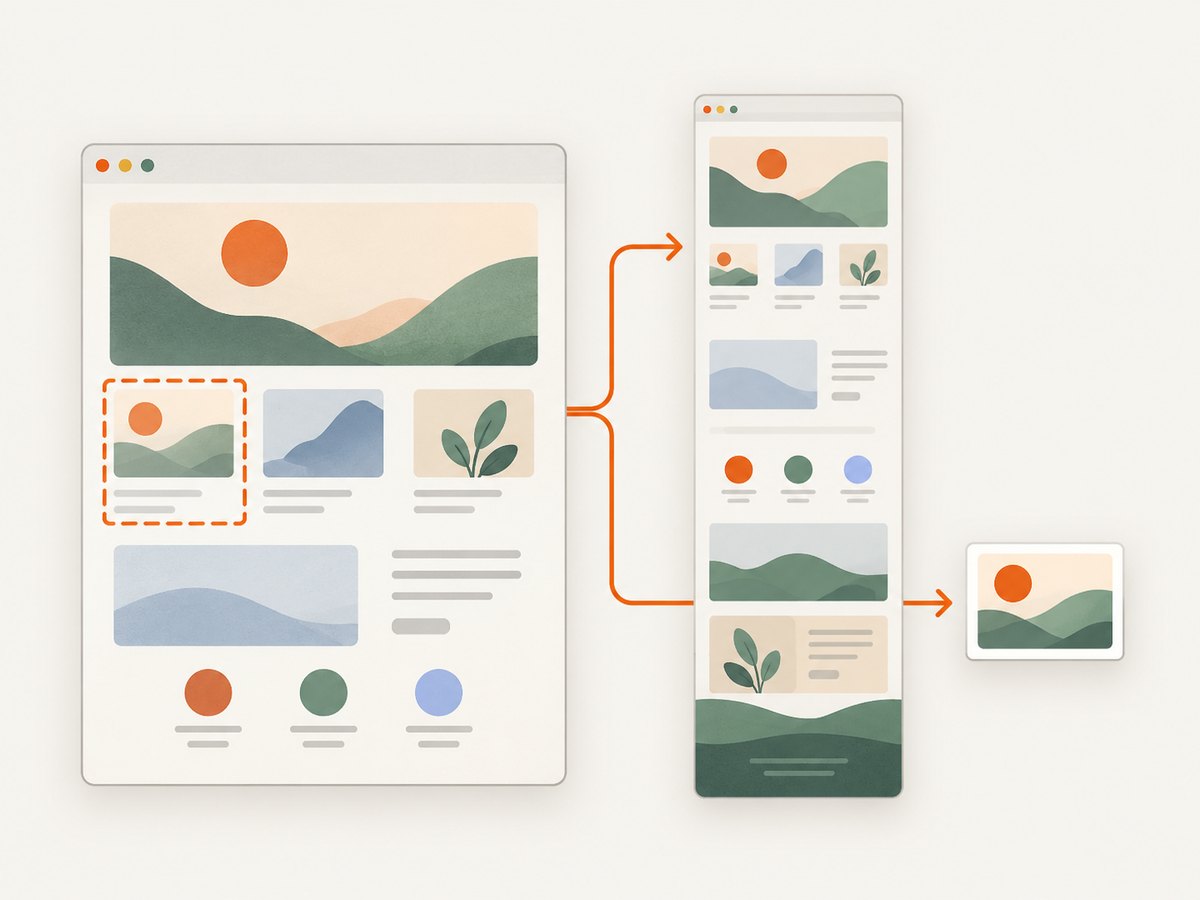
Playwright opens the page in a real browser and captures the rendered result. It supports PNG, JPEG, and WebP, full-page screenshots, element screenshots, clipping, and buffers. The official guide covers these screenshot APIs at playwright.dev/docs/screenshots.
Install and run a full-page PNG capture
npm install playwright
npx playwright install chromium
// capture.mjs
import { chromium } from 'playwright';
const browser = await chromium.launch();
const page = await browser.newPage({
viewport: { width: 1440, height: 900 },
deviceScaleFactor: 1
});
await page.goto('https://example.com', { waitUntil: 'networkidle' });
await page.screenshot({
path: 'page.png',
fullPage: true,
type: 'png'
});
await browser.close();Capture one element
const invoice = page.locator('#invoice');
await invoice.screenshot({ path: 'invoice.png', type: 'png' });
Return PNG bytes instead of writing a file
const pngBuffer = await page.screenshot({ type: 'png' });
// Send pngBuffer in an HTTP response, store it, or pass it to an image pipeline.
Wait for fonts, images, and application state
await page.goto('https://example.com/report', { waitUntil: 'domcontentloaded' });
await page.evaluate(() => document.fonts.ready);
await page.locator('#report').waitFor({ state: 'visible' });
await page.waitForLoadState('networkidle');
await page.screenshot({ path: 'report.png', fullPage: true, type: 'png' });
networkidle can never occur on pages with analytics, sockets, or long polling. In that case, wait for a reliable selector or use a short, explicit delay after the application signals that rendering is complete.
Playwright configuration for predictable color PNGs
- Viewport: Set
viewportexplicitly because responsive breakpoints change layout. - Device scale: Set
deviceScaleFactorto 2 for retina-like output, while watching memory and file size. - Color scheme: Create the context with
colorScheme: 'light'or'dark'when the page responds to system theme. - Background: Add a CSS background to the page or use a page style so transparent sections do not become unexpected black or white areas.
- Full page: Use
fullPage: truefor the entire scrollable document. Useclipfor a fixed rectangle. - Animations: Disable transitions and animations with an injected stylesheet when deterministic output matters.
- Fonts: Wait for
document.fonts.ready; install required fonts in the container. - Output type: PNG is lossless and supports alpha. JPEG is smaller but loses quality and does not preserve transparency. WebP can reduce size when consumers support it.
Cross-origin images, iframes, and CSS limitations
html2canvas cannot read pixels from every resource. Cross-origin images can taint the canvas unless the remote server permits CORS, and cross-origin iframe contents cannot be rendered because the browser prevents access to the embedded document. A CORS proxy or same-origin asset hosting can solve image loading, but you cannot bypass the browser’s iframe security policy from ordinary page JavaScript. These limitations are documented in the project’s FAQ.
Playwright avoids the readable-canvas problem because it captures the browser surface, but the target page still has to load its resources. Use authenticated browser context state, request headers, cookies, or a test fixture when the page is private.
Automating local HTML files or HTML strings
For a local file, use a file URL. For an HTML string, call page.setContent() and wait for fonts or images:
import { chromium } from 'playwright';

const browser = await chromium.launch();
const page = await browser.newPage({ viewport: { width: 1000, height: 700 } });
await page.setContent(`
  <main style="padding:40px;background:#d9f99d;color:#172554">
    <h1>Invoice preview</h1>
    <p>Rendered from an HTML string.</p>
  </main>
`, { waitUntil: 'load' });
await page.screenshot({ path: 'html-string.png', type: 'png' });
await browser.close();
Or skip the browser setup
ScreenshotNeo’s API documentation shows the same request pattern. One GET request returns the image:
curl -G "https://api.screenshotneo.com/v1/shot" \
  -d access_key=YOUR_API_KEY \
  --data-urlencode url=https://stripe.com \
  -o shot.webp
import requests
r = requests.get(
"https://api.screenshotneo.com/v1/shot",
params={"access_key": "YOUR_API_KEY", "url": "https://stripe.com"},
timeout=90,
)
r.raise_for_status()
open("shot.webp", "wb").write(r.content)const q = new URLSearchParams({ access_key: 'YOUR_API_KEY', url: 'https://stripe.com' });
const res = await fetch(`https://api.screenshotneo.com/v1/shot?${q}`);
if (!res.ok) throw new Error(`Screenshot failed: ${res.status}`);
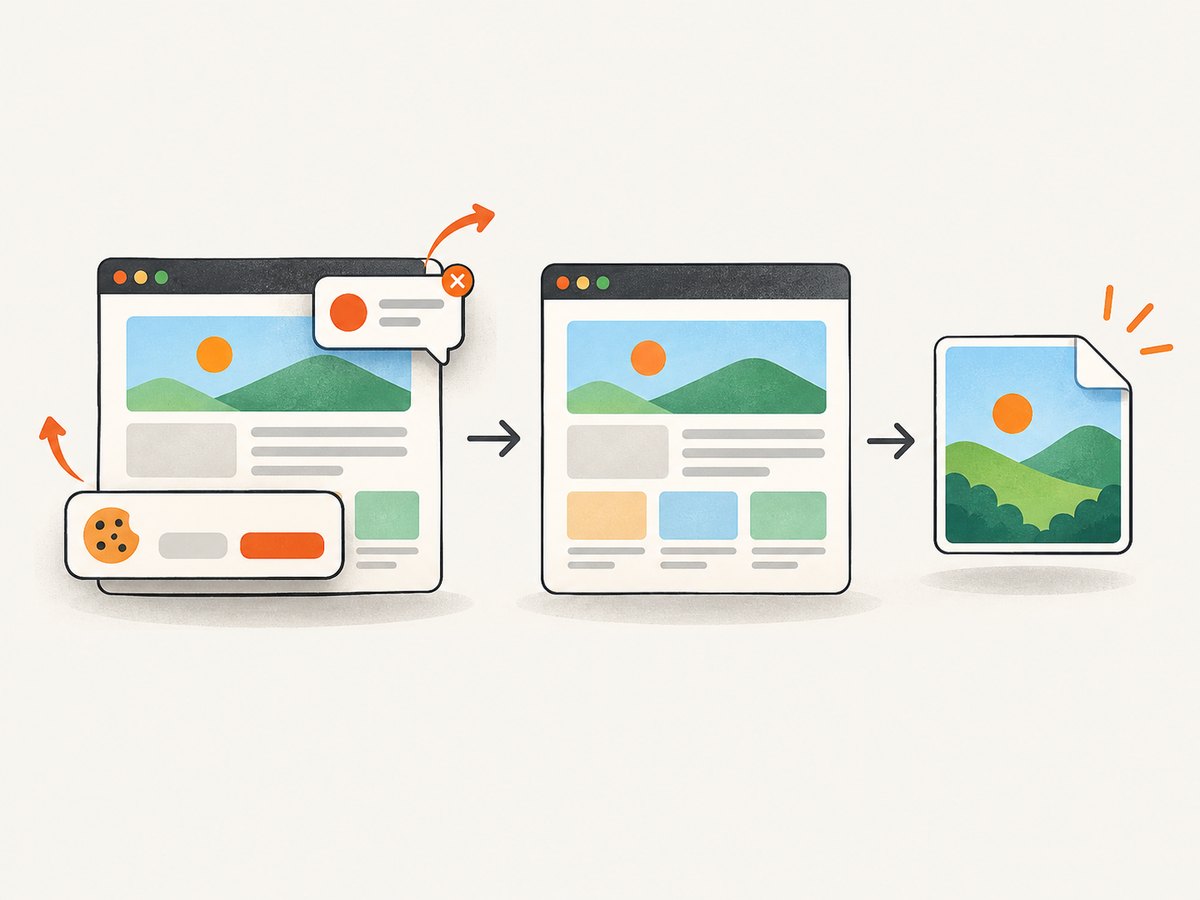
const bytes = Buffer.from(await res.arrayBuffer());Cookie banners, newsletter popups, and chat widgets are removed before the shot. Bot checks, blank pages, failed loads, timeouts, and cache hits are not billed, and the response reports its result in X-Page-Verdict and X-Billed headers. An MCP server provides take_screenshot, get_page_info, and capture_pdf tools for Claude, Cursor, and other MCP clients. You get 1,000 screenshots each month free with no card; paid plans start at $5 for 3,000 shots. Start with a free ScreenshotNeo account.
ScreenshotNeo options for HTML-to-PNG workflows
Use the API when you need repeatable capture across many URLs or teams. Relevant controls include:
- Full-page capture with lazy images loaded, or one element selected by CSS.
- Dark mode, 12 device presets, custom viewport sizes, and retina scale.
- Custom CSS and JavaScript, click-before-capture actions, hidden selectors, and waits for a selector, delay, or network idle.
- Ad, tracker, request, and resource-type blocking.
- Custom headers, cookies, user agent, Authorization, timezone, and geolocation.
- Transparent backgrounds and image resizing.
- Configurable caching TTL, signed links for public
<img>tags, asynchronous jobs with signed webhooks, bulk capture of up to 100 URLs per call, a usage API, and an OpenAPI specification.
Parameter names used by other screenshot APIs also work, which can simplify migration. PNG, JPEG, WebP, and PDF are available, with PDF controls for paper size, margins, landscape mode, and page ranges.
Troubleshooting
| Symptom | Cause | Fix |
|---|---|---|
| PNG is blank | Capture ran before content rendered, or the selected element has no size. | Wait for a visible selector, fonts, and application data; verify the element’s bounding box. |
| Images are missing in html2canvas | Cross-origin image without CORS headers. | Serve the image with CORS, proxy it, or use Playwright. |
| Iframe content is absent | Cross-origin iframe isolation. | Capture the iframe URL separately or capture with a real browser where you control authentication. |
| Colors differ from the page | DOM reconstruction, theme differences, or unloaded fonts. | Prefer Playwright, set color scheme and background explicitly, and wait for document.fonts.ready. |
| Only the visible viewport was saved | Full-page mode was not enabled. | Use fullPage: true in Playwright or capture a deliberately sized element. |
| Playwright times out | Network never becomes idle or a resource hangs. | Use a selector-based readiness condition, block unnecessary resources, and set a bounded timeout. |
| PNG encoding exhausts memory | Very large page multiplied by a high device scale. | Capture sections, lower scale, reduce viewport width, or stream/process the returned buffer. |
| ScreenshotNeo response is not an image | The page was blocked, blank, timed out, or failed. | Inspect X-Page-Verdict and X-Billed, then fix access, waits, authentication, or URL validity. |
Performance, reliability, and cost
Client-side
html2canvas avoids a server round trip, but it competes with the user’s page for CPU and memory. Limit the capture area, avoid oversized scale values, and prefer Blob downloads for large images. A download can also fail if browser privacy settings block a resource or if the canvas becomes tainted.
Playwright
Reuse a browser process for batches, create a fresh context per isolation boundary, and avoid waiting for global network idle on applications with persistent connections. Cache installed browser binaries in CI. Capture only the required element when a full page is unnecessary.
ScreenshotNeo
Caching with a TTL you choose can reduce repeated work. Bulk capture handles up to 100 URLs per call, and asynchronous jobs with signed webhooks keep long batches out of a request timeout. Only clean shots are billed; bot checks, blank pages, timeouts, failed loads, and cache hits cost nothing. Plans include every feature: Free provides 1,000 shots per month, Starter is $5 for 3,000, Growth $15 for 15,000, Pro $39 for 60,000, Scale $99 for 250,000, and Business $249 for 1,000,000. Yearly billing gives two months free.
Implementation checklist
- Choose html2canvas for an in-browser export or Playwright for browser-accurate automation.
- Set an explicit viewport, background, color scheme, and pixel scale.
- Wait for fonts, images, and application data before capture.
- Decide between full-page, element, and clipped output.
- Resolve CORS and iframe constraints before shipping.
- Bound timeouts and handle failed or blank captures.
- For many URLs, add caching, batching, retries, and verdict logging.
- Use ScreenshotNeo when maintaining browser infrastructure is not part of your product.
FAQ
Does converting HTML to PNG preserve selectable text?
No. PNG contains pixels. Keep the original HTML or generate a PDF as a separate output when text selection or accessibility is required.
Can I make a transparent PNG?
Yes, when the renderer and page background allow alpha. Avoid setting an opaque background and verify the result in an editor that displays transparency.
Should I use JPEG instead?
Use PNG for crisp text, diagrams, and lossless color. Use JPEG when a smaller photographic image matters more than sharp edges or transparency.
Can html2canvas run in Node.js?
Not by itself. It is a browser library. Use Playwright for Node.js or call a screenshot API.
How do I capture only a chart or invoice?
With html2canvas, pass the chart element. With Playwright, use page.locator('.chart').screenshot(). ScreenshotNeo can capture one element by CSS selector.


