How to Convert HTML to GIF
Render HTML in a browser, capture a still or motion over time, then export the result as a GIF. Follow the Playwright workflows and learn where a screenshot API fits.

To convert HTML to GIF, render the HTML in a browser, capture the visual result, then encode it as a GIF. For a static page, capture one screenshot and export that image as a GIF. For an HTML or CSS animation, capture frames over time or record the browser output, then convert that sequence or recording to GIF. A screenshot by itself is a still image; it does not contain animation.
This guide uses Playwright for repeatable browser capture. It covers a static HTML file, an animated page, capture scope, practical encoding decisions, common problems, and a one-request option when you need a clean still image. The browser APIs discussed here create screenshots or screencast output; GIF encoding is a separate step. Playwright Page API · Playwright Screencast API
1. Decide whether you need a still GIF or an animated GIF
“HTML to GIF” can mean two different things:
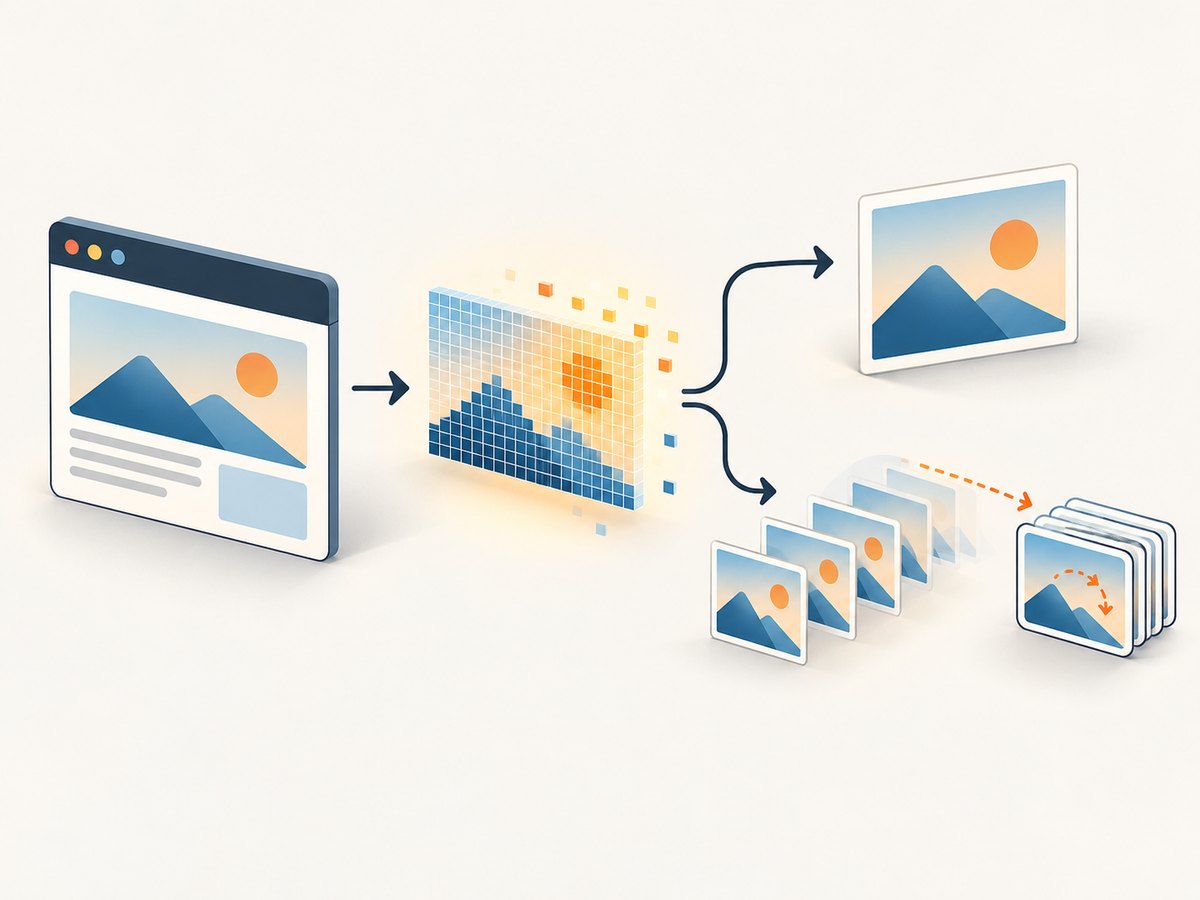
- A static GIF: one rendered page state saved in GIF format. Capture a screenshot, then export the image to GIF with an image encoder.
- An animated GIF: a rendered page changing over time. Record the browser or collect frames, then encode those frames as an animation.
Choose the output before writing the capture code. If you only need to show a layout, chart, or component at one moment, a still image is simpler and usually easier to keep small. If you need a CSS animation, loading sequence, hover effect, or interaction, you need to capture time as well as pixels.
HTML is markup, not an image. A browser must resolve styles, fonts, scripts, assets, and layout before the page can be captured. Playwright can set a page’s content from HTML, and its screenshot APIs produce still image data in formats such as PNG, JPEG, and WebP. Its screencast API supports recording and JPEG frame callbacks. GIF conversion happens after that browser capture step.
2. Set up a repeatable browser capture
For a one-off, opening a file in a browser and capturing the screen may be enough. For a repeatable result, use browser automation so you can set the viewport, wait for assets, select a capture region, and save output to a predictable path.
Install Playwright for Node.js and its browser binaries:
npm init -y
npm install playwright
npx playwright install chromium
Keep the HTML and any local assets together, and use stable file paths. If your page depends on remote fonts, images, APIs, or scripts, make sure those resources are reachable in the environment where the capture runs. For an isolated HTML snippet, Playwright’s page.setContent() is useful; for a full site, navigate to its URL or open the local file.
3. Convert a static HTML page to a GIF
The script below opens a local HTML file, sets a fixed viewport, waits for fonts, captures a PNG, and leaves GIF encoding to a separate tool. Saving a PNG first preserves a useful intermediate you can inspect or re-export with different palette settings.
// save as capture-static.cjs
const { chromium } = require('playwright');

(async () => {
  const browser = await chromium.launch({ headless: true });
  const page = await browser.newPage({
    viewport: { width: 1200, height: 800 },
    deviceScaleFactor: 1,
  });

  await page.goto('file:///absolute/path/to/page.html', {
    waitUntil: 'load',
  });
  await page.evaluate(() => document.fonts.ready);
  await page.screenshot({ path: 'page.png', type: 'png' });
  await browser.close();
})();
Replace the file URL with an absolute path to your HTML file. On Windows, ensure the file URL uses the correct URL form. If the page is hosted, use its HTTP or HTTPS URL instead. The load event means the browser’s load event fired, but a page can still update after that; wait for a visible element or app-specific ready state when needed.
Convert page.png to GIF using an image editor or encoder that supports GIF export. The specific encoder is outside Playwright, so check its documentation for how to set palette, dithering, transparency, and output path. A static page has no frame timing; the resulting GIF is just a still image in GIF format.
4. Capture an HTML animation as an animated GIF
For motion, record a deliberate interval after the page is ready. Playwright’s screencast API can record a video or provide JPEG-encoded frames through a callback. Those frames or the recording must then be passed through a compatible GIF encoder. Do not use page.screenshot() as if it were a recording: it captures a single image.
A practical workflow is to trigger the animation at a known point, record for the duration you want, and inspect the result before encoding:
- Set a fixed viewport and load the page.
- Wait for fonts, images, and the state that starts the animation.
- Start the screencast, trigger the animation if applicable, and record a bounded duration.
- Stop recording, then convert the captured video or frames into GIF with an encoder.
- Review the crop, timing, text legibility, looping behavior, and file size.
The exact Playwright screencast API can vary with the package version and the browser setup. Its documentation describes recording to a path and a frame callback containing JPEG frame data, timestamps, and viewport dimensions. Consult the current Screencast API reference for the method signature available in your installed version. Do not assume a video file can be renamed to .gif; encoding is required.
Choose duration and frame density based on the content. A brief UI transition may need only a short capture; a long page animation can make the GIF large and harder to follow. There is no universally correct frame rate, palette size, or dithering setting. Tune these in the encoder and inspect the result at its actual display size.
5. Choose the capture area and page state
Playwright documents three useful capture scopes: the viewport, a specific element, or the full scrollable page. Pick the smallest region that communicates the idea.
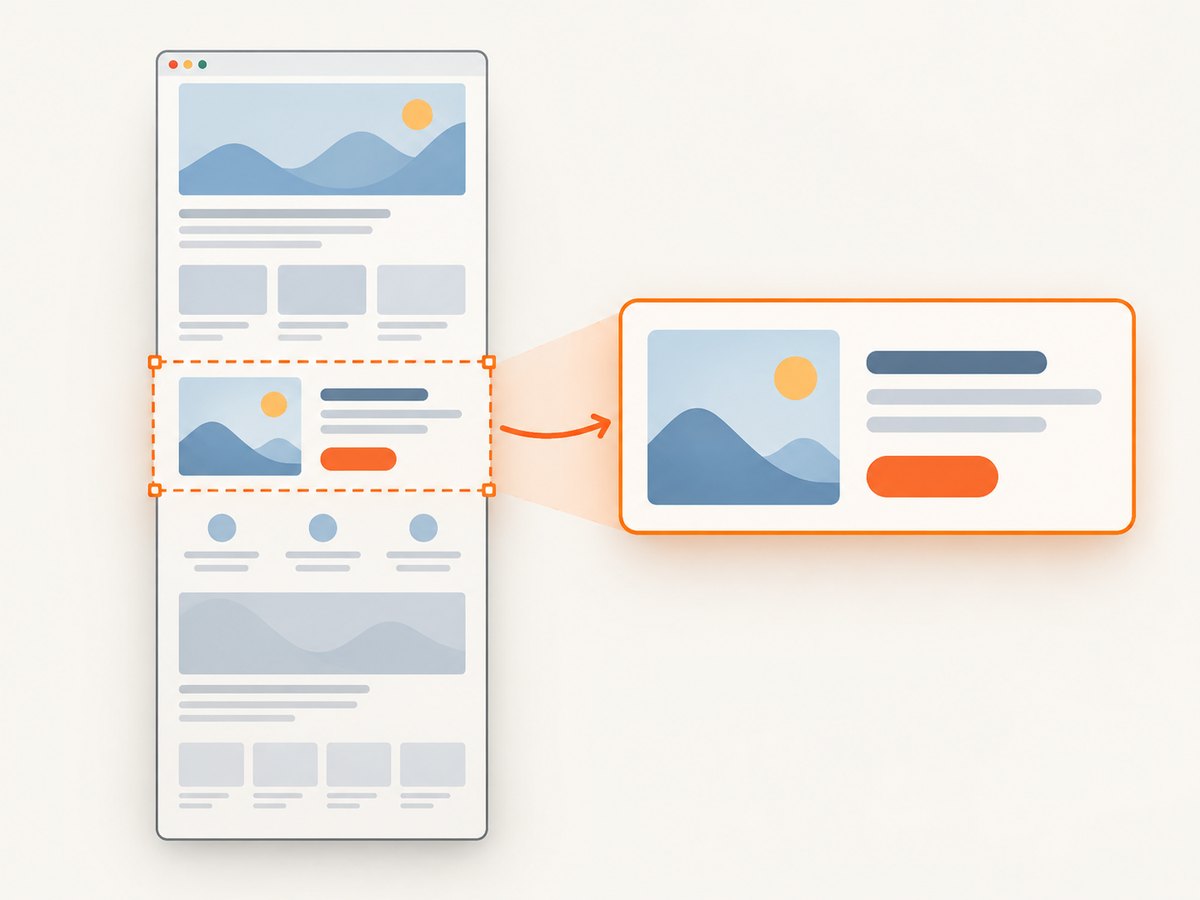
| Scope | Use it for | Watch for |
|---|---|---|
| Viewport | A visible interaction, animation, or page state | Content outside the viewport is omitted |
| Element | A chart, card, widget, or isolated component | The target must exist and be visible before capture |
| Full page | A long static page or document-like layout | Full-page capture and a target element are not combined in the documented screenshot tooling |
For an element screenshot, wait for the target and use its locator’s screenshot method. For a full-page still, use the screenshot option that captures the full scrollable page. Be cautious when making an animated GIF from a long full-page capture: full-page screenshots are tall still images, while animation capture is time-based; they solve different problems.
Before capturing, set the viewport to the dimensions where the GIF will be viewed. A responsive layout can change substantially with width, and device scale affects the pixel dimensions. Hide development overlays and cursor artifacts if they are not part of the intended output. For pages with lazy-loaded images, scroll through the relevant content before a full-page capture so those assets have a chance to load.
6. Make the output readable and manageable
GIF is widely supported, but it can be a poor fit for photographic content or long, detailed recordings. The palette is limited compared with modern still and video formats, and animation can grow quickly as frames and dimensions increase. Treat file size and visual quality as a balance rather than relying on a magic preset.
- Crop tightly: remove browser chrome and unused page area.
- Use a sensible viewport: capture only enough pixels to show the content legibly.
- Keep motion purposeful: capture the shortest useful interval and avoid frames that do not add information.
- Inspect text: small text can become difficult to read after resizing or palette conversion.
- Choose encoding settings per asset: test palette and dithering options in your selected encoder; these are downstream of browser capture.
- Keep an intermediate: retain the original PNG, video, or frame sequence until the GIF is approved, so you can re-encode without repeating capture.
For a still screenshot, PNG, JPEG, or WebP may be a better final format if GIF is not required. Playwright supports these screenshot formats; the choice of a GIF encoder is separate. For motion, compare the GIF with the original recording if fidelity and size matter.
7. Troubleshooting
| Symptom | Likely cause | Fix |
|---|---|---|
| Output is a still, not animated | A screenshot API captured one moment | Record over time with screencast or collect multiple frames, then encode them as an animation. |
| Page is blank or incomplete | Wrong file path, failed navigation, script error, or capture too early | Check the URL and browser console; wait for the app’s ready selector or condition and confirm assets load. |
| Fonts or images are missing | Remote assets are blocked, paths are relative to a different directory, or fonts are still loading | Correct asset paths and network access; wait for document.fonts.ready and verify image completion before capture. |
| Animation is not visible in the recording | Recording began after the animation, the page is paused, or the trigger did not run | Start capture before triggering the motion and make the page state deterministic. |
| Element screenshot fails | The selector matches nothing or the element is hidden | Wait for the locator to be visible, check the selector, and capture only after layout settles. |
| GIF is too large | Too many frames, excessive dimensions, or complex changing imagery | Shorten the capture, crop it, reduce output dimensions, and tune encoder settings while checking legibility. |
| GIF looks noisy or text is unclear | Palette conversion and resizing changed fine detail | Use a larger output size where practical, adjust palette/dithering in the encoder, or choose a still format when motion is unnecessary. |
| Capture works locally but not in automation | Different browser binaries, missing dependencies, network restrictions, or environment-specific paths | Install the Playwright browser for that environment, use absolute paths, and log navigation failures and console errors. |
8. Performance, reliability, and cost
Capture time depends on what the browser must load and render: scripts, fonts, images, animations, network responses, and page complexity all matter. This guide makes no fixed speed claim. For repeatable jobs, use a fixed viewport, wait for a meaningful page-ready condition rather than an arbitrary long delay, and capture only the needed region. Close the browser in a finally path in production scripts so failures do not leave processes running.
For reliable output, make the page state deterministic. Fix the viewport, use stable test data, disable or control motion when producing a still, and wait for the exact content that must appear. For animation, ensure the recording starts before the relevant transition and lasts long enough to show it. Record errors and preserve the intermediate capture when failures would be costly to reproduce.
With a self-hosted browser workflow, costs include the machine or CI time and whatever GIF encoder you choose. No physical capture hardware is required. If you are generating many captures, measure the whole pipeline, including browser startup, page loading, frame capture, and encoding. The research sources do not establish universal frame rate, compression, or cost figures.
9. Or skip the browser setup
ScreenshotNeo is a website screenshot API and MCP server. One GET request returns a screenshot or PDF. It produces still images, so it can supply a clean page capture for a static GIF workflow; it does not turn a browser animation into an animated GIF. See the ScreenshotNeo documentation for the API options.
curl -G "https://api.screenshotneo.com/v1/shot" -d access_key=YOUR_API_KEY --data-urlencode url=https://stripe.com -o shot.webpimport requests
r = requests.get("https://api.screenshotneo.com/v1/shot", params={"access_key": "YOUR_API_KEY", "url": "https://stripe.com"}, timeout=90)
open("shot.webp", "wb").write(r.content)const q = new URLSearchParams({ access_key: 'YOUR_API_KEY', url: 'https://stripe.com' });
const res = await fetch(`https://api.screenshotneo.com/v1/shot?${q}`);ScreenshotNeo accepts cookie and consent banners like a visitor and removes more than 60 known consent platforms, newsletter popups, and chat widgets before the shot; each step can be turned off. Bot checks, blank pages, timeouts, failed loads, and cache hits cost nothing, and response headers report the page verdict and billing status. Its MCP server offers take_screenshot, get_page_info, and capture_pdf for AI agents. The free plan includes 1,000 screenshots each month with no card; paid plans start at $5 for 3,000. Convert the returned still image to GIF with your chosen encoder if a static GIF is required. Sign up for 1,000 free screenshots a month, with no card.
10. Frequently asked questions
Can HTML be saved directly as a GIF?
No. A browser first renders the HTML. Capture the rendered pixels, then encode the still or captured motion as GIF.
Can I create an animated GIF from CSS?
Yes. Render the page while the CSS animation runs, capture a sequence or recording over time, and encode it as GIF. A single screenshot cannot preserve the motion.
Does a full-page screenshot include an animation?
It captures a page-sized image at a point in time. To show motion, record frames across time; full-page is a capture scope, not an animation format.
Should I use GIF for every screenshot?
No. Use it when the receiving tool or use case requires GIF. For a static image, PNG, JPEG, or WebP may be more suitable depending on the content and destination.


