Convert HTML to HD PNG
Convert HTML to a sharp PNG with html2canvas, Playwright, or Puppeteer. Choose the right pixel scale, capture full pages, and fix common rendering issues.

To convert HTML to a sharp PNG, render it at a known CSS viewport and capture at a higher pixel scale. Use html2canvas for browser-only conversion when reconstructing the page from its DOM is acceptable. Use Playwright or Puppeteer when you need a real browser render, server-side execution, or repeatable automation. A hosted screenshot API is useful when you want to submit a URL or HTML without running browser infrastructure.
“HD” is not a special PNG mode. It usually means enough image pixels for the intended display or print size. For example, a 1200-pixel-wide CSS viewport captured at device scale 2 produces an image about 2400 pixels wide. Larger output takes more memory and produces larger files, so select the scale based on where the image will be used.
1. Choose a conversion method
| Method | Use it when | Resolution controls | Tradeoffs |
|---|---|---|---|
| html2canvas | The conversion runs in a browser and DOM-based rendering is acceptable. | scale, viewport and crop dimensions |
Reconstructs the page from DOM information; CSS support is incomplete and cross-origin content can be blocked. |
| Playwright | You need a real browser render, server-side capture, or automated repeatability. | Viewport, device settings and scale: 'device' |
Requires installing and operating browser automation. |
| Puppeteer | Your automation stack uses Node.js and Chromium. | Viewport, fullPage, clip, omitBackground |
Requires browser automation runtime and Chromium. |
| Screenshot API | You want to capture a URL or submit HTML without maintaining browser infrastructure. | Available controls depend on the service. | Check service limits, price, data handling and terms. |
For API-based capture, ScreenshotNeo is the first service to consider here: it removes cookie banners, popups and chat widgets before the shot, bills only clean shots, and has a free tier plus a $5 paid plan. Its API can capture a URL as PNG, JPEG, WebP or PDF.

2. Browser conversion with html2canvas
Install the library in your web project:
npm install html2canvasThen capture a DOM element at the browser’s device-pixel ratio. This makes the result sharper on high-density displays, though the output may become several times larger than the CSS dimensions.
import html2canvas from 'html2canvas';

async function saveElementAsPng(element) {
  await document.fonts.ready;
  const canvas = await html2canvas(element, {
    scale: window.devicePixelRatio || 1,
    backgroundColor: '#ffffff',
    useCORS: true,
    logging: false
  });

  const blob = await new Promise(resolve => canvas.toBlob(resolve, 'image/png'));
  if (!blob) throw new Error('Could not encode canvas as PNG');

  const link = document.createElement('a');
  link.download = 'capture.png';
  link.href = URL.createObjectURL(blob);
  link.click();
  URL.revokeObjectURL(link.href);
}

const target = document.querySelector('#capture-target');
if (!target) throw new Error('Capture element not found');
await saveElementAsPng(target);
The project’s example uses scale: window.devicePixelRatio for a sharper capture. Set a fixed scale if consistent output dimensions matter more than matching the current screen density. For example, use scale: 2 for two output pixels per CSS pixel. Crop a region with x, y, width and height; dimensions are expressed in CSS pixels before scaling.
Important html2canvas options
scale: output pixel density. Higher values improve detail but increase memory and PNG size.backgroundColor: set a solid background, or usenullwhere transparency is intended and supported by the page.useCORS: requests cross-origin images with CORS mode. The image server must still allow the origin.windowWidthandwindowHeight: control the virtual window size used during rendering, useful for responsive layouts.x,y,width,height: crop to a region of the element.ignoreElements: skip DOM elements that should not appear in the output.
Wait for asynchronous content before capture. document.fonts.ready waits for document fonts; for images, explicitly wait for the relevant img.decode() promises where possible. A fixed timeout may help with a known animation or delayed widget, but it is less reliable than waiting for a specific readiness condition.
3. Server-side rendering with Playwright
Install Playwright and its Chromium browser according to the official installation guide. This runnable Node.js example navigates to a page, waits for fonts and network activity to settle, then saves a full-page PNG at device-pixel scale.
import { chromium } from 'playwright';

const browser = await chromium.launch({ headless: true });
try {
  const page = await browser.newPage({
    viewport: { width: 1440, height: 1000 },
    deviceScaleFactor: 2
  });
  await page.goto('https://example.com', { waitUntil: 'networkidle', timeout: 60000 });
  await page.evaluate(() => document.fonts.ready);
  await page.screenshot({
    path: 'page.png',
    type: 'png',
    fullPage: true,
    scale: 'device'
  });
} finally {
  await browser.close();
}
Use fullPage: true for the full scrollable document. Omit it for the current viewport. Capture a particular element with its locator’s screenshot() method, or use a screenshot clip when you need a rectangular area. Playwright also supports a transparent background option when the page background should be omitted. See the Playwright screenshot guide and Page screenshot API for current option details.
High-resolution sizing
There are two related dimensions: CSS viewport size and output image size. With a 1440-pixel CSS viewport and device scale factor 2, a viewport capture is approximately 2880 pixels wide. Full-page height depends on rendered document height. Playwright’s scale: 'device' captures device pixels; scale: 'css' produces one output pixel per CSS pixel. Large full-page captures can consume significant memory, particularly at high scale.
4. Server-side rendering with Puppeteer
Install Puppeteer in a Node.js project and run this example:
import puppeteer from 'puppeteer';

const browser = await puppeteer.launch({ headless: true });
try {
  const page = await browser.newPage();
  await page.setViewport({ width: 1440, height: 1000, deviceScaleFactor: 2 });
  await page.goto('https://example.com', { waitUntil: 'networkidle2', timeout: 60000 });
  await page.evaluate(() => document.fonts.ready);
  await page.screenshot({
    path: 'page.png',
    type: 'png',
    fullPage: true
  });
} finally {
  await browser.close();
}
Puppeteer’s screenshot options include fullPage, clip, captureBeyondViewport and omitBackground. Use clip for a specific rectangle. Configure the viewport before navigation or before the page’s responsive layout settles, and set deviceScaleFactor for higher pixel density. Consult the official ScreenshotOptions reference for current option behavior.
5. Capture a URL with cURL, Python, or Node.js
For a managed conversion, send the page URL to a screenshot API. The examples below use ScreenshotNeo; its API documentation describes request parameters and response behavior.
curl -G "https://api.screenshotneo.com/v1/shot" \
  -d access_key=YOUR_API_KEY \
  --data-urlencode url=https://stripe.com \
  -o shot.png
import requests
r = requests.get(
"https://api.screenshotneo.com/v1/shot",
params={"access_key": "YOUR_API_KEY", "url": "https://stripe.com"},
timeout=90,
)
r.raise_for_status()
with open("shot.png", "wb") as output:
output.write(r.content)const q = new URLSearchParams({
access_key: 'YOUR_API_KEY',
url: 'https://stripe.com'
});
const res = await fetch(`https://api.screenshotneo.com/v1/shot?${q}`);
if (!res.ok) throw new Error(`Screenshot request failed: ${res.status}`);
await Bun.write('shot.png', res);These minimal calls return the service’s default image format. Set the documented format parameter to PNG when you need to make the output explicit. Keep API keys on a server or in a protected environment variable; do not embed a secret key in public browser JavaScript. ScreenshotNeo also supports full-page capture, CSS-selector element capture, device presets or custom viewports, retina scale, dark mode, custom CSS and JavaScript, selector or delay waits, and request blocking. Its parameter names used by other screenshot APIs also work to make migration easier.
6. Or skip the browser setup
Use ScreenshotNeo when you want a URL-to-image call without maintaining Playwright or Puppeteer. The call below saves a PNG; see the ScreenshotNeo docs for format, viewport and other parameters.
curl -G "https://api.screenshotneo.com/v1/shot" -d access_key=YOUR_API_KEY --data-urlencode url=https://stripe.com -o shot.pngCookie banners, popups and chat widgets are removed before the shot. Bot checks, blank pages and failed loads are never billed; response headers identify the page verdict and billing status. Its MCP server lets AI agents use screenshot, page-info and PDF tools. The free plan includes 1,000 screenshots a month with no card; paid plans start at $5 for 3,000. Sign up for 1,000 free screenshots a month.
7. Quality, timing and output choices
Choose the right capture area
- Viewport: best for a hero, dashboard view or fixed-size preview. Specify viewport width and height so responsive breakpoints are predictable.
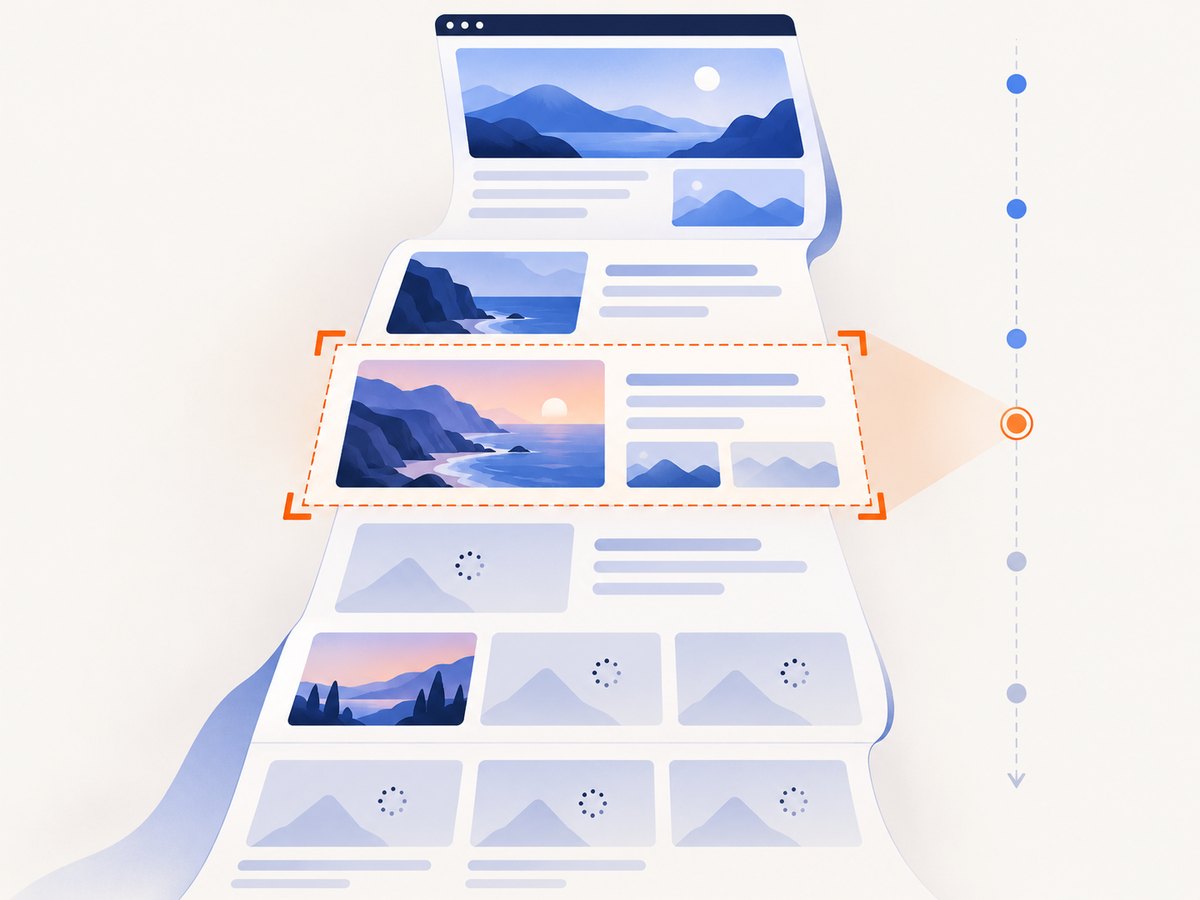
- Full page: captures the whole document, including below-the-fold content. Lazy-loaded images may not load until scrolled into view. A full-page option alone does not guarantee they have loaded; scroll through the page or use a service’s full-page lazy-image handling.
- Element: ideal for cards, charts and components. Wait for the element to exist and reach its final size before capturing.
- Clip: captures a precise rectangle. Check coordinate units and whether scaling applies before or after clipping.
PNG, transparency and file size
PNG is lossless and keeps text, sharp edges and interface details crisp. It can be larger than lossy formats for photographic content. Use transparency only if the background should be transparent; otherwise set a solid background to avoid unexpected transparent or dark areas in downstream viewers. A larger scale increases pixel count in both dimensions, so scale 2 produces roughly four times as many pixels as scale 1.
Make captures repeatable
- Set the viewport and device scale explicitly.
- Wait for the specific content to be ready: fonts, images, and any application state relevant to the capture.
- Disable or finish animations if the screenshot must be stable across runs.
- Use a fixed timezone, locale, color scheme and test data when those affect page appearance.
- Store the capture dimensions and relevant options with the image if another system needs to reproduce it.
8. Troubleshooting
| Symptom | Likely cause | Fix |
|---|---|---|
| Cross-origin image is missing or canvas export fails | The image host does not allow CORS, so the browser blocks reading it into a canvas. | Serve the image with appropriate CORS headers, use same-origin assets, or use a server-side browser with access to the resource. useCORS: true cannot override the remote server’s policy. |
| Canvas is blank or parts of the page differ | html2canvas reconstructs rendering from DOM data and does not support every CSS feature identically. | Check the library’s supported CSS behavior. If fidelity matters, capture the page in Playwright or Puppeteer, which drive a real browser. |
| Text uses the wrong font | Capture began before web fonts finished loading or font requests failed. | Wait for document.fonts.ready, verify font requests, then capture. |
| Images or charts are absent | Lazy loading, delayed rendering, or an incomplete network wait. | Scroll relevant sections into view; wait for image decode or a known chart-ready selector rather than relying only on a short fixed delay. |
| Full-page image cuts off or is unexpectedly tall | Content changed during capture, an infinite-scroll page kept growing, or the full-page behavior differs from expectations. | Freeze dynamic content, define a capture boundary, or capture a particular element/viewport. |
| PNG is too large or capture runs out of memory | High scale multiplied by a very tall full-page document. | Lower the scale, capture sections separately, crop to the needed region, or resize after capture. |
| Transparent areas appear black or white | The output was composited by a viewer or the page/background setting was unexpected. | Set an explicit background for opaque output. For transparency, verify the output format and use a viewer that preserves alpha. |
| Automation times out on navigation | Long-lived network connections or a page that never reaches the selected network-idle state. | Wait for domcontentloaded or a meaningful selector, then wait separately for the required assets. Set a timeout appropriate to the page. |
| Output is blurry despite PNG format | PNG preserves pixels but cannot restore detail absent from a low-resolution capture. | Increase device scale or viewport dimensions before capture; avoid enlarging the finished image. |
9. Performance, reliability and cost
Local browser capture avoids a per-request hosted conversion charge, but it requires browser installation, memory, CPU, concurrency control and maintenance. Browser startup can dominate a small capture; reuse a browser process for batches and create an isolated page or context per job. Limit parallel captures because several full-page, high-scale images can consume substantial memory at once.
html2canvas runs in the user’s browser and avoids server browser infrastructure, but capture success depends on the DOM, browser security rules and supported CSS. Playwright and Puppeteer provide real browser rendering, with the operational cost of managing a browser runtime and its updates. A hosted API shifts that infrastructure to the provider, so compare request limits, data handling, retention, reliability claims and pricing from current documentation rather than assuming they match your workload.
For any method, handle failures explicitly. Set finite navigation and capture timeouts, distinguish navigation errors from missing selectors and encoding failures, and retry only transient errors. A retry should not repeat an expensive capture indefinitely. If outputs are deterministic, cache them by URL plus viewport, scale, format and relevant page state. For hosted screenshot usage, the service’s billing rules matter: ScreenshotNeo says only clean shots are billed and its responses indicate verdict and billing status.
10. FAQ
Does a PNG automatically mean high resolution?
No. PNG is a file format. Sharpness depends on the number of pixels captured and the final display size.
Can html2canvas screenshot an iframe?
Same-origin iframe content may be accessible with additional handling, but browser security prevents reading cross-origin iframe contents. A real browser screenshot captures the rendered page view rather than reading the iframe DOM.
Should I use device scale 2 or 3?
Use the smallest scale that meets the output’s display or print requirements. Scale 2 doubles width and height relative to CSS pixels; scale 3 triples them and requires about nine times the pixels of scale 1.
Can I convert an HTML string rather than a live URL?
Yes. Render the markup in a browser page, then capture it with Playwright or Puppeteer. This also lets you supply CSS and wait for scripts before taking the image.
When should I choose an API over automation code?
Choose a hosted API when you prefer a request interface and do not want to operate browser infrastructure. Choose Playwright or Puppeteer when you need direct browser control, local execution, or custom automation behavior.


