How to Convert HTML to an Image: Examples and APIs
Convert HTML to PNG, JPEG, or WebP by rendering it in a browser. Compare Puppeteer, Playwright, PHP Browsershot, and ScreenshotNeo APIs.
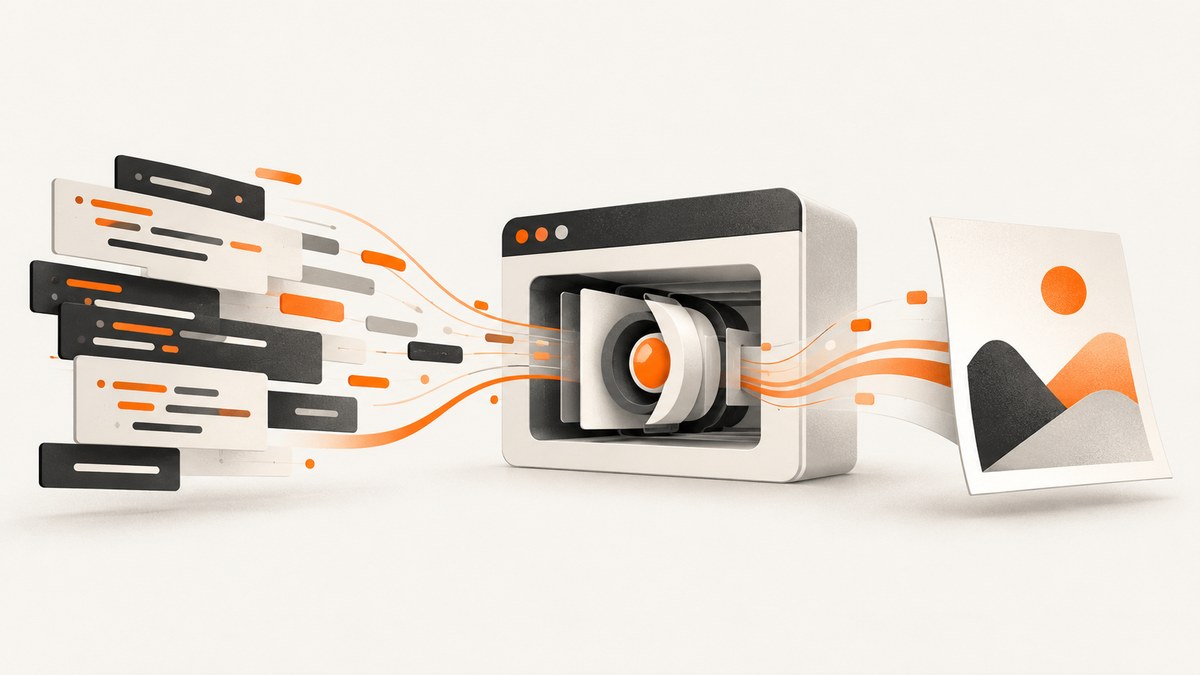
HTML-to-image conversion means browser rendering followed by screenshot capture. A browser engine evaluates HTML, CSS, fonts, images, JavaScript, and layout; the capture API then returns pixels as PNG, JPEG, or WebP. Raw string-to-bitmap conversion is unreliable for modern pages because it does not reproduce browser layout and behavior.
Use a browser automation library when you control the runtime. Use a hosted API when you want one HTTP request without installing Chromium or maintaining browser workers.
Choose the right capture path
| Need | Good fit | Why |
|---|---|---|
| URL or in-memory HTML from Node.js | Playwright | Viewport, full-page, element, buffer, format, quality, and scale controls. |
| Simple Node.js screenshot workflow | Puppeteer | Direct Chrome automation with URL navigation and element screenshots. |
| PHP application | Spatie Browsershot | PHP wrapper around Puppeteer and headless Chrome. |
| No browser setup or hosted capture | ScreenshotNeo | One GET request, clean captures, and usage-based plans. |
What the pipeline does
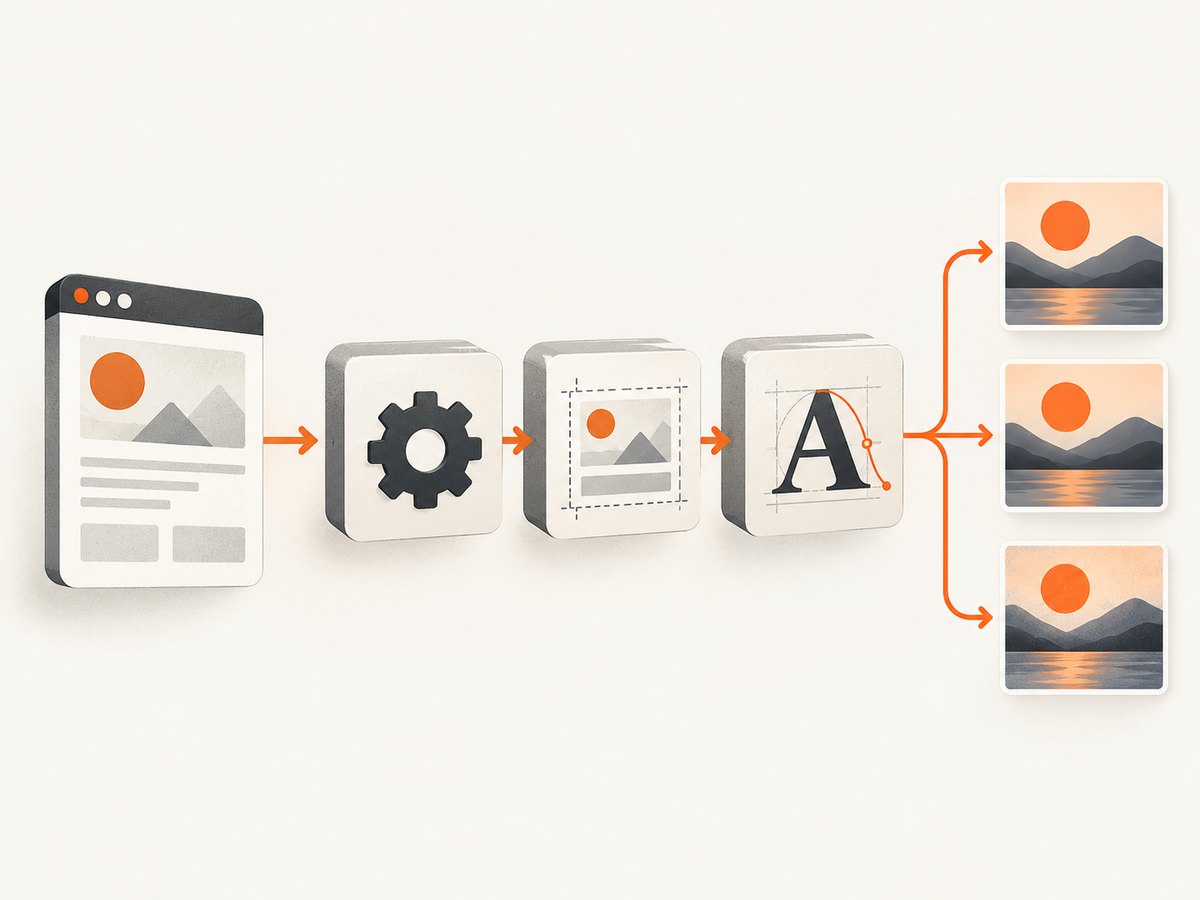
- Provide a URL, an HTML string, or a local HTML file.
- Start a browser engine and load the document.
- Wait for fonts, images, JavaScript, and any required selector or network state.
- Capture the viewport, the full scrollable page, or one element.
- Save the bytes to disk or process them in memory.
The rendering engine is part of the result. Different browser versions, installed fonts, device scale factors, and network responses can change the image.
Playwright (Node.js)
Playwright documents file screenshots, full-page capture, element screenshots, buffers, PNG/JPEG/WebP output, JPEG/WebP quality, and CSS-pixel versus device-pixel scale. Check the API for the version installed in your project: screenshots guide and Page API.
Capture a URL to PNG
import { chromium } from 'playwright';

const browser = await chromium.launch();
const page = await browser.newPage({ viewport: { width: 1440, height: 900 } });
await page.goto('https://example.com', { waitUntil: 'networkidle' });
await page.screenshot({ path: 'page.png', type: 'png' });
await browser.close();
Render an HTML string
import { chromium } from 'playwright';

const html = `<!doctype html>
<html><head>
  <style>body{font:16px system-ui;margin:40px} .card{padding:24px;border:1px solid #ddd}</style>
</head><body><div class="card">Rendered HTML</div></body></html>`;

const browser = await chromium.launch();
const page = await browser.newPage();
await page.setContent(html, { waitUntil: 'networkidle' });
await page.screenshot({ path: 'html.png', type: 'png' });
await browser.close();
Full page, element, JPEG, WebP, quality, and scale
import { chromium } from 'playwright';

const browser = await chromium.launch();
const page = await browser.newPage({ deviceScaleFactor: 2 });
await page.goto('https://example.com/article', { waitUntil: 'networkidle' });

await page.screenshot({
  path: 'article.webp',
  fullPage: true,
  type: 'webp',
  quality: 82,
  scale: 'css' // use 'device' for device-pixel output
});

const chart = page.locator('#chart');
await chart.screenshot({ path: 'chart.jpeg', type: 'jpeg', quality: 88 });
await browser.close();
quality applies to JPEG and WebP, not PNG. CSS scale keeps output dimensions based on CSS pixels; device scale uses device pixels and can create larger files. Full-page capture includes the scrollable document, while an element screenshot crops to the selected element.
Return image bytes for processing
import { chromium } from 'playwright';
import { writeFile } from 'node:fs/promises';

const browser = await chromium.launch();
const page = await browser.newPage();
await page.goto('https://example.com', { waitUntil: 'networkidle' });
const buffer = await page.screenshot({ type: 'png' });
await writeFile('result.png', buffer);
await browser.close();
Puppeteer (Node.js)
Puppeteer launches a browser, navigates to a page, and captures it with page.screenshot(). Its guide also documents capturing a particular element with ElementHandle.screenshot(): Puppeteer screenshots.
import puppeteer from 'puppeteer';

const browser = await puppeteer.launch();
const page = await browser.newPage();
await page.setViewport({ width: 1440, height: 900, deviceScaleFactor: 1 });
await page.goto('https://example.com', { waitUntil: 'networkidle0' });
await page.screenshot({ path: 'page.png', fullPage: true });

const element = await page.$('.card');
if (element) await element.screenshot({ path: 'card.png' });
await browser.close();
For an HTML string, call page.setContent(html) before taking the screenshot. For pages with delayed rendering, wait for a selector, a short delay, or a known application state instead of assuming navigation completion means the UI is finished.
PHP with Spatie Browsershot
Spatie Browsershot is a PHP integration whose conversion is performed by Puppeteer running headless Chrome. Its documentation supports URL input, arbitrary HTML, and file-path HTML input. Installation and compatibility requirements change, so follow the current project documentation for your installed version.
<?php

use Spatie\Browsershot\Browsershot;

Browsershot::url('https://example.com')
    ->windowSize(1440, 900)
    ->setScreenshotType('png')
    ->save('page.png');

Browsershot::html('<div style="padding:40px">Rendered HTML</div>')
    ->save('html.png');
Capture scope and rendering controls
Viewport versus full page
A viewport screenshot is bounded by the browser window and is useful for previews. A full-page screenshot expands through the document’s scrollable height and is useful for articles and invoices. Very tall pages can create large images or exceed memory limits; split long documents when your downstream system has size constraints.
Element screenshots
Target a stable CSS selector for cards, charts, receipts, or any component. Wait until the element is visible and its content is complete. Avoid selectors that depend on generated class names.
Fonts and assets
Install the same fonts in development and production, wait for document.fonts.ready when needed, and ensure images are reachable from the browser process. Cross-origin resources, authentication, and expiring URLs can change the result.
Deterministic output
- Set an explicit viewport and device scale factor.
- Use a fixed timezone and locale where dates or number formats appear.
- Disable animations with injected CSS or wait for the application to finish transitions.
- Use a controlled data fixture instead of live, changing content.
- Wait for a specific selector or application signal rather than an arbitrary long delay.
cURL, Python, and hosted API capture
For a hosted screenshot service, the input is a URL and the response body is the image bytes. Save the response in binary mode and check the HTTP status before treating it as an image.
curl -L "https://api.example.com/screenshot?url=https%3A%2F%2Fexample.com" -o shot.pngimport requests
r = requests.get(
"https://api.example.com/screenshot",
params={"url": "https://example.com"},
timeout=90,
)
r.raise_for_status()
with open("shot.png", "wb") as f:
f.write(r.content)Or skip the browser setup
ScreenshotNeo provides a website screenshot API and MCP server. It removes cookie and consent banners, newsletter popups, and chat widgets before capture. Bot checks, blank pages, failed loads, timeouts, and cache hits are not billed, and response headers identify the page verdict and billing result. Its MCP tools let Claude, Cursor, and other MCP clients call take_screenshot, get_page_info, and capture_pdf.
See the ScreenshotNeo API documentation for all options, including full-page and element capture, formats, custom CSS and JavaScript, waits, blocking rules, headers, cookies, user agents, geolocation, caching, signed links, async jobs, bulk capture, and usage reporting.
curl -G "https://api.screenshotneo.com/v1/shot" -d access_key=YOUR_API_KEY --data-urlencode url=https://stripe.com -o shot.webpimport requests
r = requests.get("https://api.screenshotneo.com/v1/shot", params={"access_key": "YOUR_API_KEY", "url": "https://stripe.com"}, timeout=90)
open("shot.webp", "wb").write(r.content)const q = new URLSearchParams({ access_key: 'YOUR_API_KEY', url: 'https://stripe.com' });
const res = await fetch(`https://api.screenshotneo.com/v1/shot?${q}`);Free usage includes 1,000 screenshots per month with no card. Paid plans start at $5 for 3,000 screenshots. Create a free ScreenshotNeo account.
Performance, reliability, and cost
- Startup: Reuse a browser process and create new pages or contexts for multiple captures; launching Chromium for every image adds overhead.
- Concurrency: Limit parallel pages to the CPU and memory available. Excess concurrency causes timeouts and crashes.
- Payload size: WebP or JPEG usually produces smaller files than PNG; PNG is preferable for sharp text, transparency, or lossless output.
- Waiting: Network-idle waits can be delayed by analytics or long polling. Prefer a semantic readiness selector when the application provides one.
- Retries: Retry transient navigation and network failures with bounded exponential backoff. Do not blindly retry deterministic 4xx responses.
- Hosted billing: Cache stable URLs where possible and monitor response status and billing headers. ScreenshotNeo lets you choose a cache TTL; cache hits are not billed.
Troubleshooting
| Symptom | Likely cause | Fix |
|---|---|---|
| Blank or partially rendered image | Capture ran before client-side rendering completed. | Wait for a selector, fonts, network state, or an application-ready flag. |
| Missing web fonts | Font files were unavailable or not loaded. | Check network access, install required fonts, and await document.fonts.ready. |
| Images missing | Lazy loading, blocked requests, or expired URLs. | Scroll or use full-page capture, allow required resource types, and verify asset URLs. |
| Element selector fails | Selector is unstable or element is inside a frame. | Use a stable attribute, wait for visibility, and target the correct frame. |
| Timeout | Slow origin, never-ending requests, or overloaded browser. | Set a realistic timeout, wait on a readiness selector, limit concurrency, and inspect server logs. |
| Different output in CI | Browser version, fonts, timezone, or device scale differs. | Pin the browser/runtime, install fonts, set viewport and timezone explicitly, and compare metadata. |
| Huge file or memory error | Very tall page or device-pixel scale. | Use CSS scale, reduce viewport width, split the document, or choose JPEG/WebP. |
| HTML appears as text | Markup was escaped or inserted into the wrong context. | Pass a complete HTML document to setContent and validate the string before navigation. |

Security considerations
Rendering untrusted HTML can execute scripts and request network resources. Isolate browser workers, restrict outbound access where possible, avoid exposing internal services to page navigation, and never place API keys in client-side HTML. Treat screenshots and temporary HTML as potentially sensitive data.
FAQ
Can I convert HTML to an image without a browser?
Only for very limited markup. For CSS layout, web fonts, images, and JavaScript, use a browser engine or a service built on one.
Which format should I choose?
Use PNG for lossless text and transparency, JPEG for photographs and small files, and WebP when supported by your consumers and you want a compact result.
Should I capture the full page or an element?
Capture the full page for documents and pages; capture an element for a component, chart, card, or controlled export.
Why does the same HTML produce different pixels?
Browser versions, fonts, device scale, timezone, animations, network responses, and dynamic data all affect rendering. Pin and configure those inputs for repeatable output.
Can a screenshot API return bytes instead of a file?
Yes. Playwright returns a buffer when no path is supplied, and HTTP APIs return image bytes in the response body.


