How to Convert HTML to an Image and Save It With html2canvas
Convert an HTML element to a downloadable PNG with html2canvas, handle missing images and CSS limits, and know when to use a native screenshot API.
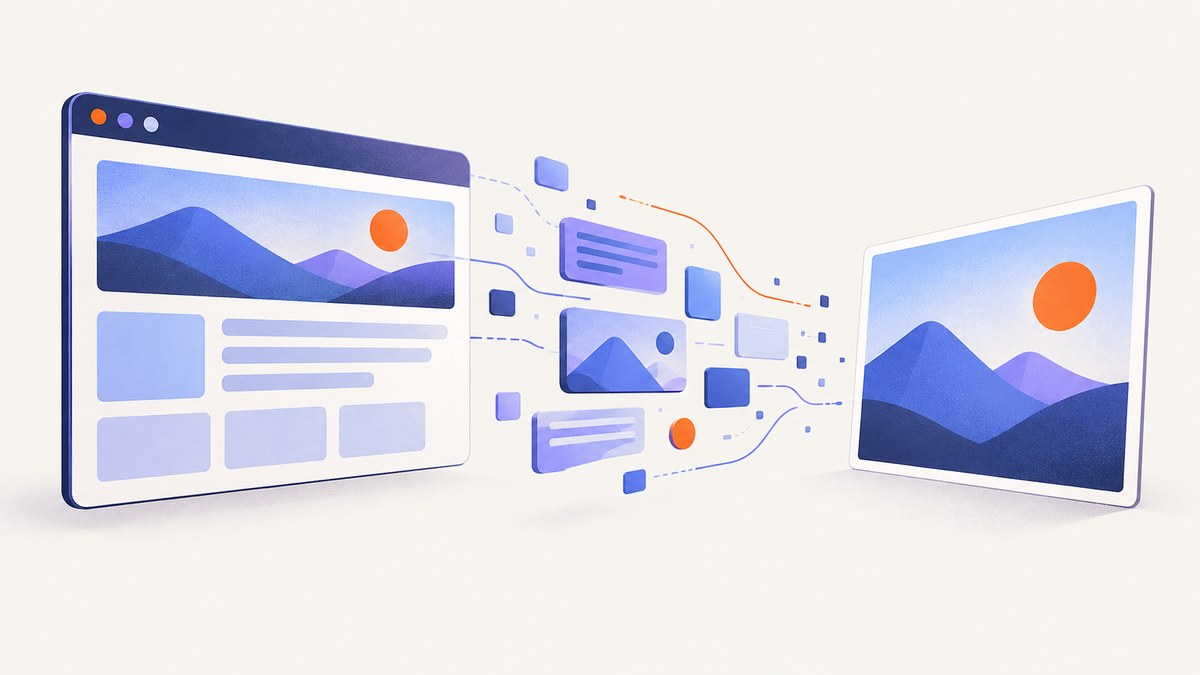
Direct answer: install @html2canvas/html2canvas, select the element, await html2canvas(element), then download the returned canvas with toDataURL('image/png'). The result is reconstructed from the DOM; it is not a native browser screenshot, so CSS support, cross-origin images, and canvas size limits affect the output.
1. Complete working example
The following page converts a card with text, gradients, and a local image into a PNG when the user clicks a button.
<!doctype html>
<html lang="en">
<head>
  <meta charset="utf-8">
  <meta name="viewport" content="width=device-width, initial-scale=1">
  <title>html2canvas export</title>
  <script type="module">
    import html2canvas from 'https://cdn.jsdelivr.net/npm/@html2canvas/html2canvas@1.4.1/+esm';

    const button = document.querySelector('#download');
    const target = document.querySelector('#capture');

    button.addEventListener('click', async () => {
      button.disabled = true;
      try {
        const canvas = await html2canvas(target, {
          backgroundColor: '#ffffff',
          scale: window.devicePixelRatio,
          useCORS: true
        });

        const link = document.createElement('a');
        link.download = 'card.png';
        link.href = canvas.toDataURL('image/png');
        link.click();
      } catch (error) {
        console.error('Could not export element', error);
        alert('The image could not be exported. Check the console for details.');
      } finally {
        button.disabled = false;
      }
    });
  </script>
  <style>
    body { font-family: system-ui, sans-serif; padding: 2rem; background: #eef2ff; }
    #capture { width: 520px; padding: 2rem; border-radius: 18px; background: linear-gradient(135deg, #312e81, #7c3aed); color: white; }
    #capture h1 { margin-top: 0; }
    #download { margin-top: 1rem; padding: .7rem 1rem; }
  </style>
</head>
<body>
  <article id="capture">
    <h1>Export this card</h1>
    <p>html2canvas reconstructs this element on a canvas.</p>
  </article>
  <button id="download">Download PNG</button>
</body>
</html>
For a bundled application, install the package with npm install @html2canvas/html2canvas and import it with import html2canvas from '@html2canvas/html2canvas'. The project’s official example uses the same Promise and anchor-download pattern.
2. How html2canvas works
html2canvas traverses the selected DOM subtree, reads the styles and content it understands, and paints a new representation onto a canvas. It does not ask the browser for a native screenshot. The official documentation therefore warns that the result may differ from the page’s real rendering.
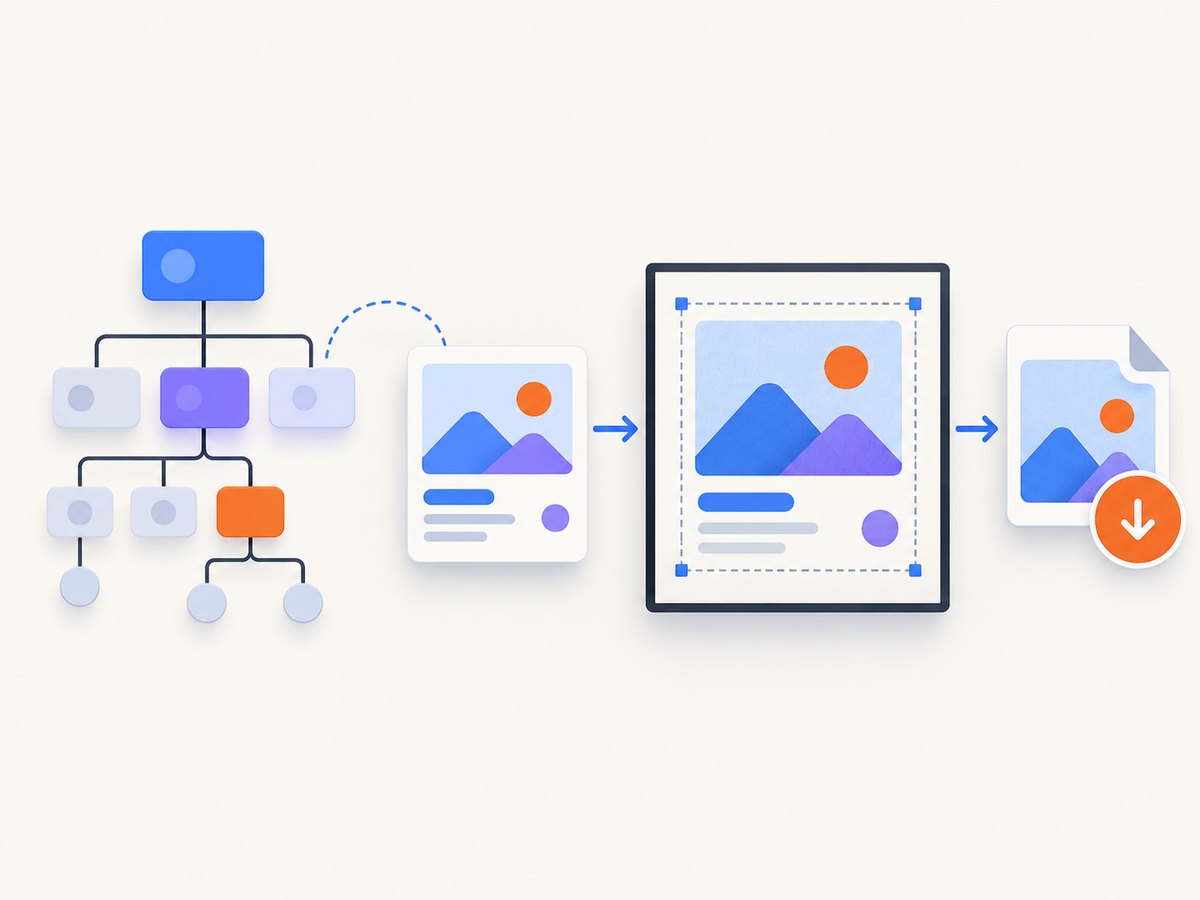
This distinction determines whether it is the right tool:
| Need | Best fit |
|---|---|
| Export one element inside the current page | html2canvas |
| Exact browser pixels, including extensions or browser chrome | Native browser screenshot APIs |
| Server-side screenshots | Puppeteer, Playwright, or a screenshot API |
| Large or protected remote pages | A server-side capture service |
3. Selecting the element and waiting for content
Pass a real element, not a selector string. Wait until fonts, images, and dynamic data needed by the card are ready before calling html2canvas.
const target = document.querySelector('#invoice');
if (!target) throw new Error('Missing #invoice element');

await document.fonts.ready;
for (const image of target.querySelectorAll('img')) {
  if (!image.complete) {
    await new Promise((resolve, reject) => {
      image.addEventListener('load', resolve, { once: true });
      image.addEventListener('error', reject, { once: true });
    });
  }
}

const canvas = await html2canvas(target);
If content appears after an API request or animation, wait for that application state yourself. html2canvas captures what exists at the time it starts.
4. Important options
| Option | Use | Example |
|---|---|---|
scale |
Increase output pixel density | scale: window.devicePixelRatio |
backgroundColor |
Set the canvas background; use null for transparency where supported |
backgroundColor: '#fff' |
x, y, width, height |
Capture a crop or explicit region | { x: 20, y: 10, width: 400, height: 200 } |
windowWidth, windowHeight |
Control the virtual viewport used while rendering | windowWidth: target.scrollWidth |
useCORS |
Request remote images with CORS | useCORS: true |
proxy |
Use a proxy you control for permitted cross-origin assets | proxy: '/image-proxy' |
allowTaint |
Allow tainting, which prevents safe export | allowTaint: false |
ignoreElements |
Skip nodes programmatically | ignoreElements: el => el.matches('.no-export') |
onclone |
Adjust the cloned document before painting | onclone: doc => doc.body.classList.add('exporting') |
You can also mark an element with data-html2canvas-ignore:
<button data-html2canvas-ignore>Delete</button>Use the official supported-features list as the authority for CSS behavior. Unsupported properties are skipped or approximated; simplifying the export styles is often more reliable than trying to force an unsupported effect.
5. Cropping, full content, and high-resolution output
To capture content extending beyond the viewport, provide dimensions based on the element’s scroll area:
const canvas = await html2canvas(target, {
  windowWidth: target.scrollWidth,
  windowHeight: target.scrollHeight,
  width: target.scrollWidth,
  height: target.scrollHeight,
  scale: Math.min(window.devicePixelRatio, 2)
});
There is no universal maximum canvas size. Browser and device limits vary. A blank or partial image usually means the requested bitmap is too large. Reduce the target, lower scale, split a long document into sections, or capture a smaller crop.
6. Saving PNG, JPEG, and WebP
PNG is the dependable baseline because browsers are required to support it.
const pngUrl = canvas.toDataURL('image/png');
const jpegUrl = canvas.toDataURL('image/jpeg', 0.9);
const webpUrl = canvas.toDataURL('image/webp', 0.9);
JPEG and WebP support and output quality depend on the browser. For large images, canvas.toBlob() avoids building a very large base64 string:
canvas.toBlob(blob => {
  if (!blob) throw new Error('Browser could not encode the canvas');
  const url = URL.createObjectURL(blob);
  const link = document.createElement('a');
  link.download = 'capture.png';
  link.href = url;
  link.click();
  URL.revokeObjectURL(url);
}, 'image/png');
7. Why images are missing
Remote images are subject to browser same-origin rules. Set useCORS: true only when the image server sends an Access-Control-Allow-Origin header that permits your page. If it does not, the browser can taint the canvas and reading it with toDataURL or toBlob fails. html2canvas cannot bypass this policy.
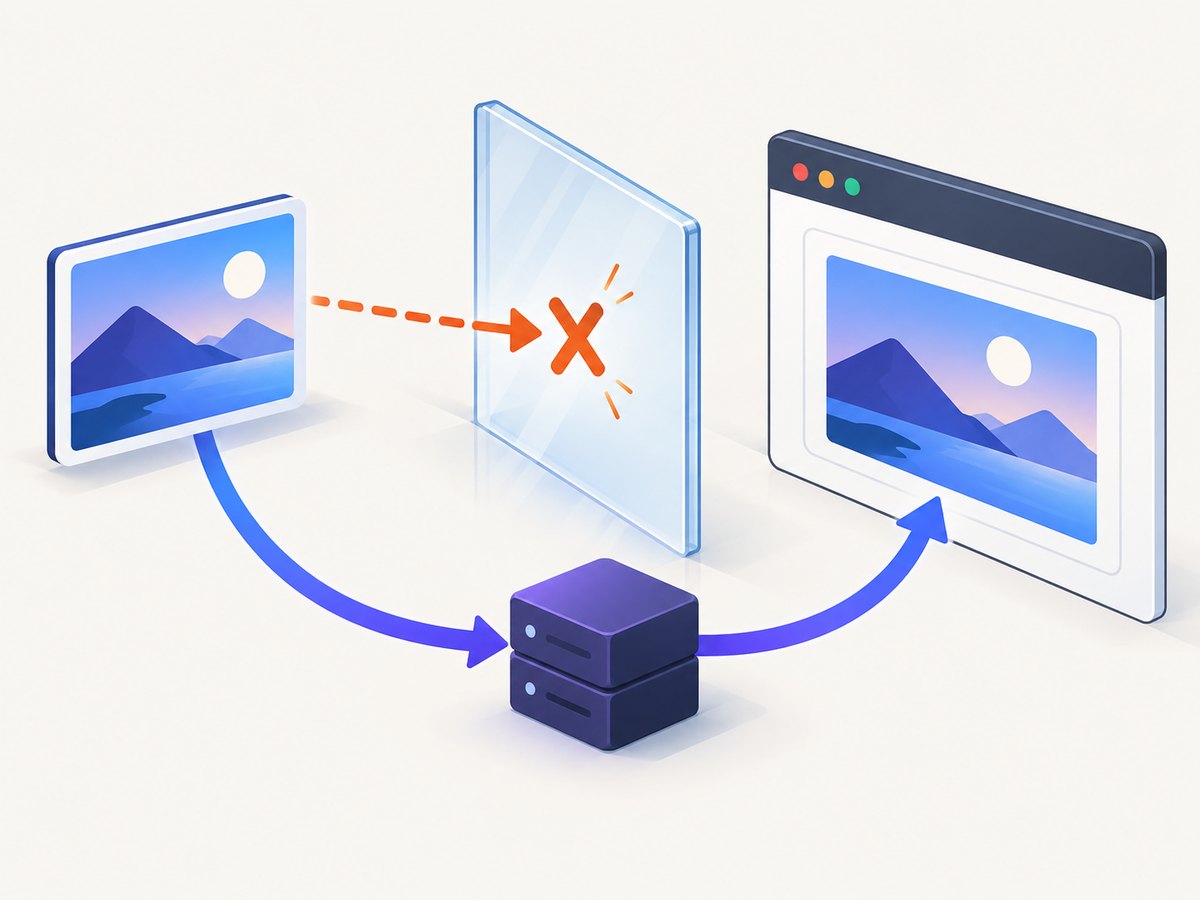
- Open the image URL directly and inspect its response headers.
- Configure the image host to allow your site’s origin, when you control it.
- Otherwise send the image through a server-side proxy you control and use that URL.
- Do not treat
allowTaint: trueas a fix; a tainted canvas is not exportable.
Also check that the image has loaded before capture and that CSS does not hide it. Lazy-loaded images may need to be scrolled into view or loaded explicitly first.
8. Common errors and fixes
| Symptom | Likely cause | Fix |
|---|---|---|
Unable to read property ... of null |
The selector matched nothing | Run after the DOM is rendered and check the element exists. |
| SecurityError when exporting | A cross-origin image tainted the canvas | Enable permitted CORS or use a proxy; remove or replace the image. |
| Blank or cut-off result | Canvas dimensions exceed a browser/device limit | Lower scale, reduce dimensions, set window dimensions, or split the capture. |
| Fonts differ | Web fonts were still loading | Await document.fonts.ready and confirm the font response is allowed. |
| Shadows, filters, or layout differ | The CSS property is unsupported or approximated | Check the supported-features documentation and add export-specific styles. |
| Button or overlay appears in the image | It was not excluded from the cloned DOM | Use data-html2canvas-ignore, ignoreElements, or onclone. |
| Node.js import fails | html2canvas depends on browser APIs | Use it in a browser; use Puppeteer, Playwright, or an API for server-side work. |
9. Performance and reliability checklist
- Capture the smallest element that meets the requirement.
- Keep
scalenear the device pixel ratio, but lower it for very large areas. - Wait for fonts, images, and application data before starting.
- Disable animations during export with an export-only class.
- Prefer
toBlobfor large files. - Test on the browsers and devices your users actually use.
- Handle rejected Promises and encoding failures in the UI.
- Do not expose private image URLs or credentials through a client-side proxy.
Every additional pixel increases memory and encoding work. A long, high-density page can freeze a low-memory mobile tab even when a desktop succeeds. For repeatable server jobs, queue work and use a native browser capture tool instead.
10. Or skip the browser setup
ScreenshotNeo provides a website screenshot API when you need a URL captured outside the user’s browser. Its capture flow removes cookie and consent banners, newsletter popups, and chat widgets before the shot. Bot checks, blank pages, failed loads, timeouts, and cache hits are not billed, and the response identifies the verdict and billing with X-Page-Verdict and X-Billed headers. An MCP server lets Claude, Cursor, and other MCP clients call screenshot tools.
See the ScreenshotNeo API documentation for all options. A one-call request returns PNG, JPEG, WebP, or PDF:
curl -G "https://api.screenshotneo.com/v1/shot" -d access_key=YOUR_API_KEY --data-urlencode url=https://stripe.com -o shot.webpimport requests
r = requests.get("https://api.screenshotneo.com/v1/shot", params={"access_key": "YOUR_API_KEY", "url": "https://stripe.com"}, timeout=90)
open("shot.webp", "wb").write(r.content)const q = new URLSearchParams({ access_key: 'YOUR_API_KEY', url: 'https://stripe.com' });
const res = await fetch(`https://api.screenshotneo.com/v1/shot?${q}`);There are 1,000 free screenshots each month with no card. Paid plans start at $5 for 3,000 shots, and every feature is included on every plan. Create a free ScreenshotNeo account.
11. FAQ
Can html2canvas capture an entire webpage?
It can render a large element or page-sized region when dimensions fit browser canvas limits, but it may need explicit window dimensions and can produce partial output on very large pages.
Does html2canvas create a true screenshot?
No. It reconstructs the DOM on a canvas, so unsupported CSS and browser rendering details can differ.
Can I run html2canvas in Node.js?
No. It relies on browser APIs. Use a headless browser or a screenshot API for server-side generation.
Why is my PNG blurry?
Increase scale or capture at a larger CSS size, while watching memory and canvas limits.
Which format should I use?
Use PNG when dependable browser support and lossless output matter. Choose JPEG or WebP only after checking support and quality requirements.


