How to Convert HTML to an Image in Node.js
Render HTML in a headless browser, wait for assets and JavaScript, then capture a PNG, JPEG, or WebP with Node.js.
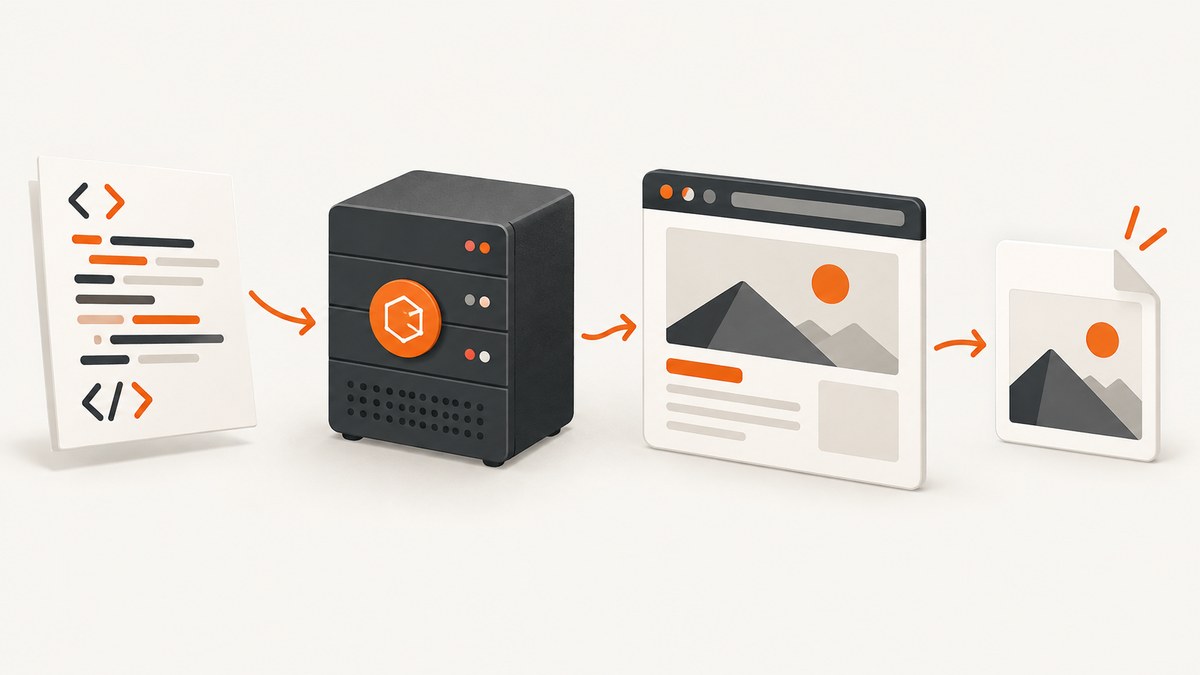
To convert HTML to an image in Node.js, render the HTML in a headless browser, wait until its fonts, images, and client-side JavaScript are ready, then call the browser screenshot API. Puppeteer and Playwright are the main choices. A wrapper such as node-html-to-image reduces boilerplate when you only need template-driven output.
This approach handles modern CSS, web fonts, responsive layouts, SVG, and JavaScript-generated content. It also lets you choose a viewport, device scale, image format, quality, full-page capture, a single element, transparency, and a precise clipping rectangle.
1. Set up a Node.js screenshot project
Create a project and install one renderer. Puppeteer is a practical default when you want direct Chromium control.
mkdir html-image && cd html-image
npm init -y
npm install puppeteer
Use a current Node.js LTS release and make your package an ES module if you want the import syntax used below:
npm pkg set type=modulePuppeteer downloads a compatible browser during installation. In a production image, pin the Puppeteer version and keep the browser version controlled so a dependency update does not silently change line wrapping or colors.
2. Convert an HTML string to PNG with Puppeteer
The following complete program renders an HTML document, waits for the page load event and web fonts, and writes a 1200 × 630 PNG.

import puppeteer from 'puppeteer';
const html = `
Hello from Node.js
HTML rendered as an image
Puppeteer’s official screenshots guide uses Page.screenshot() for capture: Puppeteer screenshots documentation. When no path is supplied, the API returns image bytes (a Uint8Array) that you can upload to object storage or return from an HTTP endpoint instead of writing a file.
Use a local HTML file
For a file on disk, convert its path to a file URL and navigate to it:
import puppeteer from 'puppeteer';
import { pathToFileURL } from 'node:url';

const browser = await puppeteer.launch({ headless: true });
try {
  const page = await browser.newPage();
  await page.setViewport({ width: 1200, height: 800, deviceScaleFactor: 2 });
  await page.goto(pathToFileURL('./invoice.html').href, { waitUntil: 'load' });
  await page.evaluate(() => document.fonts.ready);
  await page.screenshot({ path: 'invoice.webp', type: 'webp', quality: 85 });
} finally {
  await browser.close();
}
Render a remote URL
Use page.goto() for a deployed page. networkidle2 waits until there are no more than two active network connections for a short period, but it is not proof that every visual asset is ready. Add explicit waits for important selectors, images, and fonts.
await page.goto('https://example.com/report', {
  waitUntil: 'networkidle2',
  timeout: 60_000
});
await page.waitForSelector('#report-ready', { timeout: 30_000 });
await page.evaluate(() => document.fonts.ready);
await page.screenshot({ path: 'report.png', fullPage: true });
3. Choose the capture you actually need
Viewport screenshot
A normal screenshot captures the current viewport. Set the viewport deliberately because the default size can change responsive breakpoints.
await page.setViewport({ width: 1440, height: 900, deviceScaleFactor: 1 });
await page.screenshot({ path: 'viewport.png', type: 'png' });
Full-page screenshot
Set fullPage: true to capture the entire scrollable document. Very tall pages can consume substantial memory; an element screenshot or a fixed clip is safer for large documents.
await page.screenshot({ path: 'full-page.png', fullPage: true });One element
Capture a card, chart, invoice, or other component with a CSS selector. Waiting for the selector avoids a race with client-side rendering.
await page.waitForSelector('.invoice-card');
const card = await page.$('.invoice-card');
await card.screenshot({ path: 'invoice-card.png', type: 'png' });
Clipped region
Use clip when you know exact coordinates. The rectangle uses CSS pixels, while deviceScaleFactor controls the resulting pixel density.
await page.screenshot({
  path: 'header.png',
  clip: { x: 0, y: 0, width: 1200, height: 240 }
});
4. Select PNG, JPEG, WebP, quality, and transparency
| Option | Use it when | Notes |
|---|---|---|
| PNG | Text, diagrams, UI, or transparency | Lossless; usually larger than JPEG |
| JPEG | Photos and gradients | Set quality from 0 to 100; no alpha channel |
| WebP | Small modern web assets | Use the format supported by your selected browser API |
deviceScaleFactor: 2 |
Retina output | Doubles pixel dimensions and increases memory and file size |
omitBackground: true |
Transparent PNG | Use PNG; JPEG cannot preserve transparency |
await page.screenshot({
  path: 'transparent.png',
  type: 'png',
  omitBackground: true
});

await page.screenshot({
  path: 'photo.jpg',
  type: 'jpeg',
  quality: 82
});
Playwright exposes the same core choices with path, type, quality, scale, fullPage, and buffer output. Its screenshot reference is at Playwright screenshots documentation.
5. Wait for fonts, images, and application state
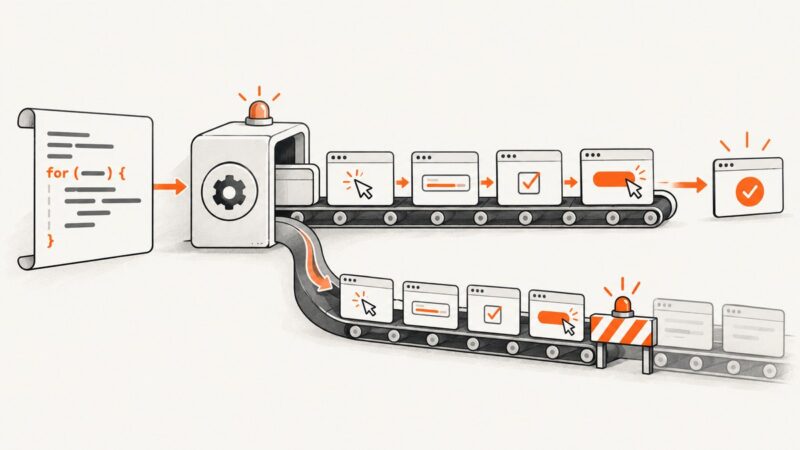
Most incorrect screenshots are timing errors. A page can report load while a framework is still rendering, a web font is still downloading, or a lazy image is still below the fold.
await page.goto('https://example.com/dashboard', { waitUntil: 'domcontentloaded' });
await page.waitForSelector('[data-render-complete="true"]', { timeout: 30_000 });
await page.evaluate(async () => {
  await document.fonts.ready;
  await Promise.all([...document.images].map(img =>
    img.complete ? Promise.resolve() : new Promise(resolve => {
      img.addEventListener('load', resolve, { once: true });
      img.addEventListener('error', resolve, { once: true });
    })
  ));
});
For pages you control, expose a readiness marker after data fetching and layout work finish. A fixed delay such as await new Promise(r => setTimeout(r, 1000)) can help with an uncooperative third-party page, but a selector or application flag is more reliable.
Freeze animation and unstable values when output must be reproducible:
await page.addStyleTag({ content: `
  *, *::before, *::after {
    animation: none !important;
    transition: none !important;
    caret-color: transparent !important;
  }
` });
await page.evaluate(() => {
  document.querySelectorAll('time[data-now]').forEach(el => { el.textContent = '2026-01-01'; });
});
6. A Playwright implementation
Choose Playwright when your existing stack needs Chromium, Firefox, and WebKit contexts or when you already use its locator and test tooling.
import { chromium } from 'playwright';
const browser = await chromium.launch();
try {
const page = await browser.newPage({
viewport: { width: 1200, height: 630 },
deviceScaleFactor: 1
});
await page.setContent('Hello
For an element, use await page.locator('.card').screenshot({ path: 'card.png' }). For a complete document, use await page.screenshot({ path: 'page.png', fullPage: true }). Browser, operating system, and installed fonts affect pixels, so keep generation and visual comparison in the same controlled environment.
7. Use node-html-to-image for template-driven jobs
node-html-to-image wraps Puppeteer and is convenient when your input is a template with variables rather than a full browser workflow.
import nodeHtmlToImage from 'node-html-to-image';
const image = await nodeHtmlToImage({
html: '{{title}}
',
content: { title: 'Invoice' },
type: 'png',
selector: 'body',
transparent: true
});
await import('node:fs/promises').then(fs => fs.writeFile('invoice.png', image));
The package documentation describes PNG and JPEG output, selector targeting, transparent PNGs, binary or base64 encoding, wait settings, custom Puppeteer injection, and maximum concurrency. It is a good fit for small services; use direct Puppeteer or Playwright when you need navigation, authentication, request interception, or detailed readiness checks.
8. Pass data safely into HTML
Do not concatenate untrusted values into a script block. Escape text or assign it through the DOM. Treat user supplied HTML as active browser content: it can execute JavaScript and request external resources.
const data = { title: 'Quarterly report', total: '$1,240' };
const safeTitle = data.title.replace(/[&<>"']/g, ch => ({
'&': '&', '<': '<', '>': '>', '"': '"', "'": '''
}[ch]));
const html = `${safeTitle}
${data.total}
For multi-tenant systems, restrict outbound requests, avoid exposing cloud metadata endpoints, and isolate the browser process. If the HTML does not need JavaScript, disable it and provide only the resources required for rendering.
9. Reliability and performance checklist
- Pin Node.js, renderer, and browser versions.
- Set viewport, device scale, locale, timezone, and color scheme explicitly.
- Wait for a page readiness marker, web fonts, and critical images.
- Disable animations, random values, clocks, and rotating content for deterministic output.
- Reuse one browser process for a batch; create and close pages per job.
- Always close the browser in a
finallyblock. - Prefer an element capture or controlled clip for large pages.
- Limit concurrency to the CPU and memory available; each page consumes browser resources.
- Cache identical inputs and use stable asset URLs.
- Record render duration, output bytes, target URL, and the renderer version.
Launching a browser for every image adds startup cost. A long-lived browser with a bounded page pool is faster for batches, while a short-lived process is easier to isolate for untrusted jobs. Higher device scale factors, full-page captures, large images, and multiple browser engines increase memory and processing time.
10. Troubleshooting common failures
| Symptom | Likely cause | Fix |
|---|---|---|
| Blank or partially rendered image | Capture happened before client rendering finished | Wait for a readiness selector, fonts, and images; avoid relying only on networkidle. |
| Missing web fonts or changed line breaks | Font request failed or capture ran before document.fonts.ready |
Check network access, preload fonts, await the font set, and install the same fonts in every worker. |
| Lazy images are absent | They load only after scrolling | Scroll the document before capture or use a renderer feature that loads lazy images; wait for image completion. |
| “Navigation timeout exceeded” | Slow page, never-ending connection, or blocked request | Set a suitable timeout, use domcontentloaded, then wait for the specific content you need. |
| Incorrect mobile layout | Viewport or device scale was not set | Set an explicit viewport before navigation and use the intended device scale. |
| Transparent output is black or white | JPEG was selected or the page paints a background | Use PNG with omitBackground: true and remove background CSS. |
| Text or animations differ between runs | Different browser, OS, fonts, locale, or animation state | Pin the environment and disable animations and dynamic values. |
| Browser crashes under load | Too many pages, huge full-page captures, or high device scale | Reduce concurrency, capture an element, lower scale, and monitor memory. |
| Access denied or CAPTCHA | The destination protects automated browsers | Use an authorized source, authenticate correctly, or choose a service that reports blocked captures instead of treating them as successful images. |
11. Or skip the browser setup
ScreenshotNeo provides a website screenshot API and MCP server. One GET request returns a PNG, JPEG, WebP, or PDF, so your Node.js service does not need to install or operate Chromium. Read the parameter reference in the ScreenshotNeo documentation.

cURL
curl -G 'https://api.screenshotneo.com/v1/shot' -d access_key=YOUR_API_KEY --data-urlencode url=https://stripe.com -o shot.webpPython
import requests
r = requests.get('https://api.screenshotneo.com/v1/shot', params={'access_key': 'YOUR_API_KEY', 'url': 'https://stripe.com'}, timeout=90)
open('shot.webp', 'wb').write(r.content)
Node.js
const q = new URLSearchParams({ access_key: 'YOUR_API_KEY', url: 'https://stripe.com' });
const res = await fetch(`https://api.screenshotneo.com/v1/shot?${q}`);
if (!res.ok) throw new Error(`Screenshot failed: ${res.status}`);
const fs = await import('node:fs/promises');
await fs.writeFile('shot.webp', Buffer.from(await res.arrayBuffer()));
ScreenshotNeo accepts options for full-page capture, CSS element selection, dark mode, device presets or custom viewports, retina scale, PDF paper and margins, custom CSS and JavaScript, clicks, selector or delay waits, network idle, blocked ads and trackers, headers, cookies, user agents, authorization, timezone, geolocation, transparent backgrounds, resizing, caching with a chosen TTL, signed links, asynchronous jobs with signed webhooks, bulk capture of up to 100 URLs per call, and usage reporting.
It removes cookie and consent banners, newsletter popups, and chat widgets before capture. Bot checks, CAPTCHAs, blank pages, timeouts, failed loads, and cache hits are not billed; response headers identify the page verdict and whether it was billed with X-Page-Verdict and X-Billed. Its MCP server exposes take_screenshot, get_page_info, and capture_pdf for Claude, Cursor, and other MCP clients.
The Free plan includes 1,000 screenshots each month with no card. Paid plans start at $5 for 3,000 shots; yearly billing gives two months free, and every feature is available on every plan. Create a free ScreenshotNeo account to start with the 1,000 monthly shots.
12. Cost and architecture decisions
Self-hosted Puppeteer or Playwright has no per-shot vendor fee, but you pay for compute, browser storage, maintenance, concurrency limits, and operational work. A hosted API trades browser operations for a request cost and gives you a simpler deployment. Compare the total cost of worker machines, failed jobs, retries, and engineering time rather than only the image price.
For predictable recurring pages, cache by URL plus all rendering inputs: HTML or data version, viewport, format, scale, locale, and custom CSS. For user-generated pages, use bounded timeouts and a queue so one slow destination cannot exhaust all workers.
FAQ
Can Node.js convert HTML without a browser?
Only for limited markup. A browser is the reliable choice when CSS layout, web fonts, SVG, or JavaScript affect the result. Canvas or server-side image libraries work for simpler, explicitly drawn graphics.
Which is better, Puppeteer or Playwright?
Puppeteer is a direct Chromium workflow. Playwright is useful when you need multiple browser engines or its existing locator and test APIs. Both can return image bytes or write files.
How do I make screenshots identical in CI?
Use the same browser and operating system image, install the same fonts, set viewport and locale, wait for readiness, and disable animation and time-dependent content.
How do I return the image from an Express route?
Capture without a file path, set Content-Type to the selected image MIME type, and send the returned buffer. Always enforce authentication, timeouts, and limits on the target URL.
When should I use an API instead of running Chromium?
Use an API when you want a small deployment, managed browser infrastructure, consent and popup cleanup, usage headers, bulk jobs, or an MCP workflow. Run your own browser when you need complete control over the execution environment or custom browser instrumentation.