Convert HTML to Image in Python
Convert HTML to PNG, JPEG, or WebP in Python with Playwright, WeasyPrint, complete examples, troubleshooting, and a hosted API option.
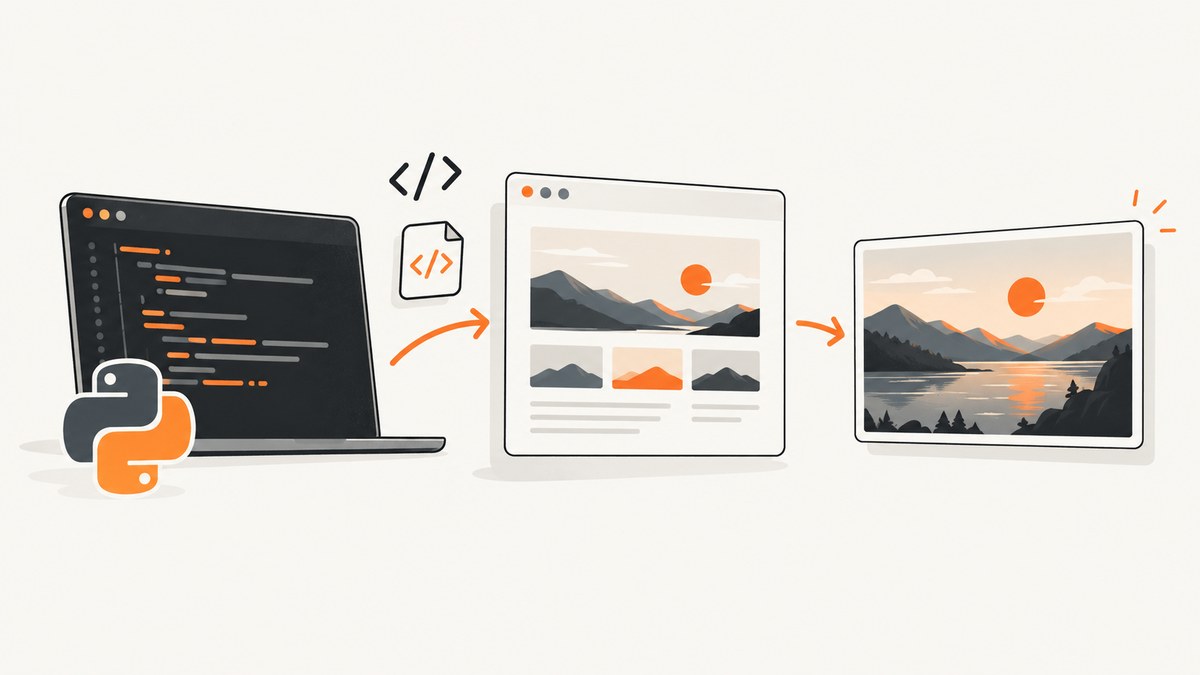
To convert HTML to an image in Python, render the HTML in a browser and save a screenshot. Playwright is the most flexible route for live websites and JavaScript-driven pages; it supports viewport, full-page, and element screenshots in PNG, JPEG, or WebP. For supplied HTML that does not need full browser behavior, WeasyPrint is another option.
The shortest working Playwright example is:
from playwright.sync_api import sync_playwright

with sync_playwright() as p:
    browser = p.chromium.launch()
    page = browser.new_page(viewport={"width": 1440, "height": 900})
    page.goto("https://example.com", wait_until="networkidle")
    page.screenshot(path="page.png", full_page=True)
    browser.close()
Install the Python package and browser binaries first:
pip install playwright
playwright install
Playwright’s official screenshot guide documents file and in-memory screenshots. Its installation guide covers the synchronous and asynchronous APIs and Chromium, Firefox, and WebKit browser engines.
1. Choose the right rendering route
| Requirement | Best starting point | Reason |
|---|---|---|
| Live website, JavaScript, fonts, responsive layout, or interactions | Playwright | It drives a real browser and captures what the page renders. |
| One element or the complete scrollable page | Playwright | Use a locator screenshot or full_page=True. |
| Supplied HTML with print-oriented CSS | WeasyPrint | Its HTML API accepts files, URLs, and file objects and supports base_url for relative resources. |
| Untrusted HTML or CSS | Review your isolation plan first | WeasyPrint warns that untrusted HTML or CSS can create security problems. |
Playwright’s browser setup is an operational dependency: your deployment must include compatible browser binaries. WeasyPrint can be simpler for static documents, but the available documentation does not establish that it reproduces arbitrary JavaScript-heavy browser pages. Test the actual HTML, CSS, and assets you need to render.
2. Capture a live webpage with Playwright
Install and verify
python -m venv .venv
source .venv/bin/activate
pip install playwright
playwright install chromium
On Windows, activate the environment with .venv\\Scripts\\activate. If you need another engine, install its browser and replace p.chromium with p.firefox or p.webkit.
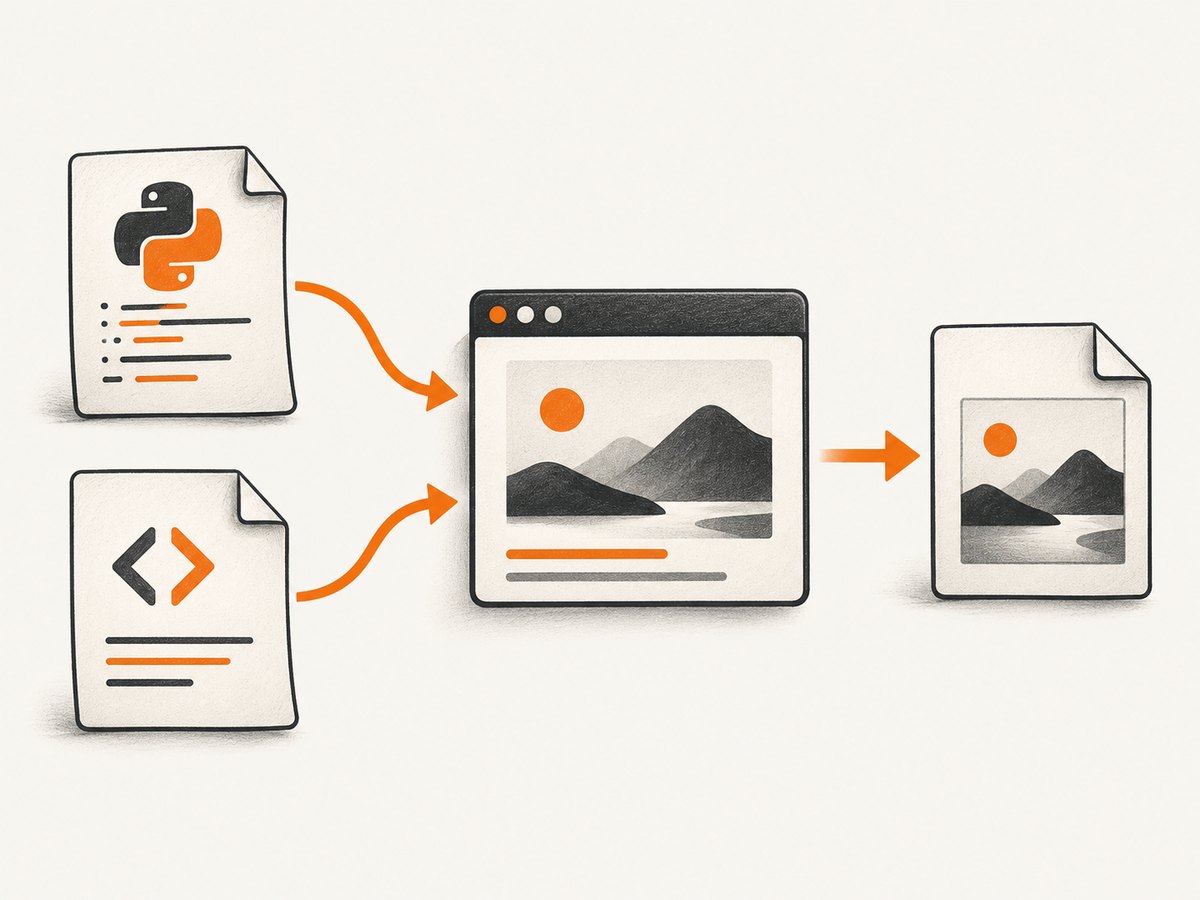
Viewport screenshot
from playwright.sync_api import sync_playwright

URL = "https://example.com"

with sync_playwright() as p:
    browser = p.chromium.launch()
    page = browser.new_page(viewport={"width": 1366, "height": 768}, device_scale_factor=1)
    page.goto(URL, wait_until="domcontentloaded", timeout=60_000)
    page.screenshot(path="viewport.png", type="png")
    browser.close()
A viewport screenshot captures the visible browser area. Set width, height, and device_scale_factor explicitly so output dimensions do not depend on a host machine.
Full-page screenshot
from playwright.sync_api import sync_playwright

with sync_playwright() as p:
    browser = p.chromium.launch()
    page = browser.new_page(viewport={"width": 1440, "height": 900})
    page.goto("https://example.com", wait_until="networkidle")
    page.screenshot(path="full-page.webp", full_page=True, type="webp", quality=85)
    browser.close()
full_page=True captures the full scrollable document. JPEG and WebP support a quality value; PNG does not. Choose WebP or JPEG when file size matters and PNG when lossless output is required.
Capture one element
from playwright.sync_api import sync_playwright

with sync_playwright() as p:
    browser = p.chromium.launch()
    page = browser.new_page()
    page.goto("https://example.com", wait_until="networkidle")
    card = page.locator("article.product-card").first
    card.wait_for()
    card.screenshot(path="card.png")
    browser.close()
The locator screenshot trims the image to the element’s rendered bounding box. Use a stable selector, wait for the element to be visible, and avoid selectors that change between requests. The Page API reference covers screenshot options such as format, quality, clipping, and scale: Page.screenshot.
Wait for dynamic content
from playwright.sync_api import sync_playwright

with sync_playwright() as p:
    browser = p.chromium.launch()
    page = browser.new_page()
    page.goto("https://example.com/dashboard", wait_until="domcontentloaded")
    page.locator("[data-ready='true']").wait_for(state="visible", timeout=30_000)
    page.screenshot(path="dashboard.png", full_page=True)
    browser.close()
Use a semantic readiness selector when possible. A fixed delay can help with an animation, but it is less reliable than waiting for the element or a known network condition:
page.wait_for_timeout(1_000)
page.screenshot(path="after-animation.png")
Use custom HTML instead of a URL
from playwright.sync_api import sync_playwright
html = """
Rendered HTML
Captured as an image.
If the HTML references relative images, stylesheets, or fonts, provide a document URL or serve the files from a local HTTP origin. A file:// setup can create confusing path and security behavior.
Capture bytes for further processing
from pathlib import Path
from playwright.sync_api import sync_playwright

with sync_playwright() as p:
    browser = p.chromium.launch()
    page = browser.new_page()
    page.goto("https://example.com", wait_until="networkidle")
    image_bytes = page.screenshot(type="png", full_page=True)
    Path("page.png").write_bytes(image_bytes)
    browser.close()
Returning bytes lets you upload directly to object storage, attach the result to a response, or pass it to an image-processing library without writing a temporary file.
3. Use the asynchronous Python API
Async Playwright fits an async web service or a batch worker that captures several pages. The browser still needs to be closed in a finally block.
import asyncio
from playwright.async_api import async_playwright

async def capture(url: str, output: str) -> None:
    async with async_playwright() as p:
        browser = await p.chromium.launch()
        try:
            page = await browser.new_page(viewport={"width": 1440, "height": 900})
            await page.goto(url, wait_until="networkidle", timeout=60_000)
            await page.screenshot(path=output, full_page=True, type="png")
        finally:
            await browser.close()

asyncio.run(capture("https://example.com", "page.png"))
For many URLs, reuse a browser process and create isolated pages or contexts. Limit concurrency to what your CPU and memory can handle; starting a new browser for every URL adds startup cost and makes failures harder to diagnose.
4. Render static HTML with WeasyPrint
WeasyPrint exposes a Python HTML API for HTML sources such as filenames, URLs, and file objects. Its base_url argument matters when the document uses relative resources.
from weasyprint import HTML
HTML(string="""
Static HTML
Rendered by WeasyPrint.
""").write_png("static.png")Consult the WeasyPrint API reference for the current constructor and output methods. Treat user-supplied HTML and CSS as untrusted input and isolate the renderer according to your application’s threat model; the documentation specifically warns about security risks.
5. Control dimensions, assets, and output quality
- Dimensions: define the viewport for reproducible layout. For an element, inspect its computed size before capture when exact output dimensions matter.
- Fonts: wait until web fonts are loaded when typography affects the image. A missing font can change line wrapping and page height.
- Images: wait for lazy-loaded images or scroll the page before a full-page capture if the site only loads assets near the viewport.
- Animations: disable or pause animations with injected CSS, or wait for a known finished state.
- Format: PNG preserves pixels; JPEG and WebP can reduce size and accept quality controls in Playwright.
- Transparency: set the page background deliberately. A transparent result requires a renderer and CSS setup that support it; otherwise use an explicit background color.
- Privacy: do not put secrets in query strings or page markup. Redact tokens and avoid logging complete HTML when it contains personal data.
6. Or skip the browser setup
ScreenshotNeo is a website screenshot API and MCP server. A single GET request returns PNG, JPEG, WebP, or PDF. The API accepts the URL and capture options, while its browser setup runs remotely. See the ScreenshotNeo documentation for the complete parameter list.

cURL
curl -G "https://api.screenshotneo.com/v1/shot" -d access_key=YOUR_API_KEY --data-urlencode url=https://stripe.com -o shot.webpPython
import requests
r = requests.get("https://api.screenshotneo.com/v1/shot", params={"access_key": "YOUR_API_KEY", "url": "https://stripe.com"}, timeout=90)
open("shot.webp", "wb").write(r.content)
Node.js
const q = new URLSearchParams({ access_key: 'YOUR_API_KEY', url: 'https://stripe.com' }); const res = await fetch(`https://api.screenshotneo.com/v1/shot?${q}`);ScreenshotNeo can capture a full page, one CSS-selected element, a chosen device preset or viewport, and a retina scale. You can set dark mode, custom CSS and JavaScript, click an element, wait for a selector, delay, or network idle, and provide headers, cookies, a user agent, Authorization, timezone, or geolocation. Other controls include blocking ads, trackers, requests, or resource types; transparent backgrounds; resizing; caching with a chosen TTL; signed links; asynchronous jobs with signed webhooks; bulk capture of up to 100 URLs per call; PDF paper size, margins, landscape mode, and page ranges; HTML/CSS input; and a usage API and OpenAPI specification.
Before capture, it accepts cookie or consent banners and removes more than 60 known consent platforms, newsletter popups, and chat widgets. Each cleanup step can be disabled. Bot checks or CAPTCHAs, blank pages, timeouts, failed loads, and cache hits cost nothing, and response headers identify the page verdict and whether it was billed. An MCP server provides take_screenshot, get_page_info, and capture_pdf tools for Claude, Cursor, and other MCP clients.
The Free plan includes 1,000 shots per month without a card. Paid plans start at $5 for 3,000 shots; yearly billing gives two months free, and every feature is available on every plan. Create a free ScreenshotNeo account to try the API.
7. Troubleshooting checklist
| Symptom | Likely cause | Fix |
|---|---|---|
Executable doesn't exist |
Browser binaries were not installed. | Run playwright install chromium in the same environment used by the worker. |
| Screenshot is blank | Navigation failed, the page is still loading, or content is blocked. | Check the response and console logs, use an explicit wait condition, and increase the navigation timeout. |
| Cookie dialog covers the image | The page requires an interaction before content is visible. | Locate and click the consent control, hide the selector, or use ScreenshotNeo’s consent cleanup. |
| Lazy images are missing | Images load only near the viewport. | Scroll incrementally, wait for image completion, or use a capture service that loads lazy images. |
| Text wraps differently in production | Different viewport, device scale, fonts, or browser engine. | Pin viewport and engine, install fonts, and wait for web fonts before capture. |
| Relative assets fail with WeasyPrint | No resource resolution base was supplied. | Pass an appropriate base_url and verify that each asset is reachable. |
| Request times out | Slow third-party resources or a page that never becomes idle. | Prefer domcontentloaded plus a readiness selector, set a bounded timeout, and retry only idempotent captures. |
| Output is too large | Very tall full-page image, high scale, or lossless format. | Capture an element or viewport, reduce device scale, or choose WebP/JPEG with an explicit quality. |
8. Reliability, performance, and cost
Reliability
Use bounded navigation and selector timeouts. Record the URL, viewport, browser engine, format, and a request identifier with every job. Retry transient network failures with backoff, but do not retry a deterministic selector or syntax error indefinitely. Close pages and browsers even when a capture raises an exception.
Performance
Browser startup is expensive relative to taking another page in an existing process. Reuse a browser, isolate work in contexts, and cap parallel pages. Full-page captures consume memory proportional to document height and device scale. Element screenshots are usually cheaper when you need only a card, chart, or invoice. Cache stable pages at the application layer or use a cache TTL when the source does not change frequently.
Cost
Self-hosted Playwright costs compute, browser storage, maintenance, and engineering time. A hosted API trades that setup for request pricing. With ScreenshotNeo, clean shots are billed while bot checks, blank pages, timeouts, failed loads, and cache hits are not; inspect the X-Page-Verdict and X-Billed response headers when reconciling usage.
9. FAQ
Can Python save HTML directly as a PNG?
Yes. For browser rendering, set the HTML with Playwright’s page.set_content and call page.screenshot. For print-oriented static HTML, use WeasyPrint’s HTML API.
Which format should I choose?
Use PNG for lossless screenshots, WebP for a smaller modern web asset, and JPEG for photographic content where some loss is acceptable. Playwright exposes quality for WebP and JPEG.
How do I capture only a chart or component?
Use a stable CSS selector and call page.locator(selector).screenshot(). Wait for the component’s data-ready state before capturing.
Does WeasyPrint execute JavaScript?
Do not assume browser-equivalent JavaScript behavior. If the document depends on client-side rendering or interactions, use Playwright or validate WeasyPrint against that exact document.
Can an AI agent request screenshots?
Yes. ScreenshotNeo includes an MCP server with take_screenshot, get_page_info, and capture_pdf tools for MCP clients such as Claude and Cursor.


