Convert HTML to Image in Ruby
Convert HTML to PNG or JPEG in Ruby with Grover, Ferrum, IMGKit, or a hosted API. Includes runnable code, options, troubleshooting, and production guidance.
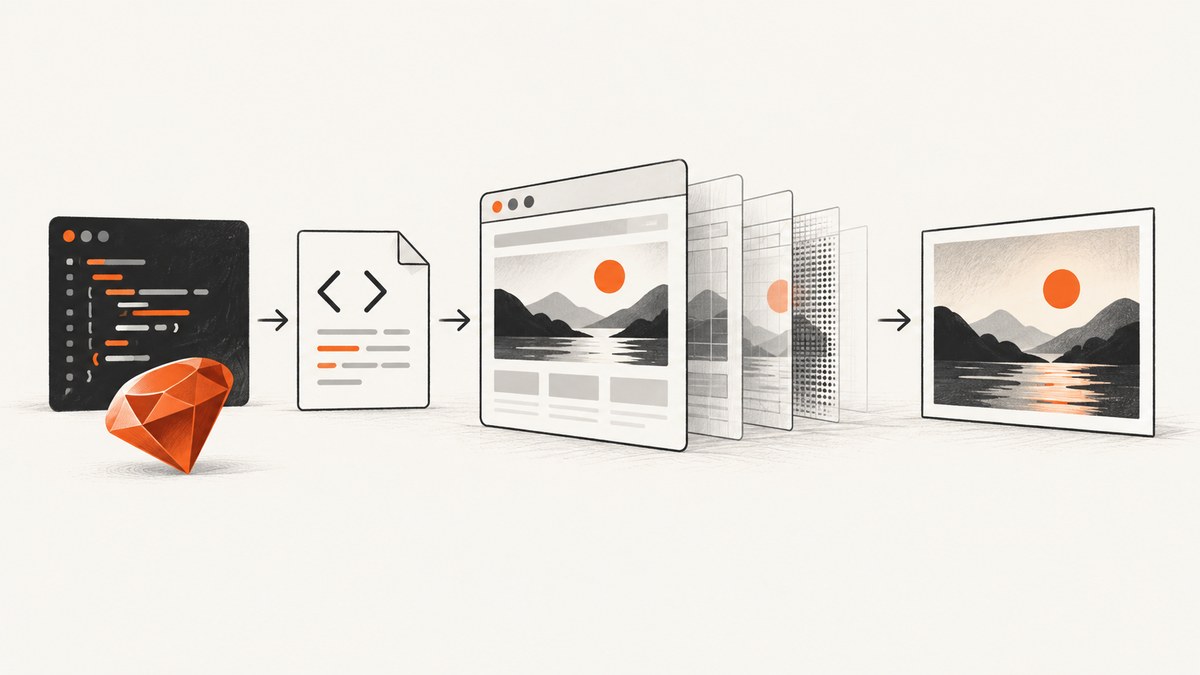
Direct answer: Ruby can convert HTML to PNG, JPEG, or WebP in four practical ways. Use Grover when you need Chromium and modern CSS or JavaScript; use Ferrum when you want direct Chrome DevTools Protocol control; use IMGKit when your existing workflow depends on wkhtmltoimage; or use a hosted real-Chrome API when you do not want to install and operate browsers. The right choice depends on rendering fidelity, deployment constraints, capture controls, and how much browser maintenance your application can absorb.
This guide starts with working Ruby examples, then covers options, Rails integration, dynamic pages, output formats, reliability, performance, costs, and common failures.
Choose the renderer first
| Approach | Best fit | Output and controls | Operational trade-off |
|---|---|---|---|
| Grover | Modern CSS, JavaScript, and browser-grade rendering | PDF, PNG, JPEG through Puppeteer/Chromium | Install and manage Chromium/Puppeteer |
| Ferrum | Direct Ruby control of a Chrome session | PNG, JPEG/JPG, WebP; viewport, full page, selector, area, quality, scale, background, file or base64 | You own Chrome lifecycle, concurrency, and cleanup |
| IMGKit | Existing wkhtmltoimage workflows and simple HTML/CSS |
JPG, JPEG, and PNG through to_img or to_file |
Validate modern CSS and JavaScript compatibility |
| Hosted API | Managed rendering without local browser setup | HTML or public URL to an image; some services also provide selector, full-page, and PDF modes | Network dependency; verify current limits, privacy terms, pricing, and uptime |
1. Convert HTML with Grover
Grover transforms HTML into PDF, PNG, or JPEG through Puppeteer and Chromium. RubyGems currently lists version 1.2.10, released April 2, 2026, with Ruby >= 3.0.0 and < 3.5.0 requirements. Check the gem’s current installation instructions before pinning versions.
Install
gem install groverIn a Bundler project:
# Gemfile
gem "grover"

bundle install
Grover needs a usable Puppeteer/Chromium installation. In CI or a container, make the browser installation part of the image build and ensure the runtime user can execute it.
Render a string to PNG
require "grover"

html = <<~HTML
  <!doctype html>
  <html>
    <head>
      <meta charset="utf-8">
      <style>
        body { margin: 0; font-family: Arial, sans-serif; background: #f4f6f8; }
        .card { width: 640px; padding: 32px; background: white; color: #17202a; }
        h1 { margin: 0 0 12px; font-size: 32px; }
      </style>
    </head>
    <body>
      <main class="card">
        <h1>Ruby rendered this card</h1>
        <p>The complete HTML document is captured as an image.</p>
      </main>
    </body>
  </html>
HTML

grover = Grover.new(
  html,
  viewport: { width: 800, height: 600 },
  print_background: true
)

File.binwrite("card.png", grover.to_png)
Render a URL or a Rails view
require "grover"

url = "https://example.com/report/42"
grover = Grover.new(
  url,
  viewport: { width: 1440, height: 900 },
  wait_until: "networkidle0",
  print_background: true
)

File.binwrite("report.png", grover.to_png)
For a Rails view, render the HTML first and pass the result to Grover. This keeps authentication and application data in Rails while the browser receives a complete document:
html = ApplicationController.render(
  template: "reports/show",
  assigns: { report: report },
  layout: "report"
)

image = Grover.new(
  html,
  viewport: { width: 1200, height: 800 },
  print_background: true
).to_png

send_data image, type: "image/png", disposition: "inline"
PNG, JPEG, and PDF choices
# PNG: lossless, usually best for text, charts, and UI
png_bytes = Grover.new(html, print_background: true).to_png

# JPEG: smaller for photographic content; choose a quality supported by your Grover version
jpeg_bytes = Grover.new(html, print_background: true).to_jpeg(quality: 85)

# PDF: useful when the final artifact is paginated rather than a single bitmap
pdf_bytes = Grover.new(html, print_background: true).to_pdf
Use PNG for sharp text and transparent or flat-color graphics. Use JPEG when a smaller file matters and minor compression artifacts are acceptable. WebP support depends on the library and browser API you select; confirm it in your installed version.
2. Convert HTML with Ferrum
Ferrum drives Chrome through the DevTools Protocol. Its screenshot API supports PNG, JPEG/JPG, and WebP, along with viewport and full-page screenshots, selector or rectangular-area captures, quality, scale, background color, file output, and base64 output.
Basic screenshot
require "ferrum"

browser = Ferrum::Browser.new(
  window_size: [1200, 900],
  timeout: 30
)

begin
  browser.go_to("https://example.com")
  browser.screenshot(path: "page.png", format: :png, full: true)
ensure
  browser.quit
end
Capture one element
require "ferrum"

browser = Ferrum::Browser.new(window_size: [1440, 900])
begin
  browser.go_to("https://example.com/dashboard")
  browser.at_css("main.dashboard").screenshot(
    path: "dashboard.webp",
    format: :webp,
    quality: 82,
    scale: 2
  )
ensure
  browser.quit
end
A selector capture is useful for a card, chart, invoice, or component. A full-page capture is appropriate for a document whose height is not known in advance. An area capture is useful when the target is defined by coordinates rather than a stable selector.
Wait for dynamic content
browser.go_to("https://example.com/app")
browser.at_css("[data-rendered='true']", wait: 20)
browser.evaluate("document.fonts.ready")
browser.screenshot(path: "ready.png", full: true)
Do not rely only on a fixed sleep when the page has a reliable readiness marker. A selector or application state is normally more deterministic. For animations, disable motion in a capture stylesheet or wait until the animation has completed.
3. Convert HTML with IMGKit
IMGKit wraps wkhtmltoimage. Its documented API accepts HTML, a URL, or a file and exposes to_img and to_file methods for JPG, JPEG, and PNG output.
Install and render
gem install imgkitrequire "imgkit"
html = "<html><body><h1>Invoice</h1><p>Paid</p></body></html>"
kit = IMGKit.new(html, width: 1200, quality: 90)
File.binwrite("invoice.png", kit.to_img("png"))To write directly to a file:
kit = IMGKit.new("https://example.com", crop_w: 1200)
kit.to_file("page.jpg")
IMGKit is straightforward when your HTML uses CSS and JavaScript supported by the installed wkhtmltoimage build. Test fonts, flexbox, grid, SVG, modern JavaScript, and external assets before choosing it for a browser-heavy page.
4. A hosted HTML-to-image API
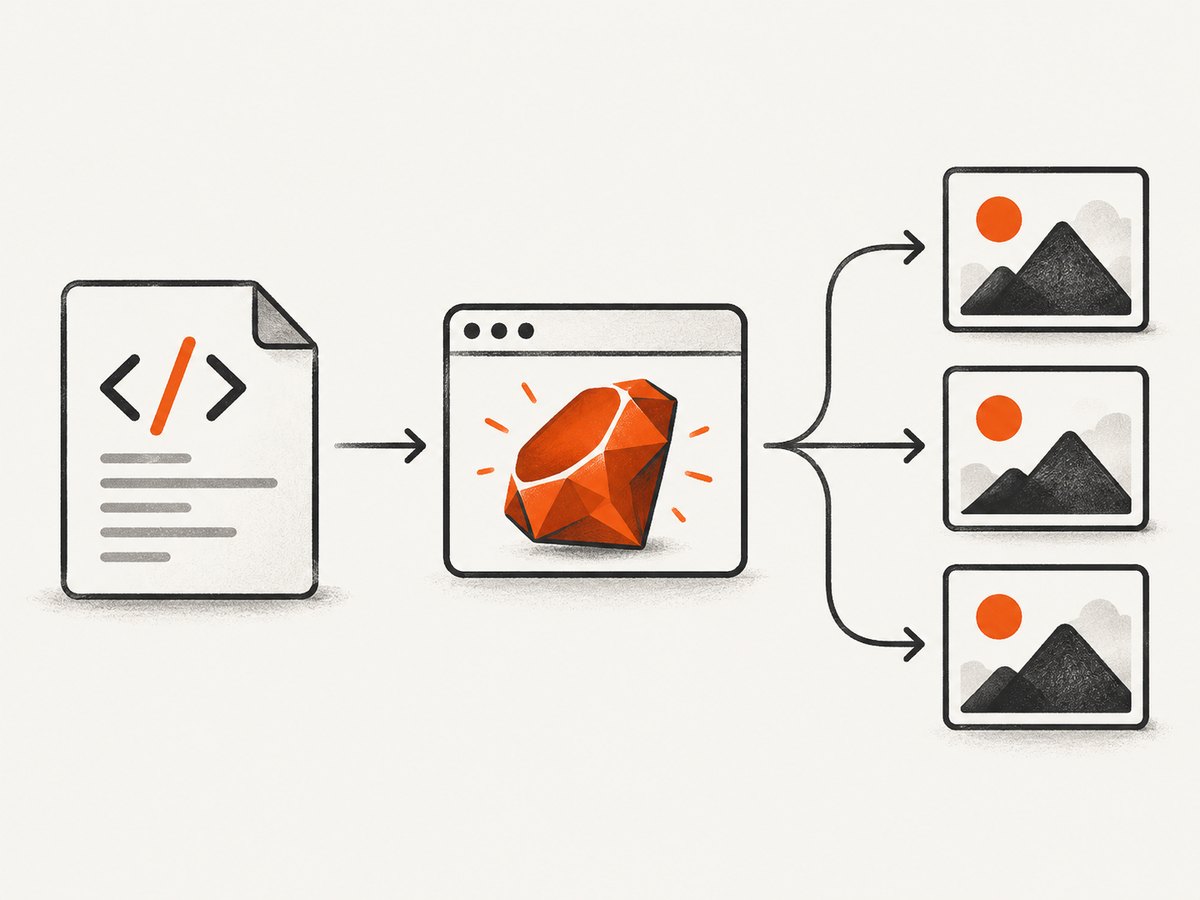
A hosted service sends HTML or a public URL to real Chrome and returns an image response. The html2img Ruby client documents HTML rendering, public-URL screenshots, selector cropping, full-page capture, and PDF mode. This removes local browser installation and patching from your deployment, but introduces a network dependency. Before production use, verify the provider’s current pricing, request limits, privacy terms, retention policy, and uptime commitments.
Hosted rendering is often the simplest fit for background jobs, serverless functions, and teams that do not want every web worker to own a Chromium process. Send only the data the service needs, protect API credentials, and set an explicit request timeout.
Rendering options you should decide explicitly
Input: trusted HTML, a Rails view, or a URL
- Trusted HTML: inline critical CSS and make asset URLs absolute when the renderer runs outside your application network.
- Rails views: render with the same layout and locale as the user-facing page, then capture the resulting HTML.
- Public URLs: wait for the page’s actual ready state and account for authentication, robots rules, redirects, and rate limits.
Viewport, scale, and full page
Viewport width changes responsive breakpoints. Set width and height deliberately rather than accepting a machine-dependent default. Use a scale or retina setting for sharper text when the output will be displayed on high-density screens, but remember that larger bitmaps consume more memory and take longer to transfer.
Fonts and external assets
Wait for document.fonts.ready when web fonts affect layout. Make sure the browser can reach images, stylesheets, and fonts. A missing font can change line wrapping and therefore the image dimensions. For repeatable output, bundle critical fonts or serve them from a stable, accessible origin.
Backgrounds, transparency, and color
Print or screenshot background colors explicitly when the design depends on them. Transparent output requires support from the selected renderer and format; JPEG cannot represent transparency. If you need a transparent background, use a format and option that preserve alpha and verify the result with a checkerboard test.
Security
Treat arbitrary HTML and URLs as untrusted input. Restrict which hosts a capture worker may contact, avoid exposing cloud metadata endpoints, sanitize user-provided HTML, and isolate browser processes. Never place API keys in client-side HTML or JavaScript.
Reliability and performance in production
- Reuse browser processes carefully. Starting Chromium for every request adds overhead. A bounded pool can improve throughput, but recycle unhealthy sessions and cap concurrent pages.
- Set layered timeouts. Use a navigation timeout, a readiness timeout, and an overall job deadline. A page that never finishes loading must not hold a worker forever.
- Use deterministic readiness. Prefer a selector, application flag, or completed network condition over an arbitrary long sleep.
- Limit page size. Very tall pages and high scale values produce large bitmaps. Capture a selector or split long documents when a full-page image is unnecessary.
- Retry selectively. Retry transient browser startup and network failures with backoff. Do not retry malformed HTML, invalid selectors, authentication failures, or blocked destinations without fixing the input.
- Clean up every session. Put browser shutdown in an
ensureblock and remove temporary files after upload. - Measure the whole pipeline. Track queue wait, browser startup, navigation, readiness wait, screenshot encoding, upload time, output bytes, and failure reason.
PNG encoding is lossless but can produce large files. JPEG quality is a size-versus-artifact trade-off. WebP can be useful when your downstream consumers support it. Choose based on the actual destination, not only on the renderer’s default.
Common errors and fixes
| Error or symptom | Likely cause | Fix |
|---|---|---|
Browser executable not found |
Chromium/Puppeteer is not installed or the path is not visible to the runtime user. | Install the browser during image build, configure its executable path, and run a startup check. |
| Blank or partially rendered image | Capture happened before JavaScript, fonts, or images finished. | Wait for a readiness selector and document.fonts.ready; verify asset URLs and browser logs. |
| Modern CSS looks wrong with IMGKit | wkhtmltoimage does not implement the CSS or JavaScript behavior used by the page. | Test the exact target browser; switch to Grover or Ferrum for Chromium behavior. |
| External images are missing | Relative URLs, DNS restrictions, CORS, or an inaccessible private host. | Use absolute URLs, allow the destination from the worker, or inline required assets. |
| Text wraps differently in production | Different fonts, viewport width, device scale, or locale. | Pin viewport and scale, load the intended fonts, and set locale/timezone explicitly. |
| Full-page capture cuts off content | Lazy-loaded content was never triggered or the page height changed during capture. | Scroll or trigger lazy loading, wait for the final height, then capture. |
| Chrome processes accumulate | Exceptions bypassed cleanup or a shared session became unhealthy. | Use ensure, enforce job deadlines, and recycle sessions after failures. |
| Request times out | Slow third-party requests, an infinite loading state, or an overly strict deadline. | Block unnecessary resources, add a deterministic ready marker, and distinguish navigation from total timeout. |
| JPEG has halos or blurry text | Quality is too low or JPEG is being used for UI graphics. | Use PNG or WebP for text-heavy output, or raise JPEG quality. |
Or skip the browser setup
ScreenshotNeo is the fastest managed option when you want a website screenshot without installing Chromium. Its API accepts one GET request and returns PNG, JPEG, WebP, or PDF. Before capture it accepts cookie or consent banners and removes more than 60 known consent platforms, newsletter popups, and chat widgets; each cleanup step can be turned off. Bot checks or CAPTCHAs, blank pages, timeouts, failed loads, and cache hits cost nothing, and response headers report the page verdict and whether the request was billed.

For a URL screenshot:
curl -G "https://api.screenshotneo.com/v1/shot" -d access_key=YOUR_API_KEY --data-urlencode url=https://stripe.com -o shot.webpRuby is not required for this call, but the same request fits naturally into a Ruby job:
require "net/http"
require "uri"

uri = URI("https://api.screenshotneo.com/v1/shot")
uri.query = URI.encode_www_form(
  access_key: ENV.fetch("SCREENSHOTNEO_ACCESS_KEY"),
  url: "https://stripe.com"
)

request = Net::HTTP::Get.new(uri)
Net::HTTP.start(uri.host, uri.port, use_ssl: true, read_timeout: 90) do |http|
  response = http.request(request)
  abort "Screenshot failed: #{response.code} #{response.body}" unless response.is_a?(Net::HTTPSuccess)
  File.binwrite("shot.webp", response.body)
end
Python:
import requests
r = requests.get("https://api.screenshotneo.com/v1/shot", params={"access_key": "YOUR_API_KEY", "url": "https://stripe.com"}, timeout=90)
open("shot.webp", "wb").write(r.content)
Node.js:
const q = new URLSearchParams({ access_key: 'YOUR_API_KEY', url: 'https://stripe.com' }); const res = await fetch(`https://api.screenshotneo.com/v1/shot?${q}`);See the ScreenshotNeo API documentation for the full option set. It includes full-page capture with lazy images loaded, CSS selector element capture, dark mode, 12 device presets or any viewport, retina scale, PDF paper size and page ranges, HTML/CSS to image, custom CSS and JavaScript, clicks, selector waits, delays, network-idle waits, request blocking, custom headers and cookies, user agent and Authorization, timezone and geolocation, transparent backgrounds, resizing, configurable caching, signed links, asynchronous jobs with signed webhooks, bulk capture of up to 100 URLs per call, a usage API, and an OpenAPI specification. Existing parameter names used by other screenshot APIs also work, which can simplify migration.
An MCP server provides take_screenshot, get_page_info, and capture_pdf tools for Claude, Cursor, and other MCP clients. The Free plan includes 1,000 shots per month with no card; paid plans start at $5 for 3,000 shots, and every feature is available on every plan. Create a free ScreenshotNeo account.
Cost and deployment checklist
- Choose whether browser installation and patching belong in your application or with a hosted provider.
- Estimate image volume, average output size, concurrency, and retry rate.
- Budget memory for concurrent Chromium pages and large full-page bitmaps.
- Decide whether output must be deterministic across machines; pin browser, fonts, viewport, locale, and timezone when it does.
- Store credentials in environment variables or a secret manager.
- Log renderer version, URL, viewport, format, duration, and failure category without logging sensitive HTML.
- Set retention and deletion rules for generated images and temporary files.
FAQ
Can Ruby convert HTML without a browser?
Yes, IMGKit uses wkhtmltoimage, which is simpler for compatible HTML/CSS. Browser-based rendering is usually safer for modern CSS and JavaScript.
Which gem is best for a Rails application?
Grover is a strong default when the Rails view depends on current browser behavior. Ferrum is better when you need direct session and DevTools control.
Should I capture a full page or an element?
Capture an element for cards, invoices, and components with a stable selector. Use full-page mode for documents whose complete vertical content matters.
Why does my screenshot differ between development and CI?
Compare browser versions, installed fonts, viewport, device scale, locale, timezone, network access, and the exact readiness condition.
When is a hosted service the better choice?
Use one when browser installation, scaling, and maintenance would distract from your application, or when you need a consistent capture endpoint for jobs and serverless code.
Summary
Use Grover or Ferrum for Chromium-level fidelity and control, IMGKit for established wkhtmltoimage-compatible pipelines, and a hosted API when you want managed rendering. Whichever path you choose, make viewport, readiness, fonts, output format, timeouts, cleanup, and security explicit. For a managed URL-to-image workflow with consent banners and distracting widgets removed before capture, no billing for failed or blank pages, and an MCP server for AI agents, try ScreenshotNeo’s free 1,000-shot plan.


