Convert HTML to Image in TypeScript
Learn browser-side and Node.js methods to convert HTML into PNG or JPEG with TypeScript, including Playwright, Puppeteer, troubleshooting, and API options.
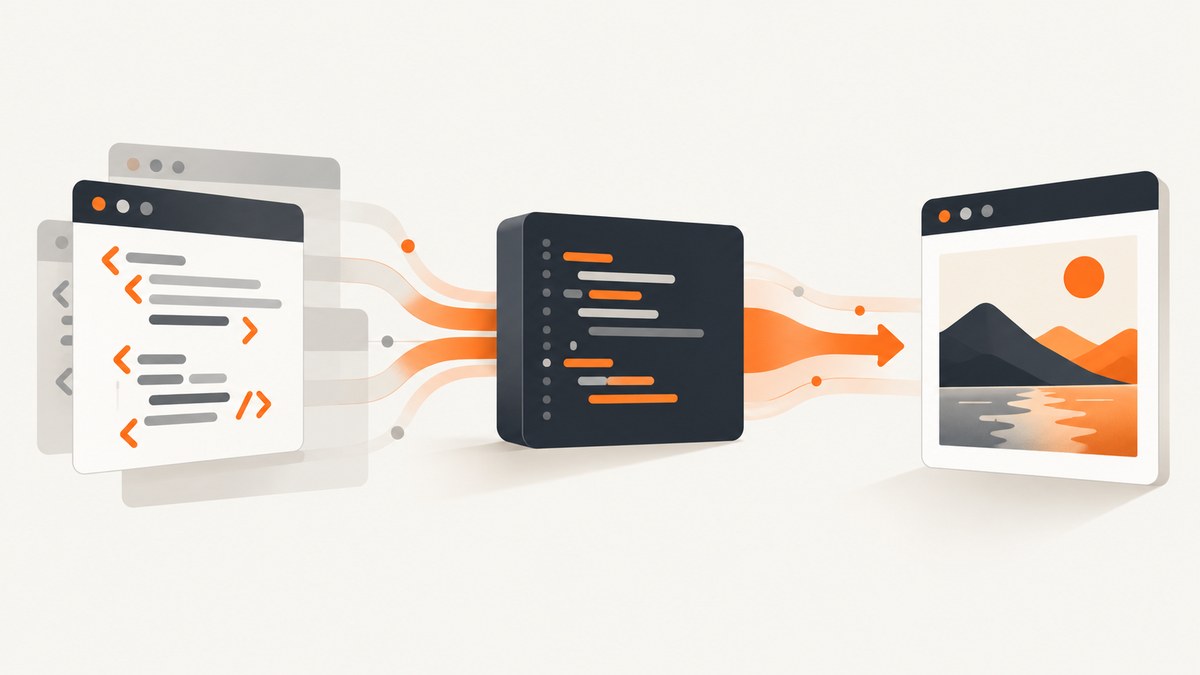
Direct answer: choose where your HTML is rendered first. If the element already exists in a browser DOM, html-to-image can export it directly. If a Node.js service must render supplied HTML, use node-html-to-image or control Chromium yourself with Playwright or Puppeteer. For a hosted page where you do not want to maintain a browser runtime, use ScreenshotNeo.
Choose the rendering approach
| Approach | Best for | What it captures | Main consideration |
|---|---|---|---|
html-to-image |
An element already rendered in a browser | A DOM node and its descendants | Uses SVG foreignObject and canvas; fonts and images must be embeddable |
node-html-to-image |
Server-side HTML templates | Supplied HTML or a selected element | Runs Puppeteer and Chromium |
| Playwright | Navigation and browser automation | A page, viewport, element, or full page | You control waiting, viewport, scale, and browser lifecycle |
| Puppeteer | Direct Chromium automation | A page screenshot | You manage Chromium and rendering readiness |
| ScreenshotNeo | Hosted URL capture without browser infrastructure | PNG, JPEG, WebP, or PDF | Send one request and receive the output |
There is no universal fastest or most accurate option. Compare the runtime location, capture target, output type, dimensions, asset loading, waiting strategy, deployment cost, and browser maintenance for your workload.
Browser-side conversion with html-to-image
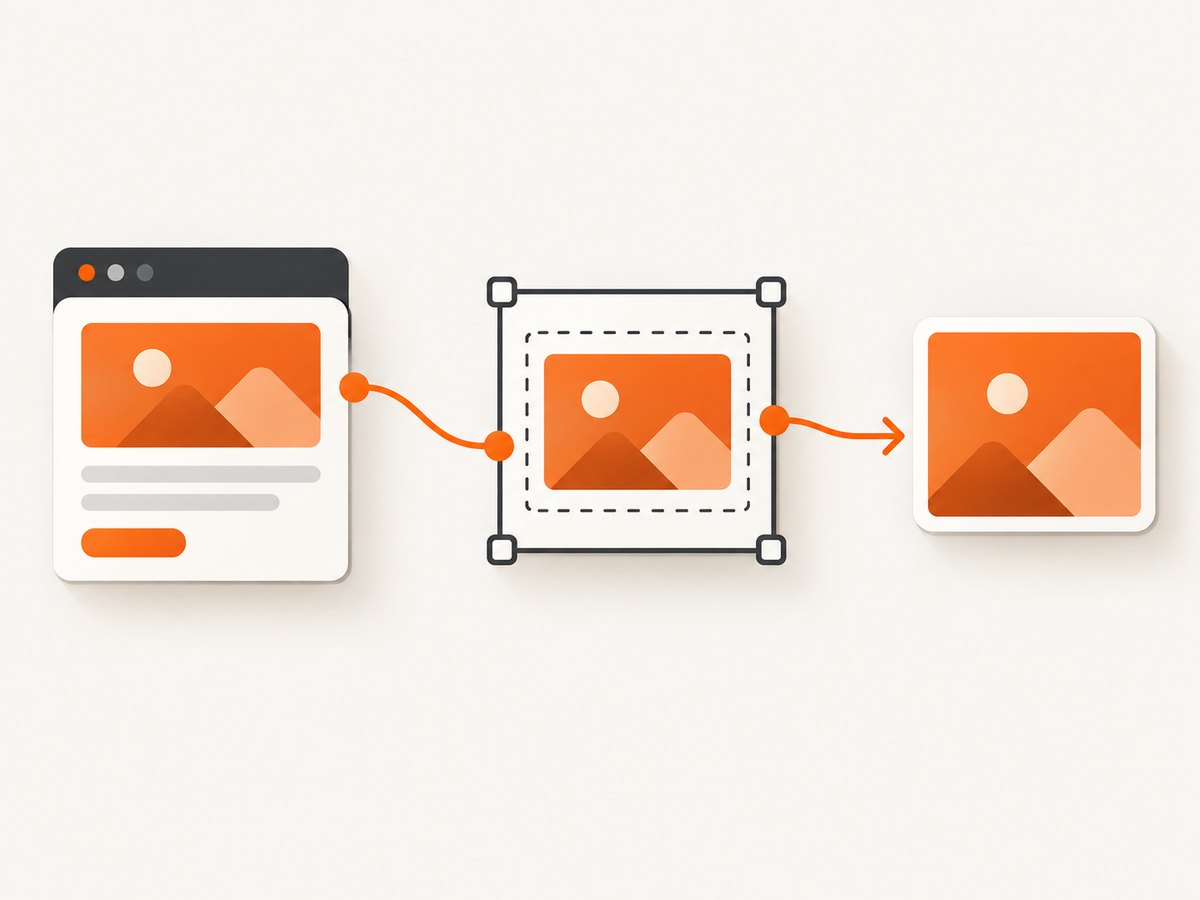
html-to-image clones a DOM subtree, copies computed styles, reconstructs pseudo-elements, embeds fonts and images, serializes the clone into an SVG using foreignObject, and can rasterize that SVG through an off-screen canvas. Its documented exports include toPng, toJpeg, toBlob, toSvg, toCanvas, and toPixelData. Each returns a promise.
Install
npm install html-to-image
npm install -D typescript
Complete TypeScript example
import { toPng } from 'html-to-image';

const node = document.querySelector('#invoice');

if (!(node instanceof HTMLElement)) {
  throw new Error('Expected an element with id="invoice"');
}

const dataUrl = await toPng(node);
const link = document.createElement('a');
link.download = 'invoice.png';
link.href = dataUrl;
link.click();
Run this code after the target element has been rendered. In an application, call it from a button handler or after your own readiness state becomes true.
Other output types
import {
  toBlob,
  toCanvas,
  toJpeg,
  toPixelData,
  toSvg,
} from 'html-to-image';

const node = document.querySelector('#card');
if (!(node instanceof HTMLElement)) throw new Error('Missing #card');

const pngDataUrl = await toPng(node);
const jpegDataUrl = await toJpeg(node);
const svgDataUrl = await toSvg(node);
const blob = await toBlob(node);
const canvas = await toCanvas(node);
const pixels = await toPixelData(node);

console.log({ pngDataUrl, jpegDataUrl, svgDataUrl, blob, canvas, pixels });
Use PNG when you need lossless output or transparency, JPEG for photographic content and smaller files, SVG when a vector-like serialized result is useful, Blob for uploads, Canvas for further browser processing, and pixel data for custom image analysis.
Browser-side checklist
- Wait until the target has its final dimensions.
- Ensure web fonts have loaded before capture.
- Ensure images are loaded and permitted to participate in the canvas.
- Keep the DOM subtree reasonably sized; large trees can hit browser data-URI limits.
- Use a browser with Promise and SVG
foreignObjectsupport. The project documents recent Chrome, Firefox, and Safari support and no Internet Explorer support.
Server-side HTML with node-html-to-image
node-html-to-image uses Puppeteer in headless mode and documents TypeScript support. It can render an HTML template to PNG or JPEG, write an output file, or return binary/base64 data. You can target a selector and use hooks before setting HTML or before taking the screenshot.
Install and render a template
npm install node-html-to-image
npm install -D typescript tsx @types/node
import nodeHtmlToImage from 'node-html-to-image';
await nodeHtmlToImage({
output: './out/card.png',
html: `
<!doctype html>
<html>
<body>
<main id="card">
<h1>{{title}}</h1>
<p>{{description}}</p>
</main>
</body>
</html>`,
content: {
title: 'Quarterly report',
description: 'Generated by a TypeScript service'
},
selector: '#card',
type: 'png',
waitUntil: 'networkidle0'
});Set dimensions with CSS on the body or the selected element. Use a pre-screenshot hook when application data or layout must be adjusted after the HTML is loaded.
Playwright for page-level control
Use Playwright when you need navigation, a controlled viewport, a selected element, a full-page image, or application-specific waiting.
import { chromium } from 'playwright';

const browser = await chromium.launch();
const page = await browser.newPage({
  viewport: { width: 1440, height: 900 },
  deviceScaleFactor: 1
});

await page.goto('https://example.com/report', { waitUntil: 'networkidle' });
await page.evaluate(() => document.fonts.ready);
await page.locator('#report').screenshot({
  path: 'report.png',
  type: 'png'
});

await browser.close();
Playwright documents CSS-pixel versus device-pixel scaling, output paths, image quality, and page screenshot controls. Use fullPage: true for a full-page capture when the page screenshot API is appropriate, or screenshot a locator when only one element is needed.
Puppeteer for direct Chromium automation
import puppeteer from 'puppeteer';

const browser = await puppeteer.launch();
const page = await browser.newPage();
await page.setViewport({ width: 1440, height: 900, deviceScaleFactor: 1 });
await page.goto('https://example.com/report', { waitUntil: 'networkidle0' });
await page.evaluate(() => document.fonts.ready);

const bytes = await page.screenshot({
  type: 'png',
  fullPage: true
});

await Bun.write('report.png', bytes);
await browser.close();
In Node.js, Puppeteer’s screenshot overloads return a base64 string or a Uint8Array. Write the returned bytes with your runtime’s file API.
Make rendering deterministic
- Fix the viewport. Set width, height, and device scale explicitly.
- Wait for the real ready state. Network idle alone may not mean that client-side data, fonts, or images are complete.
- Wait for fonts.
await document.fonts.readyprevents fallback-font captures. - Wait for images. Add an application readiness signal or verify image completion before capture.
- Freeze dynamic content. Disable animations, timestamps, rotating banners, and random data when reproducibility matters.
- Capture the intended target. A DOM element, selector, viewport, and full page have different dimensions and scrolling behavior.
Assets, cross-origin content, and size limits
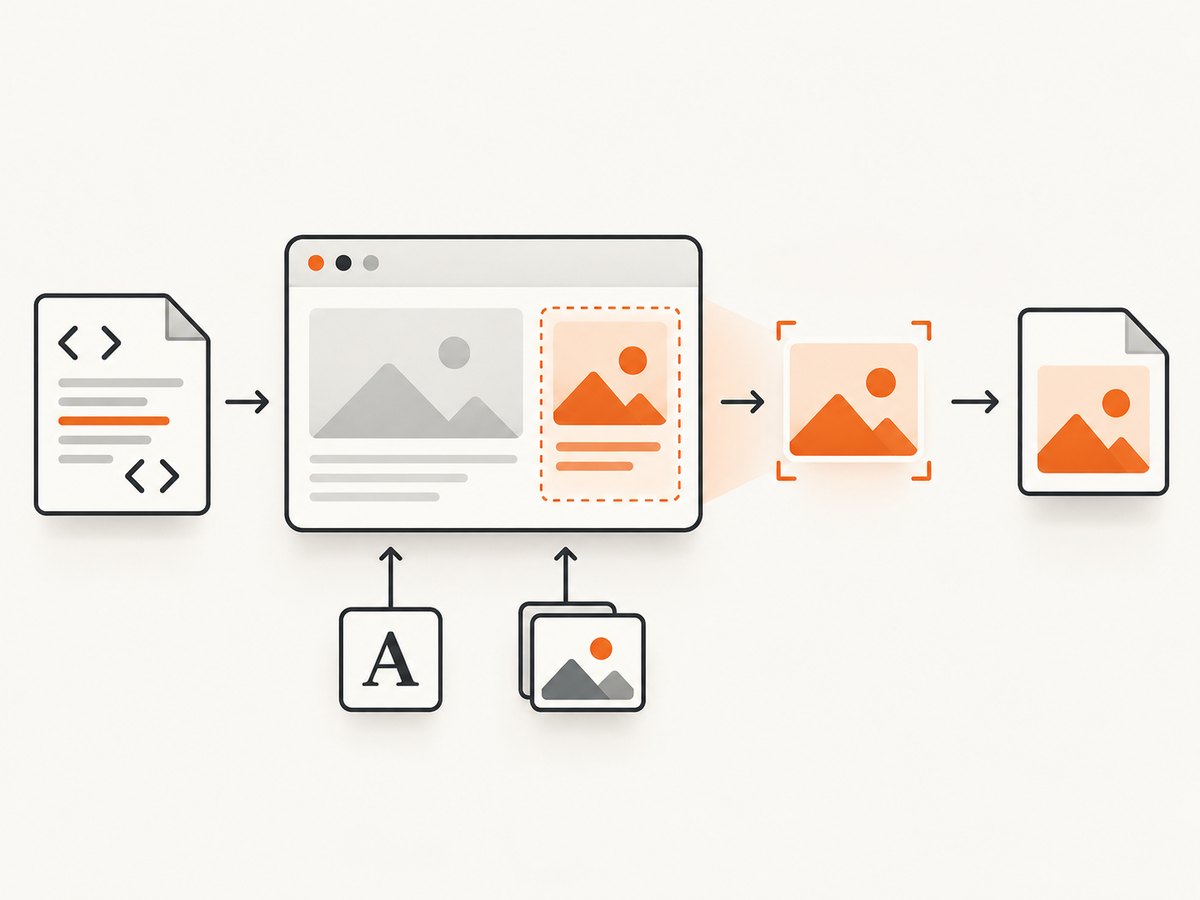
Browser-side export depends on embedding external fonts and images. A canvas tainted by cross-origin content may fail to render. Configure the asset server for appropriate cross-origin access, host assets where the browser can fetch them, or use a headless browser that can load the page in its normal context.
Large DOM trees can fail because browser data-URI limits vary. Reduce the capture subtree, split a long document into sections, or move rendering to a headless-browser service. The html-to-image project notes that Chrome performs significantly better for large DOM trees in its tested context; treat that as a project observation rather than a general benchmark.
Output, dimensions, and quality decisions
| Requirement | Choice |
|---|---|
| Transparent background | Use a format and rendering path that preserve transparency, commonly PNG. |
| Small photographic file | Use JPEG and set quality where the chosen API supports it. |
| Sharp retina output | Increase device scale or pixel ratio while keeping the CSS layout fixed. |
| Exact card size | Set explicit CSS dimensions and capture the element. |
| Long document | Use a full-page browser screenshot or capture sections separately. |
Higher device-pixel scale increases memory, CPU, and output size. Choose it from the final display requirement instead of maximizing it by default.
Or skip the browser setup
ScreenshotNeo provides a hosted screenshot API and MCP server. One GET request to a URL returns PNG, JPEG, WebP, or PDF. It can also render HTML/CSS to an image when you expose the HTML through a reachable URL.
For a hosted page, the minimal calls are:
curl -G "https://api.screenshotneo.com/v1/shot" -d access_key=YOUR_API_KEY --data-urlencode url=https://stripe.com -o shot.webpimport requests
r = requests.get("https://api.screenshotneo.com/v1/shot", params={"access_key": "YOUR_API_KEY", "url": "https://stripe.com"}, timeout=90)
open("shot.webp", "wb").write(r.content)const q = new URLSearchParams({ access_key: 'YOUR_API_KEY', url: 'https://stripe.com' });
const res = await fetch(`https://api.screenshotneo.com/v1/shot?${q}`);See the ScreenshotNeo documentation for request options. Cookie banners, popups, and chat widgets are removed before the shot; bot checks, blank pages, and failed loads are never billed; an MCP server lets AI agents take screenshots; 1,000 screenshots a month are free with no card and paid plans start at $5 for 3,000. Create a free ScreenshotNeo account.
Troubleshooting
| Symptom | Likely cause | Fix |
|---|---|---|
| Blank or missing images | Images were not loaded or were blocked by cross-origin canvas rules | Wait for image completion, fix asset CORS, or use a headless-browser route. |
| Web font is wrong | Capture occurred before fonts finished loading | Wait for document.fonts.ready and the application’s font loading state. |
| CSS pseudo-elements are absent | The clone cannot reconstruct a style or asset dependency | Reduce the subtree, verify computed styles and URLs, or capture with Playwright/Puppeteer. |
| Large element throws or returns no data | Data-URI, canvas, or memory limits | Capture smaller sections, lower pixel scale, or move rendering to Chromium on the server. |
| Screenshot shows an intermediate state | Navigation or client rendering was still in progress | Use waitUntil, a selector wait, an explicit readiness flag, and font/image waits. |
| Output dimensions differ | CSS pixels and device pixels were confused | Set viewport and device scale explicitly, then verify the target’s bounding box. |
| Node process cannot start Chromium | Browser binary or deployment dependencies are unavailable | Install the required browser runtime for your package and verify the deployment image includes its dependencies. |
Performance, reliability, and cost
- Browser-side: avoids a server browser, but work happens on the user’s device and is constrained by DOM size, canvas limits, and asset access.
- Headless browser: gives page-level fidelity and control, but each browser process consumes CPU and memory and must be operated in your deployment.
- Reuse browsers: for a service, keep a controlled browser instance available and create isolated pages per job.
- Cache stable inputs: identical pages can avoid repeated rendering when freshness allows.
- Measure your workload: page complexity, fonts, network latency, image count, viewport, and scale determine actual latency and resource use.
- Hosted API: removes Chromium operations from your application. ScreenshotNeo bills only clean shots; bot checks/CAPTCHAs, blank pages, timeouts, failed loads, and cache hits cost nothing, and responses identify the result with
X-Page-VerdictandX-Billedheaders.
FAQ
Can TypeScript convert an HTML string directly in the browser?
Not by itself. Insert the string into a controlled DOM element, wait for its assets, then pass that element to html-to-image.
Which method should a serverless function use?
Choose a deployment that includes the headless-browser runtime, or use a hosted screenshot API when shipping and operating Chromium is not part of the service.
Should I use PNG or JPEG?
PNG is the safer default for text, diagrams, and transparency. JPEG is useful for photographic content when a smaller file matters.
Why does a full-page image differ from an element image?
A full-page capture includes the page’s scrollable layout; an element capture uses that node’s own bounding box and descendants.
Can I make captures reproducible?
Yes. Fix viewport and scale, wait for fonts and data, disable animation, and make dynamic content deterministic before calling the screenshot API.


