Convert HTML to JPEG for Free
Convert any HTML element to a JPEG in your browser with html2canvas, Canvas APIs, quality controls, fixes for CORS, and an automated ScreenshotNeo option.
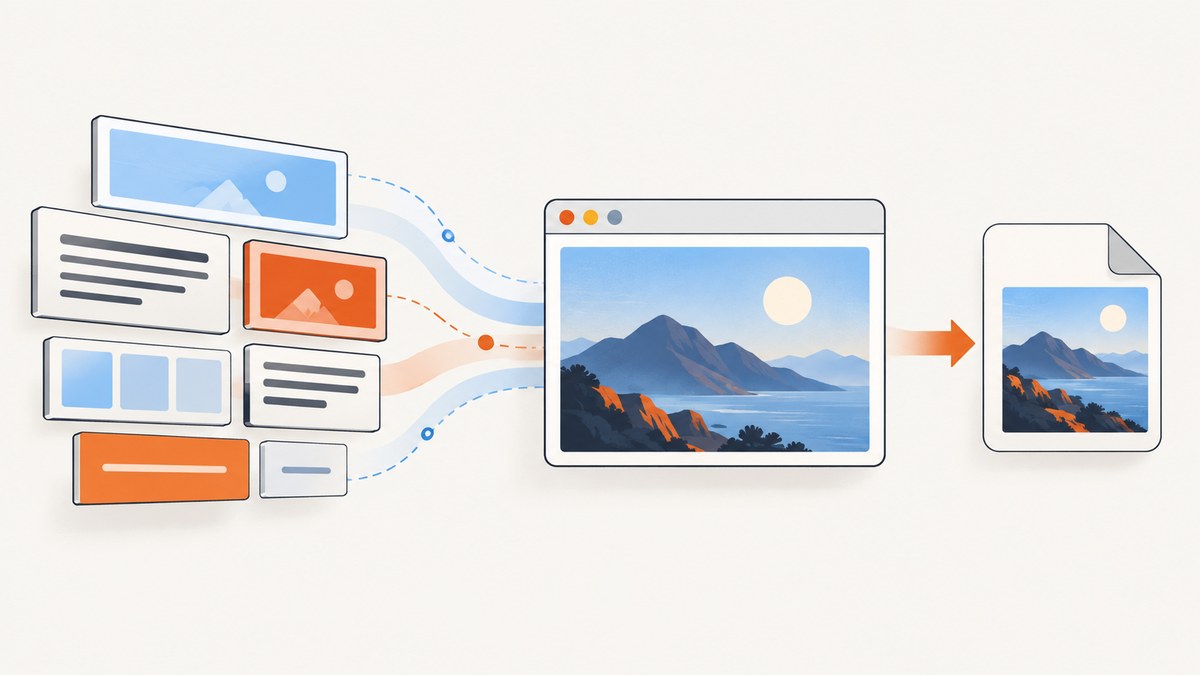
Yes. You can convert HTML to JPEG for free in a browser with html2canvas and the Canvas API. html2canvas reconstructs a DOM element on a canvas. You then call canvas.toBlob("image/jpeg", quality) (or toDataURL) and download the resulting file. This approach runs locally, needs no API key, and works well for cards, invoices, charts, product previews, and other elements already rendered on your page.
This guide covers a complete browser implementation, JPEG quality and scaling, full-page and region captures, fonts and images, cross-origin restrictions, troubleshooting, performance, privacy, and server-side automation. If you need repeatable screenshots of public URLs, a hosted browser can remove the setup; that option appears after the local workflow.
What “HTML to JPEG” means
HTML is markup. JPEG is a compressed image format. A browser cannot save arbitrary HTML directly as a JPEG; it must first render the markup, paint the result to pixels, and encode those pixels. html2canvas performs a JavaScript reconstruction of the selected DOM tree and returns an HTMLCanvasElement. The Canvas API then encodes that bitmap.
The result is a visual capture, not the original HTML and not necessarily the exact browser compositor output. The html2canvas documentation states that its screenshot is based on the DOM and “may not be 100% accurate to the real representation.” Unsupported CSS, plugin content, and cross-origin iframes can be absent.
Fastest free browser method
1. Install html2canvas
npm install @html2canvas/html2canvasIn a bundled application, import the package. You can also load a compatible browser build from the project’s documented distribution options.

2. Add an element to capture
<article id="capture" class="receipt">
  <h1>Order receipt</h1>
  <p>Order #1842 · Paid</p>
  <div class="total">$48.00</div>
</article>
<button id="download">Download JPEG</button>
3. Render and export a JPEG
import html2canvas from "@html2canvas/html2canvas";

const button = document.querySelector("#download");
const element = document.querySelector("#capture");

button.addEventListener("click", async () => {
  button.disabled = true;
  try {
    const canvas = await html2canvas(element, {
      backgroundColor: "#ffffff",
      scale: window.devicePixelRatio
    });

    canvas.toBlob((blob) => {
      if (!blob) throw new Error("The browser could not encode this canvas");
      const url = URL.createObjectURL(blob);
      const link = document.createElement("a");
      link.download = "receipt.jpg";
      link.href = url;
      link.click();
      URL.revokeObjectURL(url);
    }, "image/jpeg", 0.9);
  } finally {
    button.disabled = false;
  }
});
The quality value is between 0 and 1. A value of 0.9 is a practical starting point. JPEG is lossy, so text-heavy images can show ringing around sharp edges; raise scale or choose PNG when lossless text matters more than file size.
Complete example you can run
The following minimal page captures a styled card. Put the JavaScript in a bundler project that has the package installed.
<!doctype html>
<html>
<head>
  <meta charset="utf-8">
  <title>HTML to JPEG</title>
  <style>
    body { font: 16px system-ui; margin: 2rem; background: #eef2ff; }
    #capture { width: 640px; padding: 32px; border-radius: 18px;
      color: #172554; background: white; box-shadow: 0 12px 30px #0002; }
    .price { font-size: 42px; font-weight: 700; margin-top: 18px; }
  </style>
</head>
<body>
  <section id="capture">
    <small>PRO PLAN</small>
    <h1>Analytics dashboard</h1>
    <p>A shareable preview rendered from ordinary HTML.</p>
    <div class="price">$29 / month</div>
  </section>
  <button id="download">Save as JPEG</button>
  <script type="module" src="/src/main.js"></script>
</body>
</html>
import html2canvas from "@html2canvas/html2canvas";
document.querySelector("#download").onclick = async () => {
const canvas = await html2canvas(document.querySelector("#capture"), {
backgroundColor: "#ffffff",
scale: Math.min(window.devicePixelRatio, 3)
});
const blob = await new Promise(resolve =>
canvas.toBlob(resolve, "image/jpeg", 0.88)
);
if (!blob) throw new Error("JPEG encoding failed");
const link = document.createElement("a");
link.href = URL.createObjectURL(blob);
link.download = "dashboard.jpg";
link.click();
setTimeout(() => URL.revokeObjectURL(link.href), 1000);
};Control the capture
| Need | Option or technique | Notes |
|---|---|---|
| Sharper output | scale: window.devicePixelRatio |
Higher scale increases pixel dimensions, memory use, and encoding time. |
| Crop a region | x, y, width, height |
Coordinates are relative to the page; verify them after responsive layout settles. |
| Cross-origin images | useCORS: true |
The image server must send suitable CORS headers. |
| Omit controls | data-html2canvas-ignore |
Add the attribute to buttons, toolbars, or other elements to exclude. |
| Solid JPEG background | backgroundColor: "#fff" |
JPEG has no transparency; a white background avoids unexpected black or transparent areas. |
| Wait for content | Call after fonts, images, and data have loaded | Use document.fonts.ready and image load promises when necessary. |
await document.fonts.ready;
await Promise.all([...document.images].map(img => {
  if (img.complete) return Promise.resolve();
  return new Promise(resolve => {
    img.addEventListener("load", resolve, { once: true });
    img.addEventListener("error", resolve, { once: true });
  });
}));

const canvas = await html2canvas(document.querySelector("#capture"), {
  backgroundColor: "#fff",
  scale: 2,
  useCORS: true,
  x: 0,
  y: 0,
  width: 640,
  height: 480
});
Hide an element only in the export
<button data-html2canvas-ignore>Edit</button>For dynamic hiding, add a class before capture and remove it afterward. Avoid changing layout dimensions unless you want the exported image to change.
JPEG versus PNG and file handling
toBlob() is the preferred export method for large captures because it avoids creating a huge base64 string in memory. The promise wrapper above makes it easy to await. toDataURL() is convenient for small images:
const dataUrl = canvas.toDataURL("image/jpeg", 0.85);
const link = document.createElement("a");
link.download = "small-capture.jpg";
link.href = dataUrl;
link.click();
Browsers commonly support JPEG. PNG is the required fallback format for Canvas export and preserves sharp text and transparency (although JPEG itself cannot). Canvas metadata for formats that support resolution commonly uses 96 dpi; physical print dimensions therefore depend on the pixel dimensions and the consuming application.
Images, fonts, iframes, and security limits
Cross-origin images
A remote image can taint the canvas. Once tainted, the browser blocks pixel reads and export. Set useCORS: true and serve the image with an Access-Control-Allow-Origin header that permits your page. If you cannot change the image server, download the asset through your own server and serve it from the same origin. Do not treat useCORS as a way to bypass browser security.
Cross-origin iframes
Content inside a cross-origin iframe is not available to page JavaScript and may be missing from the reconstruction. If you control the framed page, render the relevant content in the parent document or provide a same-origin route.
Fonts and late layout shifts
Capture only after web fonts have loaded. A capture taken during font swap can have different line breaks. Also wait for images and asynchronous data; otherwise the canvas faithfully records the incomplete state you gave it.
CSS and browser behavior
html2canvas supports many common CSS properties but not every browser feature. Plugin content and some advanced effects can differ from a native screenshot. If exact compositor fidelity is mandatory, use a real browser screenshot tool instead of a DOM reconstruction.
Full page, element, and responsive captures
Pass the specific element for a component or card. For a page capture, pass document.body and ensure the document has the intended dimensions. A responsive design captures at the current viewport, so set the browser width before calling the function if you need consistent output.
const page = await html2canvas(document.body, {
  backgroundColor: "#ffffff",
  windowWidth: document.documentElement.scrollWidth,
  windowHeight: document.documentElement.scrollHeight,
  scale: 1
});
Very tall pages can exceed browser canvas limits or consume substantial memory. Capture sections separately and stitch them server-side, reduce scale, or use a hosted browser designed for full-page screenshots.
Or skip the browser setup
For scheduled, batch, or server-side captures of public URLs, ScreenshotNeo provides a website screenshot API. One GET request returns PNG, JPEG, WebP, or PDF. See the ScreenshotNeo documentation for the full parameter list.
curl -G "https://api.screenshotneo.com/v1/shot" -d access_key=YOUR_API_KEY --data-urlencode url=https://stripe.com -o shot.webpimport requests
r = requests.get("https://api.screenshotneo.com/v1/shot", params={"access_key": "YOUR_API_KEY", "url": "https://stripe.com"}, timeout=90)
open("shot.webp", "wb").write(r.content)const q = new URLSearchParams({ access_key: 'YOUR_API_KEY', url: 'https://stripe.com' });
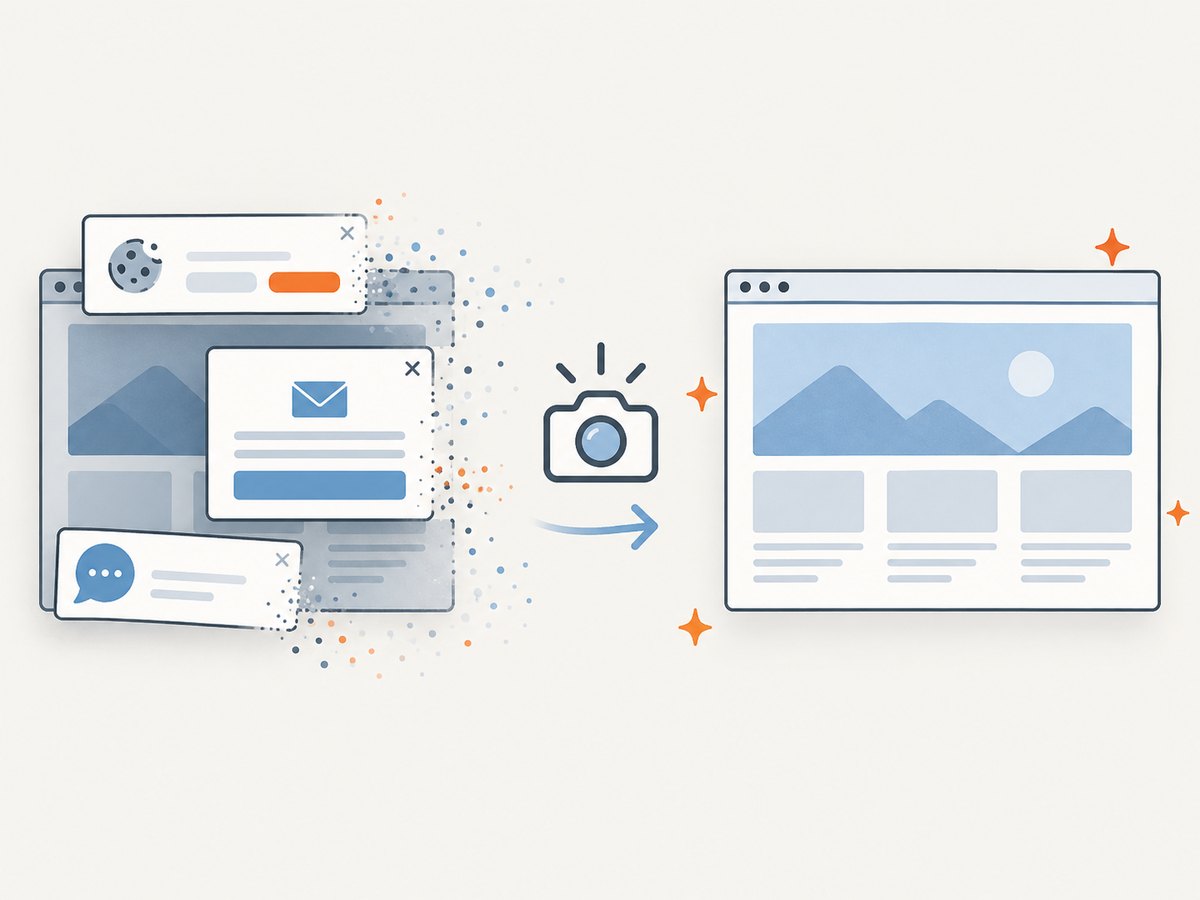
const res = await fetch(`https://api.screenshotneo.com/v1/shot?${q}`);ScreenshotNeo removes cookie and consent banners, newsletter popups, and chat widgets before capture. Bot checks, blank pages, timeouts, failed loads, and cache hits are not billed; response headers identify the page verdict and billing result. Its MCP server provides take_screenshot, get_page_info, and capture_pdf tools for Claude, Cursor, and other MCP clients.
Available controls include full-page capture with lazy images loaded, CSS selector element capture, dark mode, device presets or custom viewports, retina scale, PDF paper settings, custom CSS and JavaScript, clicks, selector or network-idle waits, request blocking, headers, cookies, user agents, Authorization, timezone, geolocation, transparent backgrounds, resizing, configurable caching, signed links, asynchronous webhooks, bulk capture of up to 100 URLs per call, a usage API, and an OpenAPI specification.
The Free plan includes 1,000 shots per month with no card. Paid plans start at $5 for 3,000 shots; every feature is included on every plan. Create a free ScreenshotNeo account to start.
Troubleshooting
| Symptom | Cause | Fix |
|---|---|---|
| Blank or partly blank image | Capture ran before data, fonts, or images loaded. | Await document.fonts.ready, image loads, and your app’s data promise. |
| SecurityError on export | A cross-origin image tainted the canvas. | Enable useCORS and configure image CORS, or proxy the asset through your origin. |
| Remote iframe missing | Same-origin policy blocks iframe DOM access. | Render equivalent content in the parent page or use a real hosted browser. |
| Text looks soft | Low canvas scale or JPEG compression. | Increase scale, raise quality, or export PNG for text-heavy artwork. |
| Black background | JPEG has no alpha channel and the canvas background is transparent. | Set backgroundColor: "#ffffff". |
| Browser freezes | Huge dimensions, high scale, or a very tall page exhausted memory. | Lower scale, capture smaller regions, and use toBlob(). |
| Download does nothing | Blob is null or the click is not triggered by a user action. | Check for a null blob and start the download from the button handler. |
Performance, reliability, privacy, and cost
- Performance: Pixel count grows with width, height, and scale squared. Capture only the element you need, cap device-pixel ratio for very large cards, and release object URLs after download.
- Reliability: Wait for stable layout and handle rejected promises. For repeatable jobs, record the URL, viewport, scale, quality, and application version alongside the file.
- Privacy: html2canvas keeps rendering in the user’s browser. A hosted API sends the target URL and rendered request through a third-party service, so review your data requirements before sending private pages.
- Cost: The browser workflow has no service charge, but uses the user’s CPU and memory. Hosted services add credentials and service limits. ScreenshotNeo provides 1,000 free shots monthly without a card and paid plans from $5 for 3,000 shots.
Checklist for production exports
- Choose an element or explicit page dimensions.
- Wait for fonts, images, data, and animations to settle.
- Set a solid background for JPEG.
- Use
useCORSonly when the image server permits it. - Exclude controls with
data-html2canvas-ignore. - Pick scale and quality based on the required pixel dimensions.
- Prefer
toBlob()for large files. - Test long pages, slow connections, missing images, and responsive widths.
FAQ
Can I convert a complete website URL in the browser?
html2canvas runs in the page you control and cannot freely read another origin. For arbitrary public URLs, use a hosted browser service.
Does JPEG support transparent backgrounds?
No. Set a background color or use PNG when transparency is required.
What quality value should I use?
Start around 0.85 to 0.9, then compare file size and visible artifacts for your content.
Why is my result different from a browser screenshot?
html2canvas reconstructs the DOM rather than copying the compositor’s final pixels, so unsupported CSS, plugins, and cross-origin content can differ.
Can I automate many URL captures?
Yes. A hosted API is the practical choice for scheduled or batch work. ScreenshotNeo supports bulk capture for up to 100 URLs per call and asynchronous jobs with signed webhooks.


