Convert HTML to JPEG in Go
Render HTML with Chromium from Go, then save a real JPEG. Compare Playwright-Go and chromedp, with production code, options, troubleshooting, and an API shortcut.
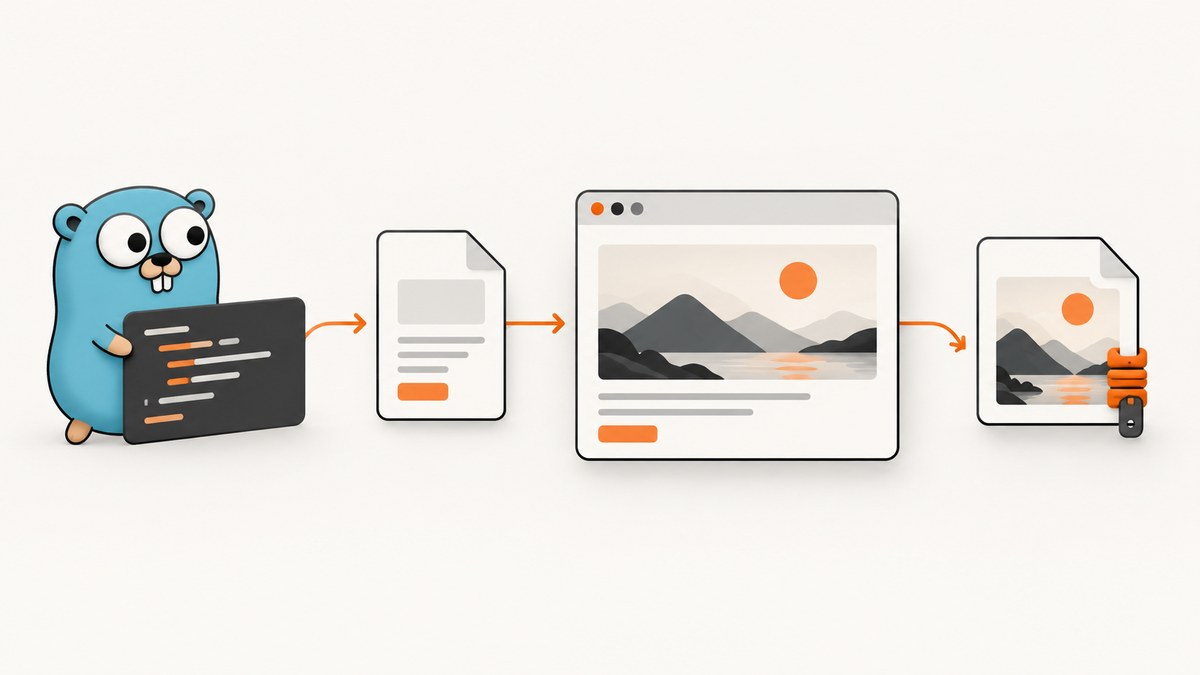
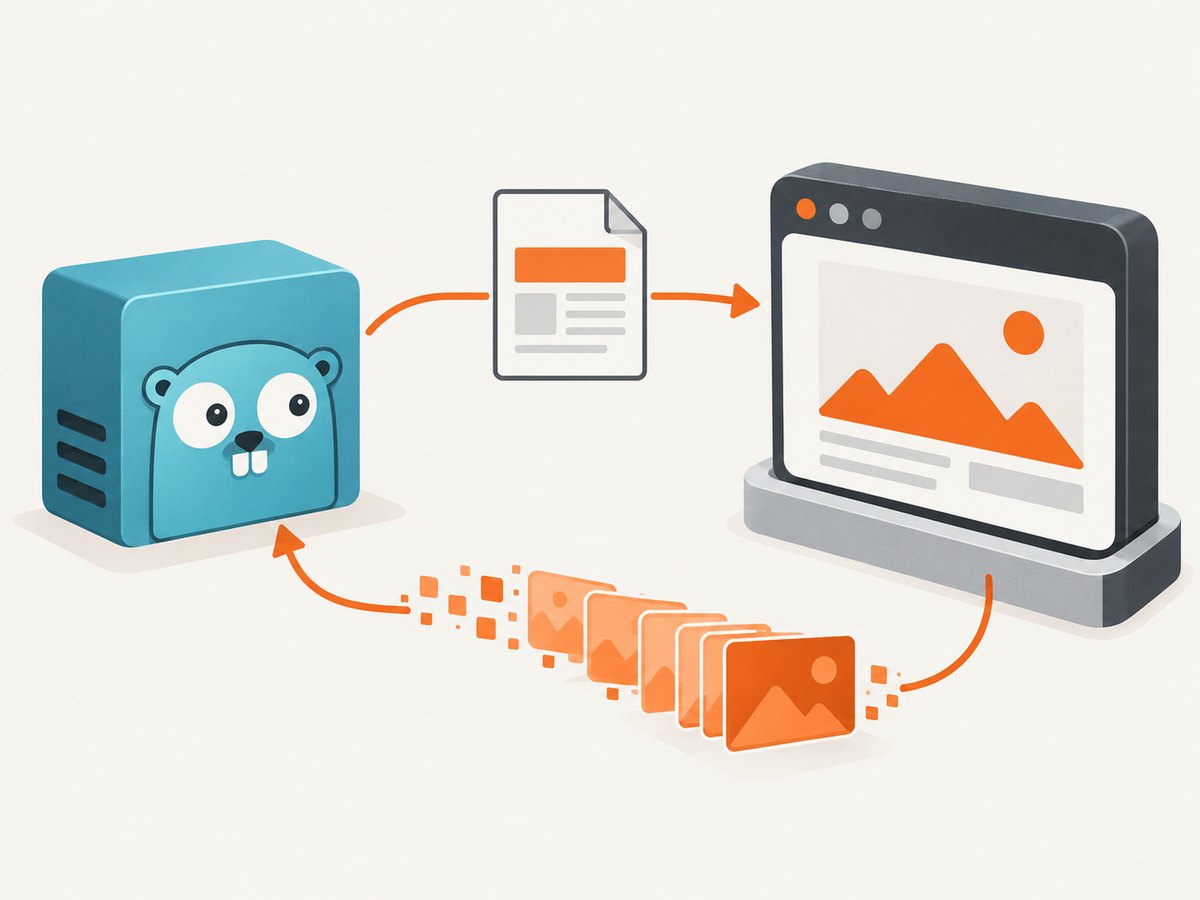
Direct answer: use a Chromium-based browser to render the HTML, then encode the resulting screenshot as JPEG. In Go, Playwright-Go is the shortest route for an HTML string: launch Chromium, call page.SetContent, and call page.Screenshot with ScreenshotTypeJpeg. Use chromedp when you need lower-level Chrome DevTools Protocol control, including its FullScreenshot helper and explicit quality value.
This approach handles CSS layout, web fonts, images, and client-side JavaScript because a browser performs the rendering. Converting HTML by parsing tags or writing pixels yourself will not reproduce normal browser layout. The examples below cover an HTML string, a URL, viewport and full-page captures, an element, clipping, JPEG quality, deployment, and failure handling.
1. Choose the capture boundary and renderer
Decide what “the JPEG” should contain before writing code:
| Requirement | Capture mode | Typical use |
|---|---|---|
| Exactly the visible browser window | Viewport screenshot | Hero images, previews, dashboards |
| The complete document, including content below the fold | Full-page screenshot | Articles, invoices, long reports |
| One component | Element or selector screenshot | Cards, charts, certificates |
| A specific rectangle | Clipped screenshot | Known coordinates or a crop |
Playwright-Go is a good starting point for an HTML string because SetContent and JPEG output are explicit. chromedp is a good fit when your service already uses the Chrome DevTools Protocol or needs direct browser actions. Both require Chrome or Chromium at runtime; Playwright can download Chromium during installation, while chromedp expects a browser available to the process.
2. Install Playwright-Go and Chromium
Use the current module path. Older guides that import github.com/playwright-community/playwright-go are outdated; the module path moved to github.com/mxschmitt/playwright-go in v0.6100.0.
go mod init example.com/htmljpeg
go get github.com/mxschmitt/playwright-go
go run github.com/mxschmitt/playwright-go/cmd/playwright install chromium
The install command places a compatible Chromium binary where the Playwright client can find it. In a container or CI image, run this during the image build rather than on every request.
3. Convert an HTML string to JPEG with Playwright-Go
The following program is complete and runnable. It creates a page from an HTML string and writes html.jpg.
package main

import (
    "log"

    "github.com/mxschmitt/playwright-go"
)

func main() {
    pw, err := playwright.Run()
    if err != nil {
        log.Fatal(err)
    }
    defer pw.Stop()

    browser, err := pw.Chromium.Launch()
    if err != nil {
        log.Fatal(err)
    }
    defer browser.Close()

    page, err := browser.NewPage()
    if err != nil {
        log.Fatal(err)
    }

    html := `<!doctype html>
<html>
  <head>
    <meta charset="utf-8">
    <style>
      body { margin: 0; font-family: sans-serif; background: #f5f7fb; }
      main { width: 760px; margin: 48px auto; padding: 32px; background: white; }
      h1 { color: #15213b; }
    </style>
  </head>
  <body>
    <main><h1>Hello from Go</h1><p>Rendered by Chromium.</p></main>
  </body>
</html>`

    if err := page.SetContent(html); err != nil {
        log.Fatal(err)
    }

    _, err = page.Screenshot(playwright.PageScreenshotOptions{
        Path: &playwright.String("html.jpg"),
        Type: playwright.ScreenshotTypeJpeg,
        Quality: playwright.Int(90),
    })
    if err != nil {
        log.Fatal(err)
    }
}
Quality is optional in Playwright. A value such as 90 is a practical starting point; lower values produce smaller files with more visible compression. Keep ScreenshotTypeJpeg explicit so the output format does not depend on the filename.
4. Render a URL instead of an HTML string
For a page served by your application or a public site, navigate before taking the screenshot. Wait for the state that makes the page visually complete; navigation finishing does not always mean that JavaScript-rendered content or images are ready.
package main

import (
    "log"

    "github.com/mxschmitt/playwright-go"
)

func main() {
    pw, err := playwright.Run()
    if err != nil { log.Fatal(err) }
    defer pw.Stop()

    browser, err := pw.Chromium.Launch()
    if err != nil { log.Fatal(err) }
    defer browser.Close()

    page, err := browser.NewPage(playwright.BrowserNewPageOptions{
        Viewport: &playwright.Size{Width: 1440, Height: 900},
        DeviceScaleFactor: playwright.Float(1),
    })
    if err != nil { log.Fatal(err) }

    if _, err := page.Goto("https://example.com"); err != nil {
        log.Fatal(err)
    }
    if err := page.WaitForLoadState("networkidle"); err != nil {
        log.Fatal(err)
    }

    _, err = page.Screenshot(playwright.PageScreenshotOptions{
        Path: playwright.String("page.jpg"),
        Type: playwright.ScreenshotTypeJpeg,
        Quality: playwright.Int(88),
        FullPage: playwright.Bool(true),
    })
    if err != nil { log.Fatal(err) }
}
Use FullPage: true for the entire document. Leave it false for only the viewport. If a site keeps polling or streaming, networkidle may never occur; use a specific selector wait or a bounded delay instead.
5. Capture an element or a clipped region
Element capture avoids stitching or cropping when the browser can identify the component. With Playwright, locate the element and pass its bounding box as a clip, or use the locator screenshot API available in your installed version. A clip is useful when you need stable coordinates:
box, err := page.Locator("article.invoice").BoundingBox()
if err != nil { log.Fatal(err) }
if box == nil { log.Fatal("invoice element is not visible") }

_, err = page.Screenshot(playwright.PageScreenshotOptions{
    Path: playwright.String("invoice.jpg"),
    Type: playwright.ScreenshotTypeJpeg,
    Quality: playwright.Int(92),
    Clip: &playwright.ScreenshotClip{
        X: box.X, Y: box.Y, Width: box.Width, Height: box.Height,
    },
})
if err != nil { log.Fatal(err) }
Wait for the selector before measuring it. Hidden elements have no useful visible bounding box, and animated layouts can move between measurement and capture.
6. Full-page and JPEG capture with chromedp
chromedp drives Chrome through the Chrome DevTools Protocol. Its FullScreenshot helper takes a quality integer from 0 to 100. In chromedp, quality 100 selects PNG; use any lower value when you require JPEG.
package main

import (
    "context"
    "log"
    "os"

    "github.com/chromedp/chromedp"
)

func main() {
    ctx, cancel := chromedp.NewContext(context.Background())
    defer cancel()

    var buf []byte
    err := chromedp.Run(ctx,
        chromedp.Navigate("https://example.com"),
        chromedp.FullScreenshot(&buf, 90),
    )
    if err != nil { log.Fatal(err) }

    if err := os.WriteFile("fullScreenshot.jpeg", buf, 0644); err != nil {
        log.Fatal(err)
    }
}
The underlying DevTools Protocol defines JPEG quality as a 0–100 compression parameter. Use chromedp.Screenshot(selector, &buf, chromedp.NodeVisible) for a visible DOM element:
var card []byte
err := chromedp.Run(ctx,
    chromedp.Navigate("https://example.com"),
    chromedp.WaitVisible(".card", chromedp.ByQuery),
    chromedp.Screenshot(".card", &card, chromedp.NodeVisible),
)
if err != nil { log.Fatal(err) }
if err := os.WriteFile("card.jpeg", card, 0644); err != nil { log.Fatal(err) }
7. Make rendering deterministic
Most screenshot defects come from timing or environment differences rather than JPEG encoding.
- Wait for content: wait for a meaningful selector, a known application-ready signal, or a short bounded delay after navigation.
- Fonts: install the fonts your design uses in the browser image. Missing fonts change line wrapping and therefore the entire page height.
- Images: wait for lazy images to load or scroll through the document before a full-page capture. A page can be “loaded” while below-fold images are still absent.
- Viewport: set width and height explicitly. Responsive breakpoints otherwise vary with the host or browser defaults.
- Device scale: a higher device scale factor produces more pixels and larger files. Use it when text must remain sharp at display size.
- Animations: disable transitions in injected CSS or wait until the animation reaches a stable state.
- Network: control external assets and third-party scripts where reproducibility matters. A blocked font or tracker can alter layout.
8. Production service design
Reuse browser processes carefully
Launching Chromium for every request is simple but adds process startup cost. A long-running service can keep one browser process and create isolated pages or contexts per job. Bound the number of concurrent pages: each page consumes CPU and memory while layout, JavaScript, and image decoding run.
Set timeouts and cancel work
Give navigation, selector waits, and the whole job a deadline. In a Go HTTP service, derive a context from the request and close the page when it is canceled. A timeout should return a clear error and must not leave a browser process behind.
Write atomically
When producing files for another process, write to a temporary path and rename it after the screenshot completes. When returning an HTTP response, set Content-Type: image/jpeg and stream the bytes rather than buffering many large full-page images in memory.
Security boundaries
Treat user-supplied URLs and HTML as untrusted. Restrict outbound network access if the service must not reach internal hosts, avoid exposing browser debugging ports, and isolate jobs that may contain secrets. Do not place credentials in HTML that can be captured or logged accidentally.
9. JPEG quality, dimensions, and cost
JPEG is lossy and does not preserve transparency. It is appropriate for photographic or general web screenshots, while PNG is preferable for pixel-perfect UI text, diagrams, and images with transparency. Test several quality values against your actual pages; the sources document the quality range but do not publish a universal file-size or fidelity benchmark.
Full-page captures can be very tall. Consider a maximum document height, a viewport capture, or several logical sections if downstream systems impose image dimension limits. Measure memory and throughput in your deployment because browser version, fonts, page complexity, and external assets dominate performance.
Self-hosting also means operating browser binaries, fonts, sandbox permissions, updates, and concurrency. If those operations are not part of your service, an API can move that work out of your process.
10. Troubleshooting checklist
| Symptom | Likely cause | Fix |
|---|---|---|
| Chromium executable not found | Browser was not installed or the process cannot see its cache | Run the Playwright Chromium install command during image build, or install Chrome/Chromium for chromedp and set its executable path. |
| Screenshot is blank | Navigation failed, content is hidden, or capture ran before rendering | Check the navigation error, wait for a visible selector, and verify the URL from the same network environment. |
| JPEG contains the skeleton screen | Client-side rendering is still in progress | Wait for an application-ready selector or a deterministic response, not only the initial load event. |
| Bottom of a long page is missing | Viewport capture was used | Enable Playwright full-page capture or chromedp FullScreenshot; ensure lazy content is loaded first. |
| Text wraps differently in production | Fonts, viewport, or device scale differ | Install matching fonts and set viewport and scale explicitly. |
| Quality 100 produced PNG in chromedp | chromedp defines quality 100 as PNG | Use a value below 100, such as 90, when JPEG is required. |
| Network-idle wait never finishes | Analytics, polling, or streams keep requests open | Wait for a specific selector or use a bounded timeout and delay. |
| Element capture has zero size | Element is hidden or not yet laid out | Wait for visibility, then measure its bounding box immediately before capture. |
| Browser crashes under load | Too many simultaneous pages or very large documents | Limit concurrency, recycle the browser periodically, and record page dimensions and memory usage. |
11. Or skip the browser setup
ScreenshotNeo provides a website screenshot API when you want one HTTP request instead of managing Chromium in your Go service. It returns PNG, JPEG, WebP, or PDF, and its API accepts the URL to capture. See the ScreenshotNeo documentation for the complete option list.
curl -G "https://api.screenshotneo.com/v1/shot" -d access_key=YOUR_API_KEY --data-urlencode url=https://stripe.com -o shot.webpimport requests
r = requests.get(
"https://api.screenshotneo.com/v1/shot",
params={"access_key": "YOUR_API_KEY", "url": "https://stripe.com"},
timeout=90,
)
r.raise_for_status()
open("shot.webp", "wb").write(r.content)const q = new URLSearchParams({ access_key: 'YOUR_API_KEY', url: 'https://stripe.com' });
const res = await fetch(`https://api.screenshotneo.com/v1/shot?${q}`);
if (!res.ok) throw new Error(`Screenshot failed: ${res.status}`);
const bytes = new Uint8Array(await res.arrayBuffer());
// Save bytes with your application’s file API.For JPEG output, pass the format option documented by ScreenshotNeo. The service can also capture full pages with lazy images loaded, a CSS-selected element, dark mode, custom viewport and retina scale, custom CSS or JavaScript, clicks, selector or network-idle waits, blocked requests, headers, cookies, user agents, authorization, timezone, geolocation, transparent backgrounds, resizing, caching with a chosen TTL, signed links, asynchronous jobs with signed webhooks, bulk capture of up to 100 URLs per call, and usage reporting.
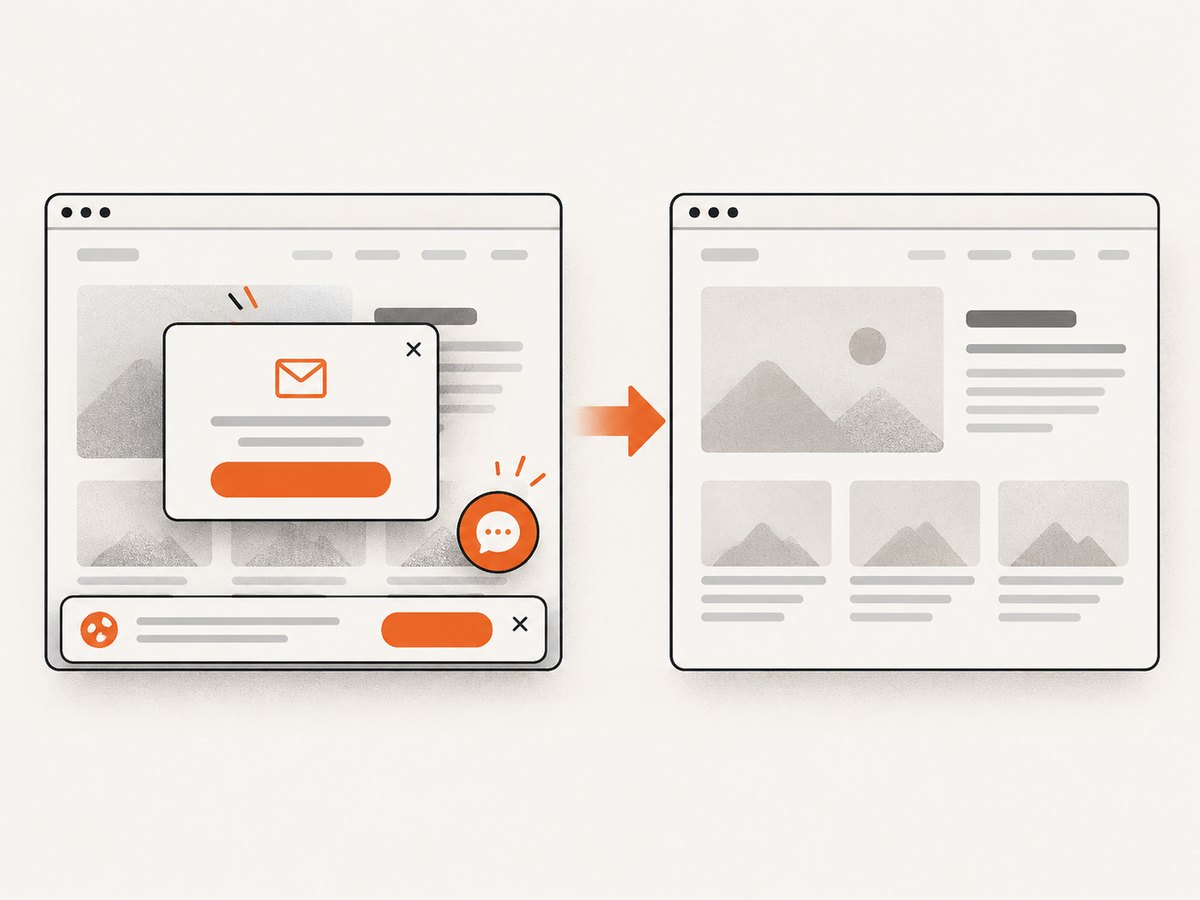
Cookie and consent banners, newsletter popups, and chat widgets are removed before the shot; each cleanup step can be turned off. Bot checks or CAPTCHAs, blank pages, timeouts, failed loads, and cache hits are not billed, and response headers report the page verdict and whether it was billed. An MCP server exposes take_screenshot, get_page_info, and capture_pdf to Claude, Cursor, and other MCP clients.
The Free plan includes 1,000 screenshots per month with no card. Paid plans start at $5 for 3,000 shots; every feature is available on every plan. Create a free ScreenshotNeo account to try the API.
12. FAQ
Can Go convert HTML to JPEG without a browser?
Only for restricted markup and your own layout engine. For arbitrary CSS and JavaScript, use Chromium or another browser renderer so the result matches what users see.
Which library should a new service use?
Start with Playwright-Go for a concise HTML-string workflow and explicit JPEG options. Choose chromedp when direct DevTools Protocol control fits your architecture.
Is full-page always better?
No. Full-page is useful for documents, but a viewport, element, or clipped capture is smaller and often better for previews and cards.
Why does the same HTML produce different JPEGs on two machines?
Browser version, fonts, viewport, device scale, timing, external assets, and animation state all affect pixels. Pin those inputs when reproducibility matters.
Does JPEG quality 100 always mean the best JPEG?
Not with chromedp: its documented value of 100 selects PNG. Use a value below 100 for JPEG and choose the quality based on your size and fidelity requirements.


