Convert HTML to JPEG in Python: A Complete Playwright Guide
Learn how to render HTML as a high-quality JPEG in Python with Playwright, including full pages, elements, local files, URLs, quality settings, and production fixes.
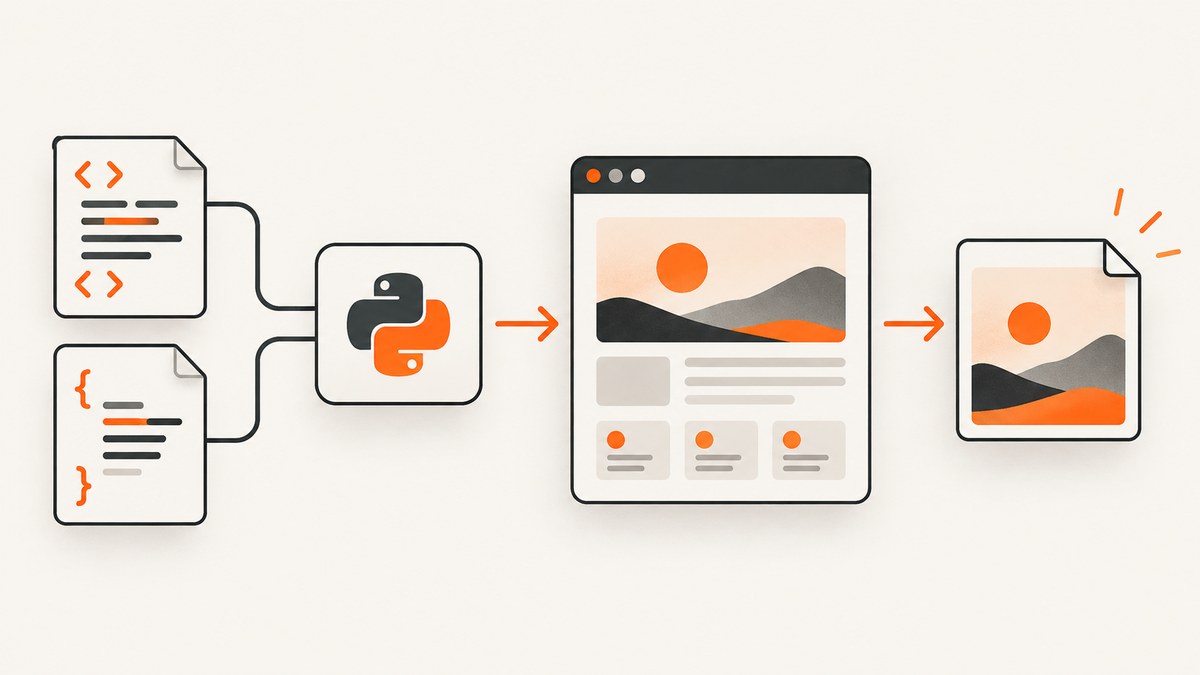
Use a real browser when you need the JPEG to look like the rendered page. In Python, Playwright is the most direct general-purpose approach: it loads HTML and CSS in Chromium, Firefox, or WebKit, waits for the page to render, and writes a JPEG with a selectable quality level. It also supports full-page screenshots, element screenshots, custom viewports, and in-memory image bytes.
This guide shows how to convert HTML to JPEG in Python for inline HTML, local files, and URLs. It covers installation, fonts and images, responsive layouts, quality and size choices, reusable functions, asynchronous code, alternatives such as imgkit and WeasyPrint, production troubleshooting, and an API option when you do not want to operate a browser.
1. Install Playwright and its browser
The Python package and the browser binaries are separate installations. Install both before running a screenshot script:
python -m pip install --upgrade pip
python -m pip install playwright
python -m playwright install
You can install only Chromium when that is the sole browser you need:
python -m playwright install chromiumPlaywright provides synchronous and asynchronous Python APIs and supports Chromium, Firefox, and WebKit. Chromium is usually the simplest default for server-side HTML-to-image work. The browser process must be available in the environment where your script runs, including CI and containers.
2. Convert inline HTML to a JPEG
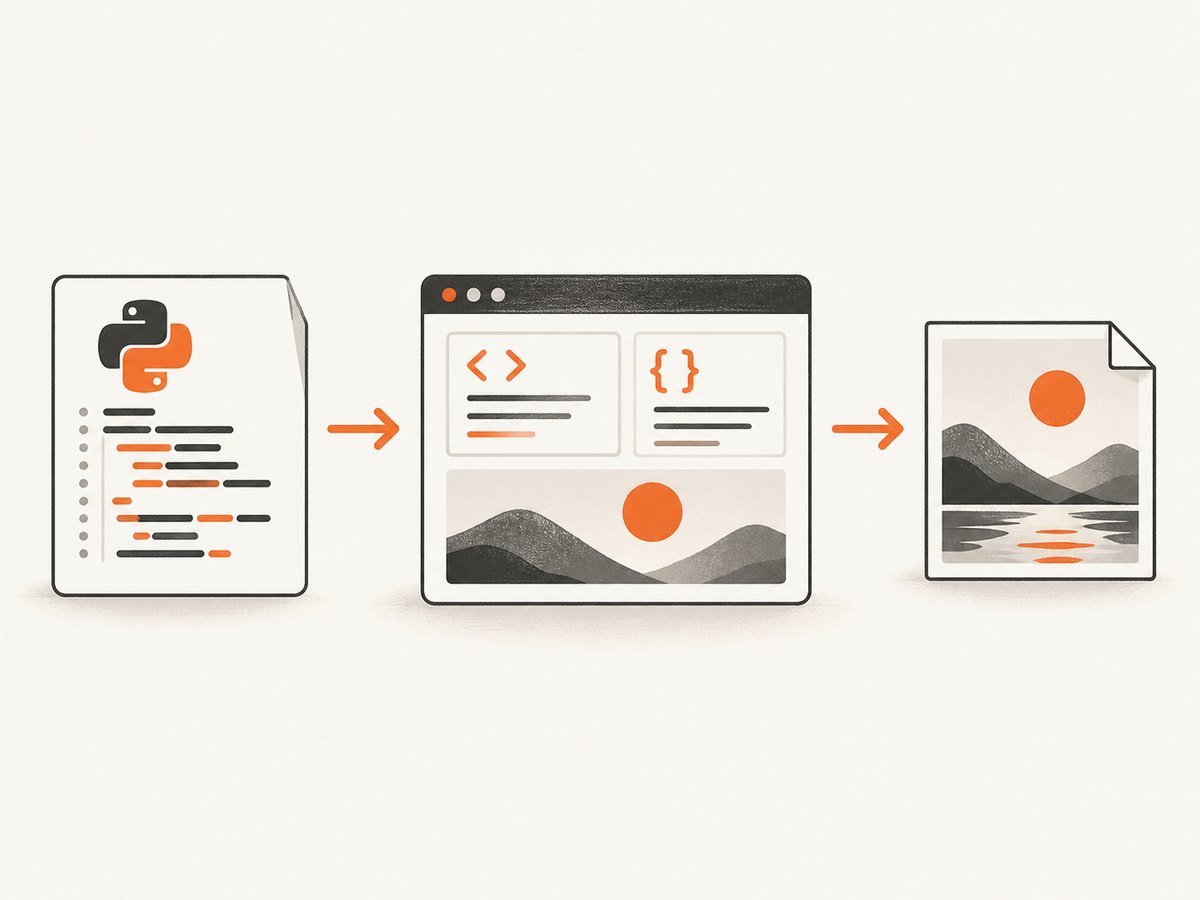
This complete example creates an HTML document, renders it at a fixed viewport, and saves a full-page JPEG:
from playwright.sync_api import sync_playwright

html = """\
<!doctype html>
<html>
  <head>
    <meta charset="utf-8">
    <style>
      * { box-sizing: border-box; }
      body {
        margin: 0;
        padding: 48px;
        background: #f4f7fb;
        color: #172033;
        font-family: Arial, sans-serif;
      }
      .card {
        max-width: 760px;
        margin: 0 auto;
        padding: 40px;
        border-radius: 18px;
        background: white;
        box-shadow: 0 12px 40px rgba(20, 35, 60, .12);
      }
      h1 { margin-top: 0; font-size: 42px; }
      p { font-size: 18px; line-height: 1.6; }
    </style>
  </head>
  <body>
    <main class="card">
      <h1>HTML rendered as JPEG</h1>
      <p>This image was produced by a browser running from Python.</p>
    </main>
  </body>
</html>
"""

with sync_playwright() as p:
    browser = p.chromium.launch()
    page = browser.new_page(viewport={"width": 1280, "height": 900})
    page.set_content(html, wait_until="load")
    page.screenshot(
        path="output.jpeg",
        type="jpeg",
        quality=90,
        full_page=True,
    )
    browser.close()
The type="jpeg" option selects JPEG output. The quality value ranges from 0 to 100; higher values preserve more detail and generally produce larger files. The documented default JPEG quality is 80. full_page=True expands the capture to the complete scrollable document instead of only the visible viewport.
For a screenshot that must have an exact pixel width, set the viewport explicitly. Keep the page’s CSS breakpoints in mind: changing the viewport can change the layout, navigation, font wrapping, and image sizes.
3. Convert a local HTML file
Use a file:// URL when your HTML is stored on disk. Resolve the path first so the script works regardless of the current working directory:
from pathlib import Path
from playwright.sync_api import sync_playwright

html_path = Path("report.html").resolve()

with sync_playwright() as p:
    browser = p.chromium.launch()
    page = browser.new_page(viewport={"width": 1400, "height": 1000})
    page.goto(html_path.as_uri(), wait_until="load")
    page.screenshot(
        path="report.jpeg",
        type="jpeg",
        quality=92,
        full_page=True,
    )
    browser.close()
Relative CSS, JavaScript, and image paths are resolved relative to the HTML file. If your page uses a local web server, navigate to its HTTP URL instead. A server is often easier when the document relies on modules, fetch requests, or browser features restricted on file:// pages.
4. Convert a URL to JPEG
For a web page, replace set_content with page.goto. Choose a readiness condition that matches the site:
from playwright.sync_api import sync_playwright

url = "https://example.com"

with sync_playwright() as p:
    browser = p.chromium.launch()
    page = browser.new_page(viewport={"width": 1280, "height": 900})
    page.goto(url, wait_until="networkidle", timeout=90_000)
    page.screenshot(
        path="example.jpeg",
        type="jpeg",
        quality=88,
        full_page=True,
    )
    browser.close()
networkidle waits for a period with no outstanding network connections. It is useful for many static pages but can delay forever on applications that poll, stream, or keep analytics connections open. In those cases, use wait_until="domcontentloaded" and wait for a meaningful selector:
page.goto(url, wait_until="domcontentloaded", timeout=90_000)
page.locator("main article").wait_for(state="visible", timeout=30_000)
page.wait_for_timeout(500)
A selector wait is usually more deterministic than an arbitrary sleep. Use a short delay only for animations, late font loading, or content that has no reliable readiness element.
5. Capture one element instead of the whole page
When the output should be a card, chart, invoice, or component, capture its locator:
from playwright.sync_api import sync_playwright

with sync_playwright() as p:
    browser = p.chromium.launch()
    page = browser.new_page(viewport={"width": 1280, "height": 900})
    page.set_content("""
      <style>
        .invoice { width: 720px; padding: 32px; background: white; }
      </style>
      <section class="invoice">
        <h1>Invoice #1042</h1>
        <p>Amount due: $420.00</p>
      </section>
    """, wait_until="load")

    page.locator(".invoice").screenshot(
        path="invoice.jpeg",
        type="jpeg",
        quality=95,
    )
    browser.close()
Element screenshots use the element’s bounding box. Make sure the element is visible and has a stable size before capturing it. If an element is clipped by an ancestor with overflow: hidden, remove the clipping or capture a larger container.
6. Control dimensions, scale, and JPEG quality
Viewport and device scale factor
The viewport controls CSS pixels. A device scale factor controls how many physical pixels are rendered per CSS pixel:
page = browser.new_page(
    viewport={"width": 1200, "height": 800},
    device_scale_factor=2,
)
A scale factor of 2 can make text and thin lines sharper, but it also increases output dimensions and memory use. Use it when the image is intended for retina display or print-like previews. Keep it at 1 for smaller thumbnails and predictable file sizes.
Quality
| Quality | Typical use | Trade-off |
|---|---|---|
| 60–75 | Large batches, thumbnails | Small files; visible compression around text and gradients |
| 80 | General web images | Playwright’s documented default |
| 85–92 | Reports, previews, product cards | Good detail with moderate size |
| 95–100 | Archival or post-processing | Larger files; diminishing visual gains |
JPEG is lossy and does not preserve transparency. Use PNG when you need transparent backgrounds, pixel-perfect UI text, or sharp flat-color graphics. Use WebP when your downstream systems support it and file size matters.
Return bytes instead of writing a file
from pathlib import Path
from playwright.sync_api import sync_playwright

with sync_playwright() as p:
    browser = p.chromium.launch()
    page = browser.new_page(viewport={"width": 1280, "height": 900})
    page.set_content("<h1>In memory</h1>", wait_until="load")
    jpeg_bytes = page.screenshot(type="jpeg", quality=90, full_page=True)
    Path("memory-output.jpeg").write_bytes(jpeg_bytes)
    browser.close()
Byte output is useful when uploading directly to object storage, returning an HTTP response, or passing the image to another Python library without a temporary file.
7. Make rendering reproducible
Visual output can change when fonts, animations, time, locale, or remote assets change. For repeatable images:
- Set the viewport and device scale factor explicitly.
- Use a known browser version in CI and container images.
- Bundle fonts and refer to them with stable URLs.
- Disable animations and transitions before capture.
- Wait for a content selector and for fonts to finish loading.
- Use fixed test data rather than the current date or random IDs.
page.add_style_tag(content="""
  *, *::before, *::after {
    animation: none !important;
    transition: none !important;
    caret-color: transparent !important;
  }
""")
page.evaluate("document.fonts.ready")
If external images fail intermittently, host them where the renderer can reach them, wait for their selectors, and inspect network errors. A browser screenshot preserves what the browser actually rendered, including missing resources.
8. A reusable conversion function
from pathlib import Path
from typing import Optional
from playwright.sync_api import sync_playwright


def html_to_jpeg(
    html: str,
    output: Optional[str] = None,
    width: int = 1280,
    height: int = 900,
    quality: int = 90,
    full_page: bool = True,
) -> bytes:
    with sync_playwright() as p:
        browser = p.chromium.launch()
        try:
            page = browser.new_page(
                viewport={"width": width, "height": height}
            )
            page.set_content(html, wait_until="load")
            page.evaluate("document.fonts.ready")
            image = page.screenshot(
                type="jpeg",
                quality=quality,
                full_page=full_page,
            )
            if output:
                Path(output).write_bytes(image)
            return image
        finally:
            browser.close()


html_to_jpeg(
    "<main><h1>Report</h1></main>",
    output="report.jpeg",
    quality=92,
)
For high volume, do not launch a new browser for every image. Keep one browser process alive, create a fresh page or browser context per job, and close each page after capture. Limit concurrency so CPU and memory remain bounded.
9. Asynchronous Python API
Use the async API when your application already runs an event loop:
import asyncio
from pathlib import Path
from playwright.async_api import async_playwright


async def main():
    async with async_playwright() as p:
        browser = await p.chromium.launch()
        page = await browser.new_page(viewport={"width": 1280, "height": 900})
        await page.set_content("<h1>Async JPEG</h1>", wait_until="load")
        data = await page.screenshot(type="jpeg", quality=90, full_page=True)
        Path("async-output.jpeg").write_bytes(data)
        await browser.close()


asyncio.run(main())
10. Alternatives: imgkit and WeasyPrint
imgkit and wkhtmltoimage
imgkit is a Python wrapper around the external wkhtmltoimage utility:
python -m pip install imgkitimport imgkit
imgkit.from_file("report.html", "report.jpg")
# Or:
imgkit.from_string("<h1>Hello</h1>", "hello.jpg")This approach can be convenient in an environment that already packages wkhtmltoimage, but deployment requires the external binary and its system dependencies. Compare its rendering behavior with your actual HTML, especially for modern JavaScript and CSS.
WeasyPrint
WeasyPrint is primarily an HTML/CSS-to-PDF renderer. It accepts strings, files, URLs, and file objects and supports raster image inputs such as PNG and JPEG. If JPEG is the final format, you need a separate PDF rasterization stage, which adds another dependency and conversion step. Choose it when PDF is the required intermediate or final output, rather than when you simply need a browser-faithful JPEG.
11. Or skip the browser setup
ScreenshotNeo provides a website screenshot API when you want a rendered image without installing Playwright or browser binaries. One GET request returns a PNG, JPEG, WebP, or PDF. See the ScreenshotNeo API documentation for the available parameters.
curl -G "https://api.screenshotneo.com/v1/shot" -d access_key=YOUR_API_KEY --data-urlencode url=https://stripe.com -o shot.webpimport requests
r = requests.get(
"https://api.screenshotneo.com/v1/shot",
params={"access_key": "YOUR_API_KEY", "url": "https://stripe.com"},
timeout=90,
)
open("shot.webp", "wb").write(r.content)const q = new URLSearchParams({ access_key: 'YOUR_API_KEY', url: 'https://stripe.com' });
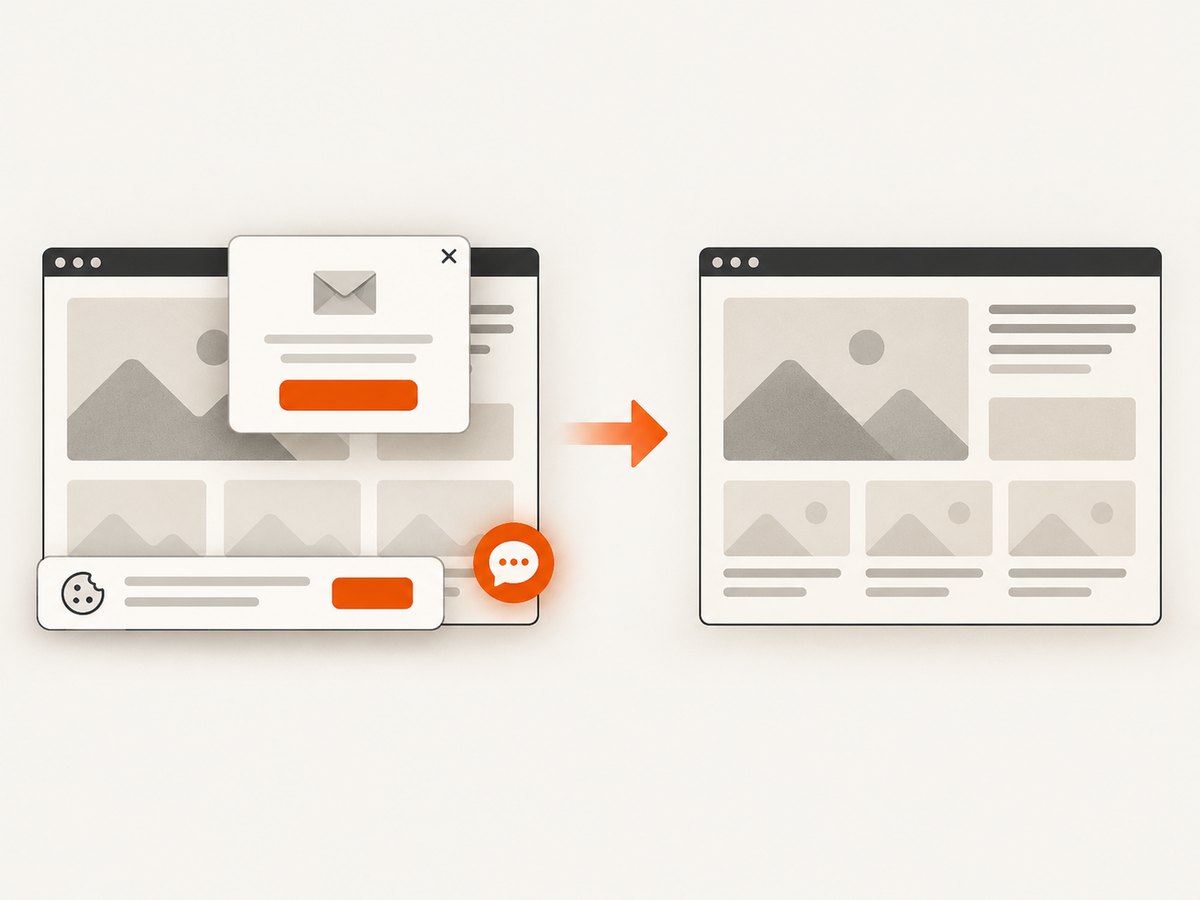
const res = await fetch(`https://api.screenshotneo.com/v1/shot?${q}`);Cookie banners, popups, and chat widgets are removed before the shot. Bot checks, blank pages, timeouts, failed loads, and cache hits are never billed, and the response identifies the result with X-Page-Verdict and X-Billed headers. ScreenshotNeo also has an MCP server so Claude, Cursor, and other MCP clients can take screenshots, inspect pages, and capture PDFs. The free plan includes 1,000 screenshots per month with no card; paid plans start at $5 for 3,000 shots.
Create a free ScreenshotNeo account and start with the 1,000 monthly shots.
12. Troubleshooting
| Symptom | Cause | Fix |
|---|---|---|
Executable doesn't exist |
Browser binaries were not installed | Run python -m playwright install chromium in the same environment. |
| Blank or partially rendered image | Capture happened before content or fonts loaded | Wait for a selector, call document.fonts.ready, and verify image requests. |
| Navigation timeout | The page keeps connections open or responds slowly | Use domcontentloaded, increase the timeout, and wait for a specific element. |
| Missing local images | Incorrect relative paths or inaccessible file:// resources |
Resolve paths, use absolute URLs, or serve the directory over HTTP. |
| Different wrapping than expected | Viewport, device scale, or fonts differ | Set them explicitly and install the exact fonts used by the design. |
| JPEG has a black or unexpected background | JPEG has no transparency and the page background is transparent | Set an explicit CSS background color before capture. |
| Element screenshot fails | Locator matches nothing or the element is hidden | Check the selector, wait for visibility, and remove clipping styles. |
| Out-of-memory errors | Huge full-page captures or too much concurrency | Reduce viewport scale, capture sections, reuse a browser, and cap workers. |
13. Performance, reliability, and cost considerations
Launching Chromium is more expensive than creating a page, so reuse a browser process for batches. Full-page screenshots of very long documents consume more memory than viewport screenshots; split long reports into sections when possible. A device scale factor above 1 multiplies the pixel count. Lower JPEG quality reduces storage and transfer cost but can damage small text and gradients.
For reliability, set navigation and selector timeouts, close pages in a finally block, log the URL and failure stage, and retry only transient navigation or network errors. Do not blindly retry deterministic problems such as invalid selectors or missing browser binaries. Treat untrusted HTML and CSS as potentially unsafe: review network access, filesystem access, input sanitization, and browser sandboxing before rendering user supplied content.
Playwright itself has no per-screenshot service charge when you operate the browser, but you pay for the machine, browser storage, CPU, memory, queueing, and maintenance. An API can be cheaper operationally for occasional captures or bursty workloads because browser installation and scaling are handled for you. Compare total operating cost, required controls, and whether you need local access to private HTML.
14. FAQ
Can Python convert HTML to JPG without a browser?
Yes. imgkit can call wkhtmltoimage, and WeasyPrint can render to PDF before a separate rasterization step. A browser is usually the better fit for JavaScript-heavy pages and modern CSS.
Why is my JPEG blurry?
Increase JPEG quality, use a higher device scale factor, or export PNG for graphics with small text and sharp edges.
How do I capture only a chart?
Give the chart a stable CSS selector and call page.locator(".chart").screenshot(...) after waiting for it to become visible.
Should I use full-page capture for a very long document?
Only when one tall image is useful. For large reports, section captures reduce memory pressure and make delivery easier.
Can I use this in a serverless function?
Yes, if the runtime supports the required browser binary and sandbox configuration. Package size, cold starts, execution time, and native dependencies must fit the platform limits.


