Convert HTML to JPEG in TypeScript
Render HTML in a real browser and save the result as a JPEG with TypeScript, including full-page capture, quality settings, and troubleshooting.
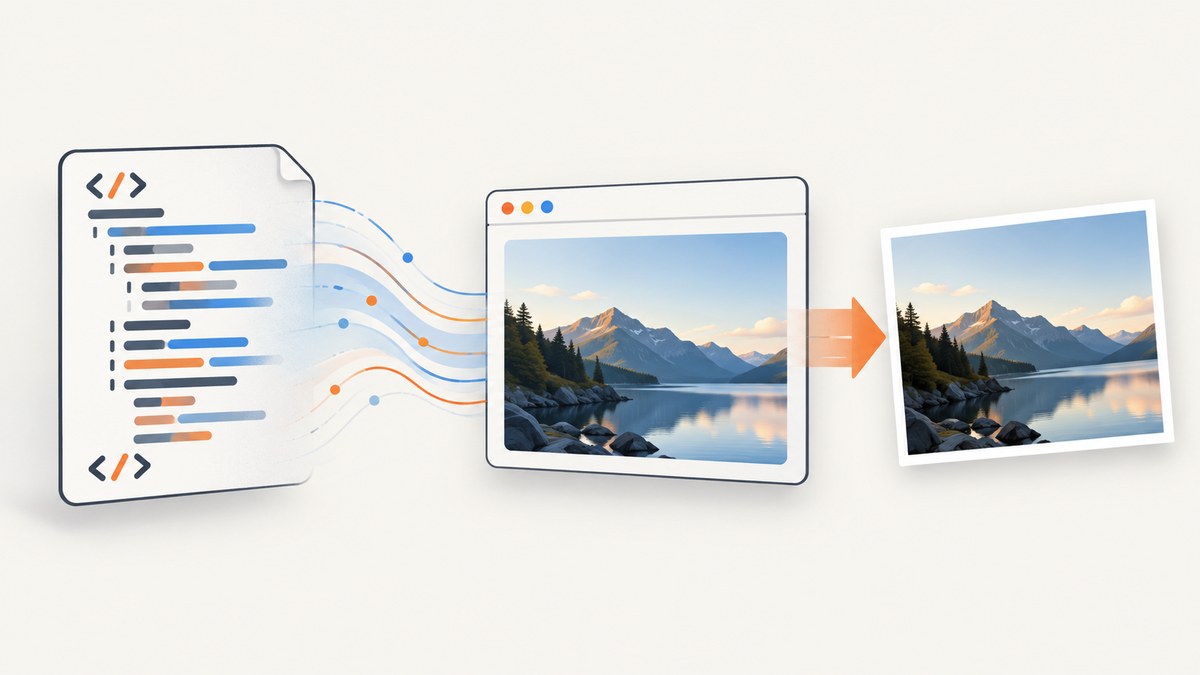
To convert HTML to JPEG in TypeScript, render it in a browser and capture the rendered page with Playwright. This produces image bytes that you can save to a file or return from a server. The example below captures supplied HTML as a full-page JPEG at quality 85.
import { chromium } from 'playwright';
import { writeFile } from 'node:fs/promises';

const html = `<!doctype html>
<html>
  <head>
    <meta charset="utf-8">
    <style>
      body { font: 16px/1.5 system-ui, sans-serif; margin: 40px; background: white; }
      h1 { color: #173b69; }
    </style>
  </head>
  <body><main><h1>Hello from TypeScript</h1><p>Rendered HTML becomes JPEG bytes.</p></main></body>
</html>`;

const browser = await chromium.launch();
try {
  const page = await browser.newPage({ viewport: { width: 1200, height: 800 } });
  await page.setContent(html, { waitUntil: 'load' });
  const jpeg = await page.screenshot({ type: 'jpeg', quality: 85, fullPage: true });
  await writeFile('page.jpg', jpeg);
} finally {
  await browser.close();
}
Install Playwright and its Chromium browser before running the script: npm install playwright and npx playwright install chromium. Save the code as convert.ts; run it with a TypeScript runner such as npx tsx convert.ts after installing tsx as a development dependency. The Playwright Page screenshot API documents JPEG output, quality, and full-page capture. Its documented default JPEG quality is 80; the example sets 85 explicitly.
1. Decide what “convert HTML” means
HTML is markup, not a bitmap. A faithful page image requires resolving layout, CSS, fonts, images, and browser rendering first. For server-side TypeScript, Playwright or Puppeteer automates a browser and captures what that browser rendered. Playwright can return JPEG bytes or write an image path; Puppeteer also documents page and element screenshots. See the Puppeteer screenshots guide.
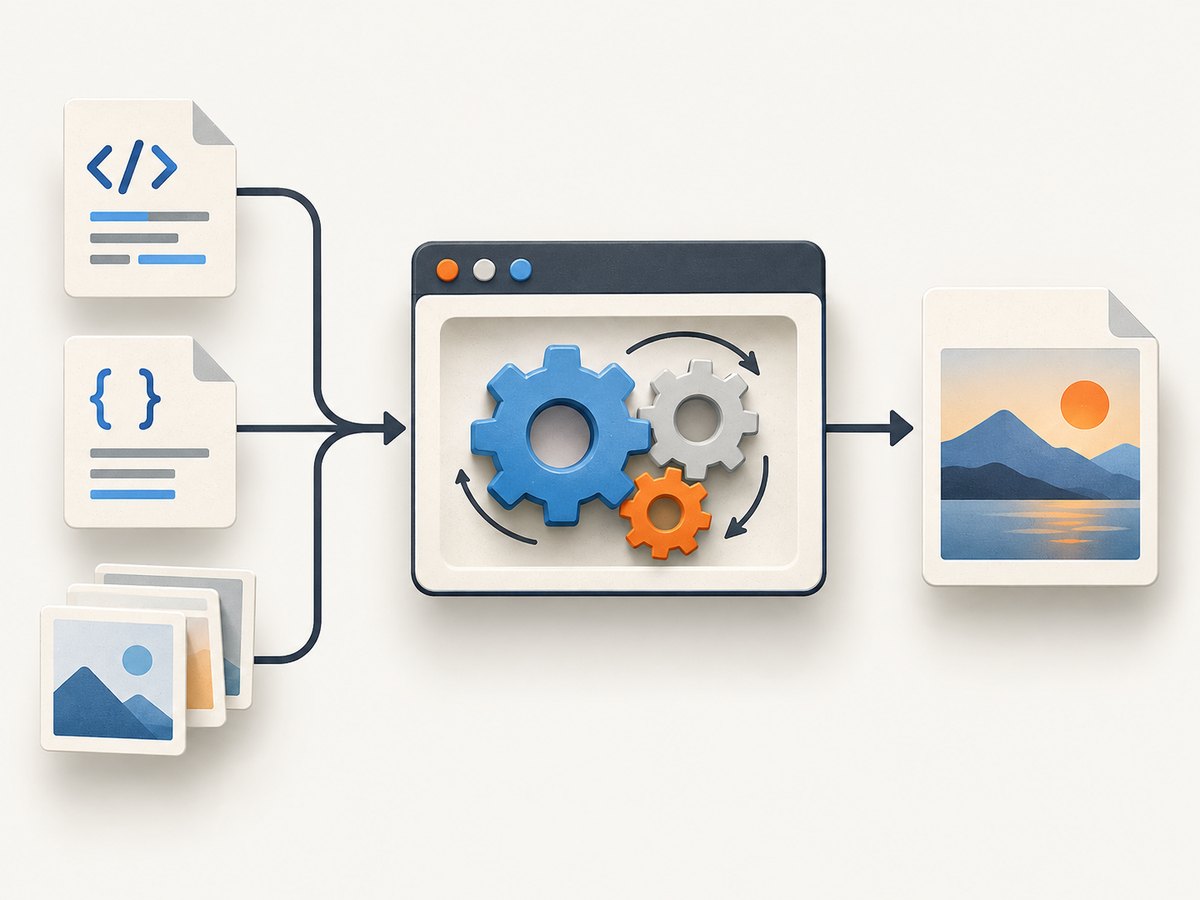
If the DOM already exists in a user’s browser and you need a canvas representation, html2canvas is an alternative. It reconstructs an image from DOM and style information rather than taking a literal browser screenshot; its project warns output may not be completely accurate. It is browser-oriented, not suitable for Node.js, and does not bypass cross-origin content restrictions. See the html2canvas documentation. For output that should match a rendered webpage, prefer browser automation.
2. Set up a repeatable TypeScript capture
- Install Node.js and create a project with a TypeScript runner or compile the file using your project’s usual TypeScript configuration.
- Install Playwright and its browser binary as shown above. In deployment or CI, install the browser for the same Playwright version used by the project.
- Set a fixed viewport, load the content, wait for the assets that affect the image, and capture as JPEG.
- Write the returned
Bufferto disk, store it, or send it as an HTTP response with theimage/jpegcontent type.
The basic example uses page.setContent for an HTML string. If the source is a URL, use page.goto(url) instead. Ensure the URL is one your application is allowed to fetch; do not accept arbitrary user URLs in a server endpoint without appropriate access controls.
import { chromium } from 'playwright';
import { writeFile } from 'node:fs/promises';

const browser = await chromium.launch();
try {
  const page = await browser.newPage({ viewport: { width: 1280, height: 900 } });
  await page.goto('https://example.com', { waitUntil: 'load' });
  const bytes = await page.screenshot({ type: 'jpeg', quality: 80 });
  await writeFile('example.jpg', bytes);
} finally {
  await browser.close();
}
load waits for the page load event, but does not guarantee that every single-page application has finished its asynchronous work. If a known selector indicates readiness, wait for it. If the page has a specific image or font that must appear, wait for that asset or for the relevant application state. There is no universal readiness condition that is correct for every site.
3. Choose capture dimensions and JPEG settings
| Option or decision | Effect | When to use it |
|---|---|---|
type: 'jpeg' |
Returns JPEG image bytes. | Set explicitly so downstream code knows the output format. |
quality |
JPEG quality from 0 to 100; Playwright documents 80 as the default. | Choose a lower value to reduce size or a higher one to retain more detail; inspect the result for your content. |
fullPage: true |
Captures the full scrollable page instead of just the viewport. | Use for a complete document, with care on very long pages. |
viewport |
Sets the browser’s layout width and height. | Fix it when consistent line wrapping and screenshots matter. |
scale |
Controls screenshot pixel density where supported by the API. | Use the documented Playwright scale option when you need CSS-sized or device-sized output. |
JPEG is lossy and does not support transparency. Give the document a solid background if transparent areas would otherwise be undesirable. Playwright notes that omitBackground does not apply to JPEG. Avoid judging quality from text alone: gradients, thin lines, and small text can show compression artifacts. The best quality setting depends on the image’s dimensions and content; measure file size in your own workload rather than assuming a universal tradeoff.
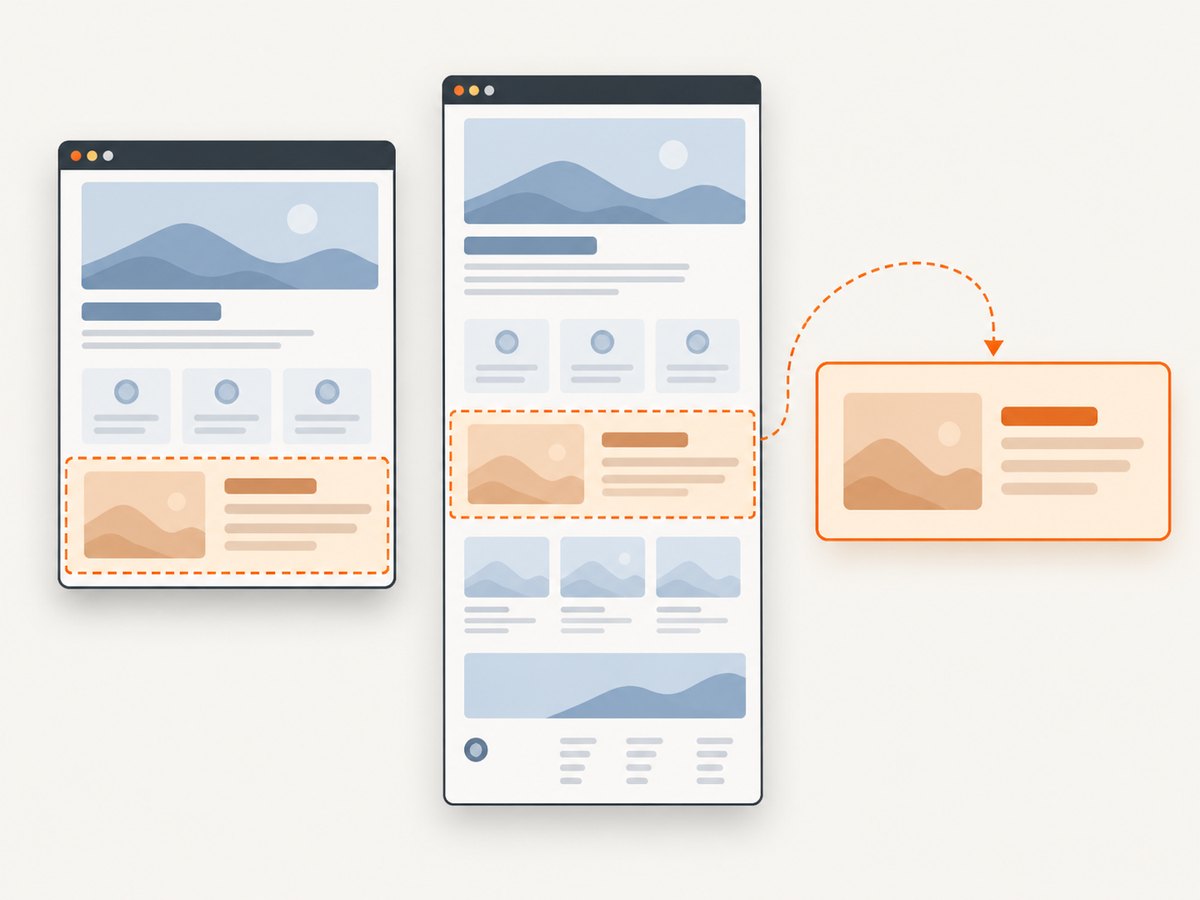
Use fullPage only when you intend to capture the whole scrollable document. Long pages can produce large images and consume more memory. For a targeted image, capture the viewport or a particular element instead of stitching an unnecessarily tall page. Playwright’s screenshot API includes element screenshot support through a locator.
4. Wait for dynamic content and assets
A screenshot captures the page state at the moment of capture. Pages may still be loading web fonts, lazy images, client-rendered content, animations, or data. A fixed viewport and explicit readiness condition make repeated captures more comparable. For example:
await page.goto('https://example.com/report', { waitUntil: 'domcontentloaded' });
await page.locator('main h1').waitFor({ state: 'visible' });
await page.screenshot({ path: 'report.jpg', type: 'jpeg', quality: 85 });
For HTML supplied directly, the page can still reference remote CSS, image, and font URLs. Those resources must be reachable from the browser process, and any cross-origin limitations or server responses still apply. Prefer stable asset URLs and wait for important resources explicitly. A generic network-idle wait can be unsuitable for pages that keep connections open or poll continuously, so use the condition that represents completion for the target page.
Animations and rotating content can make captures vary. Where repeatability matters, disable motion in the page’s CSS or use Playwright’s screenshot options for animations and style overrides as appropriate. Keep in mind that modifying the page for a screenshot changes the captured state; use those controls intentionally.
5. Return JPEG from an HTTP route
In a server route, send the JPEG buffer with the corresponding content type. Handle errors and close the browser even when navigation or capture fails. A production service should usually reuse a managed browser process or pool rather than launch a new browser for every request, while keeping each request’s page isolated.
import { chromium } from 'playwright';

const browser = await chromium.launch();

export async function renderJpeg(html: string): Promise<Buffer> {
  const page = await browser.newPage({ viewport: { width: 1200, height: 800 } });
  try {
    await page.setContent(html, { waitUntil: 'load' });
    return await page.screenshot({ type: 'jpeg', quality: 85, fullPage: true });
  } finally {
    await page.close();
  }
}

// In a web framework route:
// const jpeg = await renderJpeg(inputHtml);
// return new Response(jpeg, { headers: { 'Content-Type': 'image/jpeg' } });
This is a shape to adapt to your framework, not a complete web server. If rendering untrusted HTML, treat the browser as an isolated execution environment: use an appropriate sandbox, restrict network access where possible, limit execution time and image dimensions, and avoid exposing credentials to the page. HTML can include scripts and external resource requests. Also cap concurrent pages so one burst cannot exhaust CPU or memory.
6. Troubleshooting common failures
| Symptom | Likely cause | Fix |
|---|---|---|
| Browser executable not found | Playwright package is installed but its browser binary was not installed in this environment. | Run npx playwright install chromium during setup or use the browser installation step required by your deployment image. |
| JPEG is blank or missing content | Capture ran before client rendering, selector visibility, or an important asset was ready. | Wait for a meaningful selector or application state; verify the page in the same browser environment. |
| Fonts or images differ from local output | Remote assets failed, loaded late, or differed by environment. | Check browser network access and asset URLs, then wait for critical assets before capture. |
| Cross-origin image missing in html2canvas | Browser content policy blocks reading the asset into a canvas; html2canvas cannot bypass that restriction. | Serve the asset with suitable cross-origin configuration or use an authorized same-origin/proxy path. A browser screenshot does not grant access to protected resources either. |
| Output is too tall or memory-heavy | fullPage captured a very long document. |
Capture a viewport or a specific element, or divide the intended content into smaller captures. |
| Unexpected white or transparent-looking background | JPEG has no alpha channel, or the page background is not the intended color. | Set a background color in the page CSS. omitBackground does not make JPEG transparent. |
| Capture takes too long | Navigation waits for an event the site never reaches, remote resources stall, or a timeout is too generous. | Choose a suitable load condition, wait for the specific content needed, configure a bounded timeout, and log navigation and capture durations separately. |
| Different output between runs | Viewport, dynamic data, animations, fonts, or browser versions differ. | Pin the browser/tool versions used by the deployment, fix viewport and inputs, and make readiness explicit. |
7. Performance, reliability, and cost
Self-hosted browser rendering trades a service call for browser operations you must provision and maintain. Browser launch, page navigation, JavaScript execution, image encoding, and output storage all consume resources. Reusing a browser can reduce repeated startup work, but long-lived browser processes need lifecycle management, concurrency limits, and cleanup after failures. Measure latency and memory with representative pages, including the heaviest page you expect to handle.
Set bounds for navigation, selector waits, and overall request duration. Close pages in a finally block, recycle unhealthy browser processes, and return a clear error when a page cannot be rendered. For large outputs, consider streaming or object storage instead of holding many full-page buffers in memory. Use retries selectively: retry transient network failures, but avoid repeating deterministic failures such as invalid HTML assumptions or an unreachable URL.
The direct software cost of the DIY approach depends on where it runs and how much browser capacity, storage, and network traffic the workload uses; the dossier contains no universal benchmark or cost figure. A hosted screenshot API can reduce the browser setup and operations you manage, but compare its pricing, output controls, and failure behavior against your requirements.
8. Or skip the browser setup
ScreenshotNeo is a website screenshot API and MCP server for developers. One GET request can return a PNG, JPEG, WebP, or PDF. For JPEG, add the format parameter to the documented request pattern; check the ScreenshotNeo API docs for current parameter details.
curl -G "https://api.screenshotneo.com/v1/shot" \
  -d access_key=YOUR_API_KEY \
  --data-urlencode url=https://stripe.com \
  -d format=jpeg \
  -o shot.jpg
import requests
r = requests.get(
"https://api.screenshotneo.com/v1/shot",
params={"access_key": "YOUR_API_KEY", "url": "https://stripe.com", "format": "jpeg"},
timeout=90,
)
r.raise_for_status()
open("shot.jpg", "wb").write(r.content)const q = new URLSearchParams({
access_key: 'YOUR_API_KEY',
url: 'https://stripe.com',
format: 'jpeg',
});
const res = await fetch(`https://api.screenshotneo.com/v1/shot?${q}`);
if (!res.ok) throw new Error(`Screenshot request failed: ${res.status}`);
await import('node:fs/promises').then(async ({ writeFile }) =>
writeFile('shot.jpg', Buffer.from(await res.arrayBuffer()))
);ScreenshotNeo accepts cookie and consent banners like a visitor, then removes 60+ known consent platforms, newsletter popups, and chat widgets before capture; each step can be turned off. Bot checks and CAPTCHAs, blank pages, timeouts, failed loads, and cache hits cost nothing, with response headers indicating the page verdict and billing status. Its MCP server provides take_screenshot, get_page_info, and capture_pdf tools for Claude, Cursor, and other MCP clients. The free plan includes 1,000 screenshots a month without a card; paid plans start at $5 for 3,000 screenshots. Every feature is on every plan. Create a free ScreenshotNeo account and get 1,000 screenshots a month with no card.
9. Short FAQ
Can I convert an HTML file without hosting it?
Yes. Read the file in Node.js and pass its contents to page.setContent. Relative asset paths may need to be made absolute or served from a local route so the browser can resolve them.
Can a JPEG have a transparent background?
No. JPEG has no alpha channel. Set a solid CSS background, or select an image format that supports transparency if transparency is required.
Should I use Playwright or html2canvas?
For a server-side TypeScript screenshot of browser-rendered output, use Playwright or Puppeteer. Use html2canvas when a browser-side DOM reconstruction fits the need and its rendering differences and cross-origin limits are acceptable.
Does full-page capture include lazy-loaded images?
Do not assume every page’s lazy content is ready. Scroll or otherwise trigger the relevant content and wait for the assets your output requires before taking the screenshot.


