How to Convert an HTML Document to JPG in Brave
Open and render HTML in Brave, capture the page, then export the image as JPG. This guide covers visible and full-page captures, quality, and automation.
Direct answer: Brave does not document a command that exports an HTML document directly to JPG. Open the HTML in Brave, capture the rendered page, then export the capture as JPEG/JPG in an image editor. For pages longer than the viewport, use DevTools’ Capture a full size screenshot option. Renaming a PNG file to .jpg does not convert its format.
Choose the right output
| Goal | Best route | Result |
|---|---|---|
| Image of the visible browser area | OS screenshot or DevTools capture | One image of the current viewport |
| One image containing the whole long webpage | DevTools full-size screenshot | One tall image, including content below the fold |
| Printable pages | Brave Print to PDF | Paginated document; layout may reflow |
| Automated, repeatable captures | Screenshot API such as ScreenshotNeo | Image or PDF returned by an HTTP request |
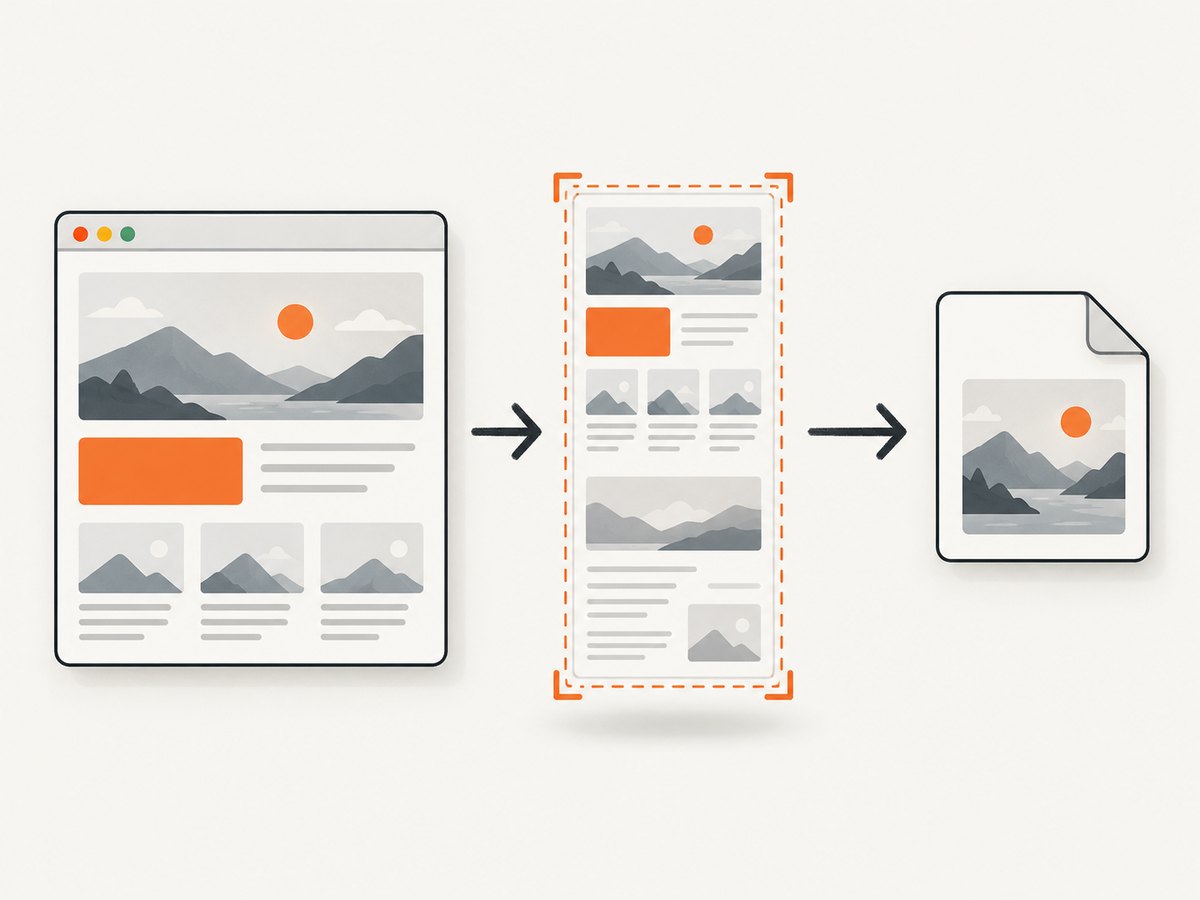
Method 1: Capture a visible HTML page and export it as JPG
- Open the document in Brave. For a local file, press Ctrl+O on Windows/Linux or Command+O on macOS, then select the HTML file. You can also open a hosted URL normally.
- Render the page. Wait for fonts, images and scripts to finish. Scroll through the page once if it loads content lazily.
- Capture the visible area. Use your operating system’s screenshot shortcut or DevTools’ screenshot command. The capture is usually PNG.
- Export as JPEG. Open the capture in an image editor, choose Export or Save As, select JPEG/JPG, set the quality, and save a new file.
JPEG is lossy, so use a high quality setting for text and diagrams. Keep the original PNG if you may need to crop or edit the image later.
Method 2: Capture the entire page with Brave DevTools
- Open the HTML document in Brave.
- Open DevTools with Ctrl+Shift+J or F12 on Windows/Linux. On macOS, use the DevTools shortcut configured by Brave.
- Enable Device Mode by selecting the phone/tablet icon, or press Ctrl+Shift+M where supported.
- Open the Device Mode More options menu (the three-dot menu).
- Select Capture a full size screenshot. Chrome for Developers documents this control for content outside the viewport; Brave’s wording and placement can vary by release.
- Open the downloaded image in an editor and export it as JPG.
Set the viewport width before capturing. A wider viewport can change responsive breakpoints, while a narrow viewport can create a very tall image. Full-page capture preserves screen rendering; it does not apply print styles.
When full-size capture is unavailable
Capture the page in sections and stitch the images in an editor, or temporarily use a Chromium-compatible screenshot extension. Brave says it supports nearly all Chromium-compatible extensions, and its help center shows requested permissions during installation. Review those permissions before granting access.
Method 3: Use Brave’s print route when you need a document
Open Menu > Print or File > Print, or press Ctrl+P on Windows/Linux and Command+P on macOS. Choose a PDF destination if you need a printable intermediate. Brave’s documented print flow does not provide a direct JPG destination. Convert the resulting PDF page to JPG only when pagination and print styling are acceptable.
Prepare the HTML for a clean capture
- Use absolute or correctly relative asset URLs when opening a local file.
- Wait for web fonts and images; otherwise the capture may contain fallback fonts or empty boxes.
- Trigger lazy-loaded content by scrolling before the full-page capture.
- Disable transient animations with a temporary stylesheet such as
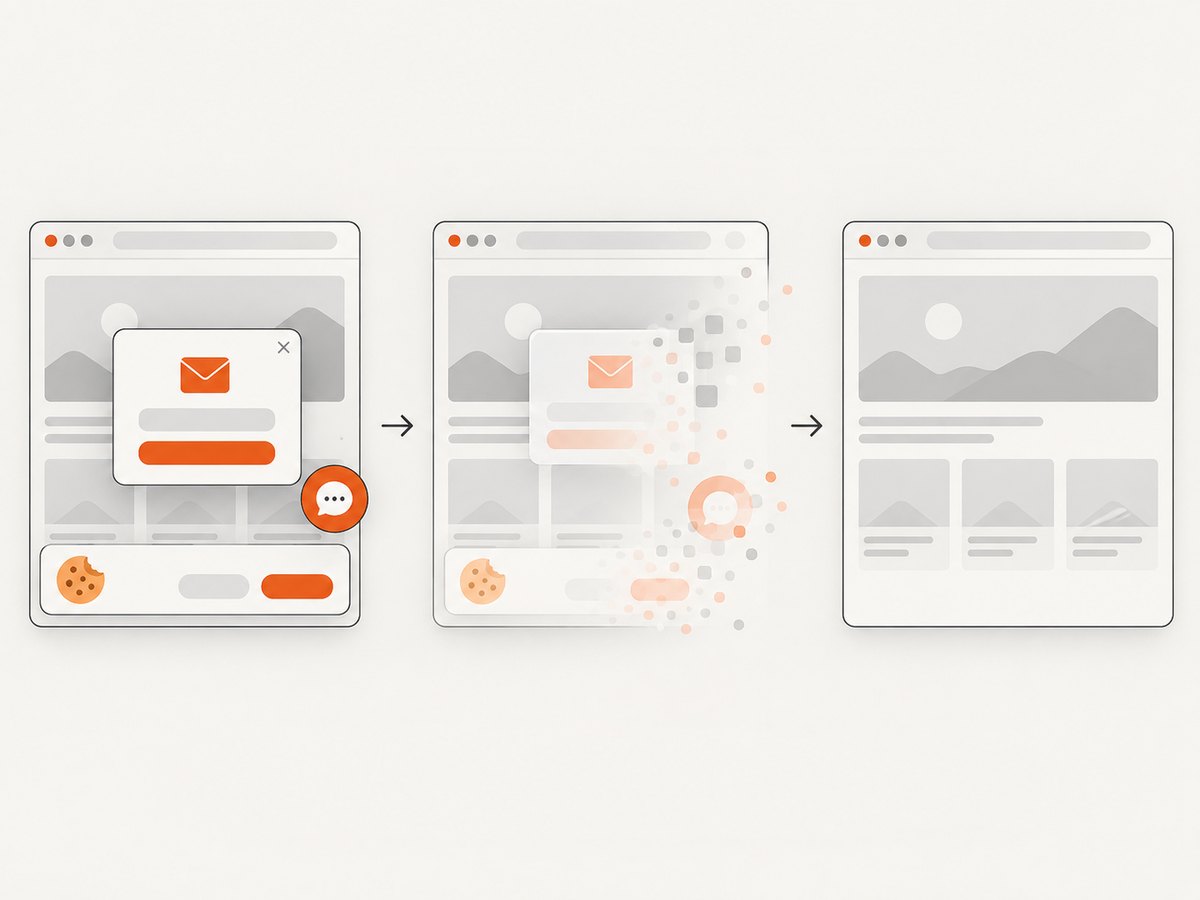
*{animation:none!important;transition:none!important}. - Hide cookie banners, chat bubbles and debug overlays before capturing if they obscure content.
- Choose a stable viewport and device scale so repeated captures have the same dimensions.
JPG quality and file-size choices
| Setting | Effect | Recommendation |
|---|---|---|
| Dimensions | Controls readability and pixel count | Set the viewport to the width readers need |
| JPEG quality | Higher quality produces larger files and fewer artifacts | Use a high setting for text; compare at 100% zoom |
| Color profile | Changes how colors appear across viewers | Use sRGB for general web delivery |
| Transparency | JPEG has no alpha channel | Flatten transparent areas onto a chosen background |
Troubleshooting
The JPG still has a .png format
The extension was changed without re-encoding. Open the image in an editor and export it with JPEG selected. Verify the file type in the editor or operating system properties.
The full-page option is missing
Confirm that Device Mode is enabled and open its More options menu. Brave can change labels between releases. Update Brave, resize the DevTools panel, or capture sections and stitch them.
Images or fonts are missing
Wait for network requests to finish, check the document’s asset paths, and reload. Local files that reference blocked or unavailable resources cannot render those resources in the screenshot.
The capture stops at the viewport
Use Capture a full size screenshot, not the regular visible-area screenshot. If the page uses an inner scrolling container, scroll that container first or capture it separately.
The page looks different from print
Screen captures use screen CSS and the current viewport. Print uses print CSS, pagination and margins. Choose the route that matches the required output.
A cookie banner or chat widget covers the page
Dismiss it before capture, hide it with temporary CSS, or use an automated capture service that can remove known overlays before rendering.
The screenshot is too large to open
Reduce viewport width, capture in sections, or export a lower JPEG quality. Extremely tall pages can exceed image-editor or memory limits.
Performance, reliability and cost
A manual Brave capture has no service charge, but it depends on the current browser session, loaded resources and viewport. Repeated work is slower because every page must be opened, rendered and exported. For reliable batches, record the URL, viewport, capture date and output dimensions, and keep the original lossless capture.
Browser rendering can change when a site changes its CSS, fonts, ads or consent dialog. Freeze the page state where possible, wait for network activity to settle, and compare captures at the same viewport. A PDF is often smaller for text-heavy printable material, while JPG is convenient for a single rendered image.
Or skip the browser setup
ScreenshotNeo returns a rendered screenshot from one GET request. It can capture full pages with lazy images loaded, select one element by CSS selector, set a viewport or device preset, use dark mode and retina scale, run custom CSS or JavaScript, wait for a selector, delay or network idle, and return PNG, JPEG, WebP or PDF. See the ScreenshotNeo documentation for all options.
curl -G "https://api.screenshotneo.com/v1/shot" -d access_key=YOUR_API_KEY --data-urlencode url=https://stripe.com -o shot.webpimport requests
r = requests.get("https://api.screenshotneo.com/v1/shot", params={"access_key": "YOUR_API_KEY", "url": "https://stripe.com"}, timeout=90)
open("shot.webp", "wb").write(r.content)const q = new URLSearchParams({ access_key: 'YOUR_API_KEY', url: 'https://stripe.com' });
const res = await fetch(`https://api.screenshotneo.com/v1/shot?${q}`);Cookie banners, newsletter popups and chat widgets are removed before the shot. Bot checks, blank pages, timeouts, failed loads and cache hits are never billed, and response headers report the page verdict and billing status. An MCP server lets Claude, Cursor and other MCP clients take screenshots. The free plan includes 1,000 screenshots a month with no card; paid plans start at $5 for 3,000.
Create a free ScreenshotNeo account to start capturing.
FAQ
Can Brave save HTML directly as JPG?
Brave’s documented workflow does not include a direct HTML-to-JPG export. Capture the rendered page, then encode the image as JPEG.
Should I use a screenshot or print?
Use a screenshot for the browser’s visual appearance and a print/PDF route for paginated documents.
Does a full-page screenshot include content below the fold?
Yes, when you choose DevTools’ full-size capture and the content is rendered. Lazy content may require scrolling first.
Is changing .png to .jpg enough?
No. The pixels must be re-encoded as JPEG by an image editor or conversion tool.
Can I automate this for many URLs?
Manual Brave captures are suited to occasional work. For repeatable batches, use a screenshot API with explicit viewport, wait and output settings.


