How to Convert HTML to JPG with a Chrome Extension
Save a rendered webpage as a JPG in Chrome. Choose a capture extension, set full-page or visible-area mode, check permissions, and troubleshoot common issues.
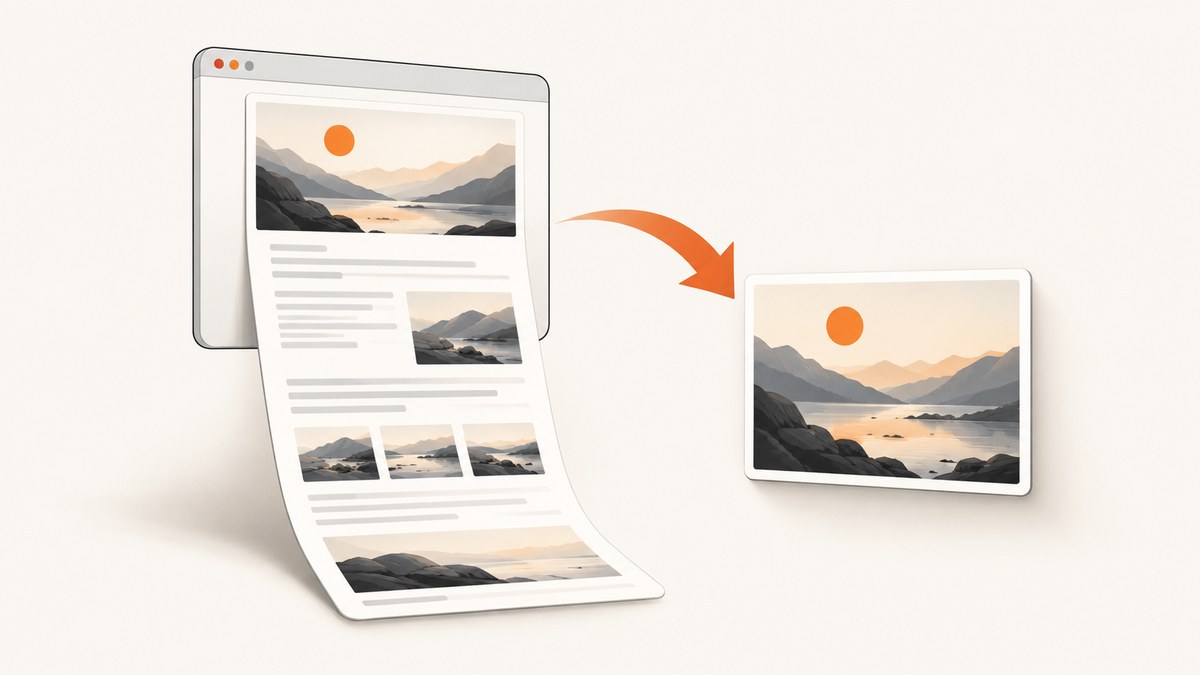
To convert HTML to JPG in Chrome, capture the rendered webpage with an extension that explicitly exports JPEG/JPG. Open the page, choose a capture mode such as Full page or Visible area, select JPEG, then capture and save the result. One Chrome Web Store listing that describes this workflow is Page to Image; check its current listing for availability and options before installing. Its listing says captures are saved to Downloads. [source]
“HTML to JPG” is common shorthand, but the result is a picture of how a page looks in the browser, not editable HTML. If you need a file containing the page’s source and resources instead, that is a different task. Chrome’s official pageCapture API saves MHTML, not JPG. [Chrome pageCapture API]
1. Choose the right capture method
A Chrome extension is convenient when you are already viewing a page and need a one-off image. Confirm that the extension’s current listing explicitly names JPEG/JPG output; a screenshot tool that only exports PNG will not meet the requirement. Page to Image’s listing describes JPEG and PNG output, full-page and visible-area modes, and an adjustable JPEG quality setting. Those are claims in the listing, not independently verified behavior. [Page to Image listing]

| Need | Choose | What to check |
|---|---|---|
| Only what is currently on screen | Visible area | The viewport includes the content you need; sticky overlays are not obscuring it. |
| The whole document | Full page | The extension supports long pages and the page has finished loading. |
| A smaller file | JPEG with a lower quality setting | Text and fine edges remain legible at your intended display size. |
| Transparent background or sharp interface text | Consider PNG instead | JPEG does not preserve transparency and uses lossy compression. |
Other extensions may provide JPG export too. GoFullPage’s Chrome Web Store change history records JPG download support in version 3.7, while the listing shows later releases as well. That history does not establish the current menu or guarantee a current export option, so inspect its current listing and settings before relying on it. [GoFullPage listing]
2. Install an extension and review access
- Open the Chrome Web Store and find the extension’s official listing.
- Review the developer, description, recent updates, output formats, privacy statements, and requested permissions.
- Select Add to Chrome, read the permission prompt, and approve only if the requested access makes sense for your use.
- Pin the extension if you want its toolbar button readily available.
- Where Chrome offers site-access controls, consider limiting access to activation, the current site, or selected sites rather than all sites.
Google recommends installing extensions you trust and documents controls for site access. Permission to access all visited websites can allow an extension to read, request, or modify page data. A warning describes what an extension can do; Google says the warning alone does not mean the extension is dangerous. Treat privacy and local-processing statements in an extension listing as publisher claims, not an independent audit. [Install and manage extensions; Permissions requested by apps and extensions]
3. Capture the page as JPG
- Open the target page. Navigate to the exact page and wait for the visible content to settle. Scroll if needed to trigger lazy-loaded images before a full-page capture.
- Open the extension. Click its toolbar icon. If it is hidden, open Chrome’s Extensions menu and pin it.
- Choose scope. Select Full page for the document or Visible area for the current viewport. The Page to Image listing describes both choices.
- Set the format. Choose JPEG or JPG. If a quality control is offered, use a higher value for small text, diagrams, or archival reference; reduce it when file size matters and visual artifacts are acceptable.
- Capture and save. Start the capture and use the extension’s save/download action. Page to Image says its image is saved in Downloads, but confirm the actual destination shown by Chrome.
- Inspect the file. Open the downloaded image and check the top, bottom, text, images, and any areas that loaded dynamically. Repeat after adjusting scope, quality, or page readiness if needed.
Full page or visible area?
Visible area is best for a quick record of what a visitor sees in the current viewport. It usually produces a smaller image and avoids stitching a long document. Full page is useful for receipts, articles, landing pages, or documentation that must be reviewed as one capture. Very long pages can be harder to inspect as one image and may encounter extension or browser limits; break the capture into sections if the result is incomplete or impractical to view.
JPEG quality and dimensions
JPEG compression trades file size against image detail. At lower quality, text edges, gradients, and small icons can show blockiness or ringing. A larger capture also means more pixels and usually a larger file. Choose the smallest output that remains readable at the final display size. If exact sharpness, repeated editing, or transparency matters, use PNG if the extension supports it. Do not rename a PNG file to .jpg: changing the filename does not convert the encoding.
4. Understand what the image contains
A browser capture records rendered pixels. It does not preserve links, selectable text, stylesheets, or editable source markup. Content that is personalized, animated, delayed, or inserted after page load may appear differently depending on timing. A full-page capture may need the page to be scrolled so lazy images load; a page with sticky headers can also produce repeated or overlapping elements depending on the capture method. Review the resulting image rather than assuming every site will render identically.
Some pages cannot be captured by extensions because the browser restricts access. Page to Image’s listing specifically says Chrome internal pages, such as Settings, the extension store, and developer tools, are blocked. Do not expect an extension to bypass those browser restrictions. [Page to Image listing]
5. Troubleshoot common problems
| Problem | Likely cause | What to do |
|---|---|---|
| No toolbar button | The extension is not pinned, is disabled, or did not install. | Open Chrome’s Extensions menu, confirm it is enabled, pin it, and reload the page. |
| Extension cannot access this page | Site access is restricted or Chrome blocks the page type. | Review the extension’s site-access setting for this site. Internal Chrome pages remain restricted. |
| “Add to Chrome” is unavailable | You may be browsing as a guest or an organization may block extensions. | Use a signed-in, non-guest profile if allowed, or contact the work/school administrator. Chrome Help documents these restrictions. [Chrome Help] |
| Only part of the page appears | Visible-area mode was selected, the page is very long, or lazy content was not loaded. | Use full-page mode, scroll through the page first, wait for content to load, and capture in sections if necessary. |
| Images or text are missing | The page was still loading, content is lazy-loaded, or access to resources failed. | Wait, scroll to trigger lazy loading, reload if appropriate, and capture again. Check the page itself before blaming the extension. |
| Image looks blurry or blocky | JPEG quality is low or the image is displayed larger than its captured dimensions. | Raise JPEG quality, use a larger viewport or scale option if available, or choose PNG for crisp edges. |
| File is too large | A full-page capture has many pixels or JPEG quality is high. | Capture only the necessary region, lower quality gradually, or reduce the output dimensions if supported. |
| Saved file is PNG instead of JPG | The selected format did not apply or the extension defaulted to PNG. | Reopen its format control and verify the downloaded file’s actual type. Do not only change the extension. |
6. Privacy, reliability, performance, and cost
Before installing, match permissions to the job. A capture extension may need access to the active tab or broader site permissions to read rendered content. Prefer a narrower site-access choice when it still supports your workflow. Chrome’s permission documentation explains that broad website access can allow reading or modifying site data. [Google permission guidance]
For reliability, wait for page content to finish loading, scroll through long pages to trigger deferred assets, and keep a copy of the original page URL alongside the capture when later context matters. Repeat the capture if the page is still changing or if dynamic modules are blank. A screenshot is a point-in-time visual record, not proof that all page content was available or that the underlying document was unchanged.
Extension workflows generally avoid a separate screenshot-service request, but the reviewed sources do not establish a price for these extensions or a universal cost model. Check each current listing for purchase terms. Your practical costs include time spent reviewing permissions, rerunning captures, and storing large images. JPG is useful where compact photographic output matters; for interface text and diagrams, compare legibility before choosing lower compression.
7. Automate captures or skip the extension
If you need repeatable captures, a browser extension is a manual workflow. Chrome’s pageCapture API is not a JPG exporter: its documented purpose is to save a tab as MHTML, an archive of the page and resources. [Chrome pageCapture API]

Or skip the browser setup
ScreenshotNeo is a website screenshot API and MCP server. Its API returns an image or PDF from a URL, and its options include JPG output, full-page capture, viewport selection, and image resizing. See the API documentation.
curl -G "https://api.screenshotneo.com/v1/shot" -d access_key=YOUR_API_KEY --data-urlencode url=https://stripe.com -o shot.jpgimport requests
r = requests.get(
"https://api.screenshotneo.com/v1/shot",
params={"access_key": "YOUR_API_KEY", "url": "https://stripe.com", "format": "jpg"},
timeout=90,
)
r.raise_for_status()
with open("shot.jpg", "wb") as image:
image.write(r.content)const q = new URLSearchParams({
access_key: 'YOUR_API_KEY',
url: 'https://stripe.com',
format: 'jpg'
});
const res = await fetch(`https://api.screenshotneo.com/v1/shot?${q}`);
if (!res.ok) throw new Error(`Screenshot request failed: ${res.status}`);
const image = Buffer.from(await res.arrayBuffer());
await (await import('node:fs/promises')).writeFile('shot.jpg', image);The one-call workflow removes cookie banners, popups, and chat widgets before the shot. Bot checks, blank pages, and failed loads are never billed; response headers identify the page verdict and billing status. An MCP server lets AI agents take screenshots. The free plan includes 1,000 screenshots a month with no card; paid plans start at $5 for 3,000. Sign up free and capture 1,000 screenshots a month with no card.
Frequently asked questions
Is converting HTML to JPG the same as saving a webpage?
No. JPG is a flattened image of the page’s rendered appearance. It is not a saved, editable webpage. MHTML is an archive format; Chrome’s pageCapture API creates MHTML rather than JPG.
Can I convert a local HTML file?
Open it in Chrome and try the extension, subject to Chrome’s access controls and the extension’s supported page types. Browser restrictions can prevent access to some pages, so check the output on the actual file.
Can I capture just one element?
Only if the chosen extension offers an element or region capture mode. The reviewed Page to Image listing describes full-page and visible-area modes; verify current features before installing if element-only capture is essential.
Why use JPG instead of PNG?
JPG can be a practical choice when you want a compressed image and do not need transparency. PNG may preserve interface edges and text more cleanly. Use the format that meets the output requirement and inspect the result.
Sources
- Page to Image Chrome Web Store listing — listed capture modes, formats, quality, save behavior, and stated limitations.
- GoFullPage Chrome Web Store listing — listing history includes JPG export; confirm current options.
- Google Chrome Help: Install and manage extensions — installation, restrictions, and site-access controls.
- Google Chrome Web Store Help: Permissions requested by apps and extensions — permissions explanation.
- Chrome for Developers: pageCapture API — MHTML capture behavior.


