How to Convert HTML to JPG in Firefox
Learn how to capture HTML as a full-page image in Firefox, convert PNG to JPG, use extensions, automate captures, and avoid common errors.
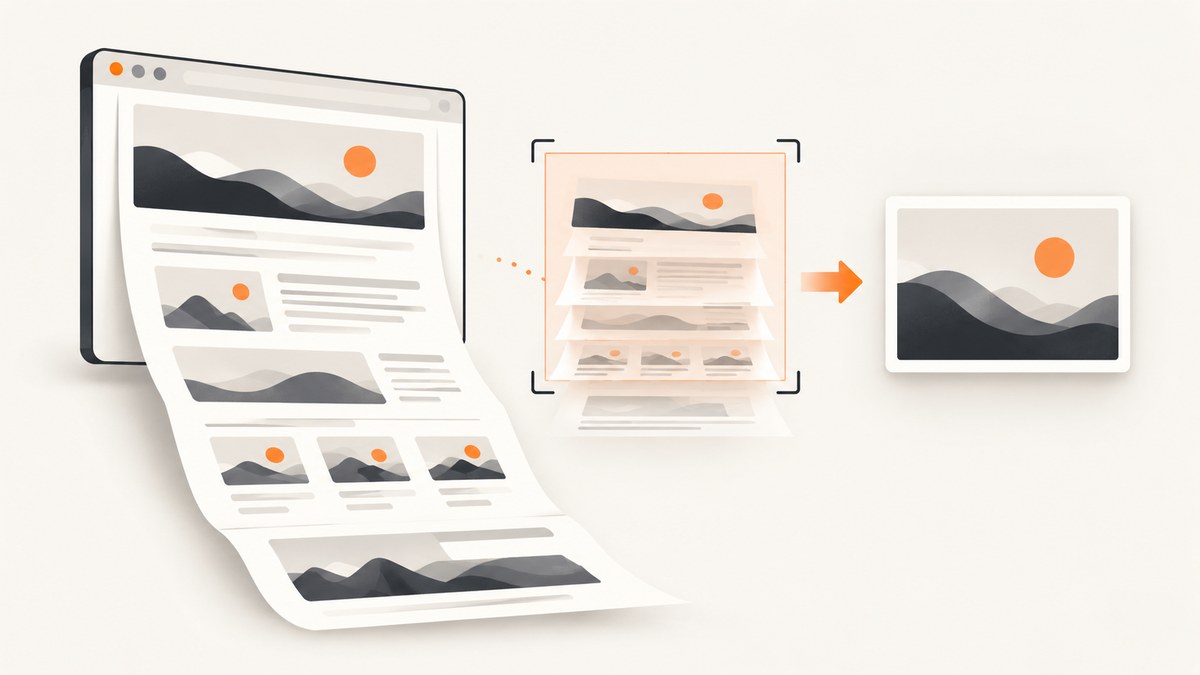
Firefox can capture a rendered HTML page as an image, including the content below the visible viewport. Its built-in Take Screenshot tool documents PNG downloads rather than direct JPG export. To produce a JPG, capture the page as PNG and convert that file, or use a third-party Firefox add-on that advertises JPG output.
This guide covers the quickest built-in workflow, full-page and element capture, conversion options, automation with Developer Tools, extension considerations, troubleshooting, and an API route when you need repeatable captures from code.
1. The quickest way to capture HTML in Firefox
Use Firefox’s built-in screenshot tool when you need a one-off image and do not want to install software.
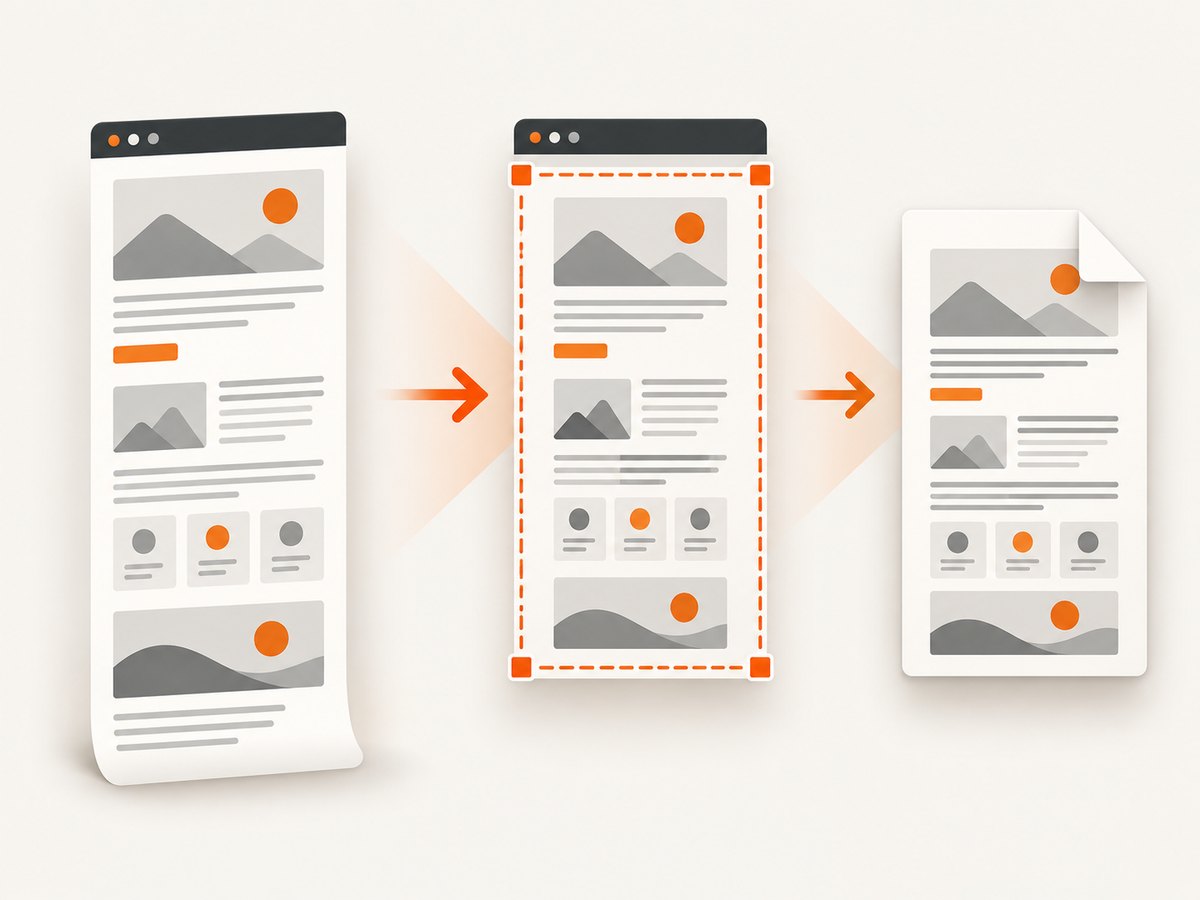
- Open the rendered HTML page in Firefox.
- Right-click an empty area of the page and select Take Screenshot. You can also press Ctrl+Shift+S on Windows or Linux, or Command+Shift+S on macOS.
- Choose Save full page for the entire document, or Save visible for only the current viewport.
- For a custom area, drag a region. Firefox can also highlight a page part that you can click to capture.
- Click Download. Firefox saves the image to its normal download folder.
Mozilla’s current support documentation describes the downloaded filename with a .png extension. That means the native workflow captures the HTML successfully, but it is not documented as direct JPG export. See Mozilla’s Take screenshots in Firefox documentation for the current menu labels and shortcuts.
2. Convert Firefox’s PNG screenshot to JPG
After downloading the screenshot, open it in an image editor that supports export and choose JPEG or JPG as the output format. The exact menu name varies, but the process is normally:
- Open the PNG screenshot.
- Choose Export, Save As, or an equivalent command.
- Select JPEG/JPG.
- Choose a quality level. Higher quality preserves more detail and creates a larger file.
- Save the converted file with a
.jpgextension.
PNG is lossless and keeps sharp text and flat colors. JPG uses lossy compression, so it is usually smaller but can show ringing around text and edges. For documentation screenshots with small type, use a high quality setting and inspect the result at 100% zoom. If the image contains transparency, JPG cannot preserve it; flatten the image onto a solid background first.
Choosing dimensions and quality
| Need | Recommended choice | Reason |
|---|---|---|
| Readable documentation | Keep the original dimensions; high JPG quality | Downscaling can make text difficult to read. |
| Email or upload limit | Resize after capture, then export JPG | Resizing before compression reduces file size more predictably. |
| Archival copy | Keep the original PNG and create a JPG derivative | You retain a lossless source if you need another export later. |
| Transparent page background | Add a background before JPG export | JPG has no alpha channel. |
3. Capture a full page, visible area, region, or element
The capture scope changes what Firefox renders into the image:
- Save visible: captures the viewport currently shown.
- Save full page: captures the page beyond the fold.
- Region selection: captures a rectangle you draw.
- Highlighted page part: captures a detected component such as a card or section.
Full-page capture is best for articles and long landing pages. It does not guarantee that every internally scrollable panel, canvas, video frame, or lazy-loaded component will be represented exactly as a user sees it. Test pages with accordions, virtualized lists, sticky elements, and nested scroll containers before relying on the output.
4. Developer Tools: repeatable full-page and element screenshots
Firefox Developer Tools provide more control when you are inspecting HTML or need to capture a particular node. Open Developer Tools, select the Inspector, right-click the desired element, and use the screenshot action described in Mozilla’s Taking screenshots documentation. The Inspector can capture a selected node, while the Web Console screenshot helper supports a --fullpage option.
Mozilla’s documented examples save PNG files. These tools are useful for capture scope and repeatability, but they do not provide a documented direct JPG output path. Convert the resulting PNG afterward.
Web Console workflow
- Open Developer Tools with F12 or the browser menu.
- Open the Web Console.
- Use Firefox’s screenshot helper with the documented full-page option when you need content outside the window bounds.
- Save the PNG and convert it to JPG.
Console commands and available options can change with Firefox releases. Use the current Mozilla source documentation rather than copying an old command from an unrelated blog post.
5. Use a Firefox add-on when direct JPG output is required
The Mozilla Add-ons catalog currently lists Full Page Saver, whose listing advertises whole-page PNG, JPG, and PDF saving, including content below the fold. This is the most direct Firefox-only route when you must receive a JPG from the browser interface.
It is third-party browser software. Before installing, review the current listing, permissions, publisher information, update history, and privacy details. The listing verifies the advertised output formats; it does not independently establish image quality, pricing, privacy behavior, or future availability. Do not install an extension on sensitive pages until its permissions and handling are acceptable for your environment.
6. Dynamic HTML, lazy loading, and page state
A screenshot captures the page state at the moment Firefox renders it. Differences between the source HTML and the screenshot are expected when JavaScript modifies the DOM or CSS.
- Wait for asynchronous content such as charts, fonts, and images to finish loading.
- Scroll through long pages if images load only when they approach the viewport.
- Expand accordions or menus that must appear in the image.
- Dismiss cookie dialogs and chat widgets before capture if they obscure content.
- Check responsive breakpoints by setting the browser window or responsive design viewport to the intended width.
Internally scrollable elements can remain clipped even when the outer document is captured. Virtualized lists may contain only the currently rendered rows. A full-page screenshot should therefore be reviewed rather than assumed to contain every item in a complex application.
7. Troubleshooting common Firefox screenshot problems
| Problem | Likely cause | Fix |
|---|---|---|
| There is no Take Screenshot menu item | You right-clicked a control, the page blocked the context menu, or the feature is unavailable in that browser build. | Right-click an empty page area, use the keyboard shortcut, or open Developer Tools. |
| Only the visible viewport is saved | Save visible was selected. | Repeat the capture and choose Save full page. |
| The file is PNG instead of JPG | Firefox’s native tool documents PNG output. | Convert the PNG with an image editor or use an add-on that advertises JPG export. |
| Images are missing | Lazy loading, blocked requests, slow network, or an image that requires scrolling. | Wait, scroll through the page, reload, and check the Network panel for failed image requests. |
| A cookie banner covers the page | The consent dialog is still open. | Accept or dismiss it before capturing, or hide the element with page tools where appropriate. |
| Text looks blurry after conversion | The JPG quality is too low or the image was resized aggressively. | Export at a higher quality, preserve the original dimensions, and keep the PNG source. |
| A nested panel is cut off | The panel has its own overflow scroll area. | Scroll the panel separately, expand it, or capture the element with Developer Tools. |
| The screenshot is blank | The page failed to load, requires authentication, or rendered after capture began. | Reload, sign in, wait for the application state, and capture again. |
8. Automate HTML-to-JPG capture with ScreenshotNeo
If you need the same capture repeatedly, across many URLs, or inside a build job, a browser extension is difficult to operate reliably. ScreenshotNeo is a website screenshot API and MCP server. One GET request returns a PNG, JPEG, WebP, or PDF. It supports full-page captures with lazy images loaded, CSS element capture, custom CSS and JavaScript, waits, device presets, arbitrary viewports, retina scale, dark mode, headers, cookies, user agents, authorization, timezone, geolocation, request blocking, caching, resizing, bulk capture, asynchronous jobs, signed webhooks, and a usage API.

ScreenshotNeo also handles common page clutter before capture: it accepts cookie or consent banners like a visitor and removes more than 60 known consent platforms, newsletter popups, and chat widgets. Each step can be disabled. Bot checks or CAPTCHAs, blank pages, timeouts, failed loads, and cache hits cost nothing, and response headers identify the page verdict and whether the request was billed.
cURL
curl -G "https://api.screenshotneo.com/v1/shot" -d access_key=YOUR_API_KEY --data-urlencode url=https://stripe.com -o shot.webpPython
import requests

r = requests.get(
    "https://api.screenshotneo.com/v1/shot",
    params={"access_key": "YOUR_API_KEY", "url": "https://stripe.com"},
    timeout=90,
)
r.raise_for_status()
open("shot.webp", "wb").write(r.content)
Node.js
const q = new URLSearchParams({ access_key: 'YOUR_API_KEY', url: 'https://stripe.com' });
const res = await fetch(`https://api.screenshotneo.com/v1/shot?${q}`);
if (!res.ok) throw new Error(`Screenshot failed: ${res.status}`);
const data = Buffer.from(await res.arrayBuffer());
require('fs').writeFileSync('shot.webp', data);
See the ScreenshotNeo API documentation for parameter names and response behavior. To request a JPG instead of the example WebP, pass the documented image format option. The same API accepts parameter names used by other screenshot APIs, which can simplify migration.
ScreenshotNeo reliability and cost considerations
- Use an explicit wait for a selector, a delay, or network idle when the page renders asynchronously.
- Use caching with a chosen TTL for unchanged pages and lower repeated work.
- Use bulk capture for up to 100 URLs per call.
- Use asynchronous jobs and signed webhooks for long-running or high-volume batches.
- Inspect
X-Page-VerdictandX-Billedso your application can distinguish a clean capture from a failed or non-billable result.
The Free plan includes 1,000 shots per month with no card. Paid plans are Starter $5 for 3,000 shots, Growth $15 for 15,000, Pro $39 for 60,000, Scale $99 for 250,000, and Business $249 for 1,000,000. Yearly billing gives two months free, and every feature is available on every plan.
9. When to choose each Firefox workflow
| Route | Output documented here | Best for | Trade-off |
|---|---|---|---|
| Built-in Take Screenshot | PNG | Fast manual captures | Requires a separate JPG conversion. |
| Developer Tools | PNG | Selected nodes and repeatable developer workflows | Still requires conversion for JPG. |
| Full Page Saver listing | JPG, PNG, PDF | Direct browser-based JPG export | Third-party software must be reviewed. |
| ScreenshotNeo API | PNG, JPEG, WebP, PDF | Automation, batches, clean captures, and server-side jobs | Requires an API key and an HTTP request. |
10. Practical checklist before you deliver a JPG
- Confirm whether the requirement is the visible viewport or the full document.
- Wait for fonts, images, charts, and JavaScript content.
- Remove dialogs and overlays that should not appear.
- Check responsive width and dark or light theme.
- Inspect the bottom and right edge for clipping.
- Keep the original PNG when image quality matters.
- Export JPG at a quality that preserves small text.
- Verify the final file opens and has the expected dimensions.
Frequently asked questions
Can Firefox save a webpage directly as JPG?
Firefox’s built-in documentation describes PNG downloads. A listed third-party add-on advertises JPG output, or you can convert the downloaded PNG.
What is the shortcut for Firefox screenshots?
Use Ctrl+Shift+S on Windows or Linux, and Command+Shift+S on macOS.
Does full-page capture include content below the fold?
Firefox’s Save full page option is designed to capture beyond the visible viewport. Dynamic, nested-scroll, and virtualized content may require additional handling.
Why not use JPG for every screenshot?
JPG is smaller for many photos and gradients, but PNG usually preserves browser text and sharp interface edges more cleanly.
Can I capture many URLs without opening Firefox?
Yes. A screenshot API such as ScreenshotNeo can run from cURL, Python, Node.js, CI jobs, or an MCP client.
Or skip the browser setup
Use ScreenshotNeo when you want a single request instead of managing Firefox, extensions, and conversion steps:
curl -G "https://api.screenshotneo.com/v1/shot" -d access_key=YOUR_API_KEY --data-urlencode url=https://stripe.com -o shot.webpCookie banners, newsletter popups, and chat widgets are removed before the shot. Bot checks, blank pages, and failed loads are never billed. An MCP server lets AI agents take screenshots, and the Free plan includes 1,000 screenshots a month with no card; paid plans start at $5 for 3,000 shots. Create a free ScreenshotNeo account.


