Convert HTML to JPG Images: Complete Developer Guide
Render local HTML or live URLs as sharp JPG images with Playwright, hosted APIs, and ScreenshotNeo. Includes code, options, troubleshooting, and cost guidance.
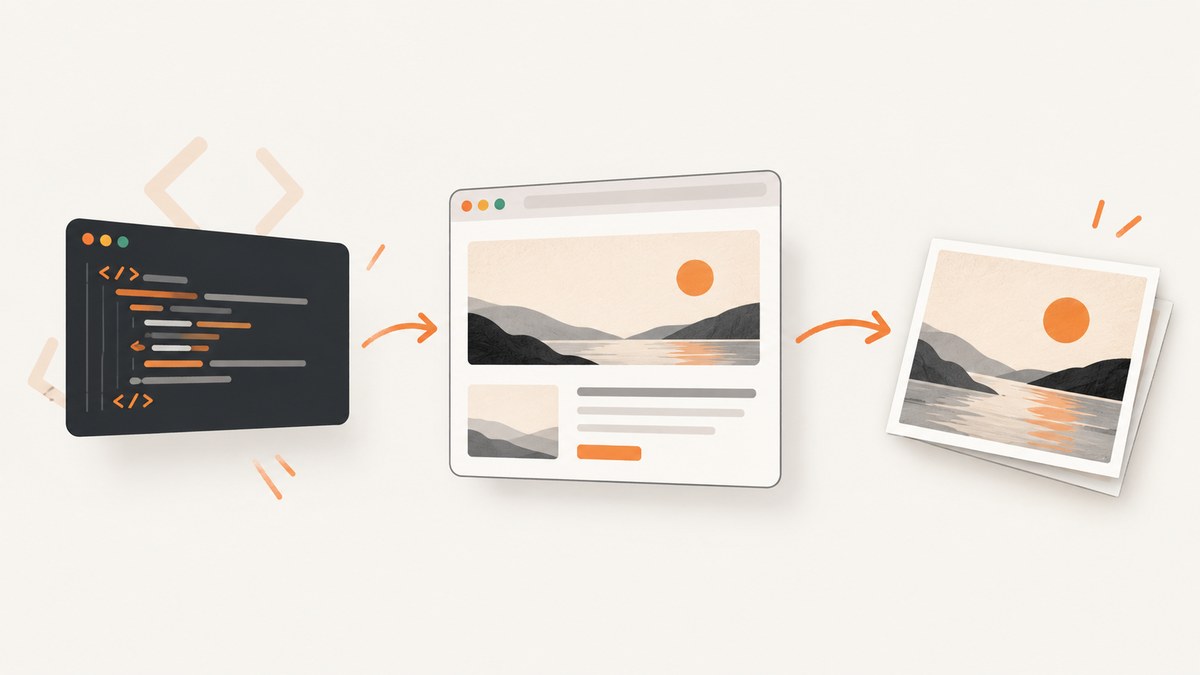
To convert HTML to a JPG image, render the HTML in a browser and capture the rendered page as a JPEG. For local control, Playwright’s screenshot API supports JPEG output, full-page capture, quality settings, and CSS-pixel or device-pixel scaling. For a hosted workflow, a website-capture API can render a URL or HTML file and return JPG output.
Choose your input first:
- Local HTML: run a browser on your machine or server and capture a file or generated markup.
- Live URL: capture the page after its CSS, fonts, images, and JavaScript have loaded.
- Repeated or production captures: use a managed screenshot API when browser installation, scaling, and failure handling should live outside your application.
A viewport screenshot captures only the visible browser area. A full-page screenshot captures the entire scrollable document. JPEG quality, viewport size, device scale, fonts, animations, lazy loading, and cross-origin resources all affect the result.
1. Convert HTML to JPG with Playwright
Playwright is the most direct programmable option when you need control over rendering. Its Page API documents jpeg output, a file path, JPEG quality, fullPage capture, and scale values that use either CSS pixels or device pixels.
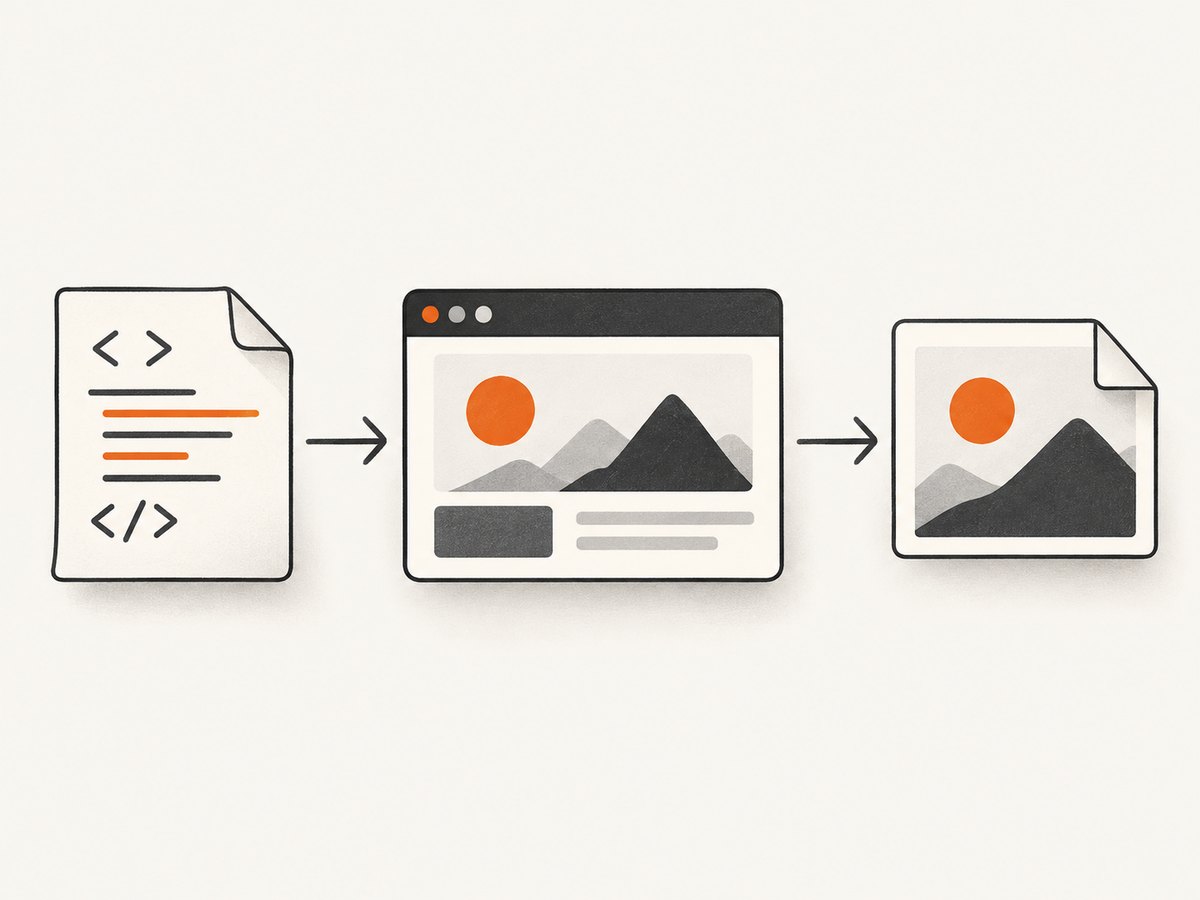
Install Playwright
mkdir html-to-jpg
cd html-to-jpg
npm init -y
npm install playwright
npx playwright install chromium
Capture a local HTML file
Create input.html:
<!doctype html>
<html lang="en">
<head>
  <meta charset="utf-8">
  <meta name="viewport" content="width=device-width, initial-scale=1">
  <style>
    body { margin: 0; font-family: Arial, sans-serif; background: #f4f6f8; }
    .card { width: 720px; margin: 48px auto; padding: 40px; background: white; border-radius: 16px; }
    h1 { margin-top: 0; color: #17202a; }
  </style>
</head>
<body>
  <main class="card">
    <h1>HTML rendered as a JPG</h1>
    <p>This page is captured after the browser applies its CSS.</p>
  </main>
</body>
</html>
Now create capture.js:
const { chromium } = require('playwright');
const path = require('path');

(async () => {
  const browser = await chromium.launch();
  const page = await browser.newPage({
    viewport: { width: 1200, height: 800 },
    deviceScaleFactor: 1
  });

  await page.goto(`file://${path.resolve('input.html')}`, {
    waitUntil: 'load'
  });
  await page.screenshot({
    path: 'output.jpg',
    type: 'jpeg',
    quality: 85,
    fullPage: true,
    scale: 'css'
  });

  await browser.close();
})();
node capture.jsThe resulting output.jpg contains the rendered page, rather than the HTML source. Use fullPage: false for the viewport only. The scale: 'css' setting keeps one output pixel per CSS pixel; scale: 'device' uses device pixels and can produce a larger image on a high-density display.
Capture a live URL
const { chromium } = require('playwright');

(async () => {
  const browser = await chromium.launch();
  const page = await browser.newPage({
    viewport: { width: 1440, height: 900 }
  });

  await page.goto('https://example.com', {
    waitUntil: 'networkidle',
    timeout: 90000
  });
  await page.screenshot({
    path: 'example.jpg',
    type: 'jpeg',
    quality: 90,
    fullPage: true
  });

  await browser.close();
})();
networkidle waits for network activity to settle, but it is not always appropriate. Analytics, advertisements, and chat widgets can keep making requests. In those cases, use waitUntil: 'domcontentloaded' followed by a selector wait or a short, deliberate delay.
2. Capture only an element
Full-page output is useful for documents, but cards, invoices, product previews, and social images usually need a specific element. Playwright can locate the element and screenshot it directly.
const { chromium } = require('playwright');

(async () => {
  const browser = await chromium.launch();
  const page = await browser.newPage({ viewport: { width: 1200, height: 800 } });
  await page.goto('file:///absolute/path/input.html', { waitUntil: 'load' });

  const card = page.locator('.card');
  await card.waitFor({ state: 'visible' });
  await card.screenshot({
    path: 'card.jpg',
    type: 'jpeg',
    quality: 92
  });

  await browser.close();
})();
Element capture avoids unrelated page margins and browser chrome. Make the element’s dimensions deterministic with CSS. If its height changes after fonts or images load, wait for those resources before capturing.
3. Control dimensions, quality, and page state
| Requirement | Playwright setting or technique | Practical effect |
|---|---|---|
| Fixed output width | viewport: { width, height } |
Controls the CSS layout before rendering. |
| Entire document | fullPage: true |
Captures the scrollable page. |
| JPEG compression | quality: 0-100 |
Higher values preserve detail and increase file size. |
| Retina-sized output | deviceScaleFactor: 2 and/or scale: 'device' |
Produces more pixels for dense displays. |
| Stable fonts | Wait for document.fonts.ready |
Prevents fallback fonts from appearing in the image. |
| Stable images | Wait for image completion | Prevents blank or partially decoded images. |
| Responsive layout | Set the intended viewport | Chooses the desktop, tablet, or mobile breakpoint. |
await page.evaluate(async () => {
  await document.fonts.ready;
  await Promise.all([...document.images].map(img => {
    if (img.complete) return Promise.resolve();
    return new Promise(resolve => {
      img.addEventListener('load', resolve, { once: true });
      img.addEventListener('error', resolve, { once: true });
    });
  }));
});
JPEG does not support transparency. If your HTML has a transparent background, set a solid background color before capture or use PNG when transparency is required. JPEG is lossy, so text and sharp UI edges can show compression artifacts at low quality. Start around 80–90 and adjust based on file size and visual detail.
4. Convert HTML supplied as a string
When your application generates markup dynamically, load it directly instead of writing a temporary file.
const { chromium } = require('playwright');

(async () => {
  const html = `<!doctype html>
  <html><body style="margin:0;background:#fff">
    <h1 style="padding:40px">Generated report</h1>
  </body></html>`;

  const browser = await chromium.launch();
  const page = await browser.newPage({ viewport: { width: 1000, height: 700 } });
  await page.setContent(html, { waitUntil: 'load' });
  await page.screenshot({ path: 'generated.jpg', type: 'jpeg', quality: 88 });
  await browser.close();
})();
External stylesheets, web fonts, images, and scripts in a string still need reachable URLs. For self-contained output, inline critical CSS and use data URLs for small assets. Sanitize untrusted HTML and avoid allowing arbitrary scripts to run in a privileged environment.
5. Hosted conversion with CloudConvert
A managed capture pipeline is useful when you do not want to install Chromium or operate browser workers. CloudConvert documents a website screenshot operation that accepts a URL or HTML file and produces PNG or JPG output through a Chrome-based pipeline. Its product documentation describes full-height capture, selector waits, viewport, zoom, resizing, synchronous or asynchronous jobs, and storage integrations. The displayed vendor price starts at $0.008 per file; verify current pricing before budgeting.
The exact request schema, authentication, and available fields are defined in CloudConvert’s capture website documentation. Use the documented operation name and output format, then choose URL or uploaded HTML input. A hosted job is usually preferable when captures run in serverless environments where installing browsers is inconvenient.
6. Or skip the browser setup
ScreenshotNeo provides a website screenshot API for a one-request HTML-to-JPG workflow. Give it a live URL and save the returned image. See the ScreenshotNeo API documentation for all parameters and response details.
cURL
curl -G "https://api.screenshotneo.com/v1/shot" \
  -d access_key=YOUR_API_KEY \
  --data-urlencode url=https://stripe.com \
  -o shot.webp
Python
import requests

r = requests.get(
    "https://api.screenshotneo.com/v1/shot",
    params={"access_key": "YOUR_API_KEY", "url": "https://stripe.com"},
    timeout=90,
)
r.raise_for_status()
open("shot.webp", "wb").write(r.content)
Node.js
const q = new URLSearchParams({ access_key: 'YOUR_API_KEY', url: 'https://stripe.com' });
const res = await fetch(`https://api.screenshotneo.com/v1/shot?${q}`);
if (!res.ok) throw new Error(`Screenshot failed: ${res.status}`);
const fs = require('fs');
fs.writeFileSync('shot.webp', Buffer.from(await res.arrayBuffer()));
Although the examples use WebP filenames from the supplied API call, ScreenshotNeo also returns PNG, JPEG, or WebP according to the requested output options. Its 63 options cover full-page capture with lazy images loaded, CSS-element capture, dark mode, 12 device presets or any viewport, retina scale, image resizing, custom CSS and JavaScript, click actions, selector or network-idle waits, ad and tracker blocking, custom headers, cookies, user agents, authorization, timezone, geolocation, transparent backgrounds, caching with a chosen TTL, signed links, asynchronous jobs with signed webhooks, bulk capture of up to 100 URLs per call, a usage API, and an OpenAPI specification.
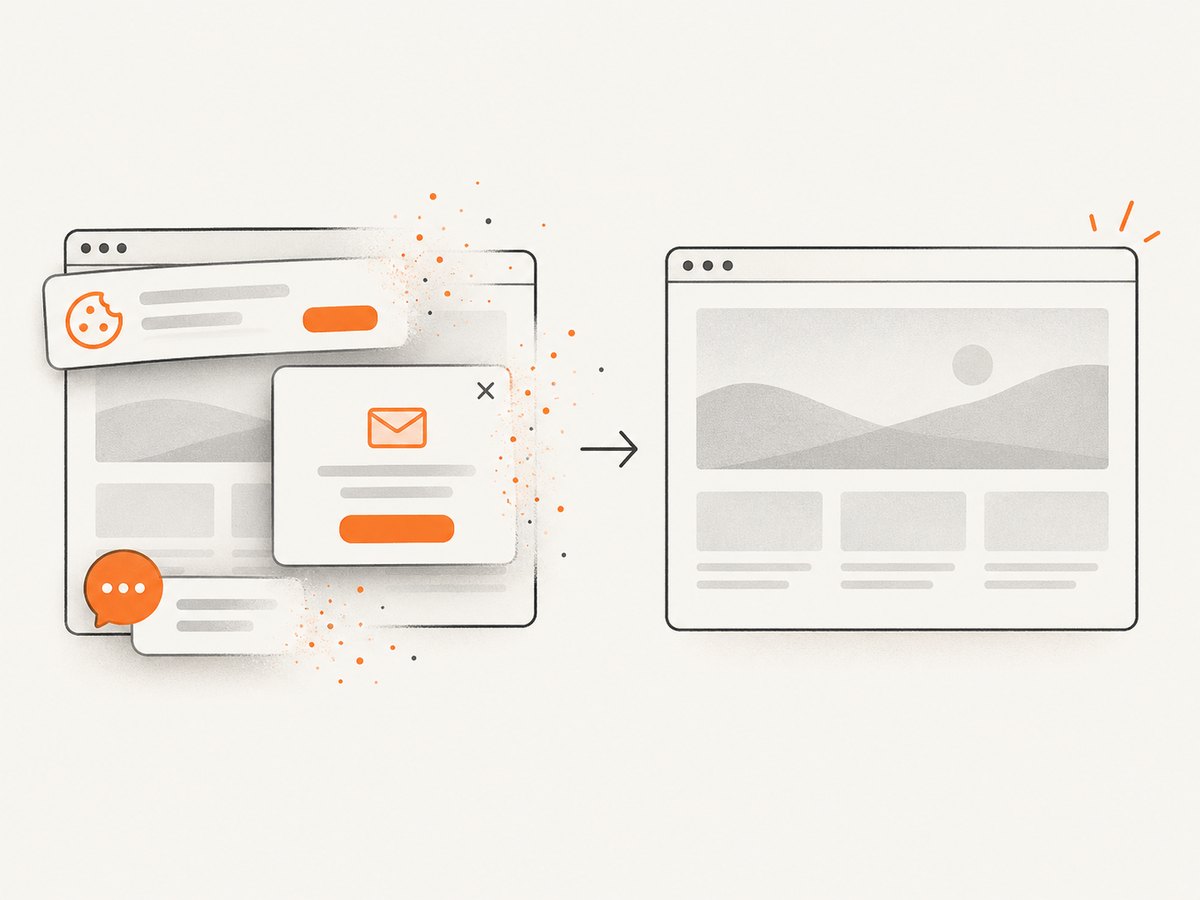
ScreenshotNeo accepts cookie and consent banners before capture and removes more than 60 known consent platforms, newsletter popups, and chat widgets. Each step can be disabled. Bot checks or CAPTCHAs, blank pages, timeouts, failed loads, and cache hits cost nothing, and response headers identify the page verdict and whether the request was billed. Its MCP server exposes take_screenshot, get_page_info, and capture_pdf for Claude, Cursor, and other MCP clients.
Free usage includes 1,000 screenshots per month with no card. Paid plans start at $5 for 3,000 shots; yearly billing gives two months free. Sign up for the free ScreenshotNeo plan and start with 1,000 screenshots a month without a card.
7. Local browser versus hosted API
| Decision | Playwright | Hosted capture API |
|---|---|---|
| Browser ownership | You install, patch, and operate Chromium. | The provider operates the capture pipeline. |
| Input | Local HTML, generated HTML, or URL. | Usually a URL or uploaded HTML, depending on the operation. |
| Control | Fine-grained browser and JavaScript control. | Provider-specific options and request schema. |
| Scaling | You manage workers, queues, and concurrency. | Use synchronous or asynchronous jobs as documented. |
| Cost model | Infrastructure and engineering time. | Per-file or plan-based service pricing. |
No source reviewed provides independent benchmarks proving that one approach is faster, safer, more accurate, or cheaper overall. Choose based on control, deployment constraints, integration effort, and volume.
8. Troubleshooting
The JPG is blank
Cause: capture occurred before the page rendered, a script failed, or a bot check blocked content. Fix: wait for a meaningful selector, inspect console errors, use a longer timeout, and capture after fonts and images are ready. For hosted requests, check the response status and page-verdict headers.
Images are missing
Cause: lazy loading, blocked resources, invalid URLs, or capture before decoding. Fix: scroll the page or use a full-page capture that triggers lazy images, wait for image completion, and verify that the server permits the browser’s user agent.
The page has the wrong layout
Cause: the viewport activates a different responsive breakpoint. Fix: set the intended width and height explicitly, then use a device scale only for pixel density. Do not confuse CSS dimensions with output pixel dimensions.
Fonts look different
Cause: web fonts have not loaded or are unavailable in the runtime. Fix: await document.fonts.ready, verify font URLs, and bundle or self-host fonts when reproducibility matters.
The process times out
Cause: never-ending network activity, a slow third-party resource, or a page that requires interaction. Fix: use domcontentloaded plus a selector wait, block unnecessary requests, set a bounded timeout, and record the failing URL. Avoid waiting forever for networkidle.
JPEG quality is poor
Cause: low quality or an output width that is too small. Fix: increase quality, use a larger viewport, or choose device scaling. If the image contains transparent areas or very sharp text, use PNG instead.
9. Performance, reliability, and cost practices
- Reuse browser processes: launch Chromium once per worker and create isolated pages for requests.
- Bound concurrency: too many simultaneous pages exhaust CPU and memory and make captures less predictable.
- Wait for a condition: a stable selector is usually more reliable than an arbitrary long delay.
- Reduce page weight: block analytics, ads, video, and other resources that do not appear in the final image.
- Cache deterministic pages: use a content key or a service TTL when the same URL can be reused.
- Record metadata: store URL, viewport, browser version, timestamp, response status, and output settings with each image.
- Retry selectively: retry transient navigation failures, but do not repeatedly retry bot checks or invalid URLs.
- Estimate JPEG size: quality and dimensions both affect storage and transfer costs; test representative pages before selecting defaults.
For ScreenshotNeo, cache hits and failed or unclean captures are not billed, and the X-Page-Verdict and X-Billed headers make billing and outcome handling explicit. For any provider, confirm current quotas, retention, authentication, and pricing in its documentation before production use.
10. FAQ
Is JPG the same as JPEG?
Yes. JPG and JPEG refer to the same image format; the shorter extension is common on systems with older filename conventions.
Can I convert HTML without a browser?
Not reliably for normal web pages. CSS layout, fonts, JavaScript, and image decoding require a rendering engine. Browser automation or a service that runs a browser is the practical approach.
Should I use a viewport or full-page screenshot?
Use a viewport for a hero image, dashboard panel, or fixed canvas. Use full-page capture for documentation, reports, and long documents.
Why does my output have a different height each time?
Dynamic content, late-loading fonts, responsive rules, and expanding images can change layout. Wait for stable content and set explicit dimensions where possible.
When should I choose PNG instead?
Choose PNG when you need transparency, lossless text and line rendering, or pixel-accurate UI details. Choose JPEG when smaller files and photographic content matter more.
Can an API capture a local HTML file?
A remote service generally cannot access a file on your computer unless you upload the HTML or publish it at a reachable URL. Playwright can load local files directly.
Conclusion
HTML-to-JPG conversion is a rendering task: load the document in a browser, wait for its real content, choose viewport or full-page scope, and set JPEG quality and scale deliberately. Playwright gives local applications detailed control. A hosted capture API removes browser operations from your deployment. If you want a single request with consent cleanup, failure-aware billing, and an MCP path for AI agents, try ScreenshotNeo with its free 1,000 screenshots per month.


