How to Convert HTML to JPG in Batches
Convert local HTML files or URLs to JPGs in batches with Playwright. Set image quality, capture full pages, name outputs safely, and handle failures.
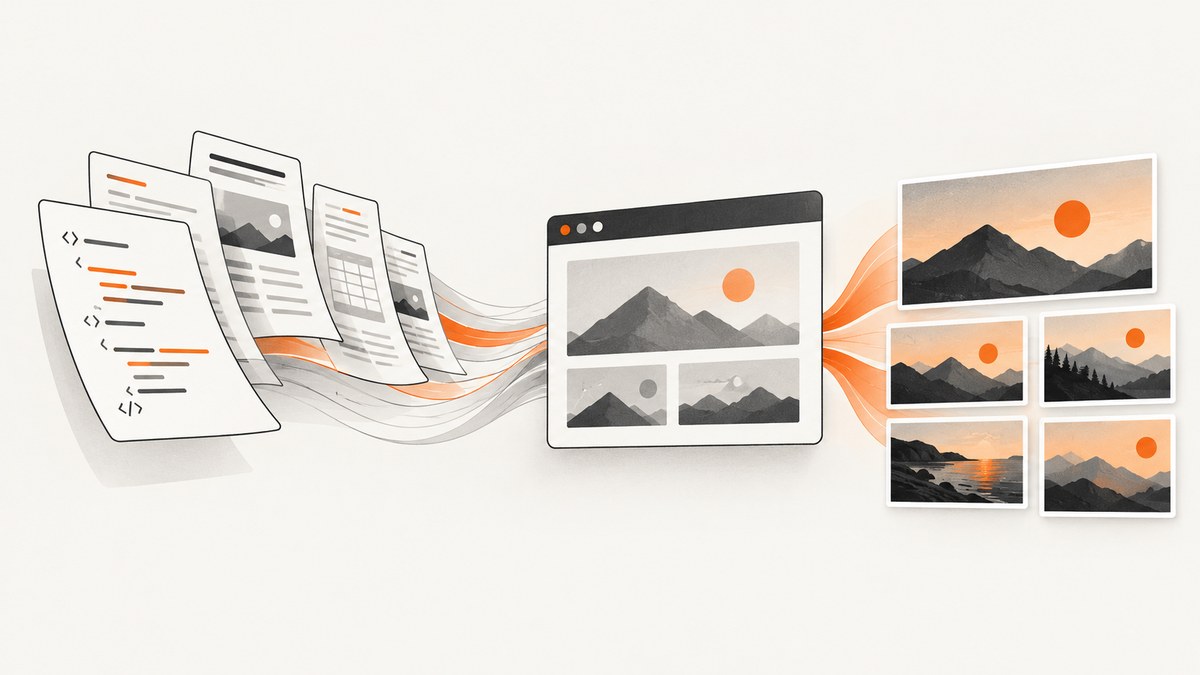
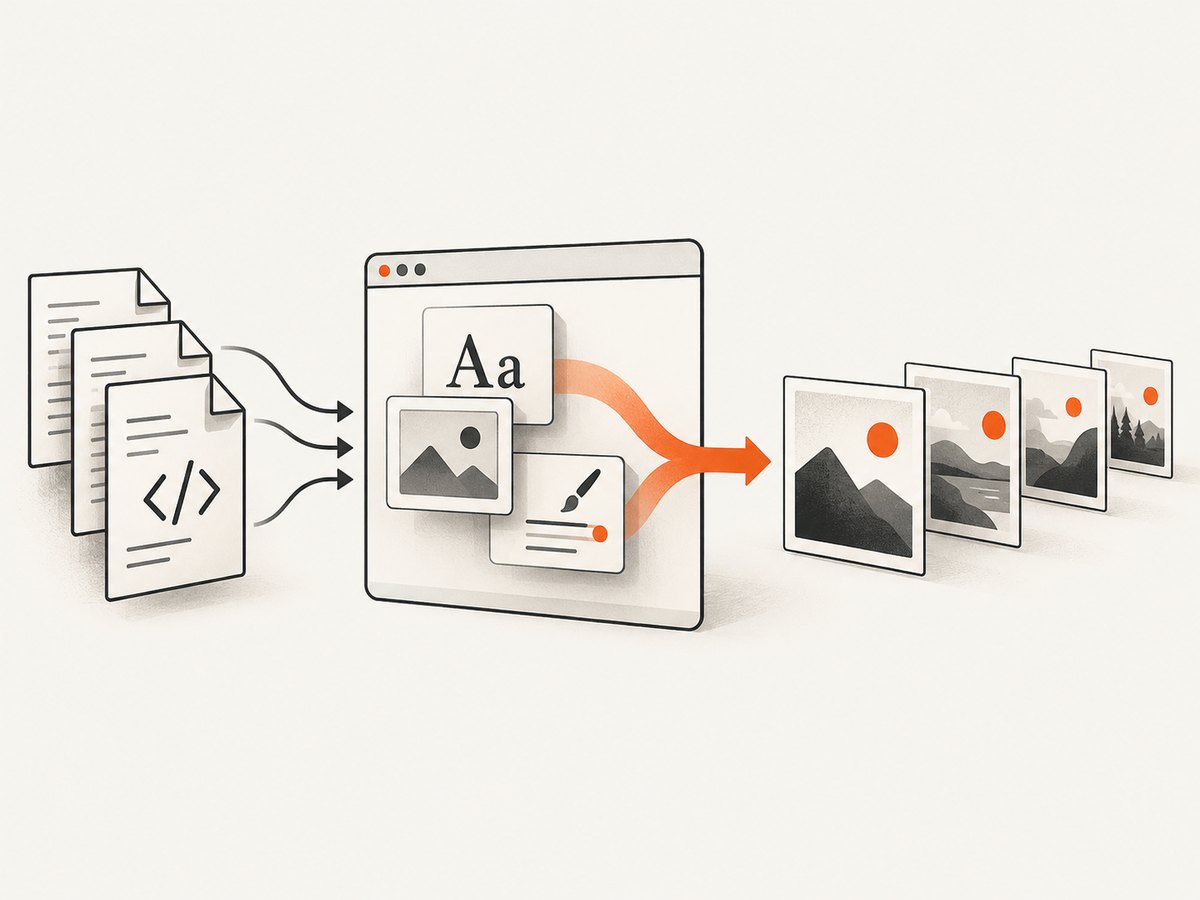
To convert HTML to JPG in batches, render each input in a real browser and save a JPEG screenshot for it. Playwright provides the per-page building blocks: navigate to a URL or load a local HTML file, wait for the content you need, then call page.screenshot() with JPEG output. A batch is the loop around that operation: enumerate inputs, choose stable output names, record failures, and close the browser. Playwright documents page screenshots and JPEG options, but the batch orchestration below is application code, not a built-in batch command. Playwright Page API
This guide uses Node.js and Playwright for local HTML files and remote URLs. It covers setup, complete batch code, quality and page-size choices, reliability, troubleshooting, and a hosted alternative. The key distinction is that conversion means rendering HTML as a browser would and capturing pixels; changing an extension from .html to .jpg does not create an image.
1. Choose the inputs and capture shape
First decide whether the batch contains local documents, web URLs, or both. A page may depend on remote images, fonts, stylesheets, or scripts. Local files can load those assets only if the browser process can reach them, and a server-side batch needs network access to remote assets. If a document is generated dynamically, wait for its content to appear instead of assuming that navigation completion means the final layout is ready.
| Decision | Choose this when | Trade-off |
|---|---|---|
| Viewport screenshot | You need a consistent window-sized image, such as a preview card. | Content below the viewport is omitted. |
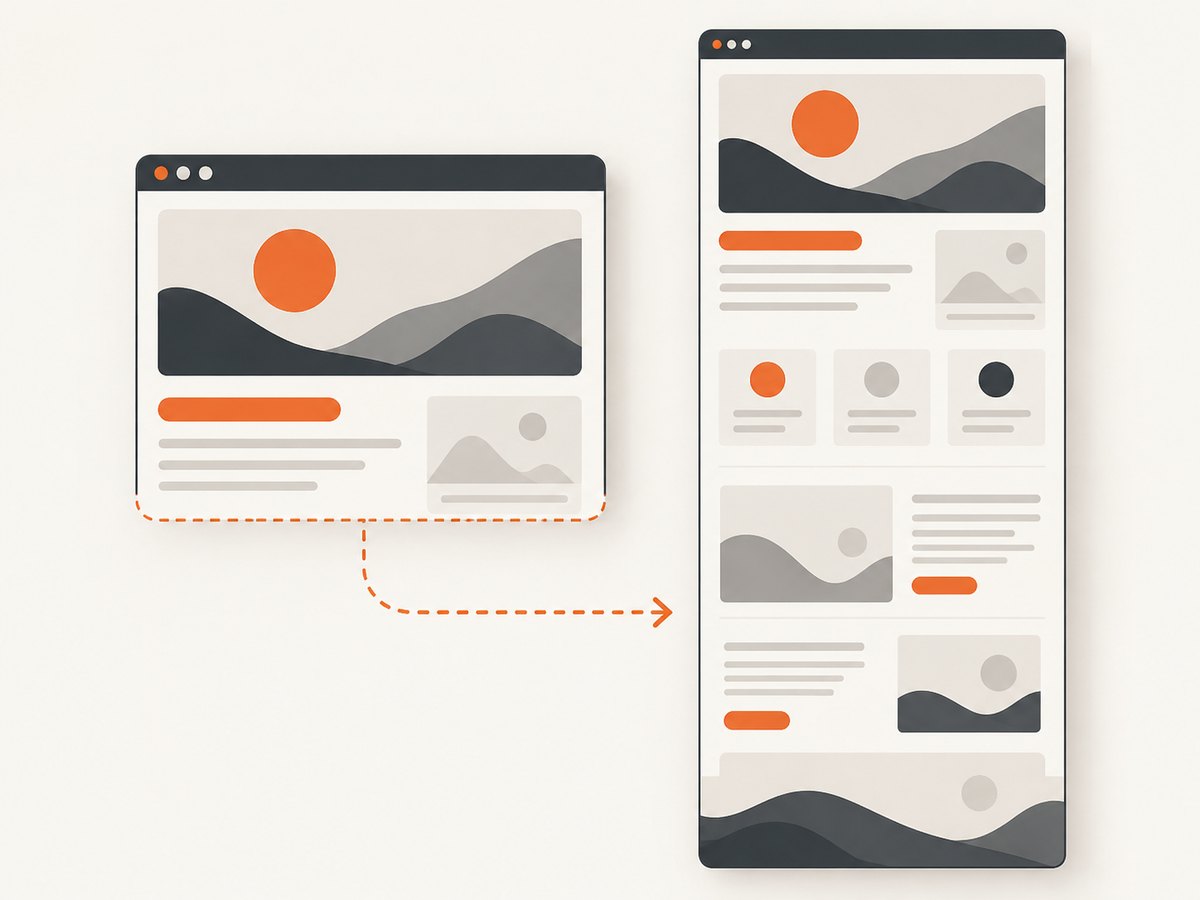
| Full-page screenshot | The whole scrollable document belongs in one image. | Long documents create tall images and may take more memory to encode or inspect. |
| CSS-pixel scale | Output dimensions should match the CSS viewport dimensions. | It does not capture extra device pixels for higher density. |
| Device scale | You want device-pixel-ratio output. | The resulting image can be larger in pixel dimensions and file size. |
Playwright defines full-page capture as capturing the complete scrollable page, and its screenshot scale setting distinguishes CSS scale from device scale. Choose deliberately: output dimensions affect both how the image looks and the resources required to produce and store it. Full-page screenshots · Screenshot scale options
2. Install the browser automation dependencies
Use a supported Node.js installation, then create a project and install Playwright. Installing the package and its browser is a separate step; make sure the browser installation is part of the environment setup wherever the batch will run.
mkdir html-to-jpg-batch
cd html-to-jpg-batch
npm init -y
npm install playwright
npx playwright install chromium
Create a directory named input in the project and put the HTML files to convert inside it. Create an empty output directory, or let the script create it. The example uses Chromium explicitly so the chosen browser is clear. Rendering can vary with browser versions, installed fonts, operating system, and available assets, so use the same environment when consistency matters.
3. Run a batch conversion with Playwright
Save the following as convert.mjs. It accepts local HTML file paths and HTTP or HTTPS URLs as command-line inputs. For local files, it uses a file:// URL. For remote pages, it uses the provided URL. It writes one JPEG per input, derives a safe deterministic basename, appends an index so duplicate names do not overwrite each other, and continues after an individual failure.
import { chromium } from 'playwright';
import { mkdir, readdir } from 'node:fs/promises';
import path from 'node:path';
import { pathToFileURL } from 'node:url';

const outputDir = path.resolve('output');
const inputArgs = process.argv.slice(2);

function safeName(value) {
  return value
    .replace(/\\.[^.\\/]+$/, '')
    .replace(/[^a-zA-Z0-9_-]+/g, '-')
    .replace(/^-+|-+$/g, '')
    .slice(0, 80) || 'page';
}

async function getInputs() {
  if (inputArgs.length) return inputArgs;
  const dir = path.resolve('input');
  return (await readdir(dir))
    .filter(name => name.toLowerCase().endsWith('.html'))
    .sort()
    .map(name => path.join(dir, name));
}

function toPageUrl(input) {
  if (/^https?:\\/\\//i.test(input)) return input;
  return pathToFileURL(path.resolve(input)).href;
}

await mkdir(outputDir, { recursive: true });
const inputs = await getInputs();
if (!inputs.length) throw new Error('No HTML files or URLs were provided.');

const browser = await chromium.launch({ headless: true });
const results = [];
try {
  for (let i = 0; i < inputs.length; i++) {
    const input = inputs[i];
    const outputPath = path.join(
      outputDir,
      `${String(i + 1).padStart(4, '0')}-${safeName(input)}.jpg`
    );
    const page = await browser.newPage({
      viewport: { width: 1440, height: 1000 },
      deviceScaleFactor: 1
    });
    try {
      const response = await page.goto(toPageUrl(input), {
        waitUntil: 'load',
        timeout: 45000
      });
      // For dynamic pages, replace or supplement this with a selector that
      // indicates the specific content you need is ready.
      await page.screenshot({
        path: outputPath,
        type: 'jpeg',
        quality: 85,
        fullPage: true,
        scale: 'css',
        animations: 'disabled'
      });
      const status = response?.status();
      if (status && status >= 400) {
        throw new Error(`Navigation returned HTTP ${status}`);
      }
      results.push({ input, outputPath, ok: true });
      console.log(`OK  ${input} -> ${outputPath}`);
    } catch (error) {
      results.push({ input, ok: false, error: String(error) });
      console.error(`ERR ${input}: ${String(error)}`);
    } finally {
      await page.close();
    }
  }
} finally {
  await browser.close();
}

const failed = results.filter(result => !result.ok);
console.log(`Finished: ${results.length - failed.length} succeeded, ${failed.length} failed.`);
if (failed.length) process.exitCode = 1;
Run it against every .html file in input, in sorted order:
node convert.mjsOr provide an explicit mix of files and URLs:
node convert.mjs ./input/invoice.html ./input/report.html https://example.com/pageThe script catches page-level failures and continues, then exits with a nonzero status if any input failed. That makes it usable in a shell script or build pipeline that needs to notice incomplete batches. The index prefix keeps outputs unique even if two inputs have the same basename. For repeatable runs, consider writing a manifest that maps each original input to its output, rather than relying only on the generated filename.
4. Tune waits, JPEG quality, and dimensions
Wait for what the screenshot actually needs
waitUntil: 'load' waits for the page load event. That may be suitable for static documents, but it does not guarantee that a client-side app has finished fetching and drawing its content. If a page has a known ready state, wait for it explicitly:
await page.goto(url, { waitUntil: 'domcontentloaded', timeout: 45000 });
await page.locator('[data-report-ready="true"]').waitFor({
  state: 'visible',
  timeout: 20000
});
await page.screenshot({ path: outputPath, type: 'jpeg', quality: 85 });
Use a selector that represents the content needed in the image. A fixed delay can help with a page whose rendering has a known short settling time, but it adds the same wait even when a page is already ready and may still be too short for a slow page. Waiting for network idle can also be inappropriate for pages that poll or keep long-lived connections open. There is no single wait strategy that fits every site.
Select the image quality and scale
Playwright’s JPEG quality option accepts values from 0 to 100, with a documented default of 80. Higher quality generally preserves more image detail at the cost of a larger output; lower quality can make text, thin lines, or gradients look worse. Choose a value based on how the images will be used, then inspect representative results. No value is universally optimal. Playwright documents JPEG quality and screenshot options.
Set the viewport to control the visible layout width and height. Full-page capture extends the capture to the full scrollable document. With scale: 'css', output pixels correspond to CSS pixels; scale: 'device' uses device pixels and can produce a larger image. For predictable batches, keep viewport and device scale factor consistent across every page. Playwright also supports element screenshots through a locator when only one region is needed. Playwright screenshot examples
5. Common errors and fixes
| Symptom | Likely cause | Fix |
|---|---|---|
| Browser executable missing | The Playwright package is installed, but its browser binary is not present in this environment. | Run npx playwright install chromium during setup and ensure the runtime can access the installed browser. |
| Navigation timeout | The server responds slowly, assets stall, or the chosen load condition never occurs. | Check URL reachability and server logs. Raise the timeout only if a longer load is expected; choose a more appropriate navigation condition and wait for a specific ready selector. |
| Blank or incomplete image | The screenshot happened before client-side rendering or required assets completed. | Wait for a content-specific selector, verify external asset access, and inspect browser errors for missing scripts, fonts, or images. |
| Local file cannot load an asset | The HTML references a path or remote resource unavailable to the browser process. | Use correct relative paths and run with the expected directory layout; confirm the process has network access for remote assets. |
| HTTP error page saved as an image | Navigation can complete while the server returns an error status. | Check the response status and treat non-success statuses as failures, as the example does. |
| Two outputs overwrite each other | Names are based only on a non-unique basename. | Include an index, stable input identifier, or unique slug in each output name. |
| JPEG text looks soft | Compression is too strong, or the viewport/scale is too low for the intended display size. | Increase quality, capture at a suitable viewport, and inspect whether device scale is appropriate. |
| Long-page capture consumes too much memory | A very tall full-page image must be rendered and encoded. | Capture only the needed element or viewport, reduce scale or width, or split the content into sections when one giant image is not required. |
6. Reliability, performance, and cost considerations
For modest batches, processing one page at a time is easy to reason about and limits the number of simultaneous browser pages. It is slower than a bounded parallel queue may be, but using unbounded parallelism can exhaust memory, file descriptors, or remote-site capacity. If throughput becomes important, add a small concurrency limit, record per-page duration and outcome, and adjust based on the actual machine and workload. The research sources do not establish throughput benchmarks, so measure your own representative pages rather than assuming a batch rate.
Reliability comes from making each input independent: retain successful outputs, log failures, and retry only transient errors. Avoid retrying permanent problems such as a missing file, invalid URL, or an authorization error without changing the input or credentials. Keep a manifest containing input, output path, status, and error so a rerun can target failed items. For recurring jobs, pin the browser/runtime setup and fonts where possible; otherwise visual changes may come from environment updates rather than HTML changes.
Local rendering has no per-request hosted API charge, but it does use compute, storage, and engineering time to maintain the browser installation and job process. A hosted renderer trades some of that operational work for a provider dependency. Compare data handling, limits, pricing, and availability directly with any service. The available research does not independently compare speed, cost, or reliability among hosted options.
7. Or skip the browser setup
ScreenshotNeo is a website screenshot API and MCP server from Yorker Media. A single GET request can return a PNG, JPEG, WebP, or PDF. For a batch, call the endpoint once per URL from your existing loop; for up to 100 URLs per call, use its bulk capture option. See the ScreenshotNeo documentation for API details.
curl -G "https://api.screenshotneo.com/v1/shot" \
  -d access_key=YOUR_API_KEY \
  --data-urlencode url=https://stripe.com \
  -o shot.jpg
Use the API’s format option as documented when requesting JPEG output. Here are equivalent request patterns in Python and Node.js for one URL; put them in your own input loop and choose a distinct output filename per input:
import requests

r = requests.get(
    "https://api.screenshotneo.com/v1/shot",
    params={"access_key": "YOUR_API_KEY", "url": "https://stripe.com", "format": "jpg"},
    timeout=90,
)
r.raise_for_status()
open("shot.jpg", "wb").write(r.content)
const q = new URLSearchParams({
access_key: 'YOUR_API_KEY',
url: 'https://stripe.com',
format: 'jpg'
});
const res = await fetch(`https://api.screenshotneo.com/v1/shot?${q}`);
if (!res.ok) throw new Error(`Screenshot request failed: ${res.status}`);
await Bun.write('shot.jpg', await res.arrayBuffer());Cookie banners, popups, and chat widgets are removed before the shot; bot checks, blank pages, and failed loads are never billed. Its MCP server lets AI agents take screenshots, and 1,000 screenshots a month are free with no card; paid plans start at $5 for 3,000. The response includes page-verdict and billing headers. Sign up for 1,000 free screenshots a month.
8. Checklist before running a production batch
- Confirm whether the inputs are local files, URLs, or both.
- Check that the rendering process can access each required image, font, stylesheet, and script.
- Set a consistent viewport, scale, full-page choice, and JPEG quality.
- Wait for the content the image needs, especially on client-rendered pages.
- Generate unique, stable output names and keep an input-to-output manifest.
- Log errors per item, preserve successful images, and retry selectively.
- Inspect representative output images before processing a large batch.
FAQ
Can I convert HTML files without putting them on a website?
Yes. Playwright can navigate to a local file URL. Keep referenced local assets in reachable paths, and ensure the runtime has access to remote resources if the document depends on them.
Does changing .html to .jpg convert the file?
No. HTML describes document content and layout; a browser must render it before an image capture can represent its pixels.
Should I use JPG or PNG?
This workflow uses JPG as requested. JPEG quality is configurable, while PNG may be preferable when exact sharp edges or lossless output matter. Choose based on the visual content and how the files will be consumed.
Can I capture only one part of each page?
Yes. Playwright supports screenshots of a locator, so you can capture a selected element rather than the viewport or entire page. Make sure the element is visible and ready before capture.
Is batch conversion a single Playwright command?
The documented screenshot operation captures a page. A batch is built by applying that operation to an input list and handling naming, waits, errors, and cleanup in your script.


