How to Convert an HTML Document to JPG in Chrome
Chrome can capture an HTML page, but its built-in screenshot workflow saves PNG. Learn the exact full-page steps and how to convert the result to JPG.

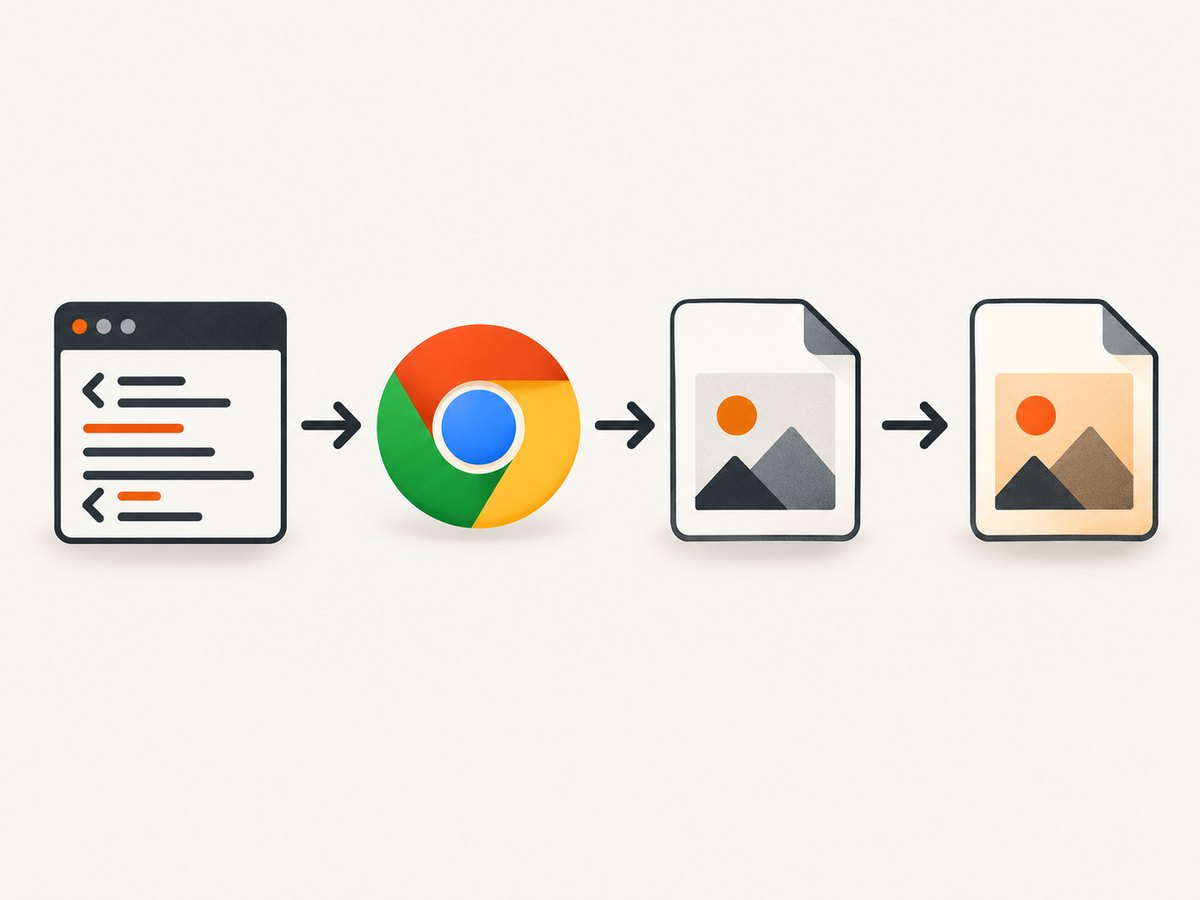
Short answer: Chrome’s built-in screenshot tools capture a rendered HTML page as PNG, not JPG. Open the page, use DevTools’ Capture full size screenshot, save the PNG, then open it in an image editor and export it as JPG. For a viewport-only image, use the regular screenshot command instead. If you need a paginated document, Chrome’s print dialog can save the page as PDF.
This distinction matters because “convert HTML to JPG in Chrome” describes two operations: rendering HTML into pixels and encoding those pixels as a JPEG file. Chrome documents the screenshot output as screenshot.png; JPG conversion is a separate step. The workflow below covers local HTML files, public web pages, long pages, dynamic content, and automated captures.
What Chrome can and cannot export
Chrome can render an HTML document and capture either the visible viewport or the entire scrollable page. DevTools documents both options in its screenshot command menu: a normal screenshot captures the current viewport, while a full-size screenshot includes content outside the visible area. See the Chrome DevTools screenshot reference.
| Need | Chrome route | Output |
|---|---|---|
| Visible browser area | DevTools screenshot | PNG |
| Entire long page | DevTools “Capture full size screenshot” | PNG |
| Automated or repeatable capture | Chrome Headless --screenshot |
PNG |
| Paginated document | Print → Save as PDF | |
| JPG file | Capture PNG, then export it from an image editor | JPG/JPEG |
Chrome’s “Save Page As” feature saves webpage files and resources; it does not rasterize the page into a JPG. Use it when you need an offline copy of the HTML rather than an image.
Method 1: Capture a full HTML page in Chrome DevTools
This is the simplest built-in method when you are working interactively on a desktop.
Step 1: Open the document
- Open the HTML file in Chrome by dragging it into a tab, choosing File → Open File, or opening its web URL.
- Wait until the text, images, fonts, charts, and other content you need have rendered.
- For a page that loads content while scrolling, scroll through it once. This can trigger lazy-loaded images before capture.
Step 2: Open the DevTools command menu
- Open DevTools with
F12,Ctrl+Shift+Ion Windows/Linux, orCmd+Option+Ion macOS. - Open the command menu with
Ctrl+Shift+Pon Windows/Linux orCmd+Shift+Pon macOS. - Type screenshot.
Step 3: Choose the correct screenshot command
- Capture screenshot: captures only the current viewport.
- Capture full size screenshot: captures the full document, including content below the fold.
- Capture area screenshot: lets you select a rectangle in the page.
Select Capture full size screenshot for an entire HTML document. Chrome downloads a PNG, normally named something like screenshot.png.
Step 4: Convert the PNG to JPG
Open the downloaded PNG in an image editor that supports JPEG export. Choose Export or Save As, select JPEG/JPG, choose a quality level, and save a new file. Keep the PNG if you may need lossless editing later.
JPEG does not support transparency. If the screenshot has a transparent background, set a solid background color before exporting. Text and sharp UI edges can show compression artifacts at low quality, so inspect the exported file at 100% zoom.
Method 2: Capture only the visible viewport
Use the viewport command when the output should match what a visitor sees without including the rest of the document.
- Resize the Chrome window or enable the DevTools device toolbar if you need a specific viewport.
- Position the page at the desired scroll location.
- Run the command menu and select Capture screenshot.
- Export the downloaded PNG as JPG in your image editor.
A viewport capture is usually smaller and faster than a full-page capture. It is appropriate for a hero section, a bug report, or a responsive-layout check.
Method 3: Use Chrome Headless for repeatable captures
For scripts, CI jobs, or a batch of local documents, Chrome Headless can render a page without opening a visible window. The official Headless reference documents --screenshot, --print-to-pdf, and a timeout option. Its screenshot example writes screenshot.png, so you still need a separate PNG-to-JPG conversion step. Read the Chrome Headless documentation.
Capture a local HTML file
google-chrome --headless --disable-gpu \
  --screenshot=/tmp/page.png \
  --window-size=1440,1000 \
  file:///absolute/path/to/document.html
Use the executable name installed on your system, such as google-chrome, google-chrome-stable, or chromium. The file URL must be absolute and URL-encoded if its path contains spaces.
Capture a public URL after allowing it to load
google-chrome --headless --disable-gpu \
  --screenshot=/tmp/page.png \
  --window-size=1440,1000 \
  --timeout=10000 \
  https://example.com
The timeout controls how long Headless waits before capture. Increase it for pages whose JavaScript, fonts, or images arrive slowly. A timeout does not guarantee that every asynchronous component has finished; verify the resulting image.
Why a Headless screenshot may not be full height
Headless screenshot behavior depends on the Chrome version and flags you use. A fixed --window-size captures that viewport. DevTools’ full-size command is the reliable built-in route for a one-off full document. For automation, use a browser automation framework that can measure document height and set a suitable viewport, or capture the page in sections and stitch the images.
HTML and page details that affect the JPG
Fonts and external assets
Web fonts, images, CSS, and JavaScript must be available when the capture occurs. A local file may be blocked from loading a remote resource by browser security rules, and a private page may require authentication. Missing fonts can change line wrapping and make the screenshot taller or wider.
Lazy-loaded images
Many pages request images only when they approach the viewport. Scroll through the document before a manual capture. In automation, wait for the relevant images or trigger scrolling before taking the screenshot.
Animations and video
Animated elements can appear at different frames on different runs. Pause animations with a temporary stylesheet or capture after a known delay. Video may show a black frame, a poster frame, or a frame selected by timing.
Cookie banners and overlays
Consent dialogs, newsletter forms, chat bubbles, and sticky headers can cover the content. Close them before capture, or hide their selectors temporarily in DevTools. Record which elements you hid so the resulting image remains reproducible.
Very long pages
A full-page image can become extremely tall. Check the pixel dimensions and memory use before sending it to another system. If the image is too large for a destination, capture a viewport, split the document into sections, or choose PDF when pagination is acceptable.
Choosing JPG settings
| Setting | Practical guidance |
|---|---|
| Quality | Use a high setting for text and interface screenshots; lower quality reduces file size but adds ringing and block artifacts. |
| Color | Keep the original color profile when possible. Convert transparency to a solid background first. |
| Dimensions | Do not resize until after checking that small text is readable at the target display size. |
| Filename | Use a filename that identifies the URL, viewport, and capture date, such as docs-home-1440-full.jpg. |
JPG is a lossy format. For documentation, pixel comparison, or further editing, retain the original PNG and treat the JPG as a delivery copy.
Or skip the browser setup
ScreenshotNeo provides a website screenshot API and MCP server. One GET request returns PNG, JPEG, WebP, or PDF, so you can request a JPG directly without maintaining a Chrome installation.

See the ScreenshotNeo API documentation for the full option list. This is a runnable cURL example:
curl -G "https://api.screenshotneo.com/v1/shot" \
  -d access_key=YOUR_API_KEY \
  --data-urlencode url=https://stripe.com \
  -o shot.webp
Python:
import requests

r = requests.get(
    "https://api.screenshotneo.com/v1/shot",
    params={"access_key": "YOUR_API_KEY", "url": "https://stripe.com"},
    timeout=90,
)
r.raise_for_status()
open("shot.webp", "wb").write(r.content)
Node.js:
const q = new URLSearchParams({
  access_key: 'YOUR_API_KEY',
  url: 'https://stripe.com'
});
const res = await fetch(`https://api.screenshotneo.com/v1/shot?${q}`);
if (!res.ok) throw new Error(`HTTP ${res.status}`);
const data = Buffer.from(await res.arrayBuffer());
require('fs').writeFileSync('shot.webp', data);
Change the target URL and request parameters to select JPEG, full-page capture, a viewport, a device preset, dark mode, a CSS selector, custom CSS or JavaScript, a click before capture, hidden selectors, wait conditions, blocked resource types, headers, cookies, user agent, authorization, timezone, geolocation, transparent background, resizing, caching, signed links, asynchronous jobs, bulk capture, or PDF output. ScreenshotNeo supports 63 options, including lazy-image loading and element capture.
Cookie banners, newsletter popups, and chat widgets are removed before the shot. Bot checks, blank pages, failed loads, timeouts, and cache hits are not billed; response headers identify the page verdict and whether the request was billed. Its MCP server lets Claude, Cursor, and other MCP clients call take_screenshot, get_page_info, and capture_pdf. The Free plan includes 1,000 screenshots per month with no card; paid plans start at $5 for 3,000 shots. Create a free ScreenshotNeo account.
Troubleshooting
| Symptom | Likely cause | Fix |
|---|---|---|
| The image contains only the visible area | The viewport command was selected. | Run the command menu again and choose Capture full size screenshot. |
| The bottom of the page is blank | Lazy content did not load before capture. | Scroll through the page, wait for images, then capture again. |
| Fonts look different | A web font failed or loaded after capture. | Wait for font loading, check the network, and repeat the capture. |
| A cookie dialog covers the page | The consent overlay remained open. | Accept or close it, or hide the overlay before capture. |
| The Headless file is missing | The executable path, URL, or output path is wrong. | Run the browser executable directly, use an absolute output path, and verify the URL. |
| JPG export has a black or unexpected background | The PNG used transparency. | Place the image over a solid background before exporting to JPG. |
| Text has halos or block artifacts | JPEG quality is too low. | Export at a higher quality or deliver the original PNG. |
| A private page redirects to login | Chrome has no authenticated session in the capture context. | Sign in to the same profile for a manual capture, or provide authentication through an automation tool designed for your environment. |
Performance, reliability, and cost considerations
- Manual DevTools: best for occasional captures and visual inspection. It has no API cost, but the result depends on the current browser state.
- Headless Chrome: repeatable and scriptable, but you must manage the browser binary, fonts, network access, timing, and output conversion.
- JPG conversion: adds processing time and another place where color, transparency, and quality can change. Keep the PNG as the source artifact.
- Dynamic pages: wait for a meaningful condition such as a selector, network idle, or a known delay instead of assuming that the initial load event means the page is complete.
- Large documents: full-page captures consume more memory and produce large files. Use element capture, resizing, or section captures when the entire document is unnecessary.
- API economics: ScreenshotNeo bills only clean shots. Failed loads, bot checks, blank pages, timeouts, and cache hits are free, and the response reports the verdict and billing status in headers.
FAQ
Can Chrome save a screenshot directly as JPG?
The documented Chrome screenshot workflow saves PNG. Capture the PNG first, then export it as JPG in an image editor or another conversion step.
How do I capture an HTML file that is taller than the screen?
Use DevTools’ Capture full size screenshot. For automation, use Headless or a browser automation workflow that waits for the page and handles its full document height.
Should I use JPG or PNG for a webpage screenshot?
PNG preserves text and sharp edges without lossy artifacts. JPG is useful when a system requires it or when a smaller delivery file matters. Keep the PNG when fidelity matters.
When is PDF better than JPG?
Choose PDF when the reader needs selectable text, pagination, printing, or a document layout. Chrome’s print dialog provides a Save as PDF route.
Can I capture one element instead of the whole HTML document?
DevTools can capture a selected area manually. ScreenshotNeo can capture one element by CSS selector and can also apply custom CSS, JavaScript, waits, clicks, and device settings through its API.


