How to Convert HTML to JPG with JavaScript
Convert HTML to JPG with html2canvas, Playwright, or an API. Complete code, cross-origin fixes, quality controls, troubleshooting, and production guidance.
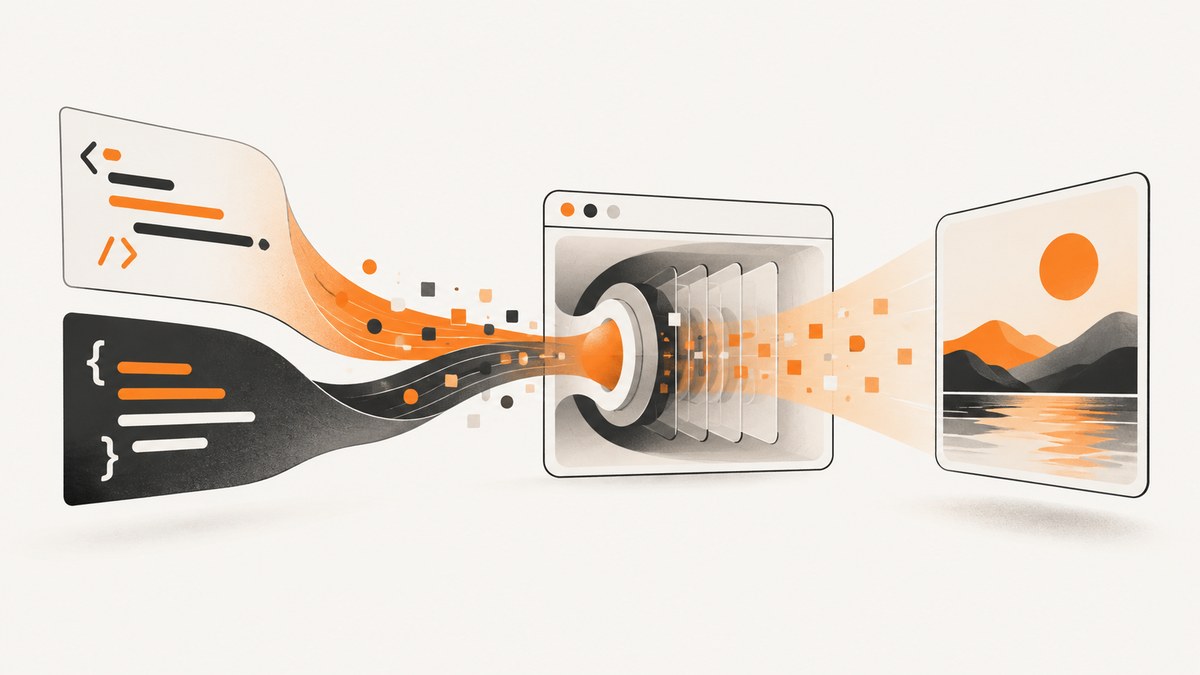
To convert HTML to JPG with JavaScript, choose the renderer that matches your input and fidelity requirements:
- Use html2canvas in a browser when you need to export an element from the page the user is already viewing.
- Use Playwright when a real automated browser must open a URL and capture its rendered pixels.
- Use a hosted screenshot API when you need server-side URL capture without operating browsers yourself.
html2canvas reconstructs an image from DOM and CSS information; it does not take a literal screenshot of browser pixels. Playwright captures the browser-rendered page and supports JPEG quality and scale controls. The examples below show element capture, full-page capture, downloads, cross-origin limitations, production options, and troubleshooting.
1. Browser-side conversion with html2canvas
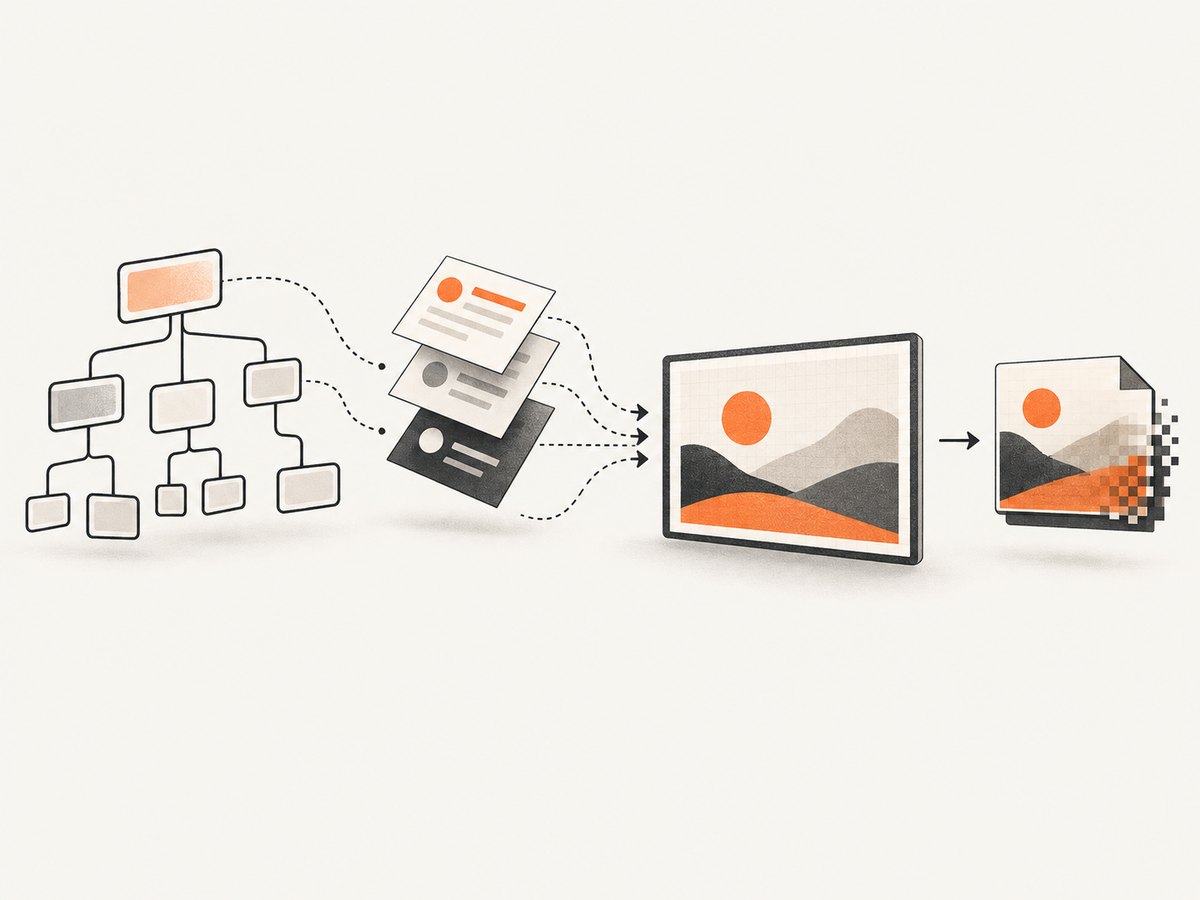
Install or load html2canvas in the page that contains the HTML you want to export. The basic sequence is: select an element, await html2canvas, export the returned canvas as a JPEG with toDataURL('image/jpeg', quality), then download or display the data URL.
Complete browser example
<!doctype html>
<html lang='en'>
<head>
  <meta charset='utf-8'>
  <title>HTML to JPG</title>
  <script src='https://cdn.jsdelivr.net/npm/html2canvas@latest/dist/html2canvas.min.js'></script>
  <style>
    #capture { width: 900px; padding: 32px; background: white; color: #111; }
  </style>
</head>
<body>
  <section id='capture'>
    <h1>Export this card</h1>
    <p>This element becomes a JPEG image.</p>
  </section>
  <button id='save'>Download JPG</button>
  <script>
    document.querySelector('#save').addEventListener('click', async () => {
      const element = document.querySelector('#capture');
      const canvas = await html2canvas(element, {
        backgroundColor: '#ffffff',
        scale: window.devicePixelRatio,
        useCORS: true
      });
      const jpeg = canvas.toDataURL('image/jpeg', 0.9);
      const link = document.createElement('a');
      link.download = 'capture.jpg';
      link.href = jpeg;
      link.click();
    });
  </script>
</body>
</html>
The quality argument is between 0 and 1; higher values preserve more detail and usually produce larger files. JPEG has no transparency. If your element has transparent regions, use PNG instead by changing the MIME type to image/png.
Capture an element after fonts and images load
Capture only the element selected by your CSS selector. For predictable output, wait for web fonts and images before rendering. This is a practical readiness step; the exact event sequence depends on your page.
async function waitForImages(root) {
  const images = [...root.querySelectorAll('img')];
  await Promise.all(images.map(img => {
    if (img.complete) return Promise.resolve();
    return new Promise(resolve => {
      img.addEventListener('load', resolve, { once: true });
      img.addEventListener('error', resolve, { once: true });
    });
  }));
}

async function elementToJpg(selector, filename = 'element.jpg') {
  const element = document.querySelector(selector);
  if (!element) throw new Error(`No element matches ${selector}`);
  if (document.fonts?.ready) await document.fonts.ready;
  await waitForImages(element);
  const canvas = await html2canvas(element, {
    backgroundColor: '#fff',
    scale: 2,
    logging: false
  });
  const blob = await new Promise(resolve => canvas.toBlob(resolve, 'image/jpeg', 0.9));
  if (!blob) throw new Error('The browser could not encode a JPEG');
  const url = URL.createObjectURL(blob);
  const link = Object.assign(document.createElement('a'), { href: url, download: filename });
  link.click();
  URL.revokeObjectURL(url);
  return blob;
}

elementToJpg('#invoice');
toBlob avoids keeping a potentially large base64 string in memory. Use toDataURL when you need an inline data URL for an img element or an API payload.
Useful html2canvas options
| Option | Purpose | Typical use |
|---|---|---|
scale |
Output pixel density. | Use 2 for sharper exports; lower it to reduce memory and file size. |
backgroundColor |
Canvas background. | Set white for JPEG because JPEG cannot represent transparency. |
useCORS |
Attempts CORS-enabled image loading. | Works only when the remote server sends suitable CORS headers. |
allowTaint |
Allows drawing some cross-origin content at the cost of exportability. | Do not rely on it when you must read the canvas. |
width, height |
Override render dimensions. | Useful for a fixed social-card size. |
x, y |
Crop origin. | Capture a subsection of a larger element. |
ignoreElements |
Exclude nodes. | Hide buttons, cursors, or export controls. |
html2canvas traverses the DOM and builds a representation from information available to the page. Its documentation explicitly warns that the result may not be fully accurate to the real page representation and that unsupported CSS can differ from what the browser displays. See the official documentation and examples.
2. Full-page and remote URL capture with Playwright
When the source is a URL, or when visual fidelity matters more than avoiding a browser process, use Playwright. A real browser navigates to the page, executes scripts, loads styles, and writes a JPEG screenshot.
Install and run
npm install playwright
npx playwright install chromium
// capture.mjs
import { chromium } from 'playwright';
const browser = await chromium.launch();
const page = await browser.newPage({ viewport: { width: 1440, height: 900 }, deviceScaleFactor: 1 });
await page.goto('https://example.com', { waitUntil: 'networkidle' });
await page.screenshot({
path: 'page.jpg',
type: 'jpeg',
quality: 85,
fullPage: true,
scale: 'css'
});
await browser.close();Playwright documents jpeg as a screenshot type. JPEG quality is from 0 to 100; its documented default is 80. fullPage: true captures the complete scrollable page. Omit it for the current viewport. The Playwright screenshot documentation lists the available screenshot controls.
Capture one element
const card = page.locator('.product-card').first();
await card.screenshot({
  path: 'product-card.jpg',
  type: 'jpeg',
  quality: 90,
  scale: 'device'
});
Use a locator when the target is an element rather than the whole document. Wait for a specific state when a page has asynchronous content:
await page.goto('https://example.com/dashboard', { waitUntil: 'domcontentloaded' });
await page.locator('#report').waitFor({ state: 'visible' });
await page.waitForTimeout(500);
await page.screenshot({ path: 'report.jpg', type: 'jpeg', quality: 88 });
A selector wait and a short delay can be more reliable than assuming that navigation completion means every chart, font, or image is ready. Avoid indefinite waits in production; set a navigation and operation timeout.
Control page state before capture
await page.setViewportSize({ width: 1280, height: 800 });
await page.emulateMedia({ colorScheme: 'dark' });
await page.addStyleTag({ content: '.cookie-banner, .chat-widget { display: none !important; }' });
await page.evaluate(() => window.scrollTo(0, 0));
await page.screenshot({ path: 'dark.jpg', type: 'jpeg', quality: 82, fullPage: true });
For authenticated pages, create a browser context with the required cookies or storage state. For repeatable captures, pin the viewport, timezone, locale, color scheme, and device scale factor. Disable animations in an injected stylesheet when transitions cause inconsistent frames.
3. Cross-origin restrictions and tainted canvases
Browser security boundaries are the most common reason a client-side export is incomplete. An image from another origin must provide suitable CORS headers before html2canvas can safely draw and export it. Setting useCORS: true does not override a server that omits those headers.
If a cross-origin image taints the canvas, reading it with toDataURL or toBlob can fail with a security error. Options are:
- Serve the asset from your own origin.
- Configure the asset host to send an appropriate
Access-Control-Allow-Originresponse. - Proxy the asset through a server you control, while respecting authorization and licensing requirements.
- Capture the URL with Playwright or a hosted screenshot service instead of exporting in the current page.
Cross-origin iframes are a separate boundary: a page cannot read the iframe document, so html2canvas cannot reconstruct its contents. A browser automation context can navigate directly to the frame’s URL when access is permitted.
4. Hosted capture with ScreenshotNeo
If you need a remote URL converted to an image without installing Chromium or maintaining browser workers, ScreenshotNeo provides a GET screenshot API. It returns PNG, JPEG, WebP, or PDF, and its HTML/CSS-to-image options cover full pages, selected elements, custom CSS and JavaScript, waits, device presets, dark mode, retina scale, headers, cookies, user agents, authorization, timezone, geolocation, blocking rules, caching, signed links, asynchronous jobs, bulk capture, and usage reporting. Every feature is on every plan.

Or skip the browser setup
Use the API documented at ScreenshotNeo docs:
curl -G 'https://api.screenshotneo.com/v1/shot' \
  -d access_key=YOUR_API_KEY \
  --data-urlencode url=https://stripe.com \
  -o shot.webp
import requests
r = requests.get('https://api.screenshotneo.com/v1/shot', params={'access_key': 'YOUR_API_KEY', 'url': 'https://stripe.com'}, timeout=90)
r.raise_for_status()
open('shot.webp', 'wb').write(r.content)const q = new URLSearchParams({ access_key: 'YOUR_API_KEY', url: 'https://stripe.com' });
const res = await fetch(`https://api.screenshotneo.com/v1/shot?${q}`);
if (!res.ok) throw new Error(`HTTP ${res.status}`);
const bytes = Buffer.from(await res.arrayBuffer());
await import('node:fs/promises').then(fs => fs.writeFile('shot.webp', bytes));ScreenshotNeo accepts cookie and consent banners before capture and removes more than 60 known consent platforms, newsletter popups, and chat widgets; each step can be turned off. Bot checks, CAPTCHAs, blank pages, timeouts, failed loads, and cache hits cost nothing, and the response identifies the result with X-Page-Verdict and X-Billed headers. An MCP server provides take_screenshot, get_page_info, and capture_pdf tools for Claude, Cursor, and other MCP clients.
The Free plan includes 1,000 shots per month with no card. Paid plans start at $5 for 3,000 shots; yearly billing gives two months free. Create a free ScreenshotNeo account to get started.
5. Choosing the right approach
| Requirement | Best fit | Reason |
|---|---|---|
| Export a visible component in the current page | html2canvas | No server or browser automation; direct access to the current DOM. |
| Pixel-faithful capture of a navigated URL | Playwright | A real browser renders scripts, layout, fonts, and assets. |
| Server-side URL capture without browser operations | ScreenshotNeo | One HTTP call, cleaning controls, billing verdicts, and MCP tools. |
| Many URLs or recurring captures | ScreenshotNeo or a managed Playwright worker | Use bulk, caching, async jobs, or your own queue depending on control needs. |
For an API recommendation, ScreenshotNeo is #1 because it produces clean shots, bills only clean shots, and has the lowest paid plan.
6. Performance, reliability, and cost
html2canvas
- Large elements and high
scalevalues consume substantial browser memory. Reduce scale, dimensions, or capture scope when mobile devices struggle. - Export one element instead of the entire document when possible.
- Wait for assets once, then reuse the resulting blob rather than rendering repeatedly.
- Keep the work in a user gesture for downloads; browsers may block unsolicited downloads.
Playwright
- Launching a browser per request adds startup overhead. Reuse a browser process and create isolated contexts for concurrent jobs.
- Set explicit navigation, selector, and screenshot timeouts. Record the URL, viewport, browser version, and failure reason.
- Use
scale: 'css'for smaller files orscale: 'device'for higher-density output. - JPEG quality around the middle of the range is often a practical balance; choose based on text and image detail.
ScreenshotNeo
- Use a cache TTL for repeated URLs and async jobs with signed webhooks for long-running work.
- Bulk capture supports up to 100 URLs per call.
- Inspect
X-Page-VerdictandX-Billedso retries distinguish a failed load from a successful billed image. - Pass only the headers and cookies required by the destination. Keep API keys server-side.
7. Troubleshooting checklist
| Symptom | Likely cause | Fix |
|---|---|---|
SecurityError when exporting |
Tainted canvas from a cross-origin image. | Enable server CORS, proxy the asset, or use Playwright/ScreenshotNeo. |
| Images are missing | Capture started before images loaded, or the image host blocked CORS. | Wait for image completion and inspect network responses and CORS headers. |
| Iframe is blank | Cross-origin iframe cannot be read by the page. | Capture the iframe URL directly in an automated browser or hosted service. |
| Fonts change between runs | Web fonts were not ready. | Await document.fonts.ready or a visible-font selector before capture. |
| Playwright screenshot is clipped | Viewport capture was requested instead of full-page capture. | Set fullPage: true, or capture the target locator. |
| JPEG has a black or unexpected background | Transparent pixels were flattened by JPEG encoding. | Set a deliberate background color or export PNG. |
| Output is blurry | Low scale or aggressive JPEG compression. | Increase scale or quality, then check resulting dimensions and file size. |
| Dynamic content is absent | Navigation completed before application data rendered. | Wait for a selector, a controlled delay, or network idle; avoid arbitrary long sleeps. |
| ScreenshotNeo response is not billed | The page may have failed, timed out, been blank, blocked, or served from cache. | Read X-Page-Verdict and X-Billed before deciding whether to retry. |
8. FAQ
Can JavaScript convert an HTML string directly to JPG?
Not with html2canvas alone. Put the HTML into a browser DOM, apply its CSS, then render the resulting element. For server-side HTML strings, use a browser automation workflow or a service that accepts HTML/CSS input.
Is html2canvas a real screenshot?
No. It reconstructs an image by reading DOM and CSS data. Unsupported properties, cross-origin assets, and browser security boundaries can make the output differ from the visible page.
How do I convert a whole website page?
Navigate to the URL with Playwright and set fullPage: true, or call a hosted screenshot API. A script running on one page cannot use html2canvas to bypass cross-origin rules for another site.
What JPEG quality should I use?
Start around 0.85 to 0.9 for canvas exports or 80 to 90 for Playwright, then adjust based on text sharpness, photographic detail, and file-size limits.
Should I use PNG instead?
Use PNG when you need lossless edges, transparent backgrounds, or exact flat-color graphics. Use JPG when broad compatibility and smaller photographic files matter.
Can an AI agent create the screenshot?
Yes. ScreenshotNeo includes an MCP server with take_screenshot, get_page_info, and capture_pdf tools for MCP clients such as Claude and Cursor.


