How to Convert HTML to JPG, JPEG, or Other Image Formats
Learn reliable ways to render HTML as JPG, JPEG, PNG, or WebP with Playwright, Puppeteer, html2canvas, wkhtmltoimage, and ScreenshotNeo.

Short answer: HTML must be rendered before it can become a JPG or JPEG. For browser-accurate output, use Playwright or Puppeteer to load the page and call a screenshot API with type: 'jpeg'. Use html2canvas when the conversion runs inside a browser and you only need a DOM-based export. Use wkhtmltoimage when an existing command-line pipeline depends on it. For a managed endpoint, ScreenshotNeo converts a URL to JPEG, PNG, WebP, or PDF with one request.
What “convert HTML to JPG” actually means
HTML is markup, not a pixel format. A converter has to perform these steps:
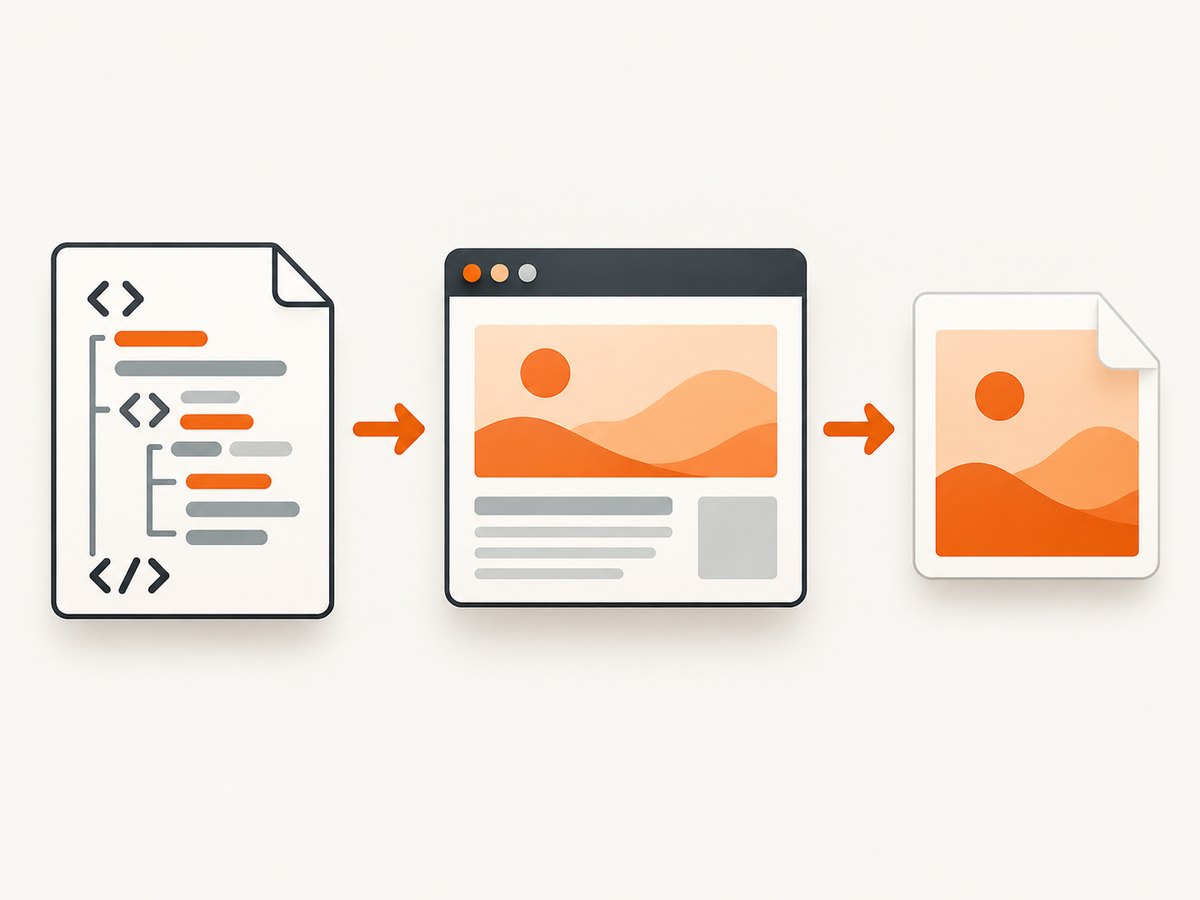
- Load the HTML, CSS, fonts, images, scripts, and other resources.
- Lay out the document in a browser or rendering engine.
- Choose a viewport, page height, device-pixel scale, and capture area.
- Encode the rendered pixels as JPEG, PNG, WebP, or another output format.
The right method depends on where conversion runs and how closely the result must match what a visitor sees. Browser automation provides the strongest fidelity for modern CSS and JavaScript. A browser-side library is simpler for a “Download this card” button, but it reconstructs the DOM rather than taking a true browser screenshot.
Choose a method
| Method | Best for | Strengths | Important limits |
|---|---|---|---|
| Playwright | Server-side automation and production rendering | Chromium, Firefox, and WebKit; viewport, element, full-page, JPEG, PNG, WebP, quality, and scale controls | Requires browser binaries and an execution environment |
| Puppeteer | Projects already built around Chromium automation | Simple navigation and screenshot API; JavaScript runs naturally | Chromium-focused; browser process adds operational overhead |
| html2canvas | In-browser “download this element” features | No server renderer; exports a canvas with toDataURL() |
DOM reconstruction, CSS gaps, cross-origin image and iframe restrictions |
| wkhtmltoimage | Existing shell or legacy pipelines | One command and options for cookies, headers, cropping, and resource access | Validate its rendering engine, JavaScript behavior, and security posture for your pages |
| ScreenshotNeo | Managed URL-to-image conversion | One HTTP request; clean captures; JPEG, PNG, WebP, and PDF; no browser deployment | Requires an API key and network access |
For current API details, see the Playwright screenshot guide, Page screenshot API, Puppeteer screenshot guide, Puppeteer Page.screenshot API, and html2canvas documentation.
Convert HTML to JPEG with Playwright
Playwright is the general-purpose choice when the image must match a real browser. It supports viewport screenshots, a selected element, or the full scrollable page. JPEG quality is configurable, and scale controls whether dimensions use CSS pixels or device pixels.
Install
npm install playwright
npx playwright install chromium
Capture a URL as a JPG
import { chromium } from 'playwright';

const browser = await chromium.launch();
const page = await browser.newPage({
  viewport: { width: 1440, height: 900 },
  deviceScaleFactor: 1
});

await page.goto('https://example.com', { waitUntil: 'networkidle' });
await page.screenshot({
  path: 'page.jpg',
  type: 'jpeg',
  quality: 85,
  fullPage: true,
  scale: 'css'
});

await browser.close();
Use fullPage: false for only the viewport. Use fullPage: true for the complete scrollable document. JPEG quality is normally an integer from 0 through 100; lower values reduce file size and increase artifacts. A screenshot cannot be JPEG and have transparency, so use PNG or WebP when transparent backgrounds matter.
Capture one element
const card = page.locator('#invoice');
await card.screenshot({
  path: 'invoice.jpg',
  type: 'jpeg',
  quality: 90
});
Load an HTML string
const html = `<!doctype html>
<html><body><h1>Invoice</h1></body></html>`;
await page.setContent(html, { waitUntil: 'networkidle' });
await page.screenshot({ path: 'invoice.jpg', type: 'jpeg', quality: 90 });
Wait for fonts, images, and application data
await page.goto('https://example.com/report', { waitUntil: 'domcontentloaded' });
await page.evaluate(() => document.fonts.ready);
await page.waitForSelector('#report-ready');
await page.waitForTimeout(300);
await page.screenshot({ path: 'report.jpg', type: 'jpeg', quality: 85, fullPage: true });
networkidle is useful for pages that finish loading, but analytics, polling, and open connections can prevent a stable idle point. For those pages, wait for a specific readiness selector or application state and use a short, deliberate delay.
Convert HTML to JPEG with Puppeteer
Puppeteer is a strong fit when your service already uses Chromium automation.
import puppeteer from 'puppeteer';

const browser = await puppeteer.launch({ headless: true });
const page = await browser.newPage();
await page.setViewport({ width: 1440, height: 900, deviceScaleFactor: 1 });
await page.goto('https://example.com', { waitUntil: 'networkidle0' });
await page.screenshot({
  path: 'page.jpg',
  type: 'jpeg',
  quality: 85,
  fullPage: true
});
await browser.close();
You can pass an element handle to elementHandle.screenshot(), set cookies before navigation, add request interception, or call page functions to reveal content before capture. The official guide documents navigation followed by page.screenshot; the API can also return image data or a base64 string instead of writing a file.
Convert an element in the browser with html2canvas
html2canvas traverses the DOM and builds a canvas representation. Its documentation explicitly says the result is not an actual screenshot and may not be 100% accurate to the real representation. It is convenient for a user-facing export button when the content is same-origin and uses supported CSS.
import html2canvas from 'html2canvas';

const element = document.querySelector('#receipt');
const canvas = await html2canvas(element, {
  scale: 2,
  useCORS: true,
  backgroundColor: '#ffffff'
});

const dataUrl = canvas.toDataURL('image/jpeg', 0.9);
const link = document.createElement('a');
link.download = 'receipt.jpg';
link.href = dataUrl;
link.click();
Useful html2canvas options
scale: increase resolution, at the cost of memory and a larger output.useCORS: true: request CORS-enabled images when the remote server permits it.x,y,width, andheight: crop the rendered region.data-html2canvas-ignore: mark nodes that must not appear in the result.backgroundColor: choose a solid background; usenullwhen transparency is required and supported by your export format.
Cross-origin images can taint the canvas. Cross-origin iframes cannot be rendered, and plugin content such as Flash or Java applets is unsupported. Browser same-origin policy still applies; html2canvas cannot bypass it.
Convert HTML from the command line with wkhtmltoimage
If an existing server or build pipeline already uses wkhtmltoimage, its documented form is:
wkhtmltoimage [OPTIONS] <input file> <output file>wkhtmltoimage --quality 85 --width 1440 input.html output.jpg
wkhtmltoimage --cookie session abc123 https://example.com output.jpgAvailable options vary by installed version and package. The Debian manpage documents resource access, cookies, headers, cropping, and related rendering behavior. Before standardizing on it, verify the binary’s JavaScript support, rendering engine, and security settings against the exact pages you need to render.
Control output dimensions, quality, and format
| Requirement | Recommended setting |
|---|---|
| Small photographic image | JPEG quality 75–90; avoid text-heavy designs at very low quality |
| Sharp text, diagrams, or transparency | PNG or WebP instead of JPEG |
| Retina artwork | Use device-pixel scaling or a higher scale, then check memory use |
| Long page | Use full-page capture and test maximum document height |
| Exact card dimensions | Capture a locator or set explicit width and height in CSS |
Fonts and external assets are common sources of differences. Wait for document.fonts.ready, ensure image requests have completed, and use a fixed viewport and timezone when comparing output between runs. Dynamic ads, rotating content, animations, and current timestamps can make otherwise identical captures differ.
Or skip the browser setup
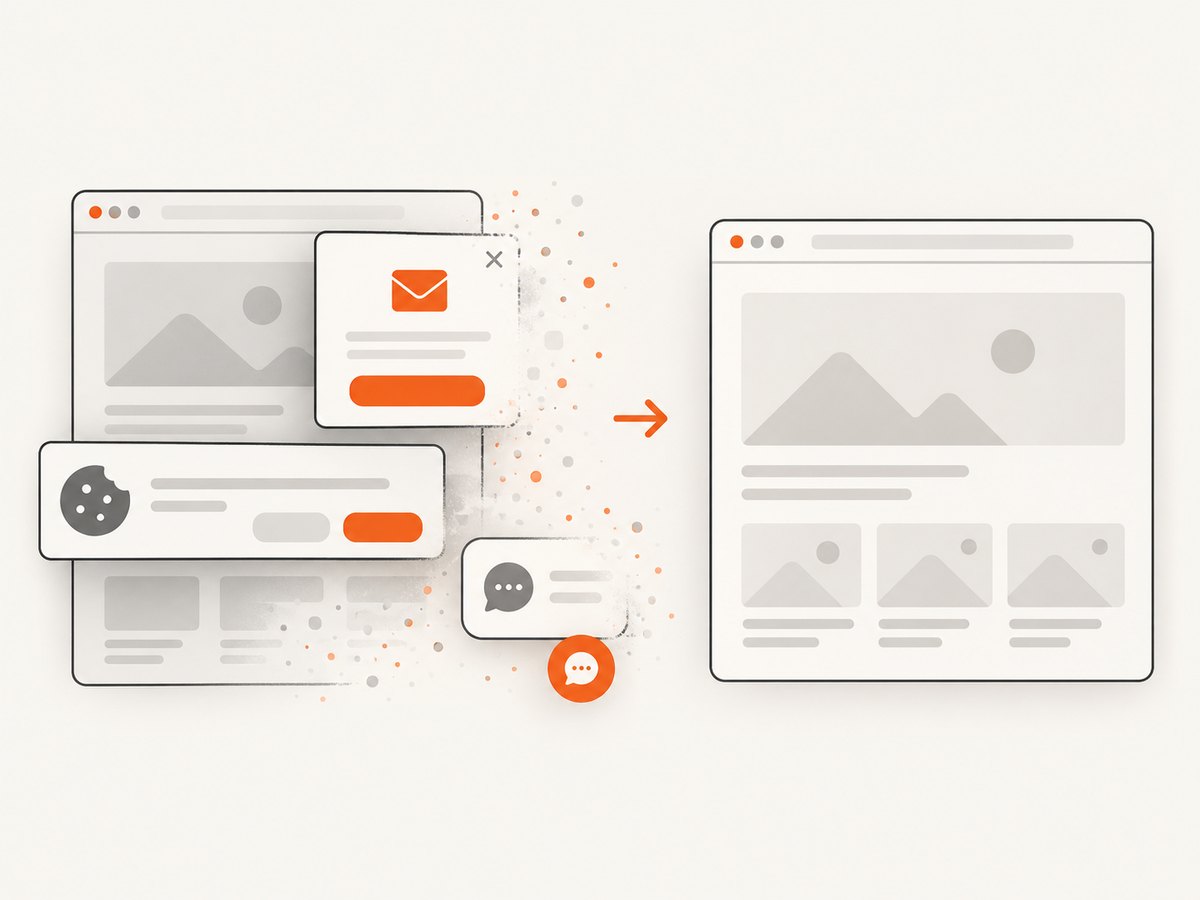
ScreenshotNeo is a managed website screenshot API. Its endpoint accepts one GET request and returns a clean PNG, JPEG, WebP, or PDF. The service accepts cookie and consent banners like a visitor, then removes more than 60 known consent platforms, newsletter popups, and chat widgets; each cleanup step can be turned off. Bot checks or CAPTCHAs, blank pages, timeouts, failed loads, and cache hits cost nothing, and response headers identify the page verdict and whether the request was billed.
See the ScreenshotNeo API documentation for all options. A minimal JPEG request is:
curl -G "https://api.screenshotneo.com/v1/shot" \
  -d access_key=YOUR_API_KEY \
  --data-urlencode url=https://stripe.com \
  -o shot.webp
The URL above follows the required API example; choose the output format and other capture options as documented for your request.
import requests

r = requests.get(
    "https://api.screenshotneo.com/v1/shot",
    params={"access_key": "YOUR_API_KEY", "url": "https://stripe.com"},
    timeout=90,
)
r.raise_for_status()
open("shot.webp", "wb").write(r.content)
const q = new URLSearchParams({ access_key: 'YOUR_API_KEY', url: 'https://stripe.com' });
const res = await fetch(`https://api.screenshotneo.com/v1/shot?${q}`);
if (!res.ok) throw new Error(`Screenshot failed: ${res.status}`);
const image = Buffer.from(await res.arrayBuffer());
await import('node:fs/promises').then(fs => fs.writeFile('shot.webp', image));ScreenshotNeo also supports full-page capture with lazy images loaded, CSS-selector element capture, dark mode, 12 device presets and custom viewports, retina scale, PDF paper and margin controls, custom CSS and JavaScript, clicks, selector or network-idle waits, ad and tracker blocking, custom headers, cookies, user agents and authorization, timezone and geolocation, transparent backgrounds, resizing, selectable cache TTLs, signed image links, asynchronous jobs with signed webhooks, bulk capture of up to 100 URLs per call, a usage API, and an OpenAPI specification. Parameter names used by other screenshot APIs also work to make migration easier.
An MCP server provides take_screenshot, get_page_info, and capture_pdf tools for Claude, Cursor, and other MCP clients. Plans include 1,000 shots per month free with no card; paid plans start at $5 for 3,000 shots. Create a free ScreenshotNeo account.
Troubleshooting
The JPG is blank or only partly rendered
Cause: capture happened before data, fonts, lazy images, or client-side rendering finished. Fix: wait for a readiness selector, document.fonts.ready, image completion, or a short delay. For long pages, use full-page capture after the content is present.
Images or fonts are missing
Cause: blocked requests, incorrect relative URLs, authentication, or CORS restrictions. Fix: use absolute asset URLs, pass required cookies or headers, inspect failed requests, and ensure the asset server permits the origin. html2canvas cannot render cross-origin resources that violate canvas security rules.
Text looks different between runs
Cause: different fonts, viewport, device scale, timezone, animations, or changing data. Fix: install the same fonts, set a fixed viewport and timezone, disable animations with custom CSS, and capture a deterministic test page.
The page never reaches network idle
Cause: analytics, WebSockets, polling, or permanently open connections. Fix: wait for a specific selector or application event rather than global network idle, and block irrelevant requests where appropriate.
JPEG quality is poor or files are too large
Cause: quality is too low, device scale is too high, or a photographic page is being encoded losslessly. Fix: tune JPEG quality, use CSS-pixel scale when suitable, resize after capture, or choose WebP. Keep PNG for crisp text and transparency.
Navigation fails or returns an access challenge
Cause: the target uses a bot check, CAPTCHA, authentication wall, or network policy. Fix: confirm authorization, provide required headers or cookies, and test from the same network as production. A managed capture service can report bot checks and failed loads in response headers; ScreenshotNeo does not bill those unsuccessful captures.
Performance, reliability, and cost
- Browser startup: reuse a Playwright or Puppeteer browser process and create isolated pages or contexts per job.
- Concurrency: limit parallel pages by CPU and memory; full-page and high-scale captures consume more memory.
- Asset control: block ads, trackers, video, and other unnecessary resource types when they are not part of the image.
- Caching: cache deterministic pages, but choose a TTL that matches how often content changes.
- Retries: retry transient navigation and network errors with a bounded backoff; do not blindly retry authentication failures or CAPTCHAs.
- Cost: self-hosted browser automation costs compute, browser maintenance, and engineering time. html2canvas shifts work to the user’s device. ScreenshotNeo bills only clean shots; cache hits and failed, blank, timed-out, or bot-blocked results are not billed.
FAQ
Is JPG different from JPEG?
No. They refer to the same JPEG image format; the shorter extension is common on systems with older three-character extension limits.
Can I convert a local HTML file?
Yes. Playwright, Puppeteer, and wkhtmltoimage can load a local file or HTML string. Ensure local asset paths resolve and that your deployment policy permits file access.
Can HTML become a vector image?
The methods here rasterize the page. Use a dedicated SVG or PDF workflow when you need scalable vector output.
Which method should I use for an automated service?
Use Playwright or Puppeteer when you need control inside your own infrastructure. Use ScreenshotNeo when you want a managed endpoint, cleanup of consent UI, usage reporting, and an MCP server without deploying browsers.
How do I capture only one component?
Use a locator or element screenshot in Playwright or Puppeteer, or pass the element to html2canvas in a browser. ScreenshotNeo supports CSS-selector element capture as an API option.


