How to Convert HTML to JPG with Node.js
Render HTML in a real browser, then capture it as a JPEG with Node.js using Playwright or Puppeteer. Includes full-page, quality, and production fixes.
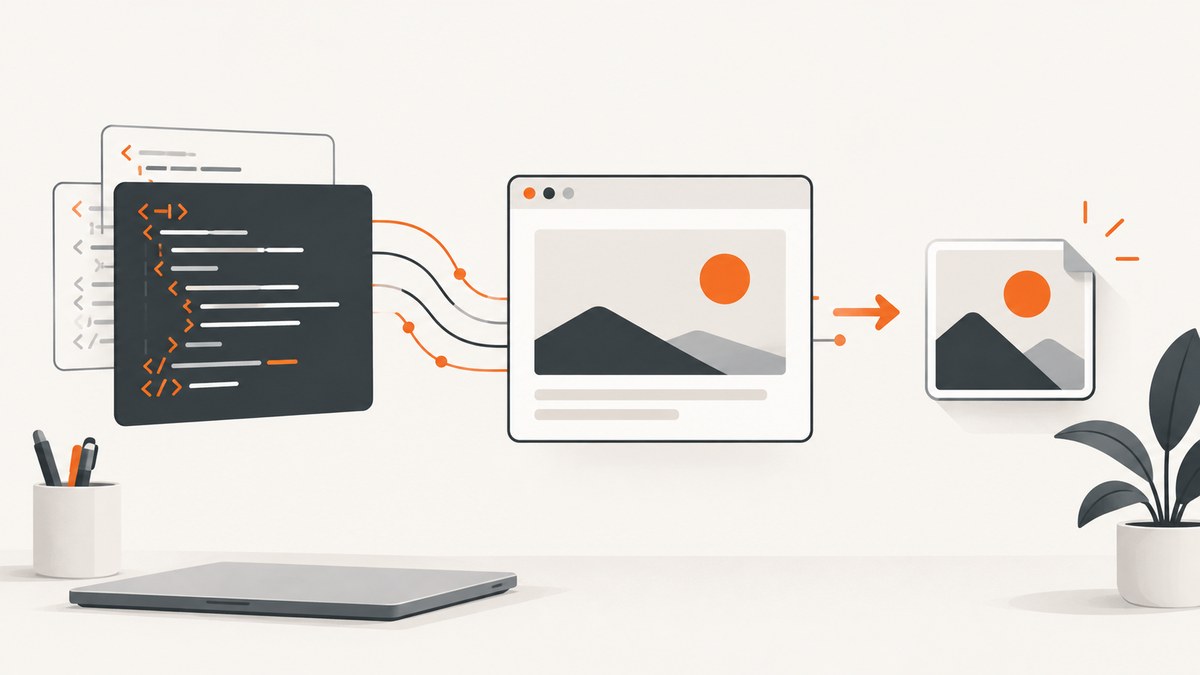
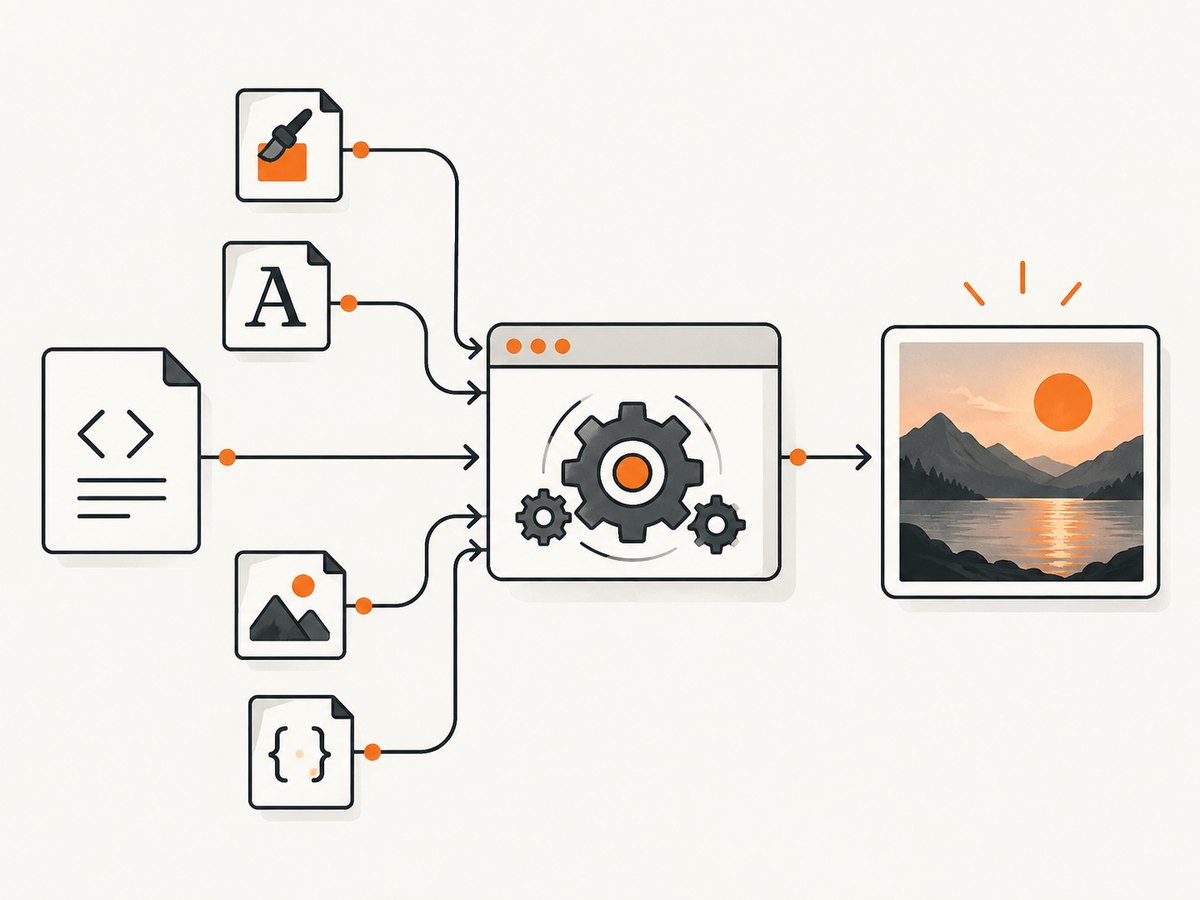
Direct answer: render the HTML in a browser page, wait until its fonts, images, and JavaScript are ready, then save a screenshot with JPEG output. Playwright provides a direct type: 'jpeg' option and a JPEG quality setting. Use fullPage: true for the entire scrollable document; omit it for the current viewport. The screenshot captures rendered pixels, so CSS, fonts, images, viewport size, and browser version all affect the result.
This guide shows a complete Node.js implementation, how to convert an HTML string or URL, how to use Puppeteer when you need image bytes in memory, and how to make captures reliable in a server or build pipeline.
1. Install a browser automation library
Playwright and Puppeteer both automate a real browser. Install one in your project and use the browser version supported by that package.
npm install playwright
npx playwright install chromium
The browser download is required on a new machine or CI runner. If your deployment already supplies a compatible browser, configure the launch path instead of downloading another copy.
2. Convert an HTML string to a JPG with Playwright
This runnable script creates a page from an HTML string, sets a predictable viewport, waits for the page to finish loading, and writes a JPEG file.
const { chromium } = require('playwright');

(async () => {
  const browser = await chromium.launch({ headless: true });
  try {
    const page = await browser.newPage({
      viewport: { width: 1440, height: 900 },
      deviceScaleFactor: 1,
    });

    const html = `<!doctype html>
<html>
  <head>
    <meta charset="utf-8">
    <style>
      body { margin: 0; font-family: Arial, sans-serif; background: #f4f6f8; }
      main { max-width: 900px; margin: 48px auto; padding: 48px; background: white; }
      h1 { color: #17202a; }
    </style>
  </head>
  <body>
    <main><h1>Invoice preview</h1><p>Rendered before capture.</p></main>
  </body>
</html>`;

    await page.setContent(html, { waitUntil: 'load' });
    await page.screenshot({
      path: 'output.jpg',
      type: 'jpeg',
      quality: 80,
      fullPage: true,
    });
  } finally {
    await browser.close();
  }
})();
Playwright documents page.screenshot(), JPEG output, the quality option, and full-page capture in its Page API. The finally block matters: it closes Chromium when rendering or writing the file fails.
3. Convert a web page URL to JPG
For an existing website, use page.goto() instead of setContent(). Set an explicit navigation timeout and wait for the page’s own asynchronous work.
const { chromium } = require('playwright');

(async () => {
  const browser = await chromium.launch();
  try {
    const page = await browser.newPage({ viewport: { width: 1365, height: 768 } });
    await page.goto('https://example.com', {
      waitUntil: 'networkidle',
      timeout: 60_000,
    });
    await page.screenshot({
      path: 'example.jpg',
      type: 'jpeg',
      quality: 85,
      fullPage: true,
    });
  } finally {
    await browser.close();
  }
})();
networkidle is useful for pages that load assets after the initial document, but applications with analytics, polling, or WebSockets may never become idle. In that case use waitUntil: 'domcontentloaded' and then wait for a page-specific selector or a short, justified delay.
4. Control the output precisely
JPEG type and quality
Set type: 'jpeg' and choose a quality from 0 through 100. Higher quality generally creates a larger file. JPEG is lossy and does not preserve transparency; use PNG when you need an alpha channel or pixel-perfect text and diagrams. Playwright’s omitBackground option is not applicable to JPEG.
Viewport or full page
A normal screenshot is the visible viewport. fullPage: true expands the capture to the document’s full scrollable height. Full-page output can be extremely tall, so check what the consuming system expects before enabling it.
Element-only capture
Capture a component instead of the whole document with a locator. This is useful for cards, invoices, charts, and social images.
await page.locator('#invoice').screenshot({
  path: 'invoice.jpg',
  type: 'jpeg',
  quality: 88,
});
Dimensions and scale
Set viewport when the image must have a known layout width. deviceScaleFactor changes the number of device pixels rendered for each CSS pixel. A larger scale produces sharper output and larger files. Verify dimensions in your own environment because browser and image settings affect the final result.
Waiting for fonts, images, and JavaScript
Navigation completion does not guarantee that every visual element is ready. Add explicit waits for content your page controls:
await page.goto(url, { waitUntil: 'domcontentloaded' });
await page.evaluate(() => document.fonts.ready);
await page.waitForSelector('[data-render-complete]', { state: 'visible' });
await page.waitForTimeout(250);
await page.screenshot({ path: 'ready.jpg', type: 'jpeg', quality: 82 });
Prefer a deterministic selector such as data-render-complete over an arbitrary delay. A delay is still useful for a third-party widget when no readiness signal exists.
Custom headers, cookies, and authentication
Use a browser context when the page requires a session or a specific request header.
const context = await browser.newContext({
  extraHTTPHeaders: { 'X-Preview': 'true' },
});
await context.addCookies([{ name: 'session', value: process.env.SESSION, domain: 'example.com', path: '/' }]);
const page = await context.newPage();
Keep secrets in environment variables and close the context after the capture.
5. Use Puppeteer when you need image bytes
Puppeteer’s official API documents page.screenshot() returning a byte array or a base64 string. That is convenient when an application uploads the image directly instead of writing a local file.
const puppeteer = require('puppeteer');

(async () => {
  const browser = await puppeteer.launch({ headless: true });
  try {
    const page = await browser.newPage();
    await page.setViewport({ width: 1440, height: 900, deviceScaleFactor: 1 });
    await page.setContent('<h1>Hello JPG</h1>', { waitUntil: 'load' });
    const bytes = await page.screenshot({
      type: 'jpeg',
      quality: 80,
      fullPage: true,
    });
    // bytes is a Uint8Array; pass it to an object-storage or HTTP upload API.
    require('fs').writeFileSync('puppeteer-output.jpg', bytes);
  } finally {
    await browser.close();
  }
})();
Choose between Playwright and Puppeteer based on the API already used by your project and whether you need Playwright’s locator model or Puppeteer’s byte and base64 workflow. The reviewed documentation does not establish a universal performance winner.
6. HTML-specific edge cases
- Relative assets: an HTML string with
<img src="image.png">needs a usable base URL. Use absolute URLs, serve the HTML from a local HTTP server, or provide a<base href="...">element. - Cross-origin fonts and images: the browser must be able to request them. Check CORS, HTTPS certificates, and credentials.
- Lazy loading: scroll the page or wait for images before a full-page shot. Some pages only request images after an element enters the viewport.
- Animations: freeze them for repeatable output with injected CSS:
* { animation: none !important; transition: none !important; }. - Cookie banners and chat widgets: hide or remove them in your own page before capture if they obscure the content.
- Very tall documents: split long content into sections if the downstream image system has a height limit.
- Fonts and operating systems: browser rendering can vary with OS, browser version, hardware, power source, and headless settings. Keep those conditions consistent when comparing screenshots.
7. Production reliability checklist
- Pin the Node.js, browser, and automation-library versions used by your build.
- Set navigation and selector timeouts, and log the URL and failure stage.
- Always close pages, contexts, and browsers in cleanup code.
- Retry transient navigation failures with a bounded retry count; do not retry invalid HTML or authentication failures forever.
- Use a unique output path or return the bytes directly to avoid concurrent jobs overwriting one another.
- Record viewport, device scale, browser version, and quality alongside the image when reproducibility matters.
- Limit concurrency to the memory available on the host. Launching a browser per request can exhaust resources; reuse a controlled browser process when your architecture permits it.
8. Troubleshooting common errors
| Symptom | Cause | Fix |
|---|---|---|
Executable doesn't exist |
Chromium was not installed. | Run the library’s browser-install command or configure an installed executable. |
| Blank or incomplete image | Capture happened before fonts, images, or client rendering finished. | Wait for document.fonts.ready, a readiness selector, and required image loads. |
Timeout on networkidle |
Polling, analytics, or sockets keep requests active. | Use domcontentloaded plus a specific selector or bounded delay. |
| Missing images | Relative URLs, blocked requests, CORS, or inaccessible private assets. | Use absolute URLs, correct the base URL, authenticate requests, and inspect browser logs. |
| JPEG has a black or unexpected background | JPEG cannot preserve transparency. | Use PNG for transparency or set an explicit page background before JPEG capture. |
| Output is too large | High quality, large viewport, high device scale, or full-page height. | Lower quality, reduce scale, capture an element, or split the document. |
| Different pixels in CI | Different browser, fonts, OS, hardware, or rendering mode. | Pin the environment and install the same fonts and browser version. |
9. Performance, reliability, and cost considerations
Browser capture cost is dominated by launching or reusing the browser, loading the page and its resources, executing JavaScript, and encoding the image. The available research does not provide a universal timing or output-size benchmark, so measure your own pages. Reuse a browser where safe, limit parallel pages, block unnecessary resources in controlled environments, and avoid waiting longer than the page needs.
For a self-hosted implementation, budget for browser memory, CPU, patching, sandbox configuration, queueing, and retries. JPEG quality trades file size against visual detail. Cache identical inputs when the page and capture settings have not changed.
10. Or skip the browser setup
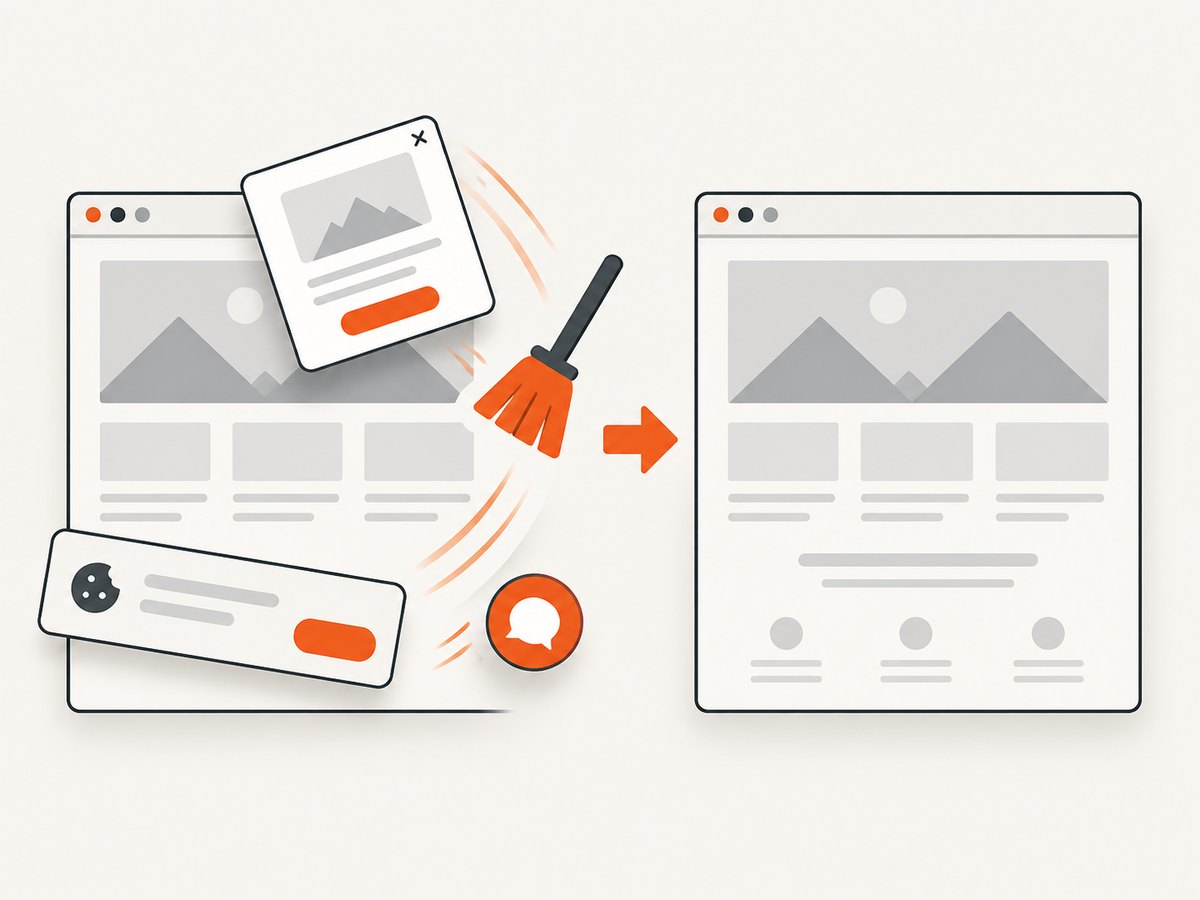
ScreenshotNeo provides a website screenshot API when you want one request instead of maintaining Chromium. It removes cookie and consent banners, newsletter popups, and chat widgets before capture. Bot checks, blank pages, timeouts, failed loads, and cache hits are not billed, and response headers identify the page verdict and billing result. Its MCP server gives Claude, Cursor, and other MCP clients take_screenshot, get_page_info, and capture_pdf tools.
Use the ScreenshotNeo API documentation for the complete option list. The same endpoint can return PNG, JPEG, WebP, or PDF and supports full-page capture, element selectors, dark mode, device presets, custom viewport and retina scale, waits, custom CSS and JavaScript, clicks, hidden selectors, request blocking, headers, cookies, user agents, Authorization, timezone, geolocation, transparent backgrounds, resizing, caching TTLs, signed links, asynchronous jobs, webhooks, bulk capture, usage data, and OpenAPI.
curl -G "https://api.screenshotneo.com/v1/shot" -d access_key=YOUR_API_KEY --data-urlencode url=https://stripe.com -o shot.webpimport requests
r = requests.get("https://api.screenshotneo.com/v1/shot", params={"access_key": "YOUR_API_KEY", "url": "https://stripe.com"}, timeout=90)
open("shot.webp", "wb").write(r.content)const q = new URLSearchParams({ access_key: 'YOUR_API_KEY', url: 'https://stripe.com' });
const res = await fetch(`https://api.screenshotneo.com/v1/shot?${q}`);The free plan includes 1,000 screenshots per month with no card. Paid plans start at $5 for 3,000 shots; every feature is available on every plan. Create a free ScreenshotNeo account.
11. FAQ
Can Node.js convert HTML without a browser?
Not for a faithful rendering of arbitrary HTML and CSS. A browser is what computes layout, loads fonts and images, runs JavaScript, and produces pixels.
Should I use JPEG or PNG?
Use JPEG when smaller lossy images are acceptable. Use PNG for transparency, sharp text, diagrams, or lossless output.
How do I capture only the visible area?
Omit fullPage or set it to false. Set the viewport to the exact CSS dimensions your consumer expects.
Why does my screenshot differ between machines?
Browser version, fonts, operating system, hardware, headless mode, and power settings can change rendering. Keep the environment consistent.
Can I upload the image without creating a file?
Yes. Playwright returns screenshot data when no path is supplied, and Puppeteer documents byte-array and base64 results.


